
How to Create a New Customer for E-Commerce
All the product information captured in SnapTracker is stored at the customer level. It is important to always select the appropriate Customer Number, usually appears at the top right of the SnapTracker interfaces.
This tutorial post explains how to create a new customer for E-Commerce in SnapTracker.
Step-by-step instruction
From the main navigation bar on the left, select Setup, Customer Setup.
The Customer Setup screen displays.
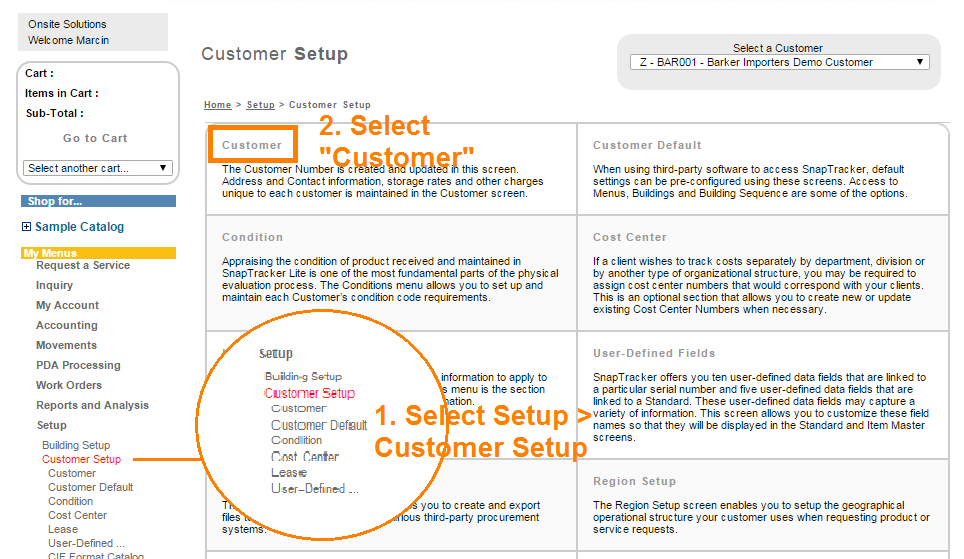
Select Customer.
The Customer screen displays.
Here is where you can create a new Customer.
From the Select a Company drop-down selection box, select the company code (link to read “how to create a company in SnapTracker”) under which you would like to create a new customer.
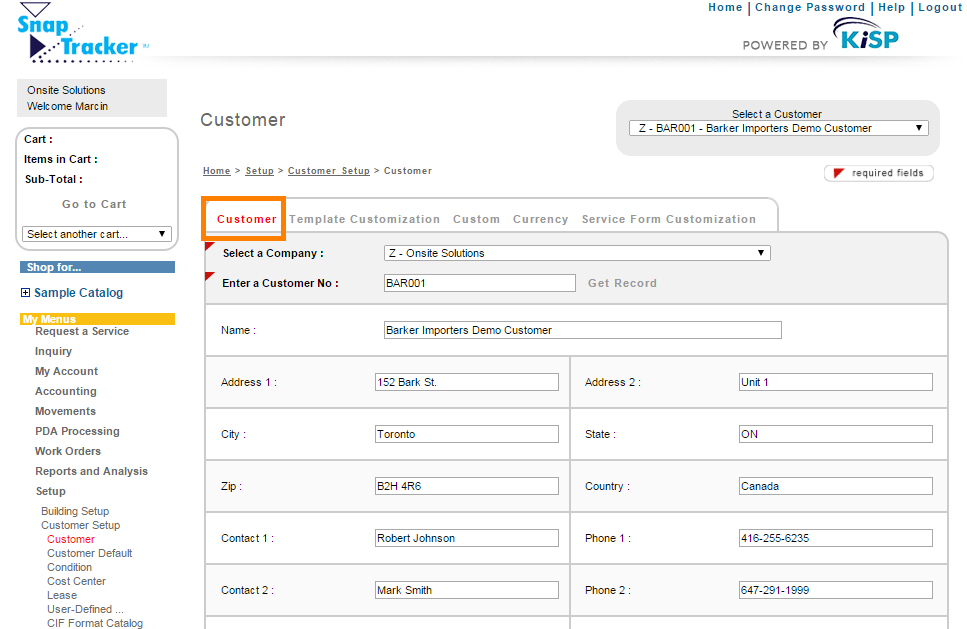
Type in the Customer Number you wish to create in the Enter a Customer No. box. It is recommended that the Customer Numbers be a minimum of at least six alphanumeric characters with no spaces. An example of a good Customer Number is BAR001.
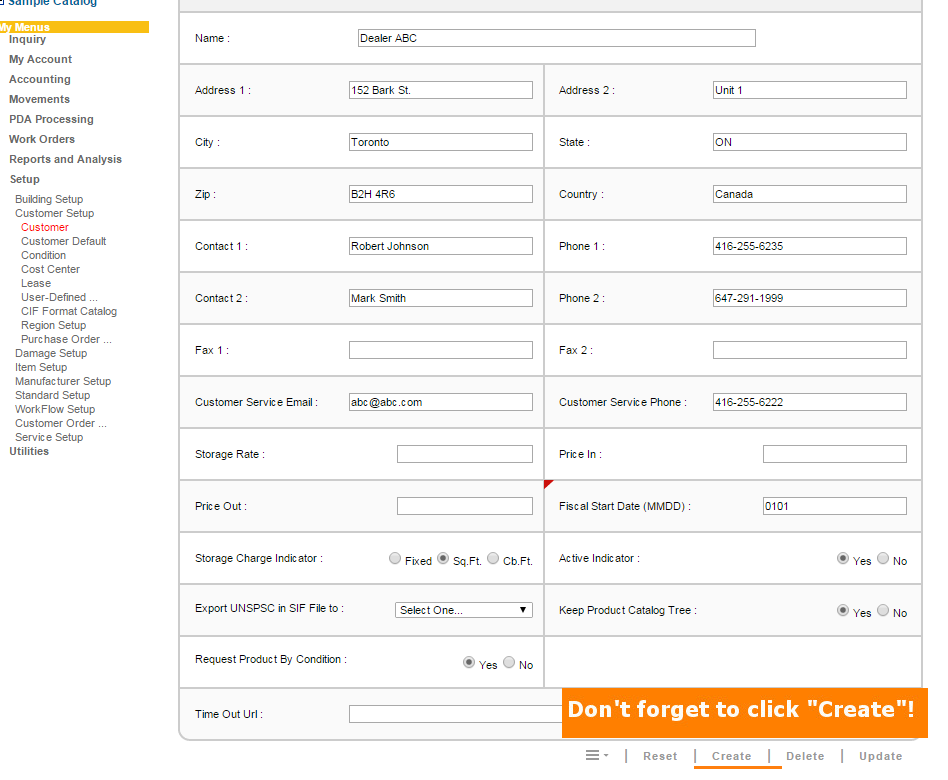
Enter the basic information of your customer using the fields below, such as Name, Address and Customer Service Email.
Enter the customer’s fiscal start date in MMDD format in the Fiscal Start Date field.
Click Create at the bottom of the page.
The Customer is created.
Tips
Customer numbers must be unique and should be easily decipherable. It is recommended that the customer numbers be a minimum of at least six alphanumeric characters with no spaces.
For example, use the first three letters of the customer’s name followed by a three-digit number. Increment the numbers by at least five, allowing space for inserting new numbers. For example, ACM005 or BBC070.
Did you know?
Once the customer is created, you can proceed to set up the Customer for Shopping.