How to Use Inquiry – Work Orders
The Inquiry section is used to search for different information related to product in SnapTracker. Work Order Inquiry is specifically designed to enable you to search for and view all information related to work orders for Customers, one Customer at a time.
Work orders are documents outlining a list of product or services that needs to be pulled from the common pool of assets for a proposed project.
You can search for work orders filtering the results by work order number, by Standard or by work order ticket (WOT). You are also able to filter the work order results by work order status.
You can print a summary report or a detailed report of the work orders. If you have access to creating work orders, WOTs or processing tickets, you can access from the screen.
The Inquiry screen is intended to help you quickly find all work orders available for a Customer.
Before starting, make sure:
- You are logged into SnapTracker.
- You have at minimum one work order created.
- The correct Customer is selected from the Customer selection list.
- You have access to Work Order Inquiry.
This post outlines the process of inquiring for orders using the Inquiry – Work Order screen.
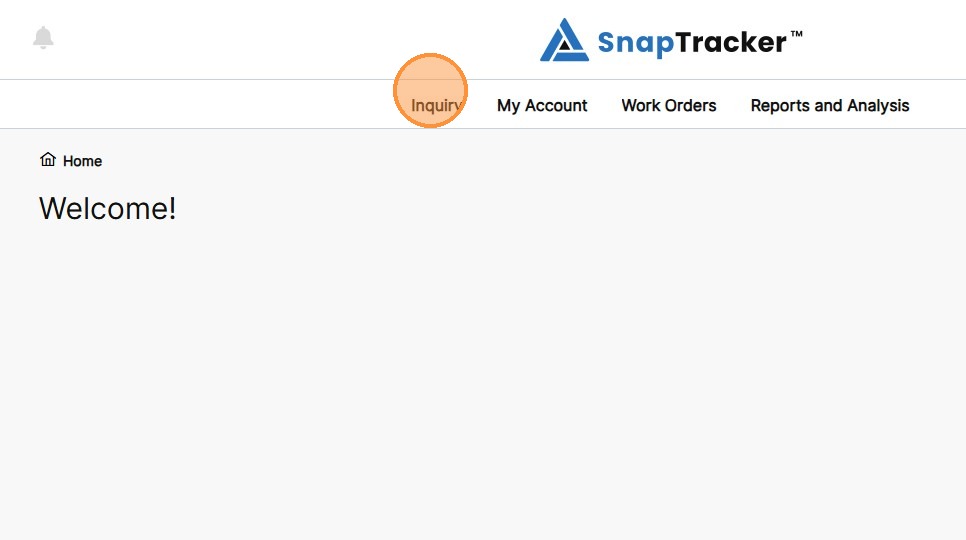
1. In the header section, click Inquiry.
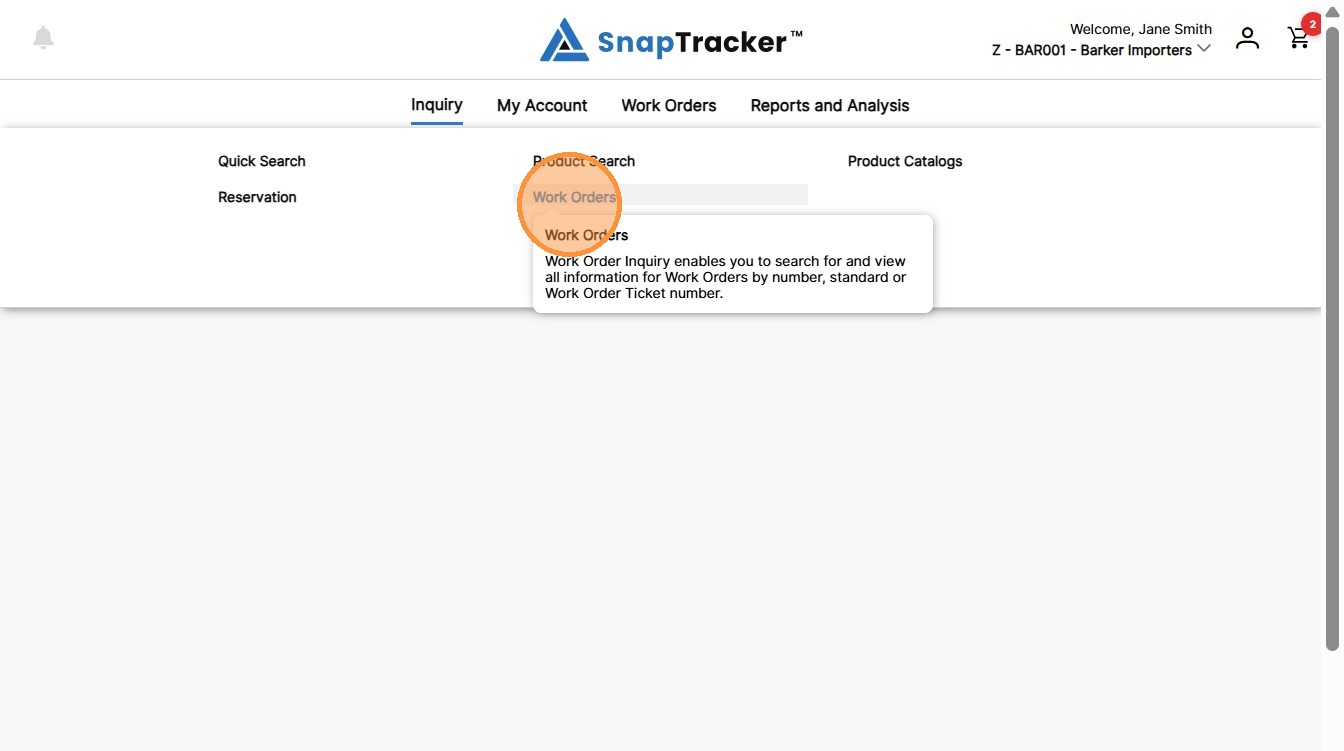
2. Click Work Orders.
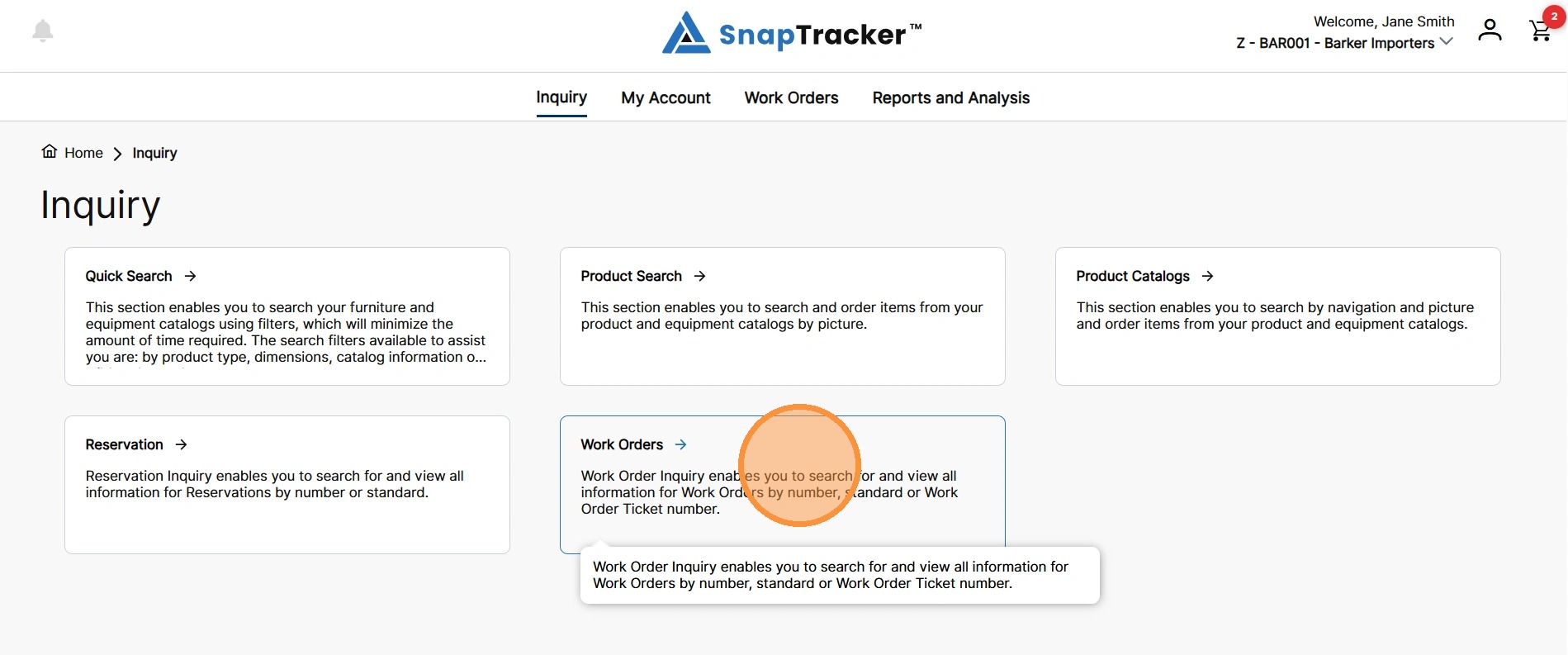
Another way to access the Inquiry Work Order screen is to navigate to the Inquiry main screen.
From here, select Work Orders.
The Work Order Inquiry screen displays.
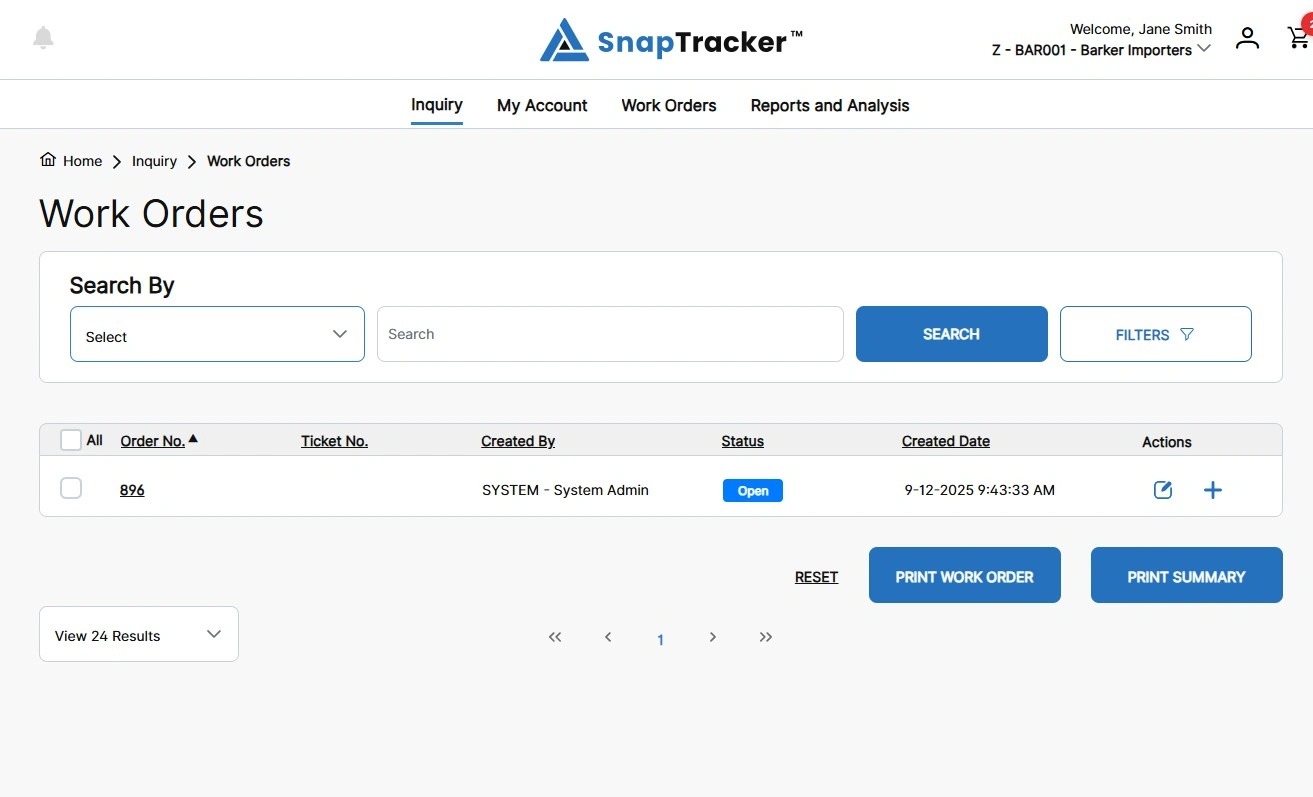
The default search settings in the screen is for orders that have a Created Date in the last 90 days, and status of Open, On Hold, and WOT Created.
Orders created in the last 90 days with a status of Open, On Hold or WOT Created display.
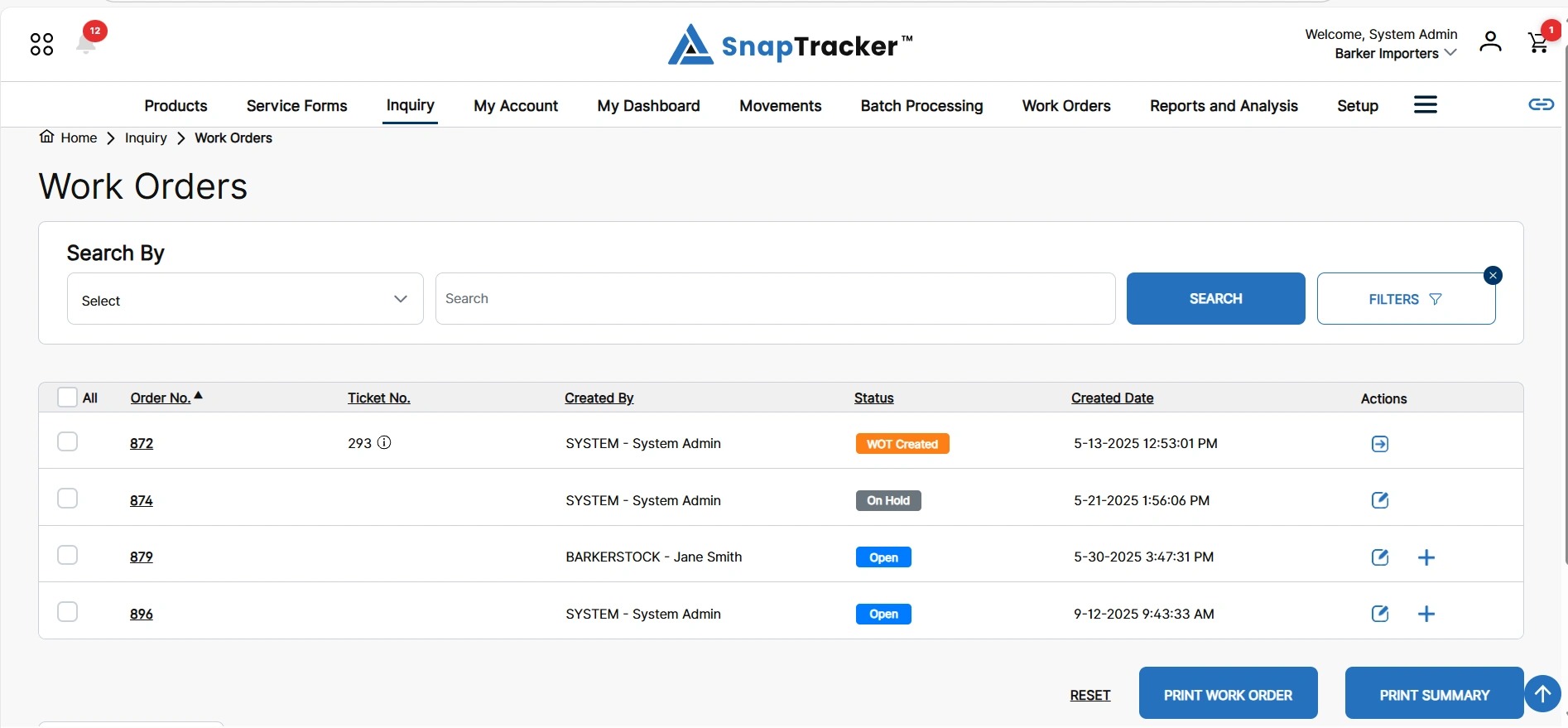
There are fields and filters available to refine the results.
Observe the following options in the Search By field:
-
Cart Name – The cart name associated with the order. (When the work order was created by a cart).
-
Contact – The contact listed on the Ship To, Sold To or Bill To of the work order.
-
Created By – The username of the user who created the order.
-
Order No. – The SnapTracker work order number.
-
Standard – The unique Standard of a product in the order.
-
Ticket No. – The work order ticket number (WOT) associated with the order, if available.
Note: Multiple WOTs can be associated with an order, but only one is active at a time.
-
User Email – The email of the user who created the order.
3. To use the Search By field to look for specific information, select an option in the Search By field and enter the desired search input.
Click Search.
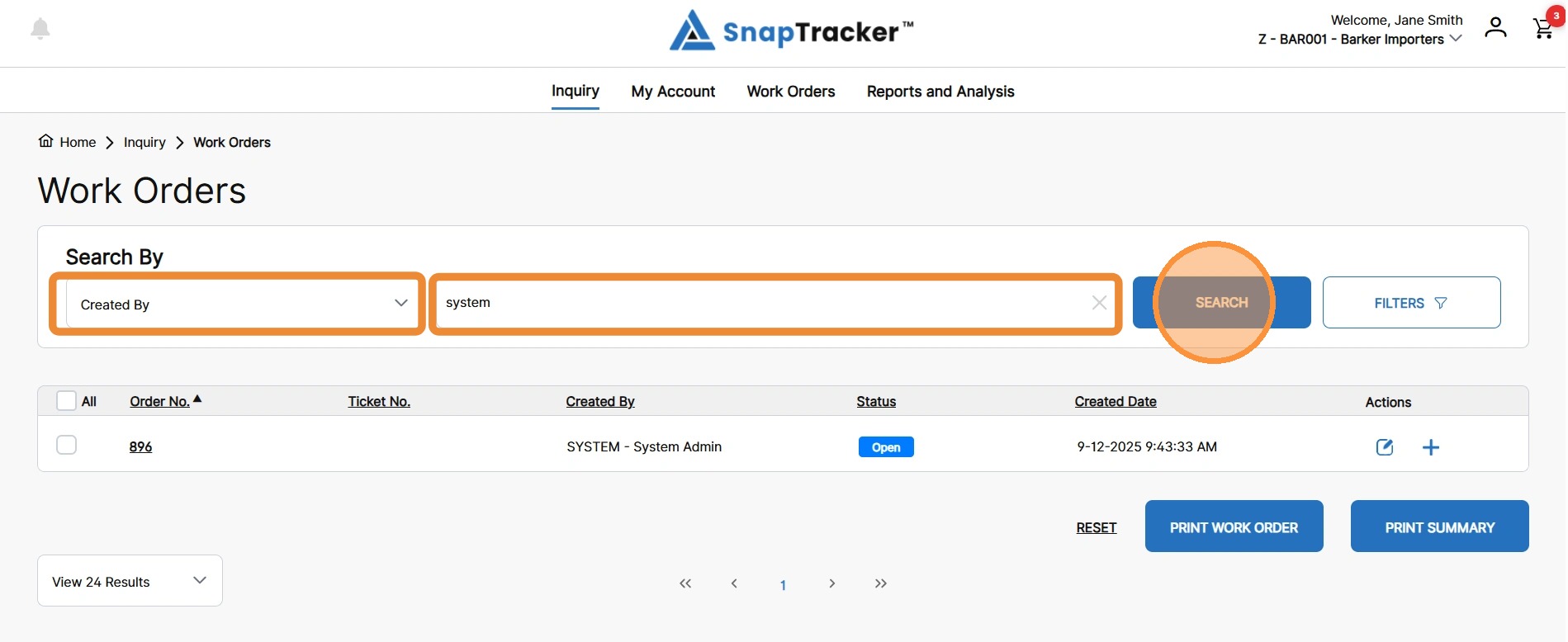
The matching results display.
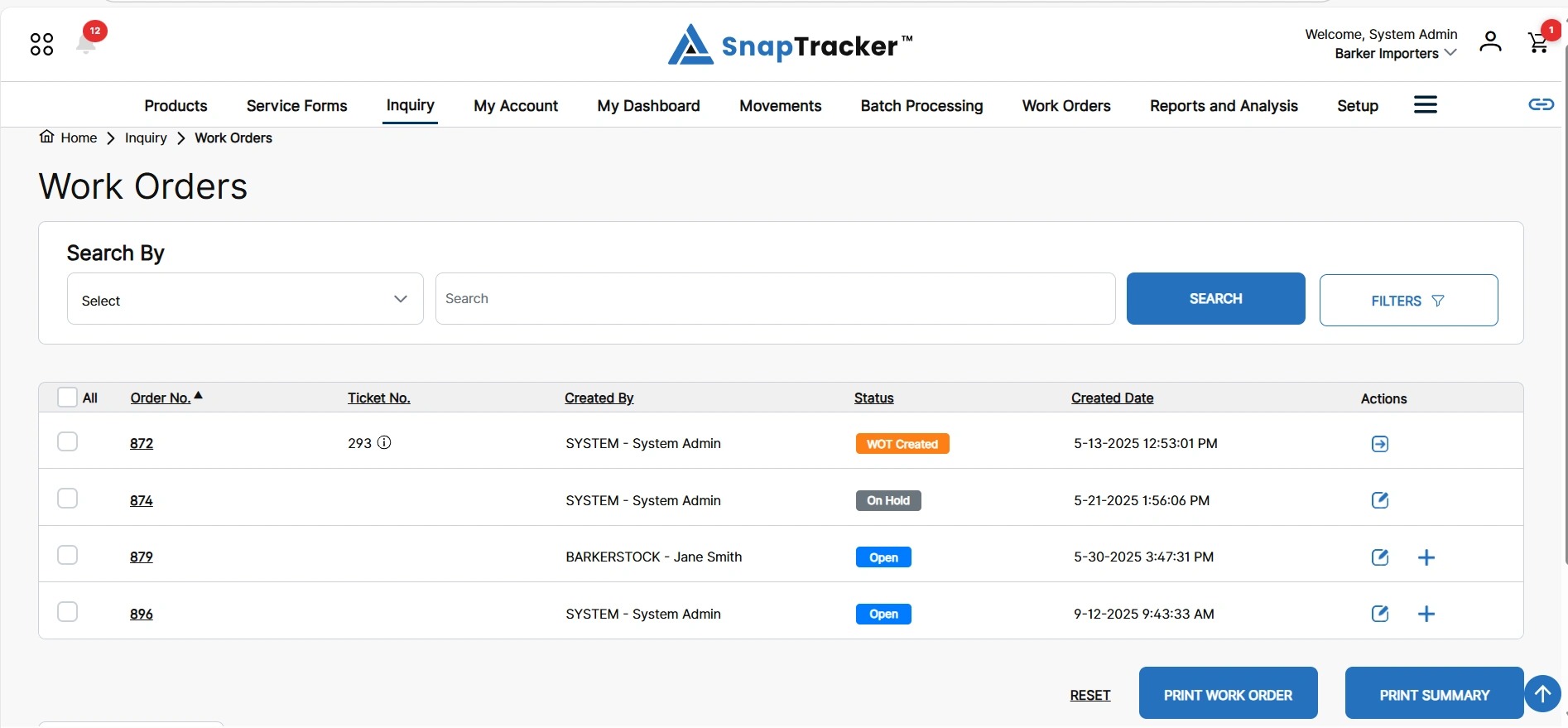
4. To apply custom filters to your search, click Filters.
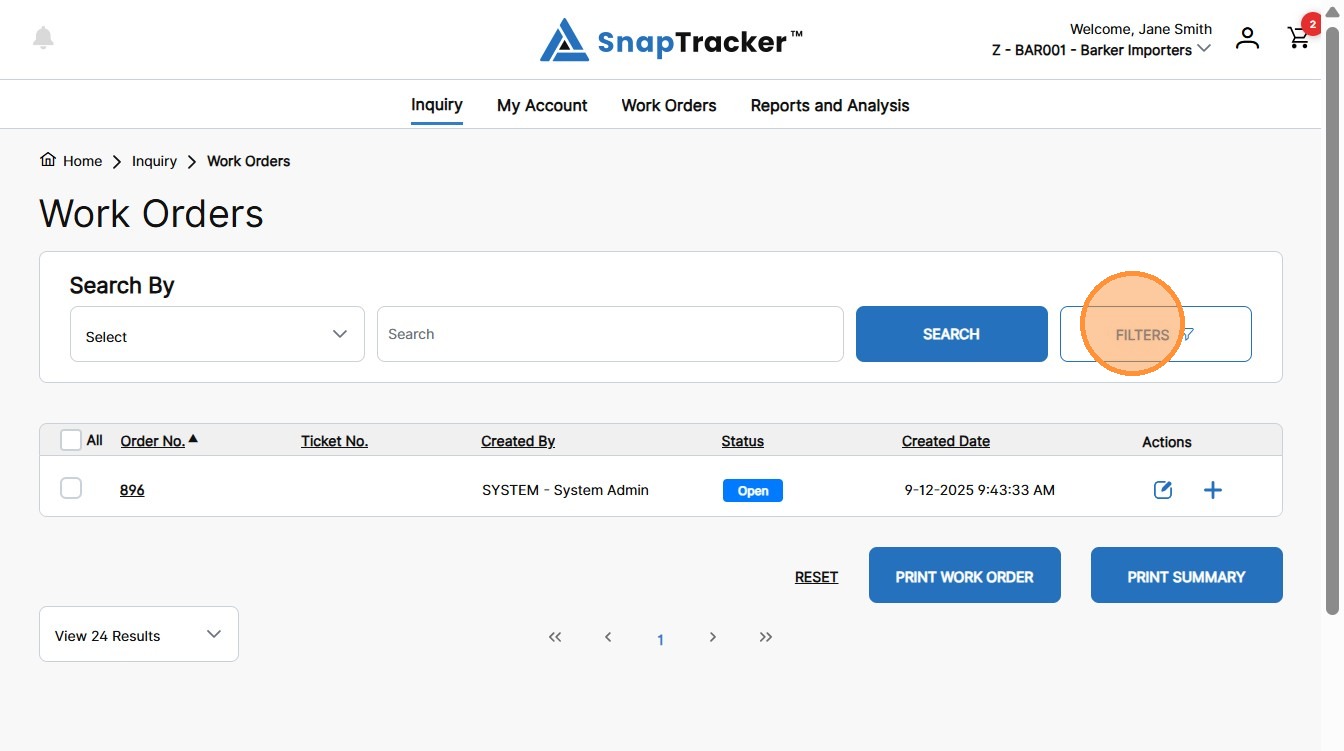
The Filter side panel displays.
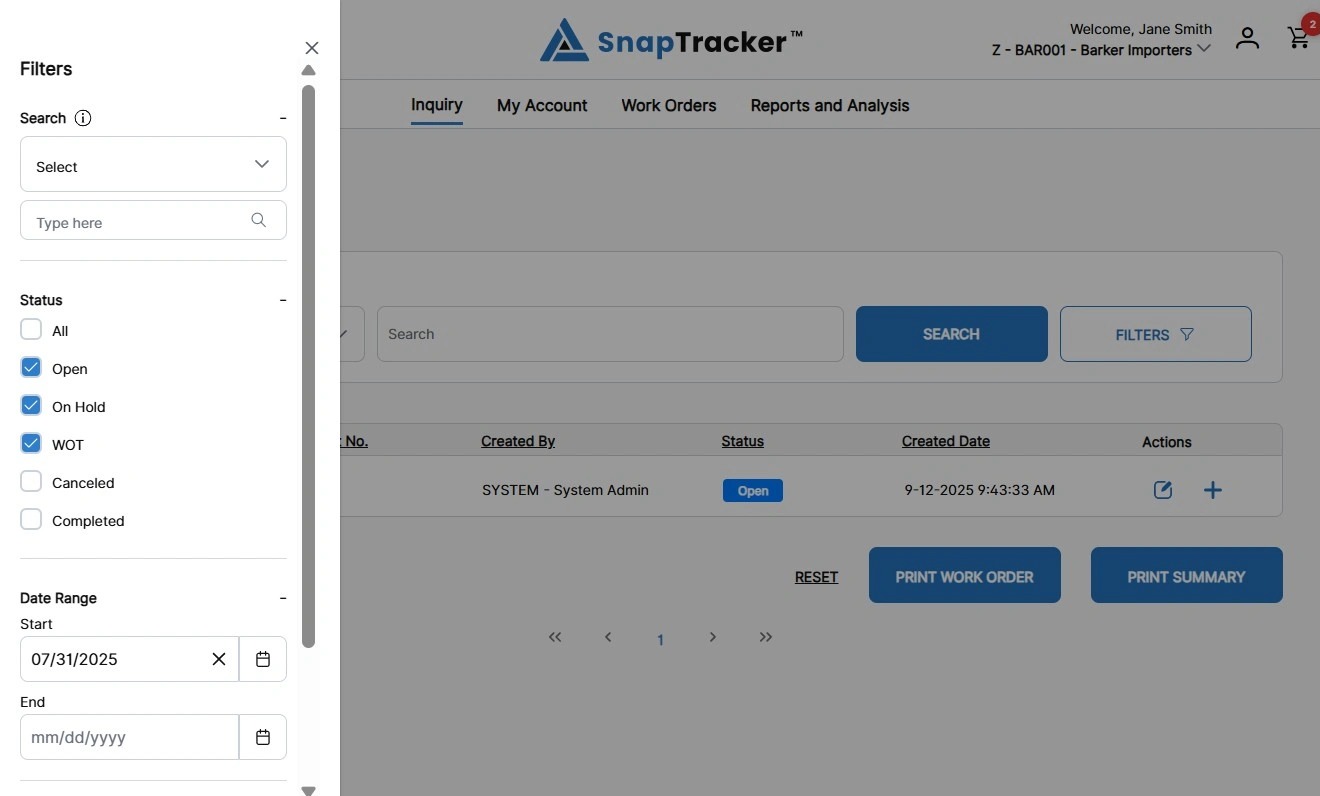
Observe the filter options:
- Search – Select one field to search by and enter the desired search input(s).
Note: This field reflects the Search By and search input on the main search page, except that additional search input can be added. To search by another field, all current inputs must be cleared first.
- Status – Select work order status(es) to filter for.
- Date Range – Select a Start and/or End Date to filter for.
5. Populate the desired filters and click Search.
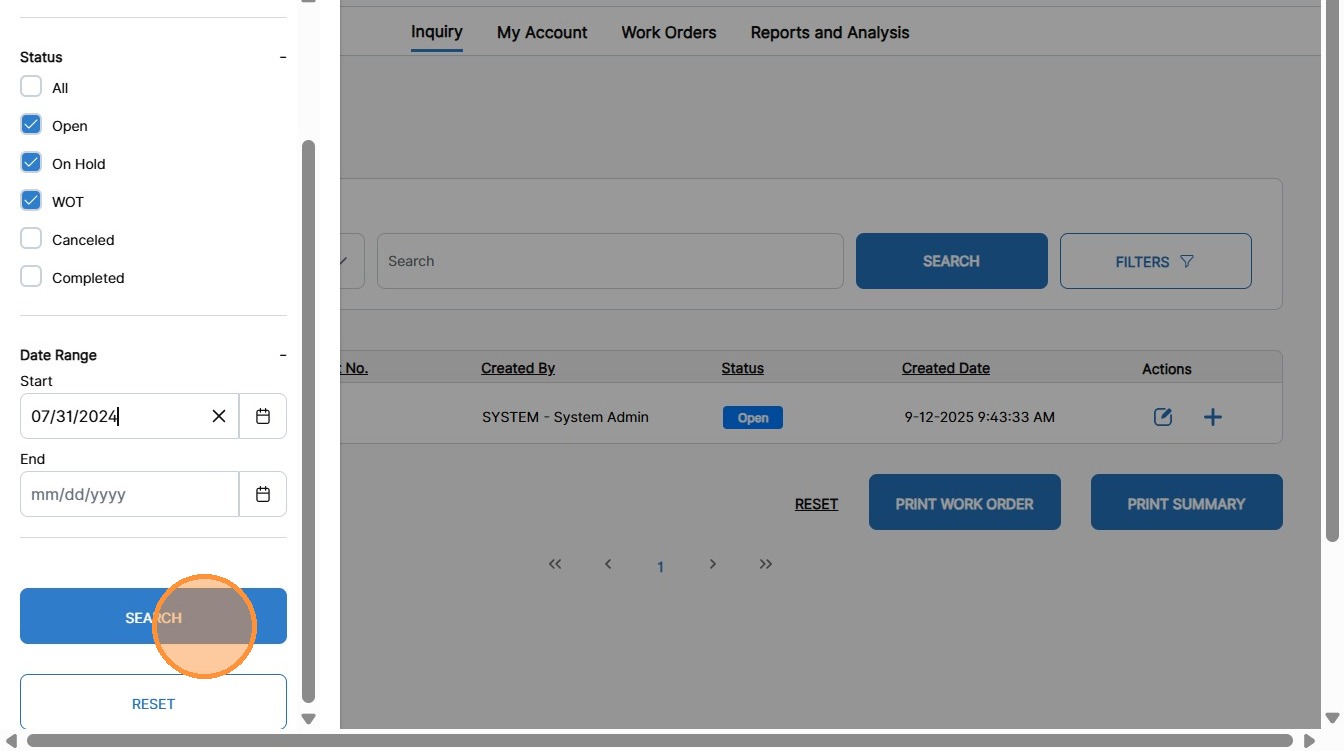
The matching results display, with the Filters button indicating it is active.
To clear the filters, click the X above the Filters button.
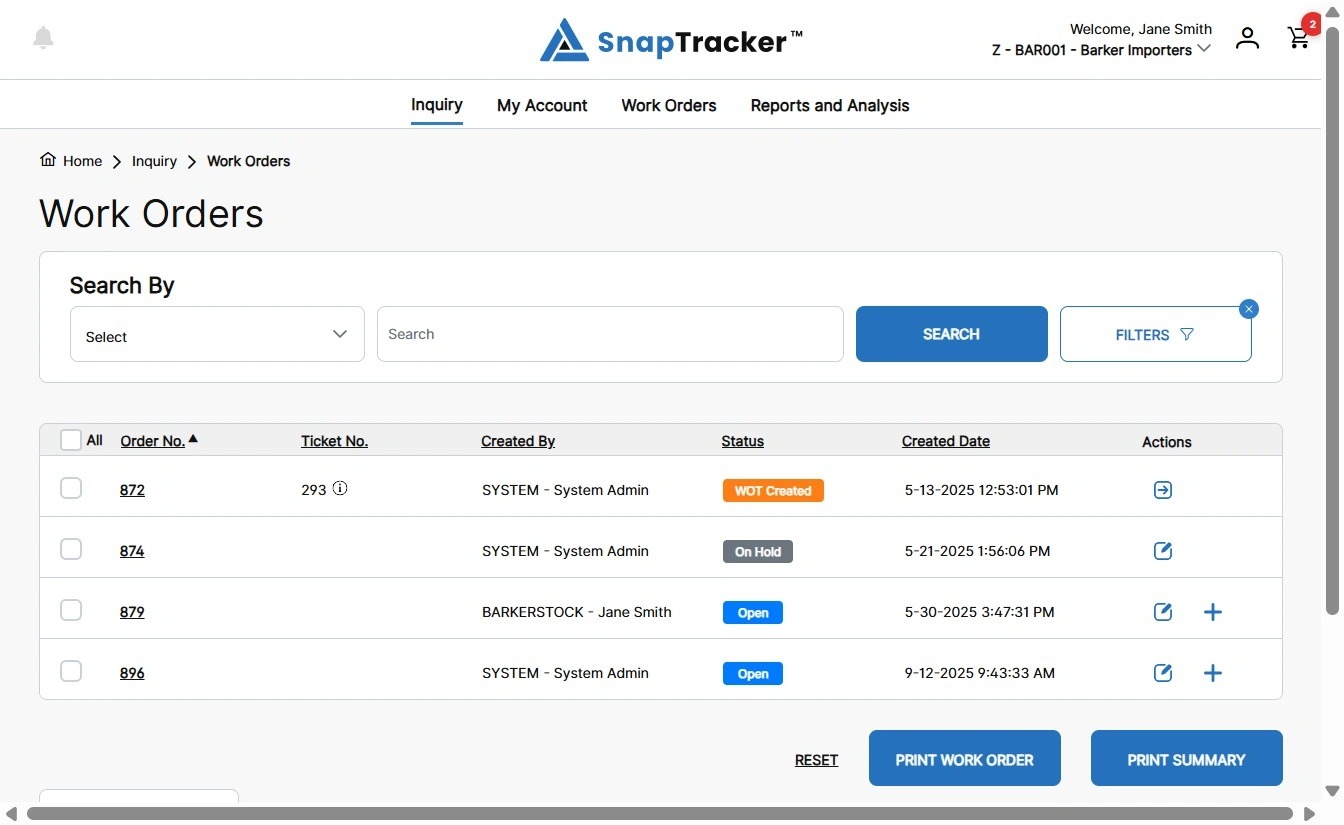
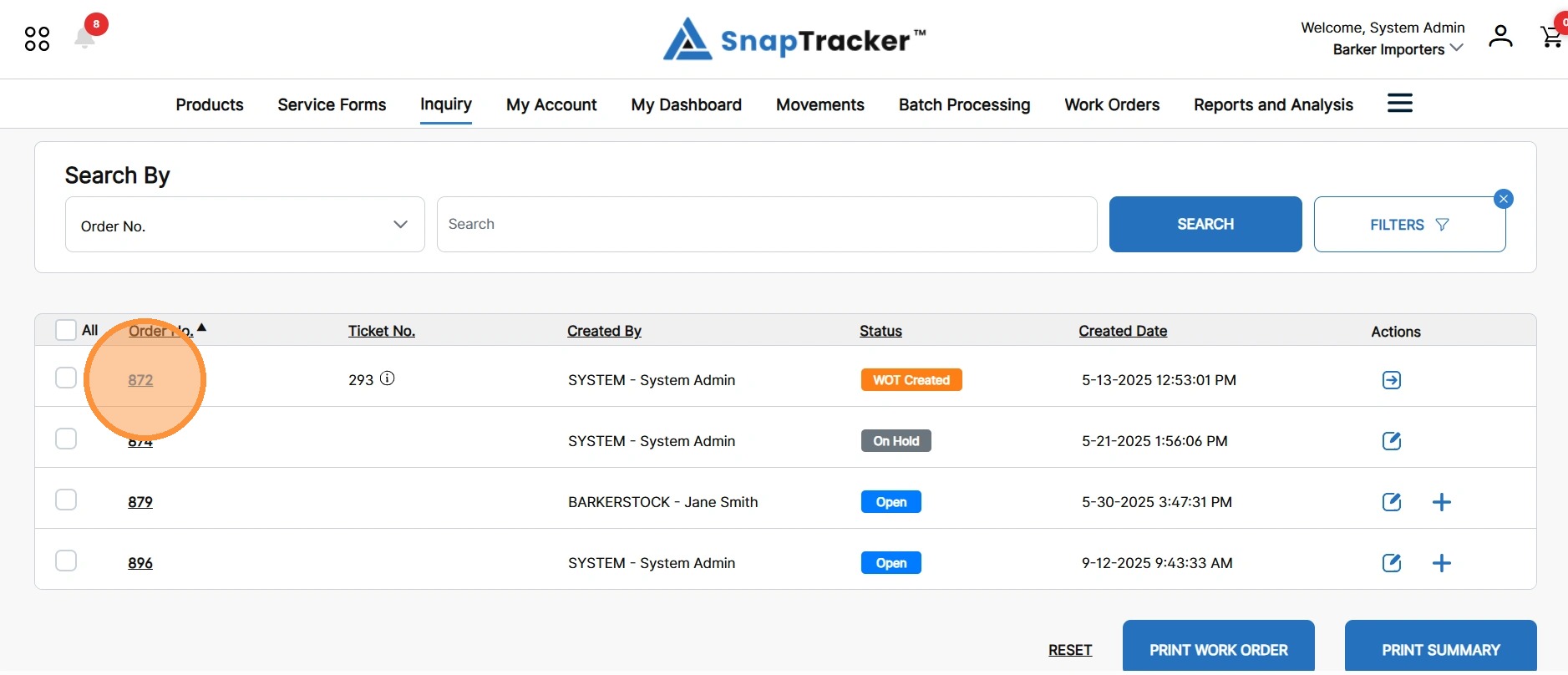
Observe the columns for the work order results:
- All (and individual checkboxes) – Select one or multiple work orders to print the work order reports or print the work order summaries.
- Order No. – The unique work order number. By default the results display by order number in ascending order.
- Ticket No. – The WOT number. Note: Multiple WOTs may be created for a single work order if product is processed at different times. The last active WOT displays. If there are additional tickets, you can see them if you hover over the “i” icon.
- Created By – The user who created the work order.
- Status – The current status of the work order.
- Created Date – The created date of the work order. If the order was created using a cart, the created date is the date the cart was created.
- Actions – The current available actions of a work order, based on the status. Note: Actions are only available if you have access to edit or process work orders.
6. You can sort by any column that is underlined. To sort by a column, click a hyperlinked column name. You can sort in ascending or descending order by clicking the same column name again.
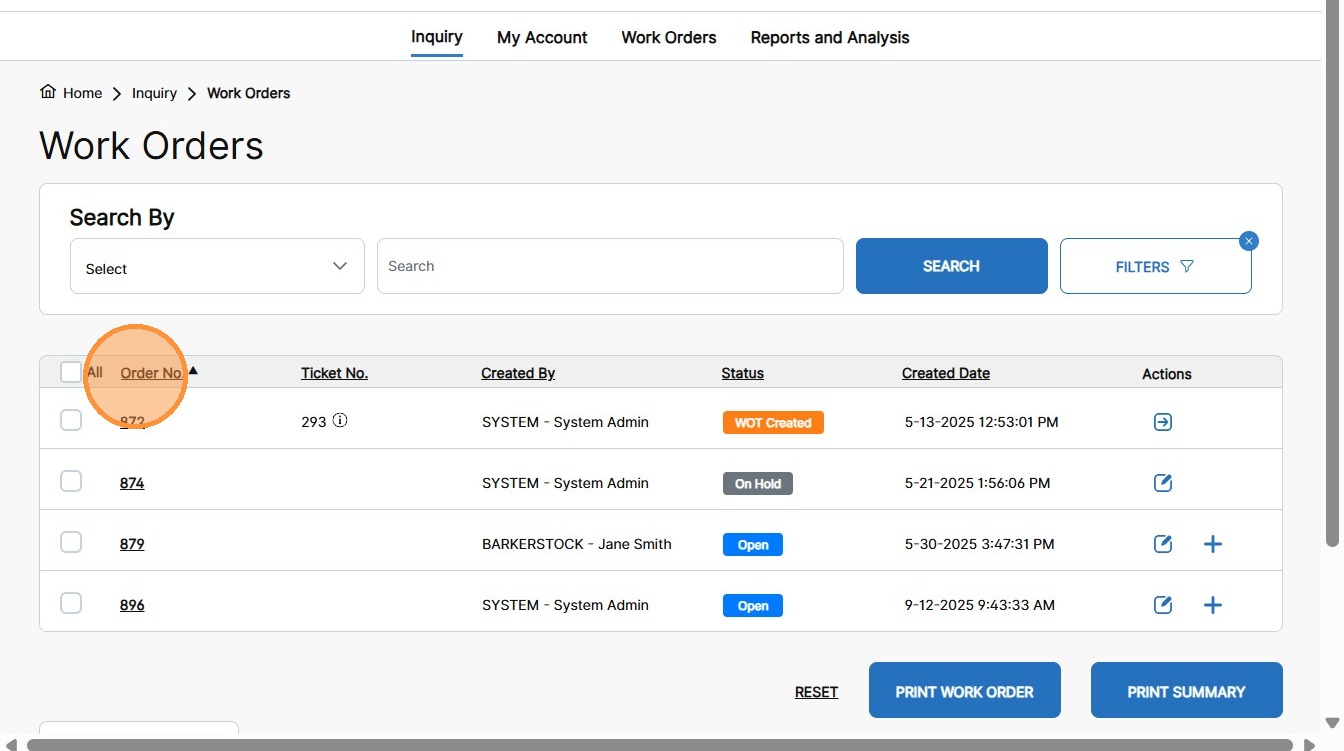
7. To view all WOT(s) related to a work order, hover over the “i” icon.
Note: The current active work order ticket number is indicated with bold font.
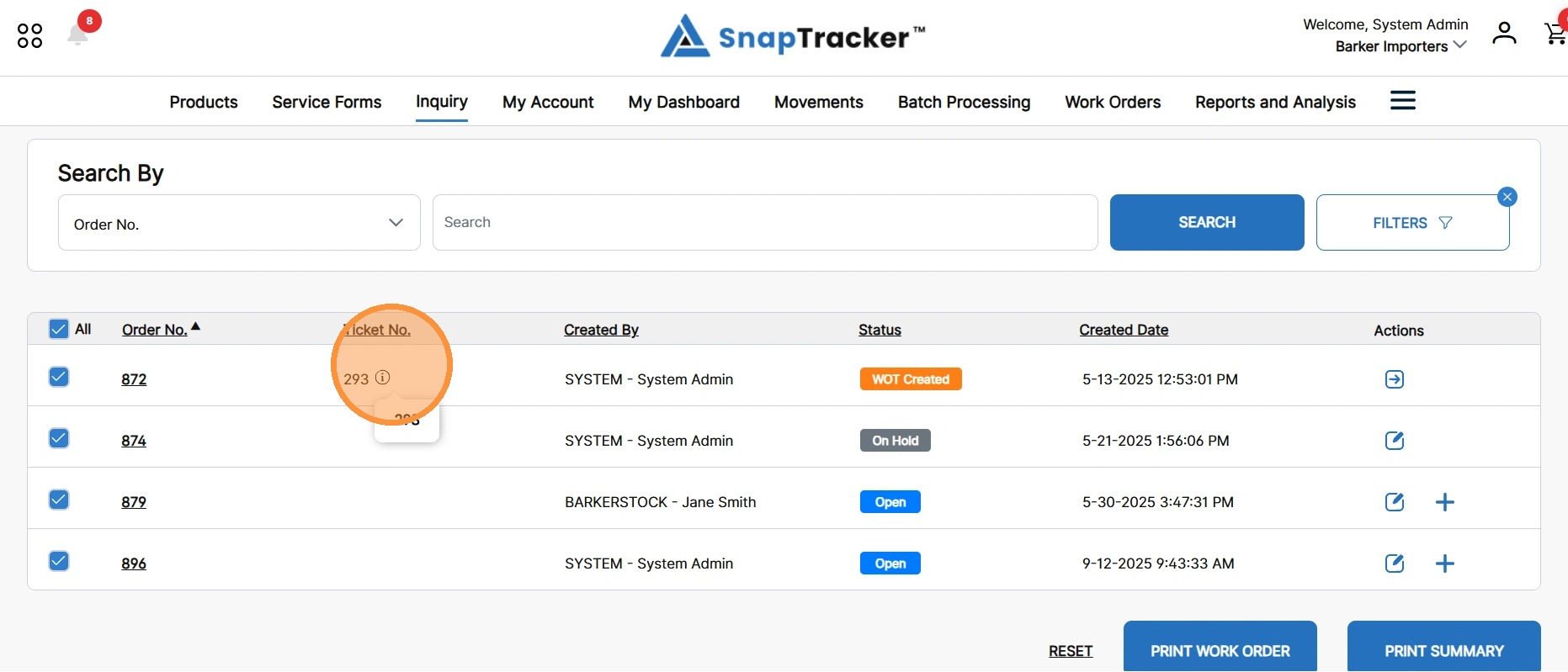
8. If you have access to the Work Order module screens, action icons display and you can access the screens by clicking the desired action icon.
To view the actions, hover over the desired action icon for a tooltip description.
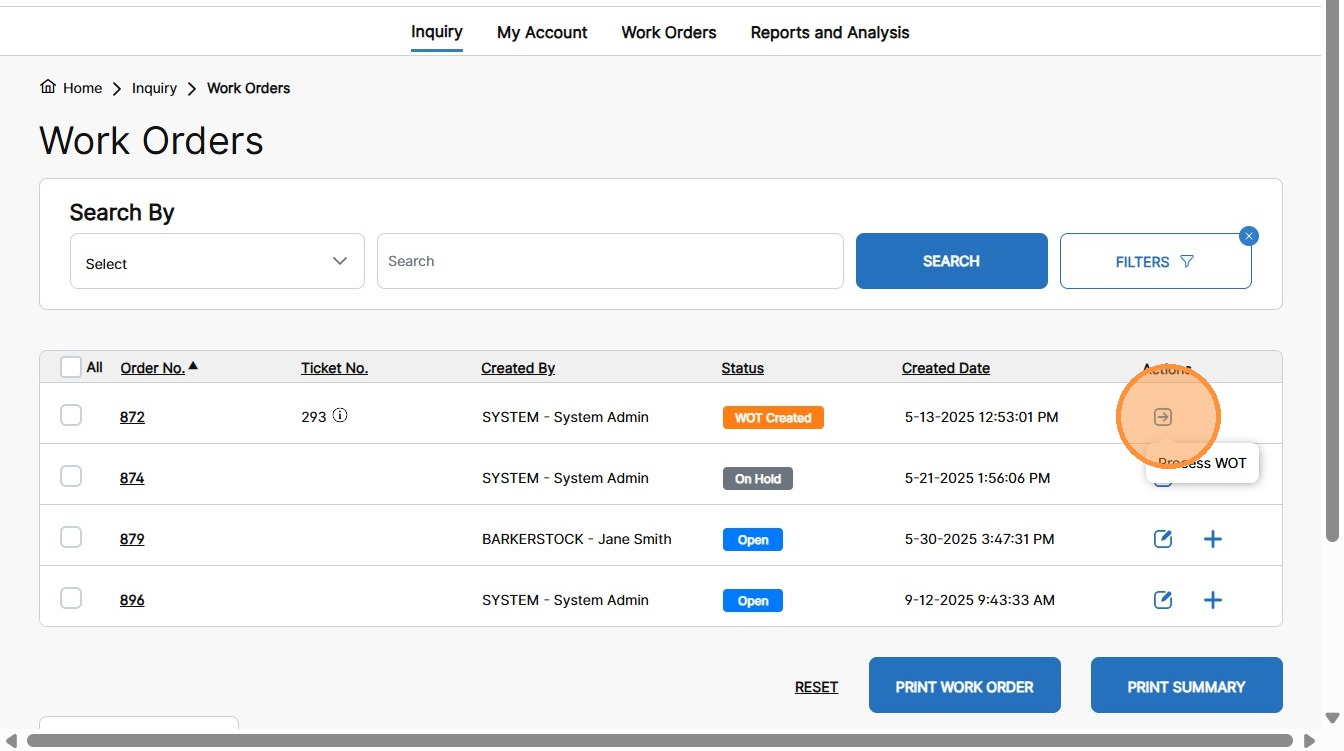
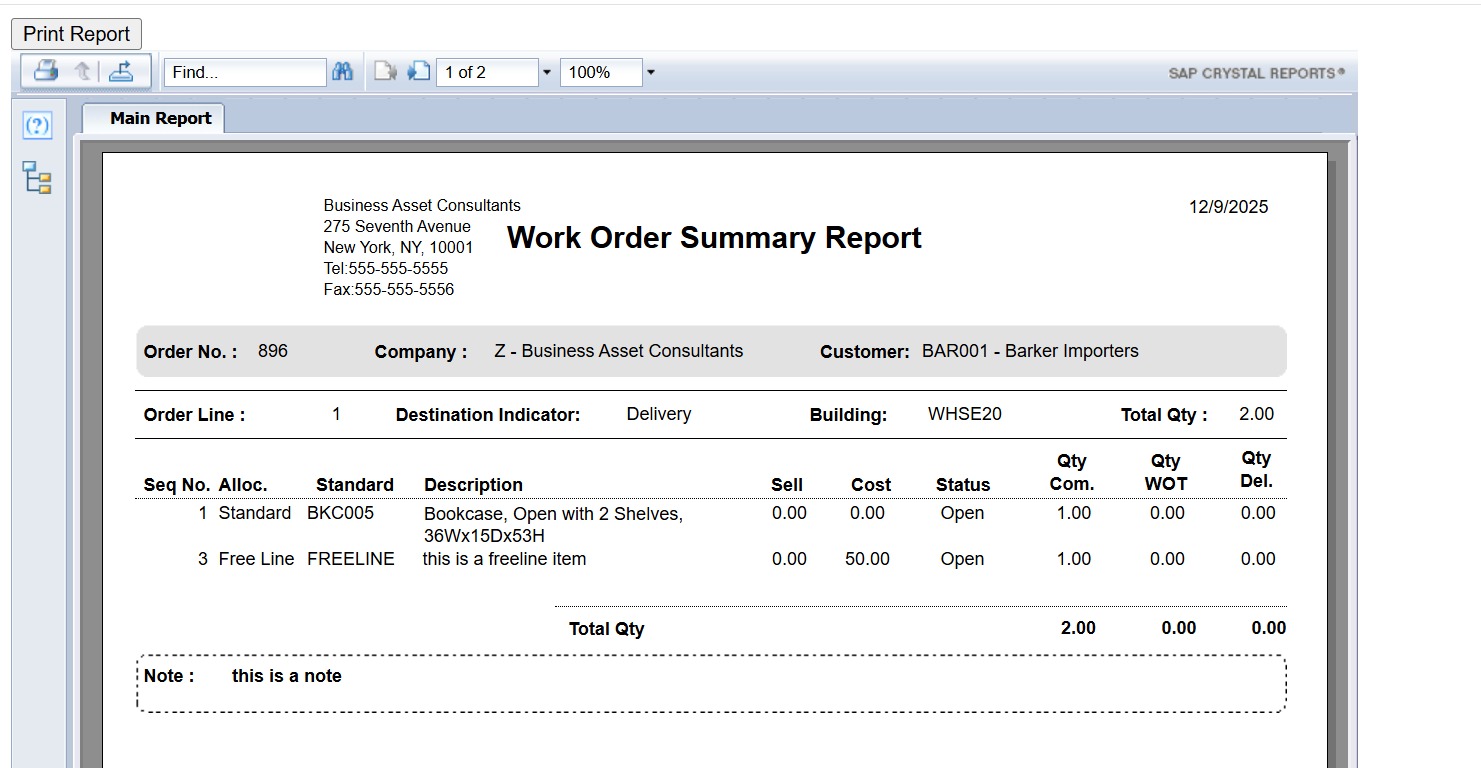
9. To print the work orders or work order summaries, select the checkbox(es) beside the desired orders and click the desired Print button.
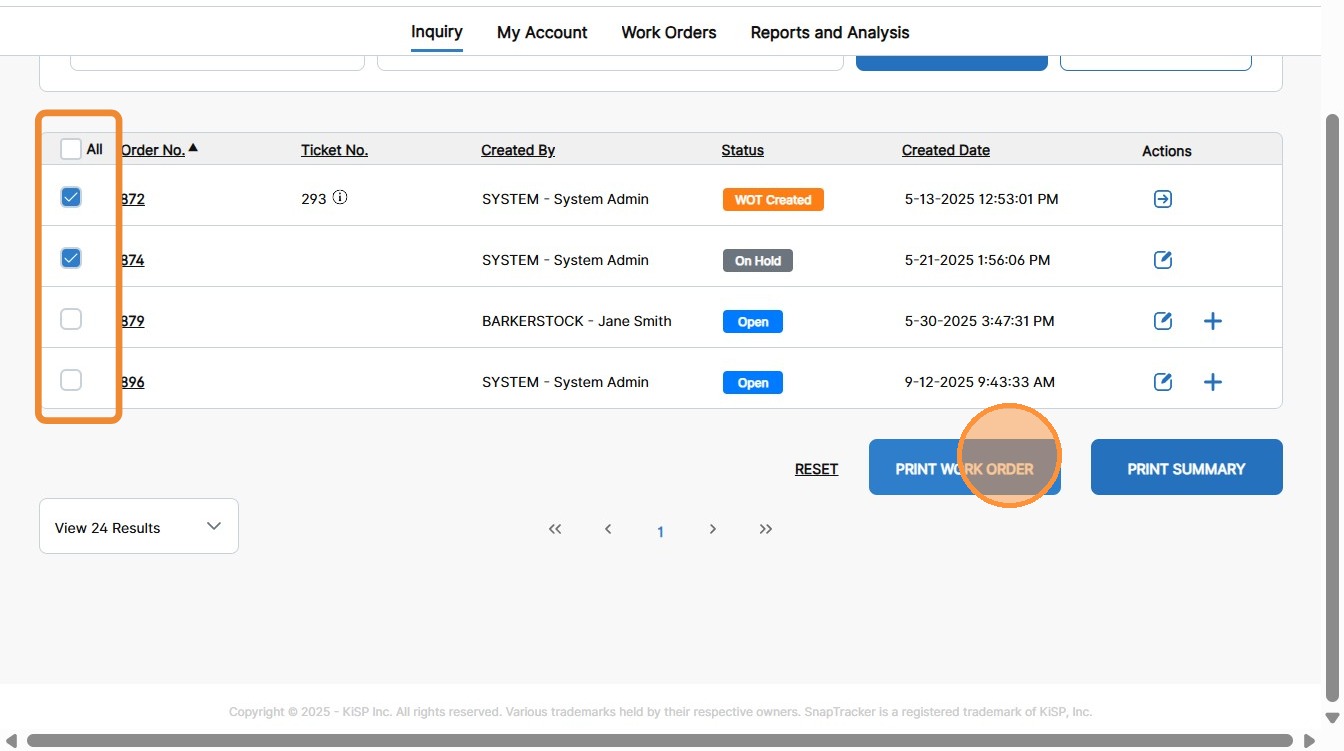
The selected report displays and can be printed.
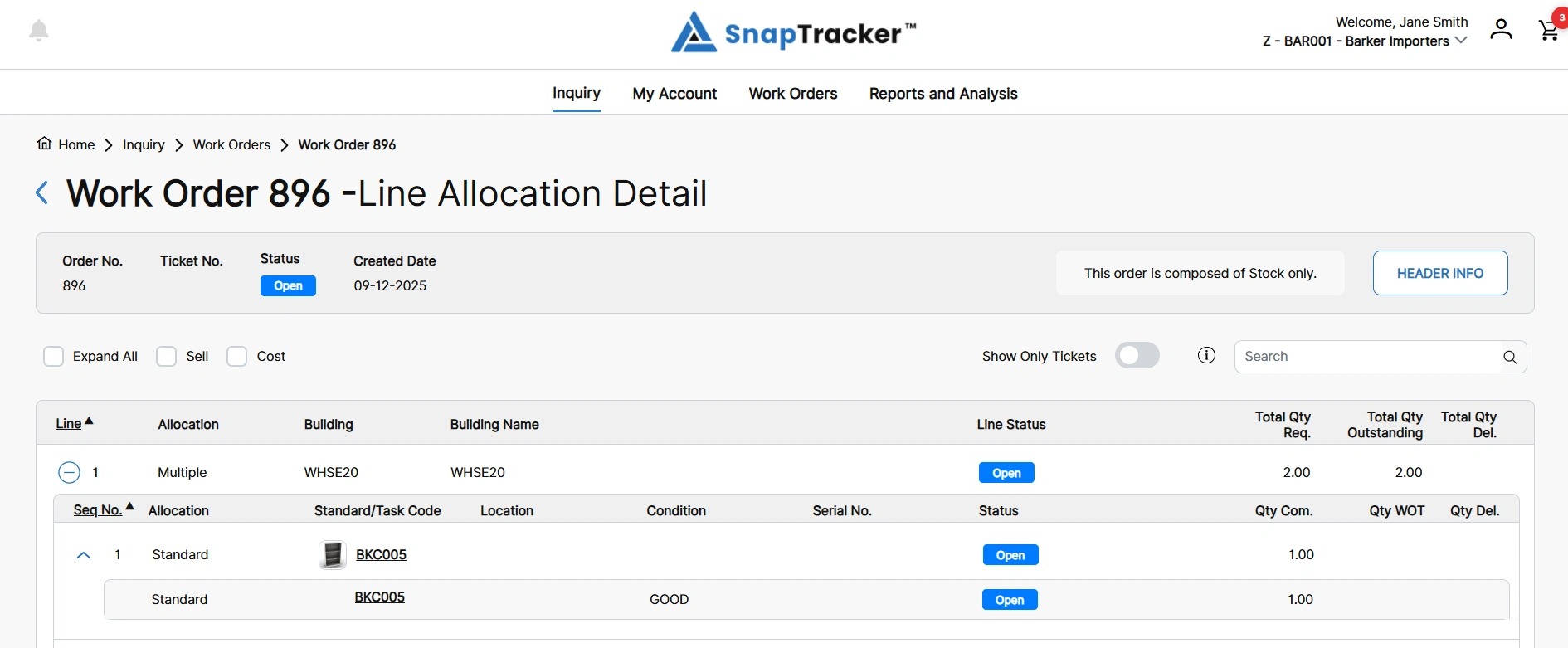
Note: If only one matching work order is found in your search, the individual work order screen immediately displays.
10. To view details for an individual work order, click the hyperlinked order number.
The individual work order screen displays.
See “How to Inquire on Individual Work Orders” for more information.