How to Inquire on Individual Reservations
The Inquiry – Reservation screen enables you to quickly find a desired reservation and view all necessary details. The individual Inquiry – Reservation screens provide access to crucial reservation information in the reservation header, as well as full reservation fulfillment information, such as the products required for the reservation and quantities allocated.
The Inquiry screen is intended to help you quickly find all reservations available for a Customer.
Before starting, make sure:
- You are logged into SnapTracker.
- You have at minimum one reserved cart or reservation created.
- The correct Customer is selected from the Customer selection list.
- You have access to Reservation Inquiry.
This post outlines the process of inquiring for reservations using the Inquiry – Reservation screen.
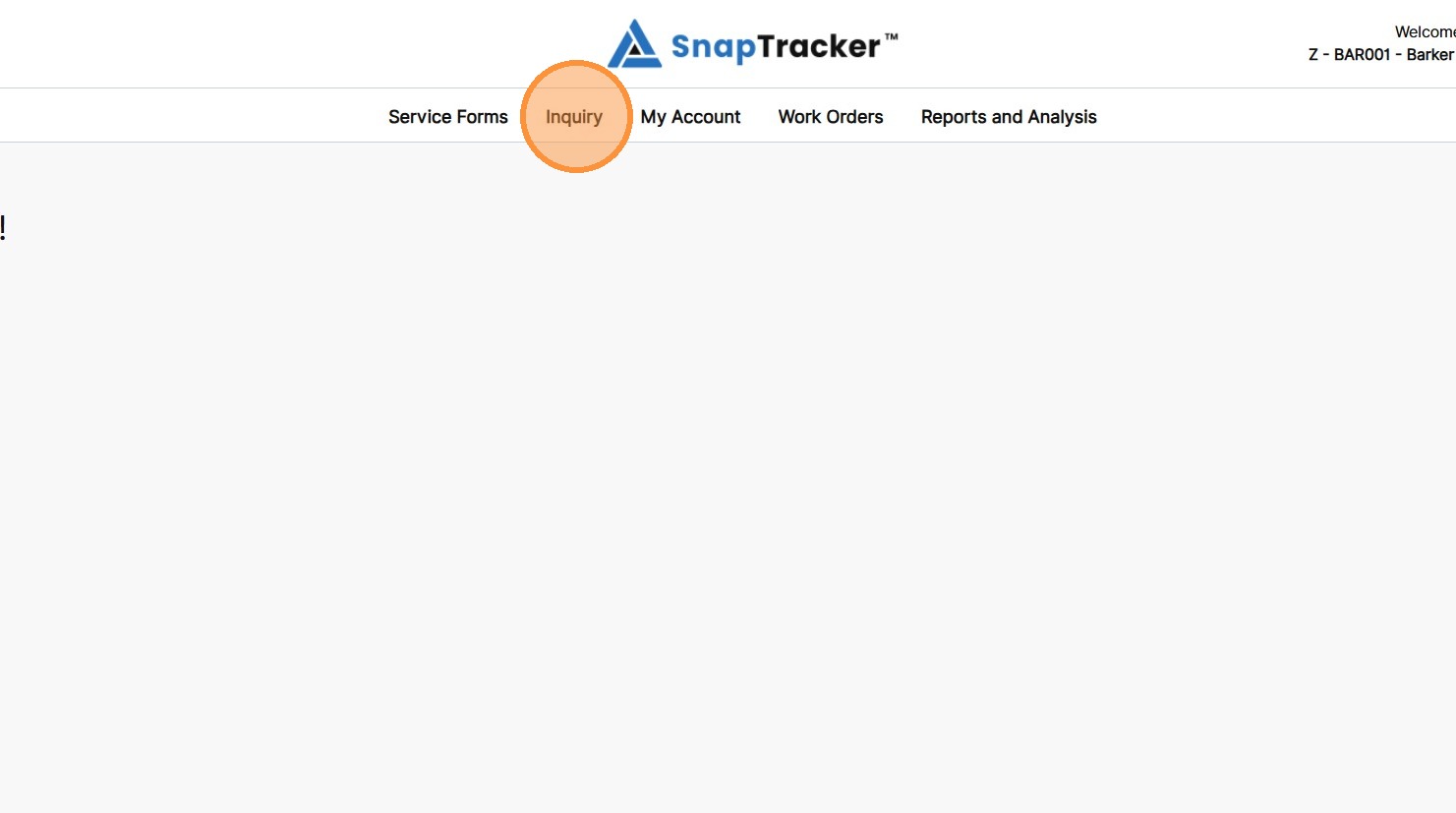
1. In the header section, click Inquiry.
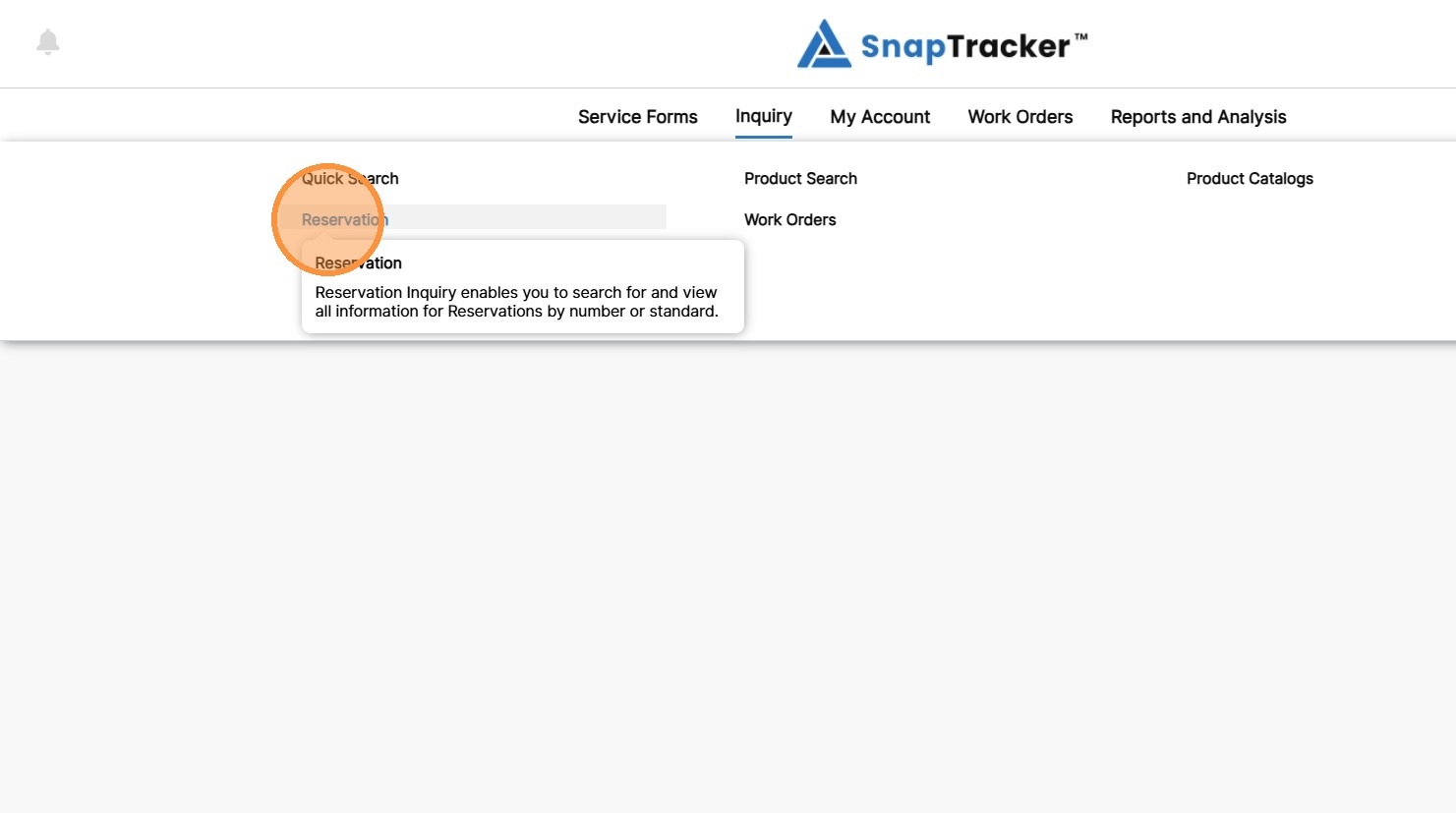
2. Click Reservation.
Another way to access the Inquiry Reservation screen is to navigate to the Inquiry main screen.
From here, select Reservation.
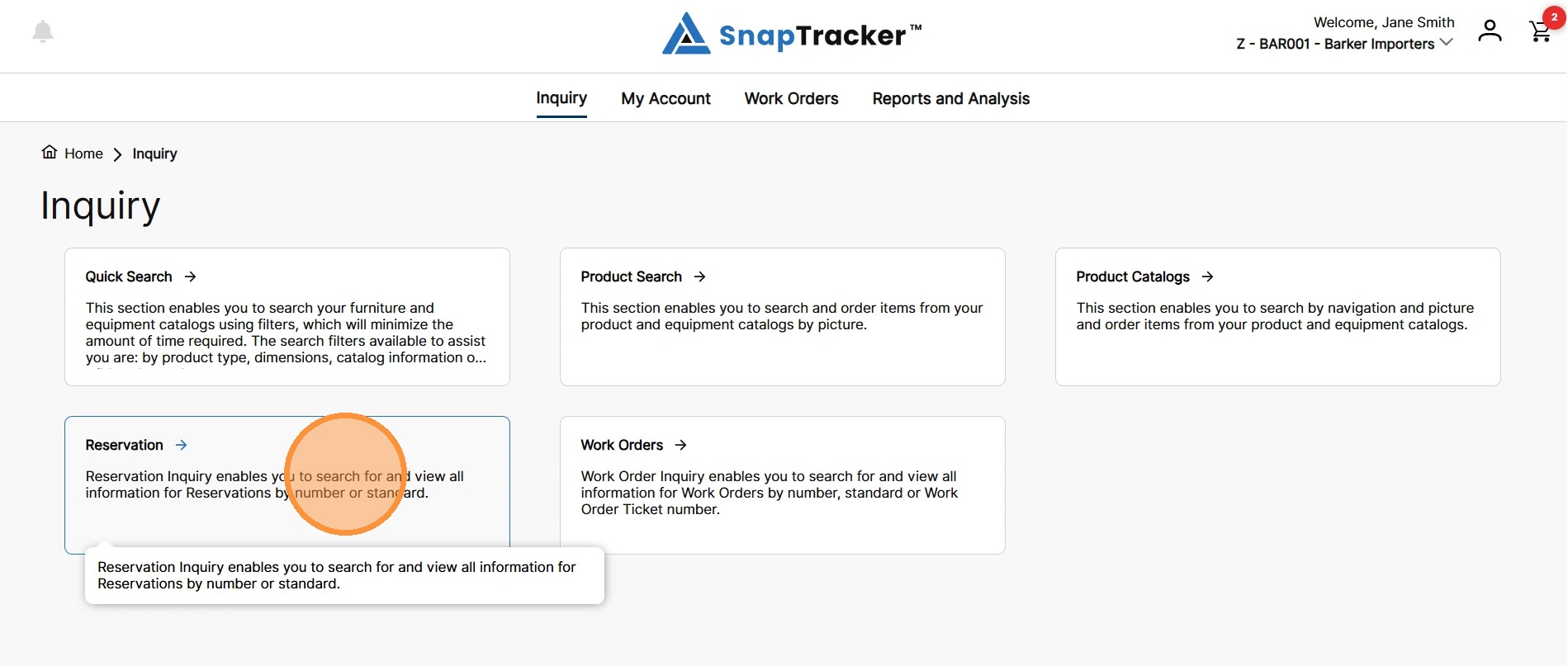
The Reservation Inquiry screen displays.
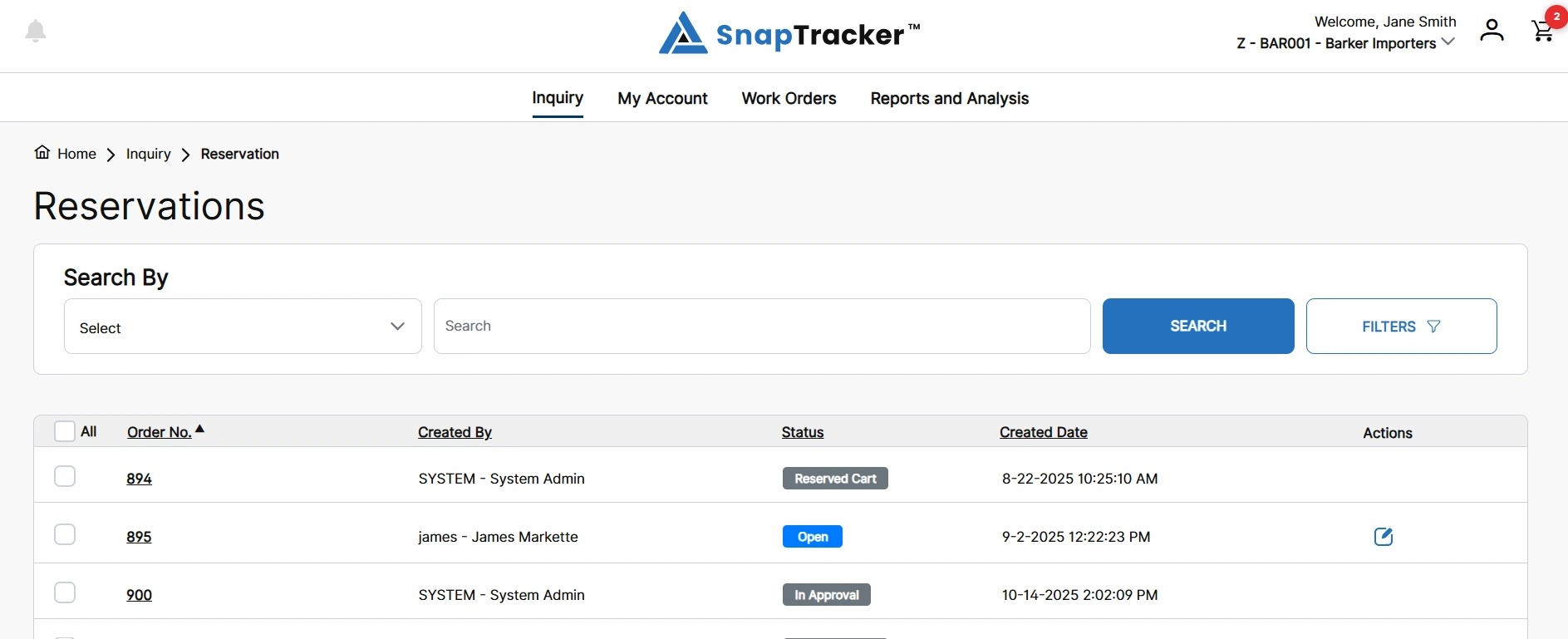
3. Search and apply filters to find the desired reservation as necessary, and click the hyperlinked order number.
See “How to Use Inquiry – Reservation” for full inquiring instructions.
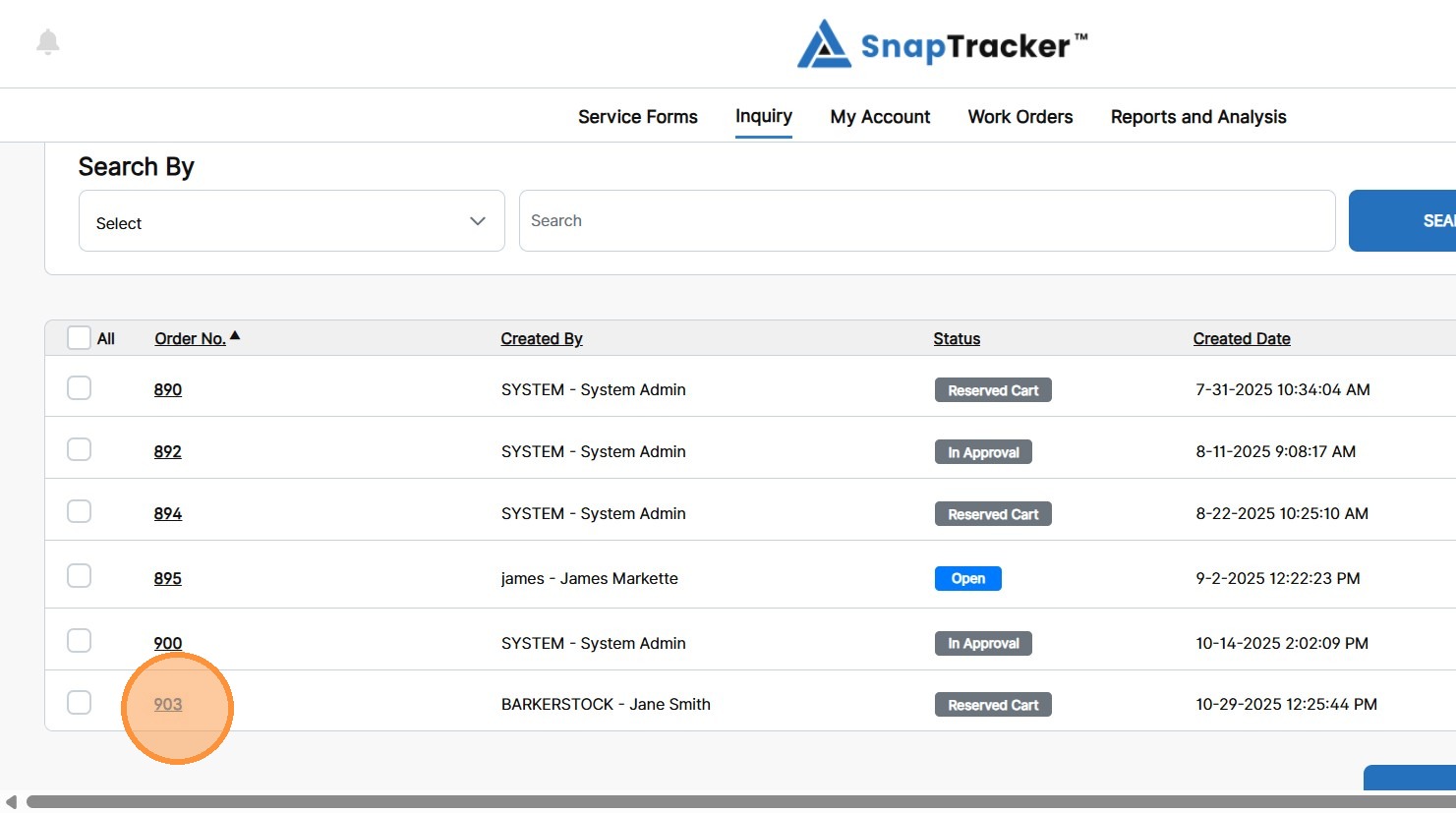
The individual Reservation screen displays.
Note: By default, the first line is expanded.
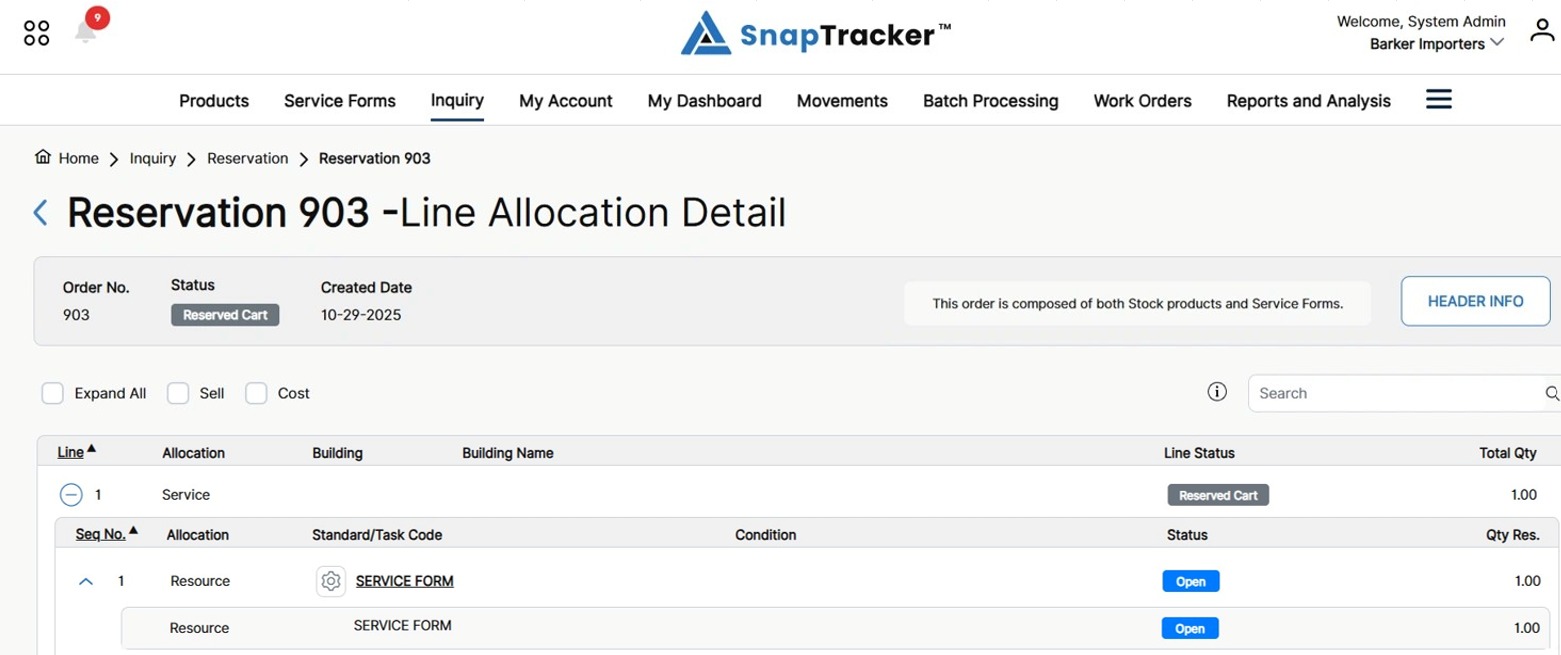
Observe the following fields in the header area of the individual reservation screen:
- Order No. – The reservation order number.
- Status – The reservation status.
- Created Date – The date the reservation was created. Note: If the reservation was created from a cart, this is the date the cart was created.
- Composition Message – The composition message summarizes the type of products that make up the reservation (e.g. if only Stock items, the message that displays is “This order is composed of Stock only.”)
4. To view the reservation header information, click Header Info.
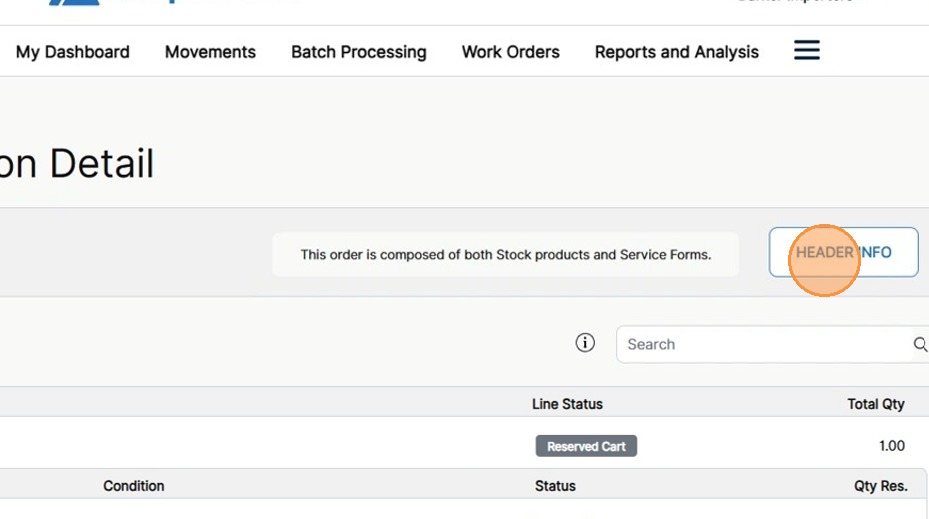
The Reservation Order Header side panel displays.
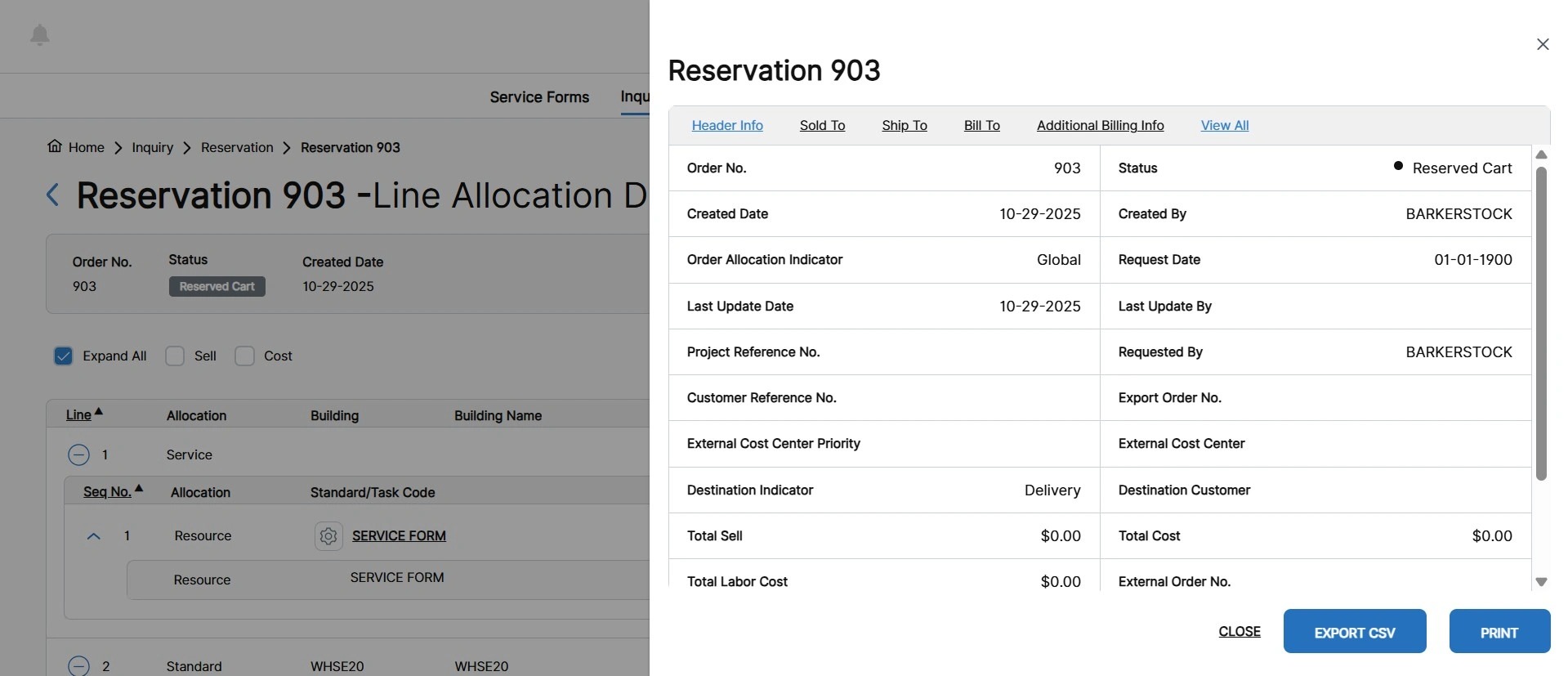
The reservation order header information is organized by the following tabs:
- Header Info – Primary information related to the reservation, such as the Order No., Created By User, Last Update Date, etc.
- Sold To – The Sold To address and contact information.
- Ship To – The Ship To address and contact information.
- Bill To – The Bill To address and contact information.
- Additional Billing Info – Any additional fields that are configured on the Checkout screen of a cart, dependent on each Customer’s configuration.
- View All – Displays all information from the tabs listed above in one screen.
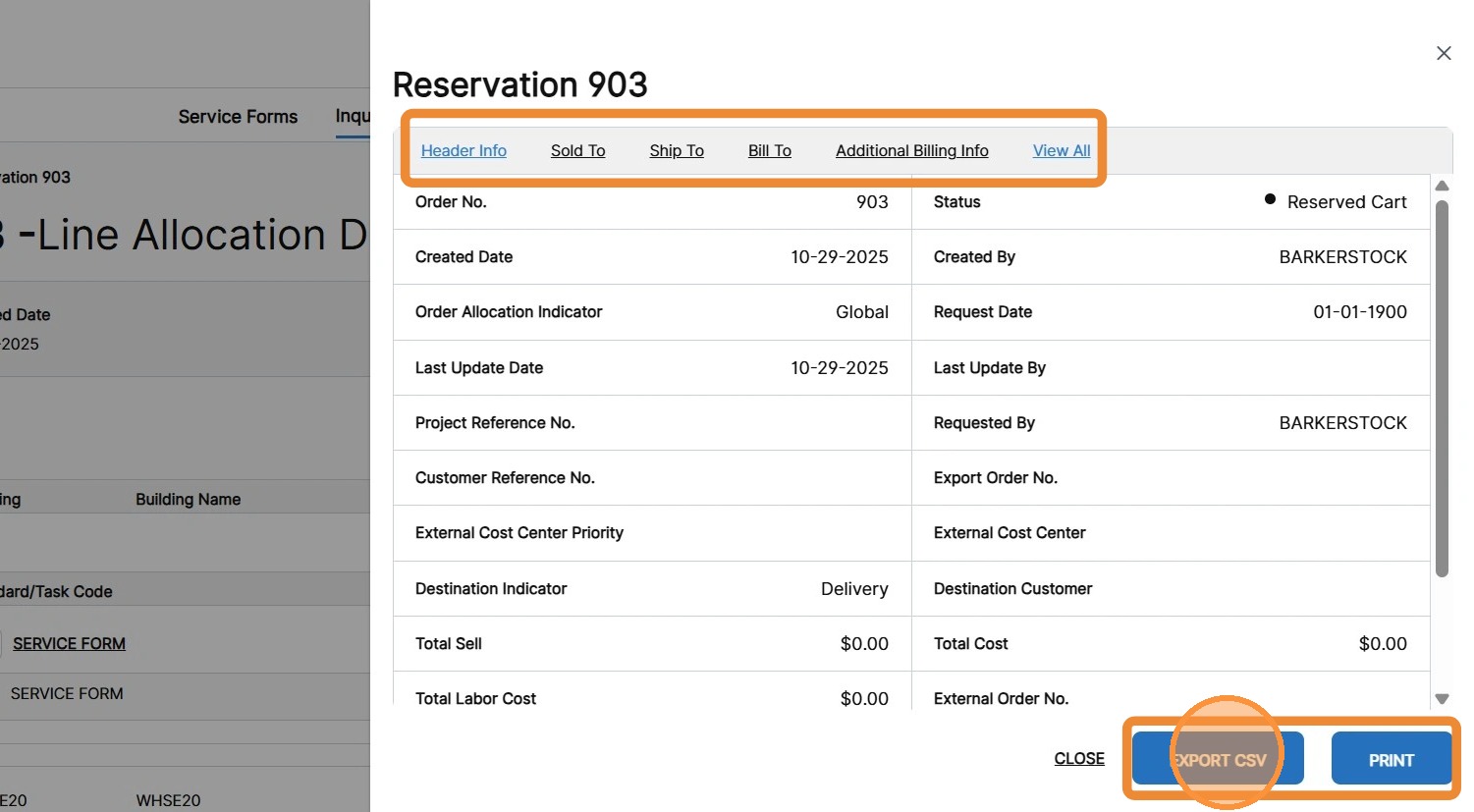
5. To print any reservation header information, select the desired tab and click Export CSV or Print.
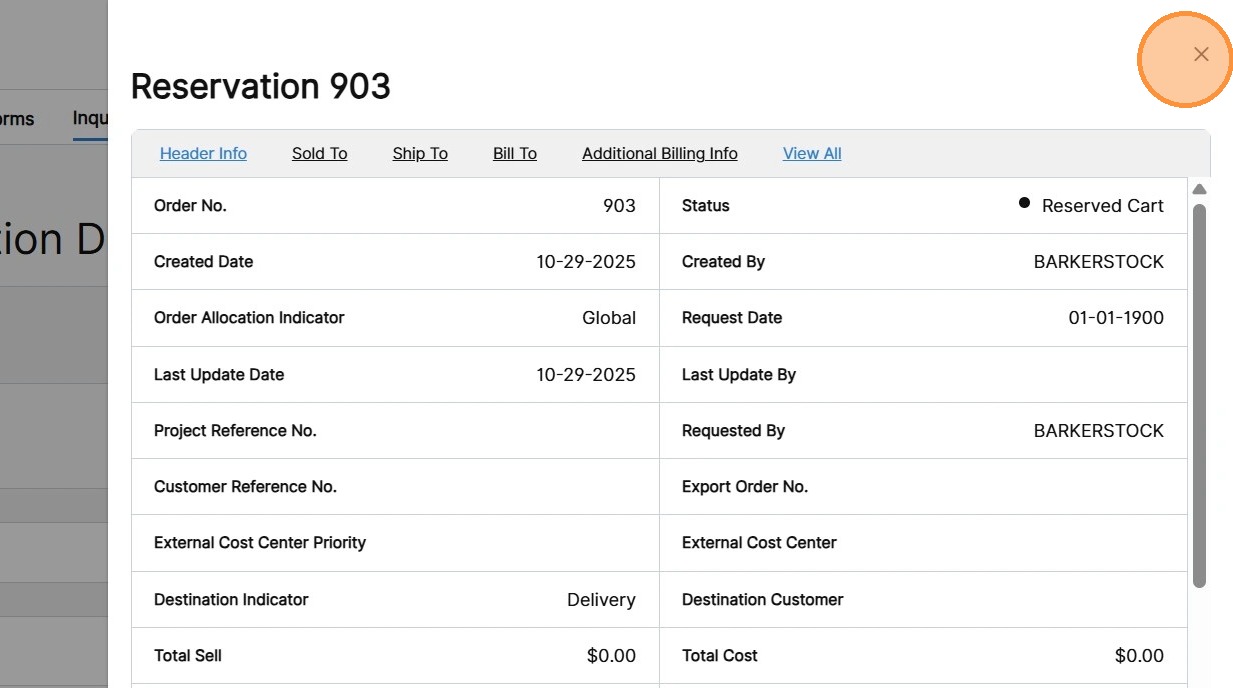
6. To close the Reservation Header side panel, click X.
At the top level of the results on the individual reservation screen, line level information displays.
Observe the following columns:
- Line – The reservation line number. Note: By default the results are sorted by Line number in ascending order.
- Allocation – The types of allocations in a line, indicating the product types assigned from Standard, Buildup, Service, Freeline, Note, to Multiple (various types).
- Building – The Building the product is to be pulled from.
- Building Name – The name of the Building the product is to be pulled from.
- Line Status – The status of the line.
- Total Qty – The total quantity of items required or allocated to the line.
7. To view further information for a specific line, click the expand icon at the top level of a respective line, or Expand All to expand all lines.
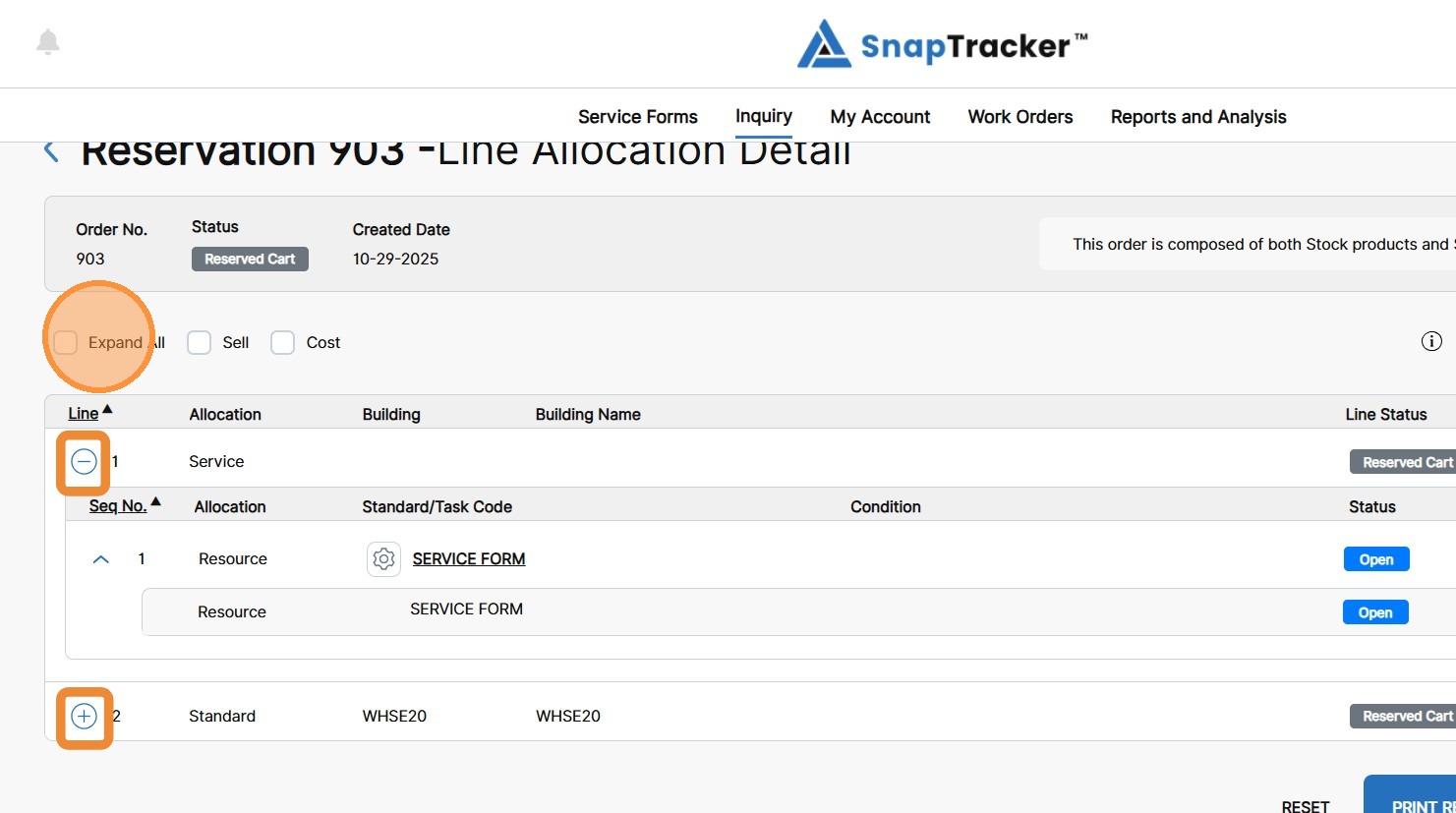
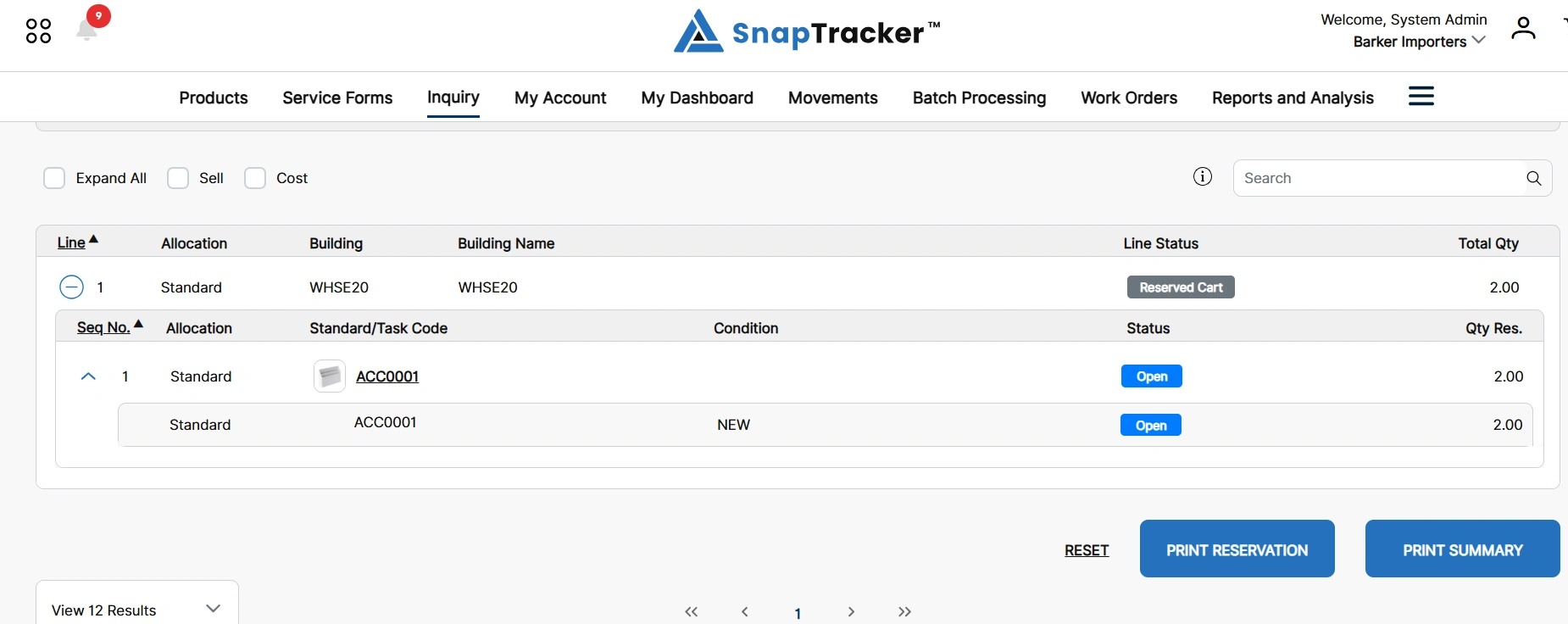
At the secondary level of the results in the individual reservation screen, the product level information displays.
Observe the following columns:
- Seq No. – The sequence number of the products. Note: The Products are default sorted by Seq No. in ascending order.
- Allocation – The type of allocations in a line, indicating the product types assigned from Standard, Buildup, Resource (for Services), Freeline, Note.
- Standard/Task Code – The unique Standard or Task Code (for a Service).
- Condition – The requested or allocated condition of an item. The requested condition may be available based on the customer’s configuration.
- Status – The status of a product.
- Qty Res. – The total quantity of the specific product that is reserved on the line.
Observe a secondary level product where the customer is configured to request product by Condition.
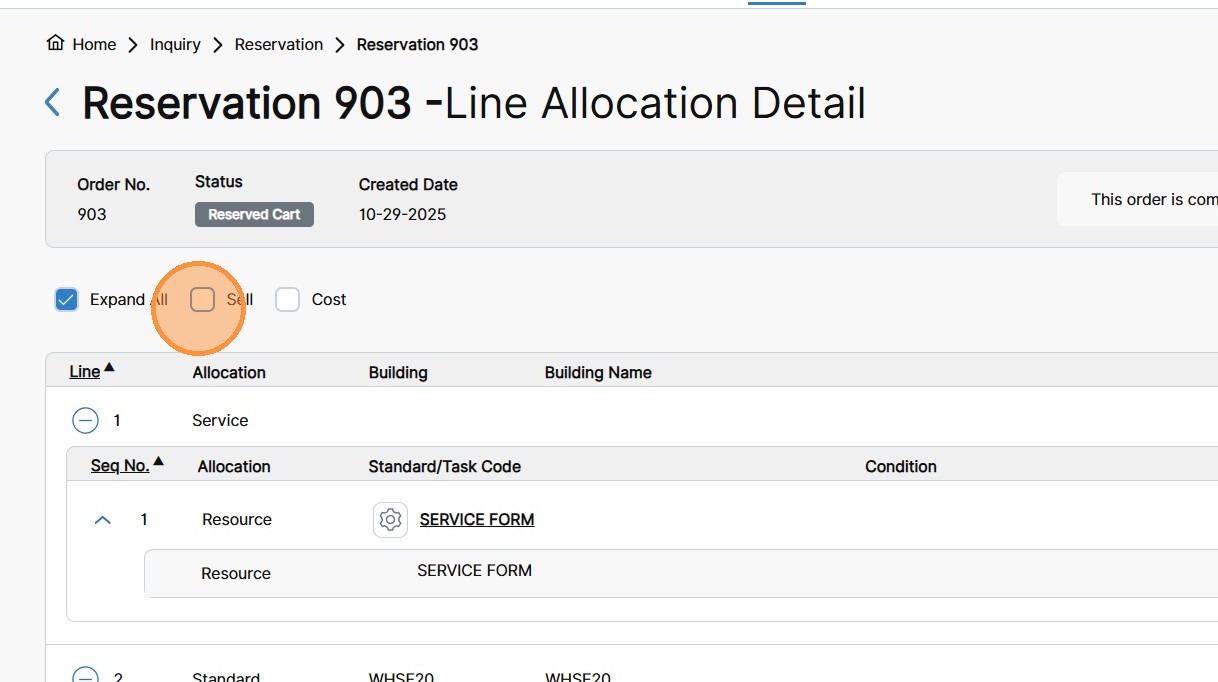
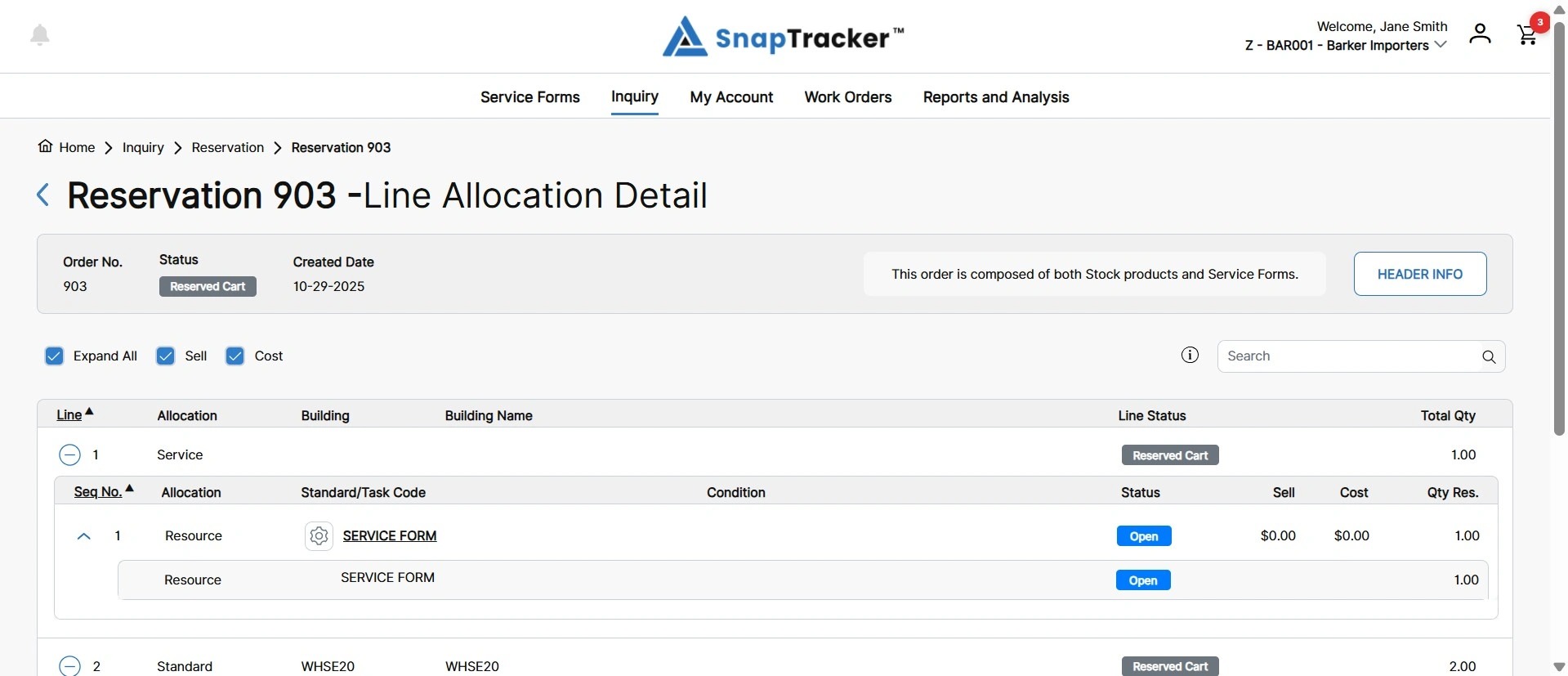
8. To view Sell and Cost information at the secondary product level information, select the Sell and/or Cost checkbox.
The Sell and Cost fields display in the secondary level.
9. To apply an additional search within the individual work order, in the search field, enter the desired search input and press Enter.
Note: If multiple search terms are desired, enter the search inputs separated by a comma.
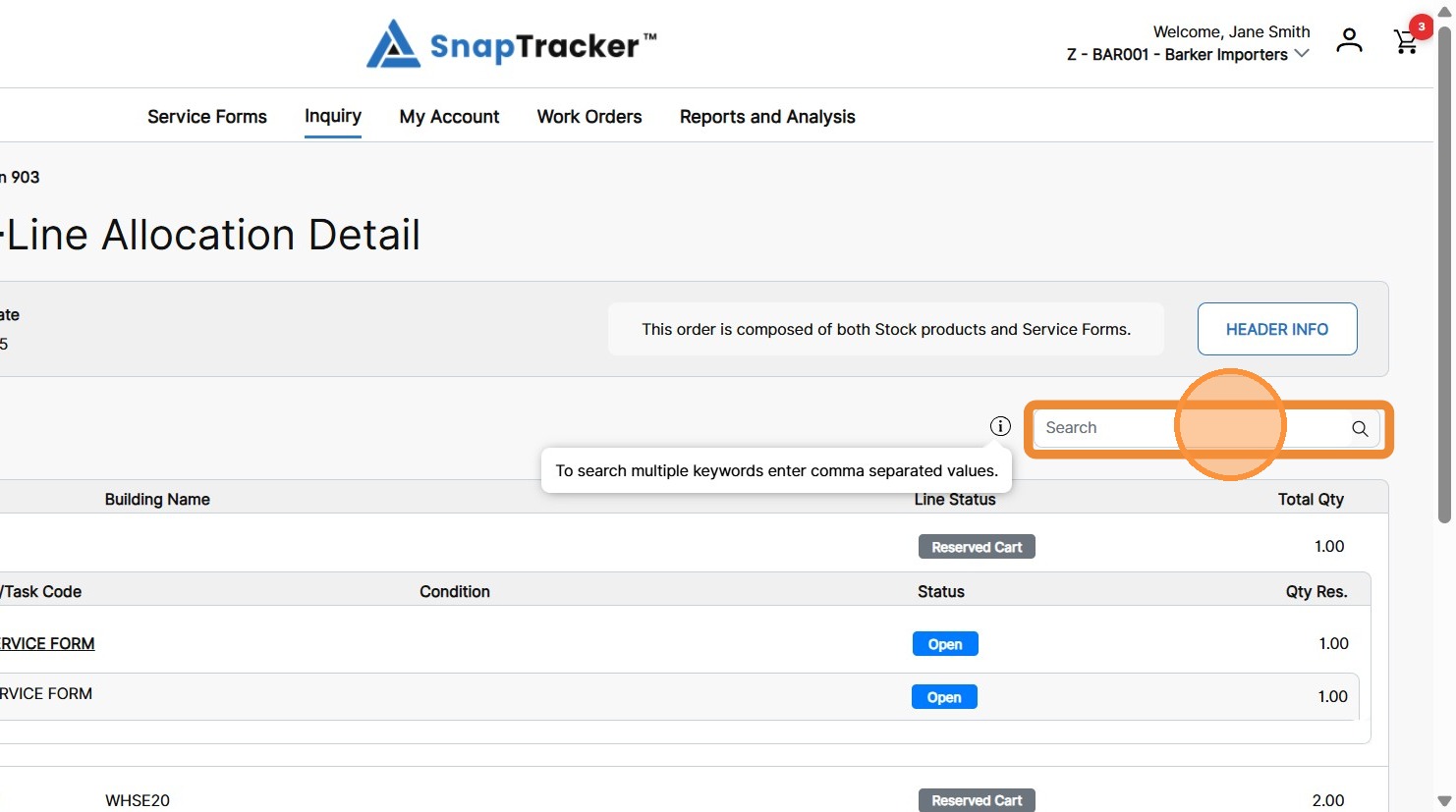
The matching results are highlighted, and any collapsed row shows a Results icon to indicate matching results.
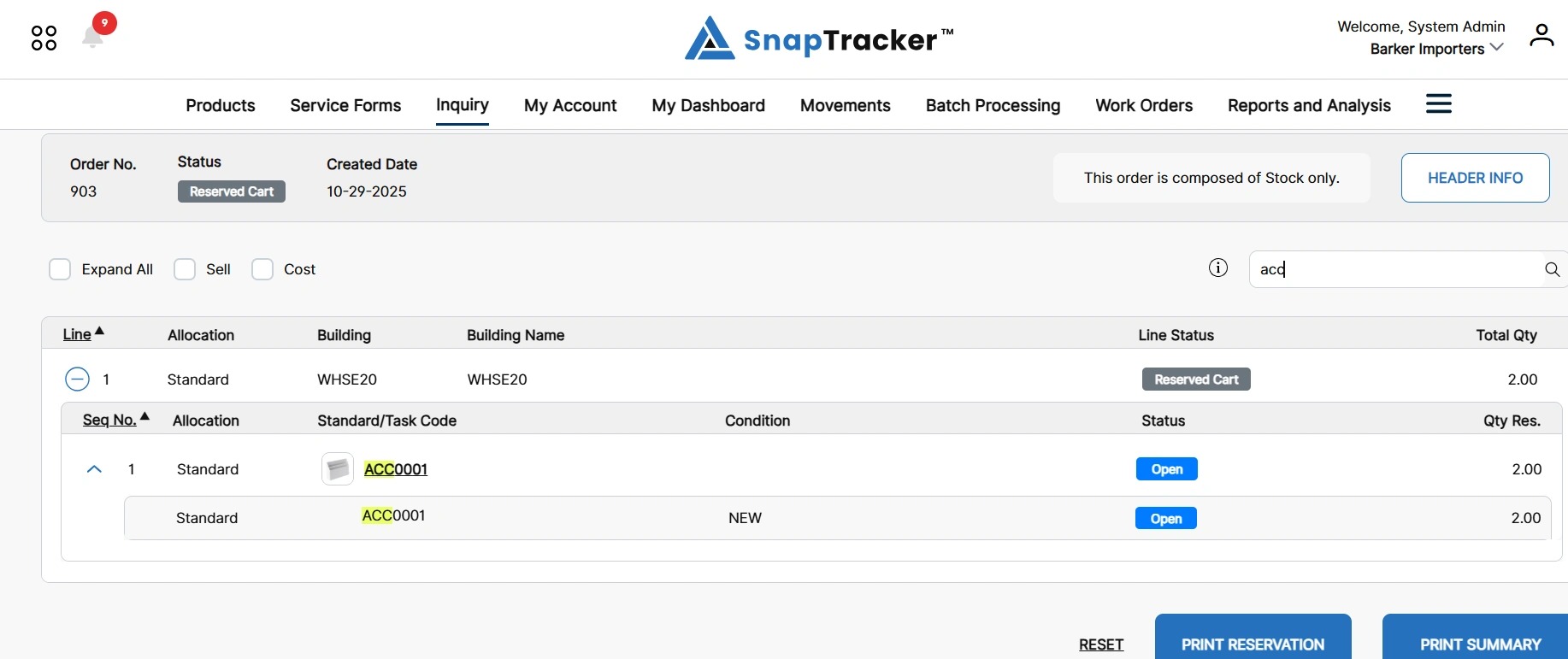
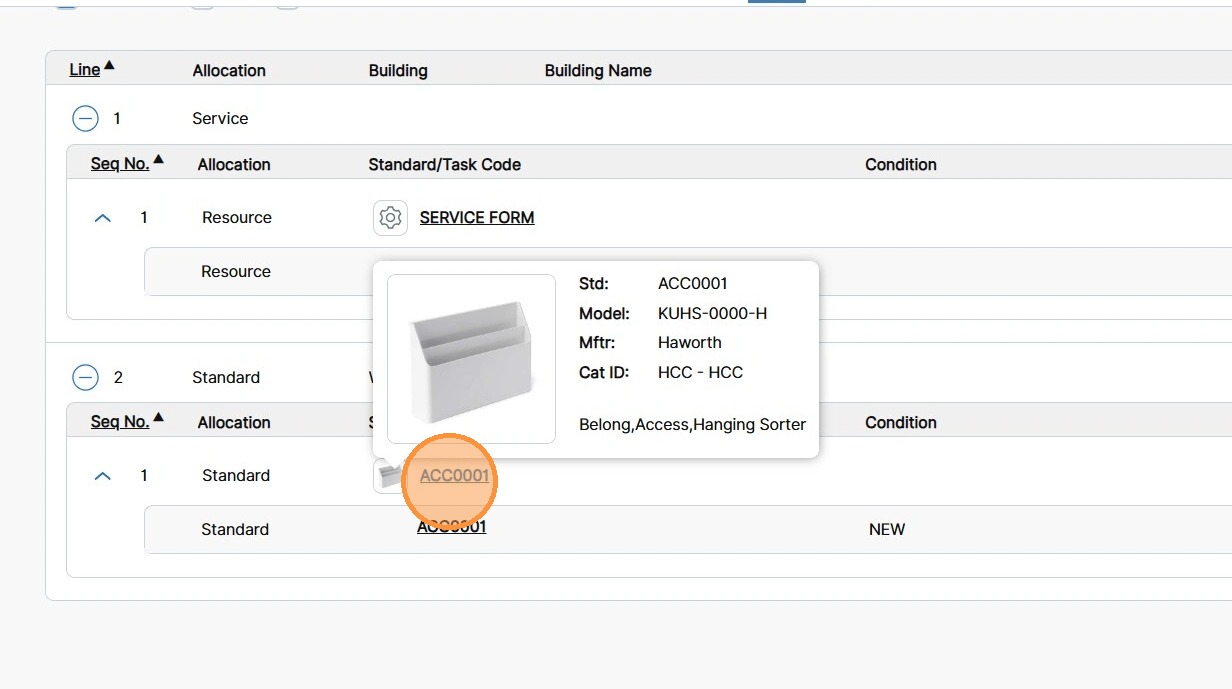
10. To view quick information on a product, hover over the hyperlinked Standard/Task Code.
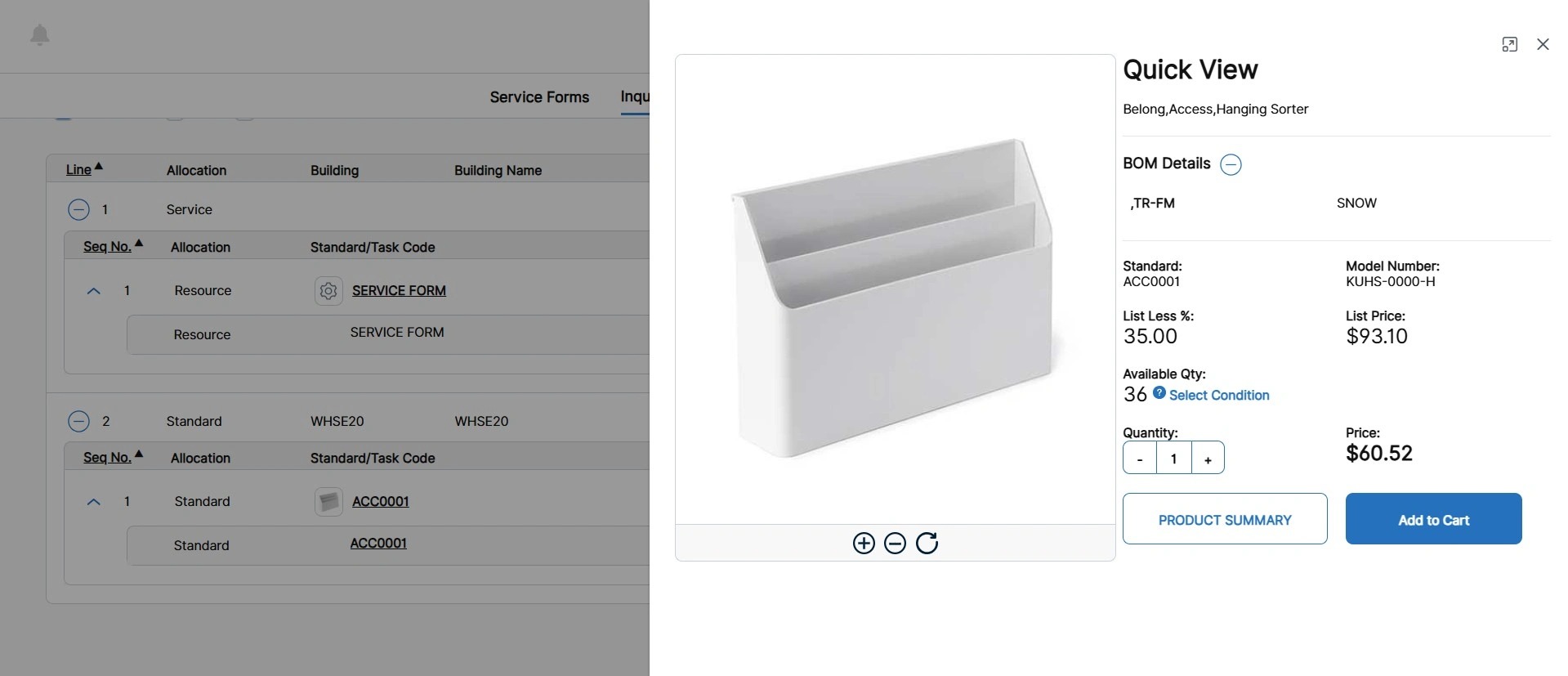
To view full product information, click the hyperlinked Standard/Task Code.
The Quick View side panel for the product displays.
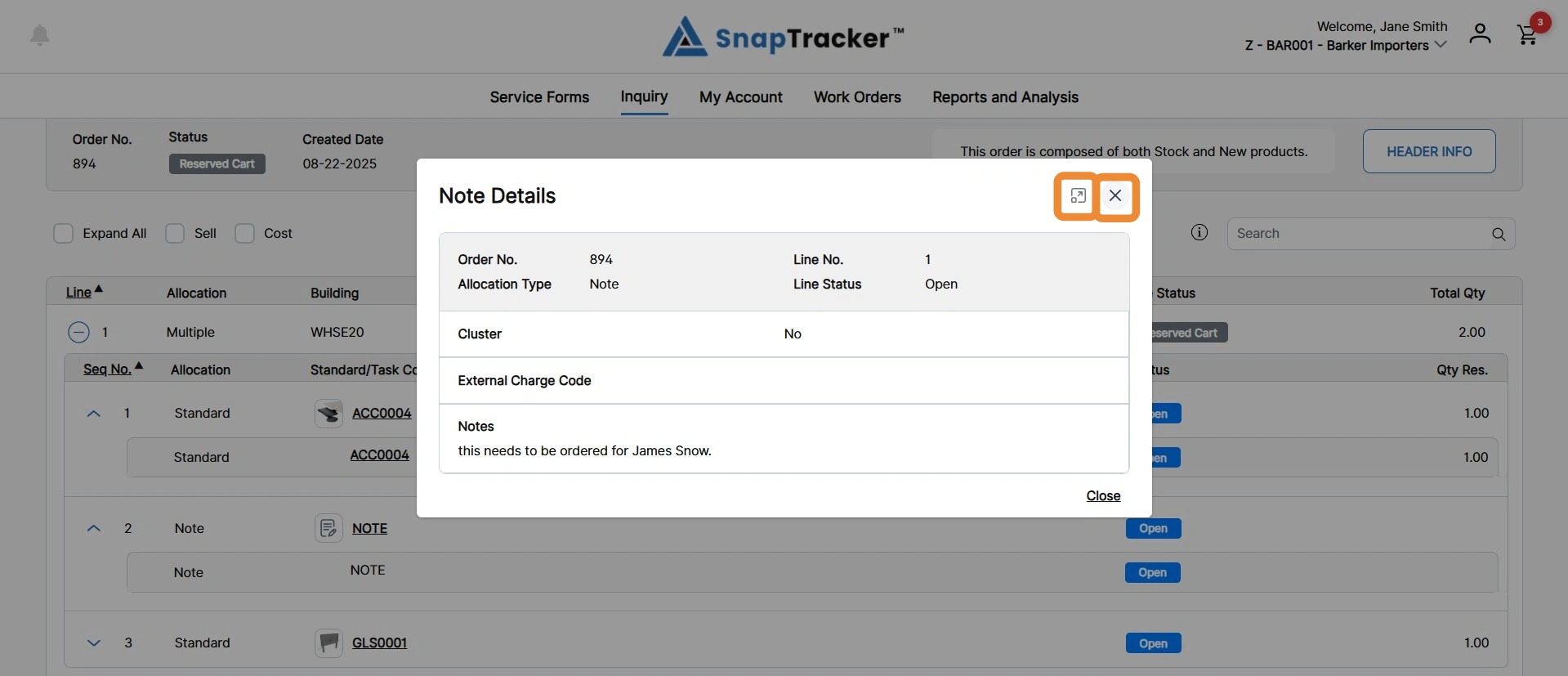
11. To view quick information on a note, hover over the Note hyperlink.
To view full Note information, click the Note hyperlink.
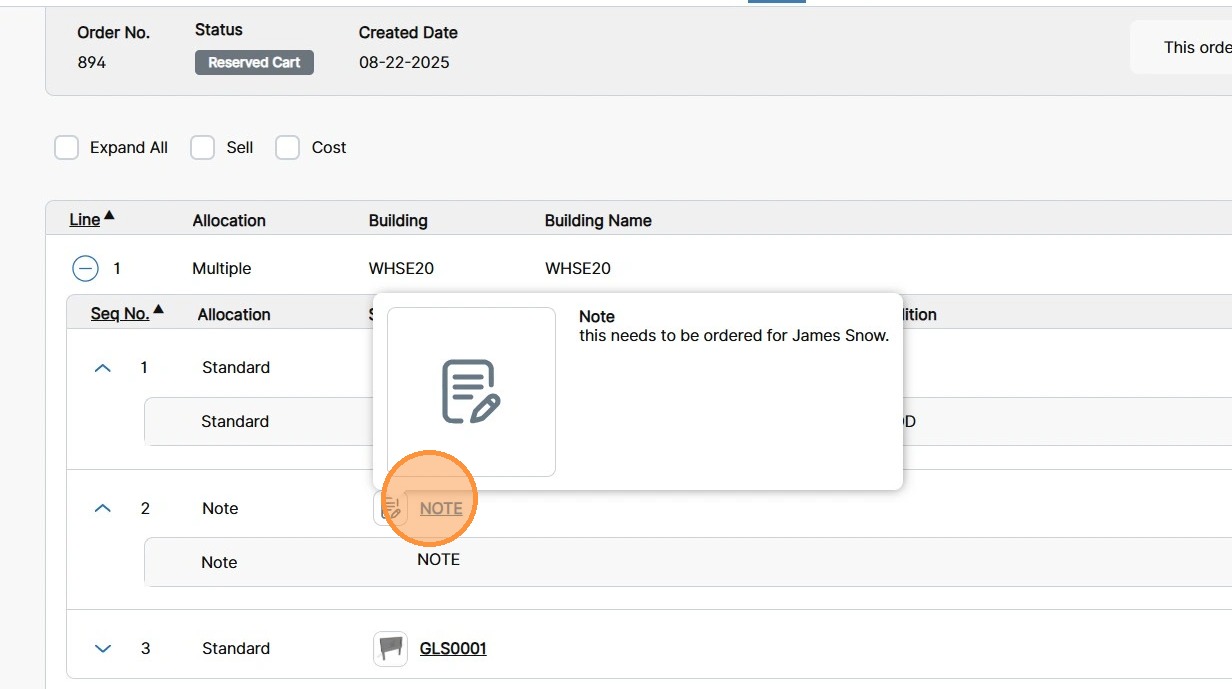
The Note pop-up displays. Click Expand icon for a larger view, or click X to close.
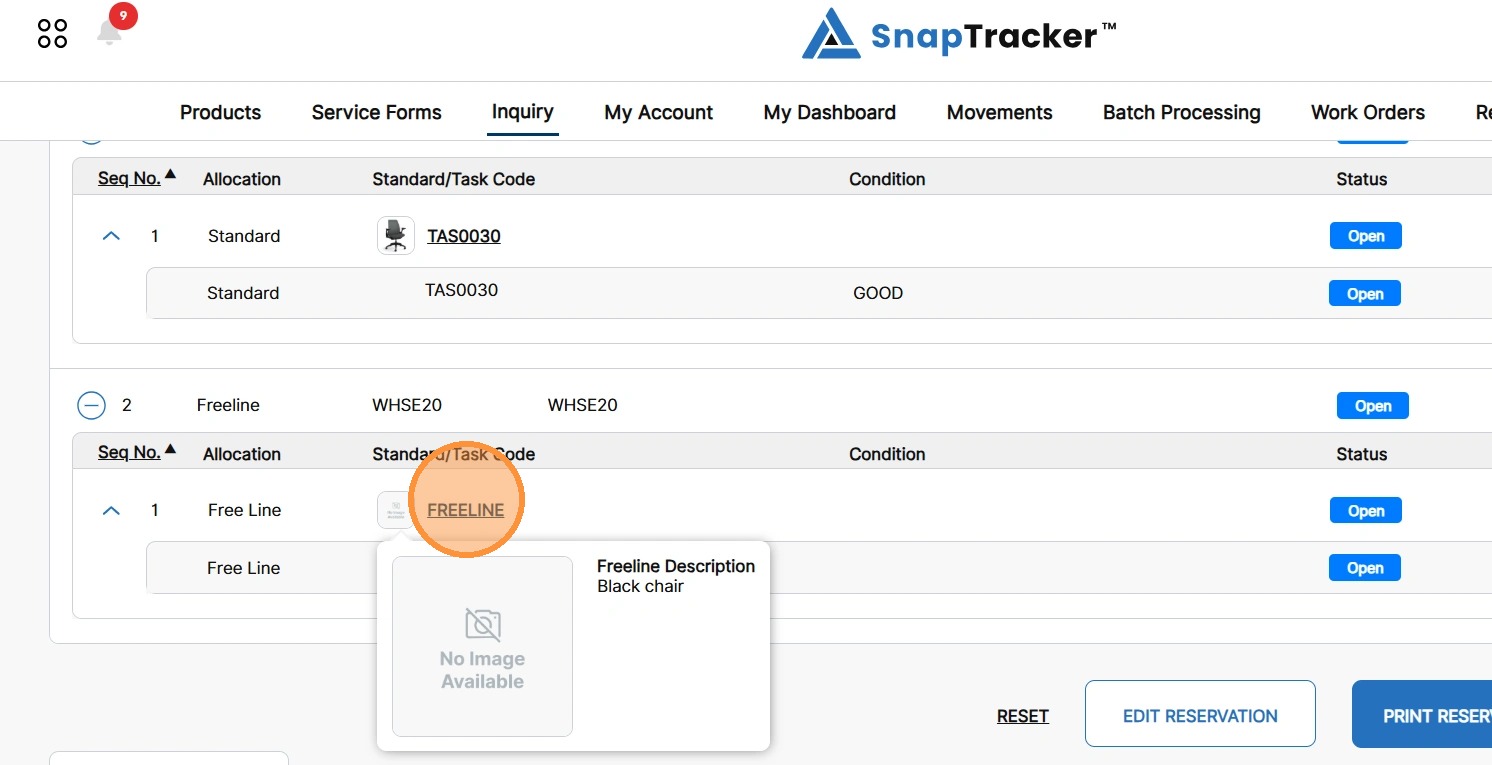
12. To view quick information on a freeline, hover over the Freeline hyperlink.
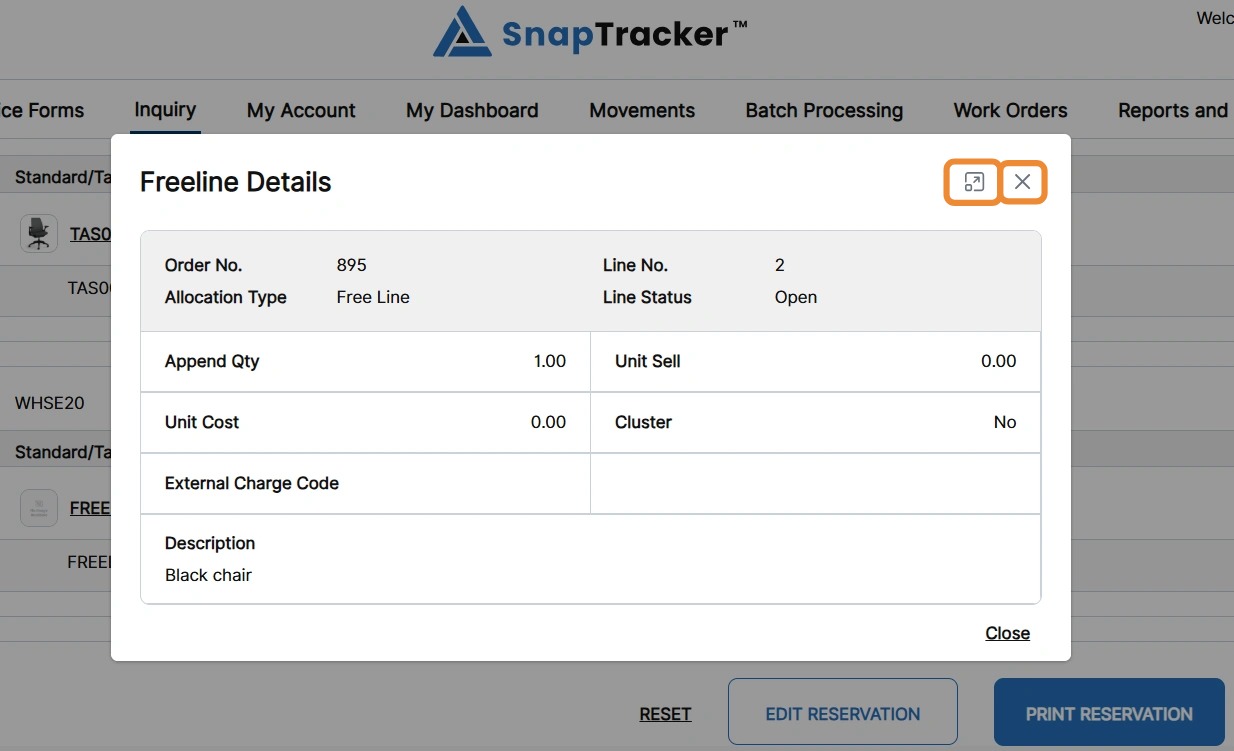
To view full freeline information, click the Freeline hyperlink.
The Freeline pop-up displays. Click the Expand icon for a larger view, or click X to close.
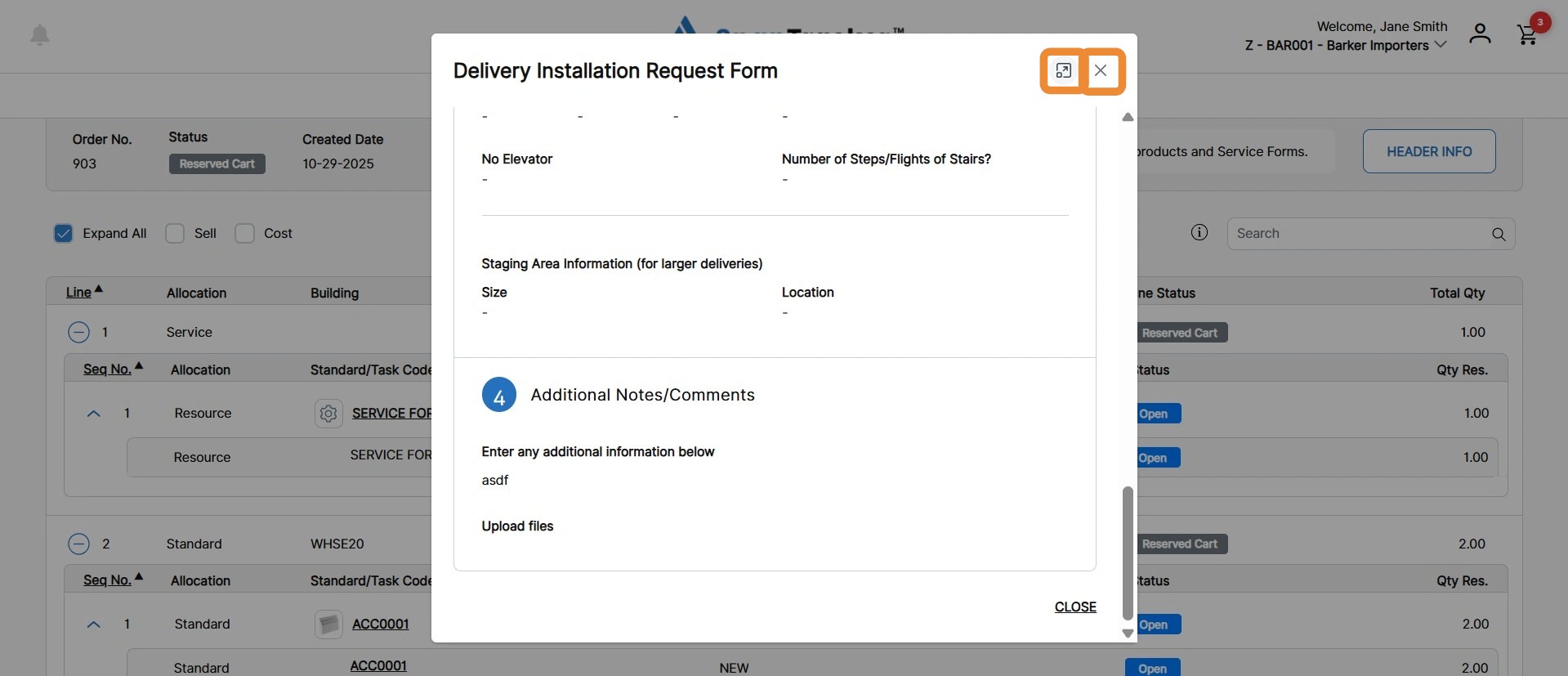
13. To view more information on a Service request, click the Service hyperlink.
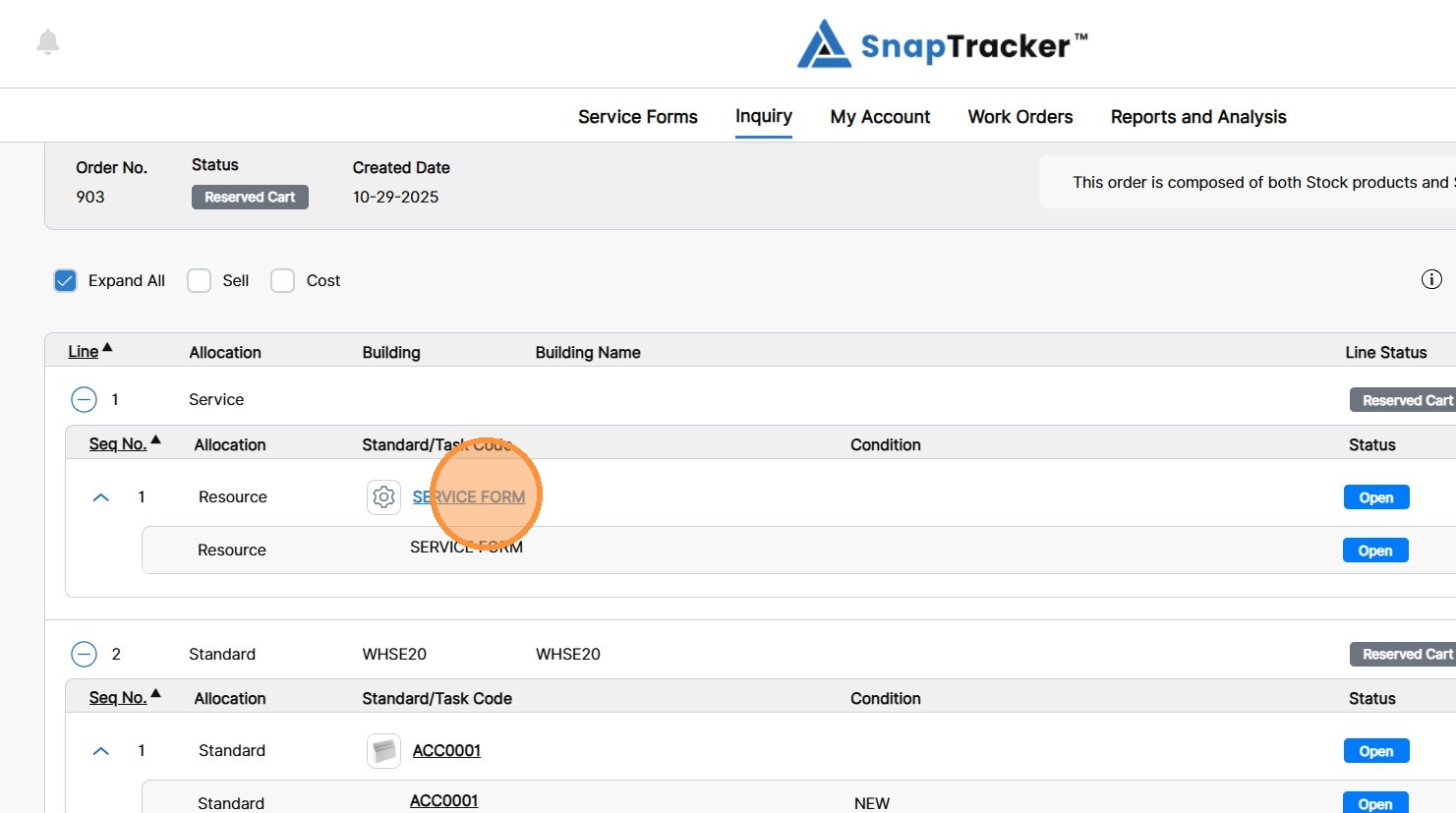
The Service pop-up displays. Click the Expand icon for a larger view, or click X to close
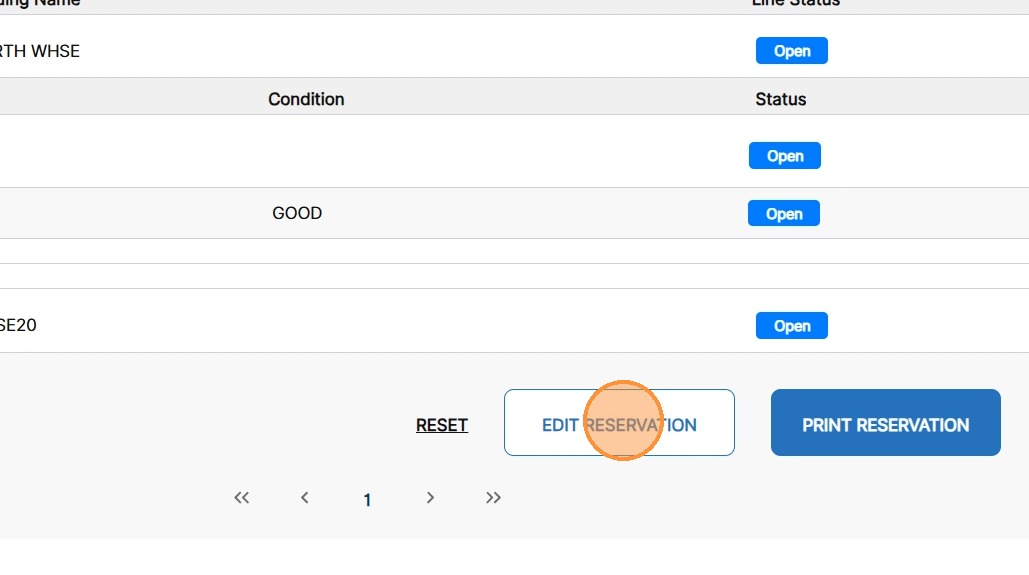
14. If available, to edit the details of the reservation, click Edit Reservation.
You are redirected to the Reservations screen directly.
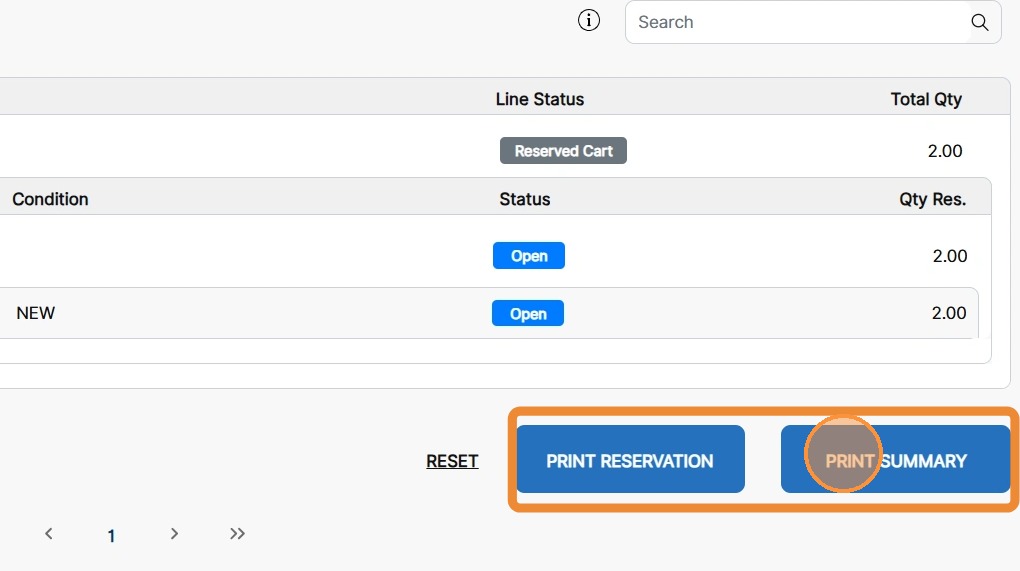
15. To print the reservation details or the reservation summary, click the respective Print button.