
How to Access a Request in the Review Process
SnapTracker has several different workflows that can be configured for a Customer. One such workflow enables service providers to have a collaborative approach to requesting products between a shopper and the service provider called Review Cart.
The customer shopping experience can be configured so that a cart/request goes to the dealer to review before final checkout and order creation.
Based on the defined criteria, when a shopper checks out the cart it is sent to another user registered on the site (usually the service provider CSR) to review.
The customer service rep for the service provider can add additional product, additional charges, such as labor, tax, or delivery and installation, before the final checkout to provide the shopper with a full picture of the total costs of the request.
When this functionality is configured, the user submits a cart, the CSR reviews the cart and makes any required changes. The cart is then made available to the shopper to verify. If the shopper proceeds to check out the cart with the changes made, an order is created.
SnapTracker determines if the request should be reviewed prior to final checkout. If the request qualifies for the review process, the end user/shopper is notified the order is being routed to a reviewer and emails are sent as notifications.
Before starting, make sure:
- You are logged into SnapTracker.
- The review cart process is set up for the desired Customer.
- There is at minimum one cart created and sent to you for review.
- Your user has shopping enabled.
- The correct Customer is selected from the Customer selection list.
This post outlines how to access a request in the review process and forward it to a reviewer as necessary.
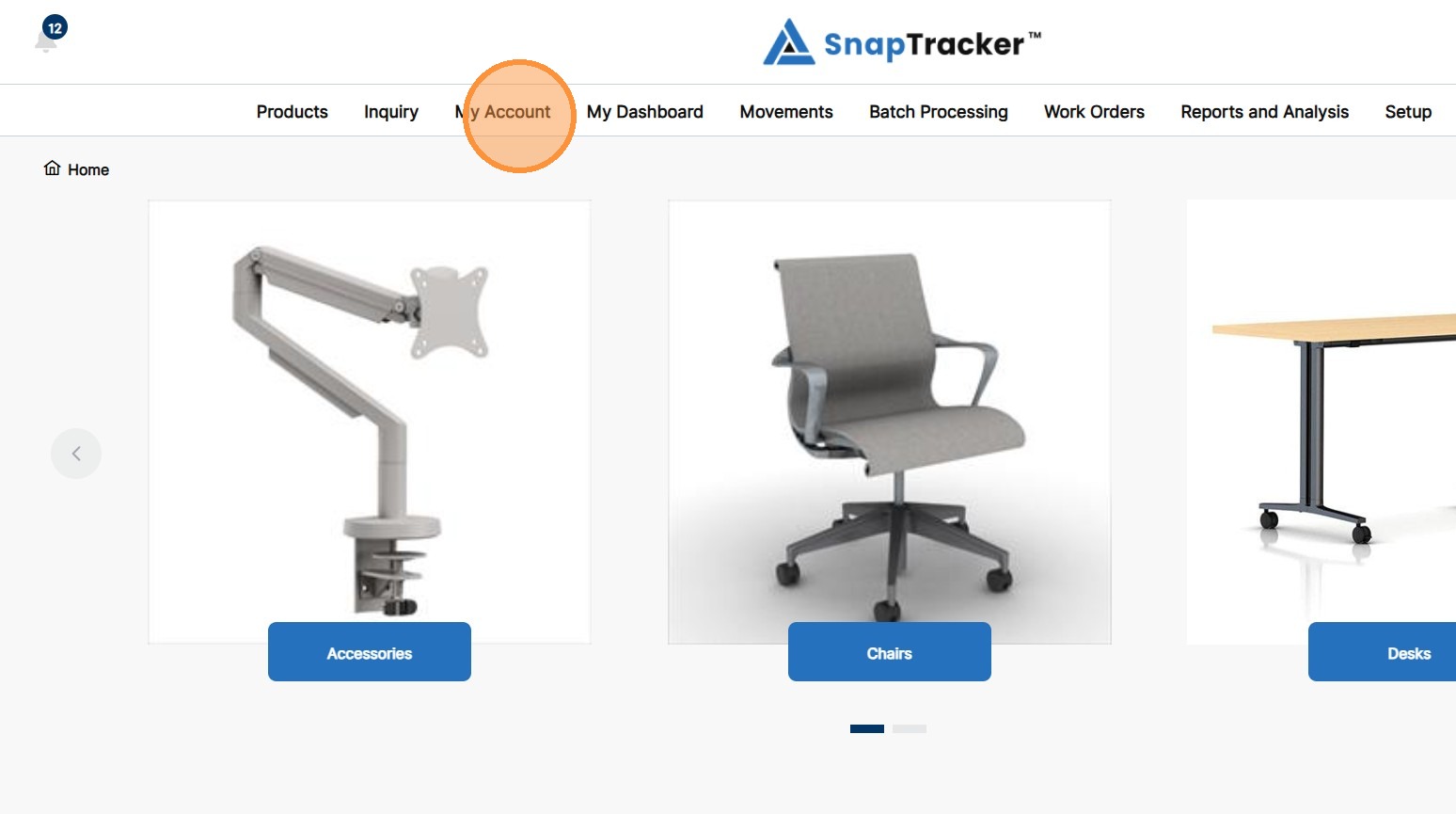
1. In the header section, click My Account.
2. Click Review Requests.
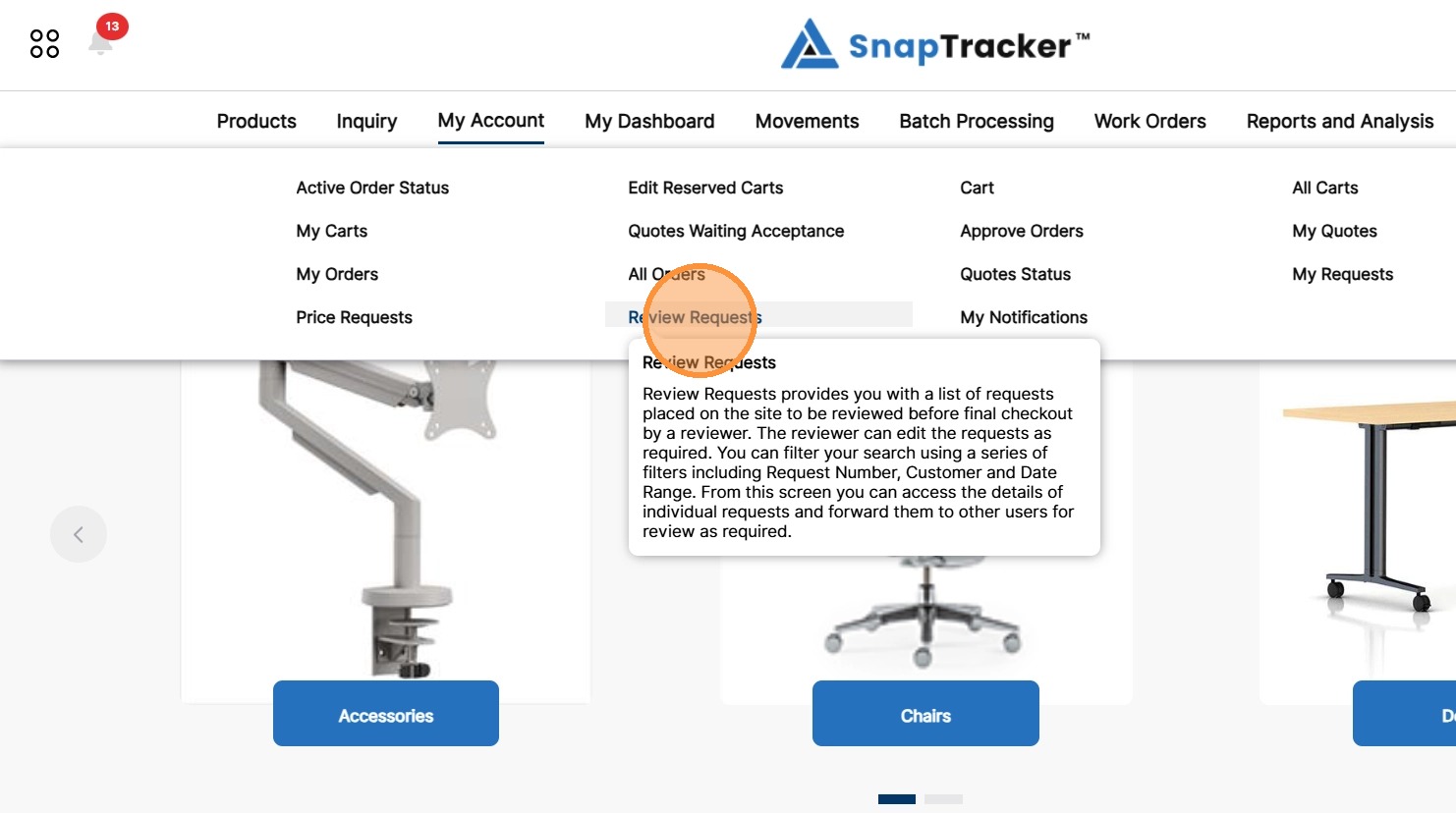
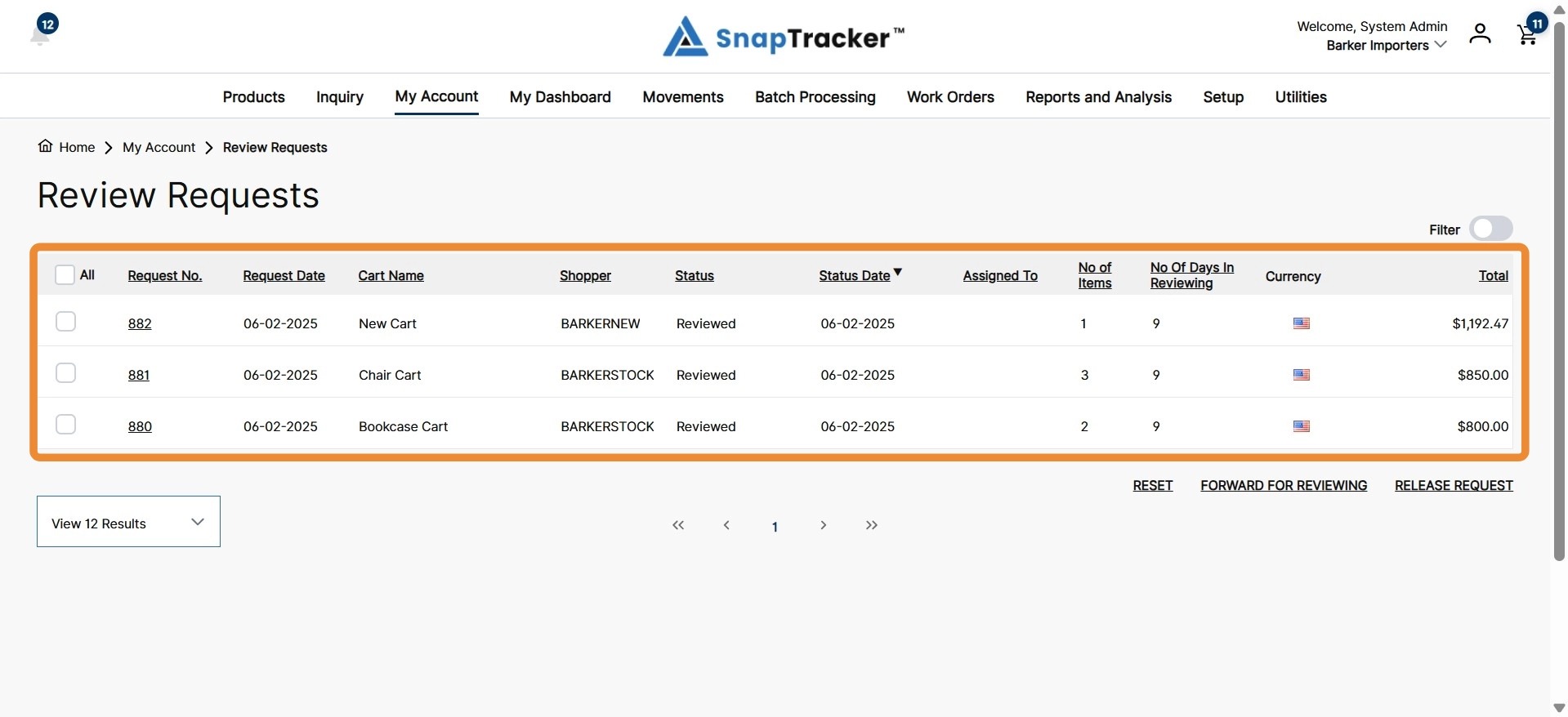
The Review Requests screen displays.
There are two ways the screen may initially display. The initial view is based on your user settings.
By default it may display a list of the requests:
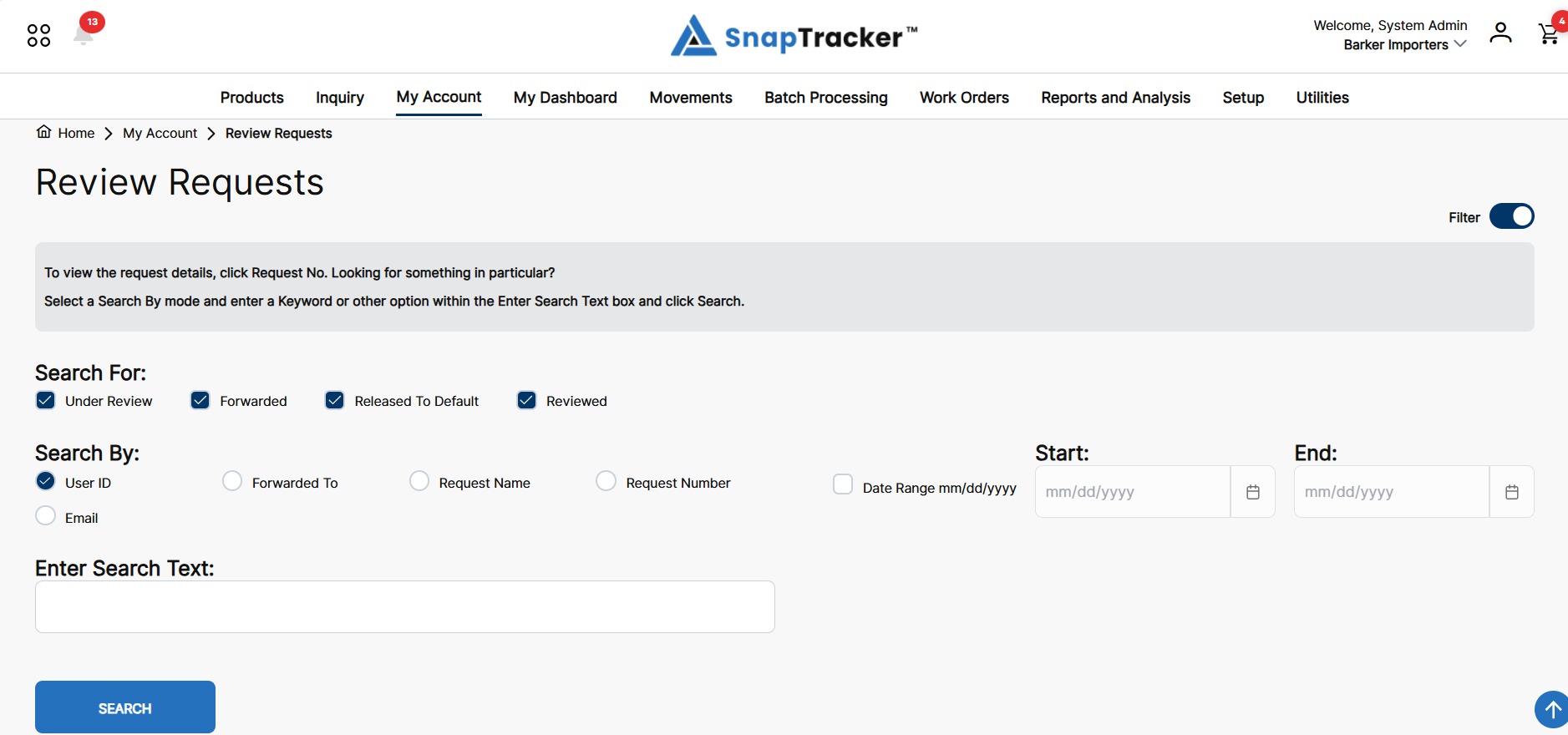
Or by default it may display filters for you to select before the list of the requests displays.
For more information on the filters, go to Step 8 (below).
Note: Filters can be toggled on or off using the Filter option.
Observe the Review Requests screen:
- Request No. – The request number associated with the cart. (The order number will be the same as the request number once released).
- Request Date – The date the cart was submitted for review.
- Cart Name – The name of the cart associated with the request.
- Shopper – The user who created the request.
- Status – The current status of the cart in the review process.
- Status Date – The date associated with the most recent change in status.
- Assigned To – The user assigned to review the cart.
- No of Items – The number of items in the cart.
- No of Days in Review – The number of days the cart has been in review.
- Currency – The currency the order was created in (if applicable).
- Total – The total value of the order.
3. To change the sort order of the results, click any hyperlinked column header to sort the results by that column in ascending or descending order.
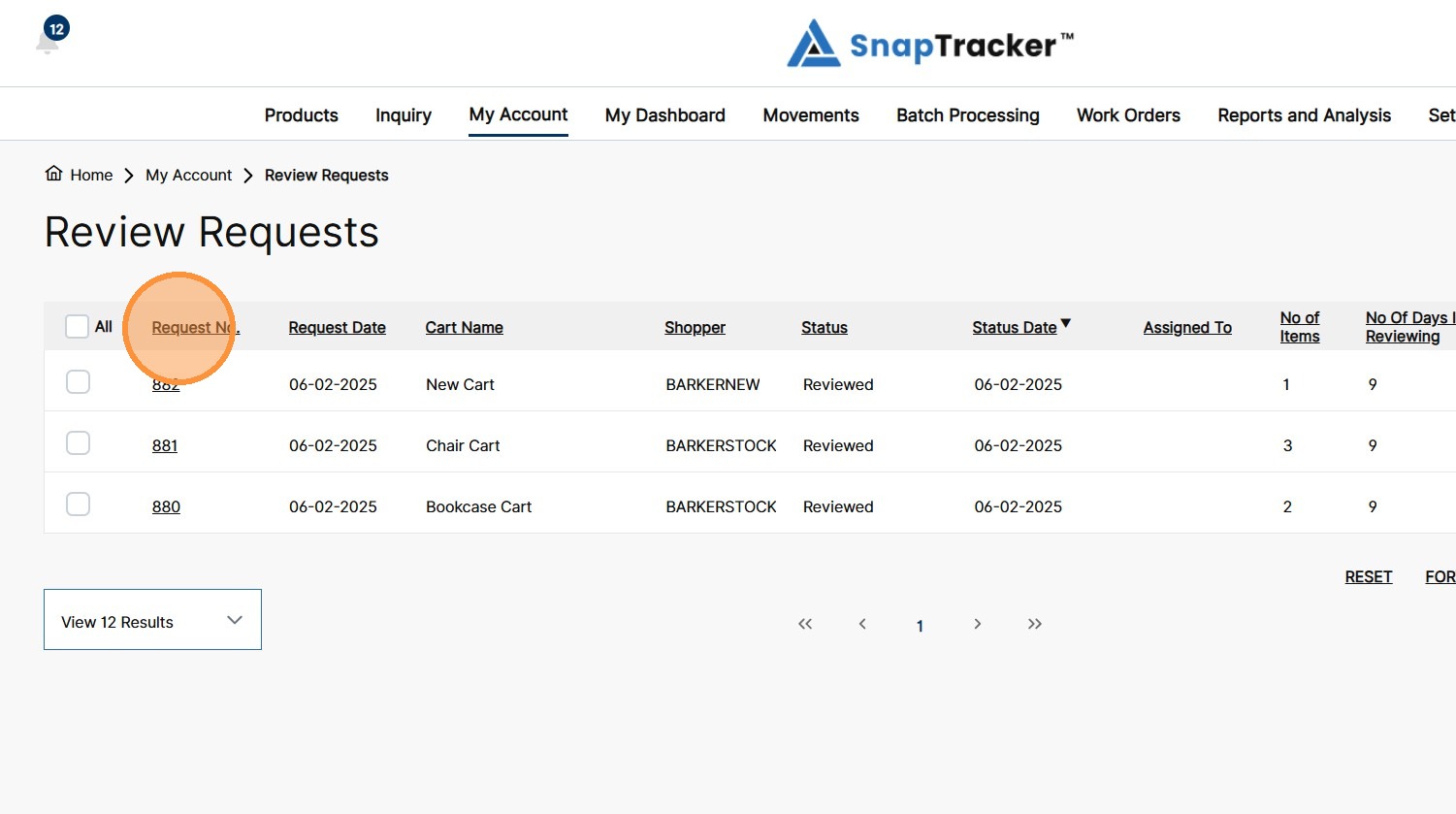
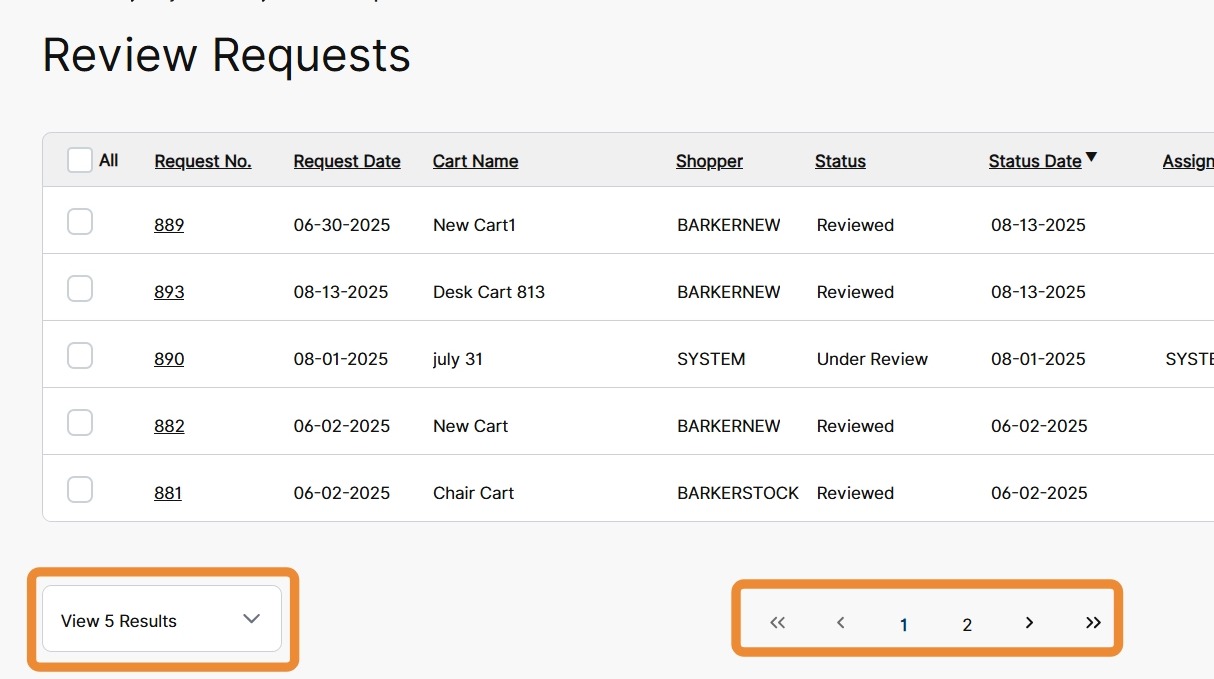
The Review Requests screen is paginated and you can scroll through the pages. You can also change the number of results displayed on a single page by clicking the View Results drop-down and changing the number of records displayed.
The primary actions for the Review Requests screen display at the bottom right of the screen.
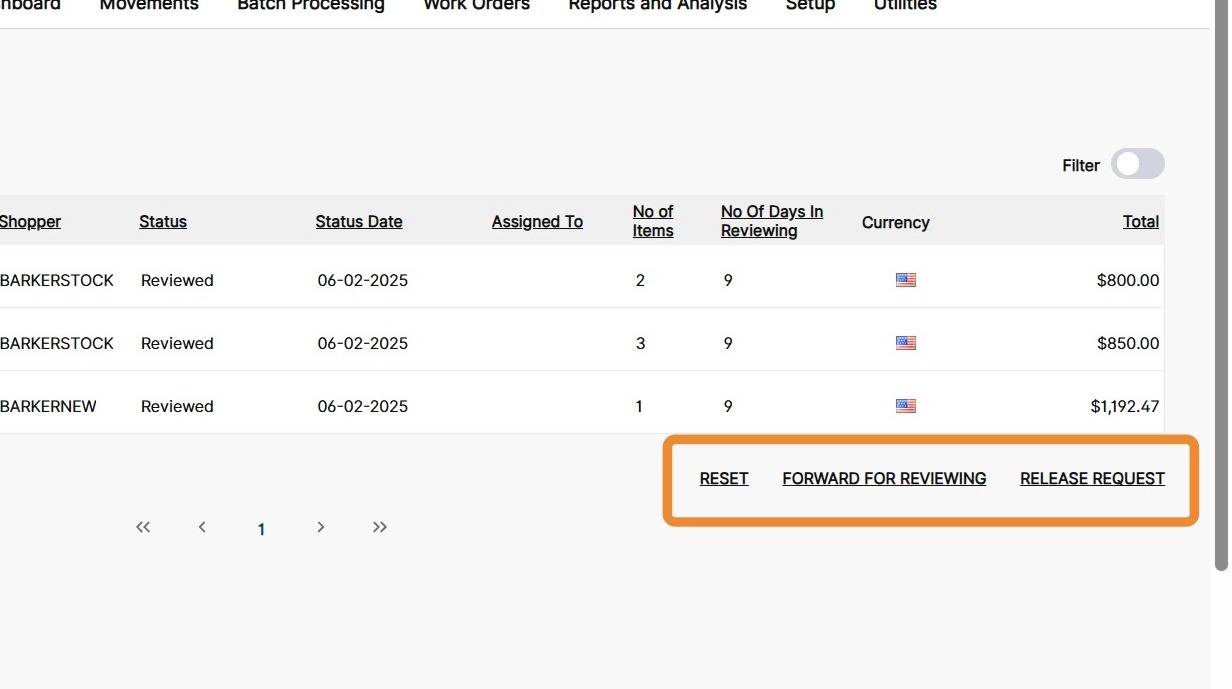
Observe the primary actions:
- Reset – Reset any applied filters.
- Forward for Reviewing – Forward the cart to another user to review and make updates.
- Release Request – Release the reviewed request back to the shopper to complete checkout.
4. To forward the request to another user, select the checkbox for a request, and click Forward for Reviewing.
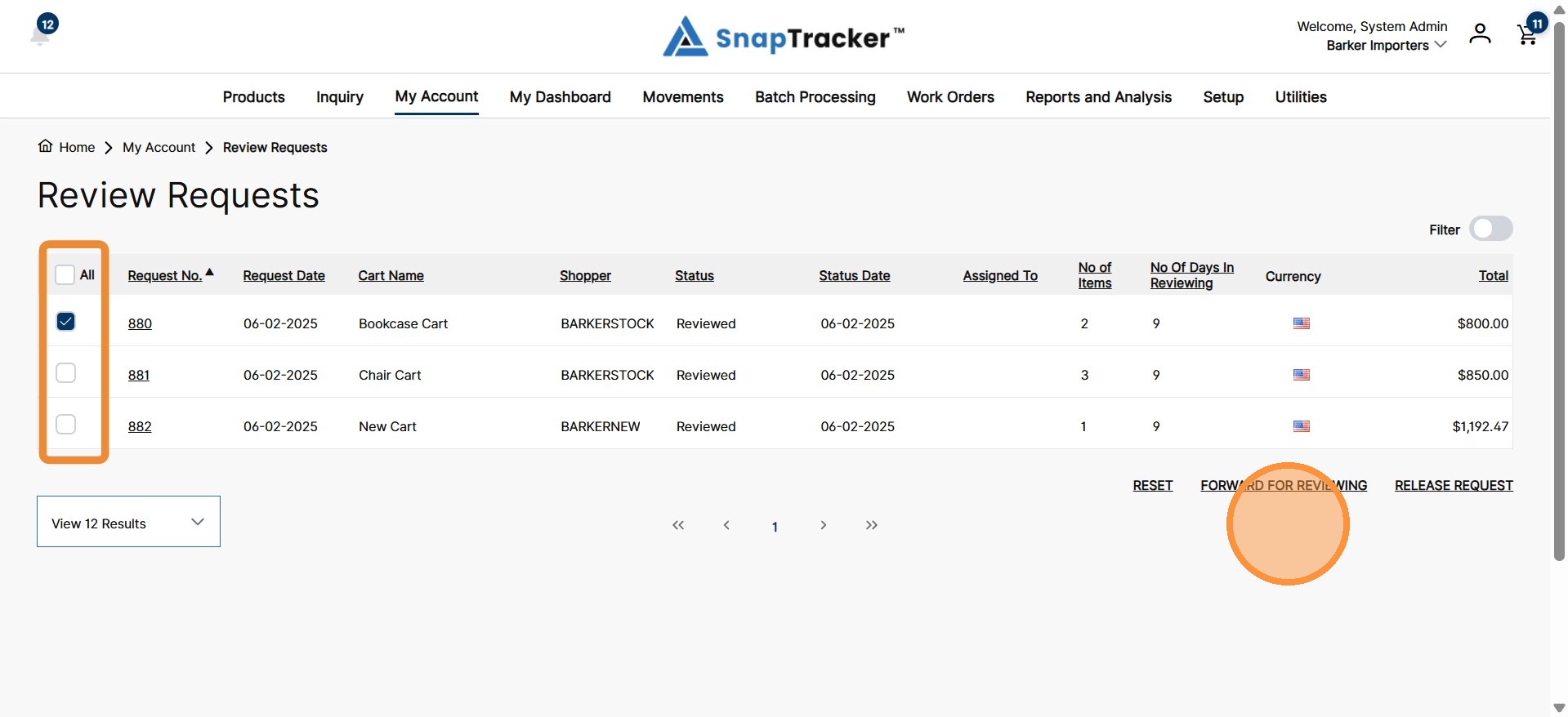
The Forward Request pop-up displays.
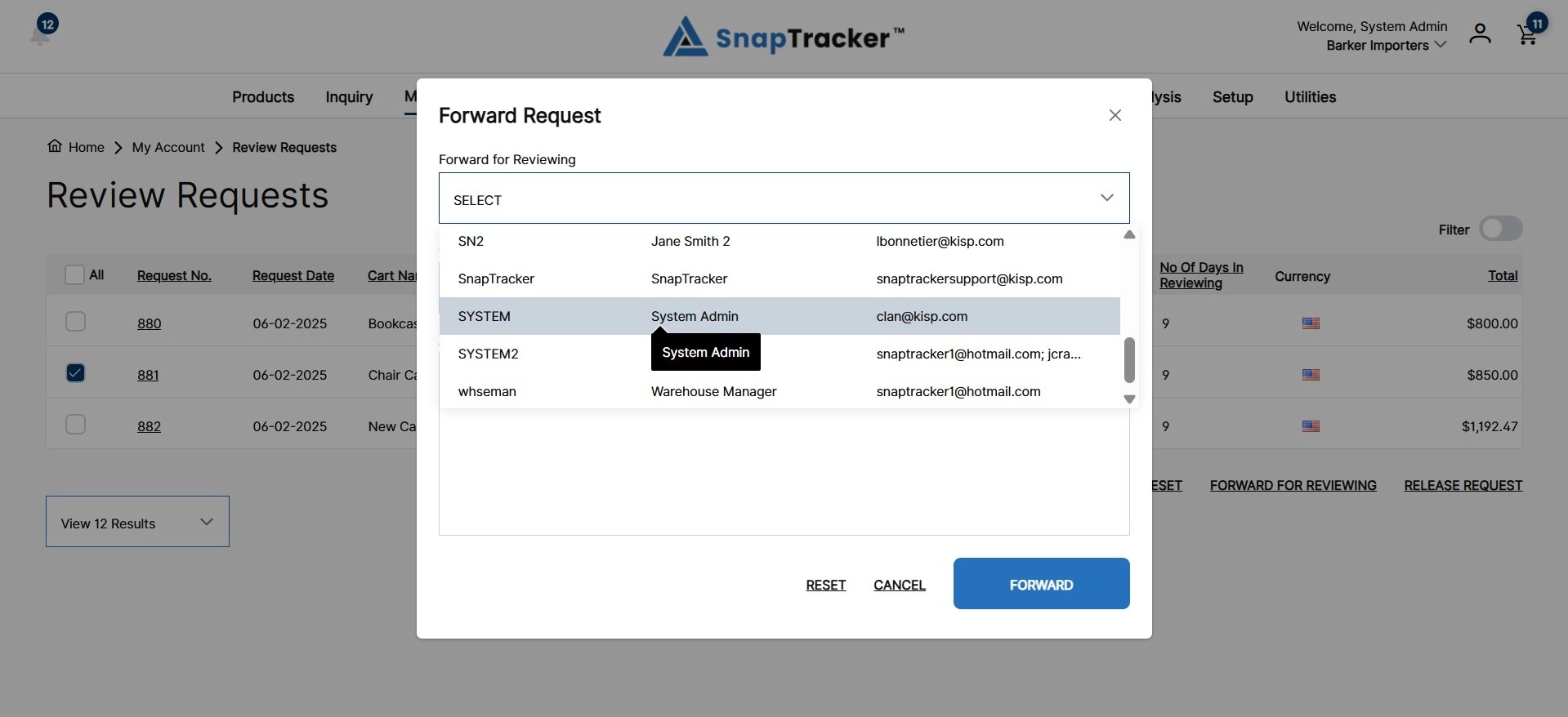
5. A list of all users that have access to the selected Customer display. Click the dropdown to select a user to forward the request to for review.
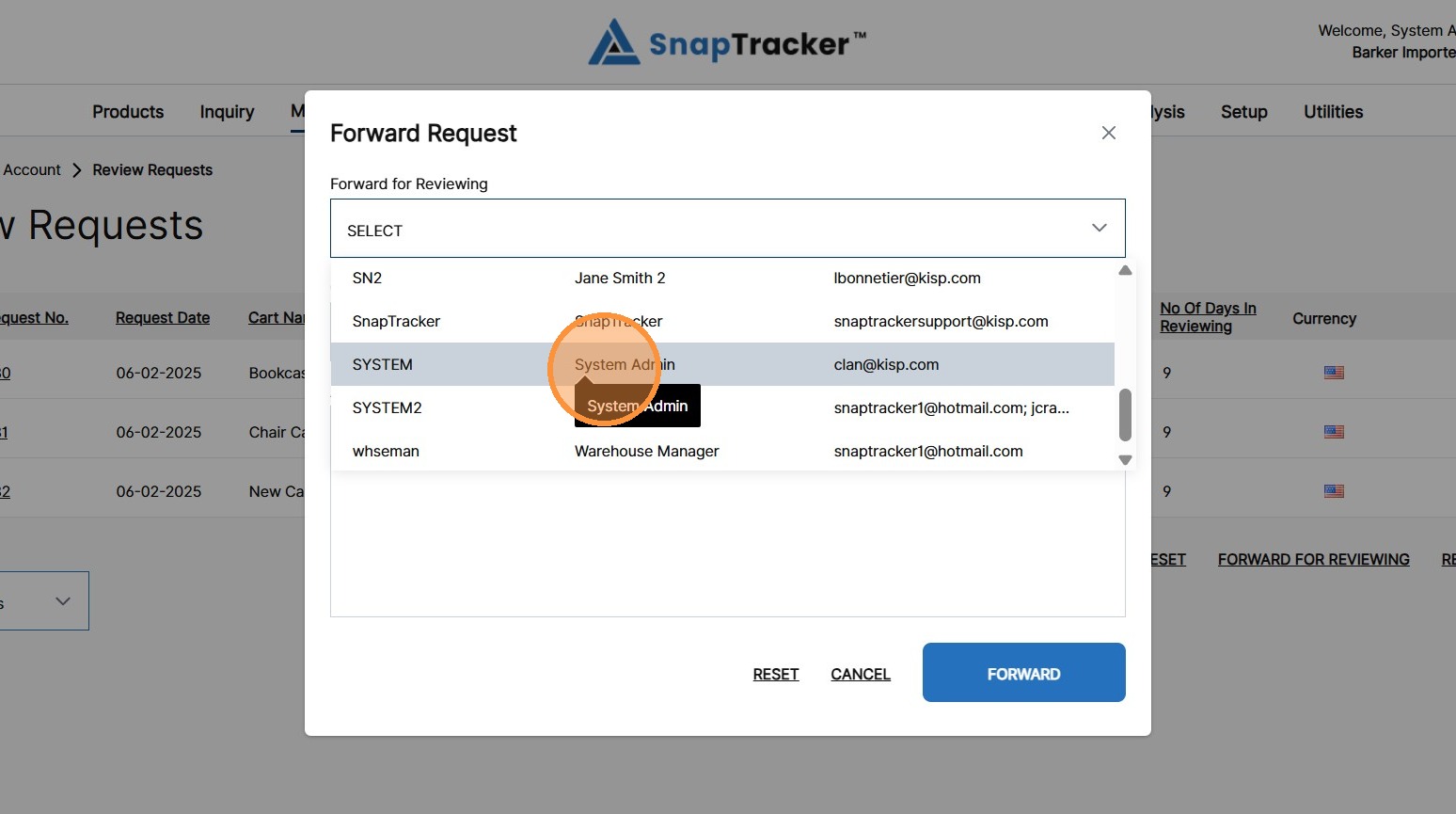
6. Populate other fields as desired, then click Forward.
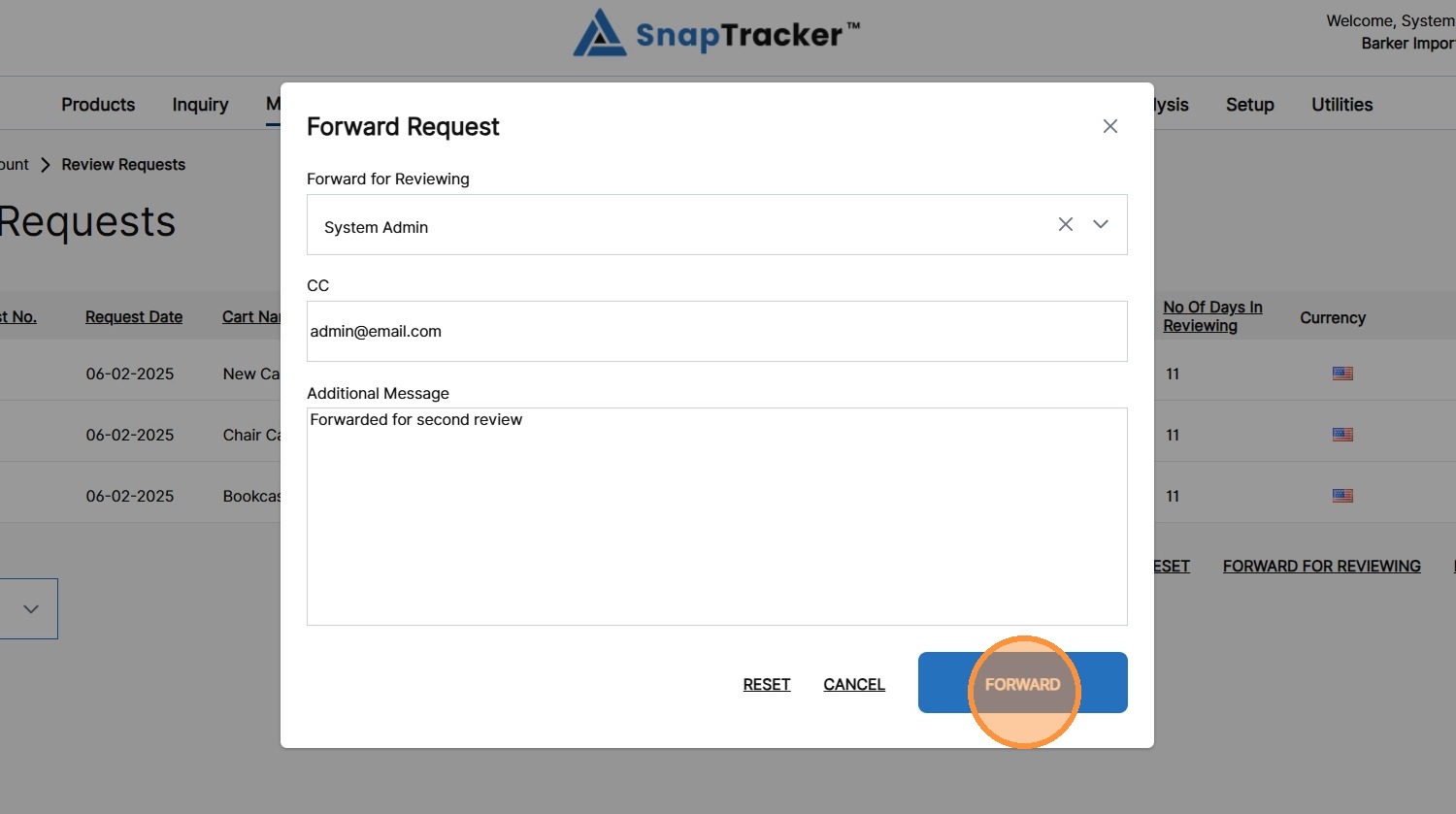
7. To release a request from the Review Requests screen, select the checkbox for a request, and click Release Request.
A success notification displays. The status of the request is updated to Reviewed.
An email is sent to the shopper advising them the request has been reviewed. The shopper is able to access the cart from their Carts list.
8. To view additional filters, click the Filter icon.
Note: The Filters may display for you by default, depending on your user settings.
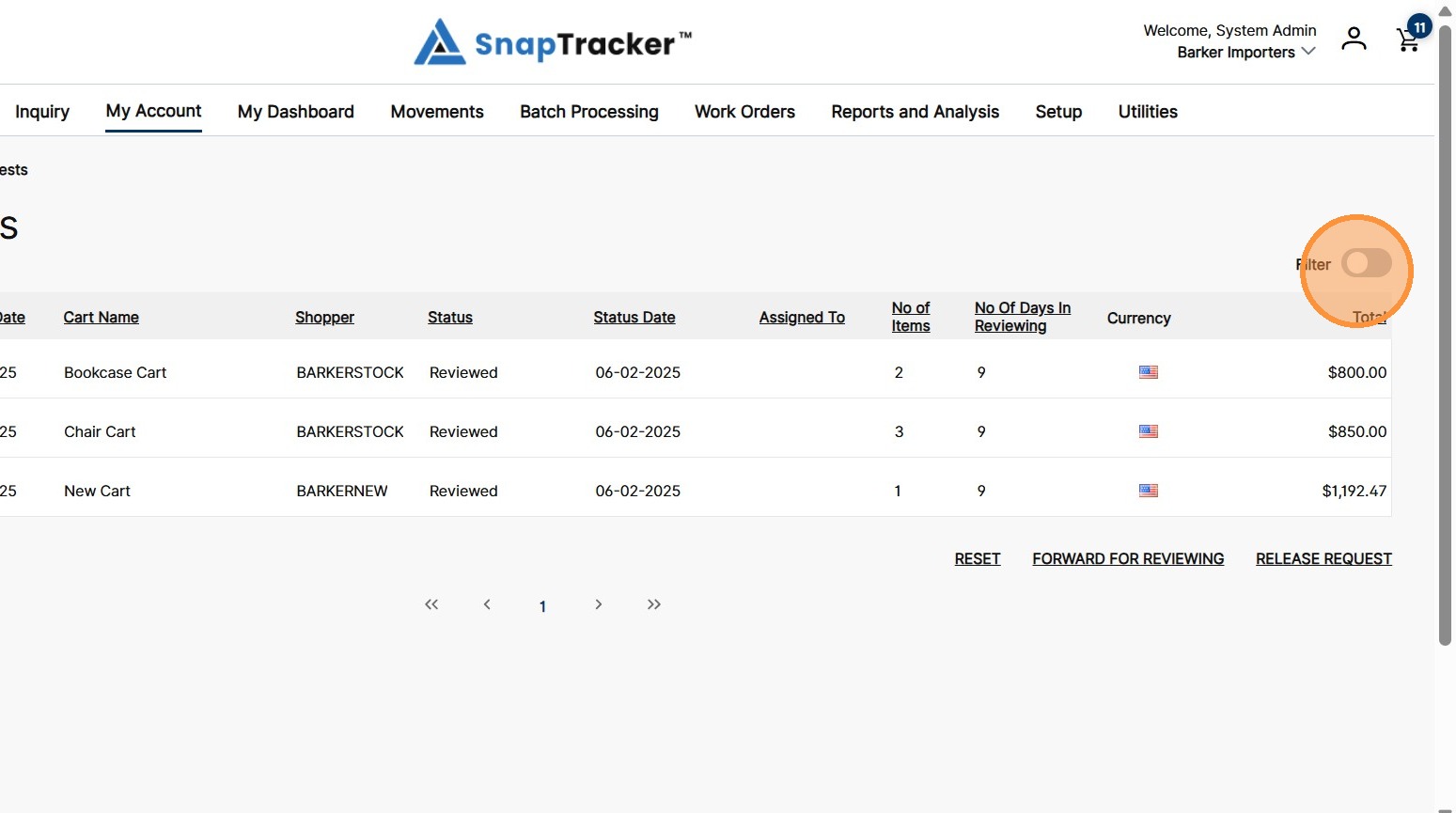
The filters display.
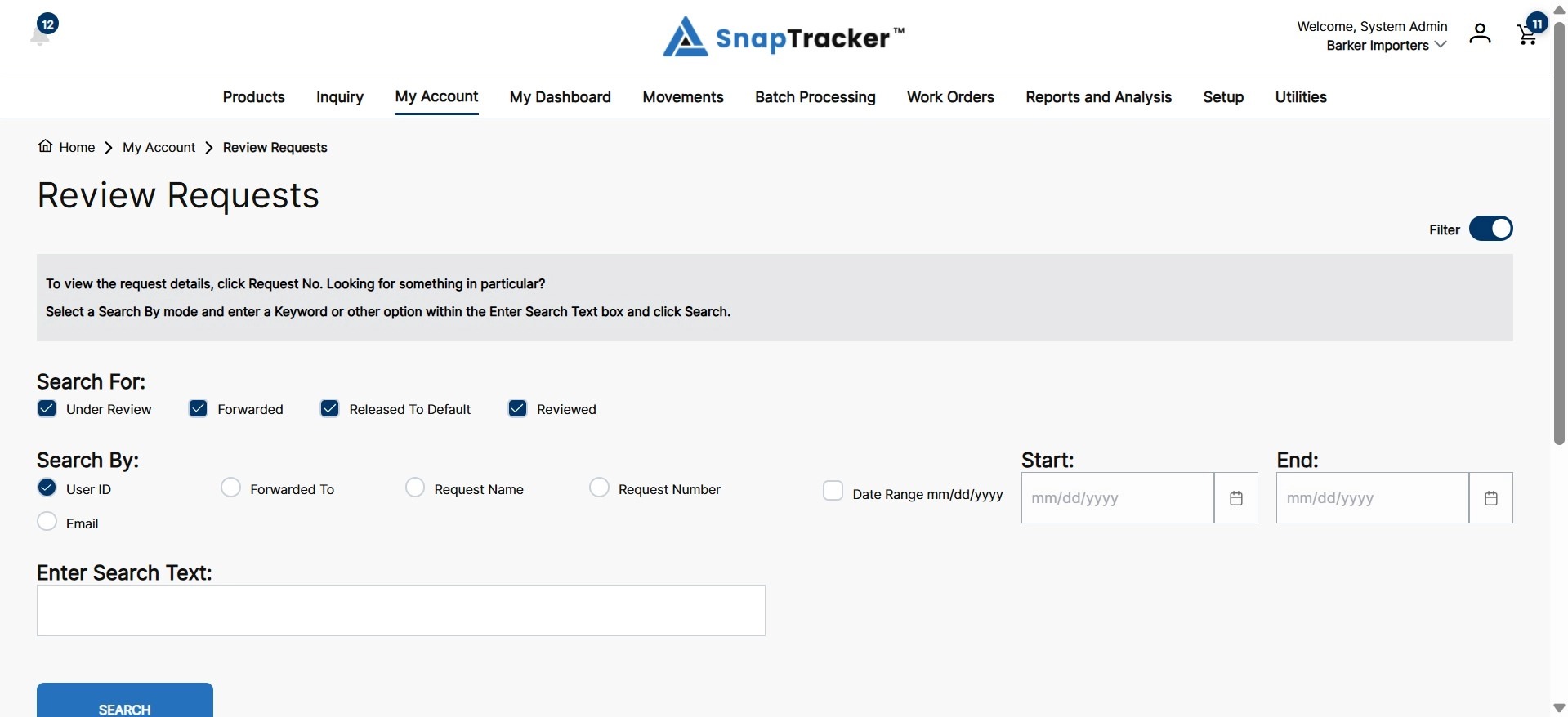
One filter or a combination of filters can be applied to get the desired results.
- Search For – Select the request statuses to filter by.
- Search By – Select a field to search for a keyword in.
- Enter Search Text – Combined with Search By. Type in a keyword to search for in the selected field.
- Date Range – Select a date range to filter.
9. Make your selections using the corresponding sections. Click Search.
The filtered results display.
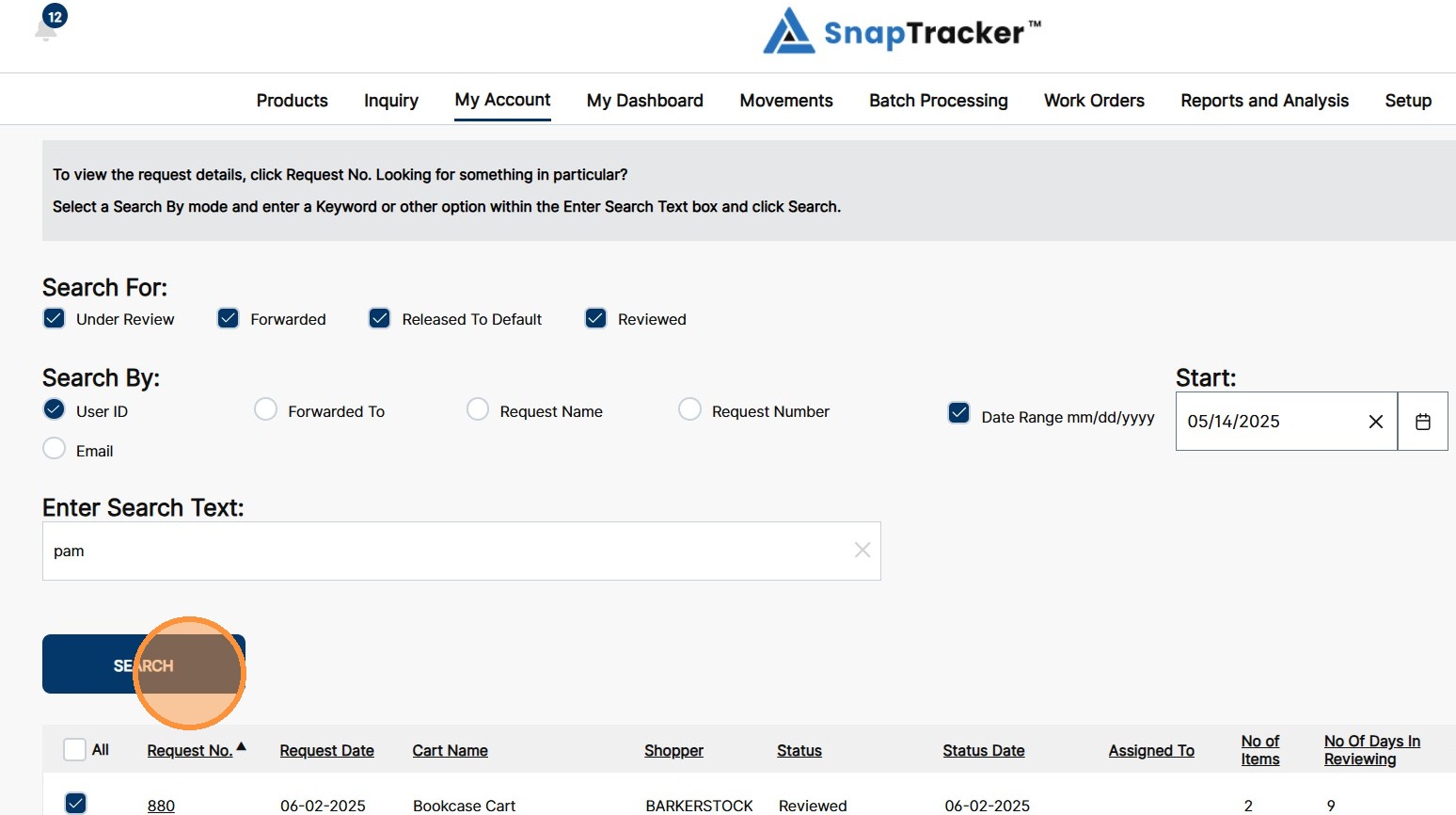
10. To review the details of an individual request, click the hyperlinked request no.
For more information on how to review the Request Details, refer to How to Review and Edit a Request in the Review Process.