
How to Set Up My Profile
Once your login is set up, you can access SnapTracker and start using the functionalities you have access to. To enhance your SnapTracker experience, you can modify and add additional information to customize your processes.
Before starting, make sure:
- You are logged in to SnapTracker.
- Have access to the My Profile screen.
- At minimum one address has already been set up in the site in Address Setup screen.
This post outlines how to access the My Profile screen and modify profile information.
Note: Access to My Profile is configured at the user level. You may not have access to this screen, based on your current user access.
1. In the header section, click the Profile icon.
The User Profile dropdown menu displays.

2. Click My Profile.

My Profile screen displays.
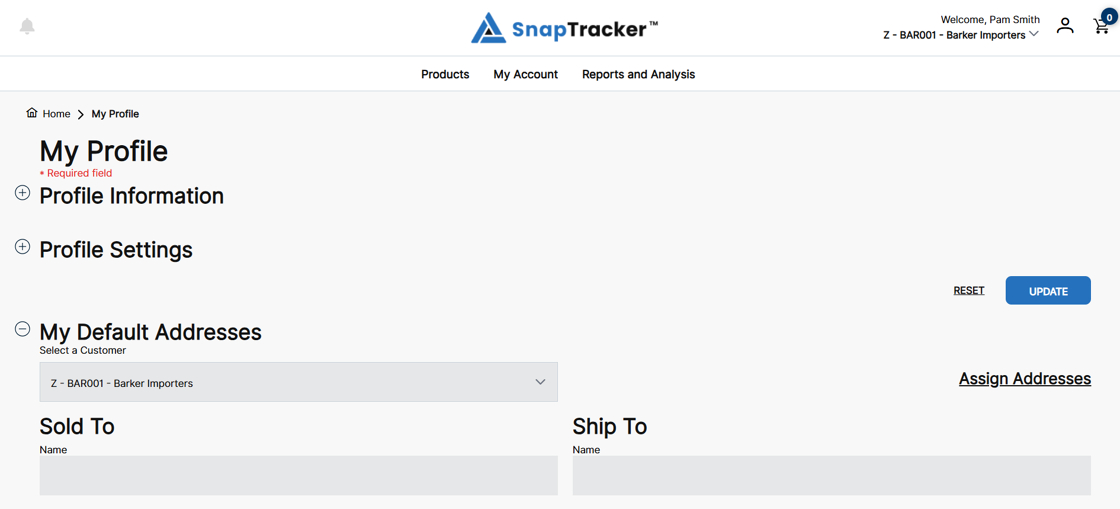
Observe the following sections on My Profile screen:
- Profile Information – Includes fields related to your profile information.
- Profile Settings – Includes fields related to your preferred website setting.
- My Default Addresses – Includes saved Sold To and Ship To addresses based on the customers you have access to.
3. Click the desired fields in the Profile Information section and edit accordingly.

4. Click the desired fields in the Profile Settings section and edit accordingly.

5. When all changes have been made, click Update.

6. To assign a default Address to your profile, in the My Default Addresses section, click Assign Addresses.
The Assign Address pop-up displays.

7. Select and enter fields to search for an address by.

8. Click Search.

9. In the Assign Default Address for: field, click the checkbox for Sold To and or Ship To.

10. Click the checkbox beside the desired address and click Assign.
