
How to Use Inquiry – Location Contents – Basic Search
The Inquiry section is used to search different information related to product in SnapTracker. Location Contents is designed to provide you with inventory information for products you have in stock in a specific building or location.
Location Contents enables you to quickly see an itemized list of all recorded items in a Building or Location. You can print the information or export it in a CSV format.
It also enables you to do quick location checks to ensure accuracy of the data.
You can conduct basic and advanced searches using Location Contents. The results display Building, Location, Customer, Standard Class, Condition, Standard, Catalog Number, Serial Number and quantities on hand, depending on the search filters you select and how much detail you require.
Before starting, make sure:
- You are logged into SnapTracker.
- There is at minimum one Building created with inventory.
- You have access to Location Contents.
There are several ways to use Location Contents to view inventory details. This post outlines how to conduct a basic search for stock product.
1. In the header section, click Inquiry.
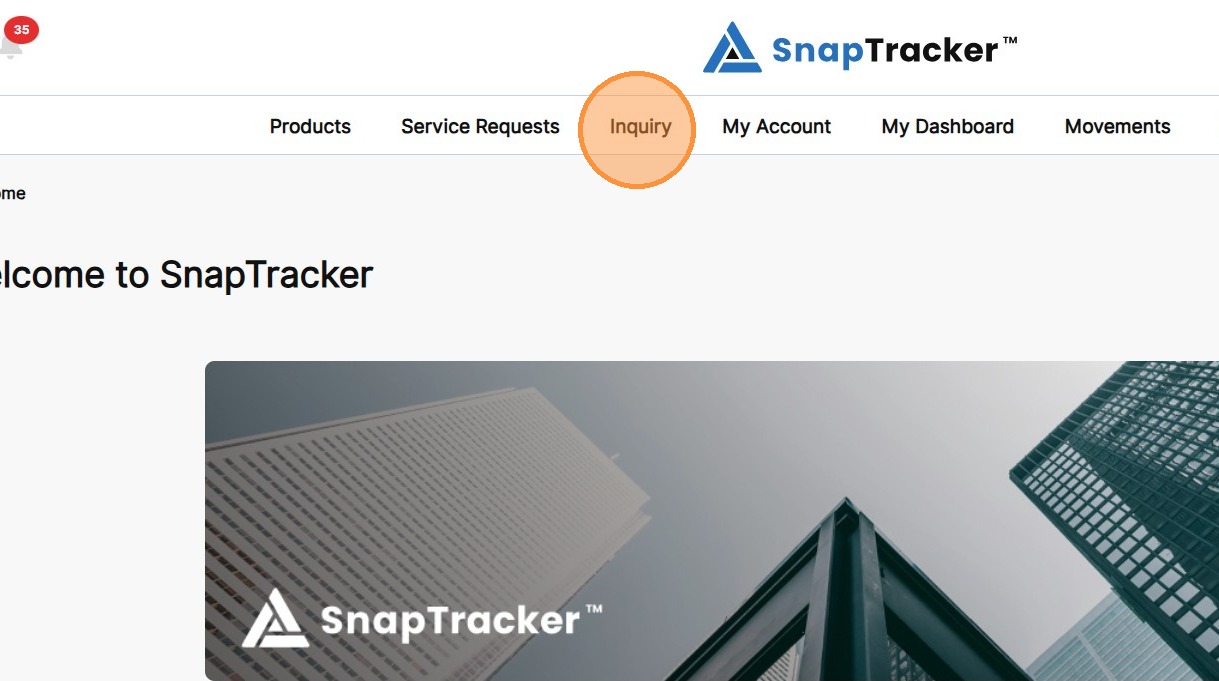
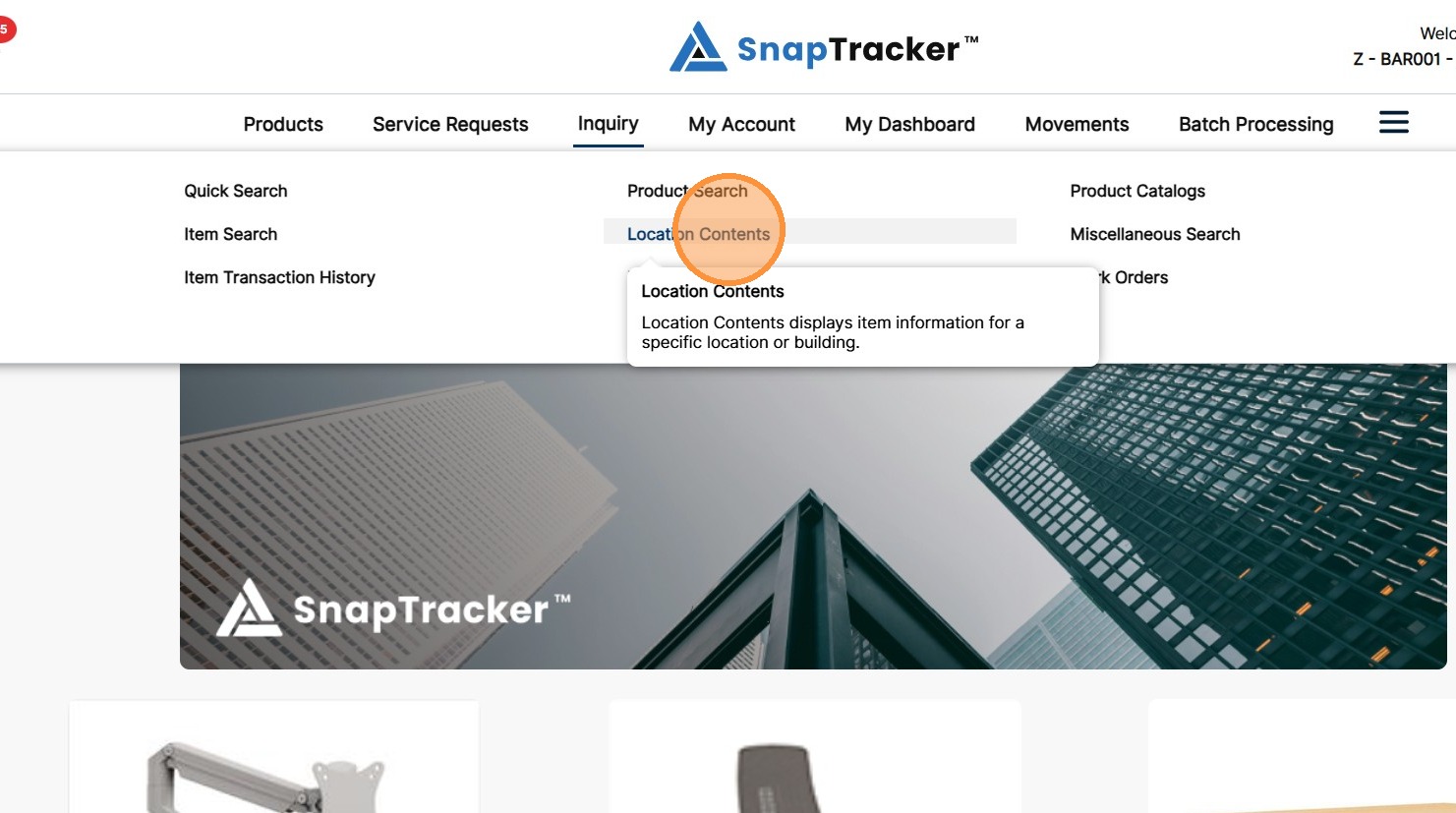
2. Click Location Contents.
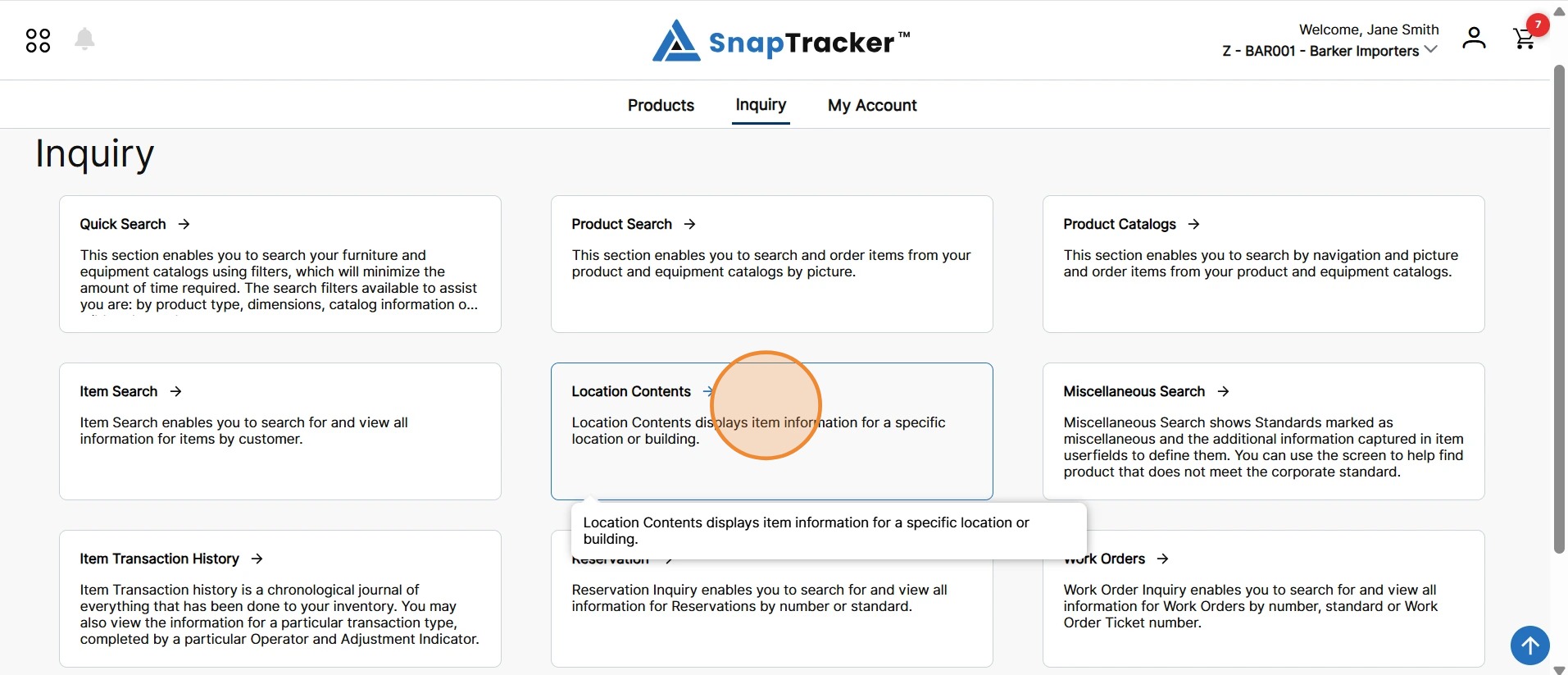
Another way to access the Location Contents screen is to navigate to the Inquiry main screen.
From here, select Location Contents.
The Location Contents screen displays.
Note: The Customer selection in the header does not display in the Location Contents screen. By default results show product in the selected Building for all Customers you have access to (depending on the selections made).
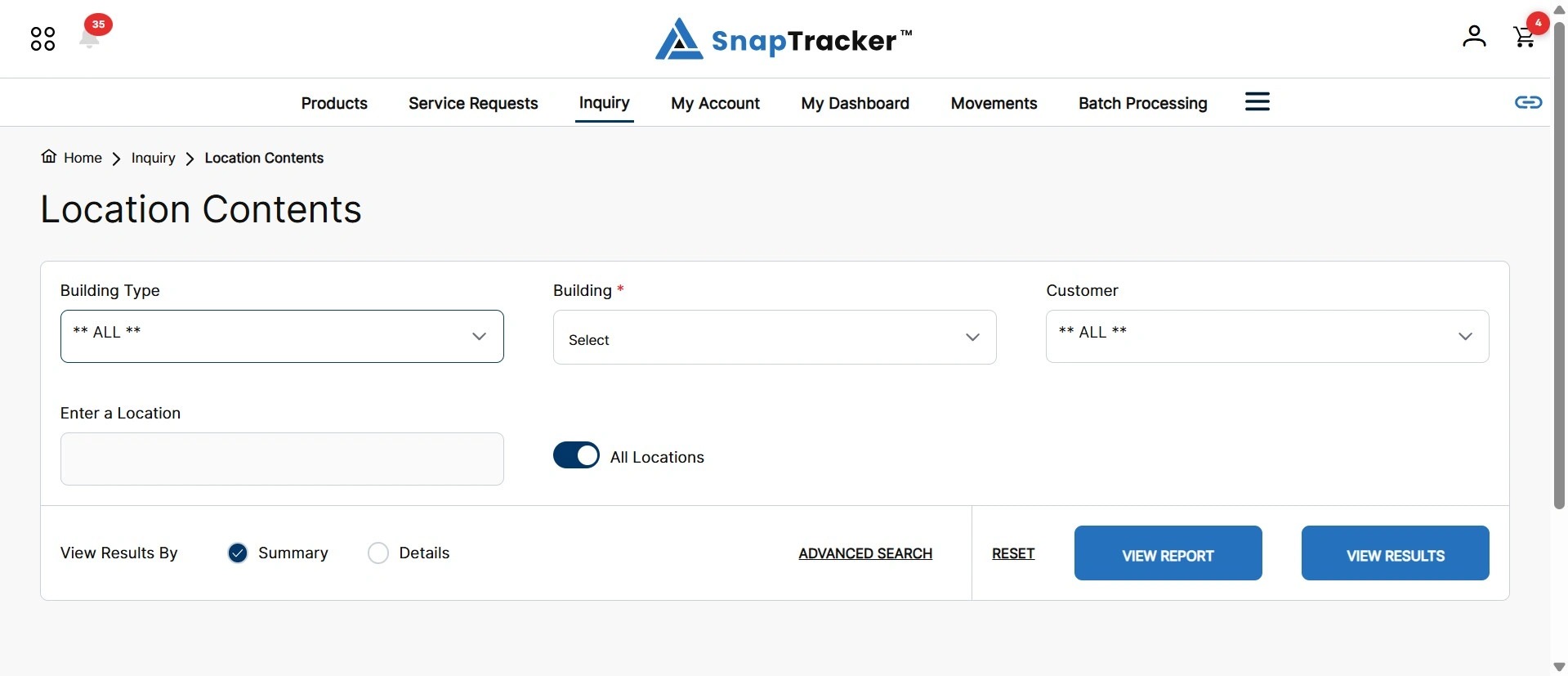
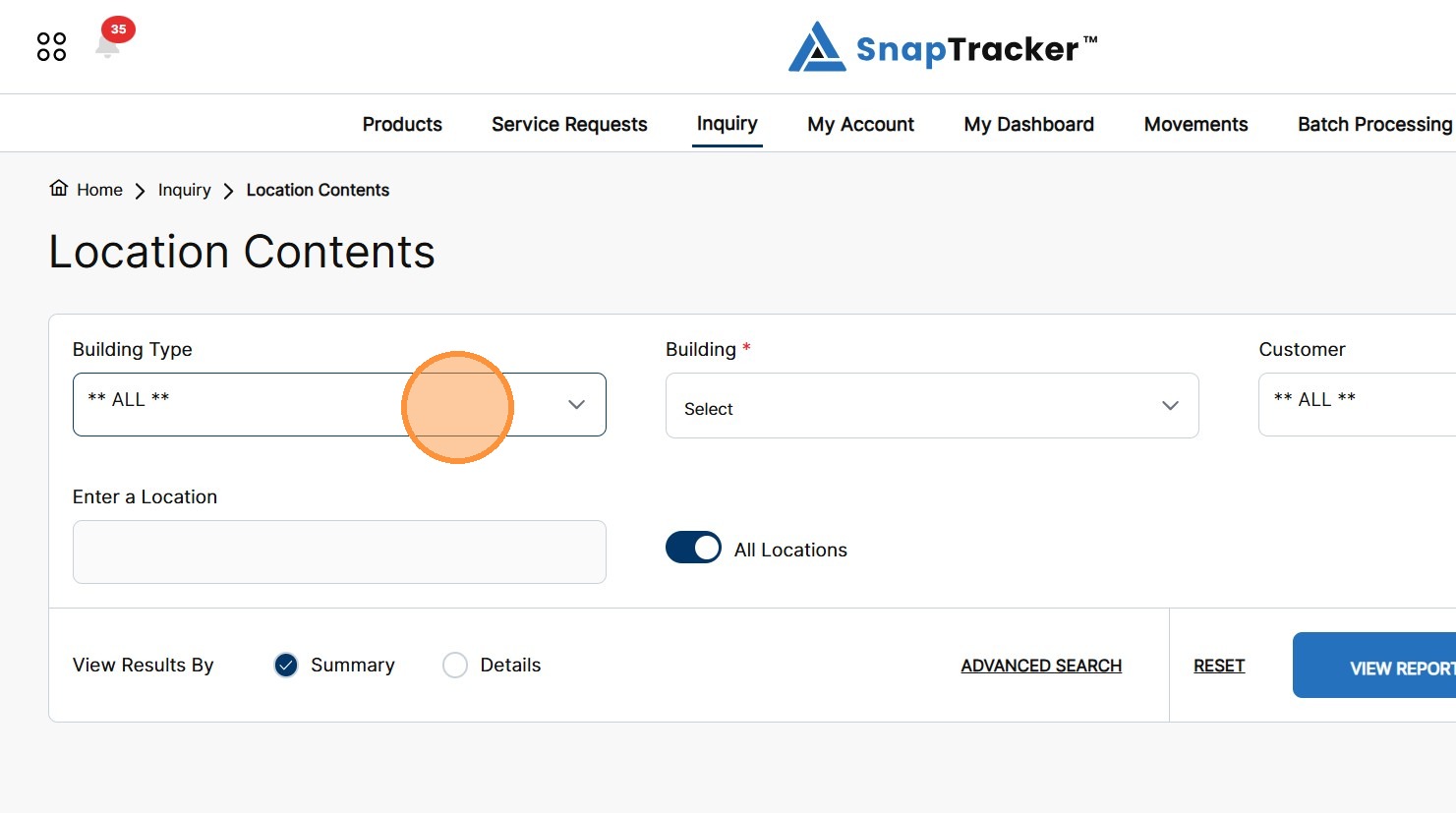
Observe the following filters and search options:
-
Building Type – Select one, multiple, or all Buildings Types. This field is optional. If selected, it filters the Building dropdown selections.
-
Building – Select a Building to return product information from. Building is a required field.
-
Customer – Select one, multiple, or all Customers. This field filters the product results within the selected Building. By default, all Customers are selected.
-
Enter a Location – By default, All Locations are enabled. To view information for a specific Location, disable the All Locations toggle and enter a single Location in the selected Building. Alternatively, enable All Locations to return all Locations with quantity.
-
View Results By – Results can be viewed by Summary (results summarized at Standard level) or Detail (results including item level information per Standard). Note: The default view of results is by Summary.
3. To select options for a desired field, click the text box below the field name.
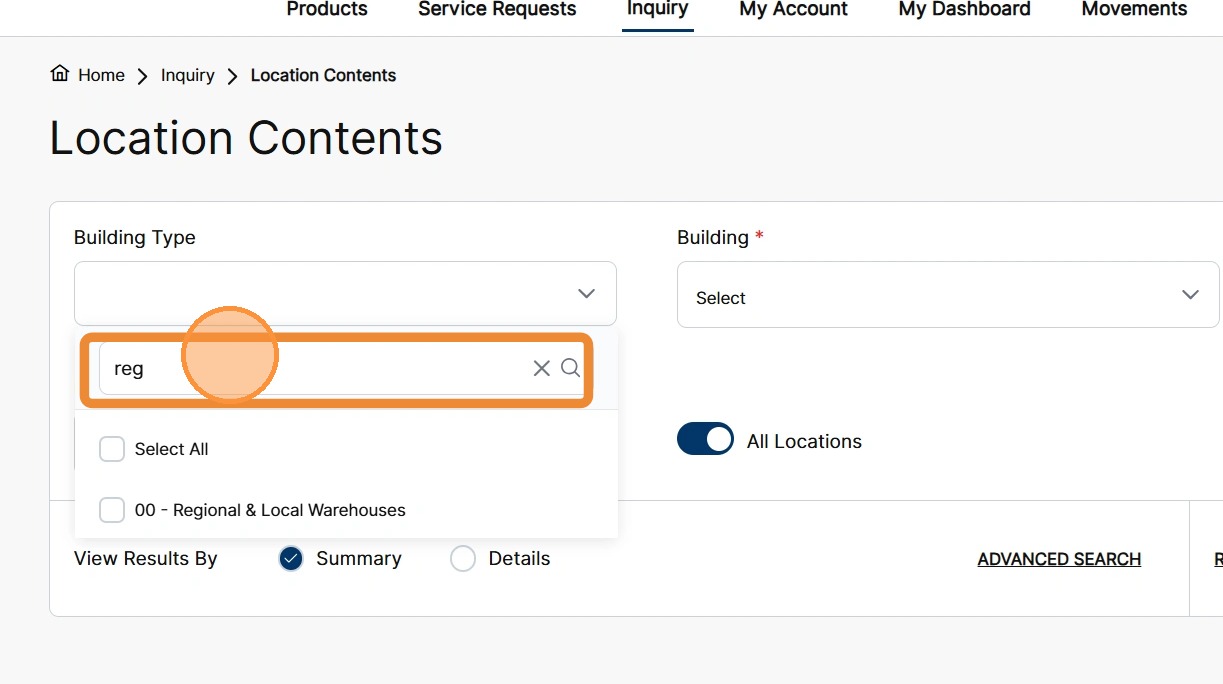
4. In the expanded dropdown selection box, scroll through the options or enter a desired search term in the text box.
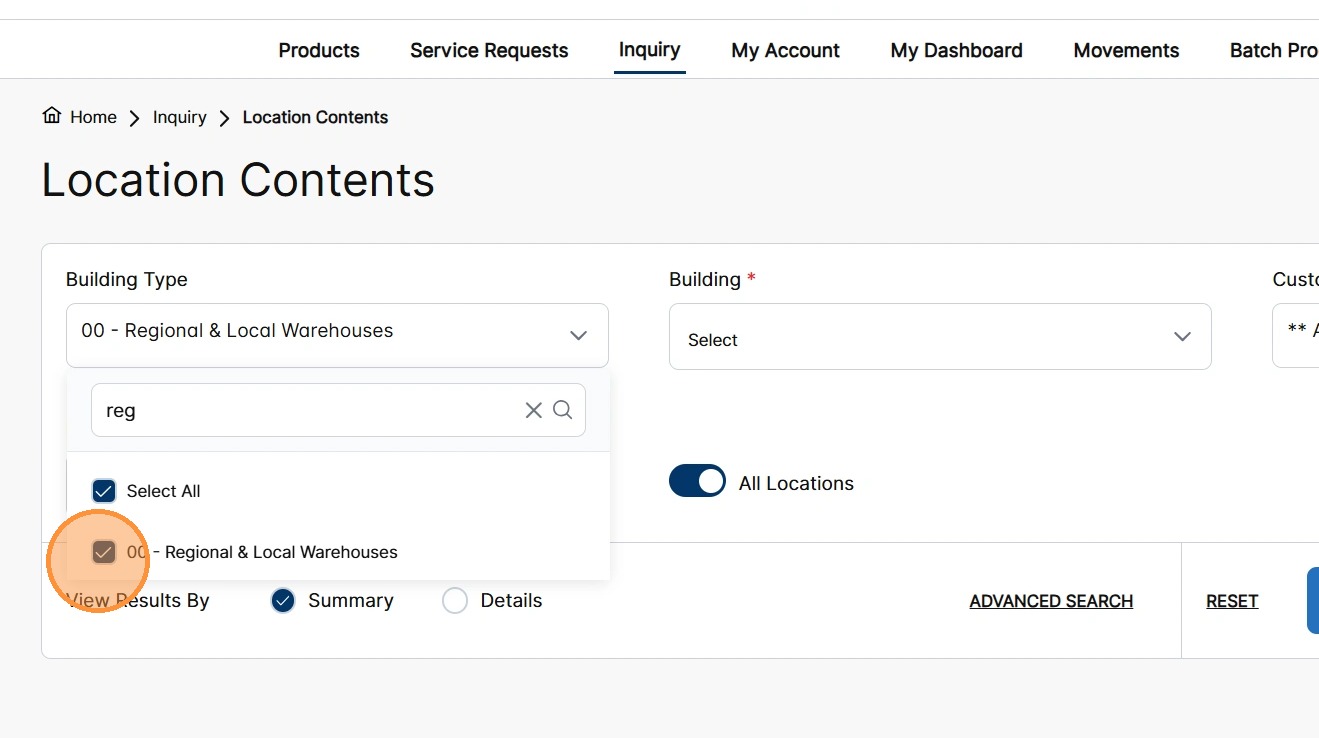
5. Select the checkbox of the desired option(s) you want included in your search.
6. In the Building field, select the desired option.
Apply any other optional field(s).
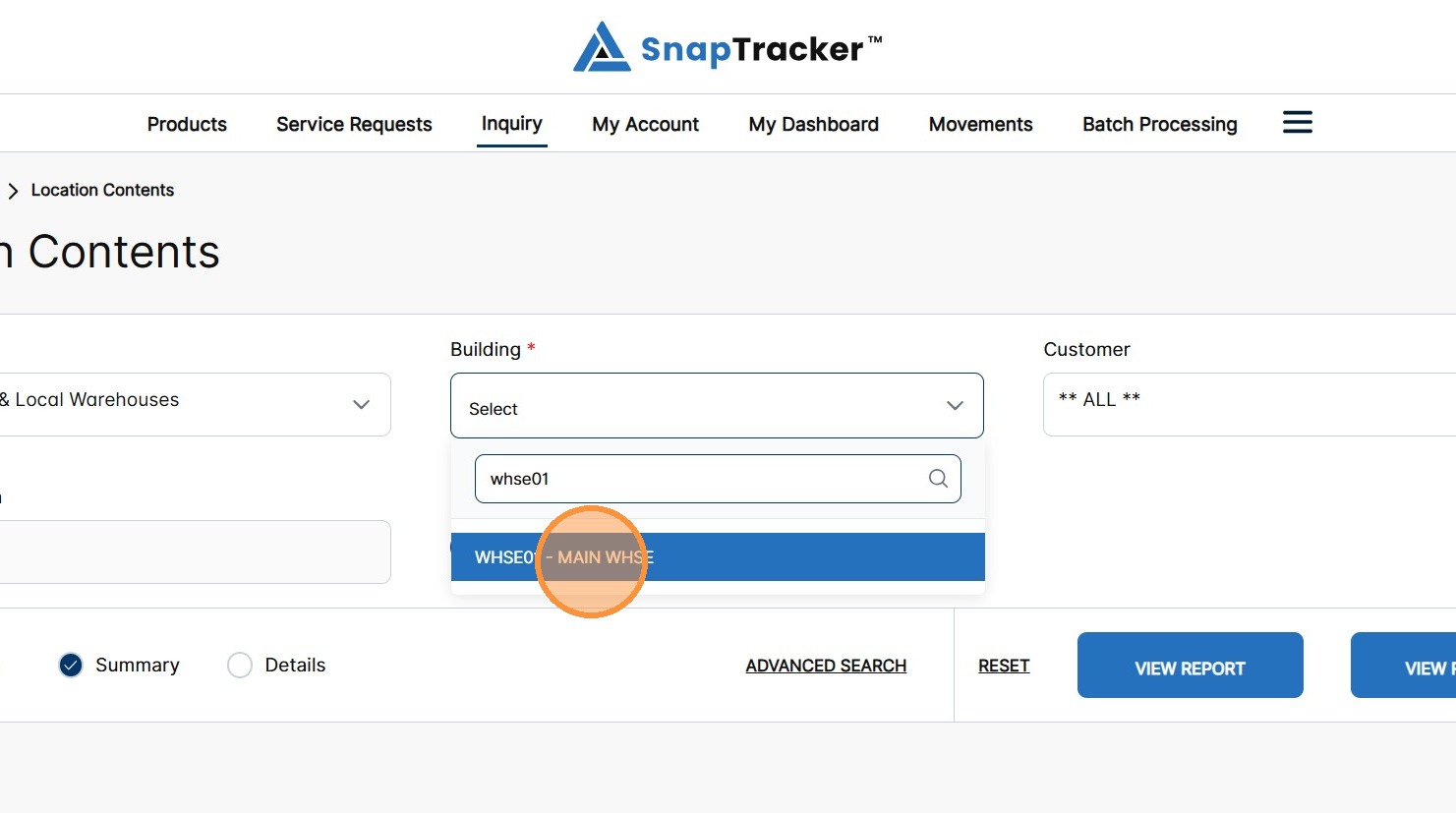
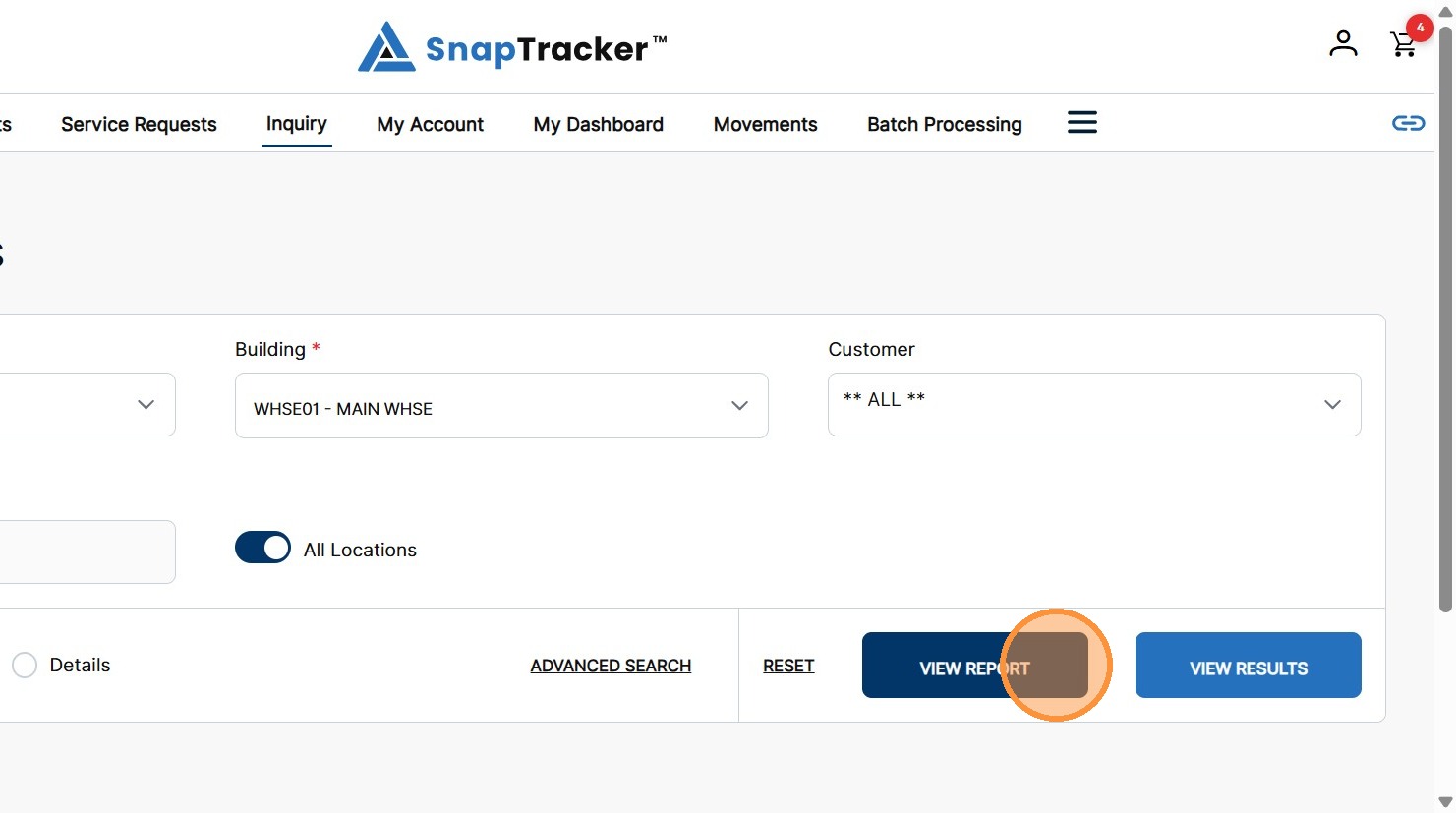
7. Click View Report or View Results to return results.
To learn more about Location Contents, refer to the following:
“How to Use Inquiry – Location Contents – Advanced Search.”
“How to Use Inquiry – Location Contents- Results Header.”