
How to Use Inquiry – Quick Search (Asset Management) – Basic Search – Details View
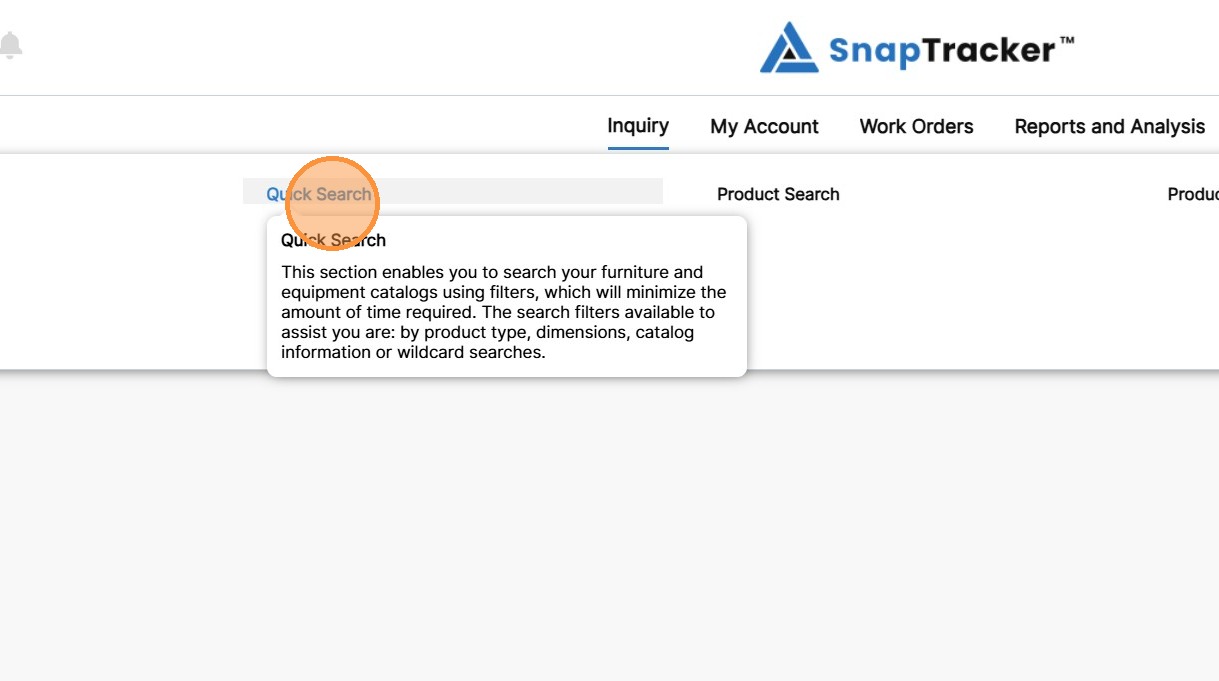
The Inquiry section is used to search for products. There are multiple ways of searching for products, such as using the Quick Search function. If you have access to stock product, Quick Search can quickly provide a summary of product you have in stock, based on the criteria you select. The search filters available to assist you include product type, dimensions, catalog information and wildcard searches. The results display product on hand, reserved, committed and available (based on user settings).
Before starting, make sure:
- You are logged into SnapTracker.
- You have at minimum one Standard created.
- You have at minimum one Standard Class created.
- The correct Customer is selected from the Customer selection list.
- You have access to Quick Search.
There are several ways to use Quick Search to view product details for a Customer. This post outlines the process of conducting a basic search for products using Quick Search as a user that can view stock product, with results in Details view.
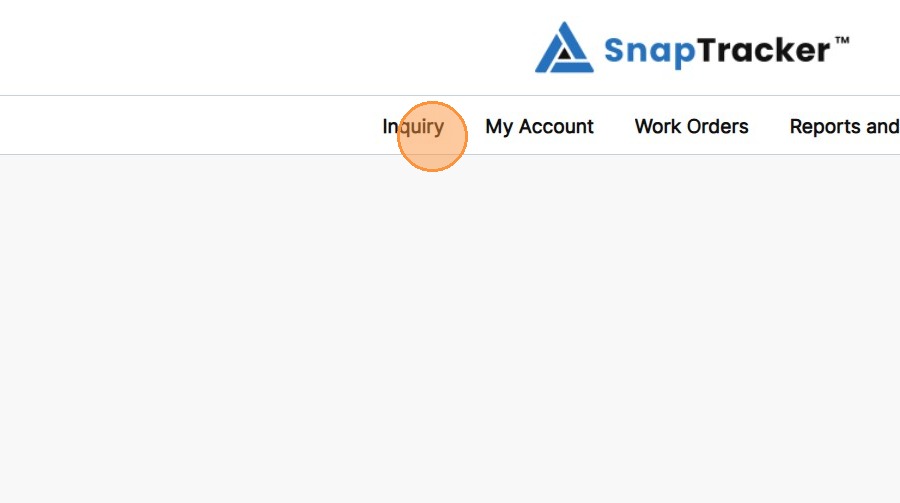
1. In the header section, click Inquiry.
2. Click Quick Search.
The Quick Search screen displays, showing available search and filter options.
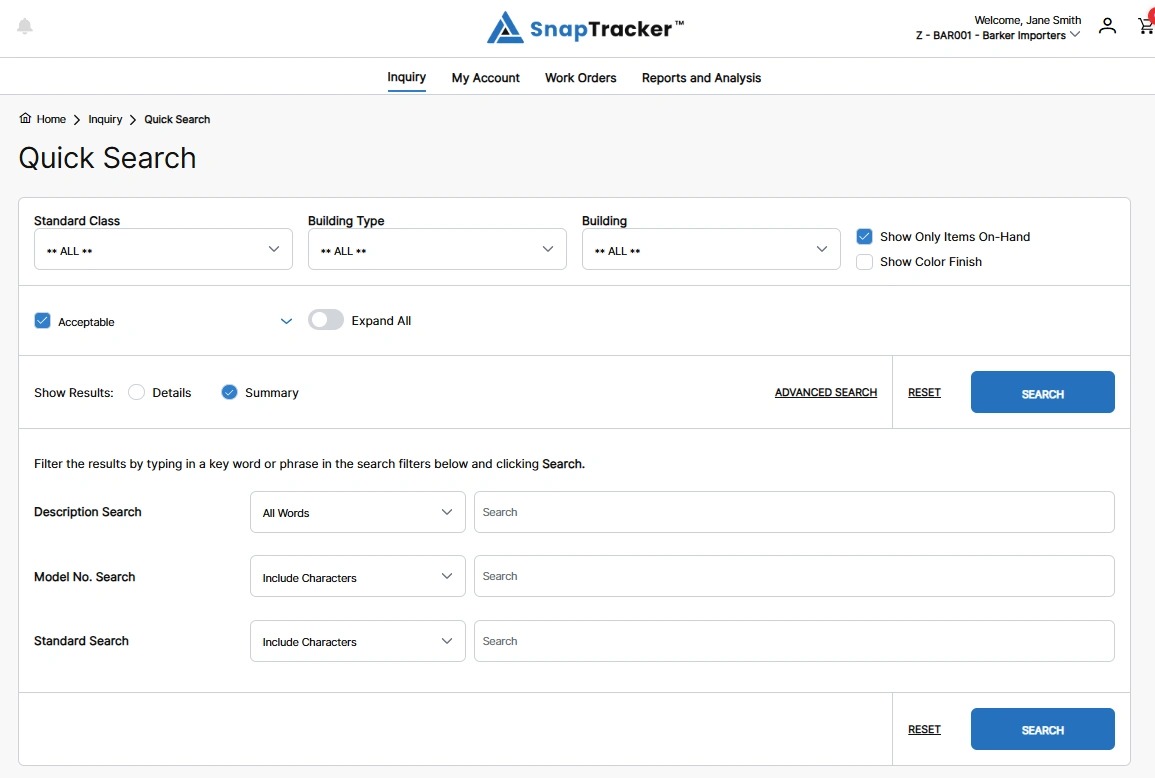
Observe the following filter options in the top half of the screen:
-
Standard Class – Standard Classes are also known as Product Categories. Select ALL or one Standard Class.
-
Building Type – Buildings are organized by Building Type. For example, service provider warehouses may be under one building type and customer onsite product may be under another. Select ALL or one Building Type.
-
Building – The Buildings are filtered based on the selection you make from Building Type. Select ALL or one Building.
-
Show Only Items On-Hand – Select/unselect the checkbox to show only the products with on-hand inventory, or include items without on-hand inventory.
-
Show Color Finish – Select/unselect the checkbox to show/hide the color finish field for each product in your results.
Note: You can set the Show Color Finish checkbox default in the User’s Profile settings.
-
Acceptability Flag/Conditions – Select the checkbox beside the desired acceptability flag(s) and/or condition(s) to search for.
Note: The acceptability flag(s) and condition(s) displayed are based on the specific user’s settings.
-
Show Results By – Select Summary or Details to display results by either a summary of information at the product level or to also show item level detail.
On the bottom half of the screen there are additional filters you can use to refine your search results:
- Description Search – Select to search by All Words, Any Words, Exact Words or Phrase, then enter the desired search input.
- Model No. Search – Select to search by Include Characters, Exact Match, Starts With Characters, then enter the desired search input.
- Standard Search – Select to search by Include Characters, Exact Match, Starts With Characters, then enter the desired search input.
3. Populate the desired filter options, select Show Results by Details, and click Search.
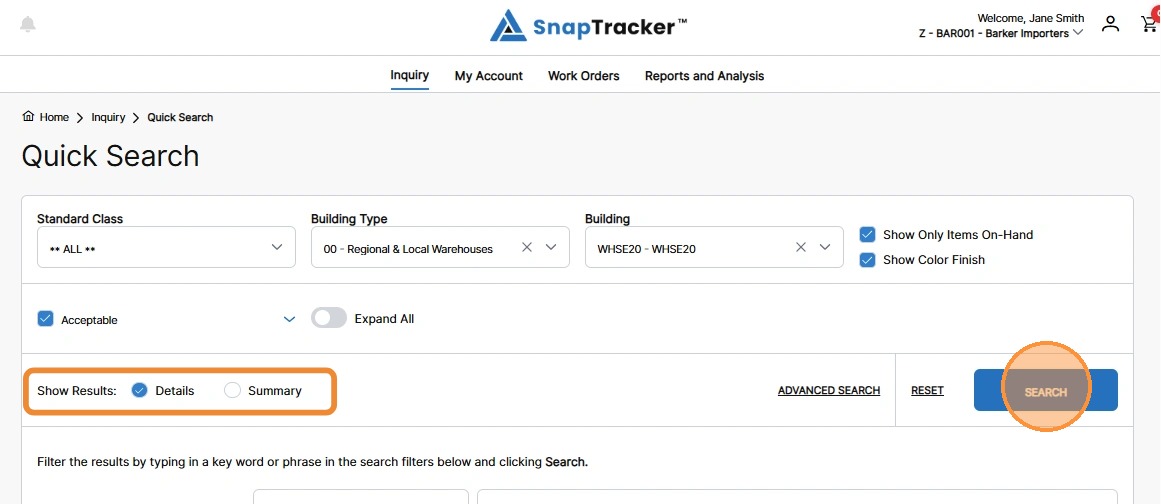
The results display.
Note: This search is showing the Details results view.
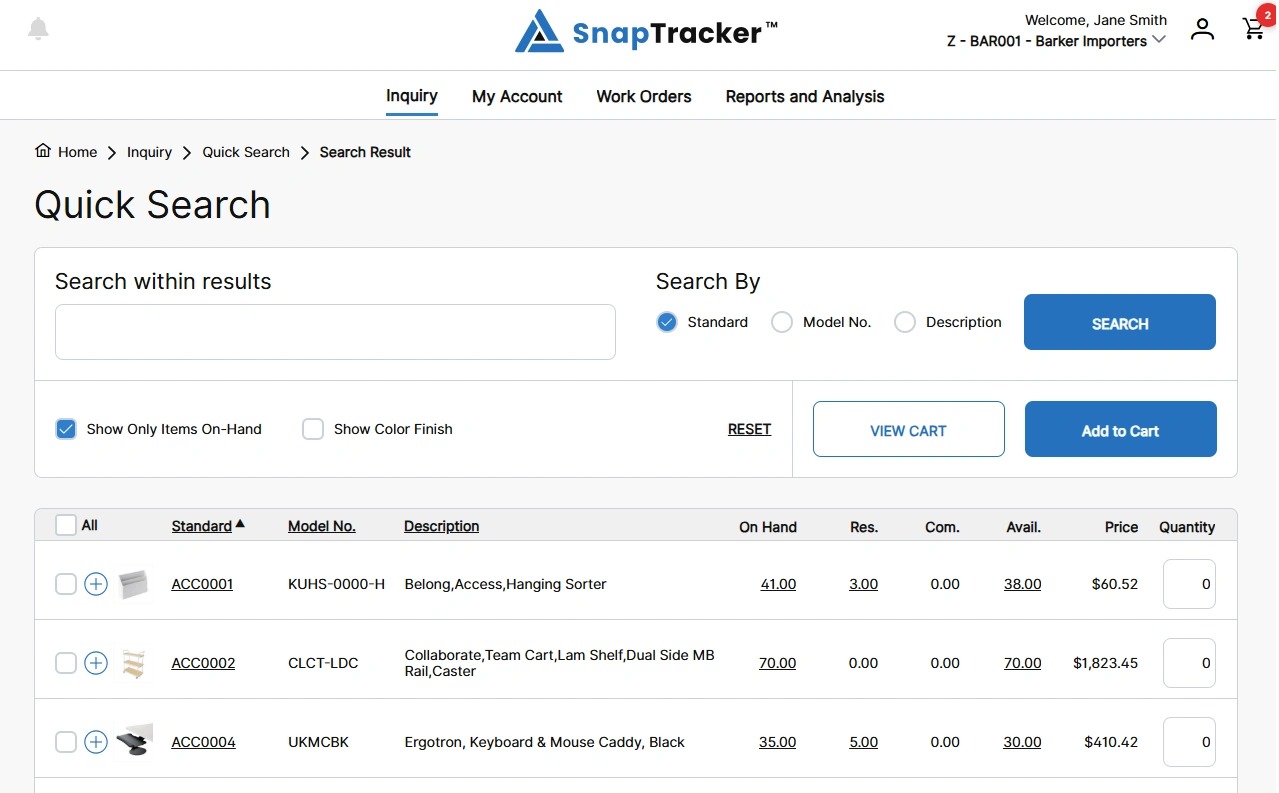
Observe the following columns in the Quick Search results:
- All (and individual checkboxes) – The product(s) that are selected to add to your cart.
- Standard – The unique Standard for the product in SnapTracker.
- Model No. – The model number of the product.
- Description – The description of the product.
- On Hand – The total quantity on hand of the product. (Displays based on User Access).
- Res. – The total quantity reserved of the product. (Displays based on User Access).
- Com. – The total quantity committed of the product. (Displays based on User Access).
- Avail. – The total quantity available to use of the product. (Displays based on User Access).
- Price – The purchase price of a new unit of the product. This is not necessarily the price of redeploying the product. (Displays based on User Access).
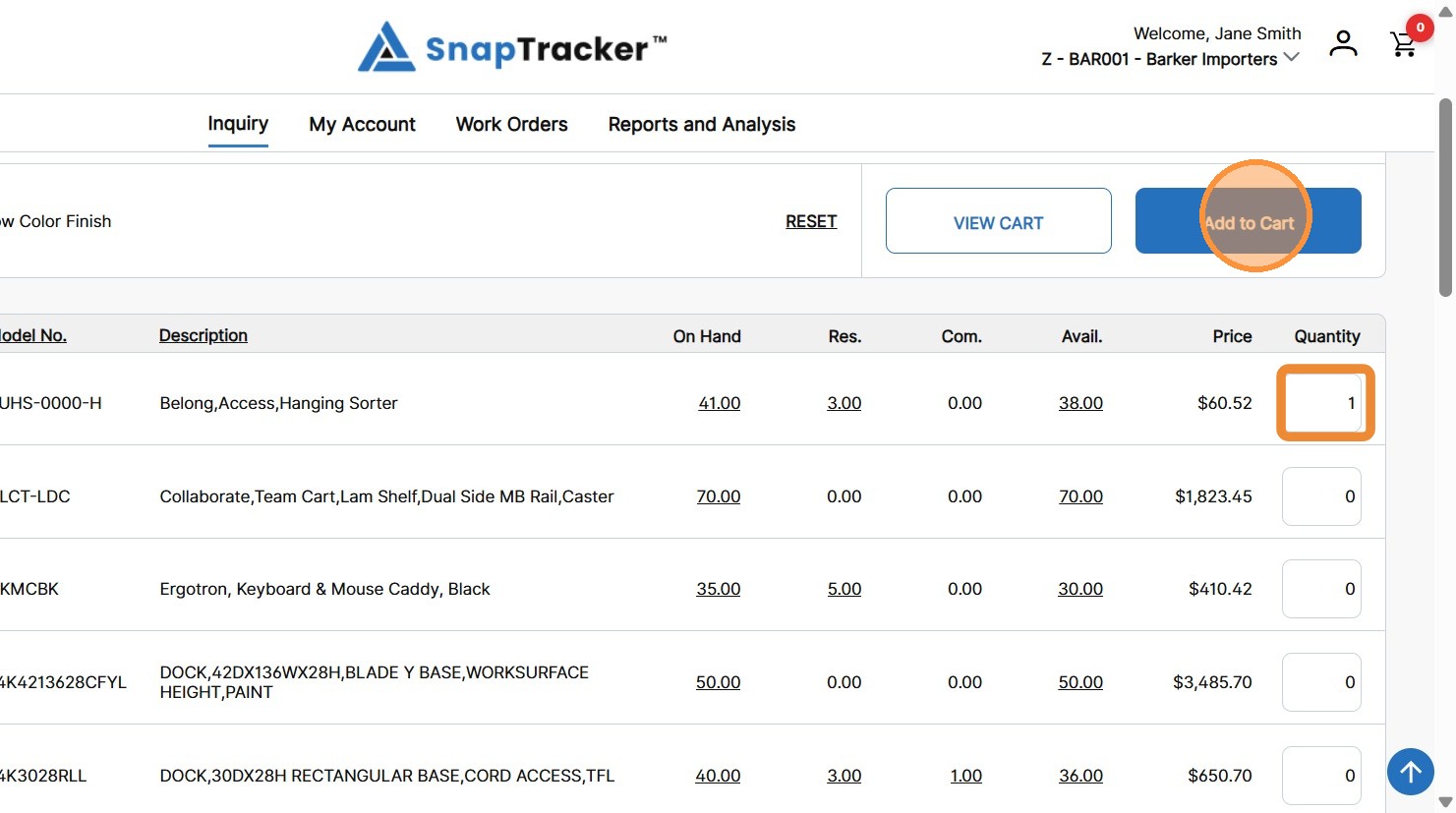
- Quantity – The desired number of units to add to your cart. (Displays based on User Access).
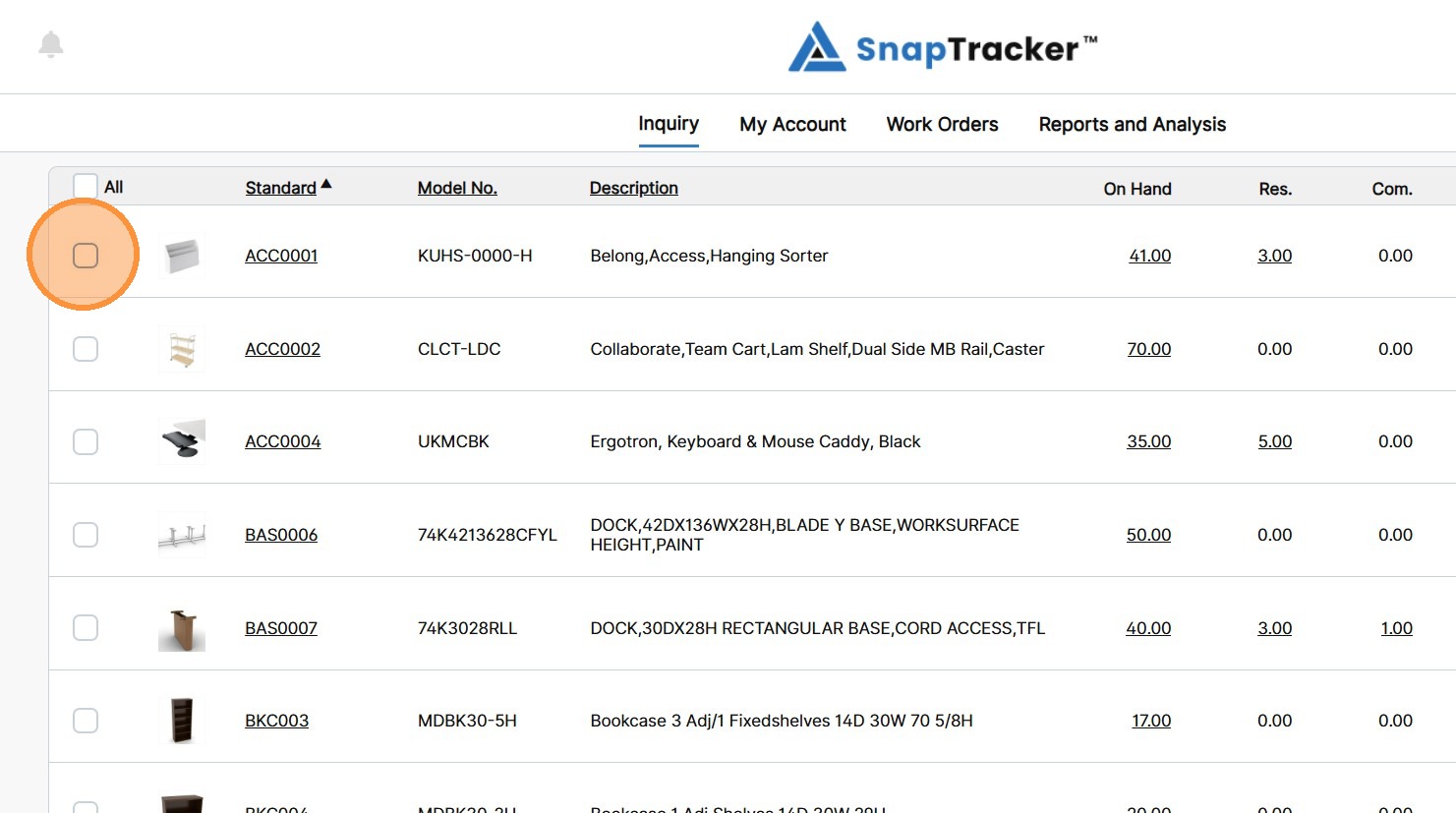
Note: Adjusting the quantity of a Standard automatically selects the respective checkbox for the product.
By default, the results display sorted by either Standard or Model No. in ascending order with additional item detail information available.
Note: Whether the results are sorted by Standard or Model No. is based on the setting in My Profile called Inquiry Default Search By.
The results can be re-ordered by clicking any underlined column header.
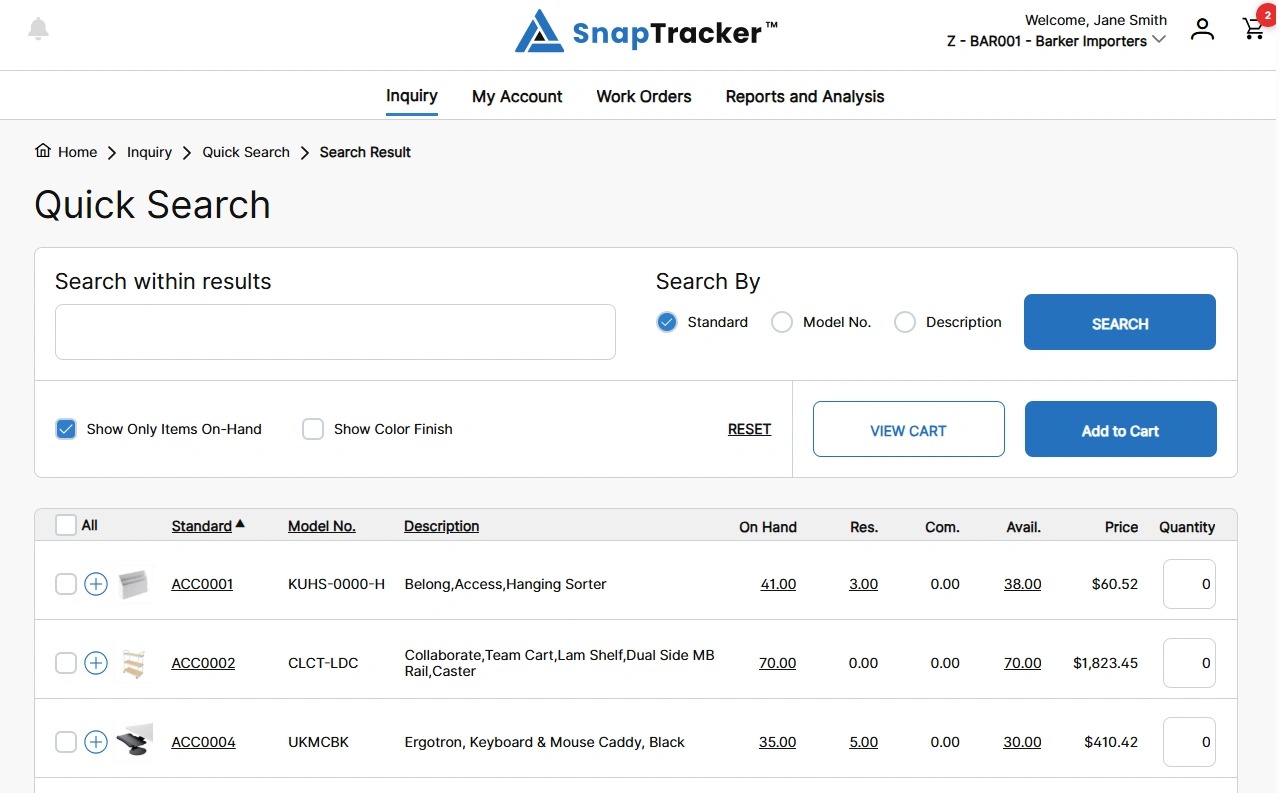
4. To modify the display order of the results, click an underlined header to sort by that header in ascending or descending order.
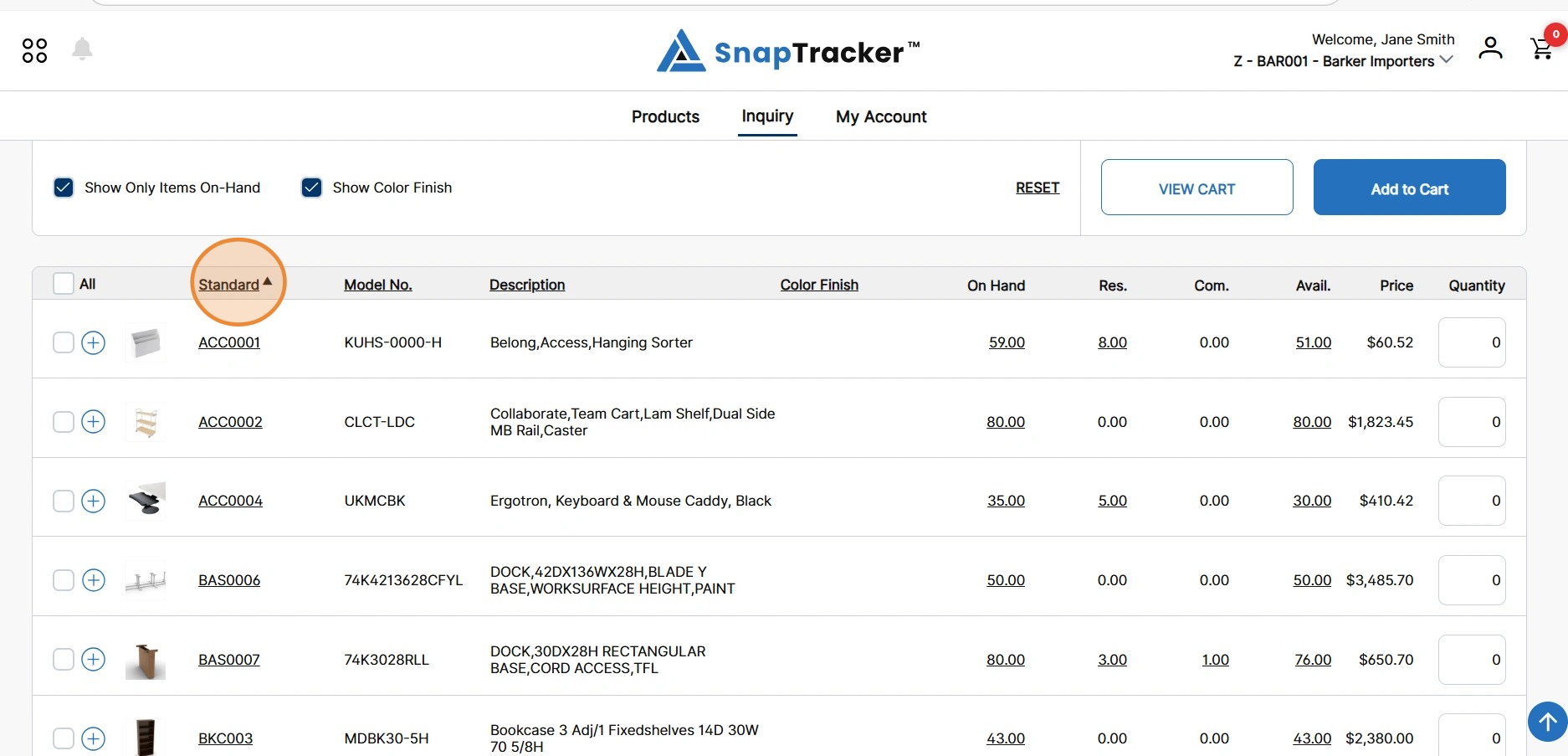
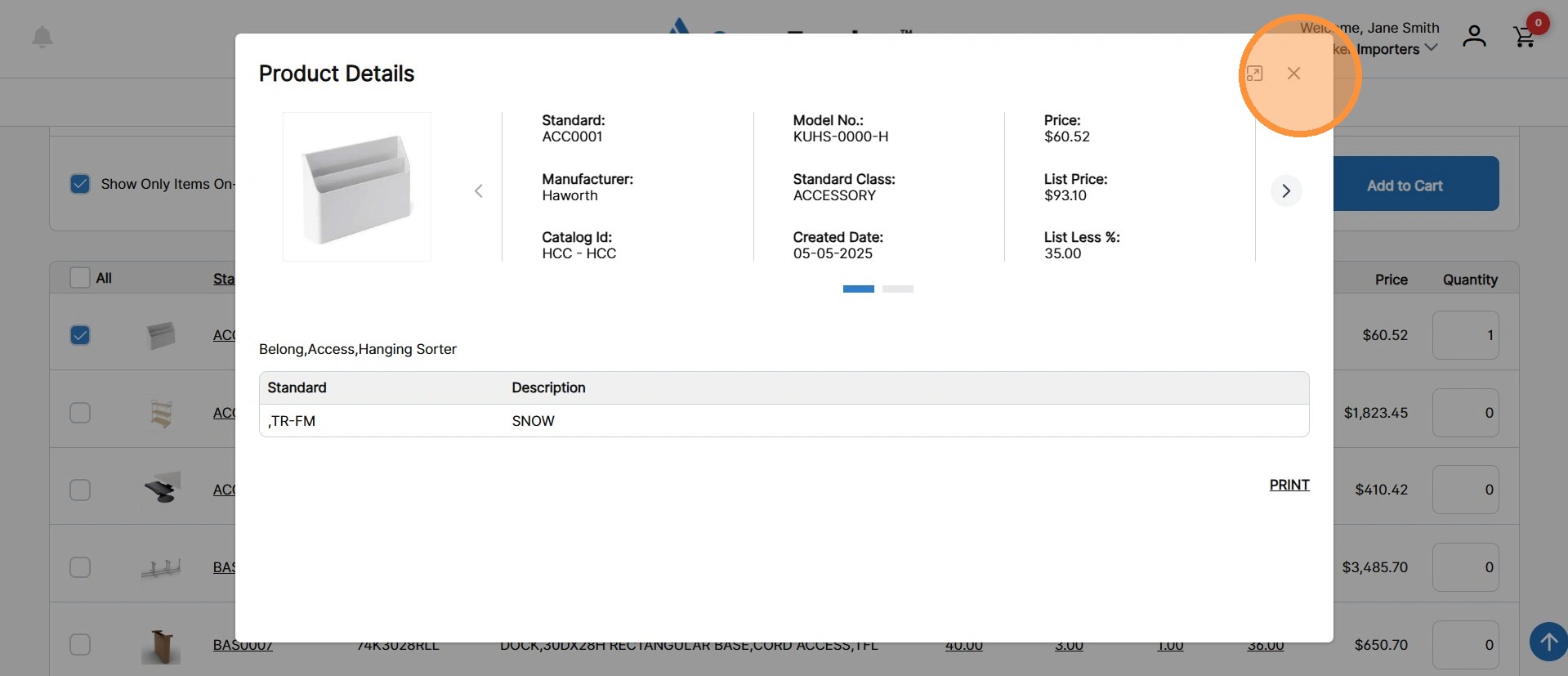
5. To view additional details for a specific product, click the hyperlinked Standard.
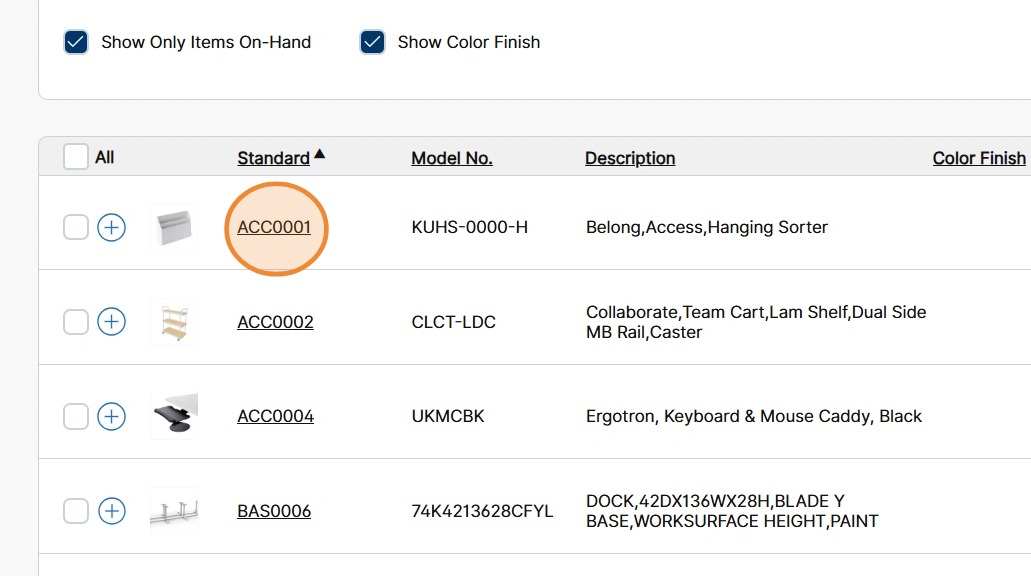
The Product Details pop-up displays.
Click X to close the pop-up.
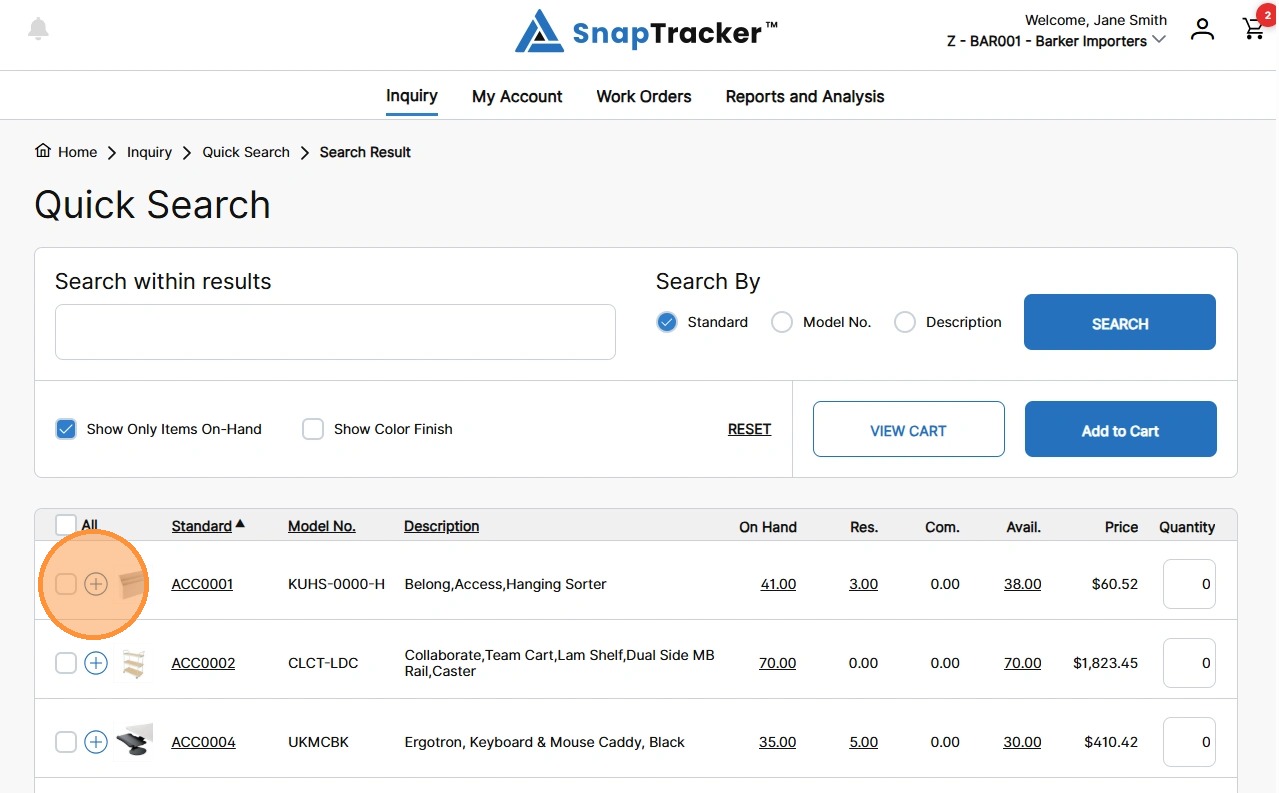
6. When showing results by Details, you can view the item details by clicking the expand icon (+) beside a Standard.
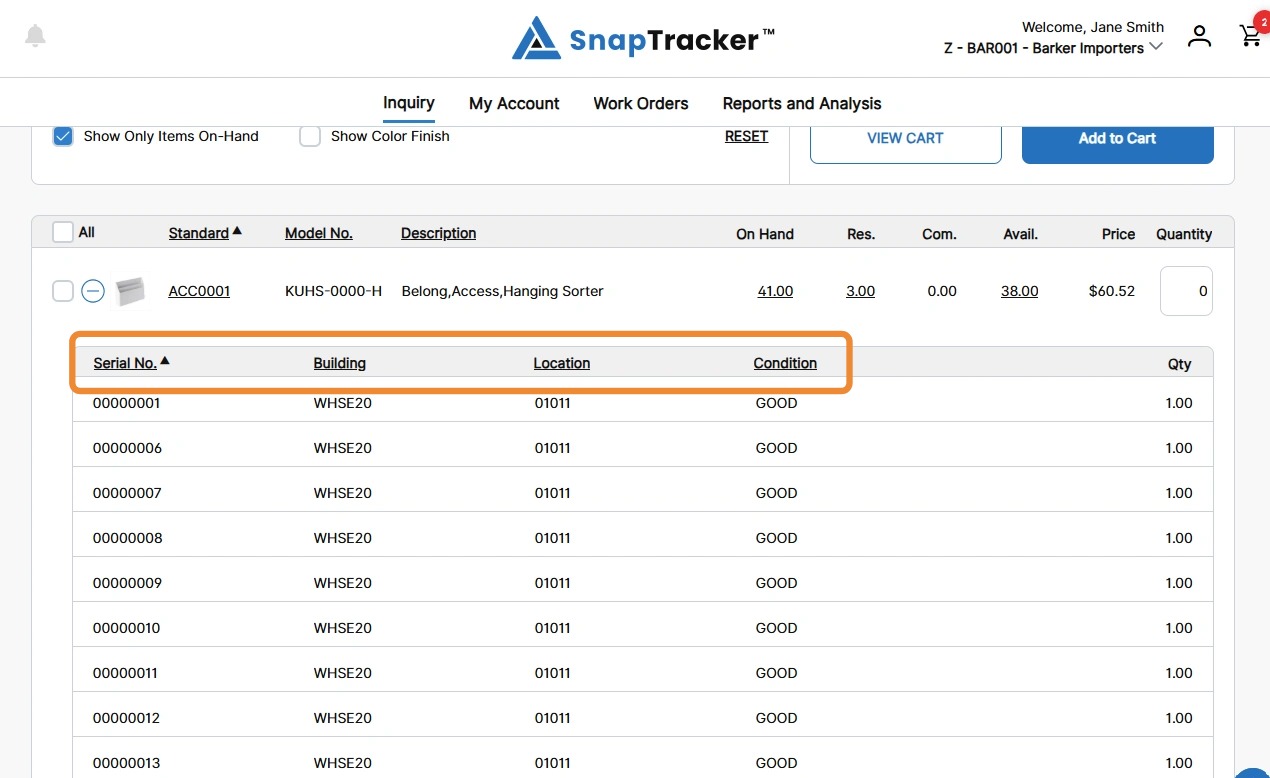
The item details display, sorted by Serial No. in ascending order.
The item results can be re-ordered by clicking any underlined column header in the expanded section.
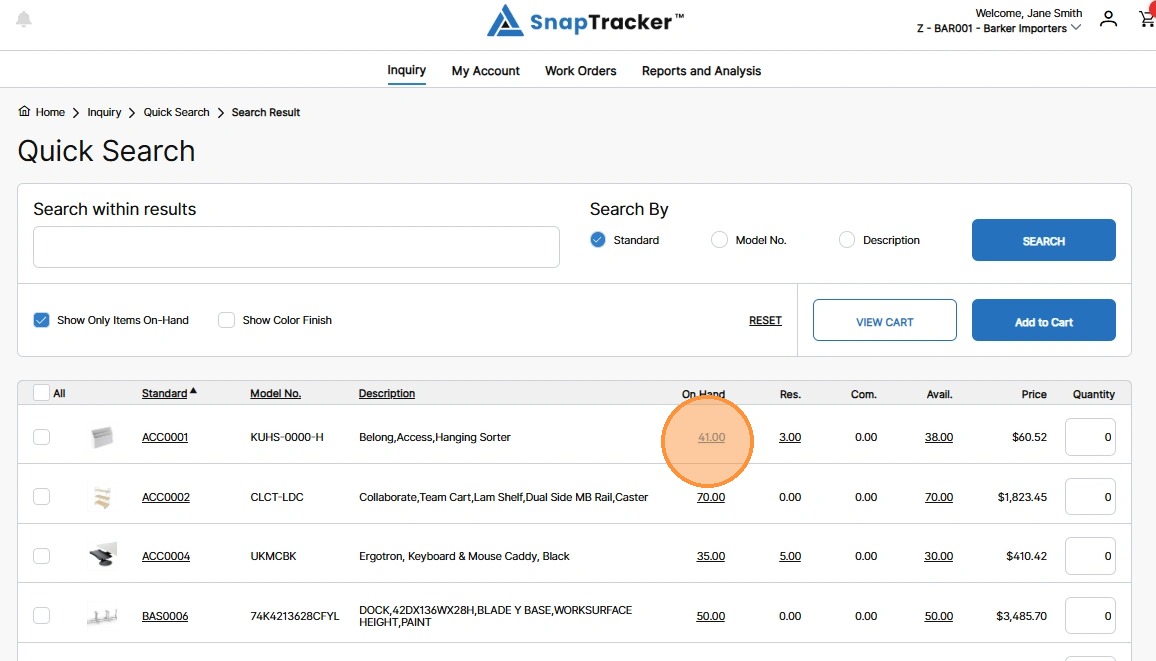
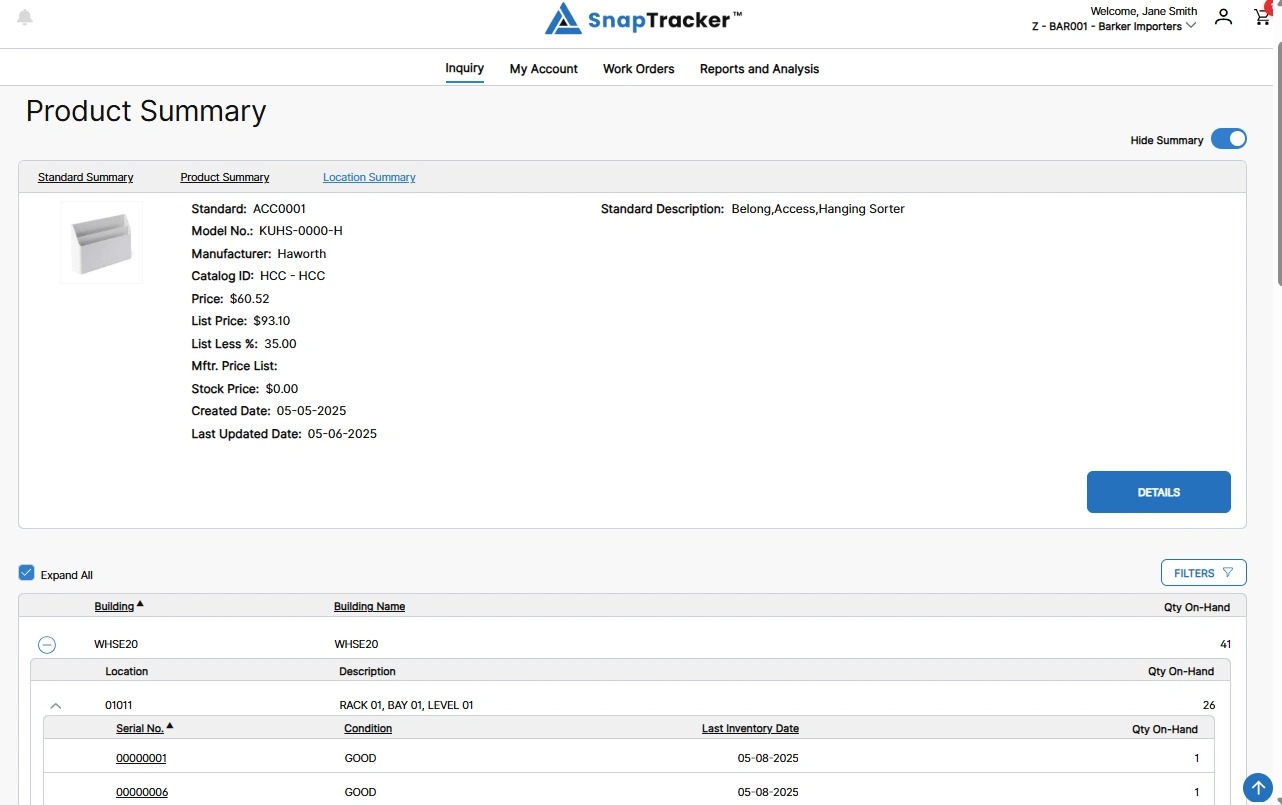
7. To view all on hand quantity details for a specific product, click the corresponding hyperlinked On Hand value.
The Location Summary screen for the selected product displays, with a product summary and full location details.
8. To view reserved or committed quantity details, click the corresponding hyperlinked Res. value or the hyperlinked Com. value.
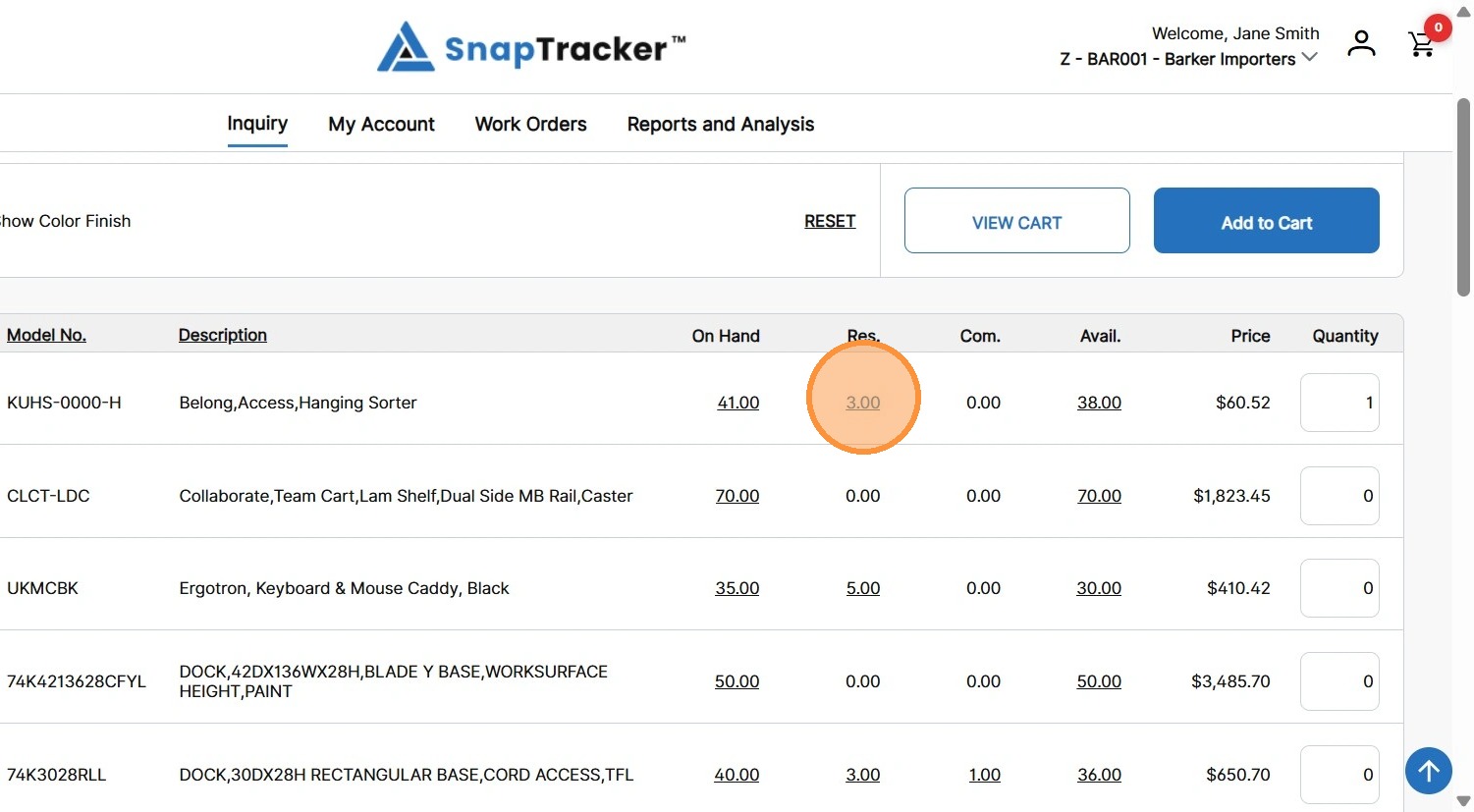
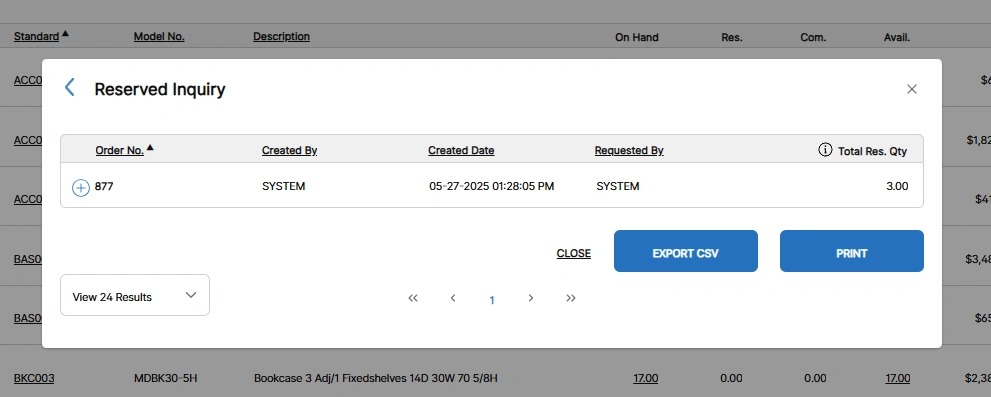
The respective Inquiry pop-up displays.
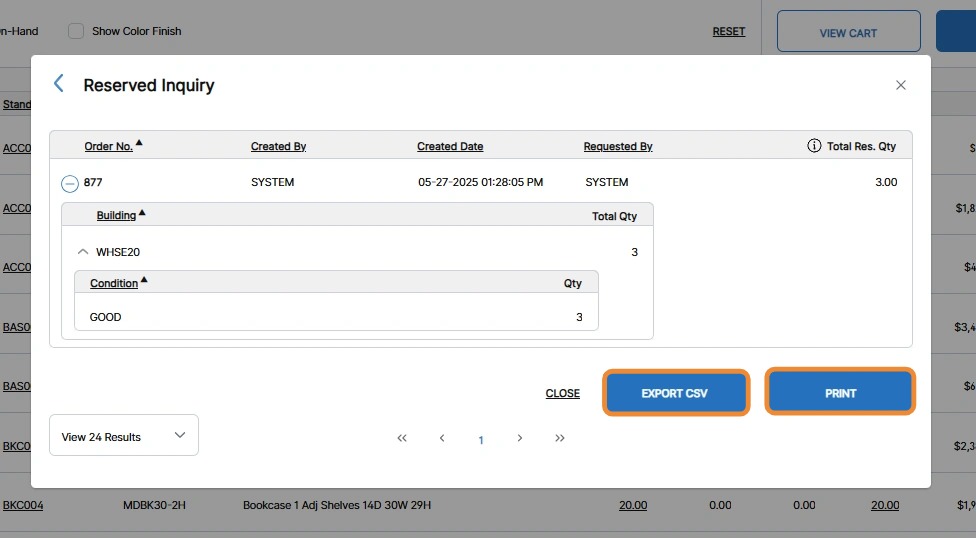
The results list all Order Numbers the product is reserved or committed on. Reserved quantities are on a reservation while committed quantities are on a work order.
By default the results display by Order No. in ascending order. The results can be reordered by clicking any hyperlinked header.
9. To view additional details for the allocated (product on a reservation or work order) product, click the expand icon (+) beside the Order Number.
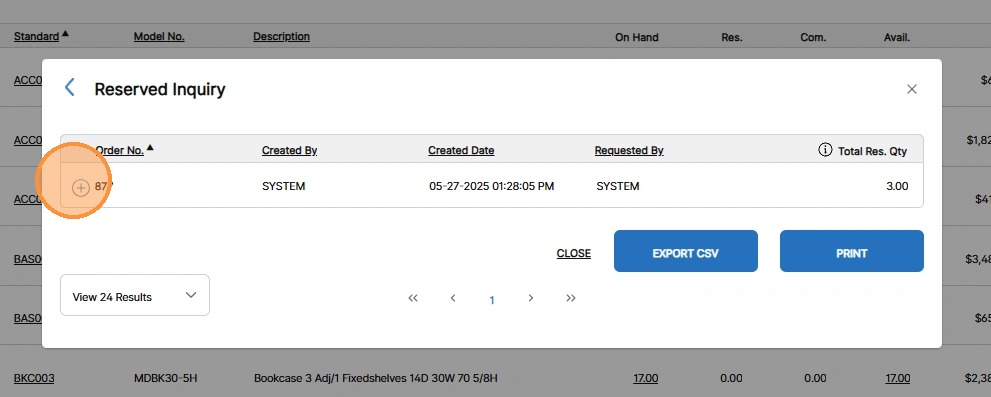
The expanded order details display.
Note: From the Reserved or Committed Inquiry screens you can export the order information to a CSV or print it by clicking Export CSV or Print.
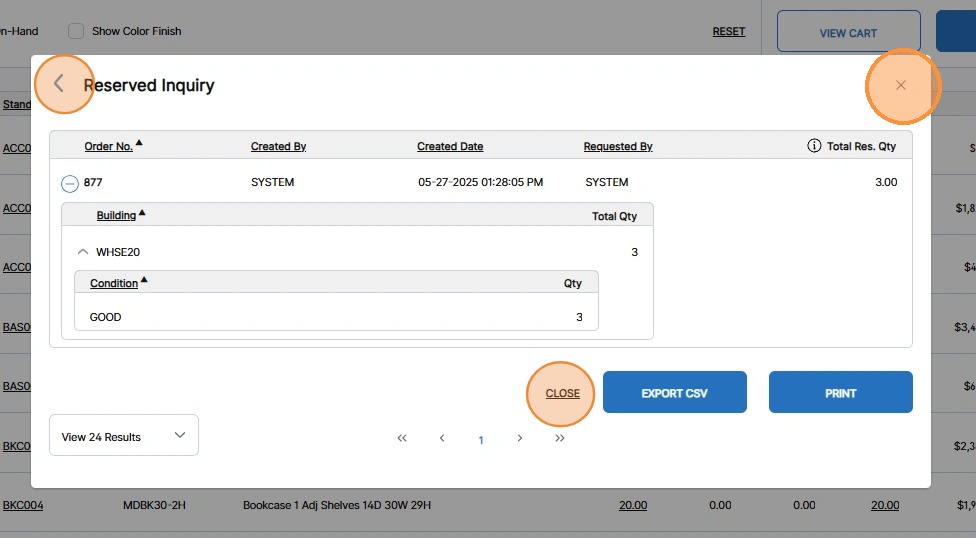
10. To close the pop-up, click X, Close or the icon beside the pop-up screen title.
11. To add product to your cart, select the checkbox(es) for the desired product(s).
12. Modify the Quantity field to adjust the number of units to add, if desired and click Add to Cart.
A success message displays that your products have been added to your cart.
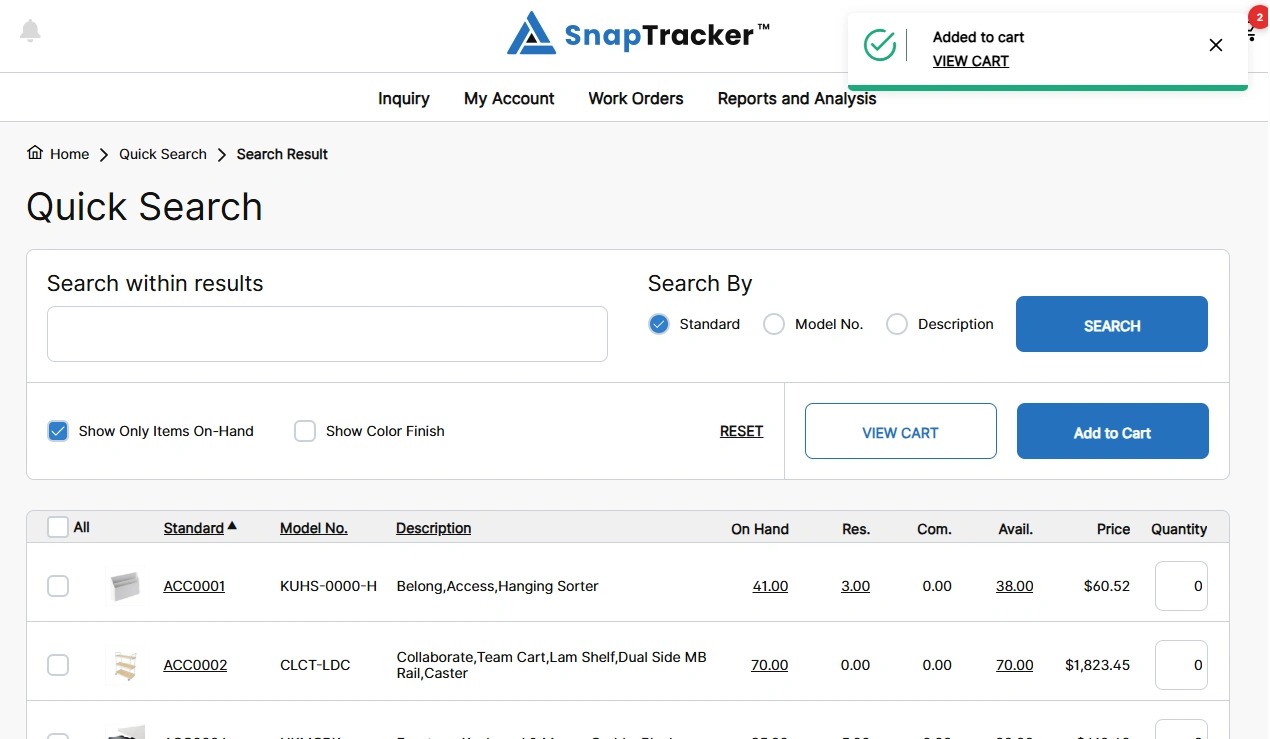
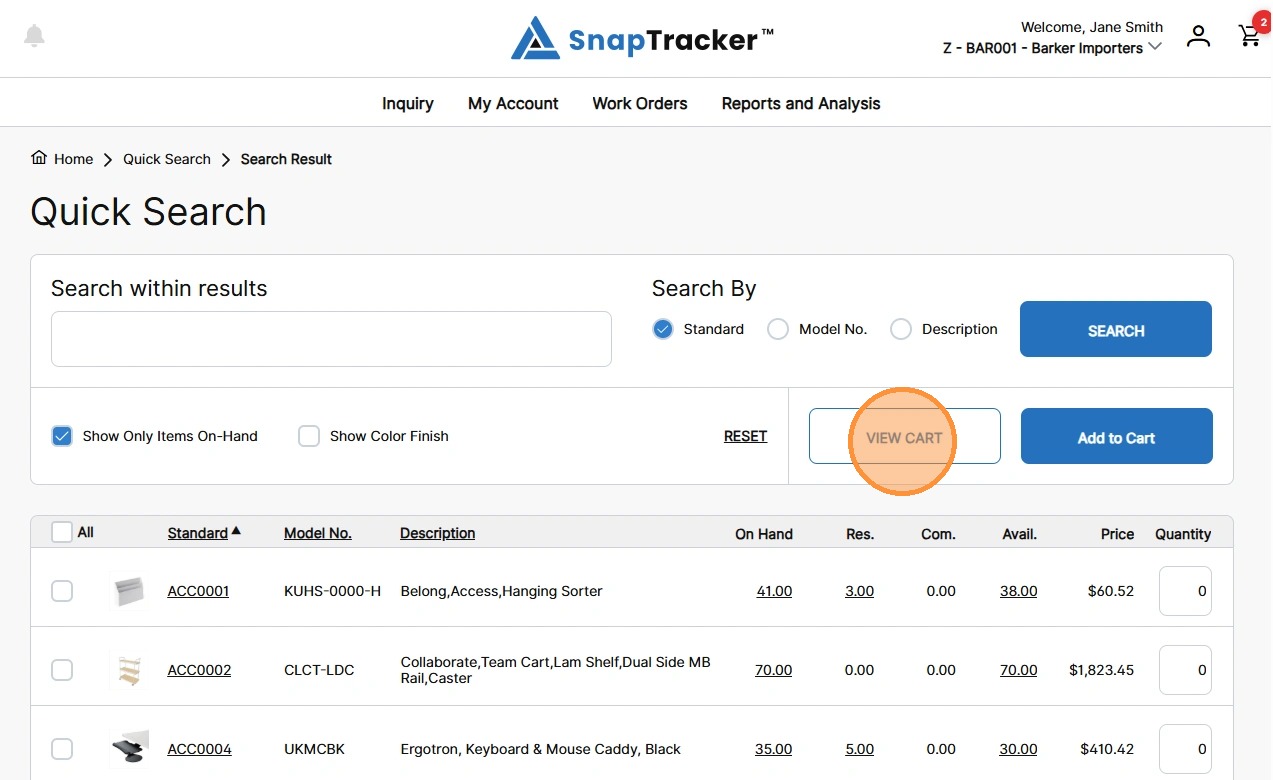
13. To view your cart, click View Cart.
The Cart Details screen displays.
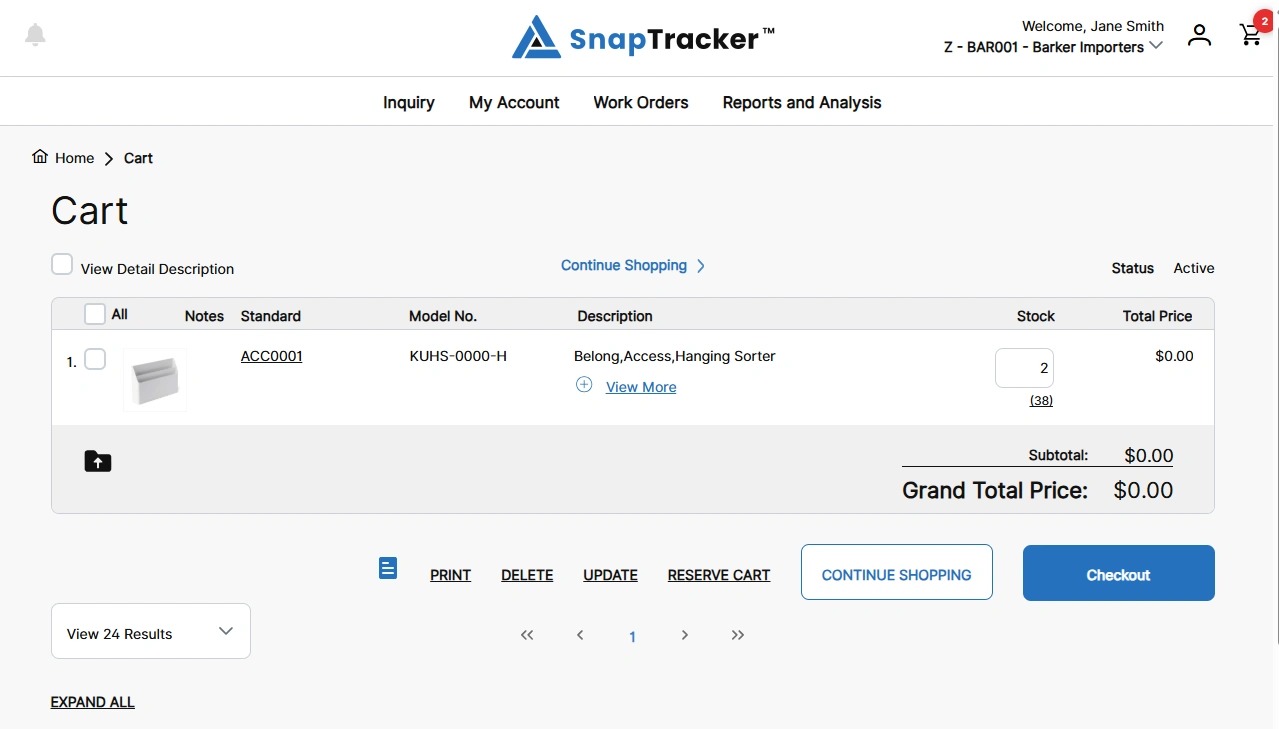
14. Review your cart details and click Continue Shopping to return to your previous search results.
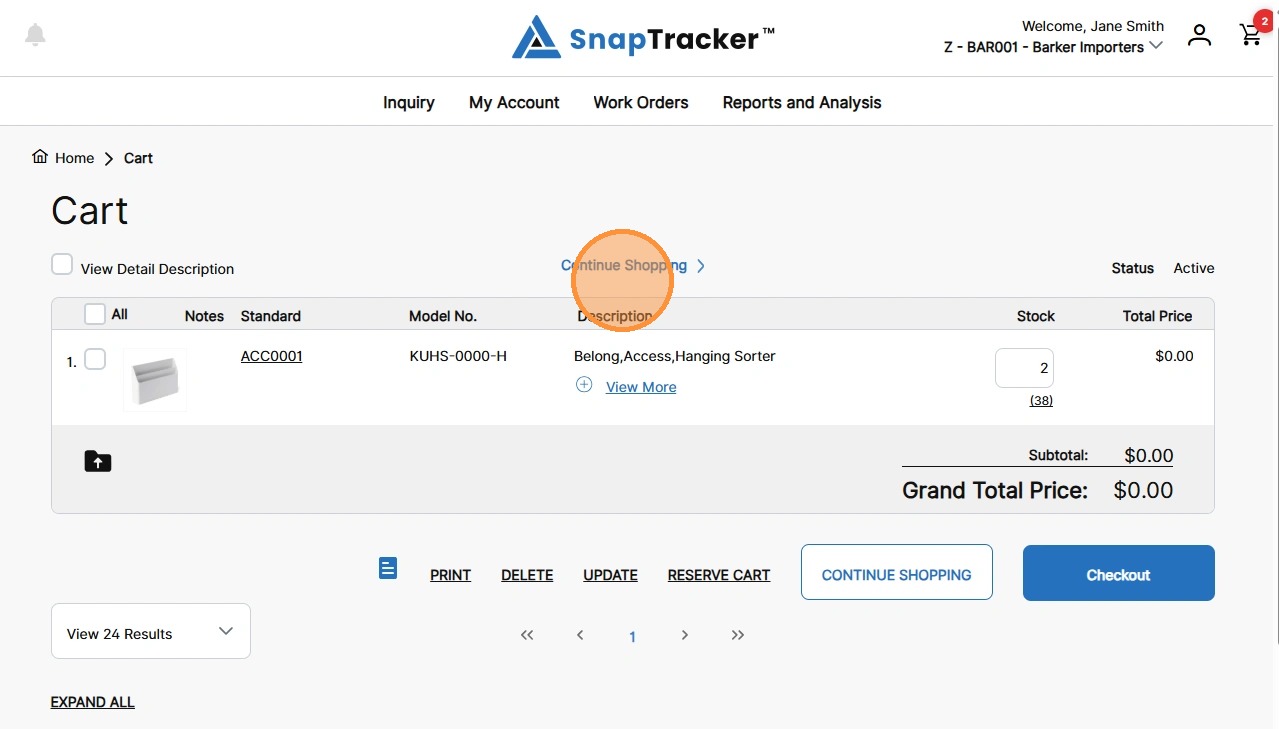
The Quick Search Results with your previous search and filter inputs display.
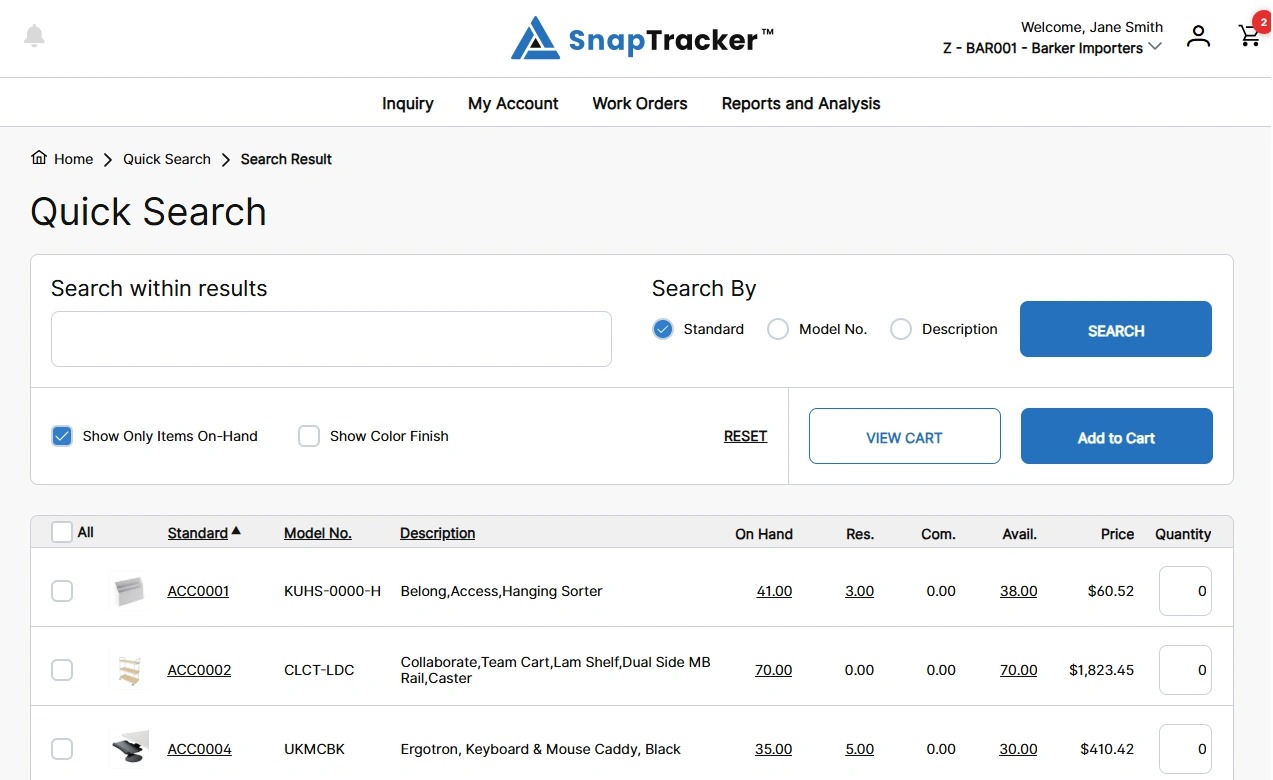
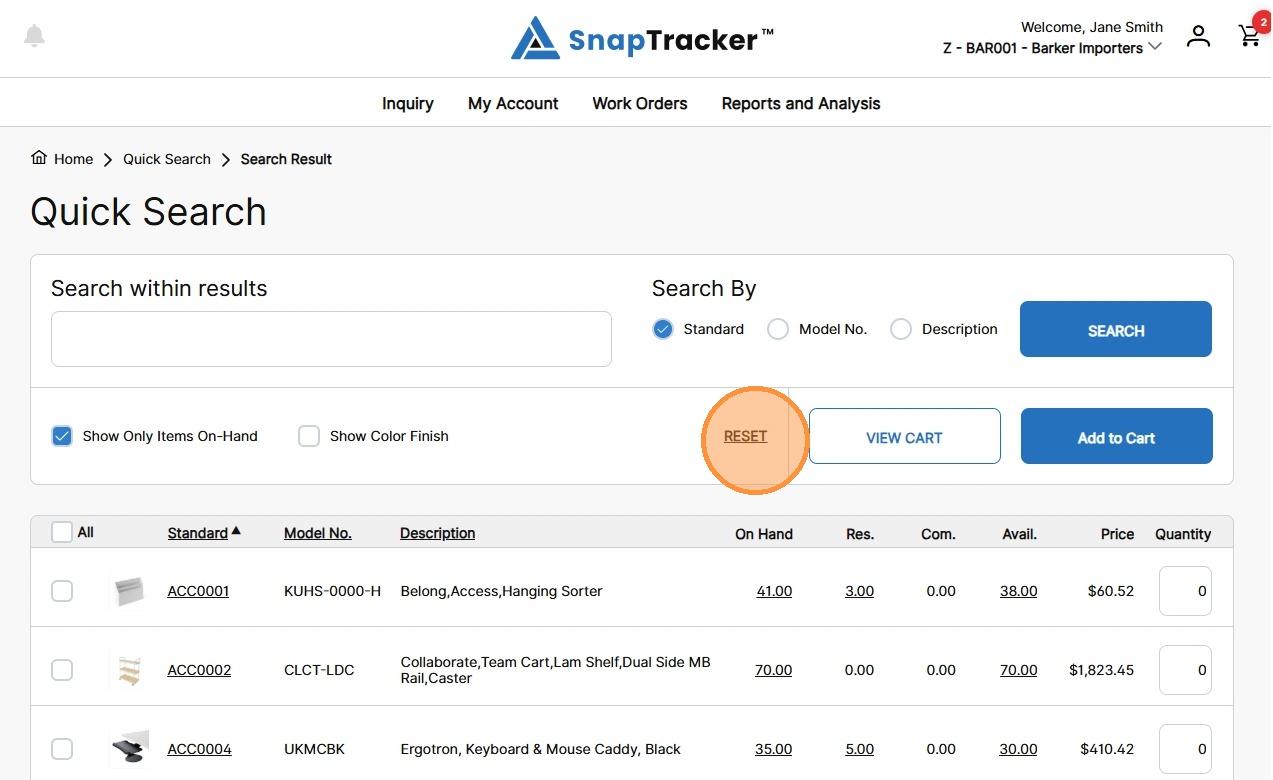
15. To clear and restart your search, click Reset.
To learn more about different search features in Quick Search refer to:
“How to Use Inquiry – Quick Search (Asset Management) – Basic Search – Summary View“.
“How to Use Inquiry – Quick Search (Asset Management) – Basic Search – Advanced Search“.
“How to Use Inquiry – Quick Search (Asset Management) – Basic Search – Request Product by Condition“.
“How to Use Inquiry – Quick Search (Asset Management) – Basic Search – Search Within Results“.