
How to View an Order Receipt
When a cart is checked out, it becomes an order in SnapTracker. You can access, search, and filter all of your orders in the My Orders screen or All Orders screen.
For more information on the order screens, see:
Before starting, make sure:
- You are logged in to SnapTracker.
- There are orders to view.
- You have shopping enabled.
- You are in a screen where the Order No. is hyperlinked such as the My Orders screen or All Orders screen.
This post outlines how to access and navigate the Order Receipt screen.
1. To view the full details of an order, click a hyperlinked Order No.

The Order Receipt pop-up displays.
The Order Receipt shows the full details of the order.
This includes:
-
- Product Details – Product and services requested from the original cart.
- Attachments – If there are attachments that were added to the order either as a cart or as an order, the Attachments section displays. By default this section is closed on the screen. Click + to open the section and view the details.
- Order History – The history of the cart. By default this section is closed on the screen. Click + to open the section and view the details.
- Payment Information – The Payment information entered during the cart checkout process. By default this section is closed on the screen. Click + to open the section and view the details.
- Order Information – The Order information entered during the cart checkout process. By default this section is closed on the screen. Click + to open the section and view the details.
- Additional Information – The Additional information entered during the cart checkout process. By default this section is closed on the screen. Click + to open the section and view the details.
- Address sections – The Sold To and Ship To information entered during the cart checkout process. By default this section is closed on the screen. Click + to open the section and view the details.
Note: Payment, Order and Additional Information sections only display if there is information to display in the section. They may be customized with a different name.
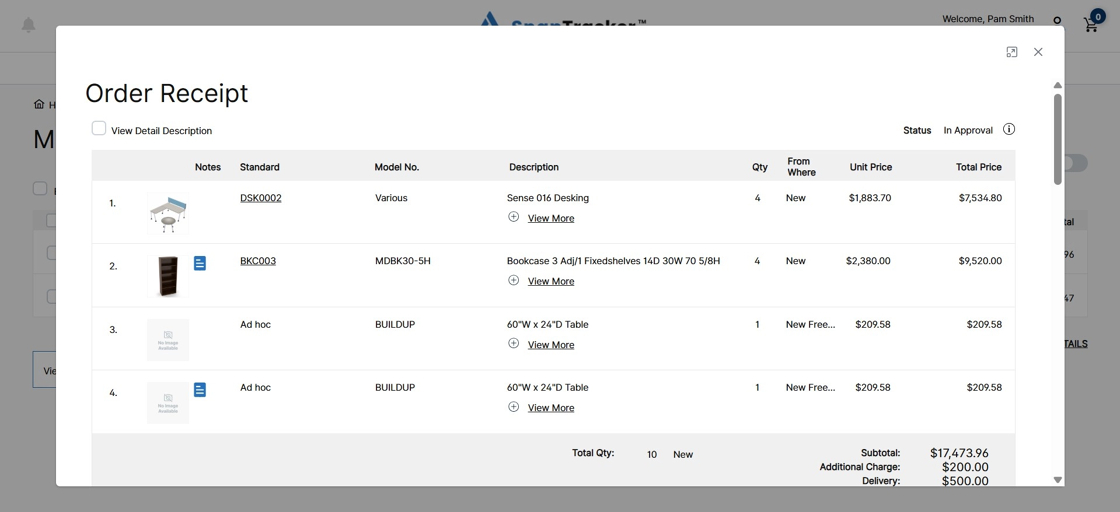
2. To review the order details, scroll through the full order receipt.
Product Details section:

Order History, Payment Information, Order Information, Additional Information and Address sections.
By default the sections are closed. To view any section, click + beside the section name.

There are different actions you can complete in the Order Receipt screen. There are two different areas on the screen with actions:
- Below the product listed on the order.
- At the bottom of the Order Receipt screen.

Observe the actions below the product:
- Upload Attachments – Upload any additional files for quick reference in the order. This option is based on user settings and may not be available.
- Print Items – Print Items enables you to print the items in the order, excluding the rest of the order information.
- Expand All/Collapse All – To quickly expand or collapse all order details at once.
3. To upload an attachment, click UPLOAD ATTACHMENTS. The Upload Attachment pop-up displays.
To select a file, click Select a file… and browse your computer to find the file.
Click Upload File.
The attachment is added to the Cart.
Note: You can upload multiple files at one time, or select them separately.

If there are Attachments on an Order, the Attachments section displays and you can view the files. You can also download files, delete files and upload additional files in the Attachments section.

4. To print only the product in the order, click PRINT ITEMS.

The Print screen displays and you can print the page.

5. The product on the Order Receipt screen is paginated and you can scroll through the pages. You can also change the number of results displayed on a single page by clicking the View Results drop-down and changing the number of records displayed.

At the bottom of the Order Receipt screen, additional actions are available.

Actions available at the bottom of the Order Receipt screen may include:
- Print Order – Print the full order details. The print out includes the product and any additional open/expanded sections on the screen.
- View Completion Details – View order completion details. (Completion Details only display for completed Service Orders).
- Create SIF File – Create a SIF file of the order. A SIF file is created for New product or service orders, not for Stock product. This function is based on user settings and may not display.
6. To print the order receipt, click PRINT ORDER.
Note: The information you see on the screen is what is printed. If you want to see the Payment Information on the print out, ensure it is expanded in the screen first.

7. To create a SIF file for new product or services on the order, click CREATE SIF FILE.
The Create SIF File pop-up displays with a message.
To continue, click YES.

The SIF file is created and saved to your Downloads folder.

8. To close the Order Receipt pop-up, click X.