
How to Upload Product to a Cart
There are different ways of adding product to a cart in SnapTracker, depending on your user settings. In addition to using screens such as Quick Search, Picture Search and Product Catalogs, you may also have the option to upload product directly to a cart using SIF or Excel files. These files can have one item or many items to add to the cart at one time.
In addition to using files to populate the product in a cart, attachments can be uploaded to provide additional information or visuals for a specific order.
Before starting, make sure:
- You are logged into SnapTracker.
- Your account has shopping enabled.
- You have access to a minimum of one customer with shopping enabled.
- You have a cart created.
- The correct Customer is selected.
- Your User Id has the required permissions for uploading files to a cart.
This post outline the process of uploading files to a cart for adding product, with a SIF or Excel File, or adding order related attachments.
1. In the header section, click the Cart icon.
The Cart side panel displays.

2. To view the active cart details, from the Cart side panel, click Go to Cart.
The Cart screen displays.

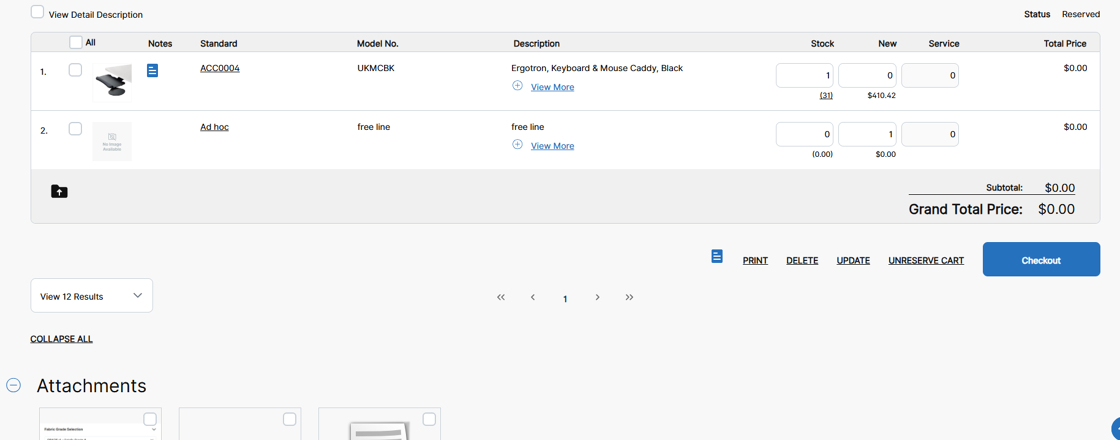
Observe the Cart screen.
Note: Your cart may not necessarily have product in it.

3. Click the Upload icon for upload options.
Note: User permissions need to be assigned to have this feature available.

Observe the following upload functions:
- Create via Excel File – Upload an excel file of specified products to be added to your cart. The Excel file needs to be formatted in a specific template to be used to upload product to the cart. The Excel file can include product as well as information to populate the Checkout screen.
- Create via SIF file – Upload a SIF File of specified products to be added to your cart.
- Upload Attachments – Upload any supporting files for your cart. Many different file types can be attached to the cart including:
- Files from Microsoft Office such as .docx, .xlsx, .csv and .pptx.
- Image files including .gif, .jpg, .jpeg, .png, .svg, .swf and .tiff.
- Specification files including .dwg, .dwf, .sp4, .sif, and .ssf.
- PDF and text files.
Note: Each of these features is assigned individually to a user, so you may not see all three options.

4. Click the desired upload function.

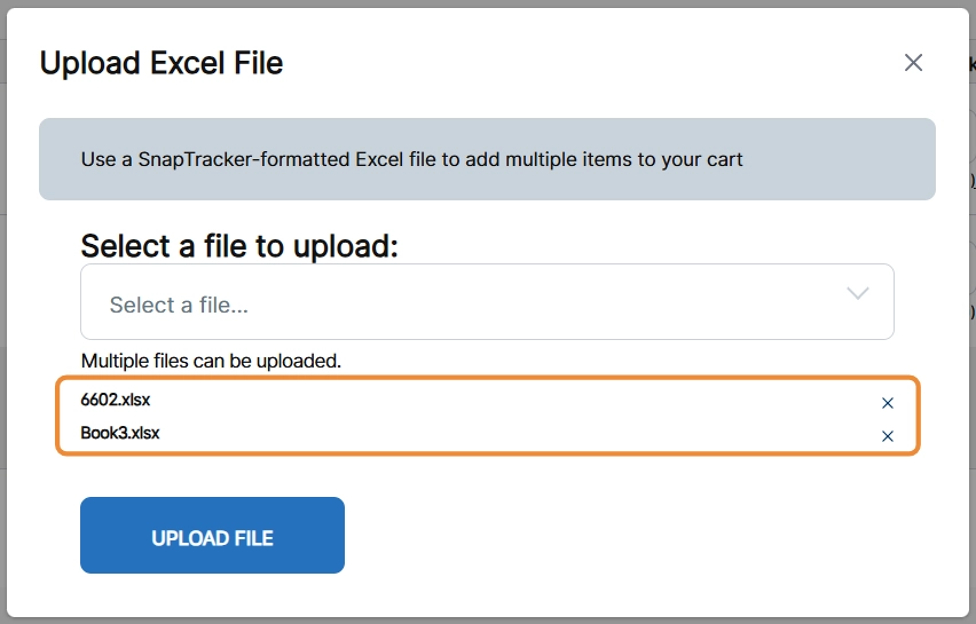
5. To upload product to a cart using an Excel file, click Create via Excel File. The Upload Excel File pop-up screen displays.
To select a file, click Select a file… and browse your computer to find the file.
Click Upload File.
The product in the file is added to the Cart.
Note: You can upload multiple files at one time, or select them separately.

As the files are selected, they display on the screen. You can click X to remove a file before uploading it.
6. To upload product to a cart using a SIF file, click Create via Sif File. The Upload SIF File pop-up screen displays.
To select a file, click Select a file… and browse your computer to find the file.
From the File Type drop-down select the specific type of SIF file from the options: SIF, Specsif or Teknionsif.
From the Select the Standard from drop-down, select the field the Standard is populated in the SIF file, if applicable.
Click Upload File.
The product in the file is added to the Cart.
Note: If no match is found for a Standard, the line is added as an ad-hoc line item in the cart.

7. Click Upload File.
A success message displays.
The product in the file is added to the Cart.
Note: If no match is found for a Standard, the line is added as an ad-hoc line item in the cart.

8. To upload attachments to a cart, click Upload Attachments. The Upload Attachment pop-up screen displays.
To select a file, click Select a file… and browse your computer to find the file.
Note: You can upload multiple files at one time, or select them separately. All accepted File Types are outlined in the File Types.

As the files are selected, they display on the screen. You can click x to remove a file before uploading it.

9. Click Upload File.
A success message displays.
The attachment is added to the Cart.
To add additional product to the selected cart by browsing the product on the site, you can navigate to an Inquiry screen.
Refer to the following posts:
- How to Use Inquiry – Quick Search
- How to Use Inquiry – Product Search
- How to Use Inquiry – Product Catalog