
How to Checkout a Cart
When a cart is finalized and ready to checkout, billing and shipping information is required to complete the checkout process, before moving to the next stage in order fulfillment. Once the order is checked out, email notifications are sent to the requestor and other people configured to receive them.
Before starting, make sure:
- You are logged into SnapTracker.
- Your user account has shopping enabled.
- You have access to a minimum of one customer with shopping enabled.
- You have a cart created with product in it.
This post outlines the process for checking out a cart and creating the order.
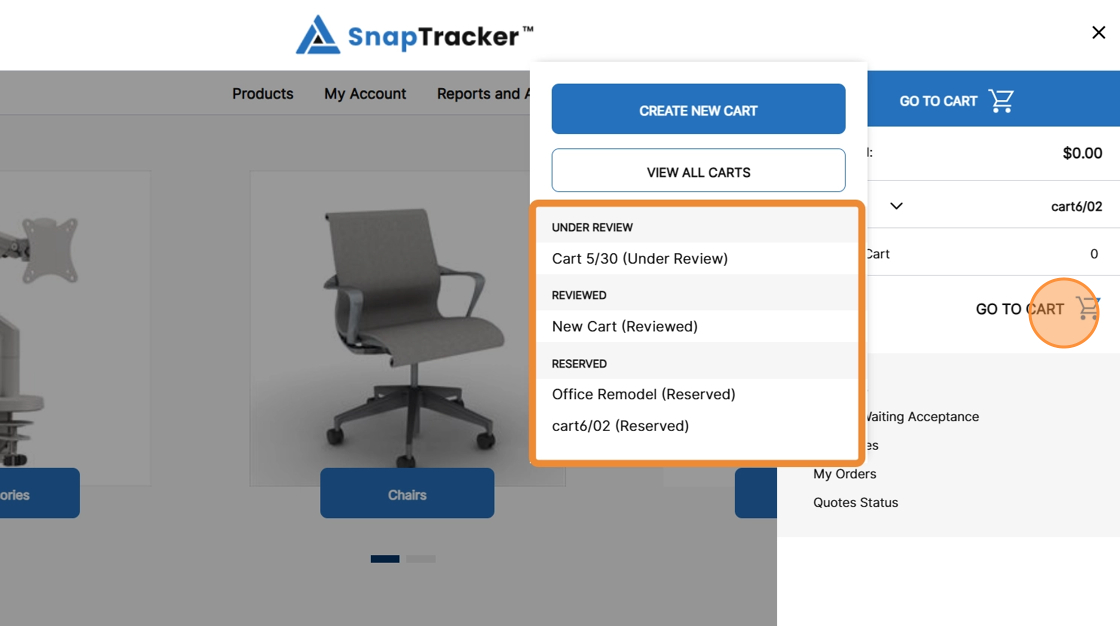
1. In the header section, click the Cart icon.

2. Select the Cart you want to check out.
If it us the active cart, click Go to Cart.
If it is a different cart, click the dropdown arrow beside Cart and choose from your other available carts.
The Cart screen displays.
3. Click Checkout.
The Checkout screen displays.

Observe the Checkout screen.

The Checkout screen is organized into four main sections:
-
Payment Information Section – Enter payment related information for the order, such as the Purchase Order Number or Project Reference Number.
-
Order Information Section – Enter order related information, such as Project Type.
-
Address Section – Enter address and contact information for the order, such as a ZIP code or phone number.
-
Additional Information Section – Enter additional information for the order, such as Building Name.
Note: Depending on the requirement, all sections may not display on the Checkout screen. All fields within each section can be customized and enabled based on specific requirements. Sections can be re-ordered and re-labeled on the screen.
4. Populate the desired information in the required fields, as indicated by asterisks in the field titles.

5. Populate optional fields as desired.

6. In the Notes section, enter any additional comments.
Note: Notes display on the Work Order Header Notes and are included in the details of the order emails.

7. To complete the checkout, click Order.
Note: You can click Update to save the information and return later to complete the checkout.

The order confirmation message displays. An email is sent to you with the order confirmation and details.

Sample Order Email:
