
How to Assign a Quote for Acceptance
Once dealers create quotes in SnapTracker, they are routed to a specific user for final acceptance or approval. Quotes can be assigned to users during initial creation, or assigned to users at a later time.
Before starting, make sure:
- You are logged into SnapTracker.
- Your user account has shopping enabled.
- You have access to a minimum of one customer with shopping enabled.
- You have access to My Quotes screen.
- You have a Quote created with product in it, but not yet assigned to a User.
This post outlines how to assign a Quote for acceptance from the My Quotes screen.
1. In the header section, click My Account.

2. Click My Quotes.

3. Alternatively, in the header section, click the Cart icon.

4. In the Cart side panel, click My Quotes.

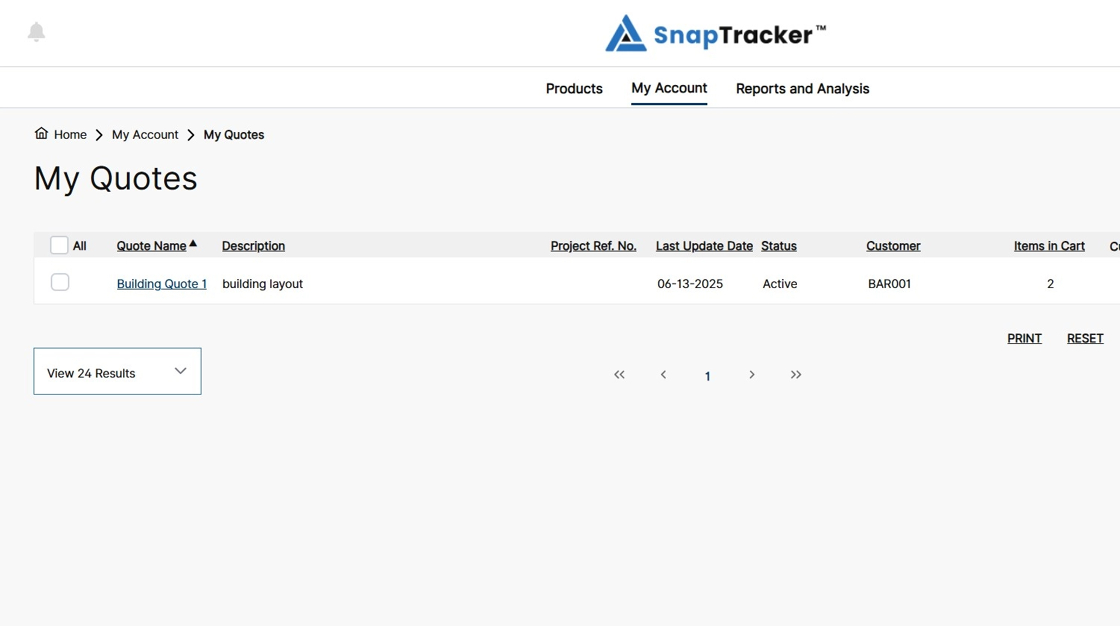
The My Quotes screen displays.
Note: Filters may be shown or hidden by default based on your user settings.

5. On the My Quotes screen, click a hyperlinked quote name.

The Cart screen displays.
6. Ensure all quote details are final, then click Create Quote.

The Checkout screen displays.

7. In the Checkout screen, populate the required fields. Populate optional fields as desired.
Note: The Checkout screen in the My Quotes screen is identical to the Checkout screen for a regular cart.

8. Once all information is added, click Create Quote.

The Publish Quote screen displays.

9. On the Publish Quote screen, click the Select a User dropdown.
Note: The Select a User dropdown lists all users that have access to the selected Customer.

10. Search for or select the desired User to accept the quote.

11. Click Assign User.
Note: An email is sent to the selected User at the end of the process.

The selected User displays in the Select a User dropdown.

12. In the Enter Custom Email Notification or Send default text box, edit the custom email notification as desired, or simply send the message that displays in the text box.
Click Publish Quote.

The My Quotes screen displays.
The quote is published and the status of the quote changes to awaiting acceptance. An email is sent to the selected User letting them know there is a quote waiting for them on the site.
Note: Once a quote is assigned to another user, it no longer displays in the My Quotes screen. It displays in the Quotes Waiting Acceptance screen. Quotes cannot be edited once they are assigned to a user for acceptance.