
How to Create a Location Type
Now that a Building is created, the next step is to look at the building carefully and divide it into different sections. Location Types enable you to divide the buildings into logical areas. A Location Type is used to specify a range of functions that certain Locations are designated for.
This post outlines the procedure involved in setting up Location Types in SnapTracker.
Step-by-step instructions
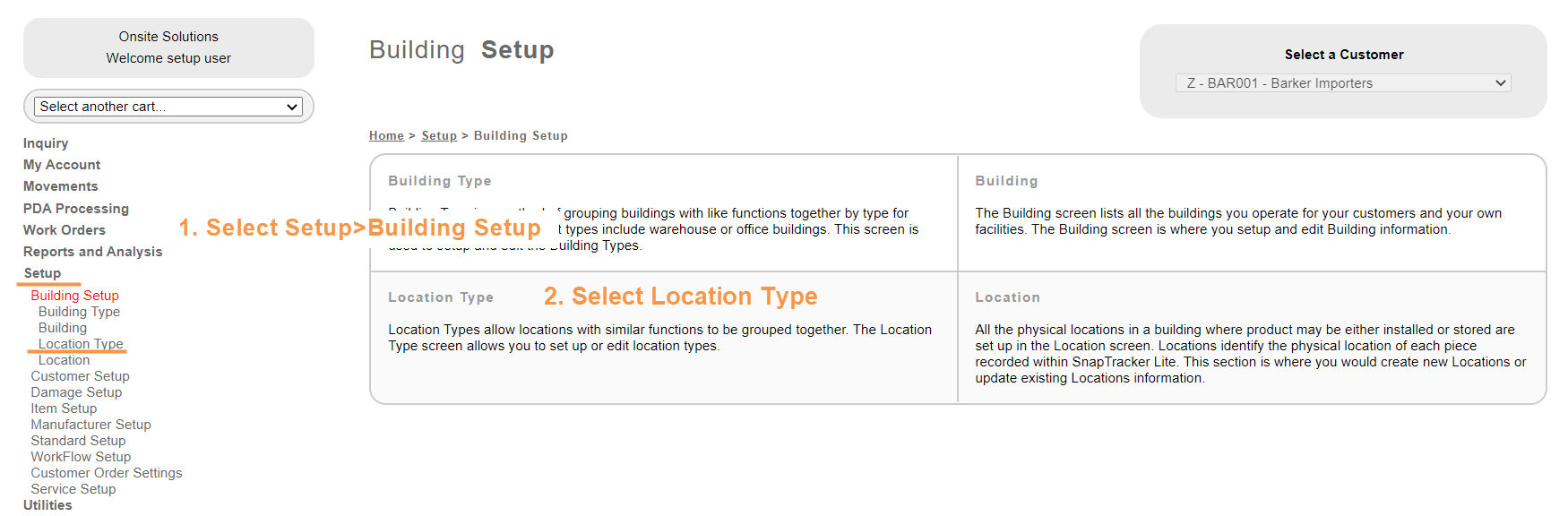
- From the left navigation, select Setup, Building Setup.The Building Setup screen displays.
- Select Location Type.The Location Type screen displays.
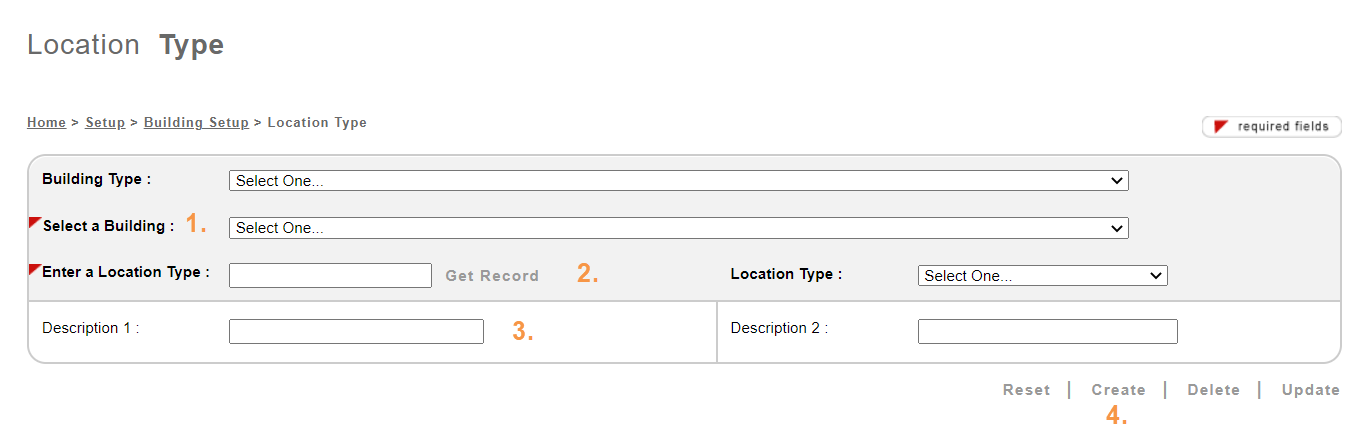
This is where you create a new Location Type.
To create a new Location Type, you need to first have a Building created.
- From the Select a Building drop-down selection box, select the Building in which you would like to create a new Location Type.
- In the Enter a Location Type box, type in the Location Type code. The character limit is 2 digits.
- You may enter additional information of the Location Type using Description 1 and Description 2.
- Click Create.
The Location Type is created.
Did you know?
After the Location Types are created, we can proceed to set up specific locations for the building in SnapTracker.