
How to Navigate the Table View of a Dashboard Report
The Reports in My Dashboard include insights and metrics to enable evidence-based decision making to improve your operations. The Table View of reports provides a data driven presentation of report data for your review.
Before getting started, make sure:
- You are logged in to SnapTracker.
- You have been assigned access to one report at minimum.
- You have been assigned Menu Access to My Dashboard.
- You are in the My Dashboard screen.
- The correct Customer is selected from the Customer selection list.
This post outlines how to use the Table view of the My Dashboard reports.
1. To open the Table View in one of the reports, click the Table icon.
The Table View displays.

2. To drill down in the report, click on any row with an arrow icon.
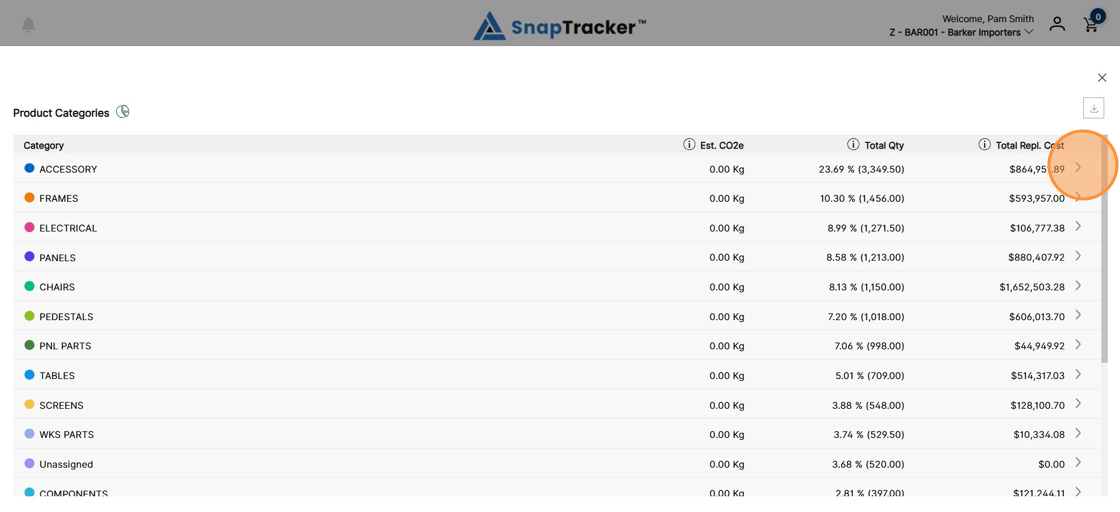
3. To go back up a level, click the arrow icon .

4. To search by keywords, click the Search icon.
The search input displays.

5. To create a keyword search, type in a keyword and press Enter . Add additional keywords as desired.
To view the results, click Filter.
The matching standard results display with the matching keyword highlighted.

6. When available, you have the option to filter categories by clicking the Filter icon, then click a filter category.
Filter Categories may include:
- Filter By Building – Select the specific Building you would like to see the product in.
- Filter By Building Type – Select the type of Building you would like to see product in. Building Type organizes buildings with similar functions. For example, warehouses may be grouped under one Building Type, onsite buildings as a second Building Type and client-owned warehouses as a third building type.
- Filter By Manufacturer – Select the specific Manufacturer you would like to see products for.
- Filter By Standard Class – Select the specific category you would like to see products for. (Examples of Standard Classes may include Chairs, Storage and Accessories).
- Filter By State – Select the State a Building is in to filter the results by State. State is a field that can be entered for each Building in SnapTracker.

The Filter pop-up displays.

7. Select the checkbox beside options to filter, then click Apply Filter.
The report updates, with data displaying based on the selected filter.

8. To initiate/view the export options (CSV or PDF), click the ellipses icon.
Export as CSV and Export as PDF display.

9. To view additional details for a specific Standard, click the hyperlinked Standard.
The Quick View side panel displays.

The Quick View side panel displays.
The Quick View side panel displays the details of the selected Standard.

10. To add the item to your active cart, modify the quantity (if desired) and click Add to Cart.

11. To close the Quick View side panel, click X.
