
How to Use Inquiry – Quick Search (E-Commerce) – Advanced Search
The Inquiry section is used to search for products. There are multiple ways of searching for products, such as using the Quick Search function. Quick Search is intended to help you quickly identify a list of all suitable products that meet your furniture requirements. The search filters available to assist you include product type, dimensions, catalog information and wildcard searches.
Before starting, make sure:
- You are logged into SnapTracker.
- You have at minimum one Standard created.
- You have at minimum one Standard Class created.
- The correct Customer is selected from the Customer selection list.
- You have access to Quick Search.
This post outlines the process of inquiring for products using Quick Search for new product using Advanced Search.
1. In the header section, click Inquiry.
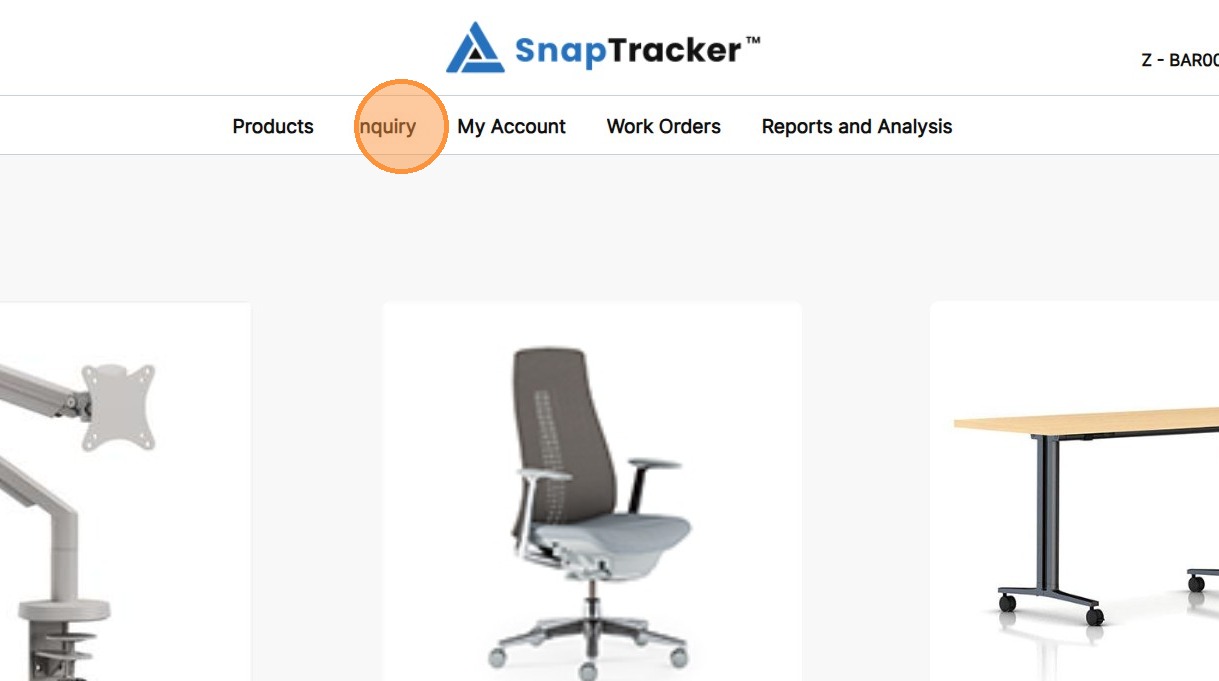
2. Click Quick Search.
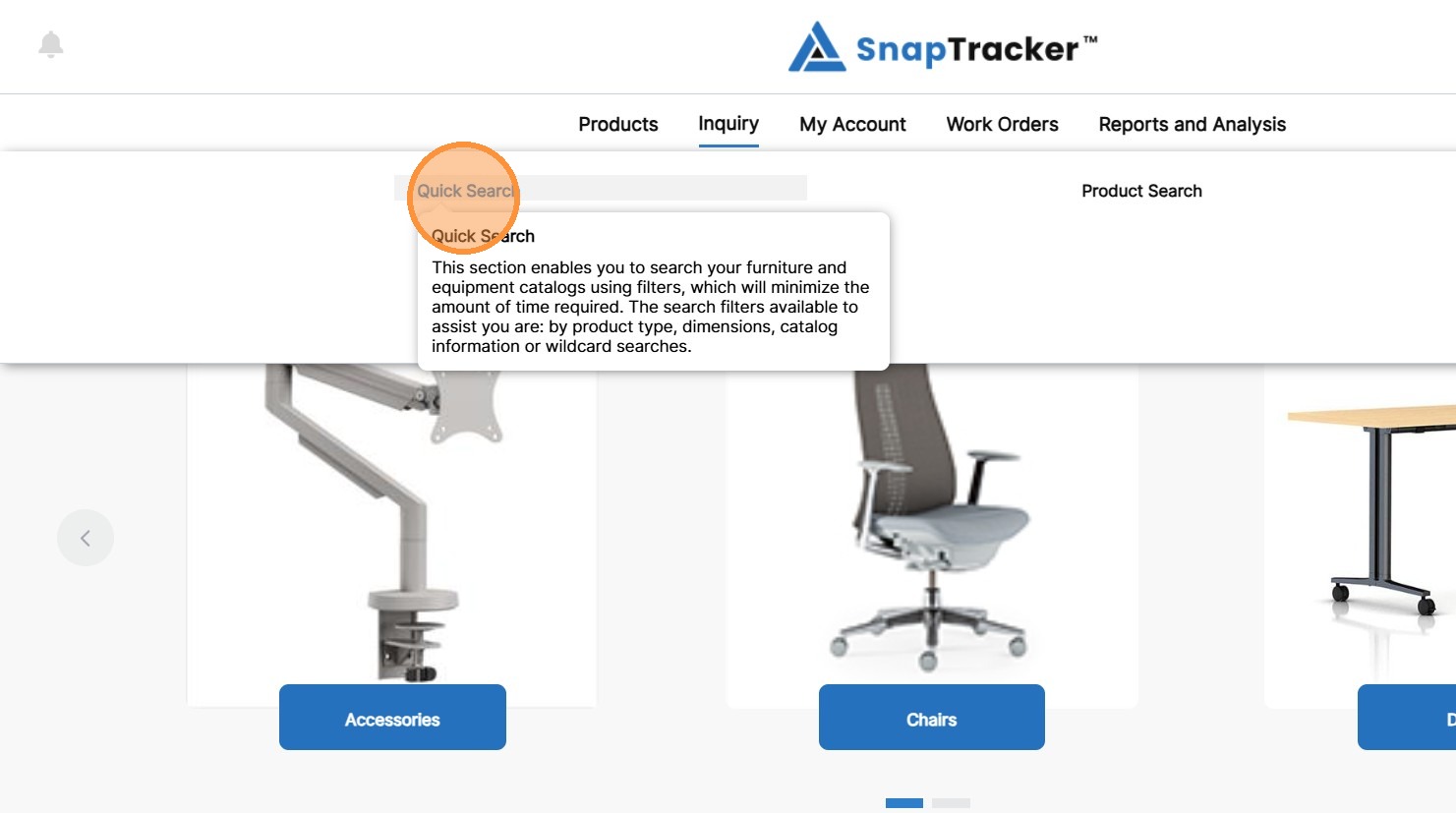
The Quick Search screen displays, showing available search and filter options.
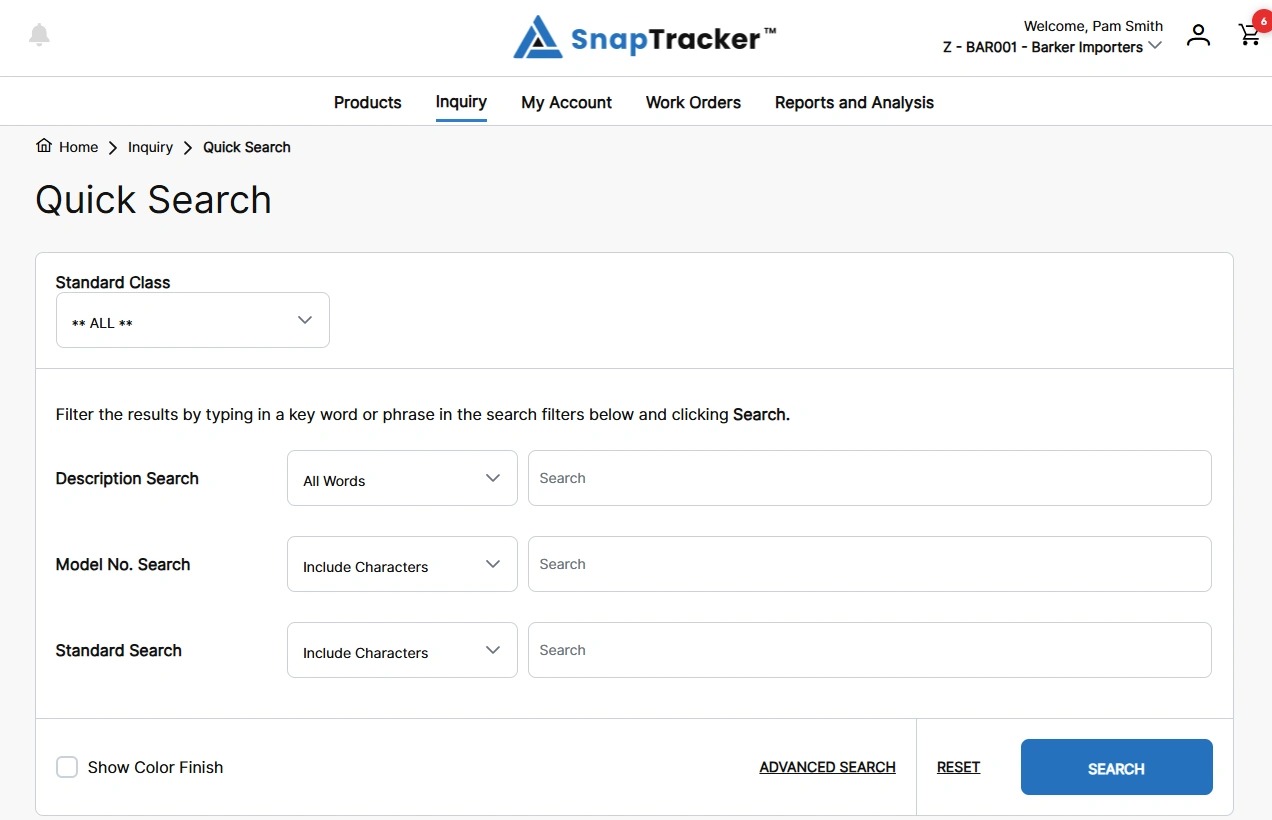
Observe the following filter and search options:
-
Standard Class – Select ALL or one Standard Class.
-
Show Color Finish – Select/unselect the checkbox to show/hide the color finish field for each product in your results.
Note: You can set the Show Color Finish checkbox default in the User’s Profile settings.
-
Description Search – Select to search by All Words, Any Words, Exact Words or Phrase, then enter the desired search input.
-
Model No. Search – Select to search by Include Characters, Exact Match, Starts With Characters, then enter the desired search input.
-
Standard Search – Select to search by Include Characters, Exact Match, Starts With Characters, then enter the desired search input.
3. If you want to further refine your search, you can use Advanced Search to apply additional filters.
To apply Advanced Search Criteria, click Advanced Search.
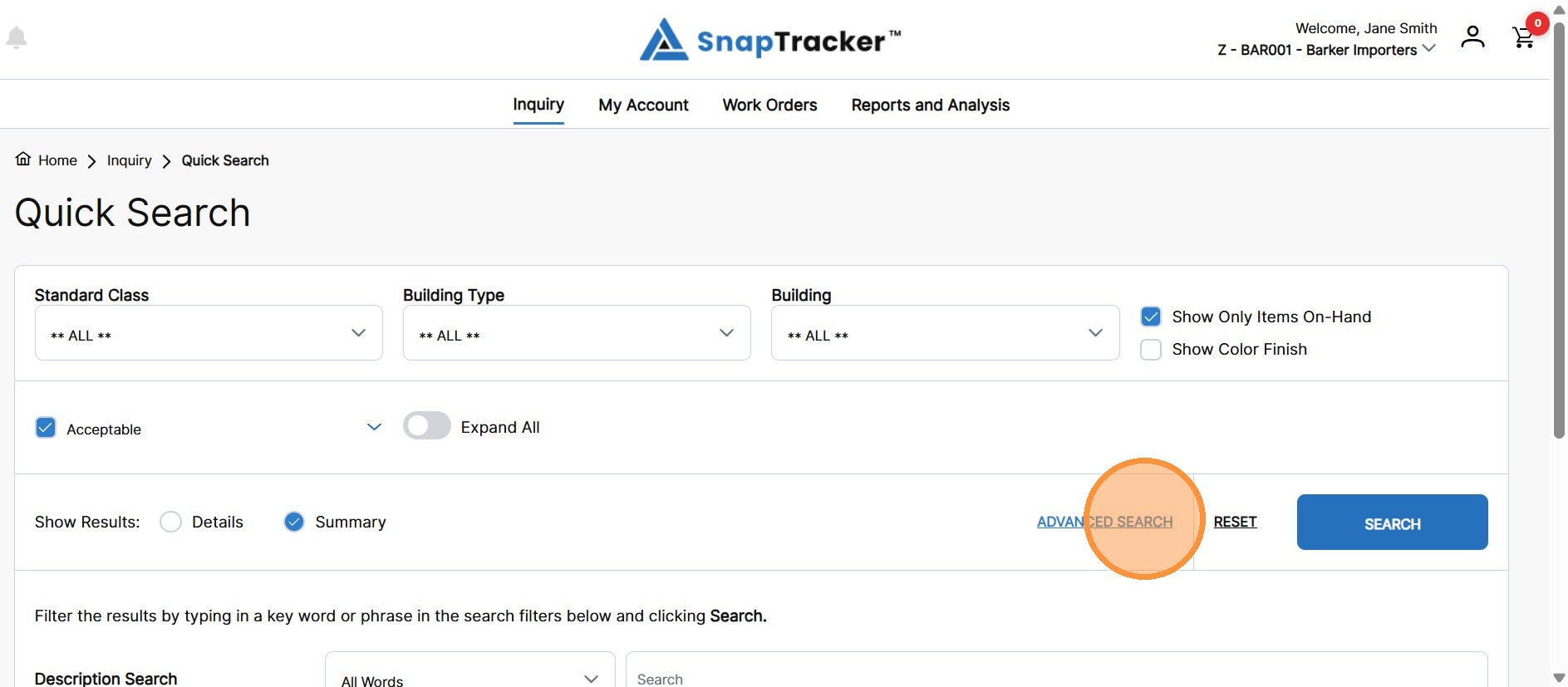
The Advanced Search Criteria pop-up displays.
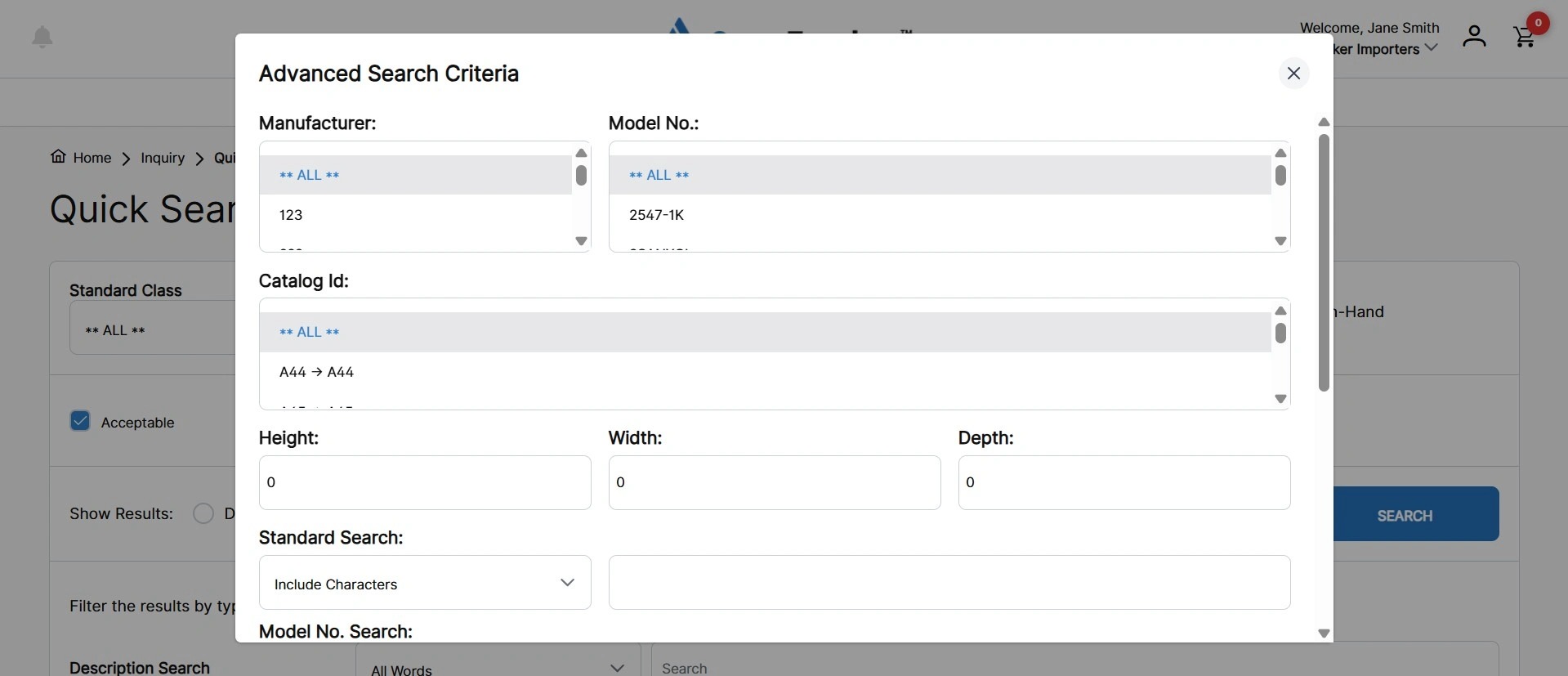
Observe the fields in the Advanced Search Criteria pop-up:
- Manufacturer – Select from available manufacturers on the site.
- Model No – Select from available model numbers on the site.
- Catalog ID – Select from available Catalog IDs on the site. The Catalog ID is a sub- category assigned by the Manufacturer for their product.
- Height – Enter a desired product height. This information is typically in inches or feet and is entered in the Standard information.
- Width – Enter a desired product width. This information is typically in inches or feet and is entered in the Standard information.
- Depth – Enter a desired product depth. This information is typically in inches or feet and is entered in the Standard information.
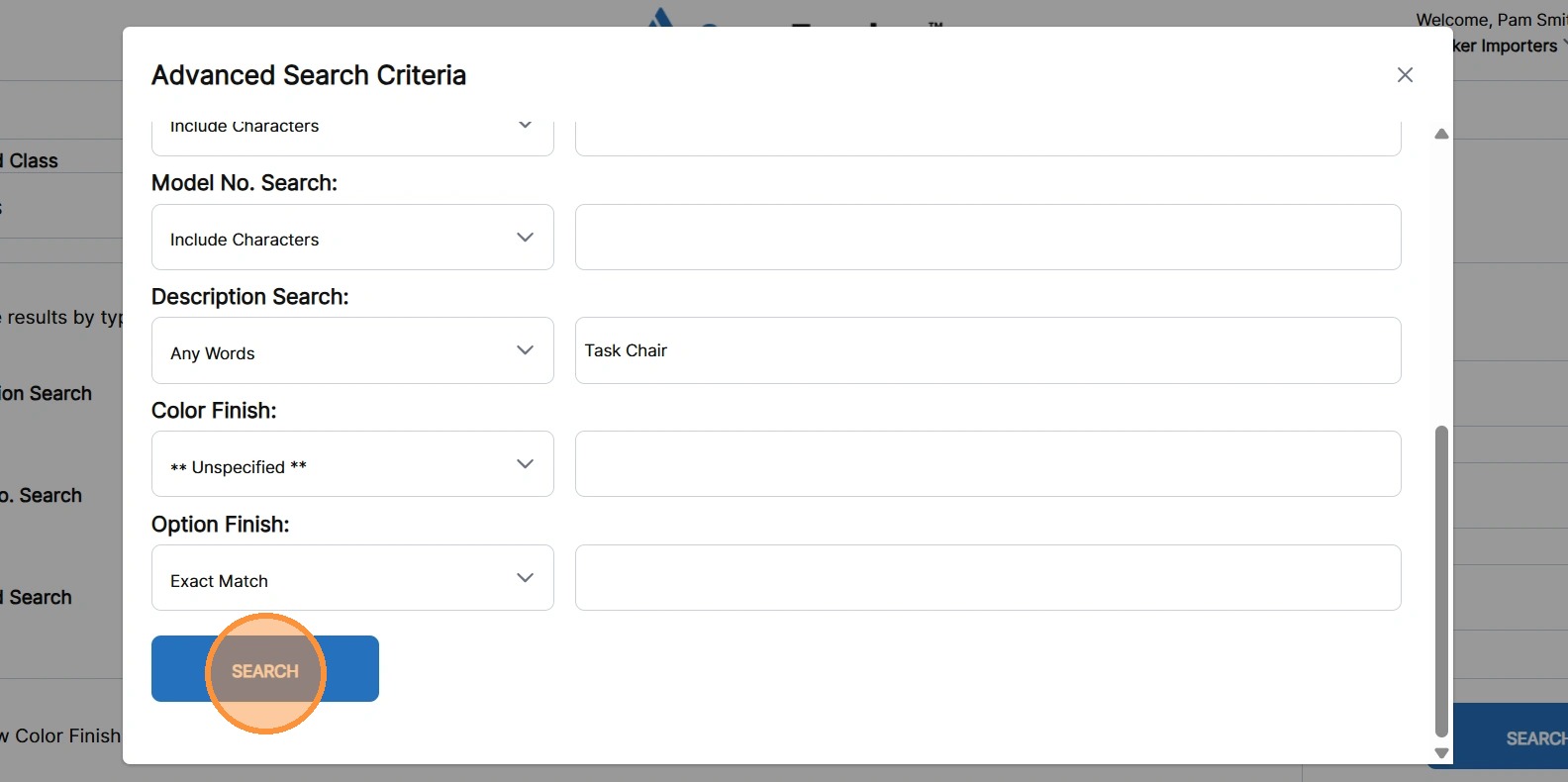
For the Search fields, select to search by Exact Match, Start With Characters, or Include Characters. Enter a related keyword.
- Standard Search – Search within the Standard field.
- Model No. Search – Search within the Model No. field.
- Description Search – Select within the Standard Description field.
- Color Finish – Search within the Standard Color Finish field.
- Option Finish – Search within the Standard Option Finish field.
4. Populate the desired search fields in the Advanced Search Criteria pop-up and click Search.
Note: The search filters applied in Advanced Search override any search inputs on the main search screen.
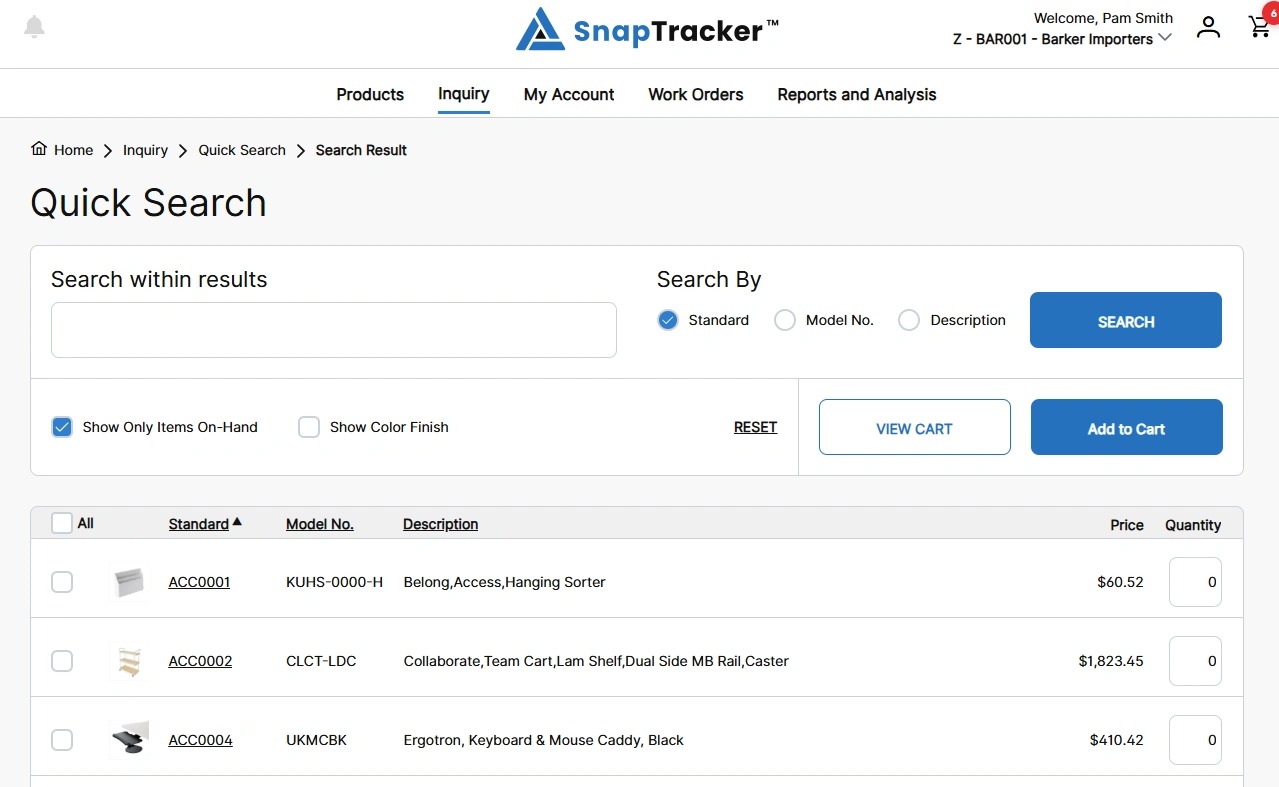
The results display.
By default, the results display sorted by either Standard or Model No. in ascending order with additional item detail information available.
Note: Whether the results are sorted by Standard or Model No. is based on the setting in My Profile called Inquiry Default Search By.
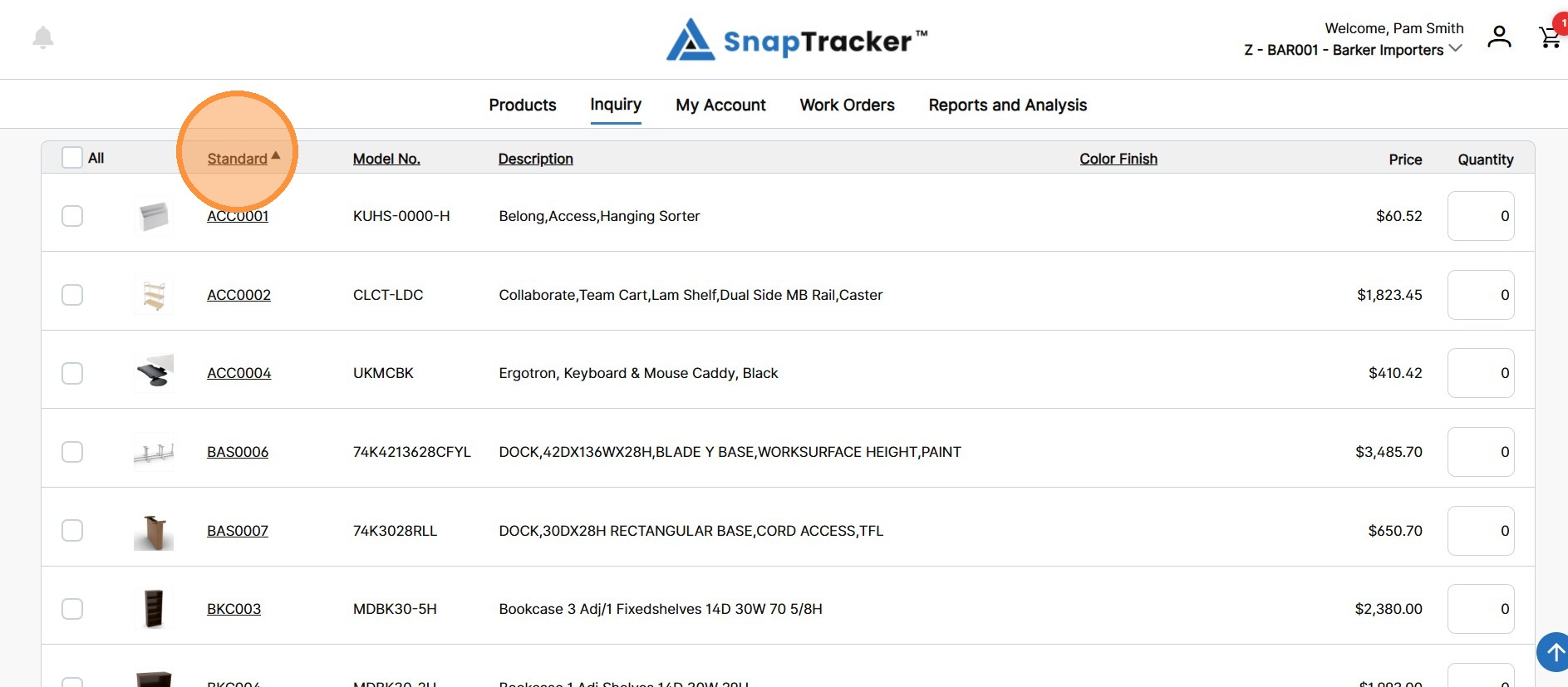
The results can be re-ordered by clicking any underlined column header.
You are able to further filter the results by using the Search Within Results section, applying another layer of search and filtering to the initial results. You can filter the results by searching for specific information in one of these three fields for the Standard:
- Standard.
- Model No.
- Description.
Observe the Search Within Results fields:
- Search within results – Enter the desired search input, based on the selected Search By condition.
- Search By – Used in conjunction with Search within results, select what field you want to search: Standard, Model No., or Description.
Also Note:
- Show Color Finish – Based on your initial input, select/unselect the checkbox to show/hide the color finish column for each product.
5. To search within results, select the desired Search By field and enter the desired search input.
Click Search.
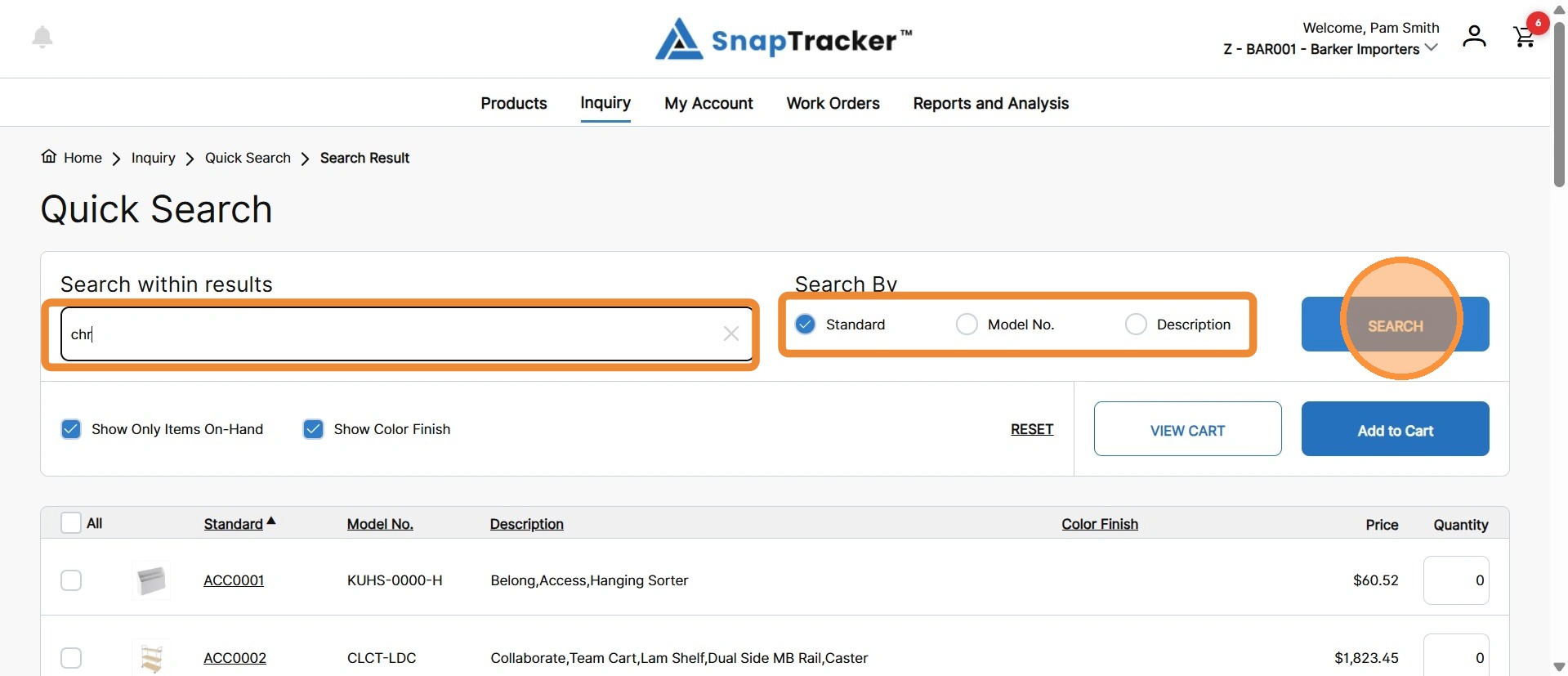
The filtered results display, with matching fields highlighted.
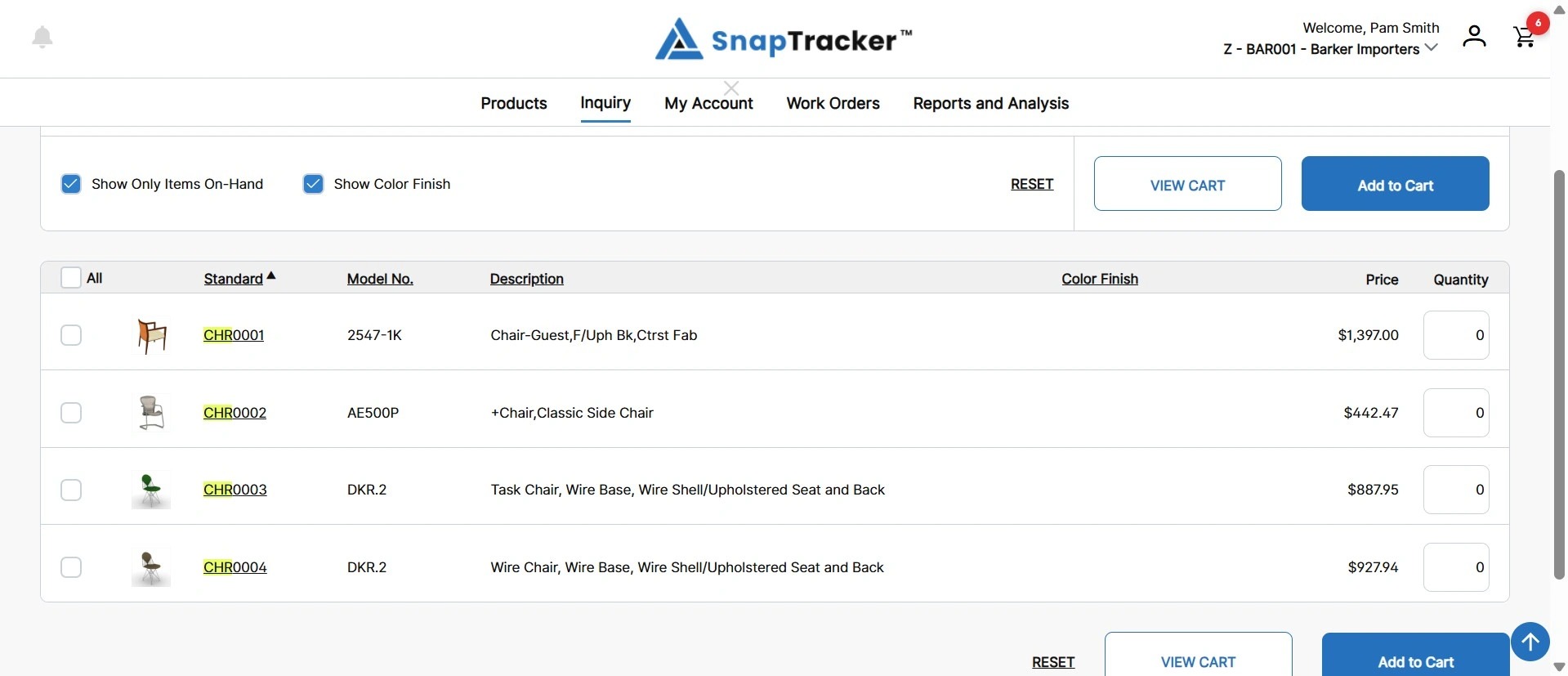
To clear the filtered results, click X in the text box.
The results display all the initial records again.
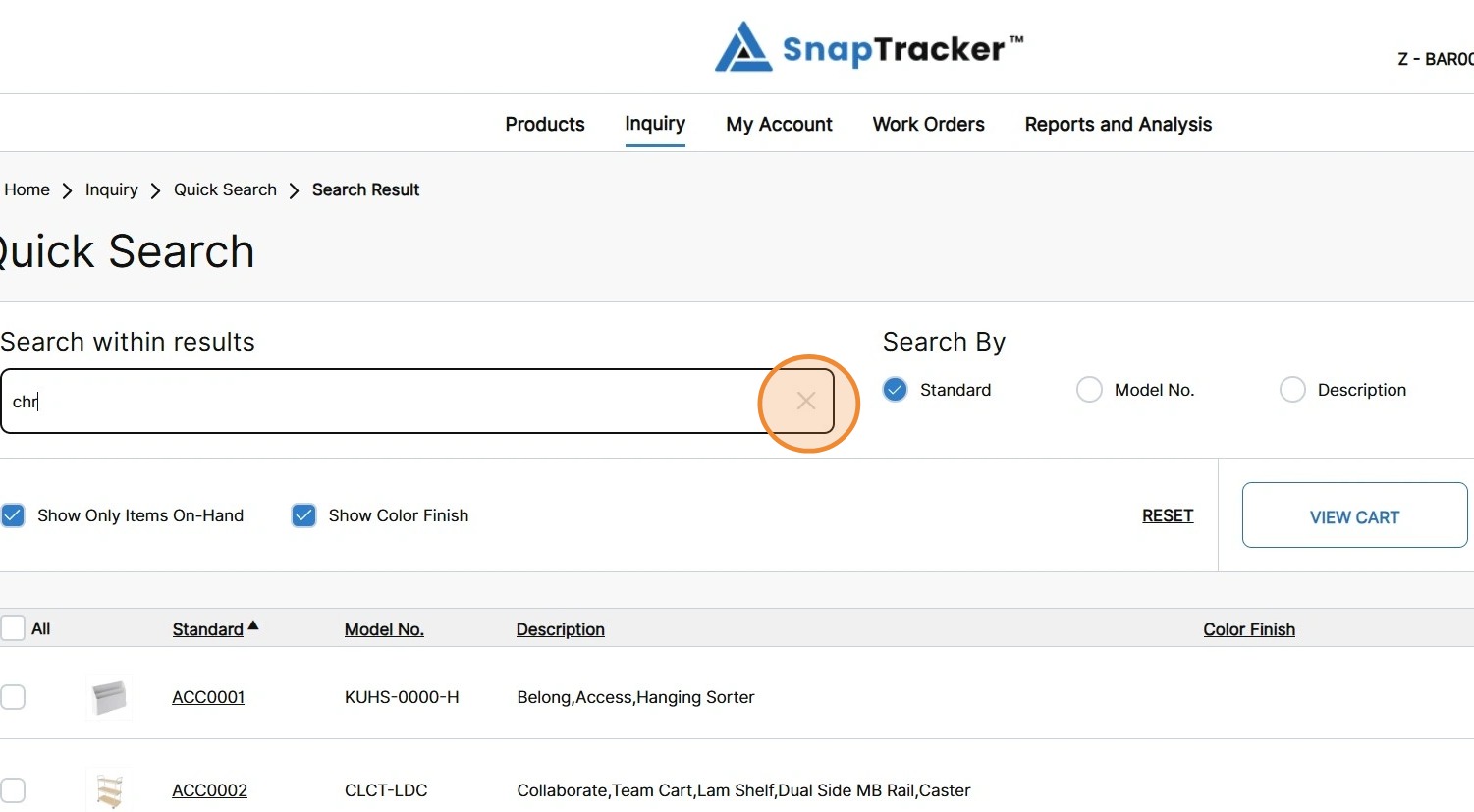
Observe the following columns in the Quick Search results:
- All (and individual checkboxes) – The product(s) that are selected to add to your cart.
- Standard – The unique Standard for the product in SnapTracker.
- Model No. – The model number of the product.
- Description – The description of the product.
- Price – The purchase price of the product.
- Quantity – The desired number of units to add to your cart.
Note: Adjusting the quantity of a Standard automatically selects the respective checkbox for the product.
6. To modify the display order of the results, click an underlined header to sort by ascending or descending order.
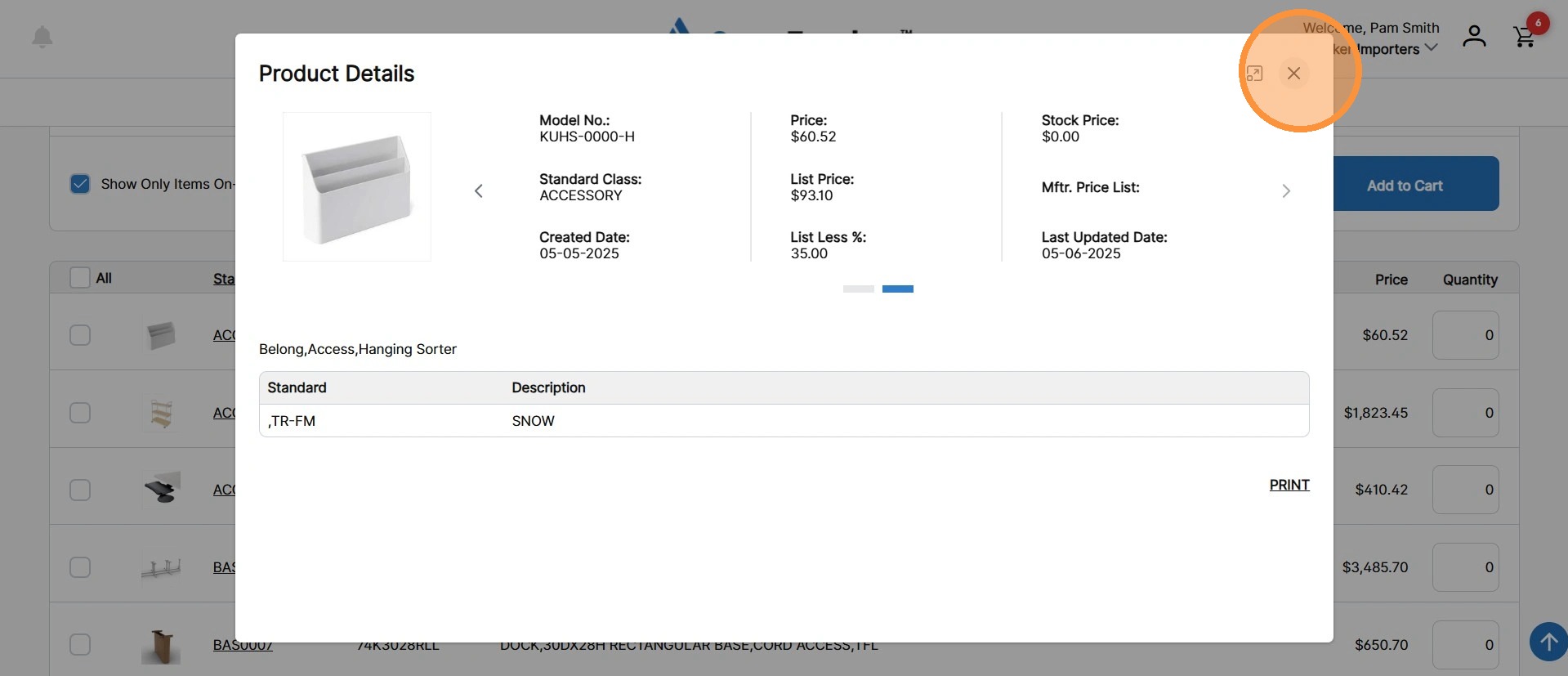
7. To open additional product details, click a hyperlinked Standard.
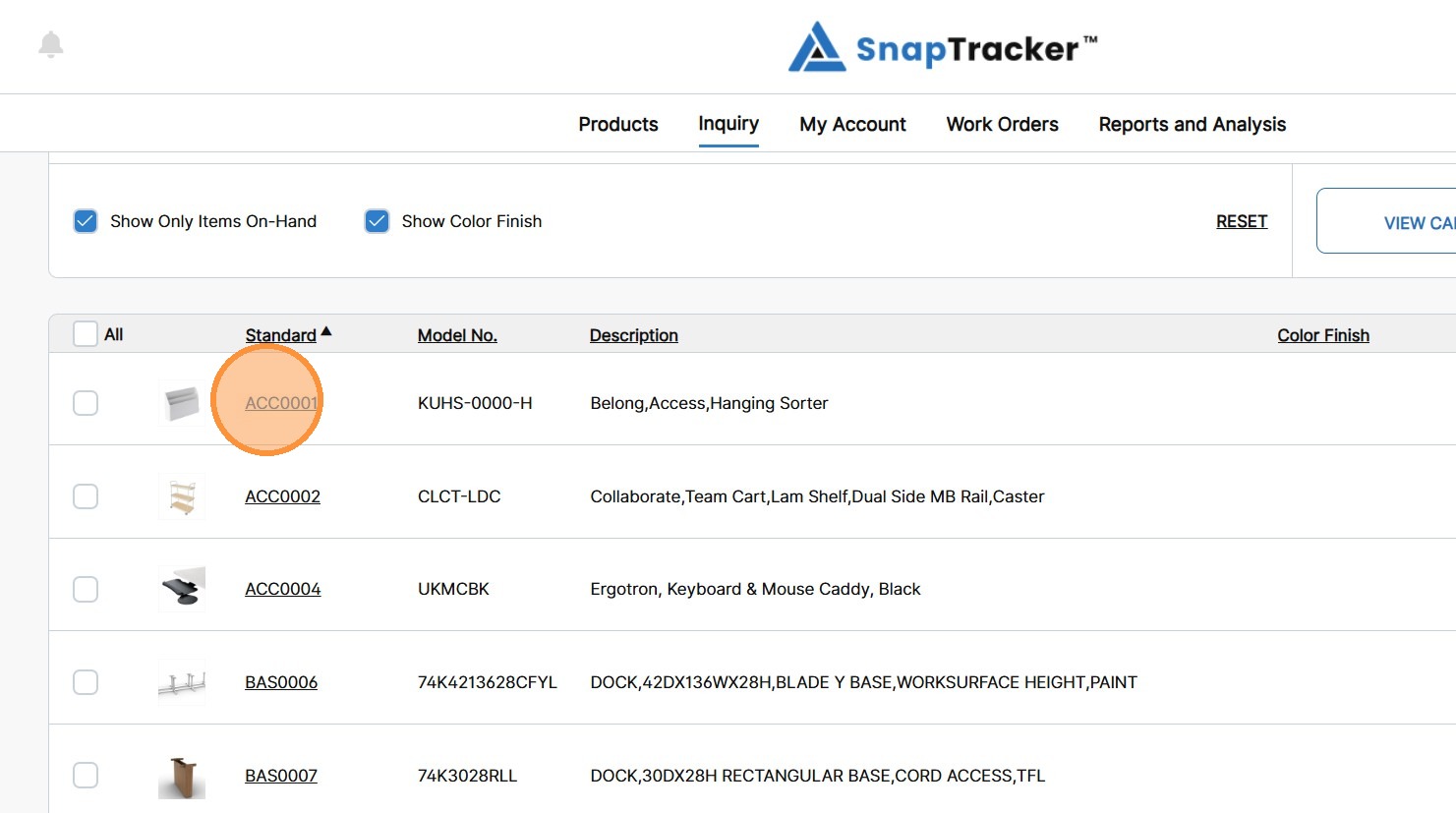
The Product Details pop-up displays.
Click the X to close the pop-up.
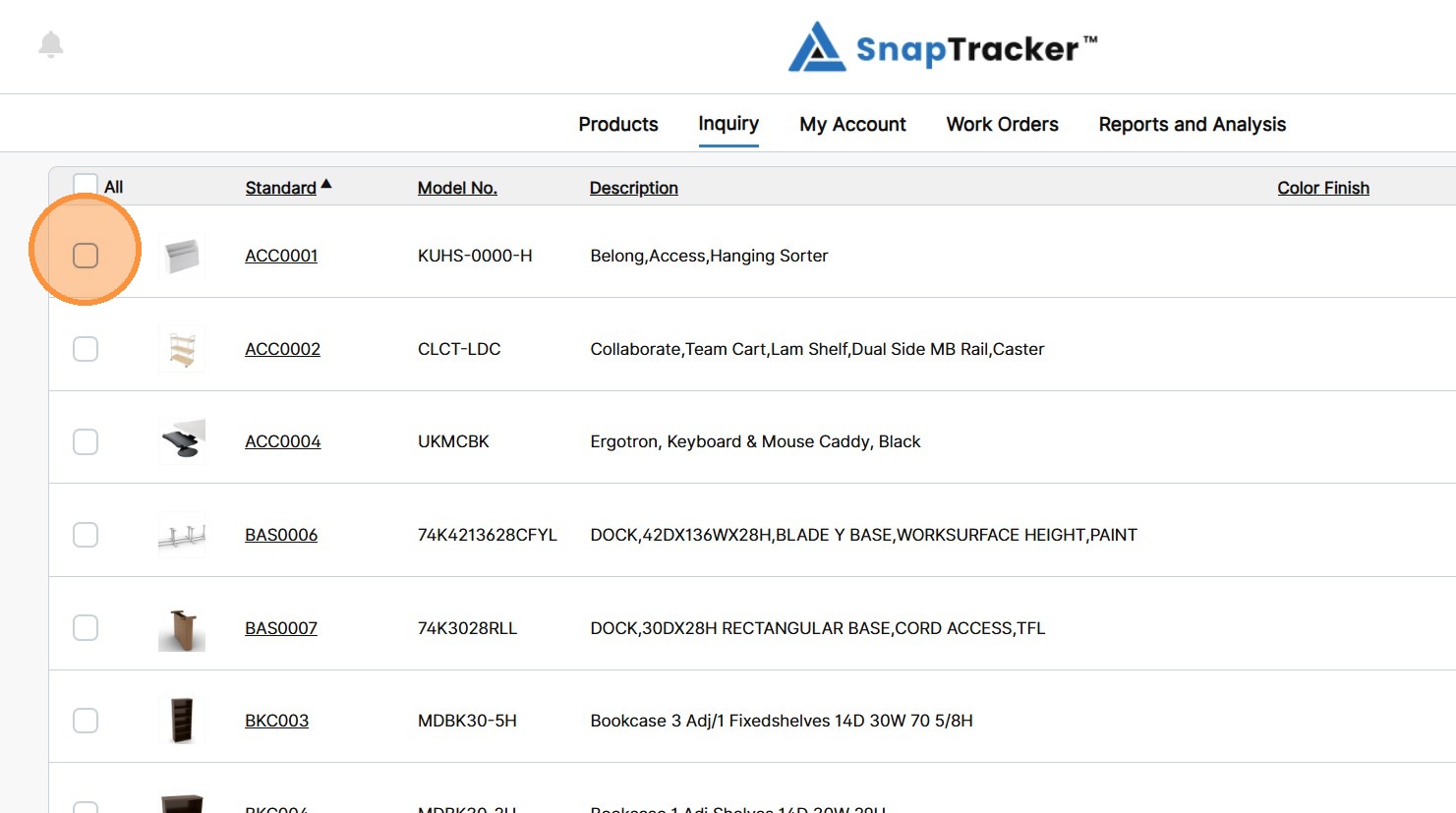
8. To add any items of a product to your cart, select the checkbox(es) for the desired product(s).
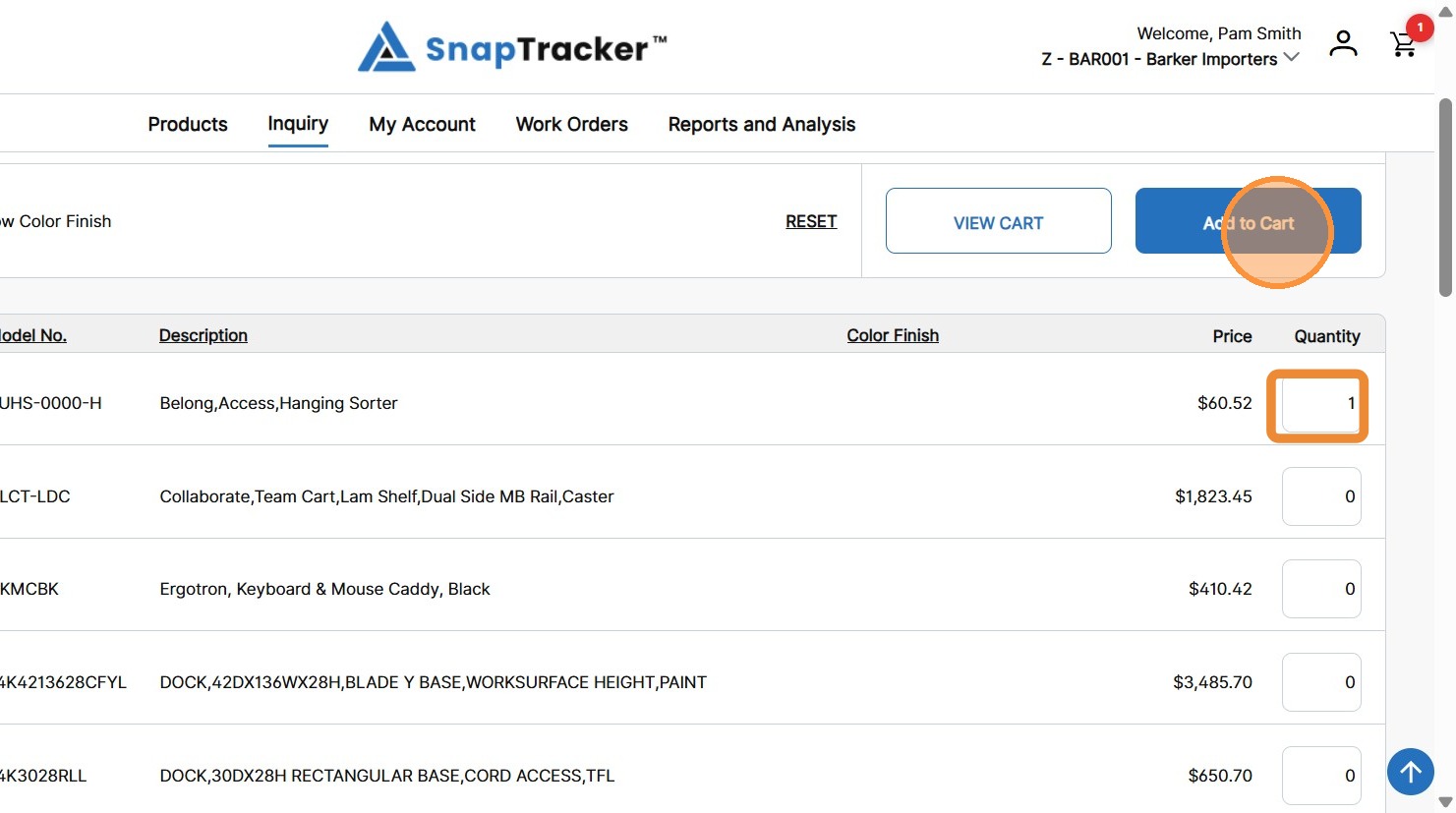
9. Modify the Quantity field to adjust the number of units to add, if desired, and click Add to Cart.
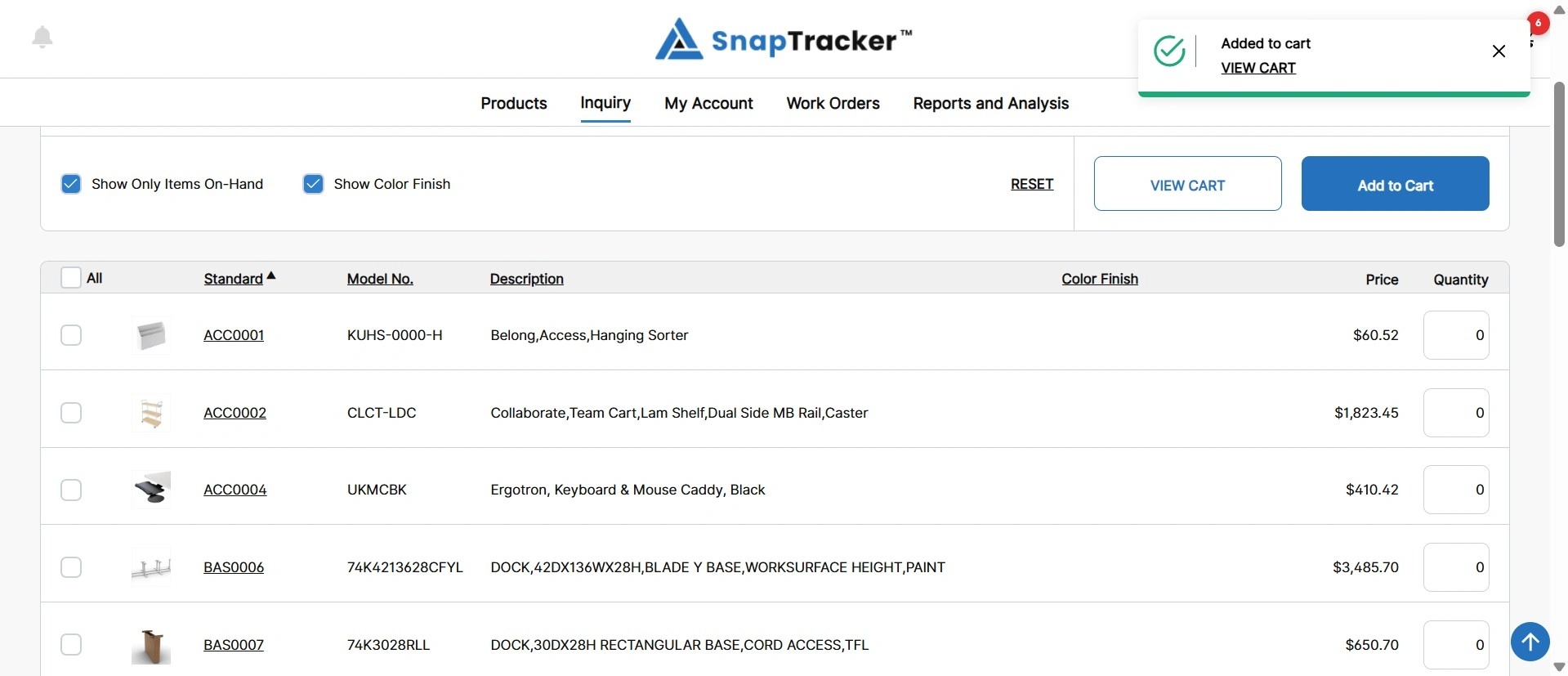
A success message displays that your products have been added to your cart.
10. To temporarily view your cart and return to your previous search results, click View Cart.
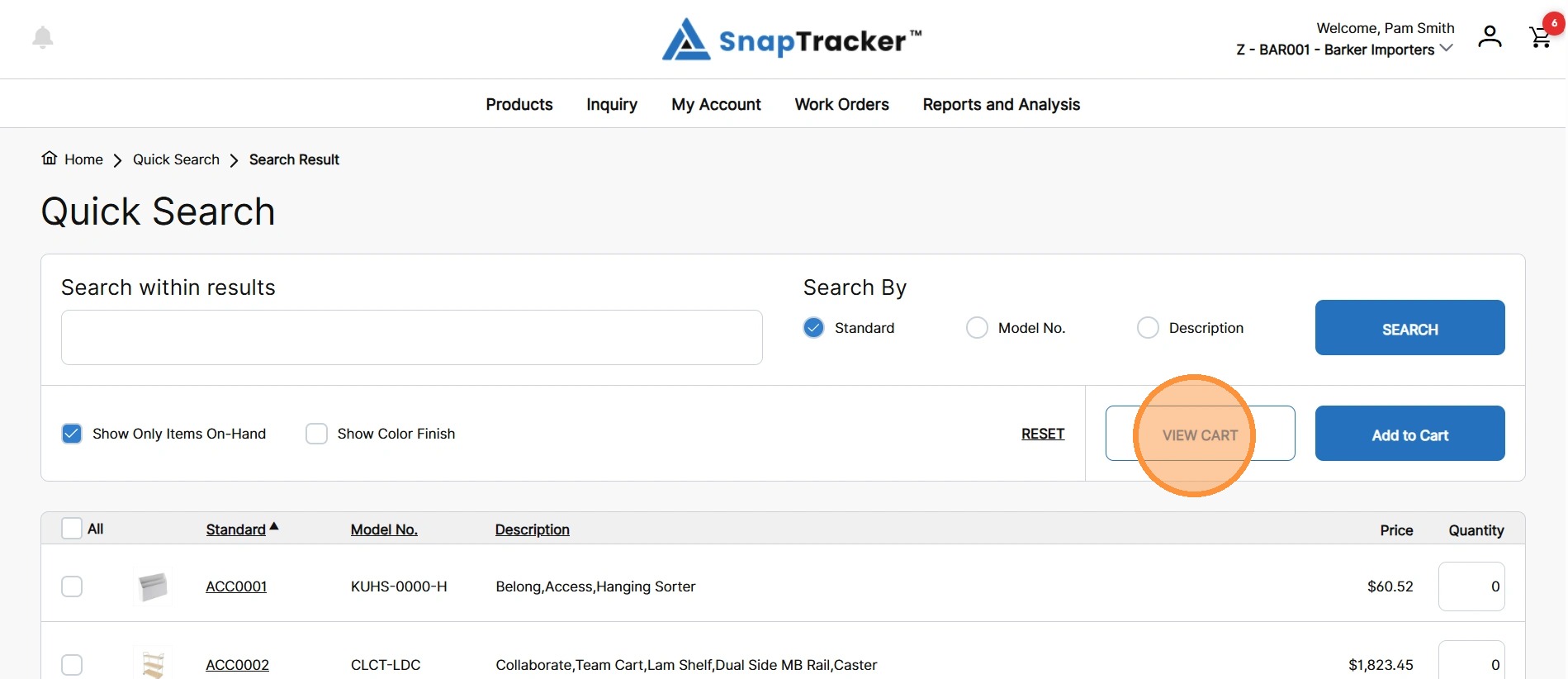
The Cart Details screen displays.
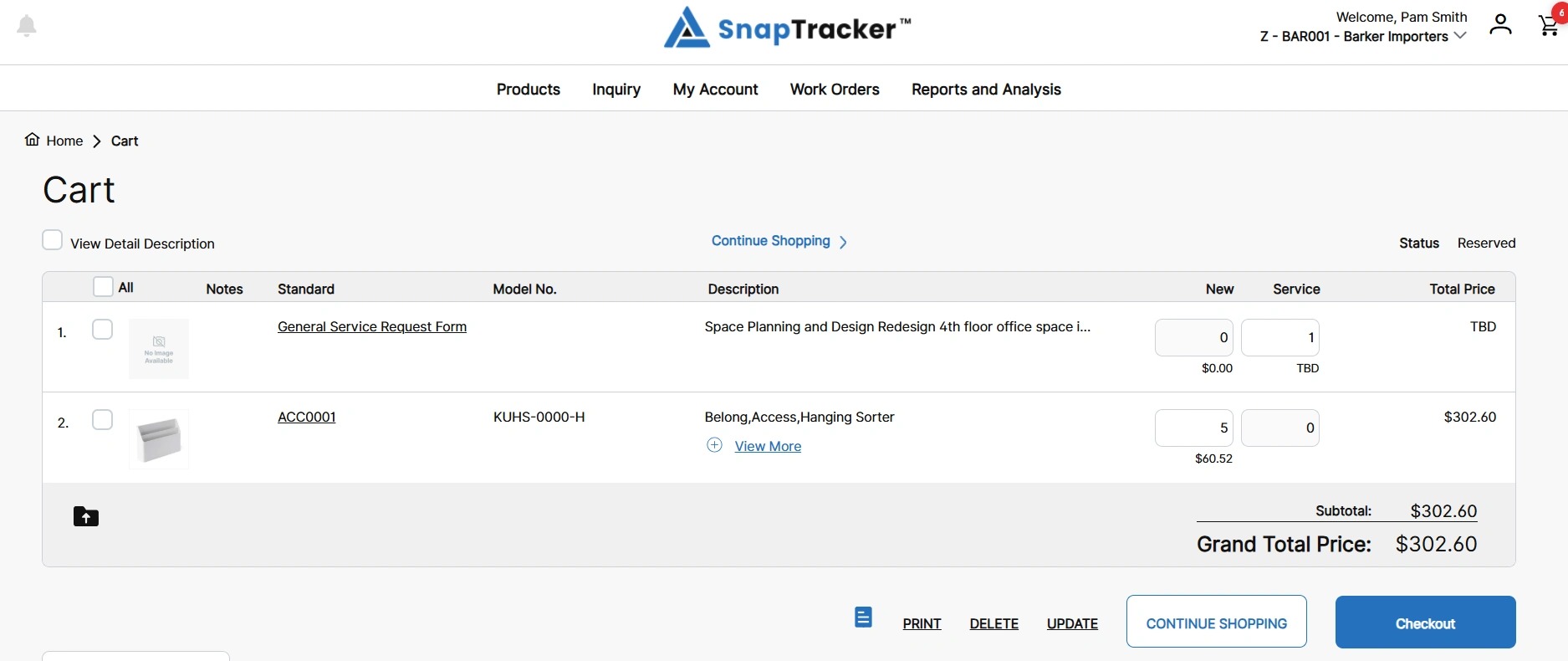
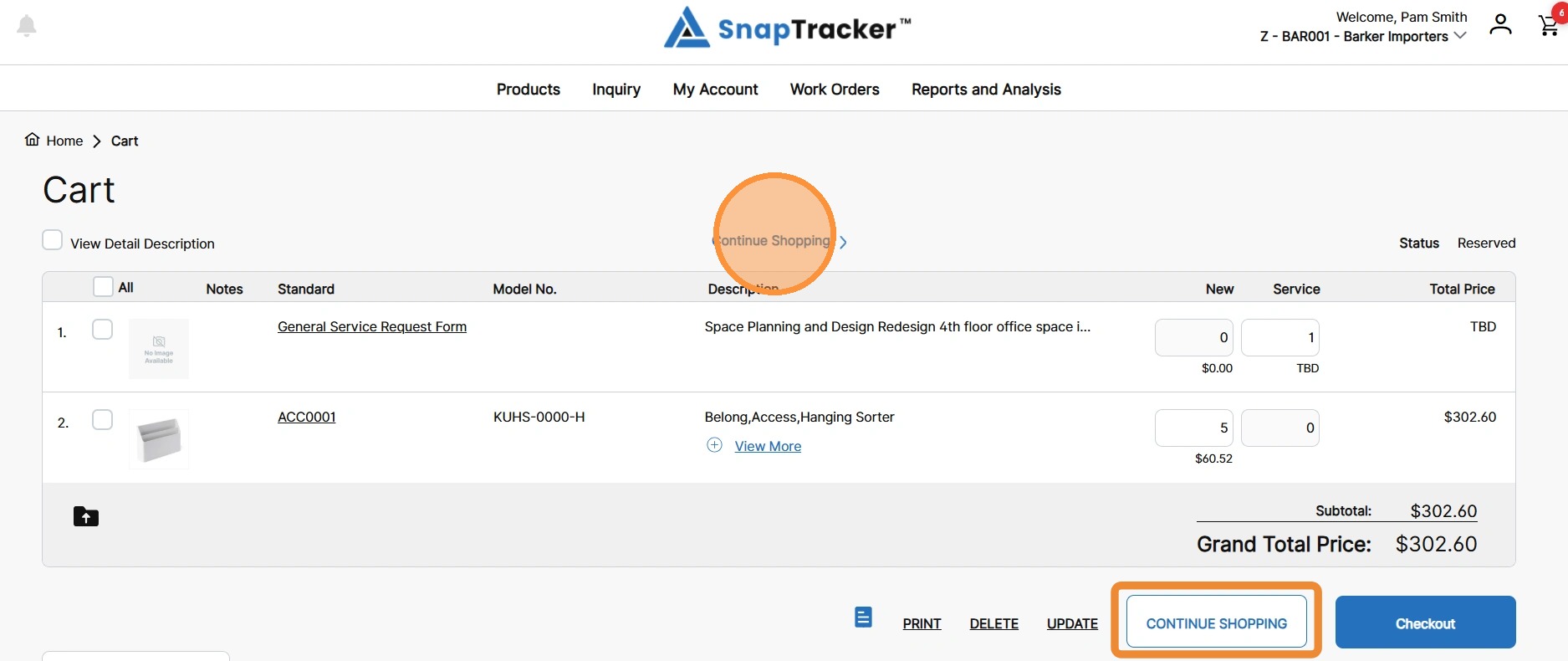
11. Review your cart details and click Continue Shopping to return to your previous search results.
The Quick Search Results with your previous search and filter inputs display.
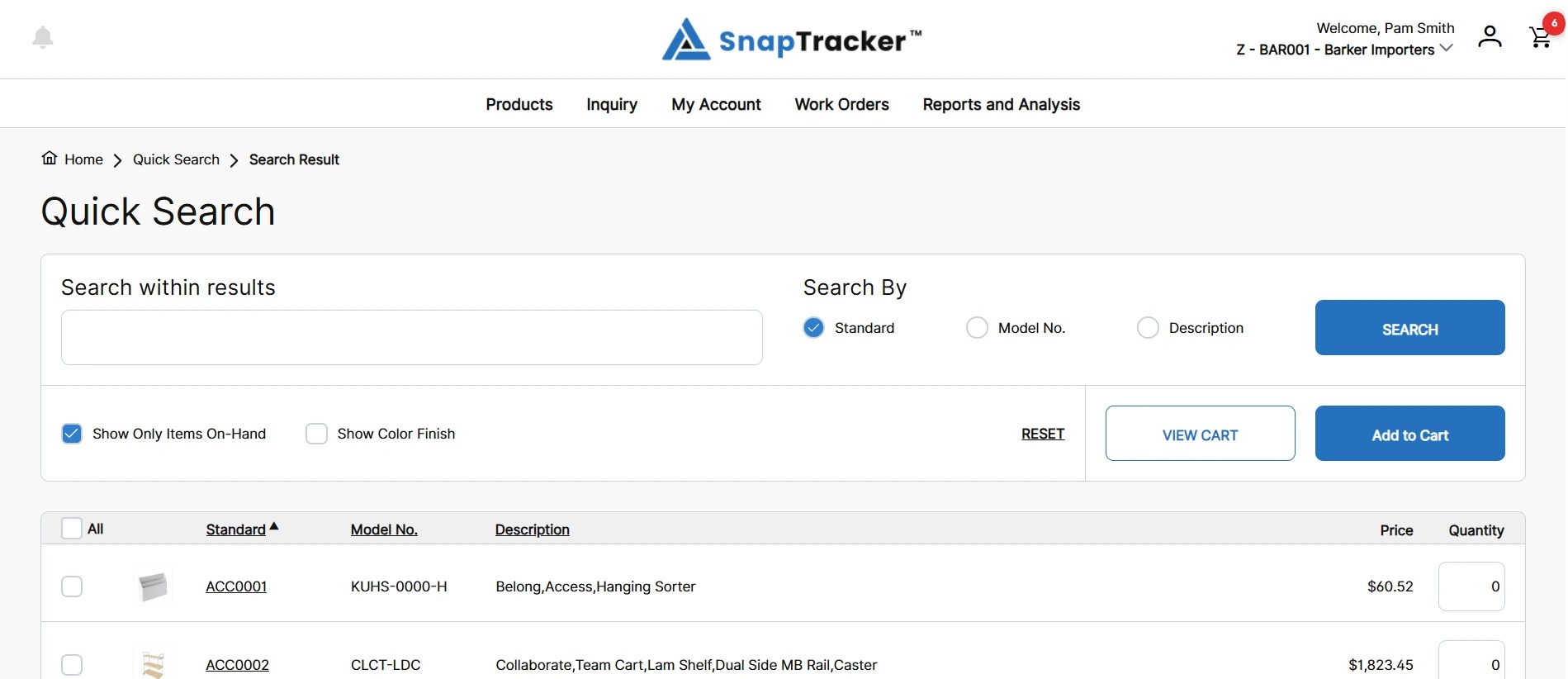
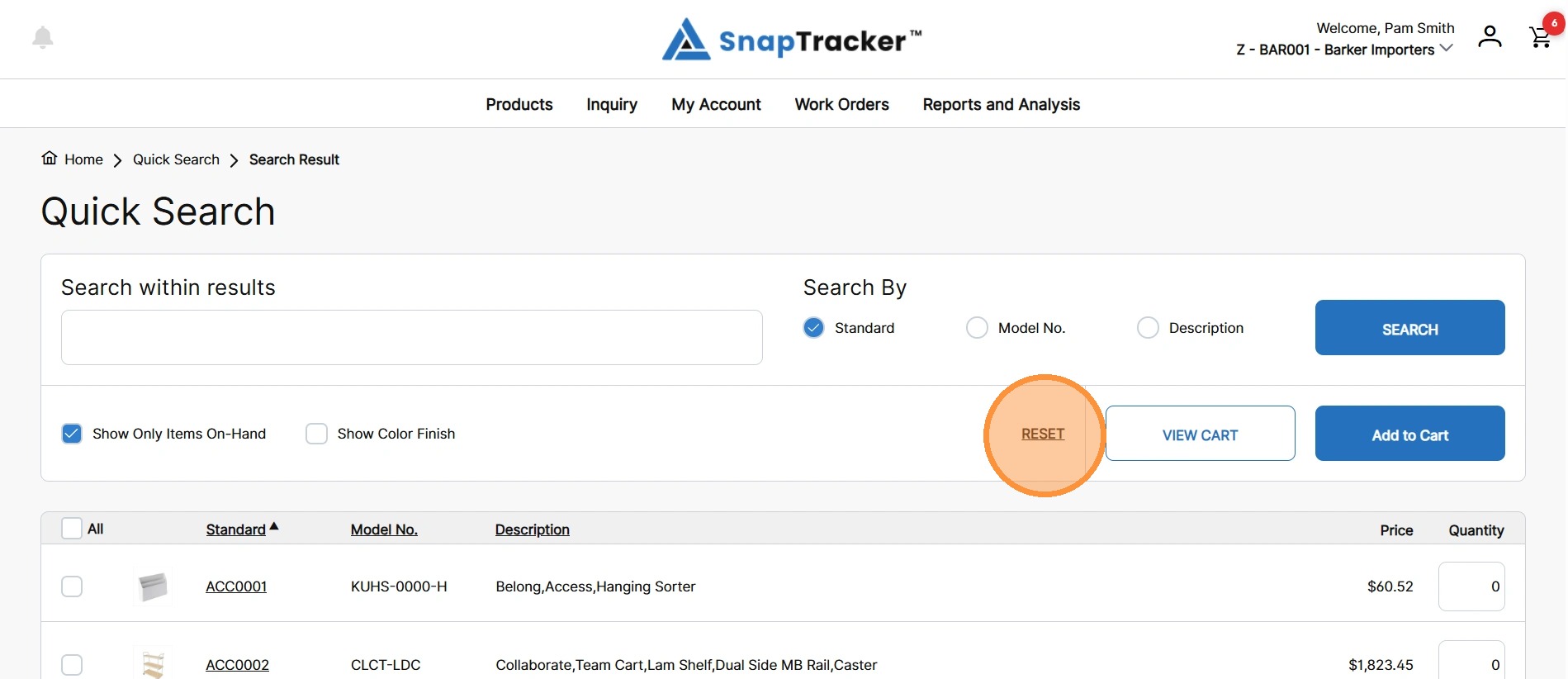
12. To clear and restart your search, click Reset.
To learn more about different search features in Quick Search refer to:
“How to Use Inquiry – Quick Search (E-Commerce) – Basic Search“.