How to Request a User ID and Password Reminder
After some time away from the site, you may need a reminder of your User ID or password. The Forgot User ID and Forgot Password options are accessible from the SnapTracker login page for this purpose.
Before starting, make sure:
- You have a valid user already created.
- You have the site URL.
This post outlines how to get an email reminder of your User ID and/or password when it is forgotten.
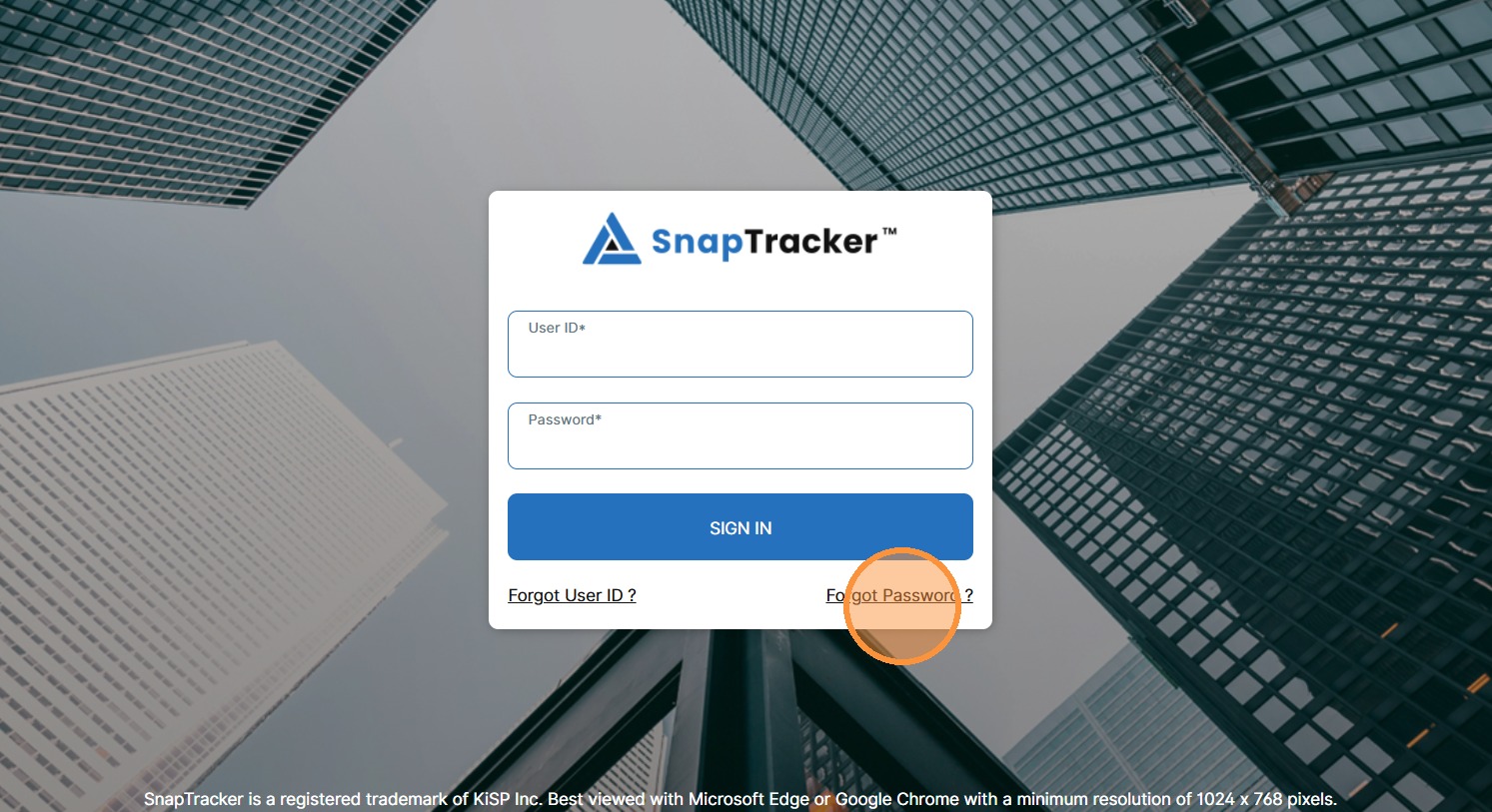
1. In your internet browser, type or paste the SnapTracker URL.
The SnapTracker Login Screen displays.
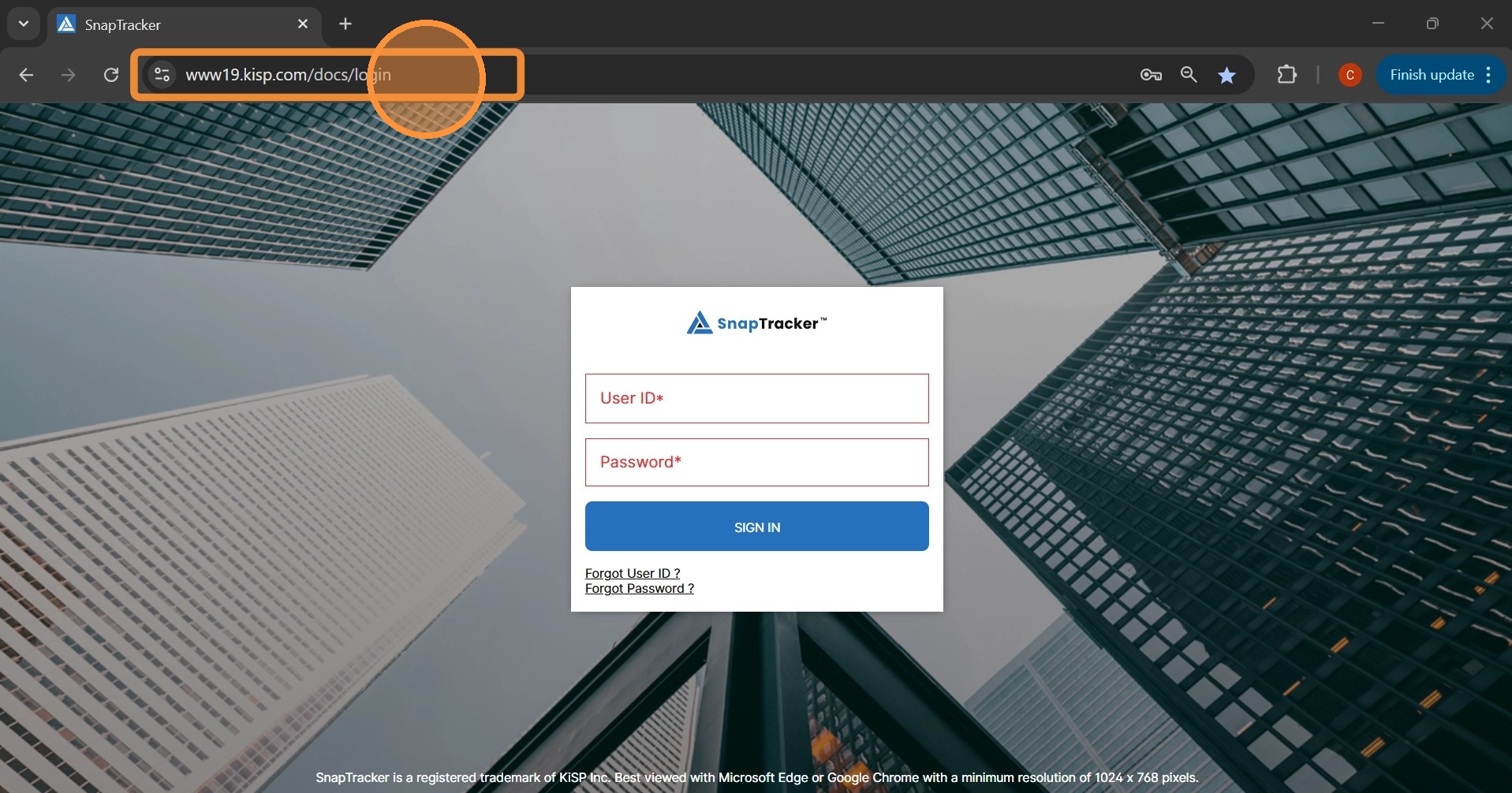
2. To request a reminder of your User ID, click Forgot User ID?
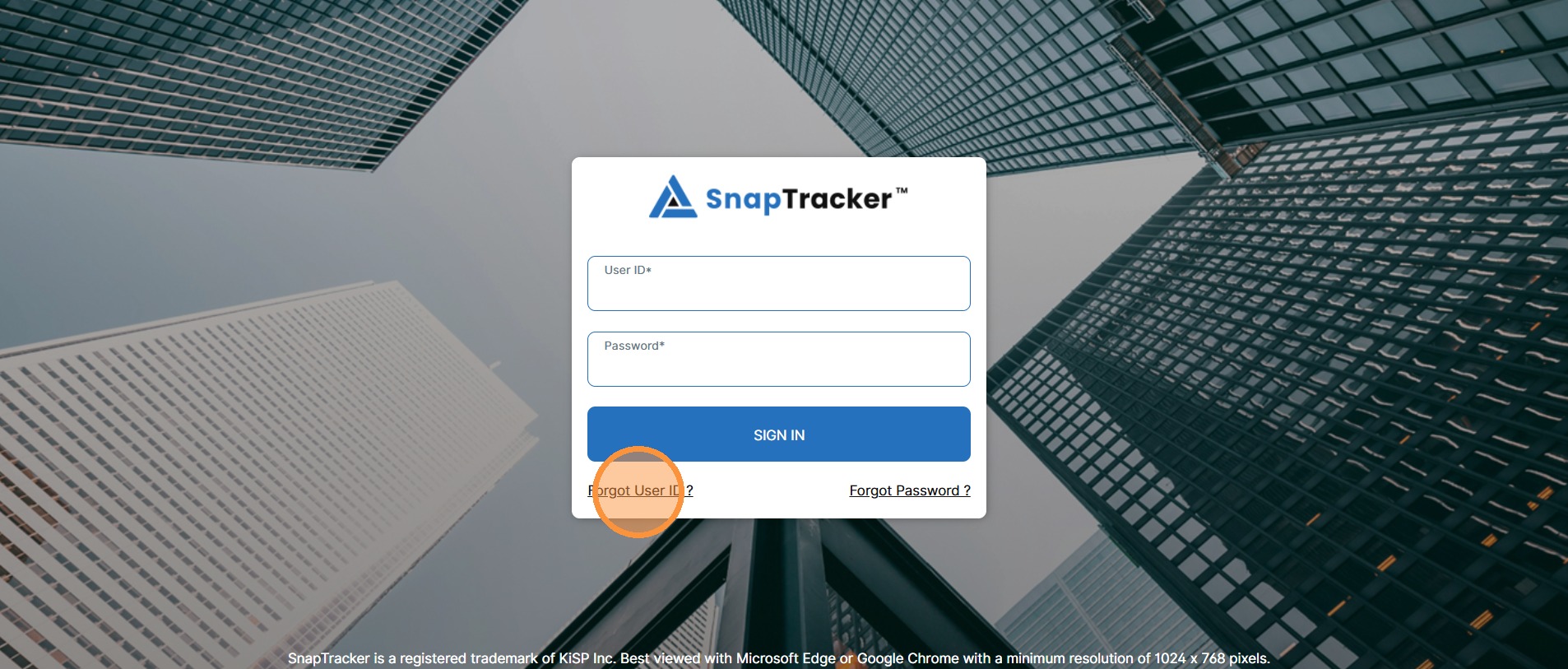
The Retrieve your User ID screen displays.
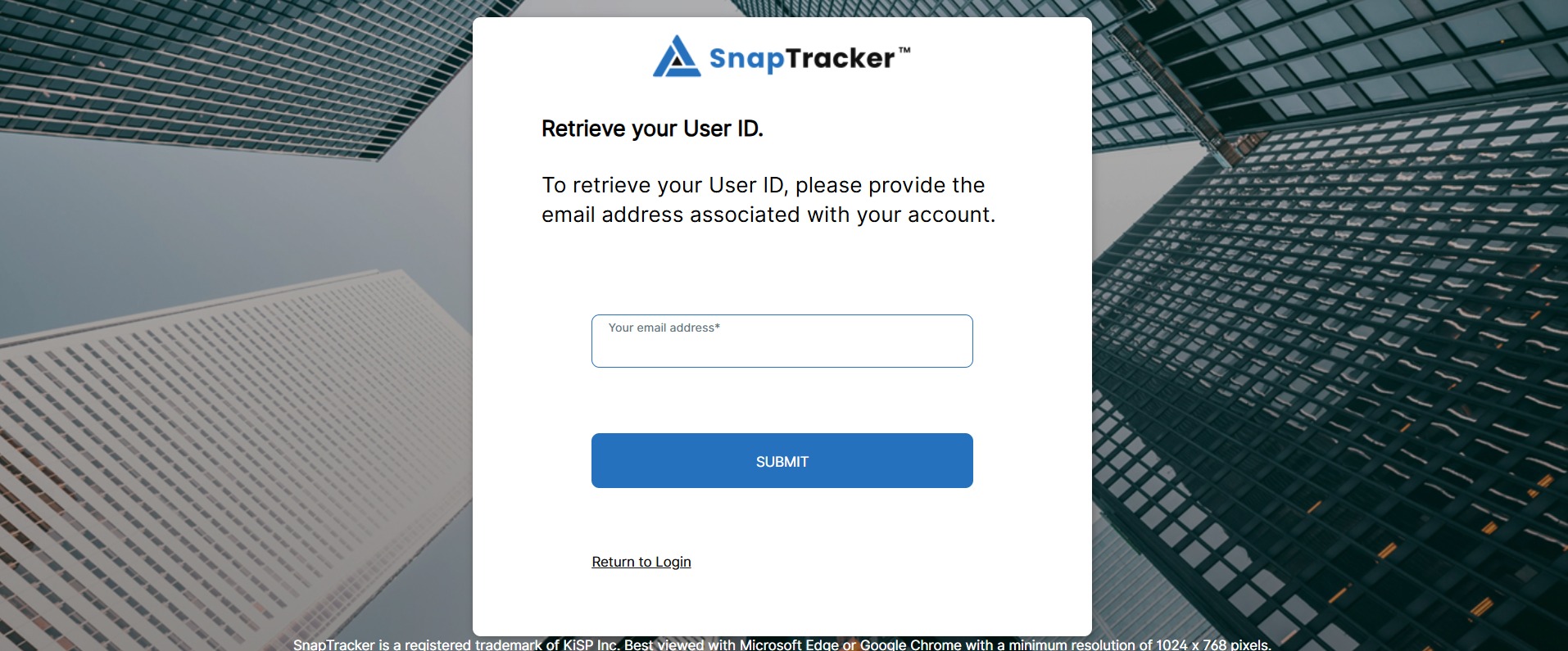
3. In the text box, enter the email address associated with your SnapTracker account.
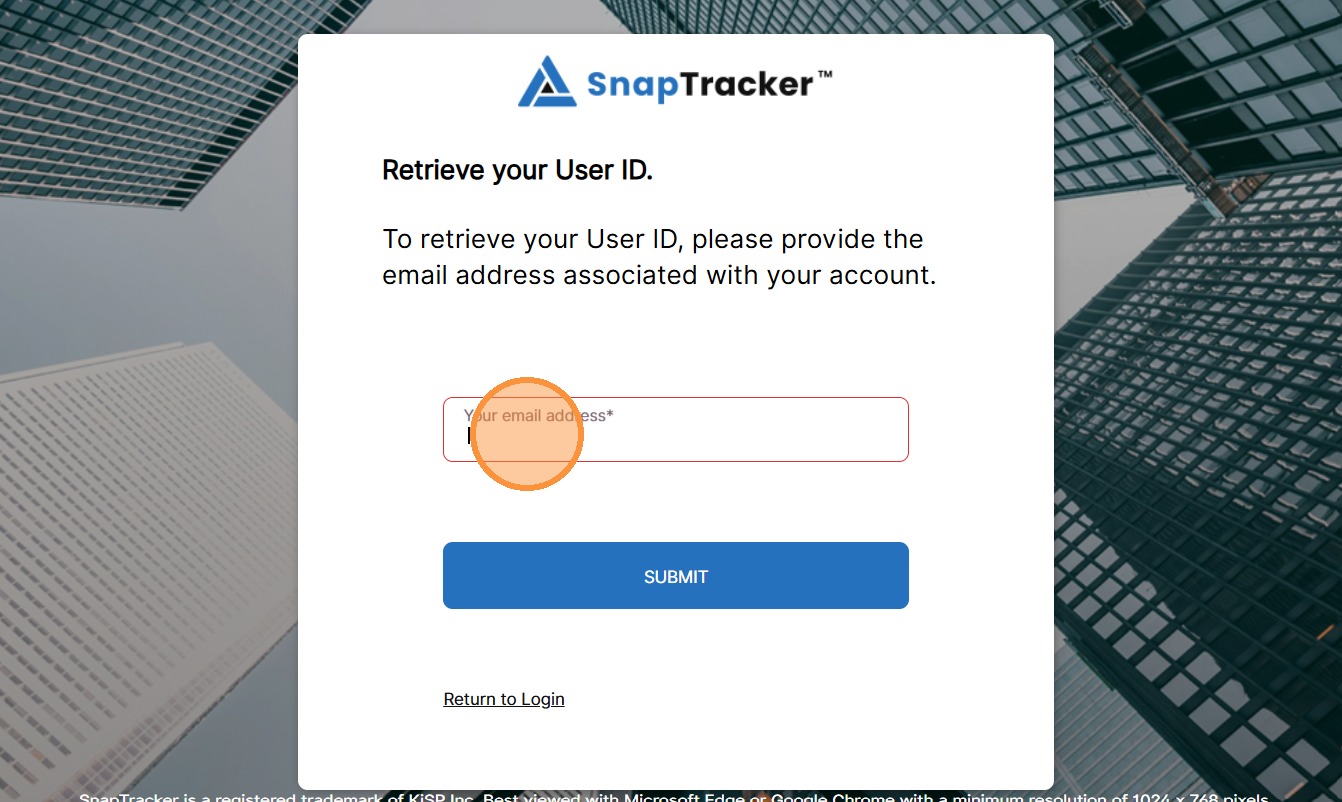
4. Click SUBMIT.
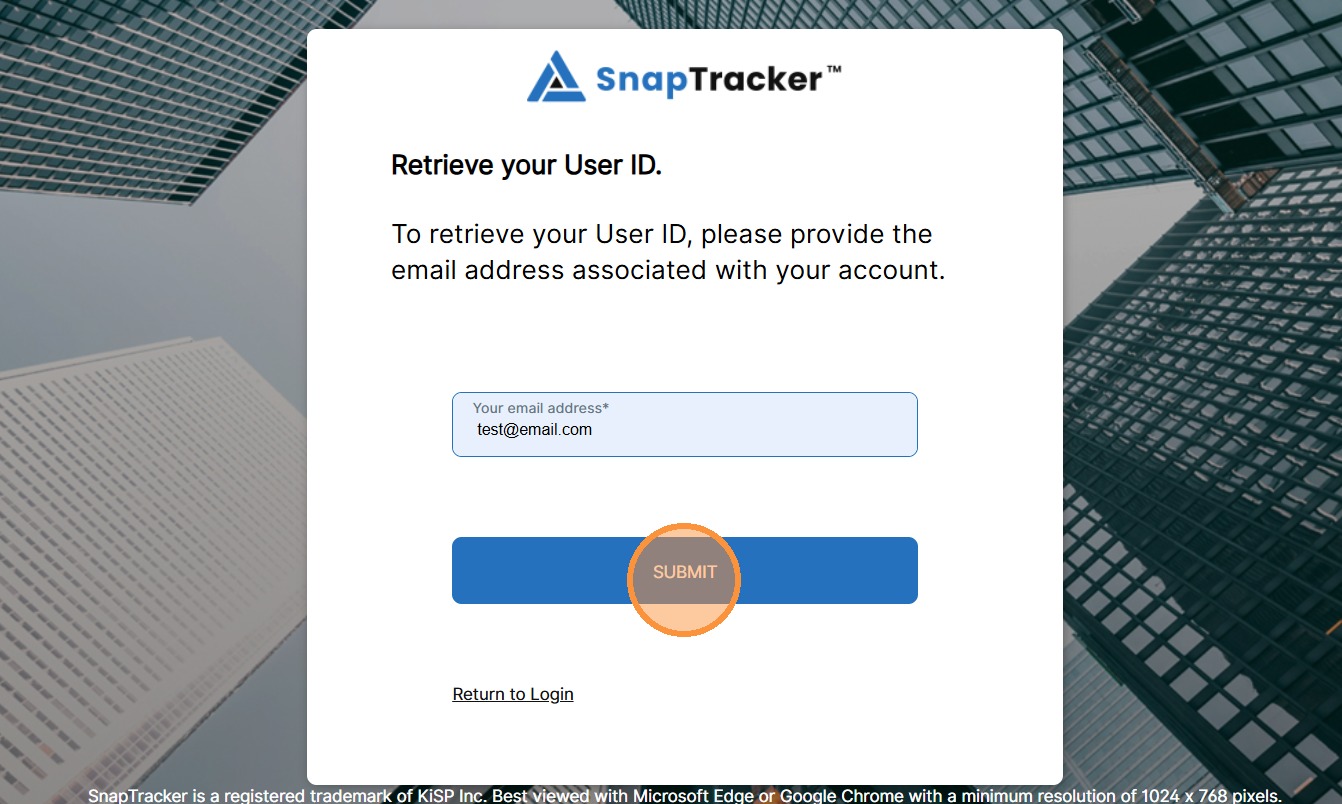
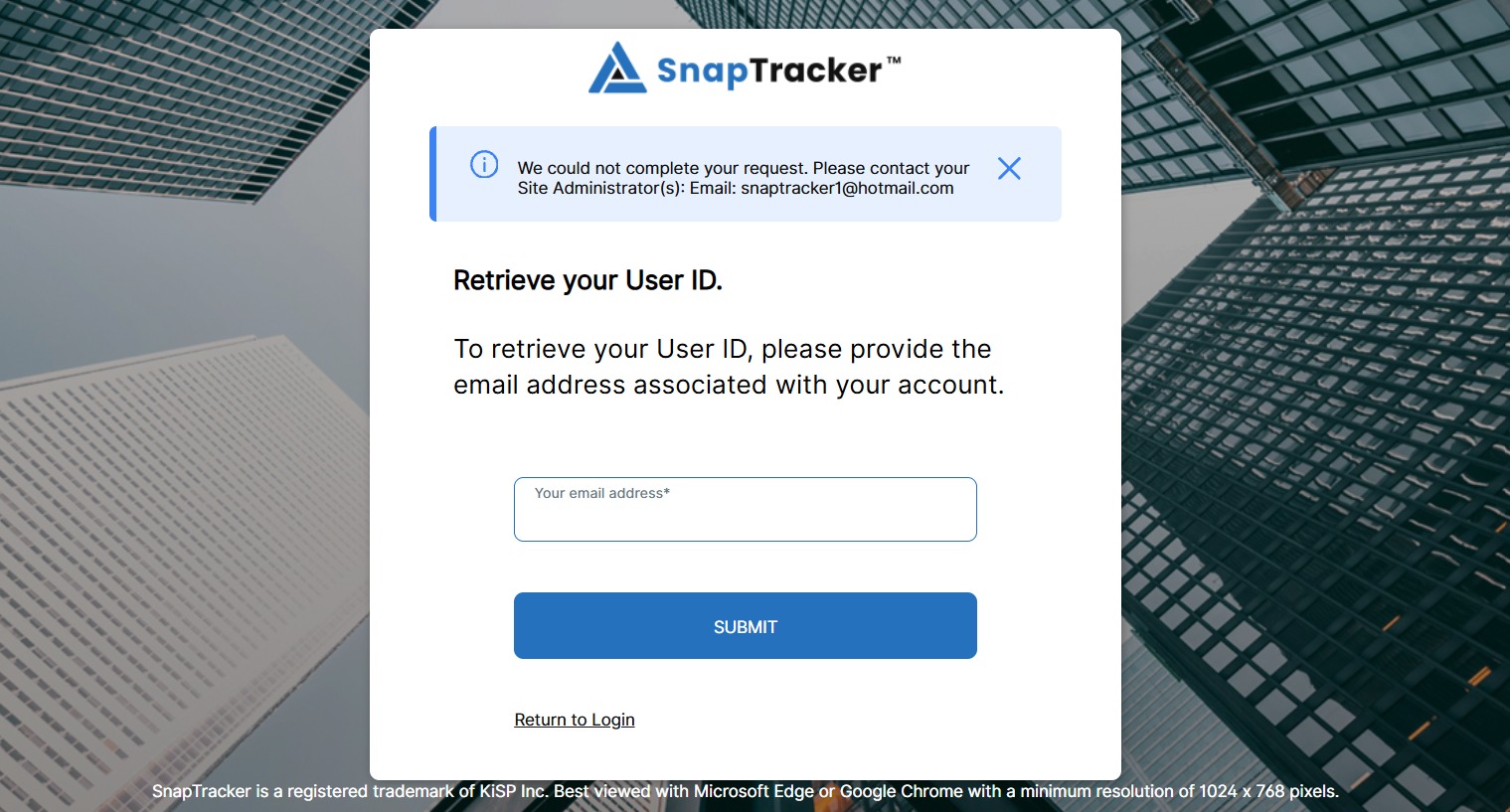
If the request fails, a message displays with your site administrator’s contact information to help troubleshoot the issue.
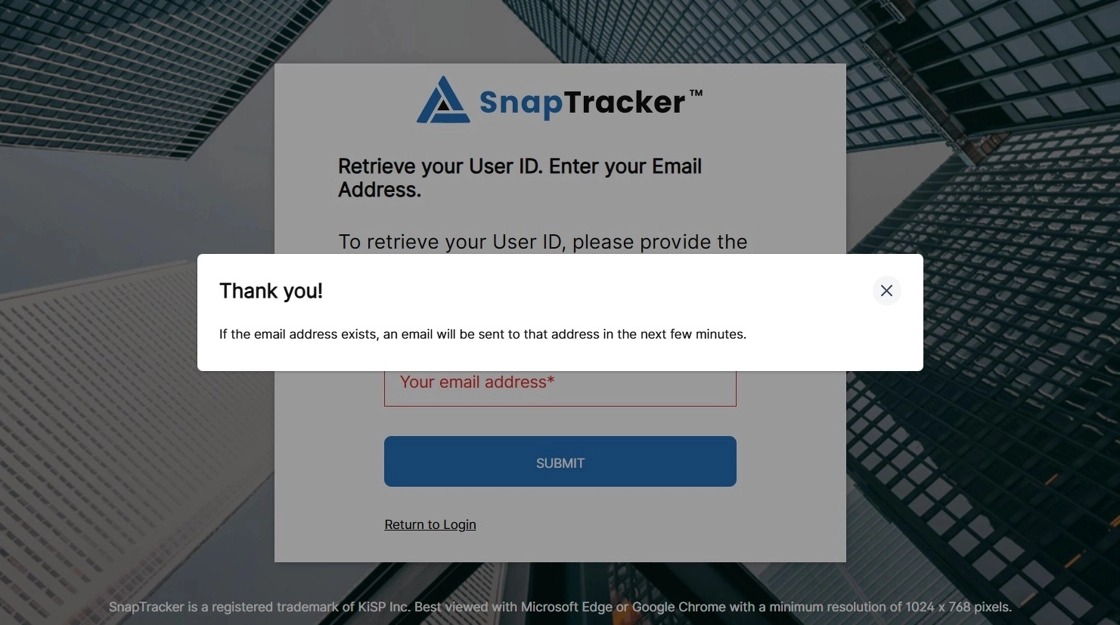
If the request is successful, the confirmation pop-up displays.
If the email is associated to a user in the database, an email is sent with instructions on how to login to SnapTracker.
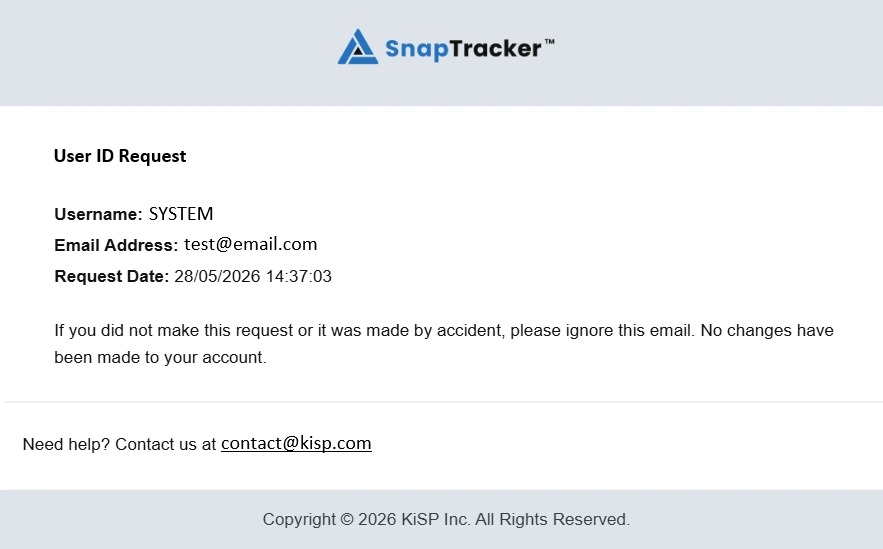
The User ID reminder email includes the User ID, email address associated, and the request date.
Note: If your email is associated with multiple User IDs, all are listed in the reminder email.
5. To request a reset of your password, click Forgot Password?
The Reset your Password screen displays.
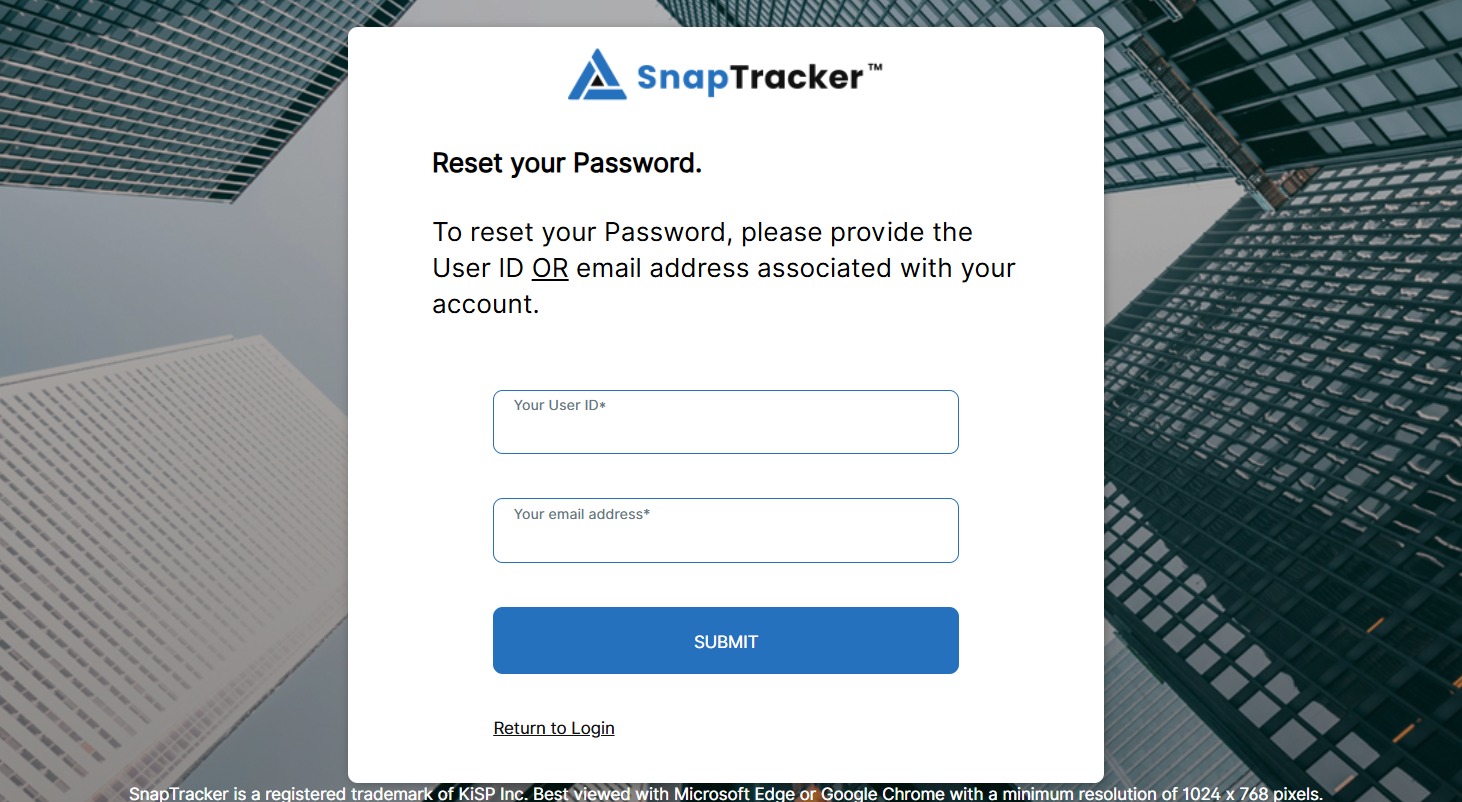
To receive a reset password link, you must specify the specific account to reset by entering a User ID or email address.
6. To reset the password with a User ID, enter the desired User ID and click Submit.
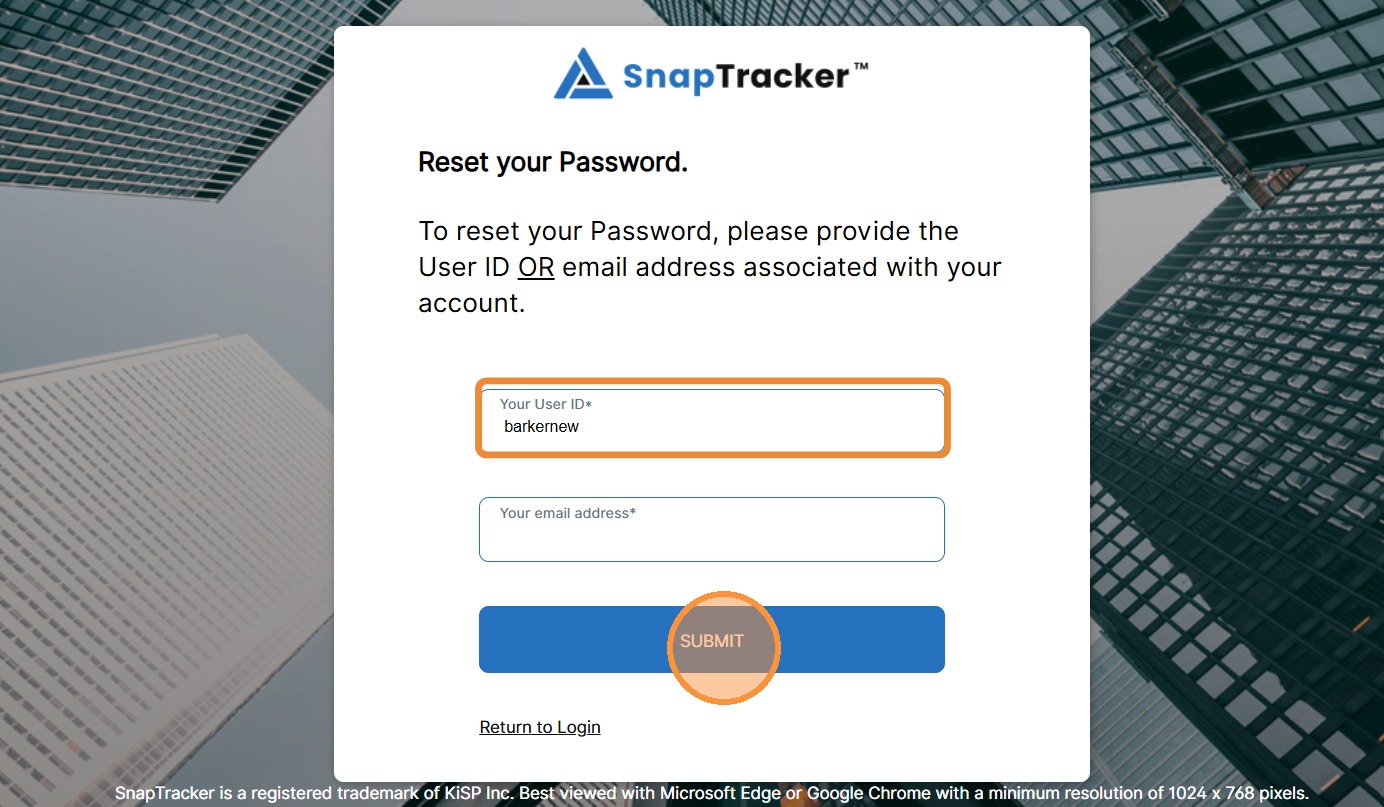
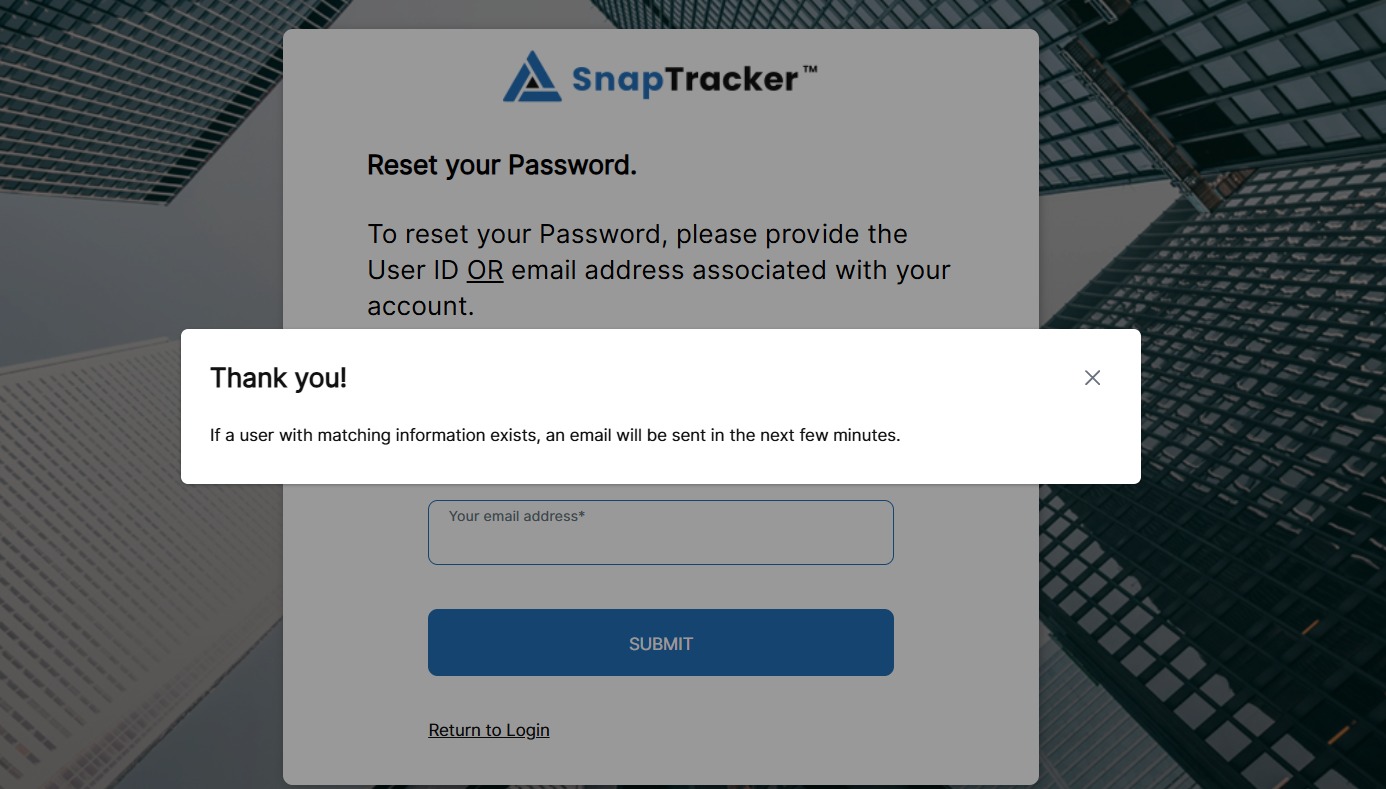
The confirmation pop-up displays.
If a valid user exists in the database, an email is sent with instructions on how to reset the password.
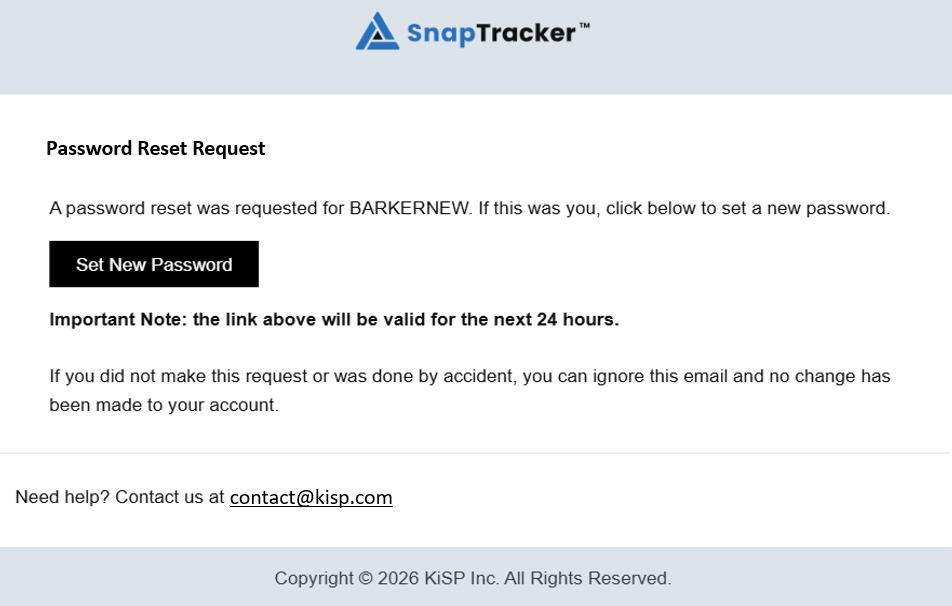
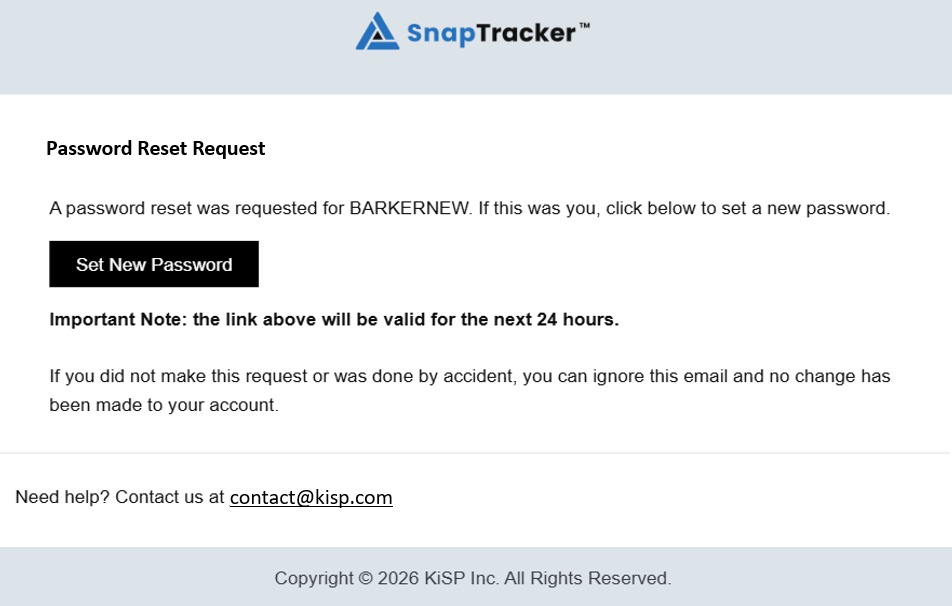
The reset password email includes the User ID the reset was initiated for and a link to set a new password.
Note: If the user account is associated with multiple emails, all emails receive the reset password email.
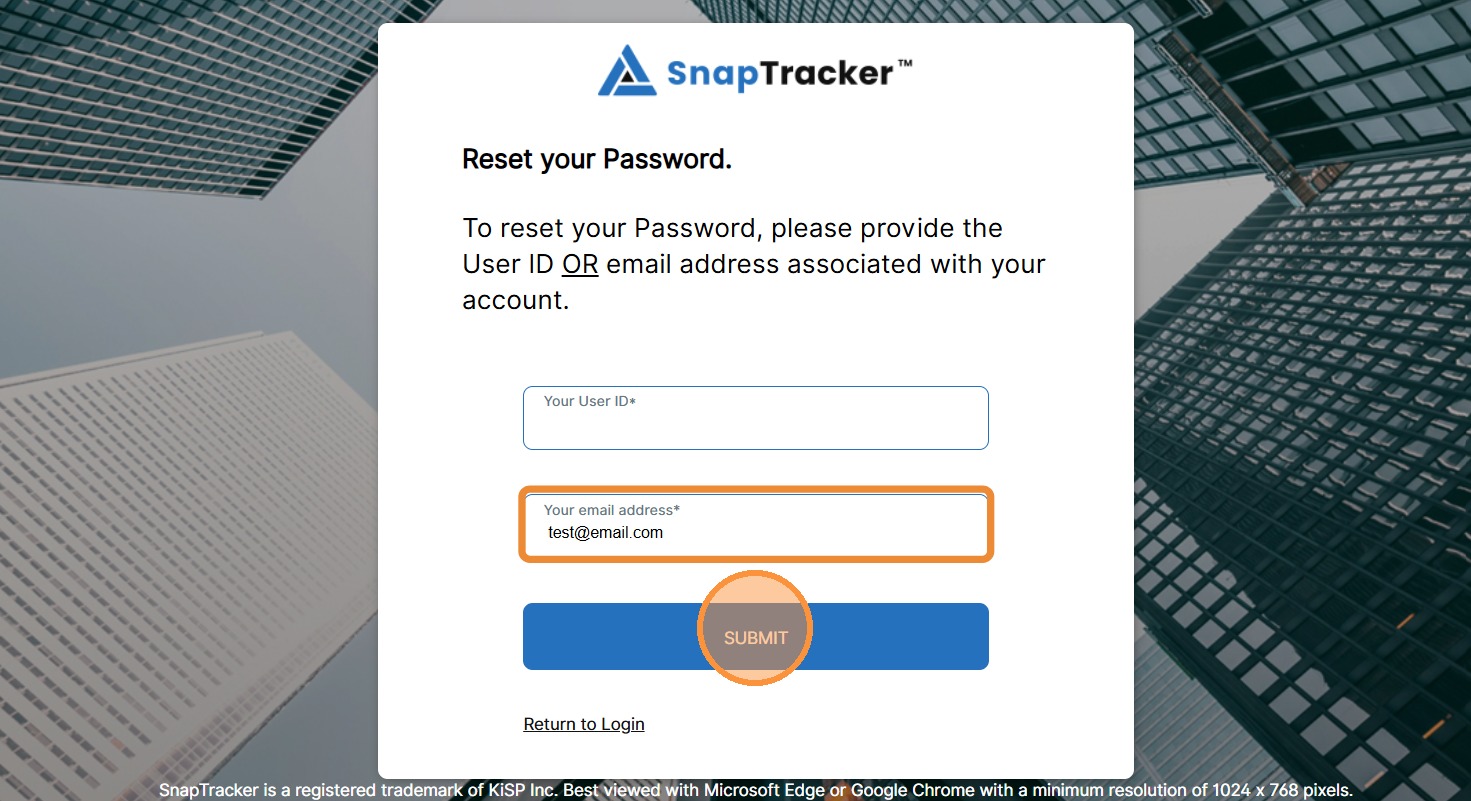
7. Alternatively, to reset the password with an email, enter the desired email and click Submit.
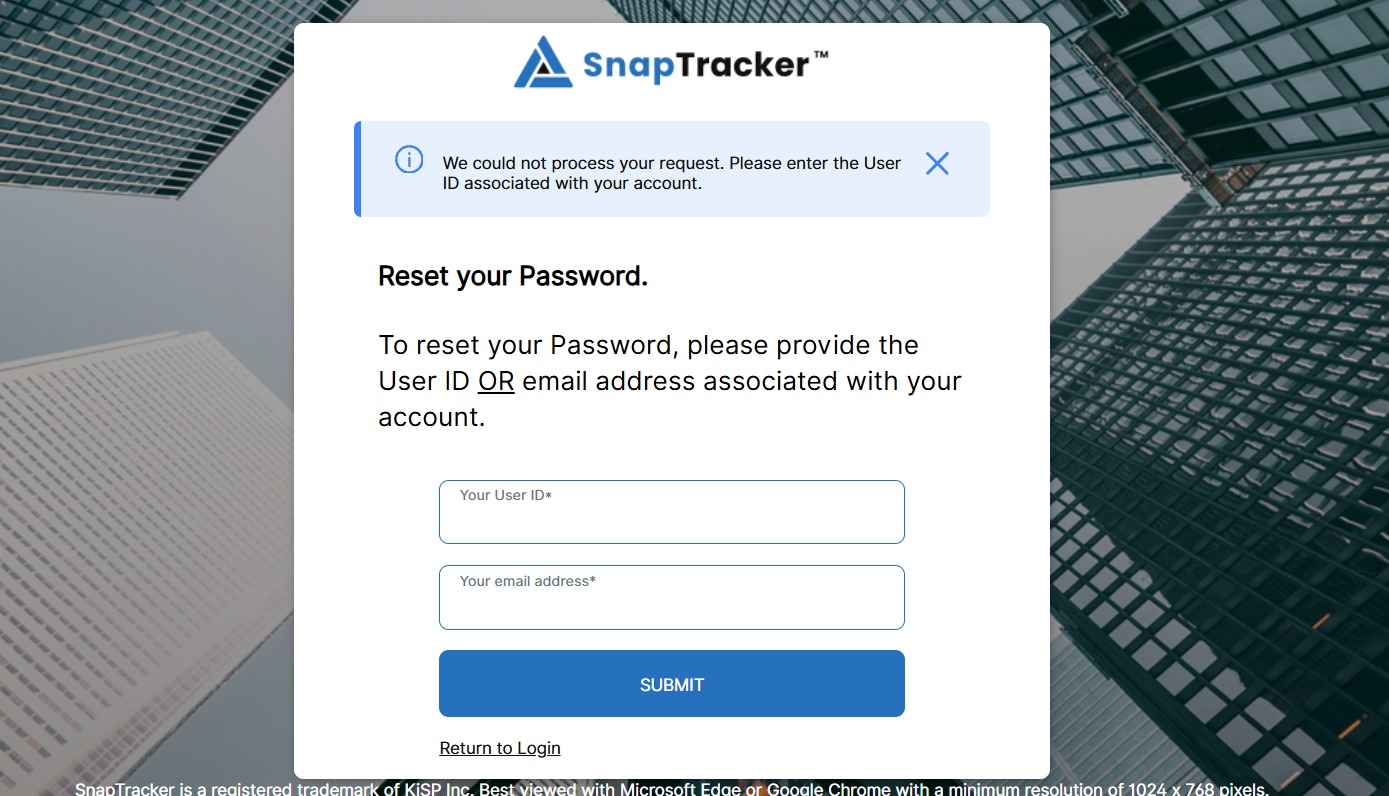
If the email is associated with multiple User IDs, a message displays indicating you need to enter a User ID instead.
Note: If you do not know the User ID, initiate the Forget User ID request to retrieve it.
If the request is successful, the confirmation pop-up displays.
If the email is associated to a user in the database, an email is sent with instructions on how to reset the password.
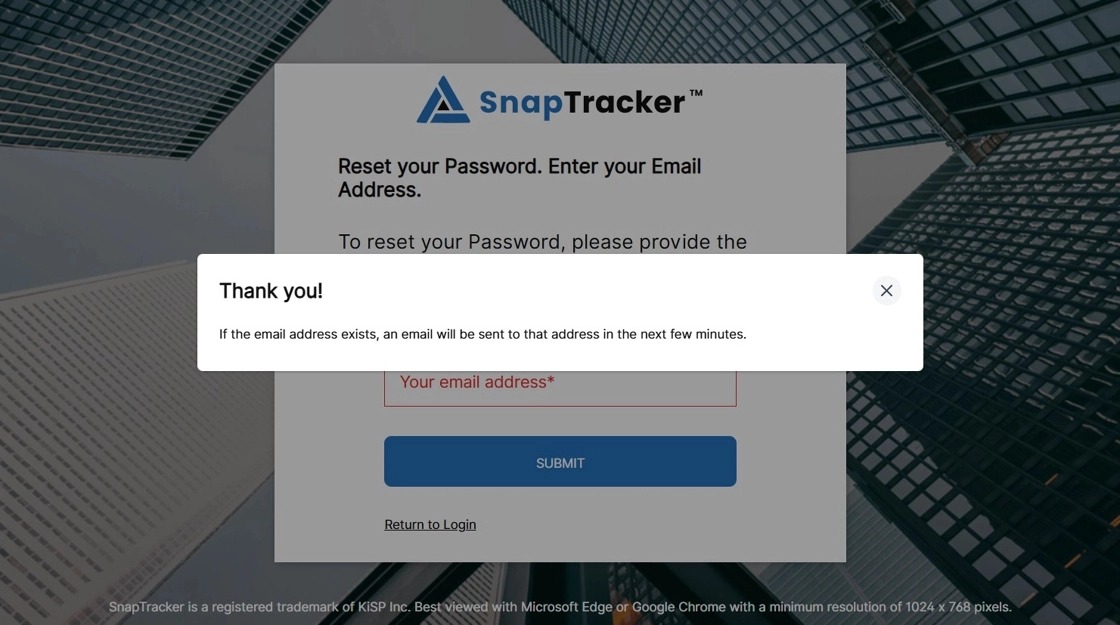
The reset password email includes the User ID the reset was initiated for and a link to set a new password.
Note: If the user account is associated with multiple emails, all emails receive the reset password email.