
How to Access and Configure My Dashboard
SnapTracker’s My Dashboard is a visual reporting hub that presents data from your SnapTracker site, empowering evidence-based decision-making to improve your operational efficiency. My Dashboard can be accessed from your Main Menus and configured based on your preferences.
Before getting started, make sure:
- You are logged in to SnapTracker.
- You have been assigned access to one report at minimum.
- You have been assigned Menu Access to My Dashboard.
- The correct Customer is selected from the Customer selection list.
This post outlines how to navigate My Dashboard and defines the general structure of reports.
1. In the header section, click My Dashboard.
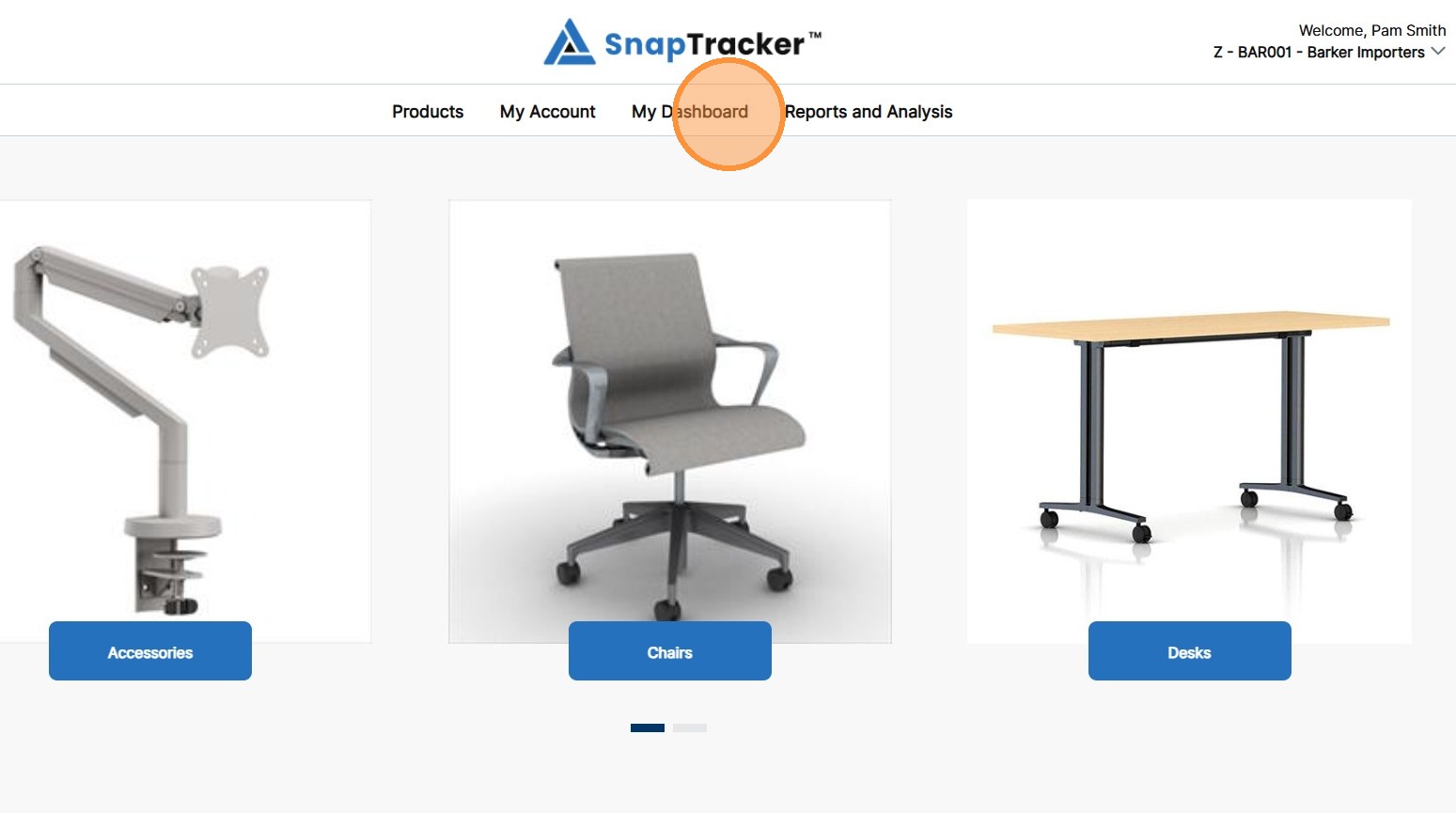
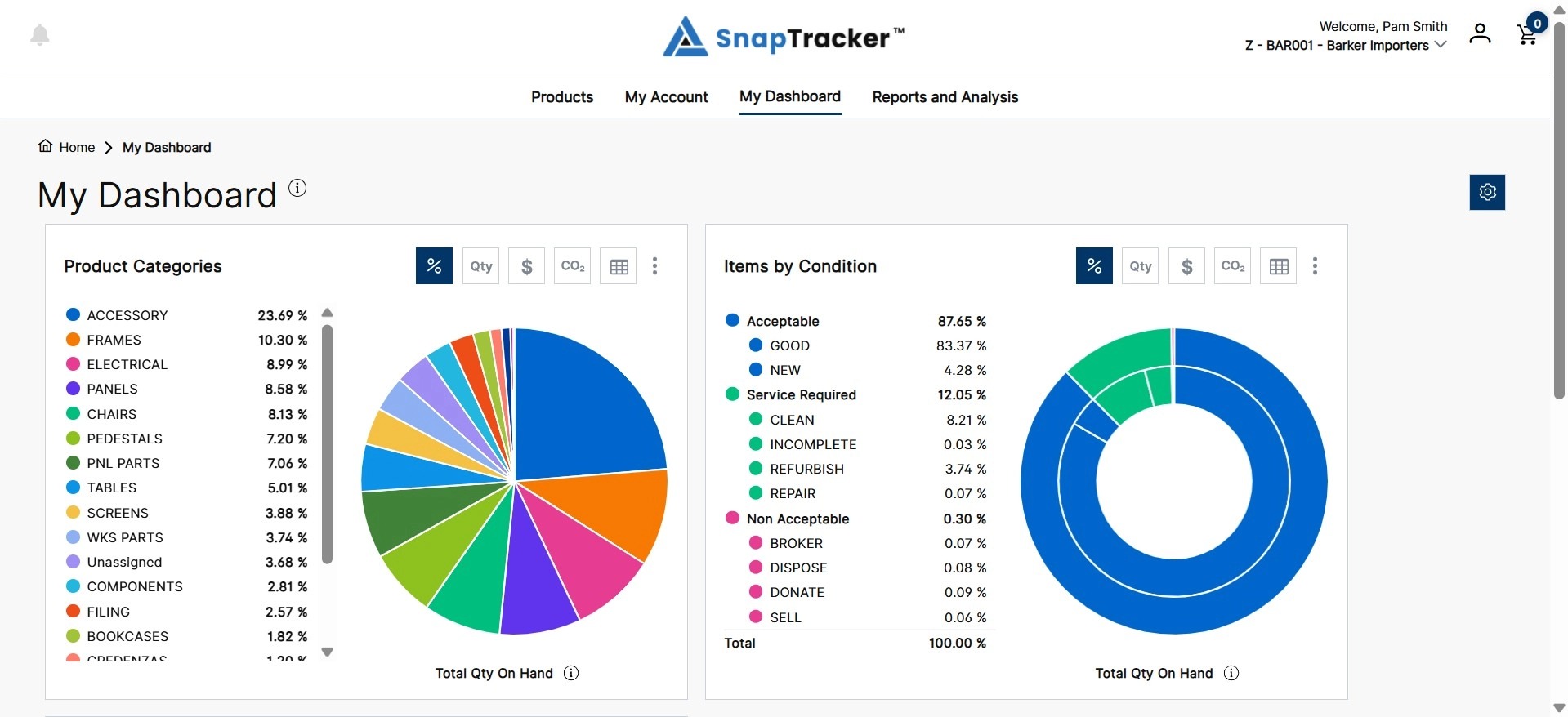
The My Dashboard screen displays, with the Chart view of all reports assigned to you.
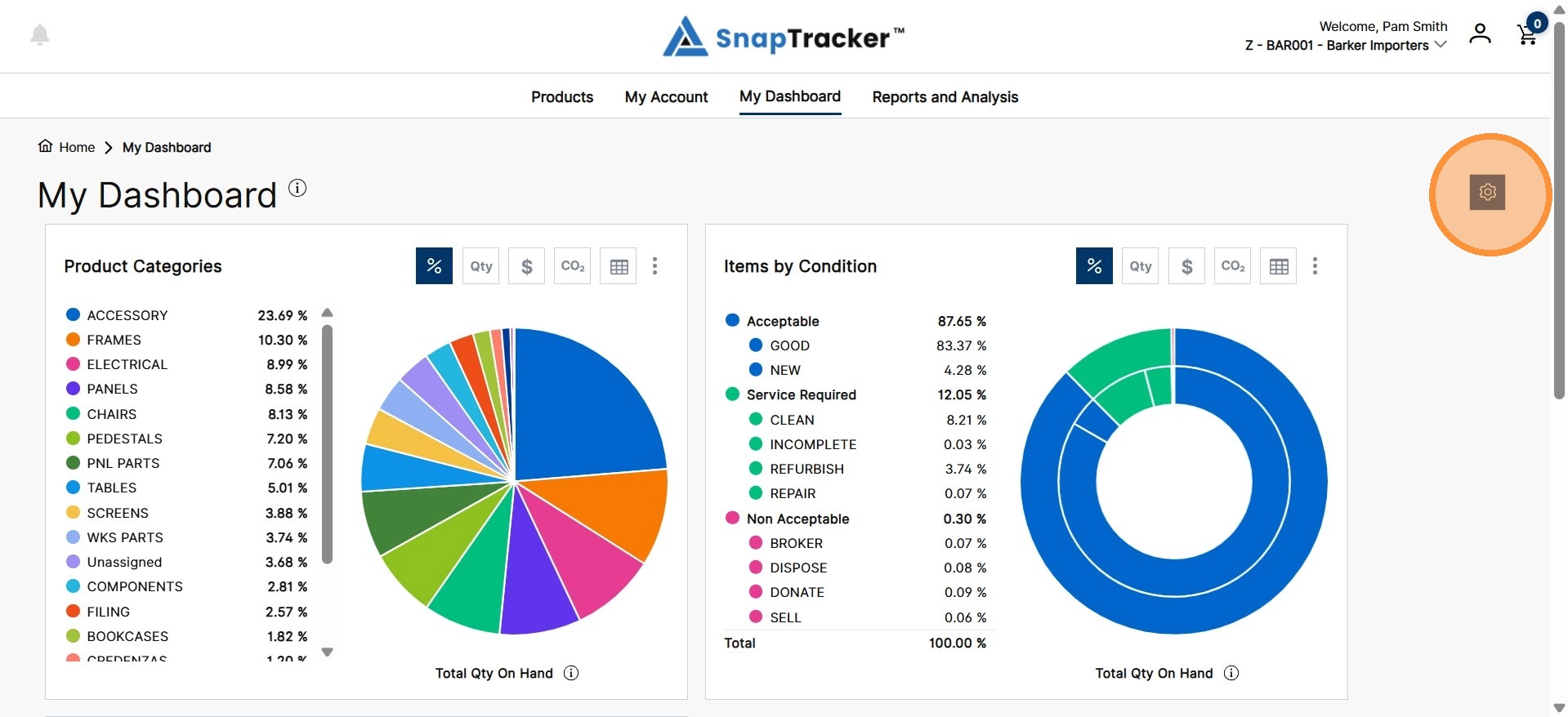
2. To modify report access and sequence settings, click the gear icon .
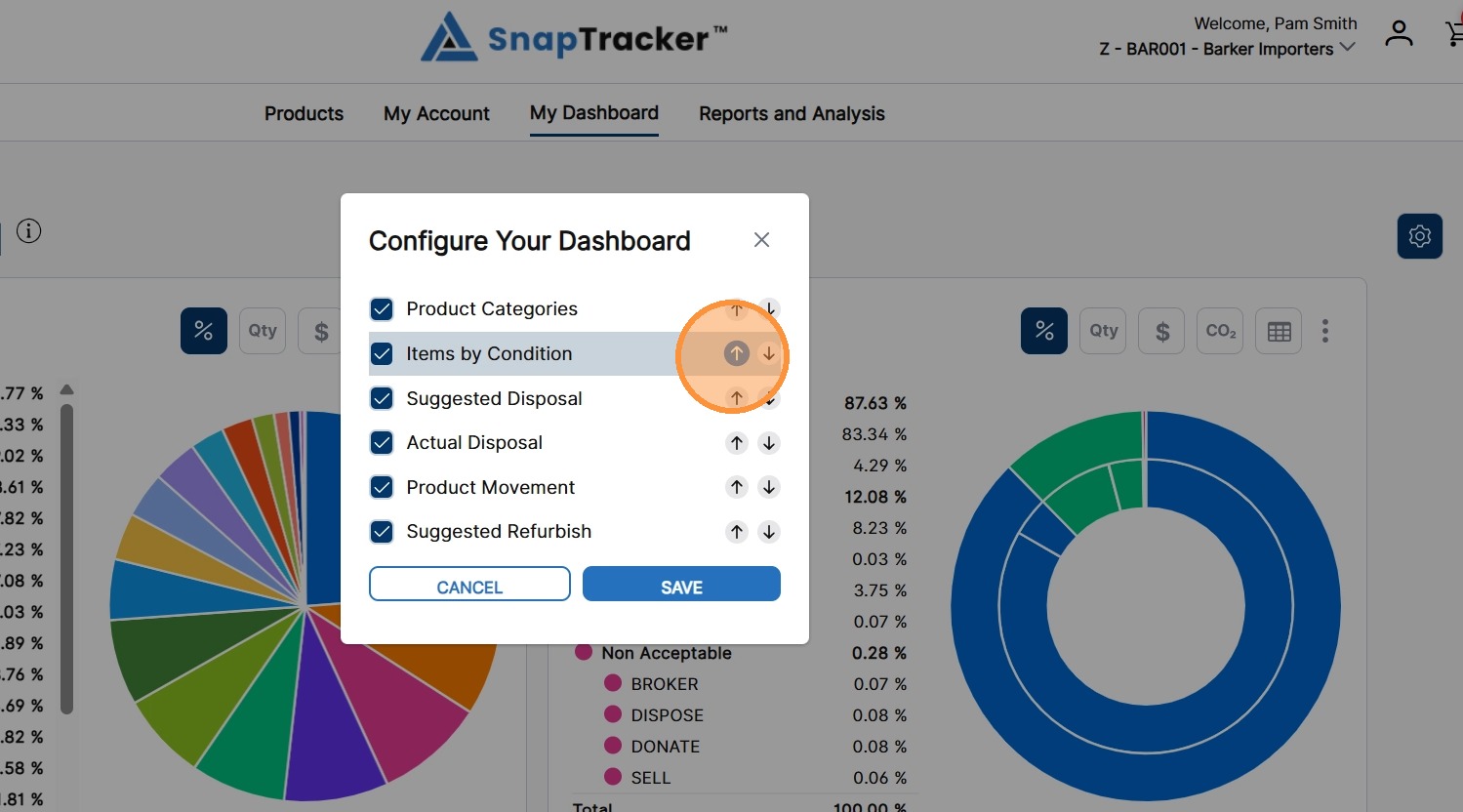
The Configure Your Dashboard pop-up displays.
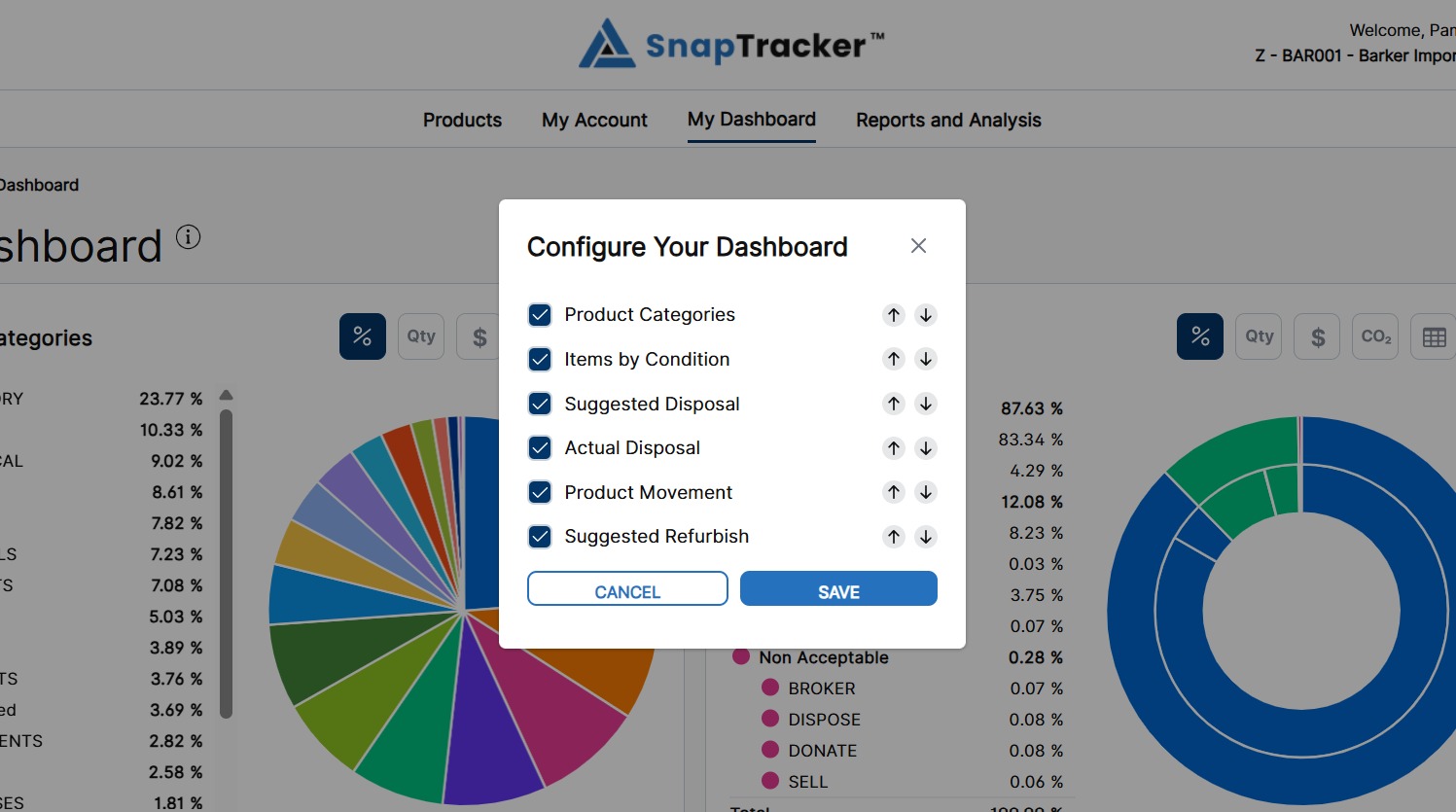
3. To change the order the reports display in the My Dashboard screen, click the arrows associated with a report to move the report display order up or down.
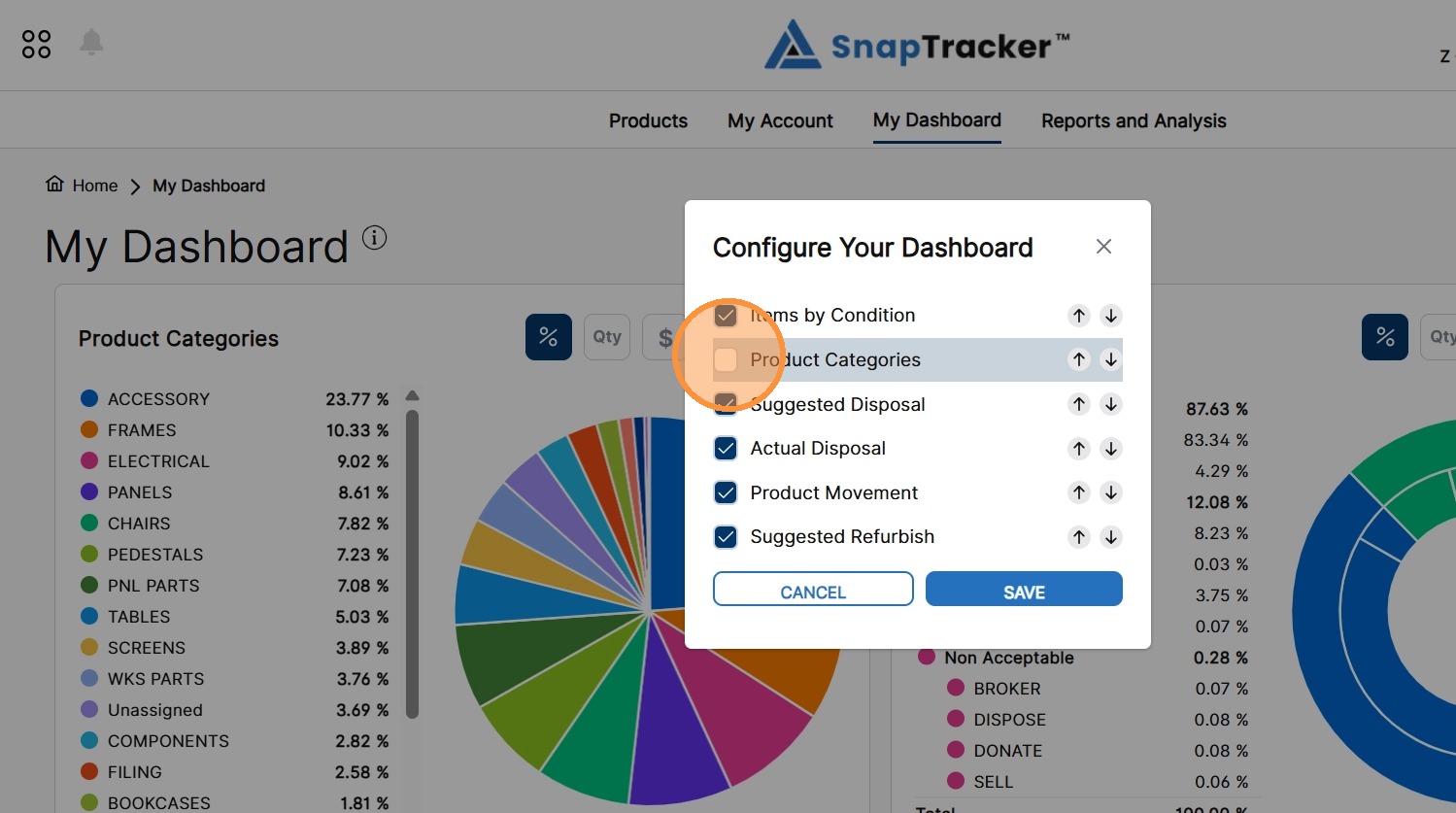
4. To show or hide a report from the My Dashboard screen, select/deselect the checkbox beside an associated report.
5. To keep the changes, click Save.
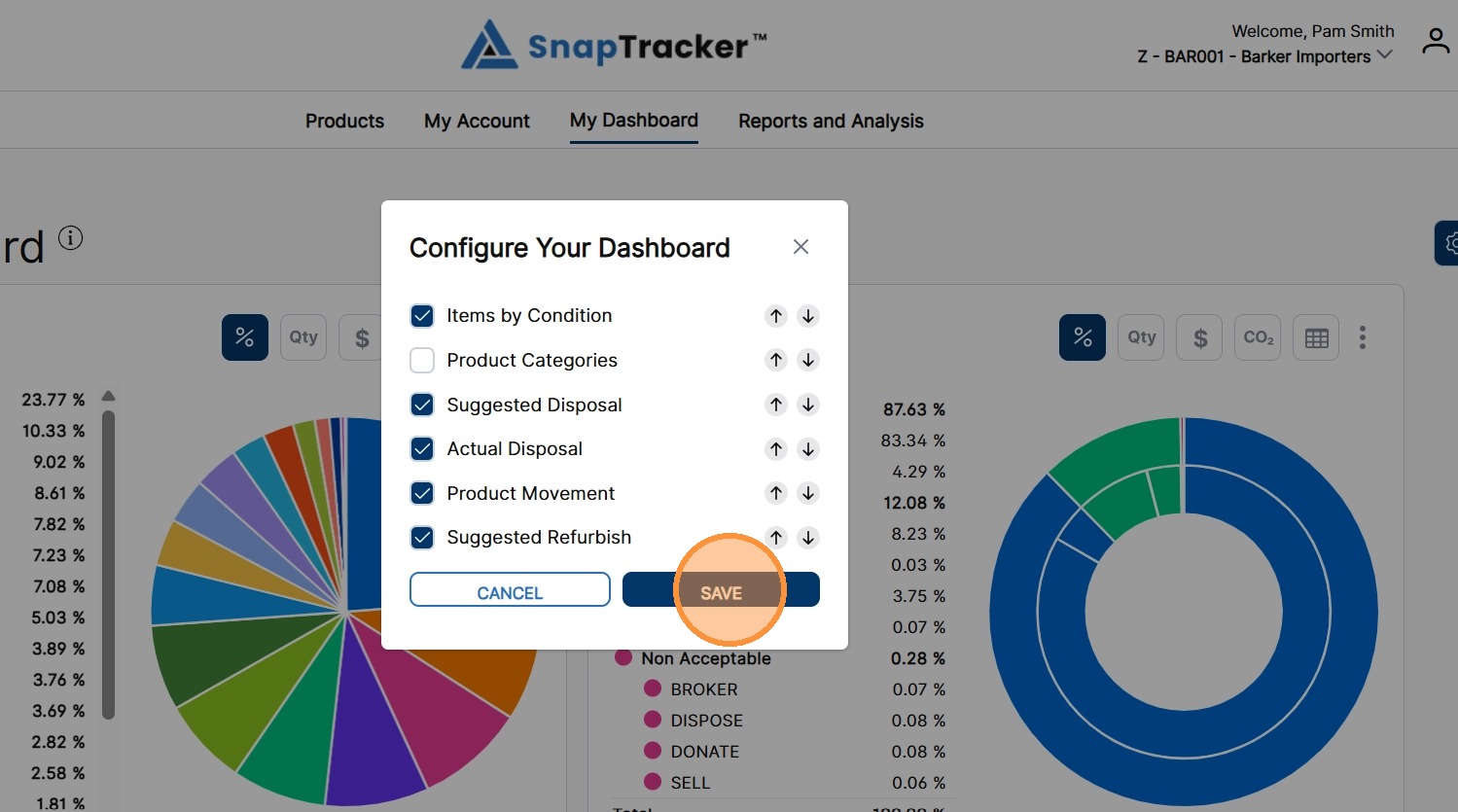
To close the pop-up, and return to My Dashboard screen, click X.