How to Copy Report Settings in My Dashboard from One User to Another
My Dashboard report access can be assigned in the My Dashboard Access screen. The report settings for a specific user can be copied to other users to grant them the same order access and sequencing.
Before starting, make sure:
- You are logged into SnapTracker.
- You have access to the My Dashboard Access menu.
- The user who the reports are to be granted for has access to the My Dashboard menu.
This post outlines how to copy user report settings from one user to another in the My Dashboard Access screen.
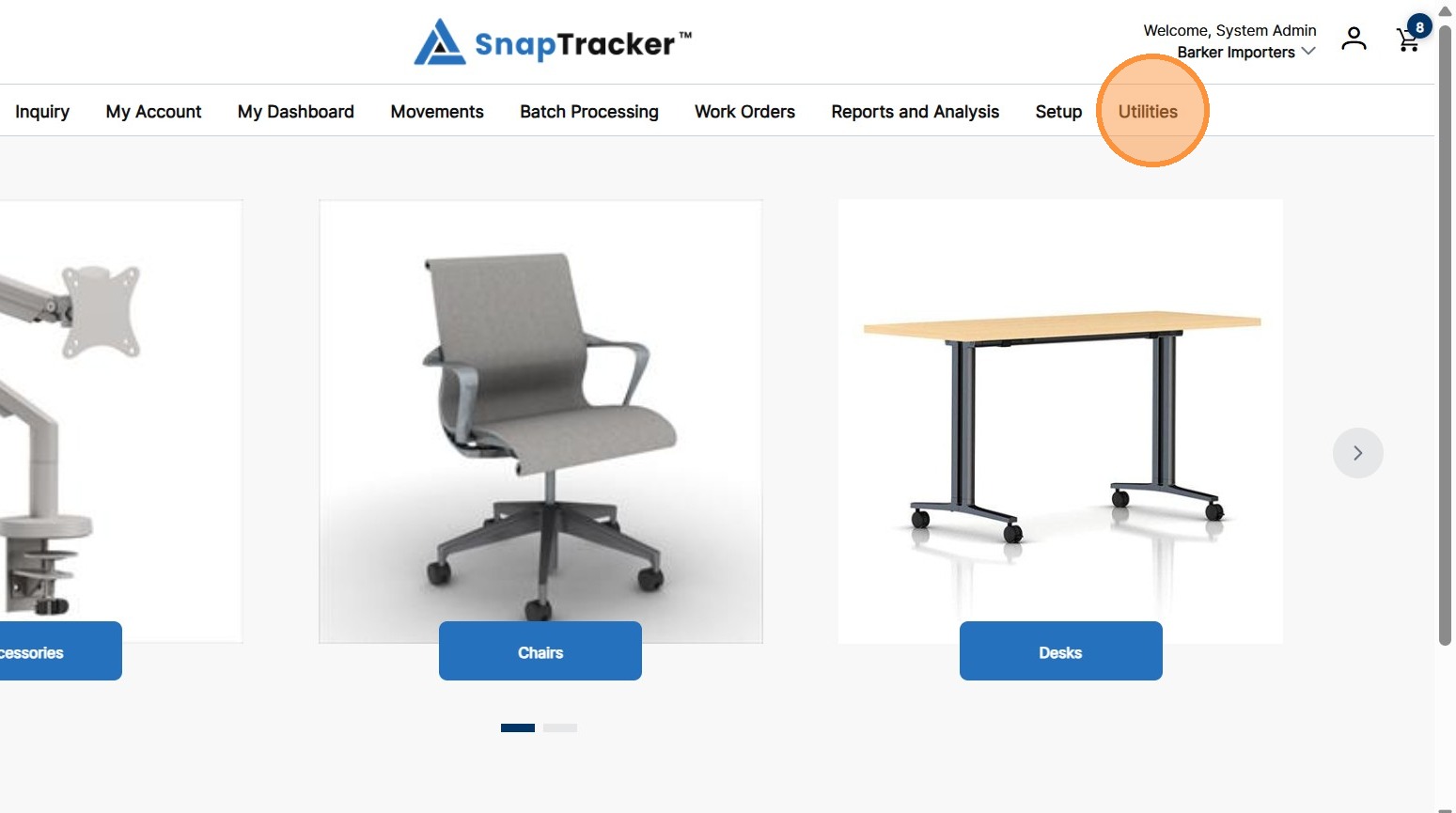
1. In the header section, click Utilities.
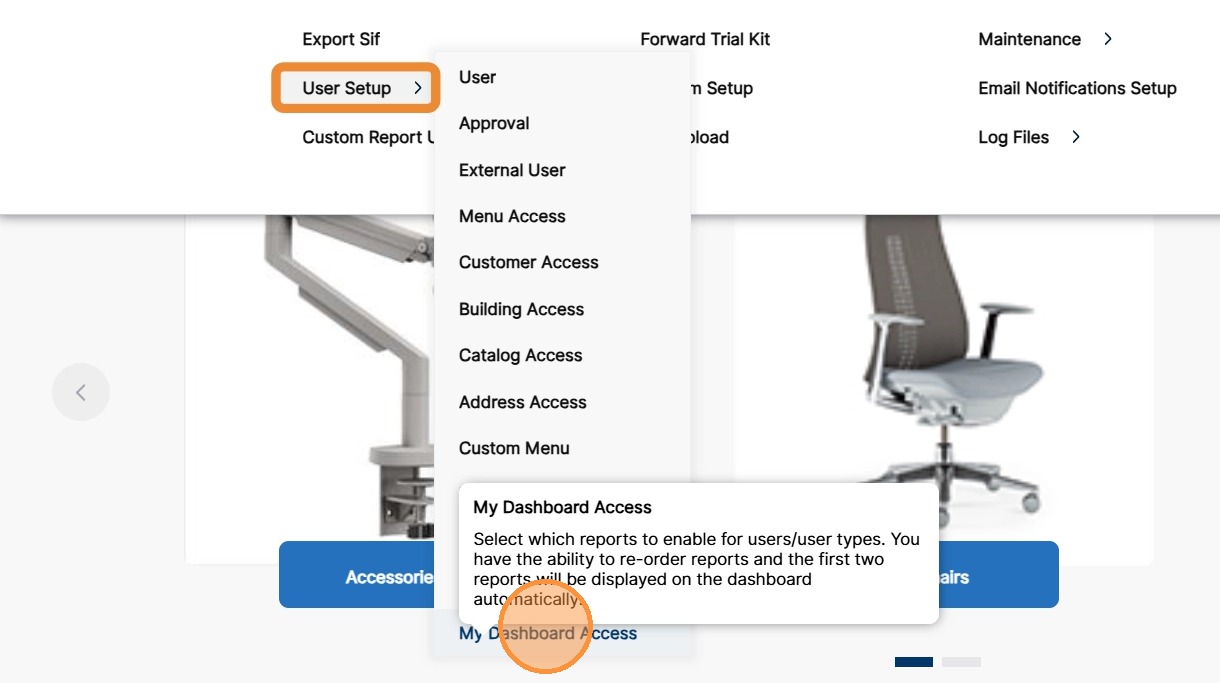
2. Click the arrow beside User Setup, then click My Dashboard Access.
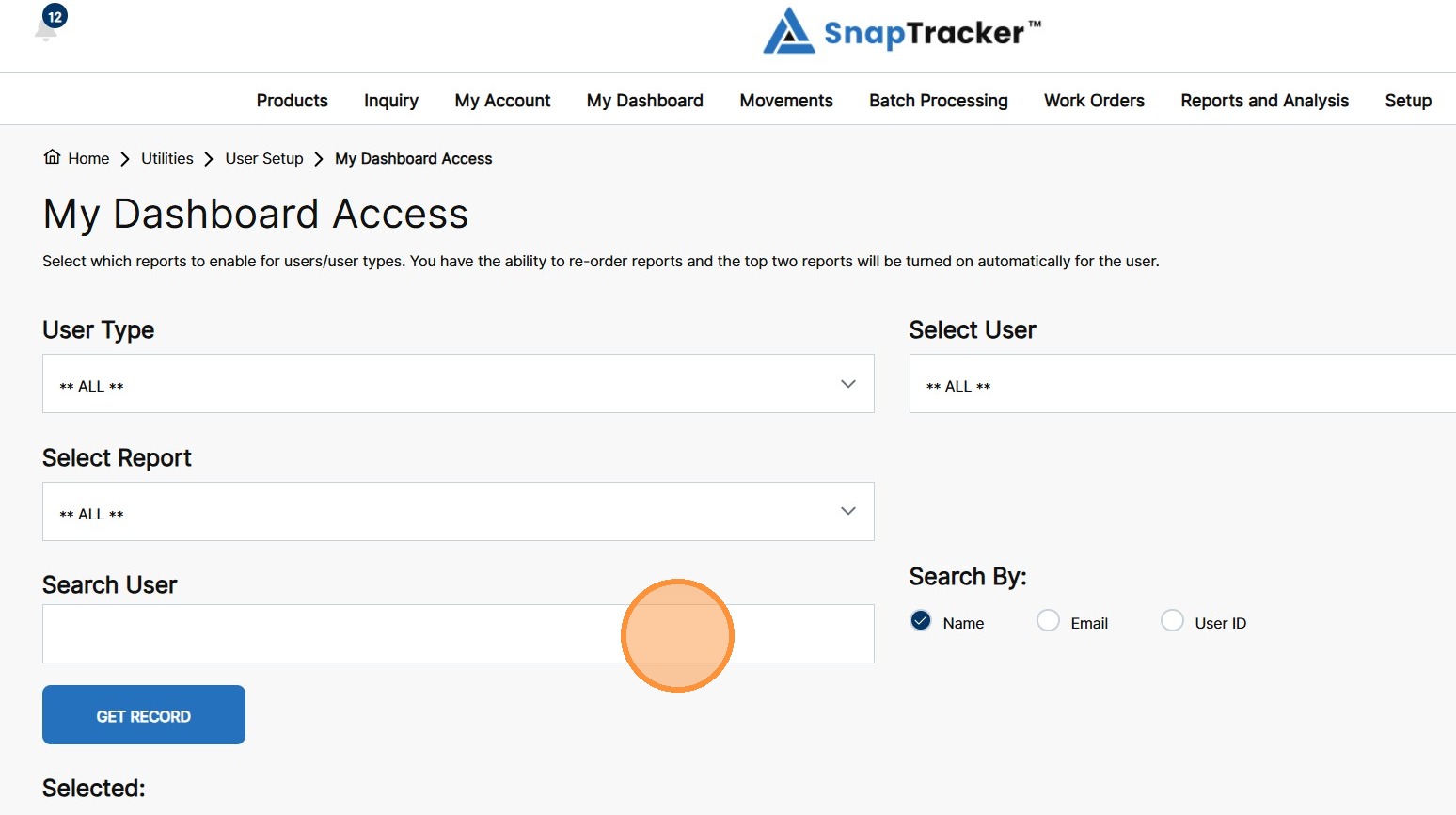
The My Dashboard Access screen displays.
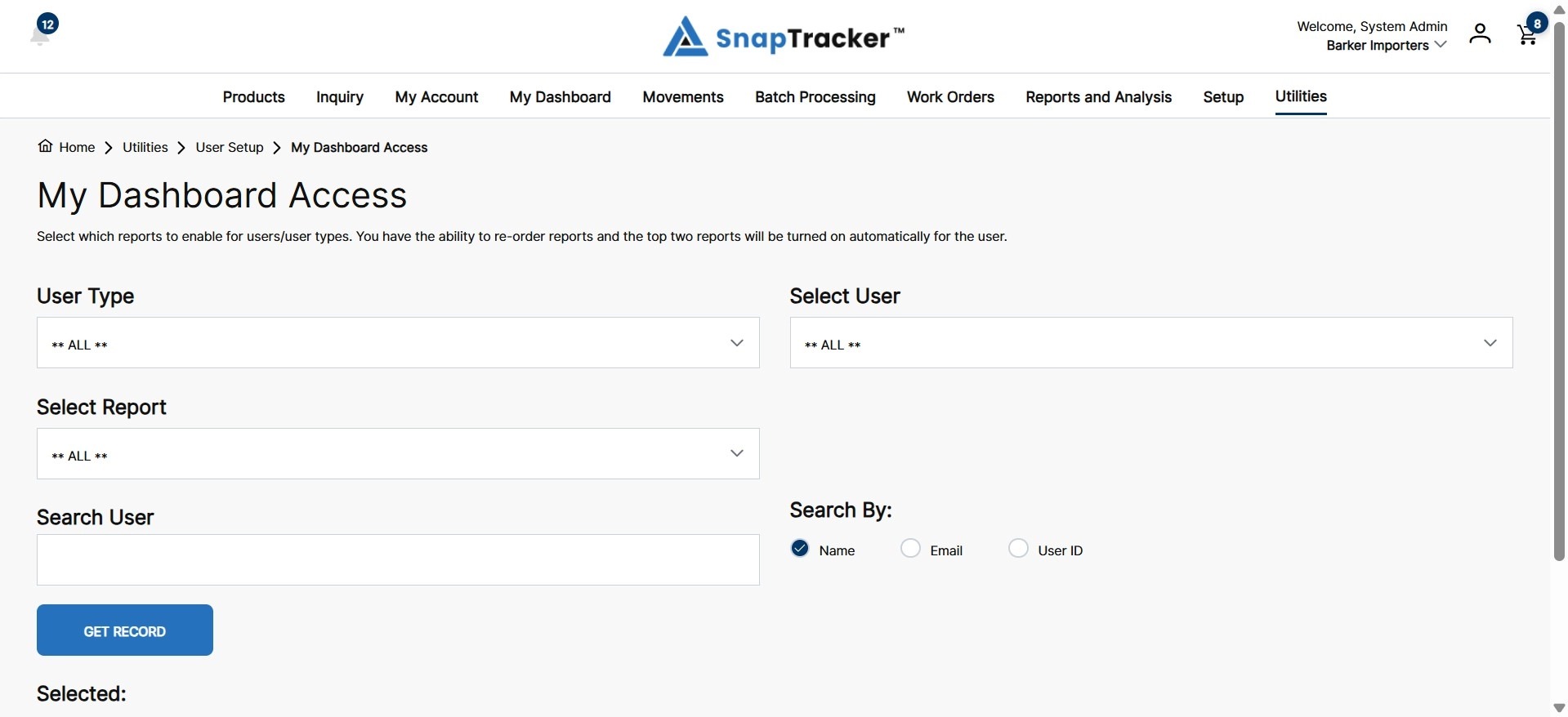
3. In the Search User field, enter the user’s name who the report settings will be copied from.
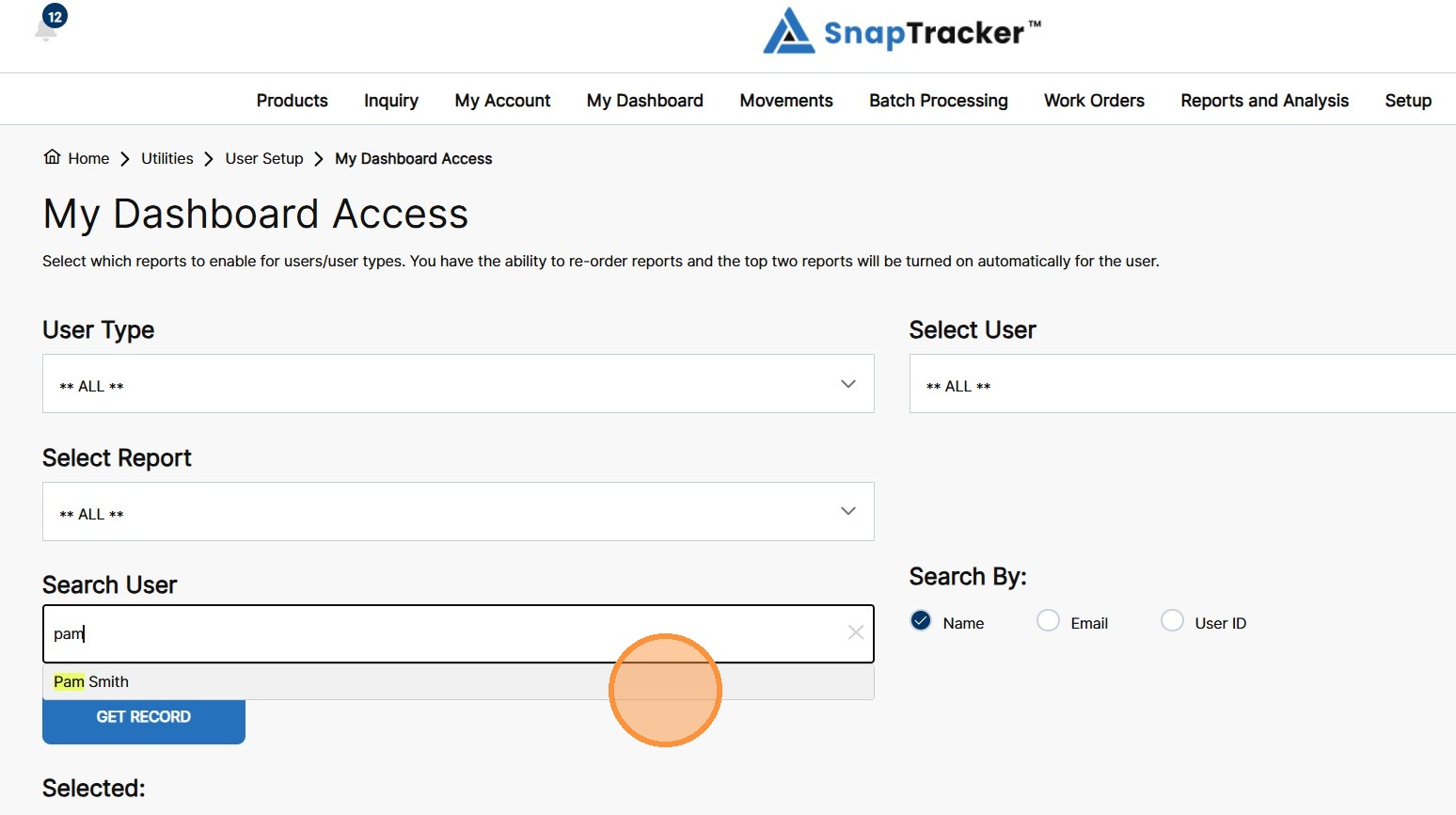
4. From the auto-populated list, click the desired user.
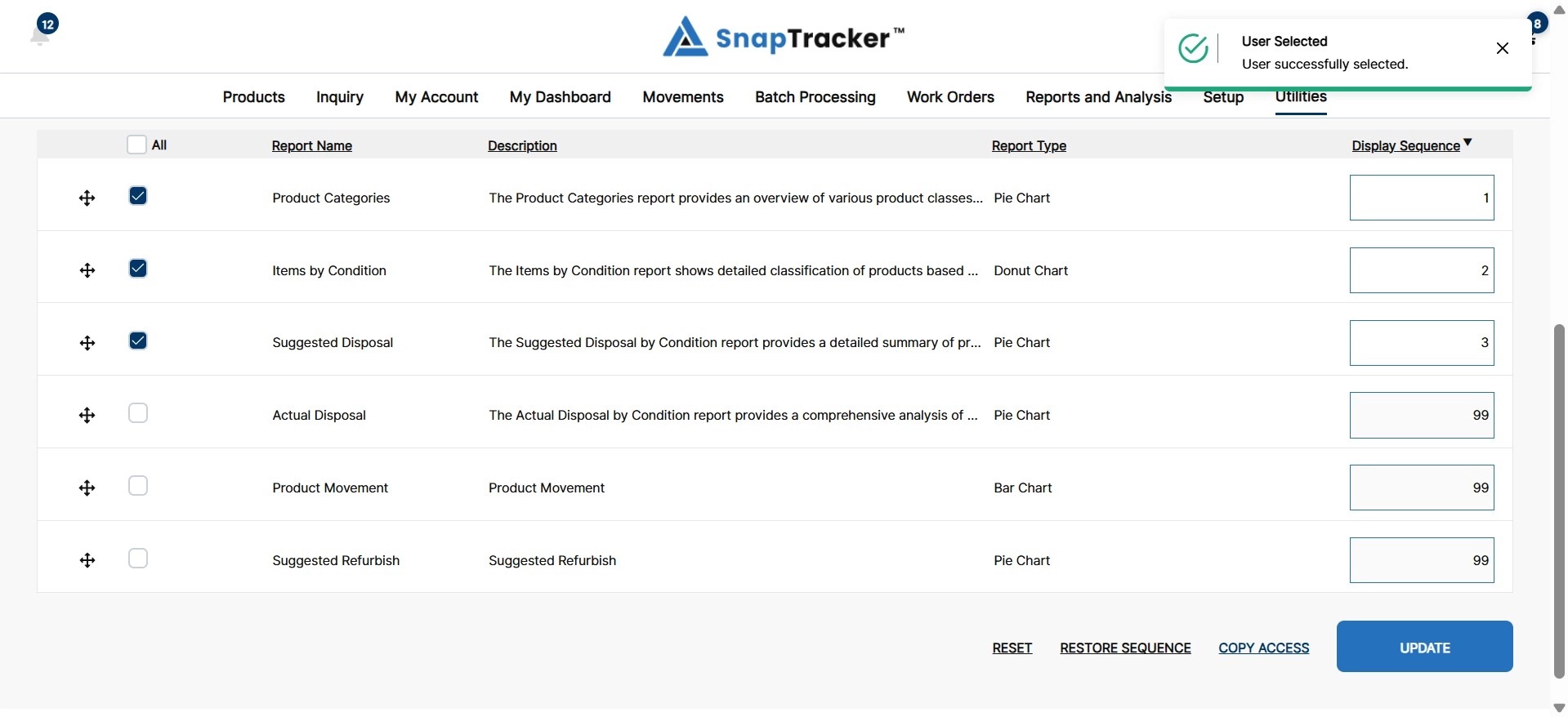
The selected user’s report settings display.
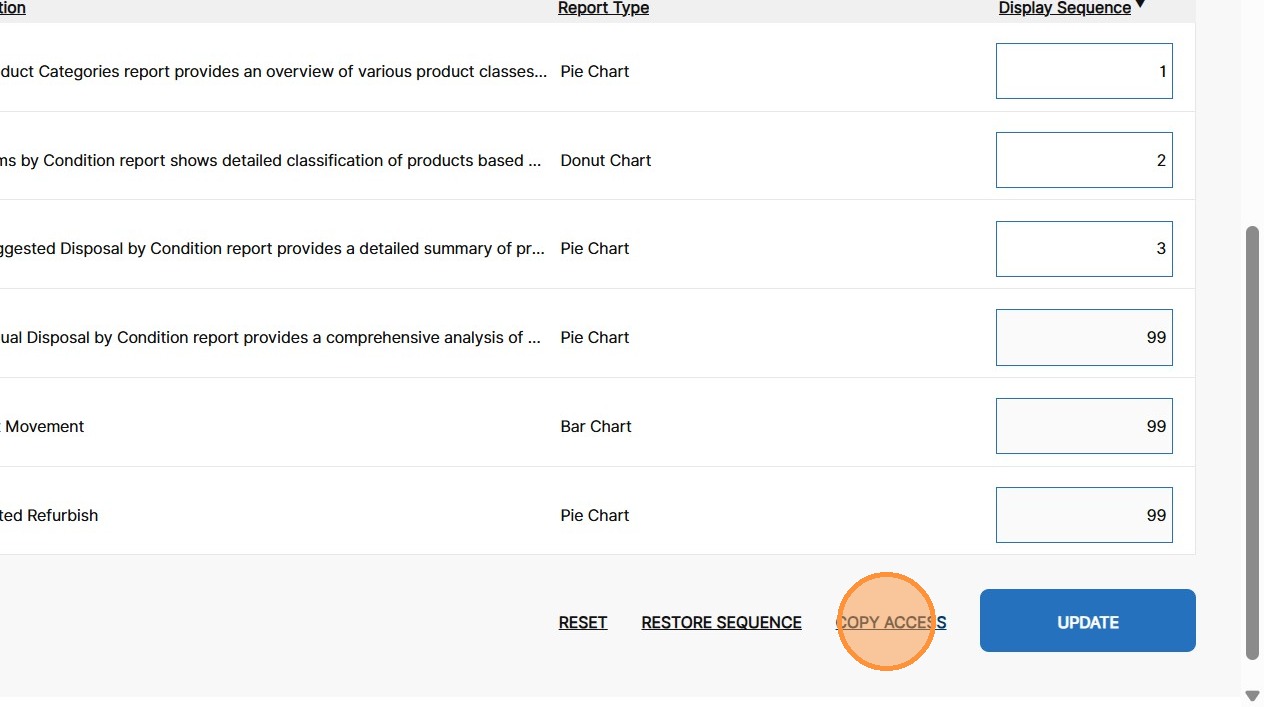
5. To copy the selected user’s report access to another, click Copy Access.
The Copy User Access pop-up displays.
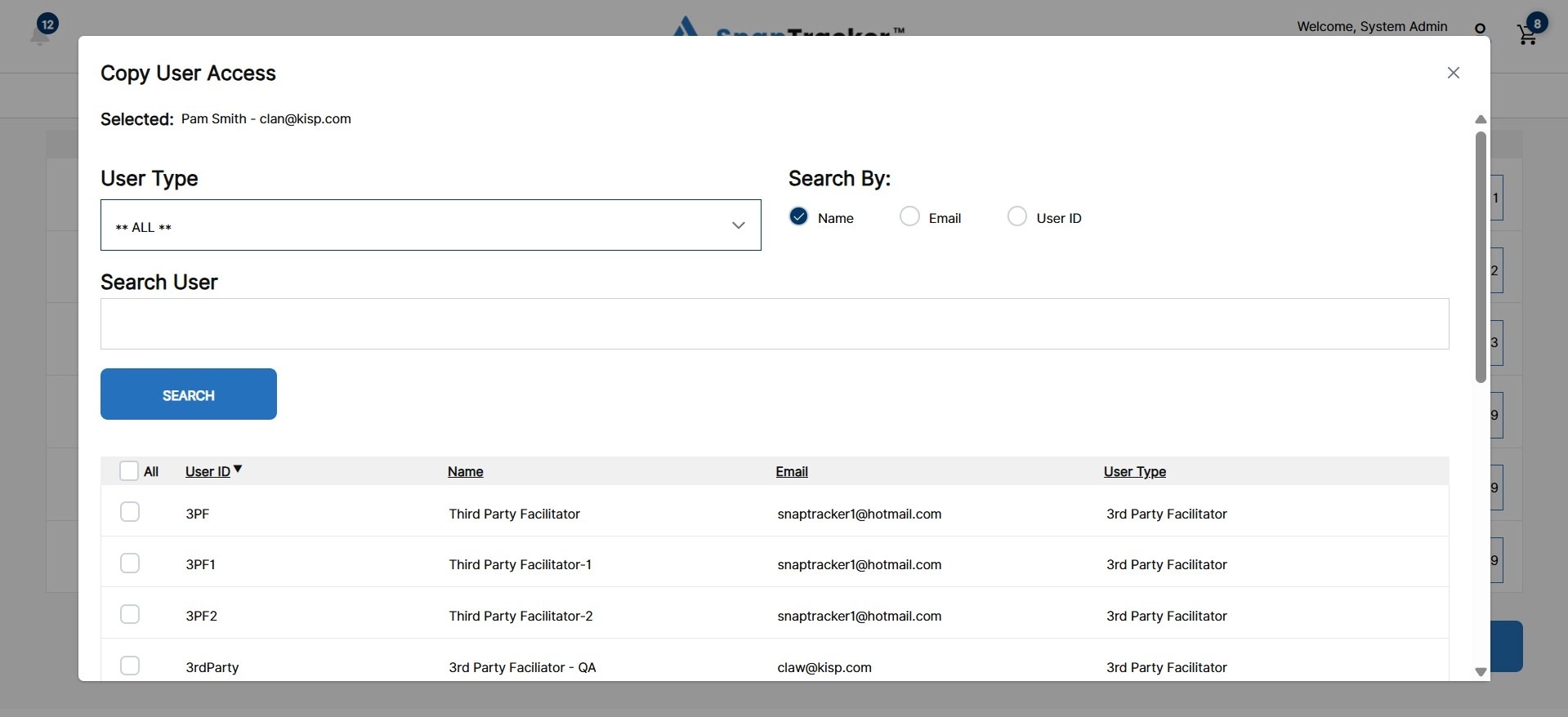
Observe the search filters in the Copy User Access pop-up:
- User Type – Select a User Type to filter, such as Internet User.
- Search By – Combined with Search User. Type in a keyword to search for in the Search User field. Select whether SnapTracker will search by Name, Email or User ID for the results.
- Select User – Enter a user related keyword to search for a user, based on the Search By field.
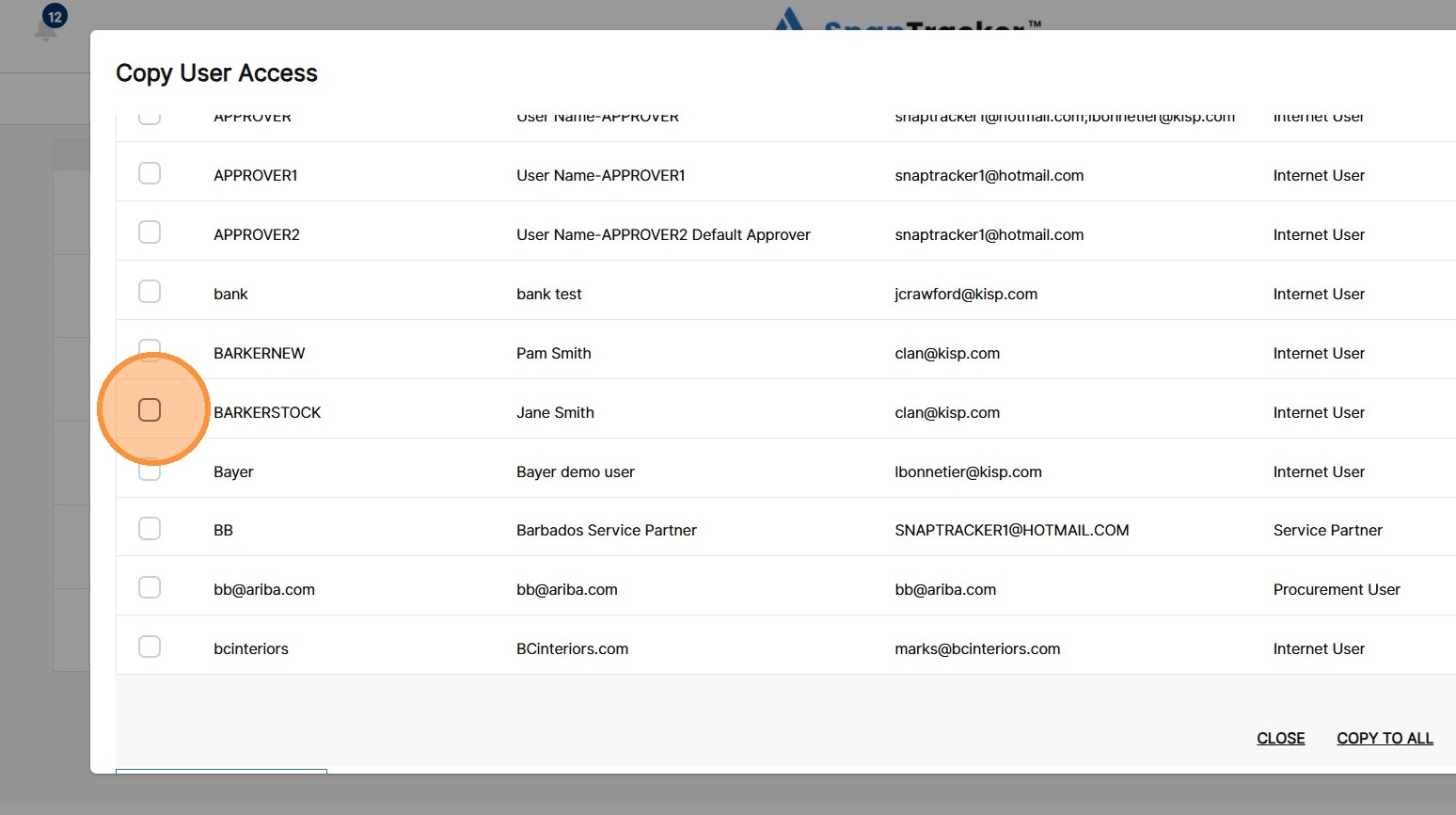
6. Click the checkbox beside the desired user(s) to copy report settings to.
7. Click Copy Access.
A success message displays and the changes are saved.
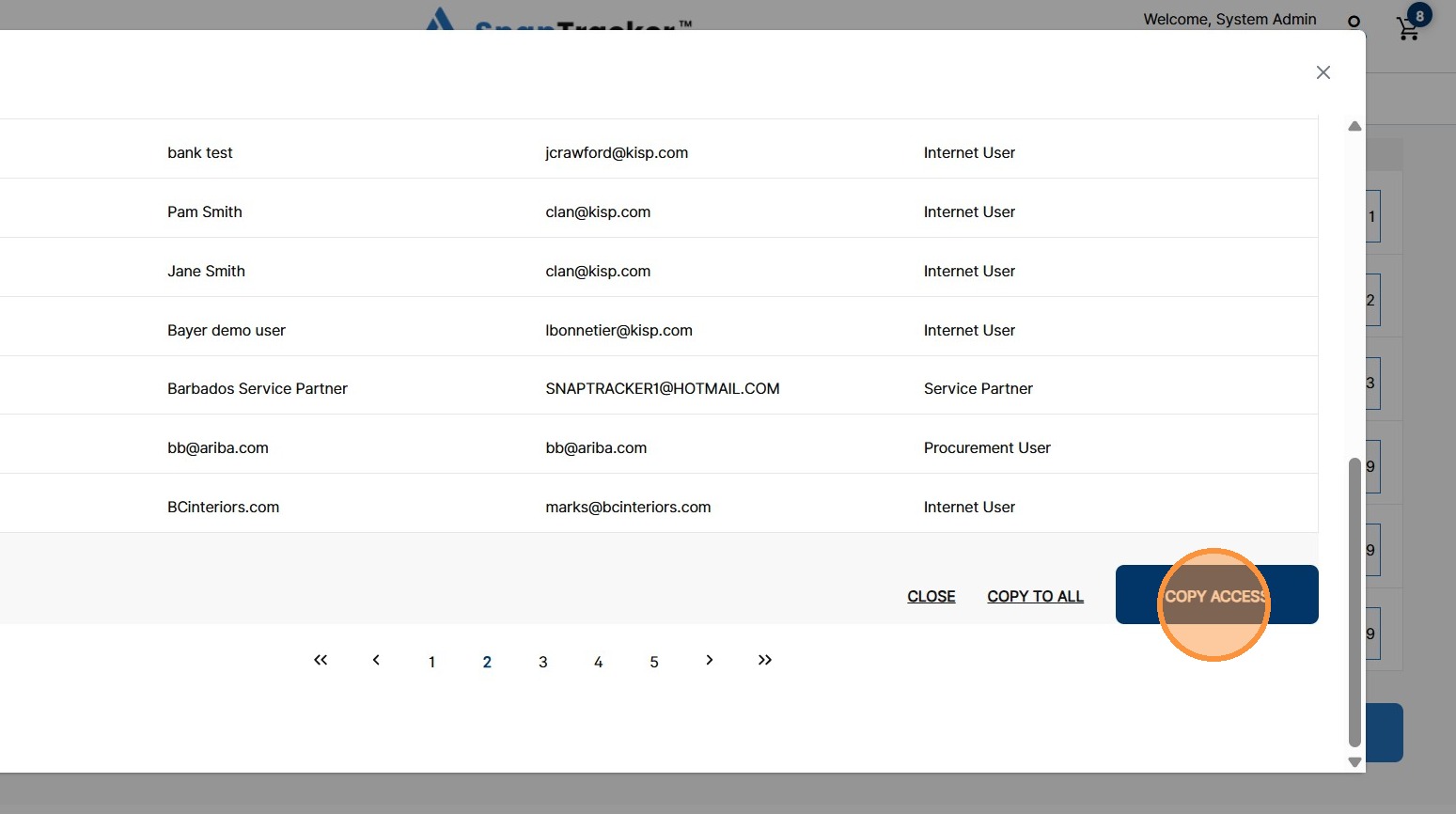
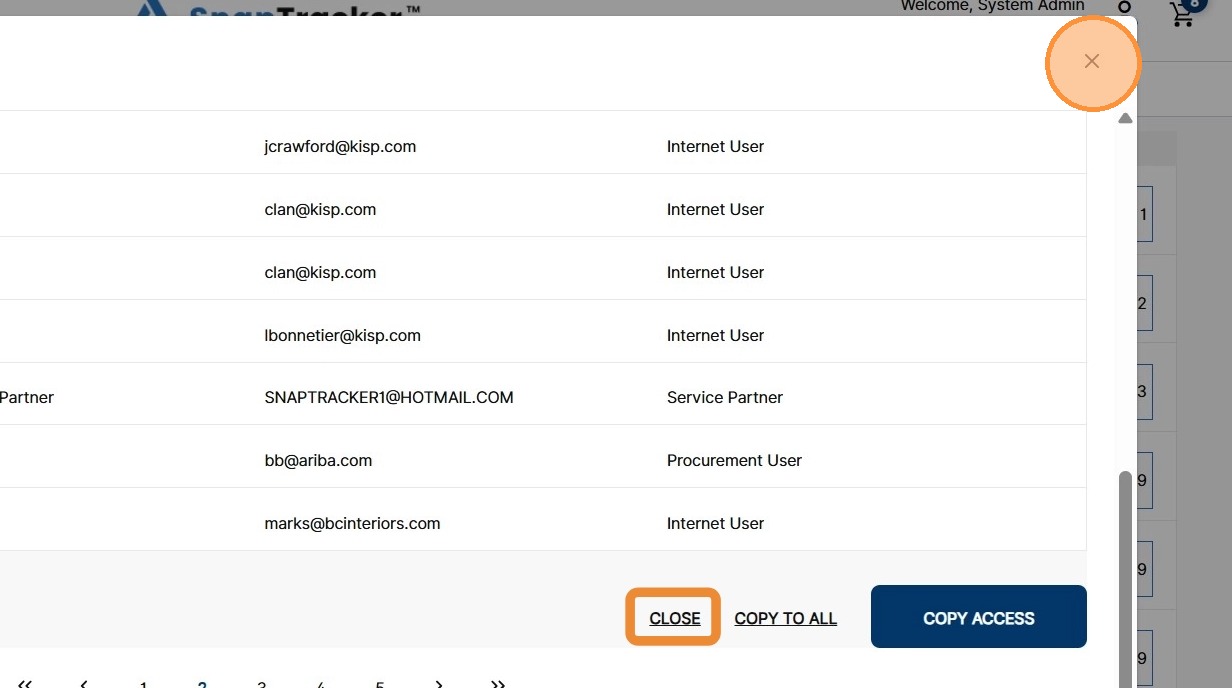
8. To close the Copy User Access pop-up, click Close or X.