
How to Use Inquiry – Location Contents – Advanced Search
The Inquiry section is used to search different information related to product in SnapTracker. Location Contents is designed to provide you with inventory information for products you have in stock in a specific building or location.
There are various results views to provide you summarized information or detailed, report information. You can refine your search using Advanced Search to further filter your results by Location Type and Locations. You may also filter by Standard Class and Condition if you selected one customer to search by.
It also enables you to do quick location checks to ensure accuracy of the data.
Before starting, make sure:
- You are logged into SnapTracker.
- There is at minimum one Building created with inventory.
- You have access to Location Contents.
There are several ways to use Location Contents to view inventory details. This post outlines the process of conducting an Advanced Search for stock product.
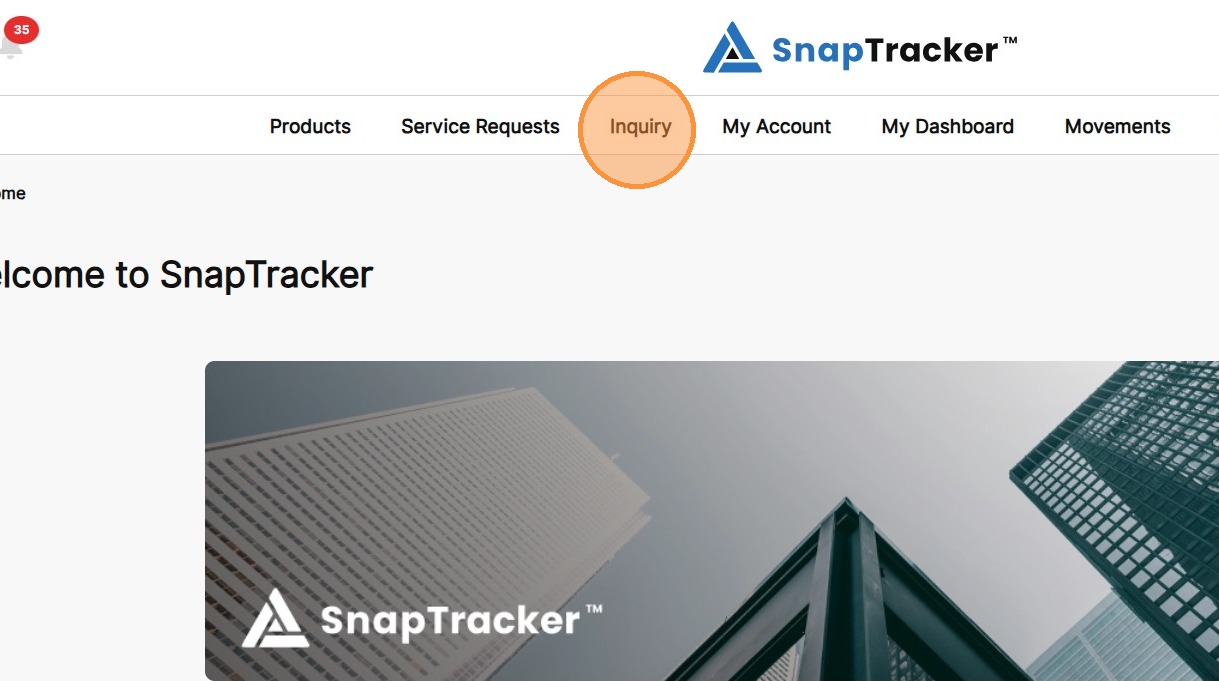
1. In the header section, click Inquiry.
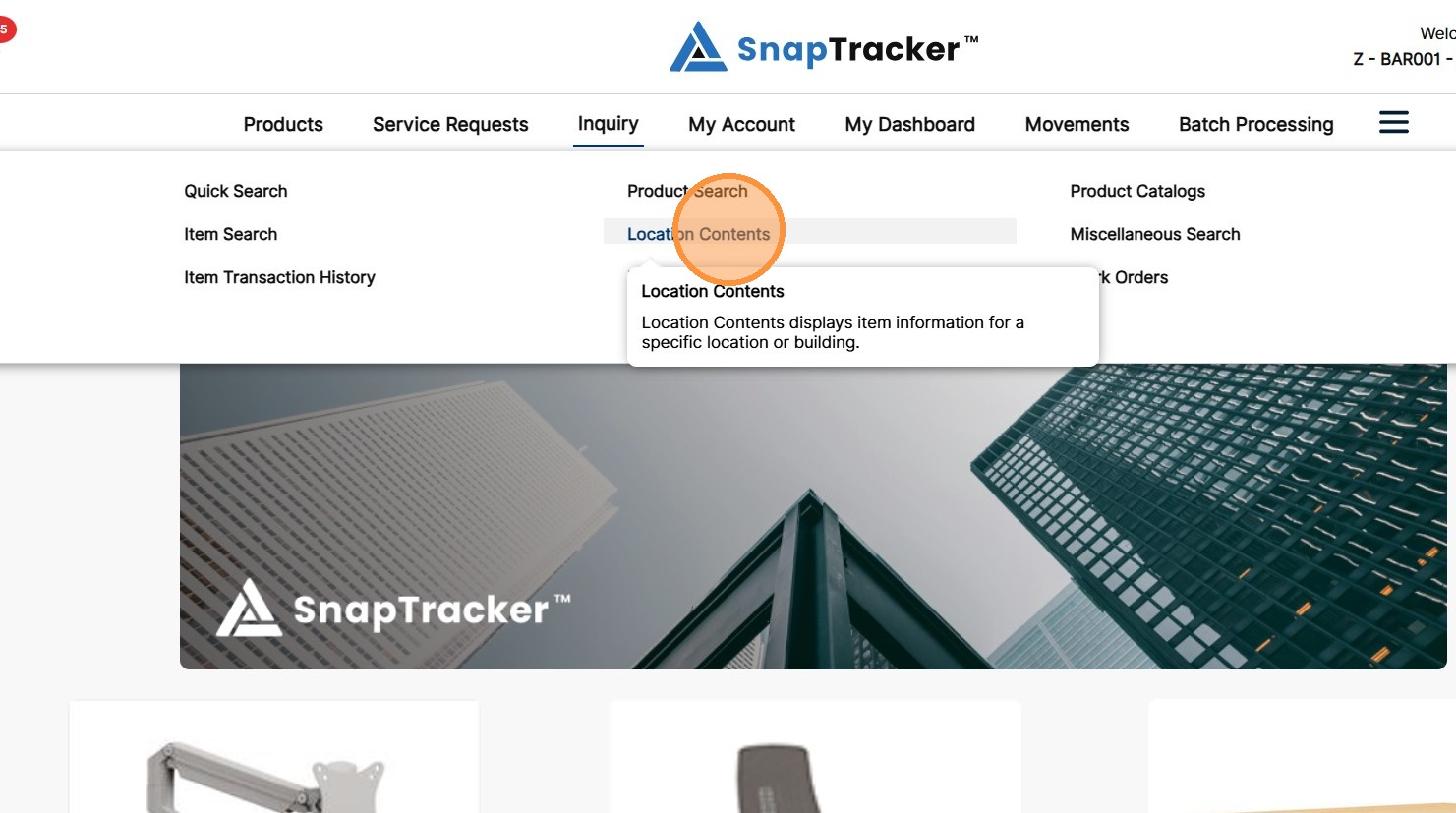
2. Click Location Contents.
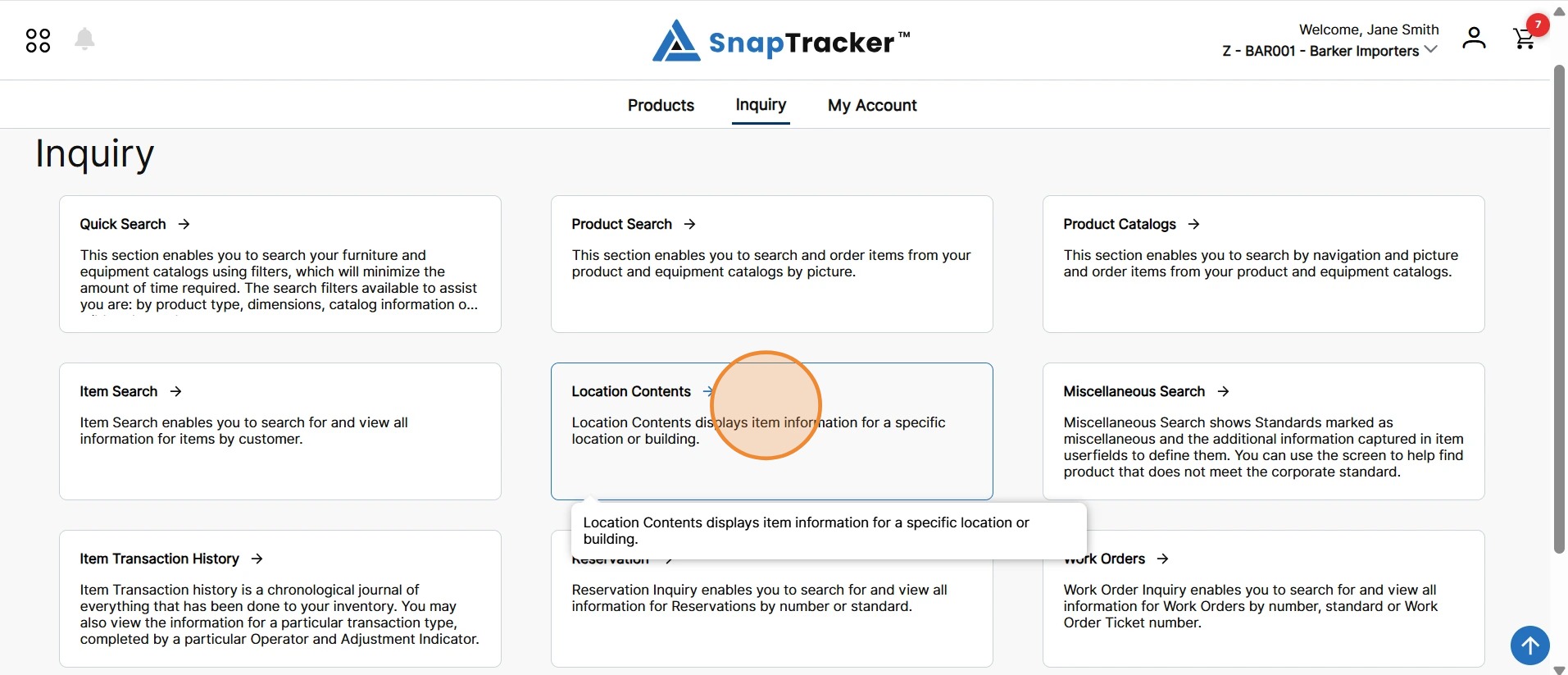
Another way to access the Location Contents screen is to navigate to the Inquiry main screen.
From here, select Location Contents.
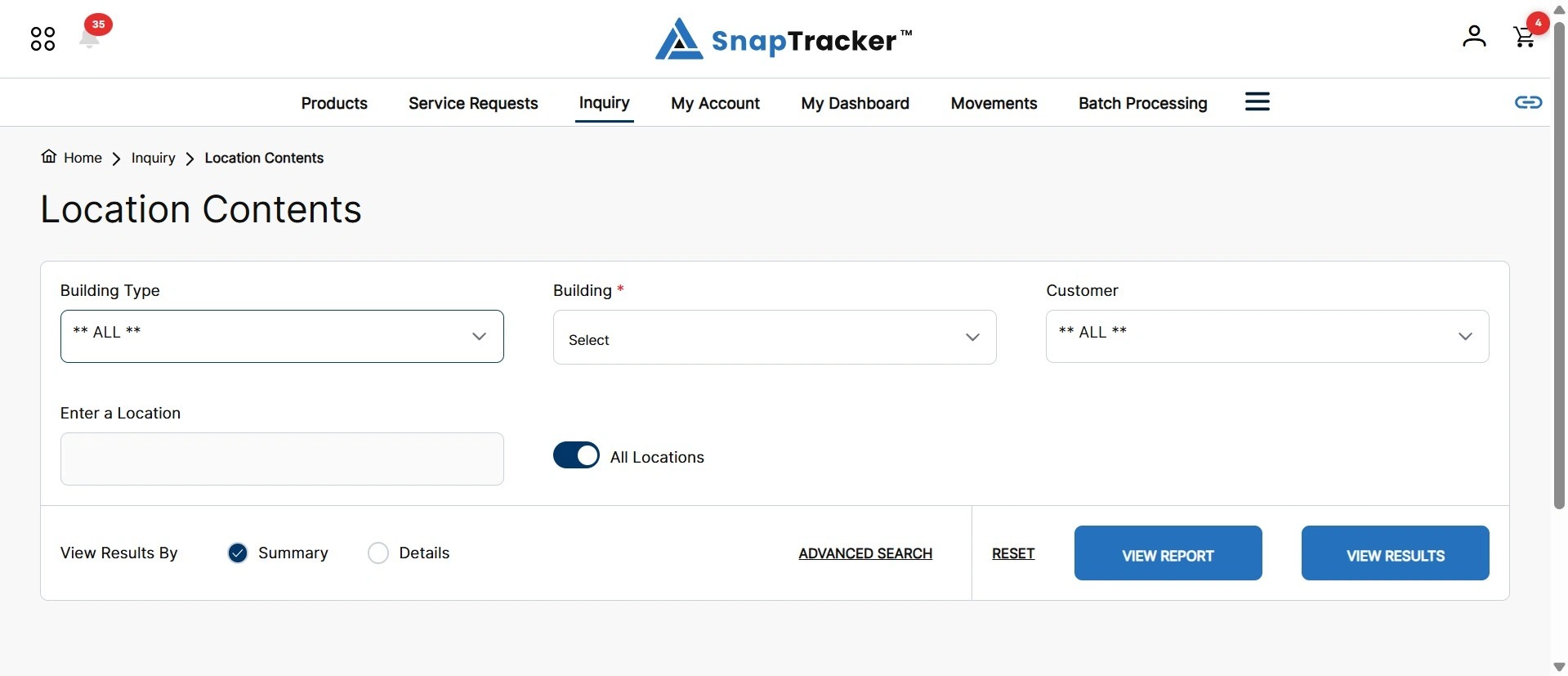
The Location Contents screen displays, showing available search and filter options.
Note: The Customer selection in the header does not display in the Location Contents screen. By default results show product in the selected Building for all Customers you have access to (depending on the selections made).
3. Apply any desired search filters in the main search.
For more information, see “How to Use Inquiry – Location Contents – Basic Search.”
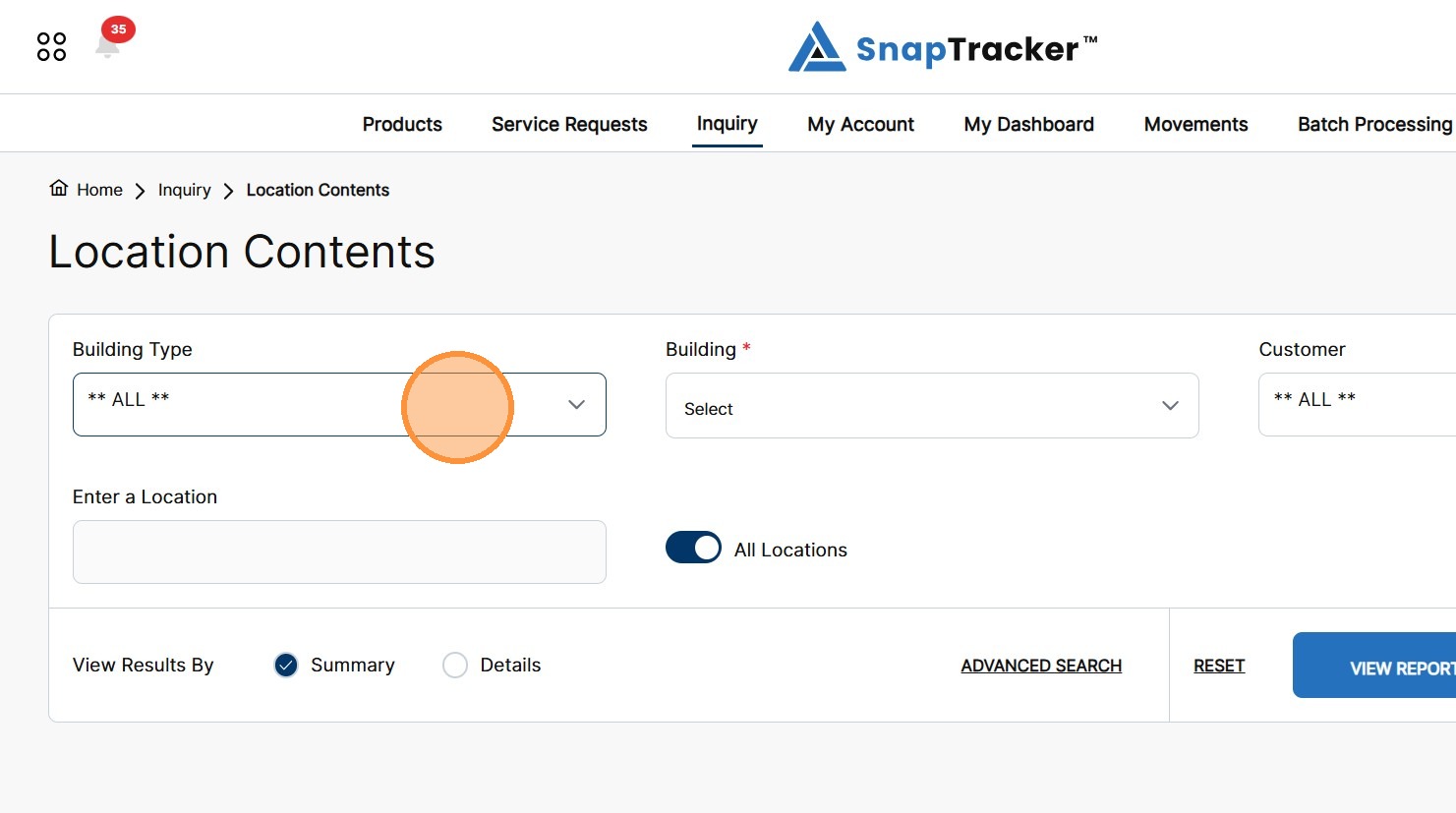
4. To apply Advanced Search options, click Advanced Search.
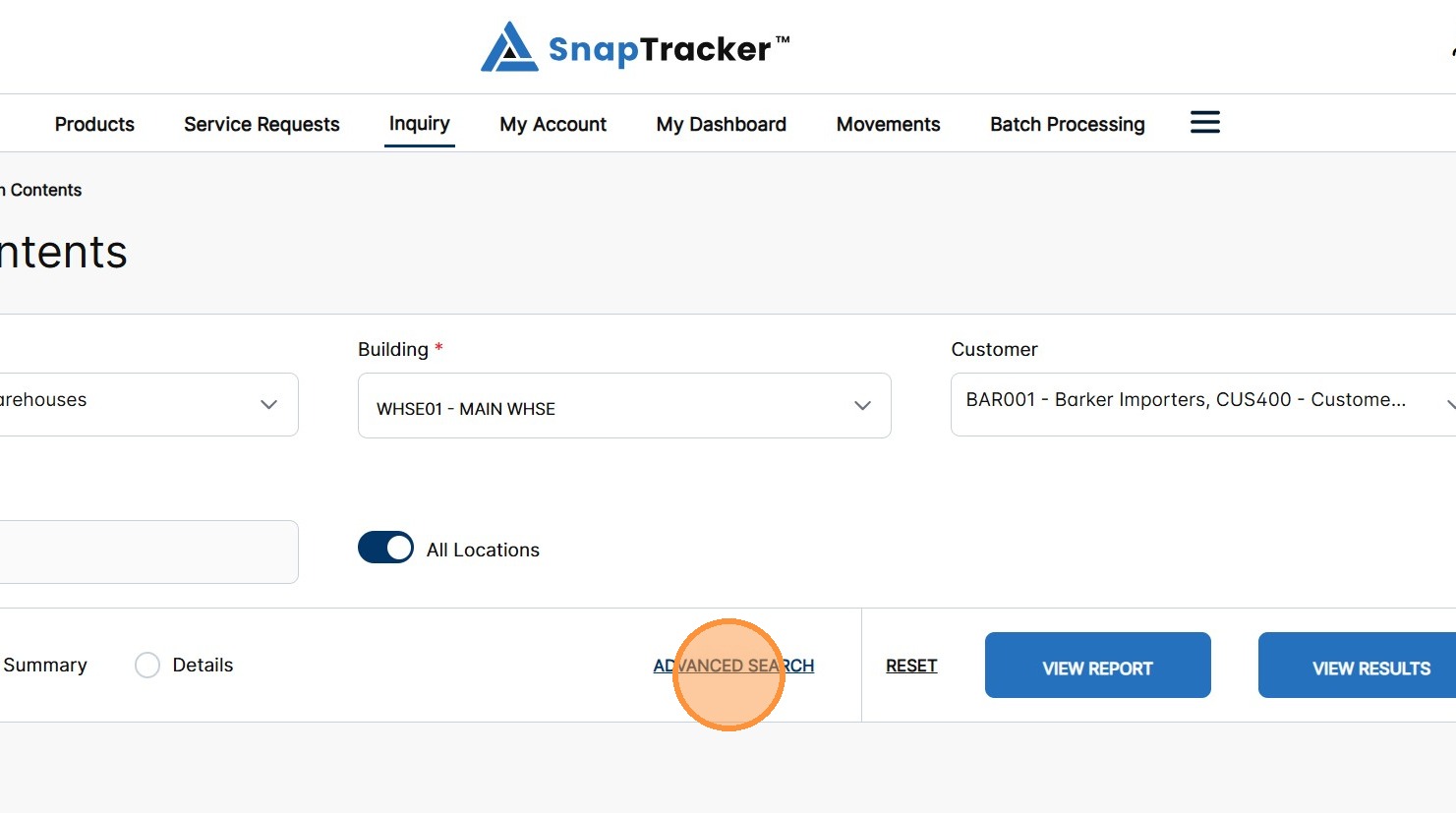
The Advanced Search pop-up displays.
Note: Any selections made on the main Location Contents search screen are pre-populated in the Advanced Search pop-up, such as Building.
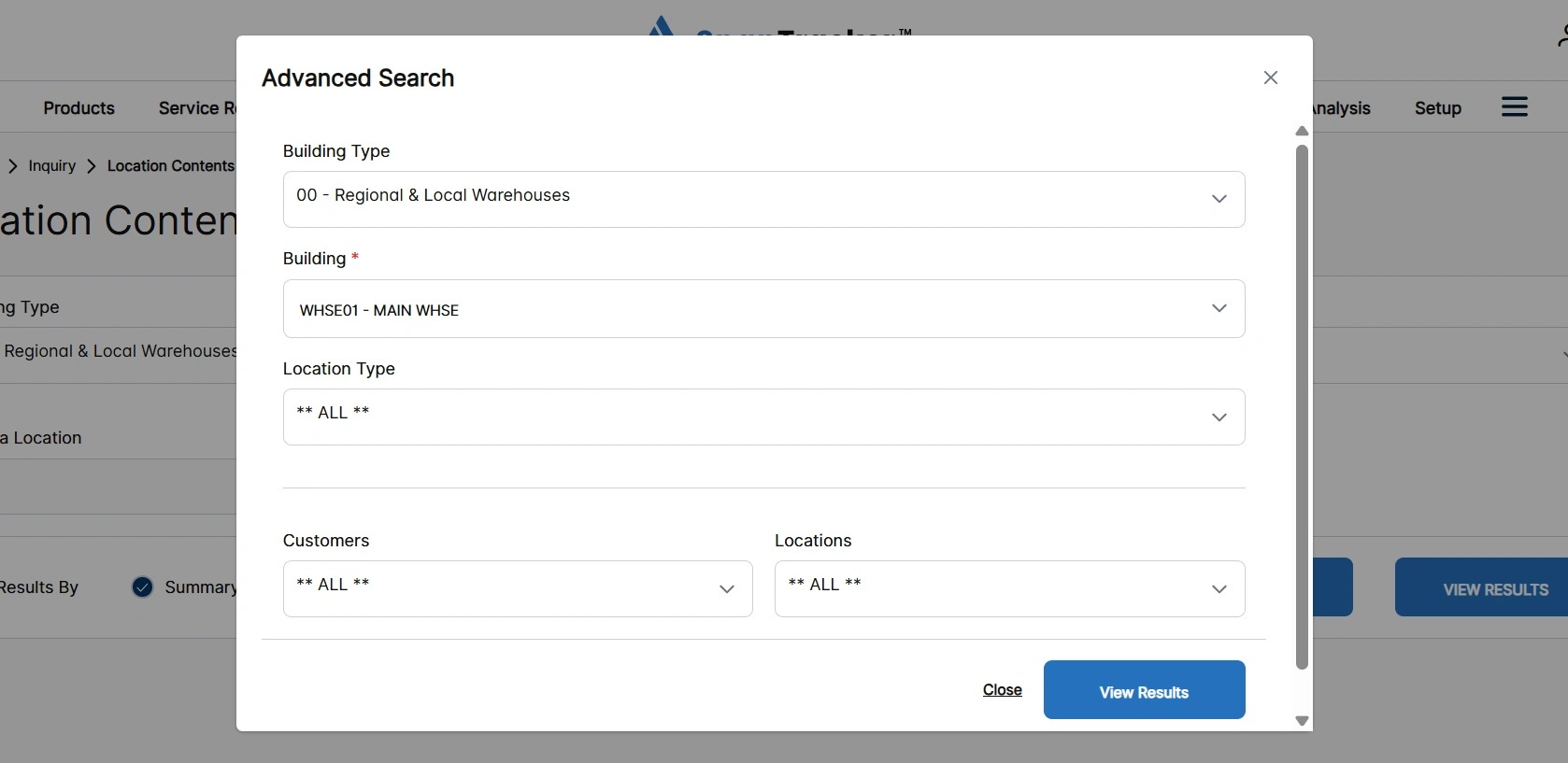
Observe the Advanced Search filters to narrow down your product:
- Building Type – Select one, multiple, or all Building Types. This field filters the Building dropdown selections.
- Building – Select one Building to return product information from. Building is a required field.
- Location Type – Select one, multiple, or all Location Types. This field filters the Location dropdown selections.
- Customers – Select one, multiple or all Customers. This field filters the product results within the selected Building.
- Locations – Select one, multiple, or all Locations. This field filters the product results within the selected Building.
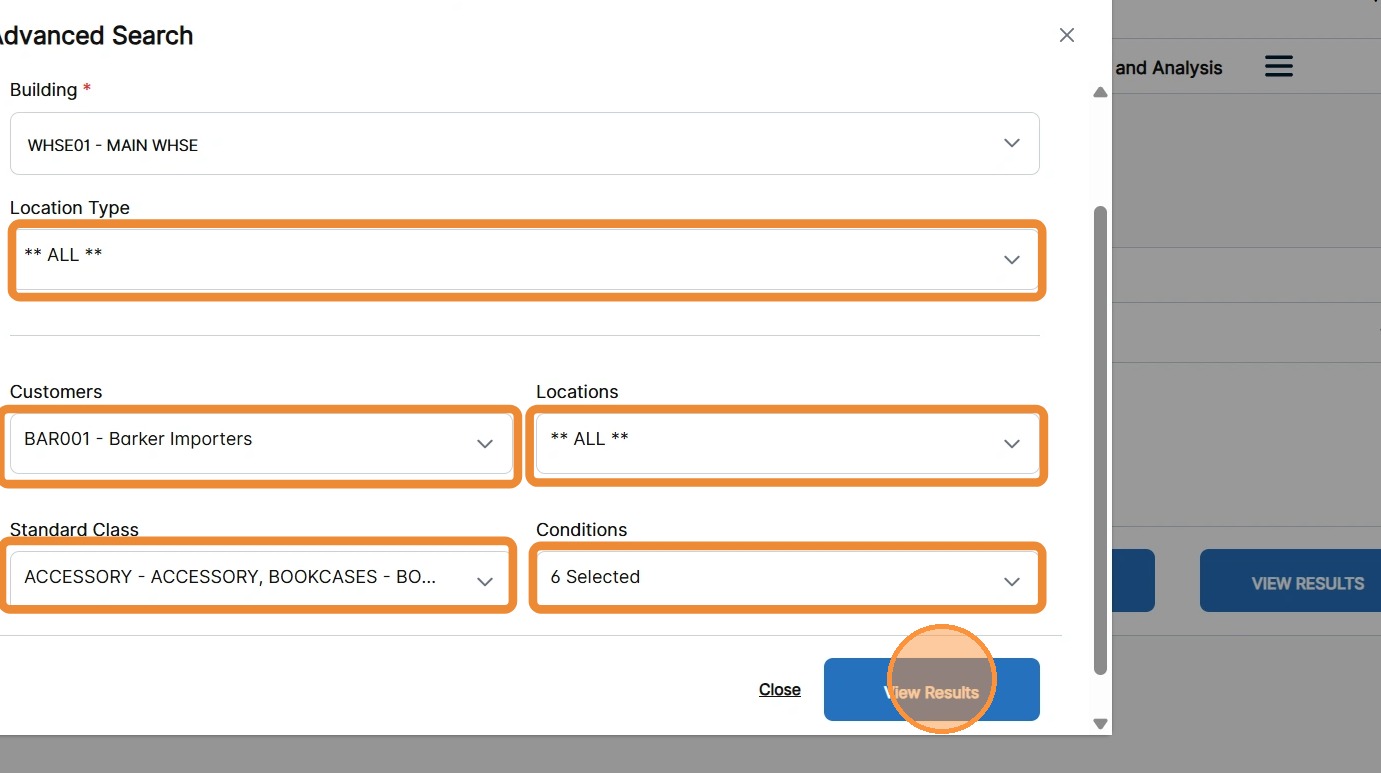
If you select a single Customer from the Customer field, additional filters for Standard Class and Condition for the Customer displays.
- Standard Class – Select one, multiple, all Standard Classes. This field filters the product results within the selected building.
- Condition – Select one, multiple or all Conditions. This field filters the product results within the selected building.
5. Populate the desired filter fields in the Advanced Search Criteria pop-up.
Click View Results.
To learn more about Location Contents, refer to the following: