
How to Use Inquiry – Location Contents – Results Header
Location Contents is designed to provide you with inventory information of all products you have in stock in a given building. After applying your search fields, you can choose to View Report or View Results.
Both options present the same product results, but either in a report format (View Report) or summarized format (View Results). A header displays in both result views including summary on your search filters, filter access, and download options. access to key actions.
Before starting, make sure:
- You are logged into SnapTracker.
- There is at minimum one Building created with inventory.
- You have access to Location Contents.
There are several ways to use Location Contents to view inventory details. This post outlines the process of conducting a search in Location Contents and using the results header, such as filtering and downloading results.
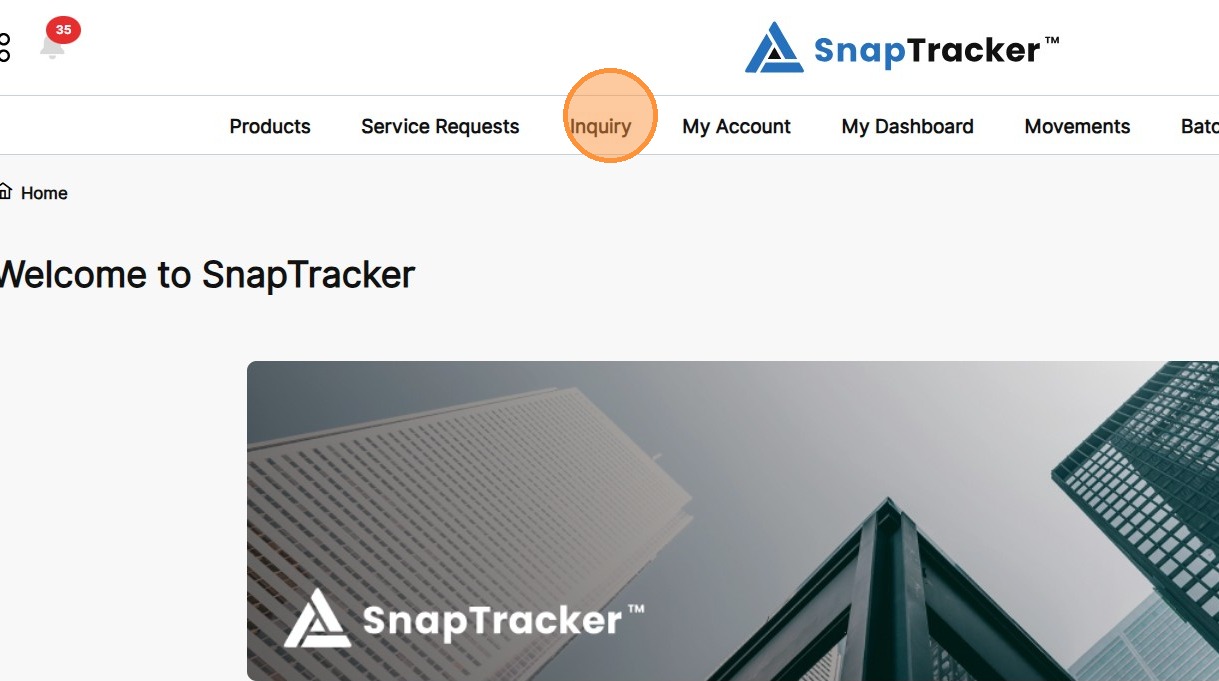
1. In the header section, click Inquiry.
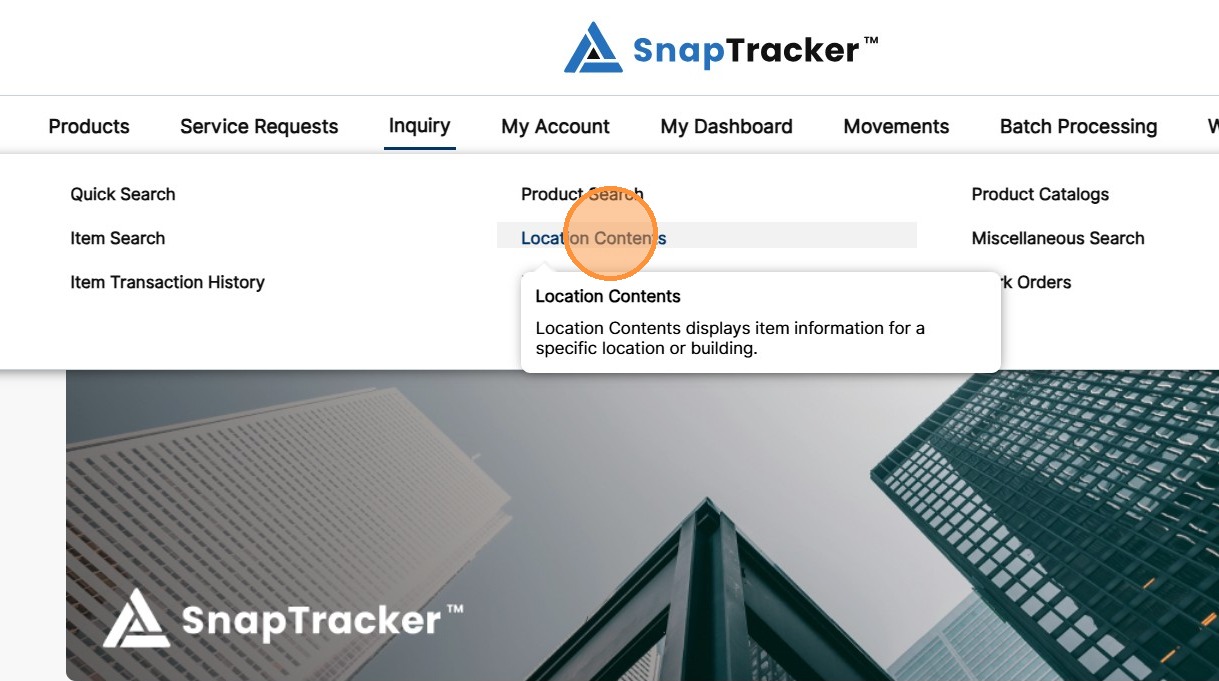
2. Click Location Contents.
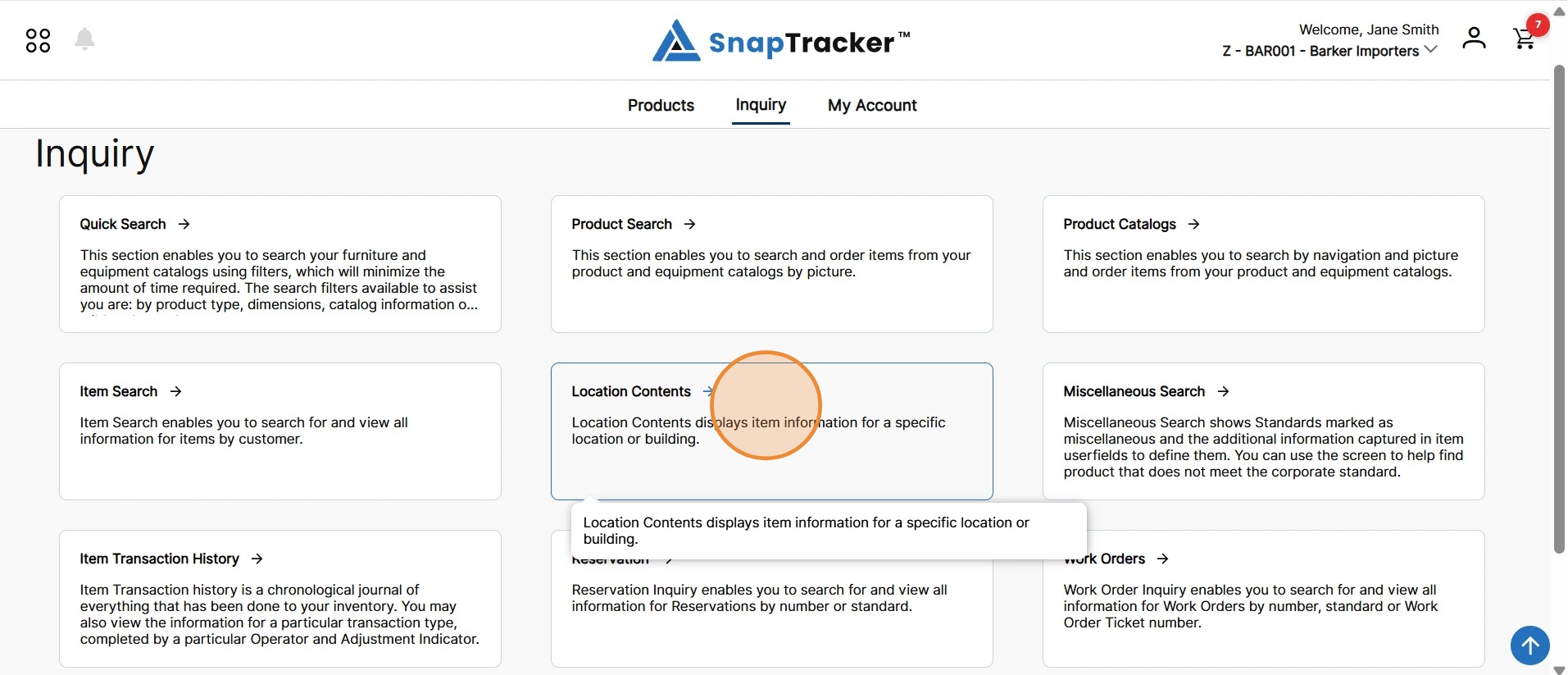
Another way to access the Location Contents screen is to navigate to the Inquiry main screen.
From here, select Location Contents.
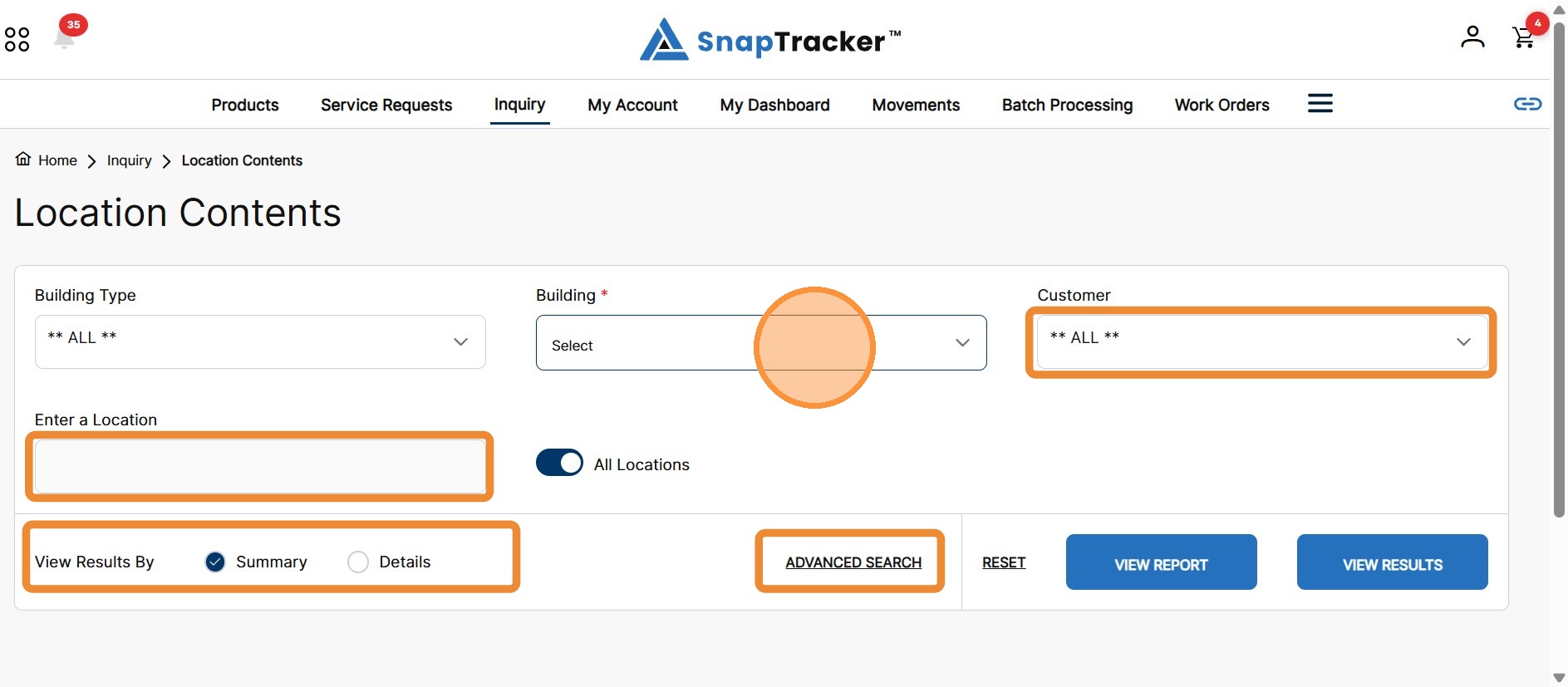
The Location Contents screen displays, showing available search and filter options.
Note: The Customer selection in the header does not display in the Location Contents screen. By default results show product in the selected Building for all Customers you have access to (depending on the selections made).
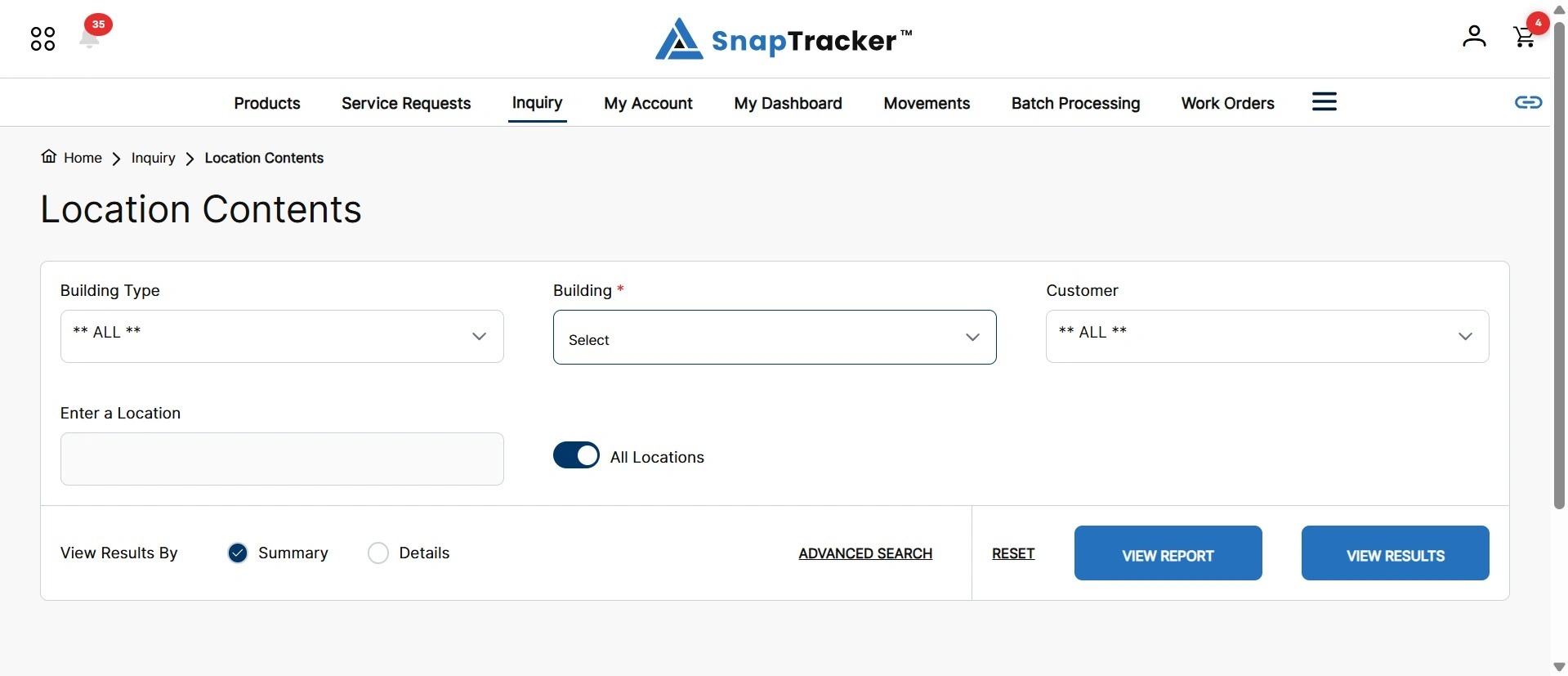
3. Select the desired option in the Building field and apply any other optional field(s).
4. Click View Report or View Results.
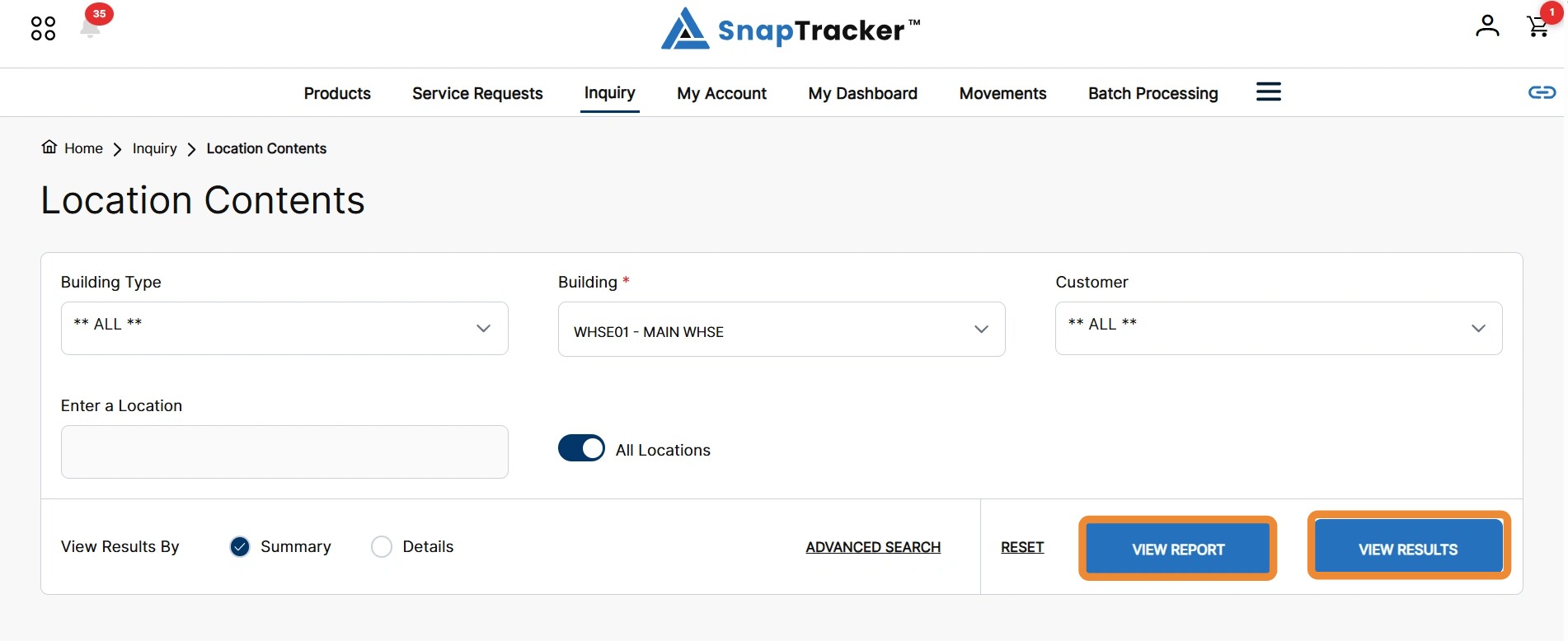
The Building Overview screen displays.
The top section is the results header.
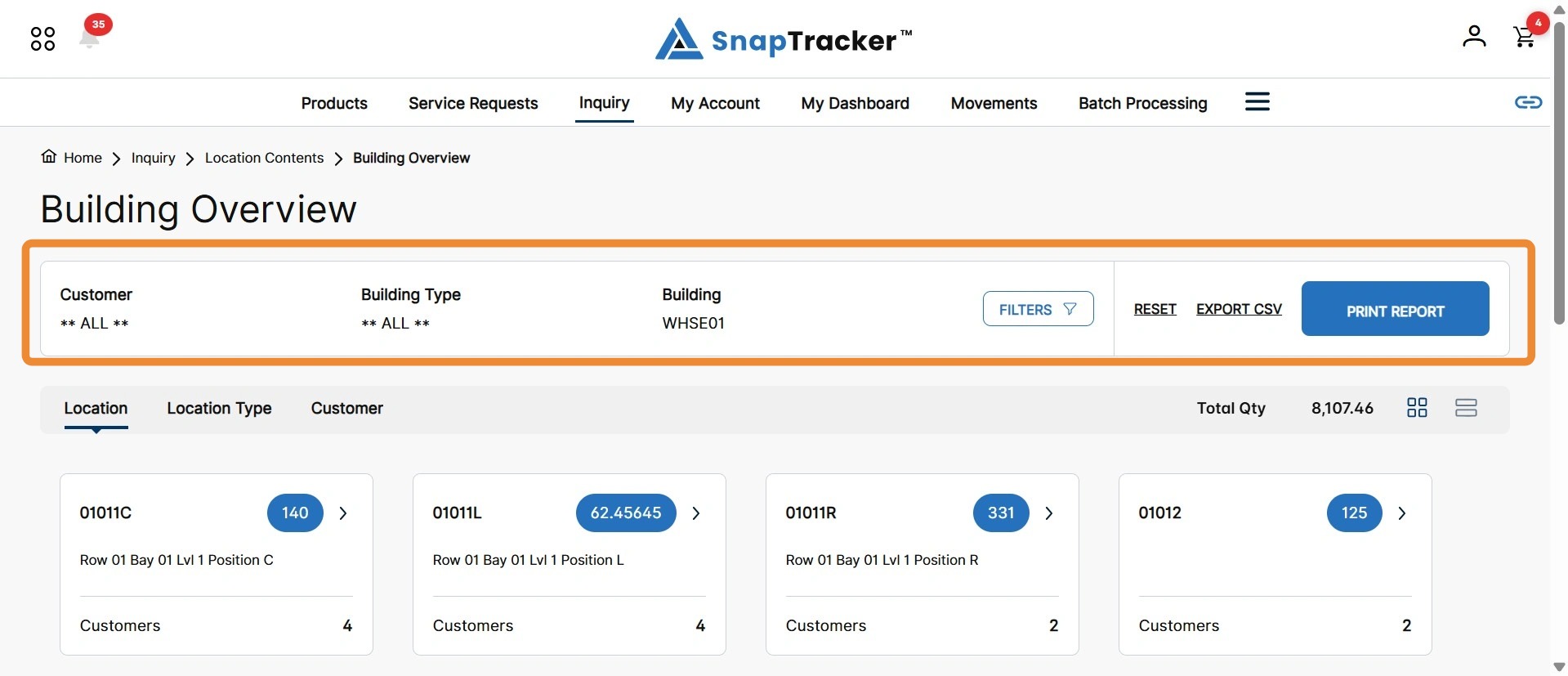
The results header summarizes the selections you’ve made. It also includes additional options to modify the results and provides the ability to print or export the results.
- Customer – The selected Customer(s). This can be a single, multiple, or all Customers.
- Building Type – Selected Building Types. This can be a single, multiple, or all Building Types.
- Building – Selected (1) Building.
Note: The information shown is populated from the Location Contents Main Search and Advanced Search screens.
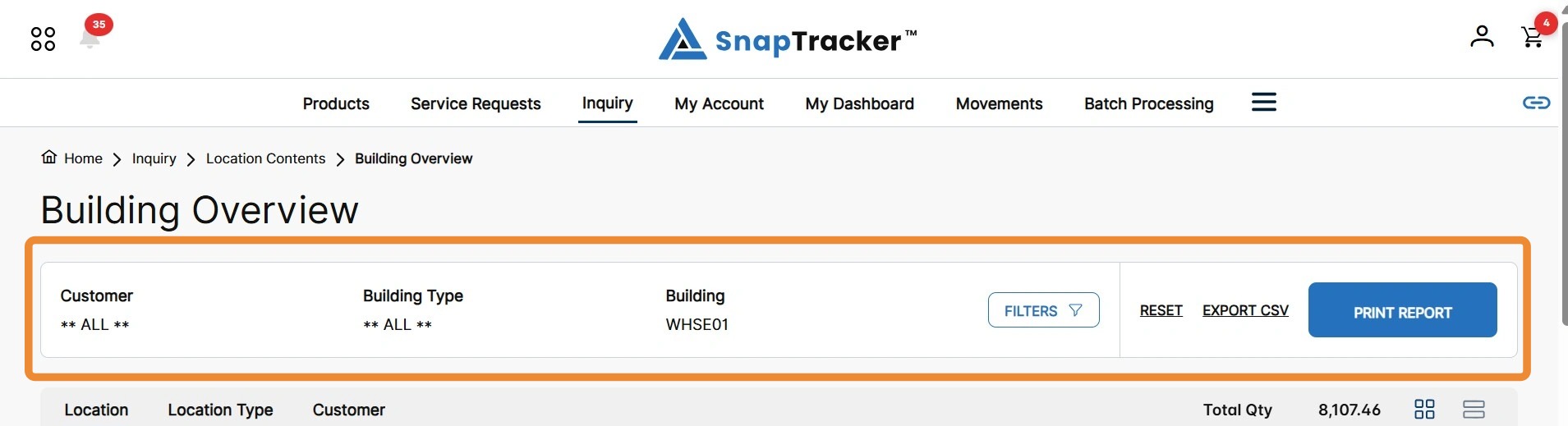
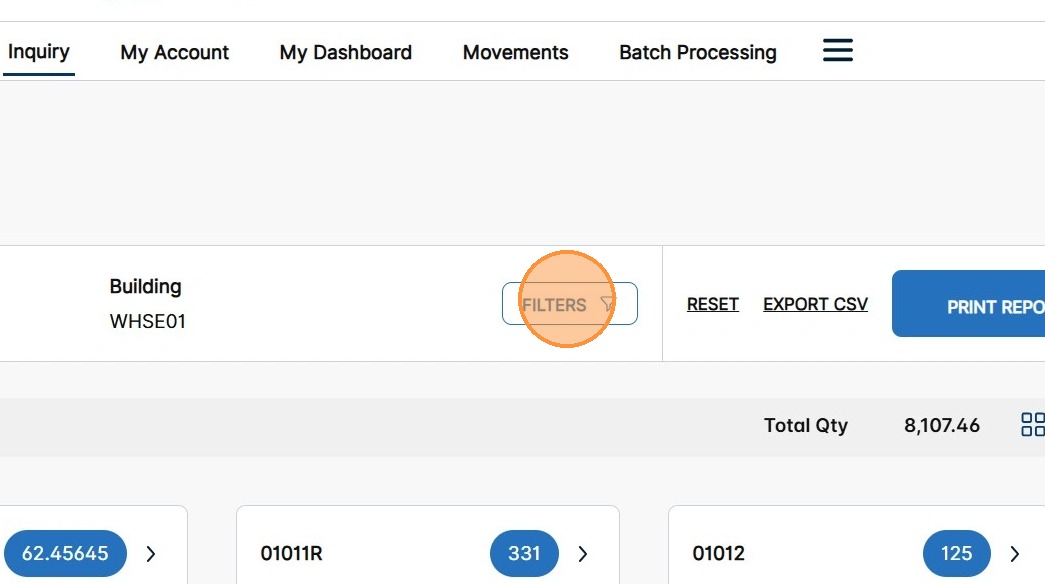
5. You can modify your selections by using the Filters button.
To view or apply additional search filters to refine your results, click Filters.
The Filters side panel displays.
There are two Filters side panels, depending on whether you are searching by one or multiple customers.
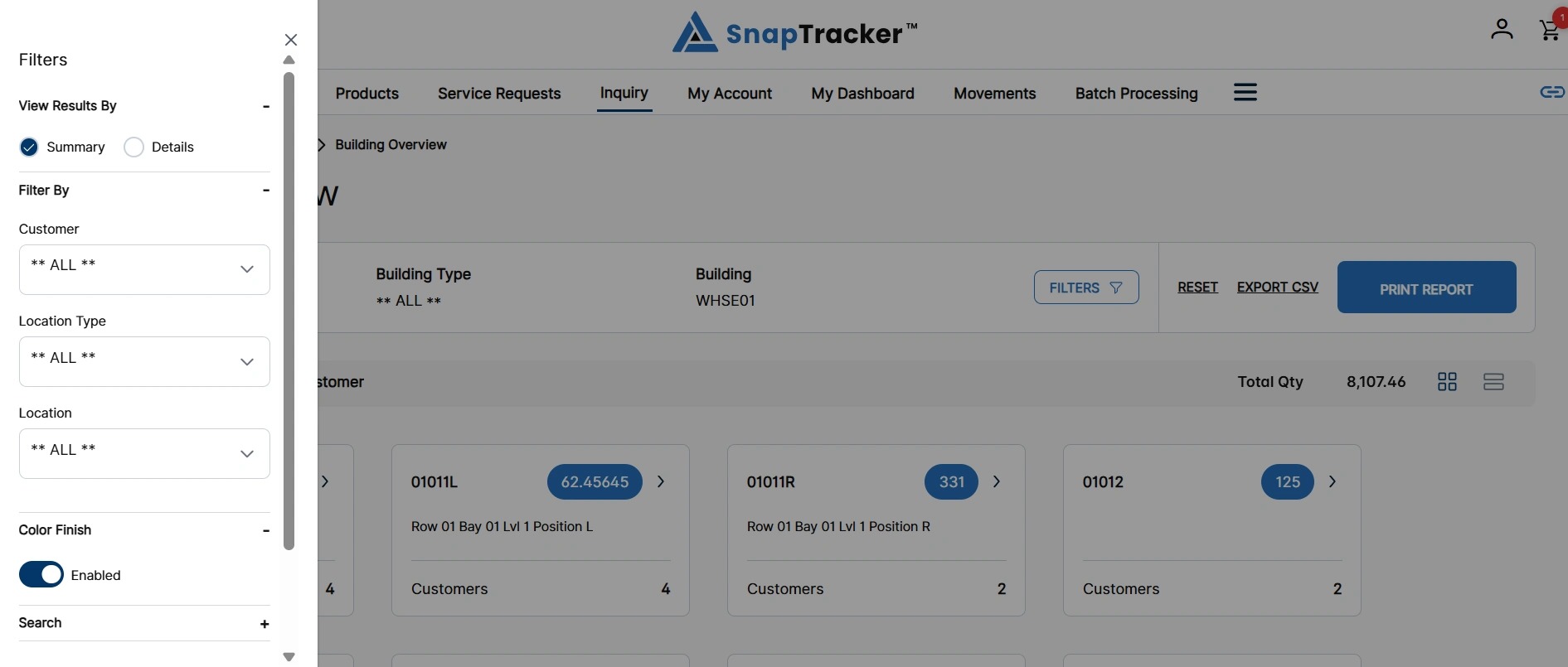
If searching for multiple customers, the following Filters side panel displays.
Note: The image below is split in two in order to show all options.
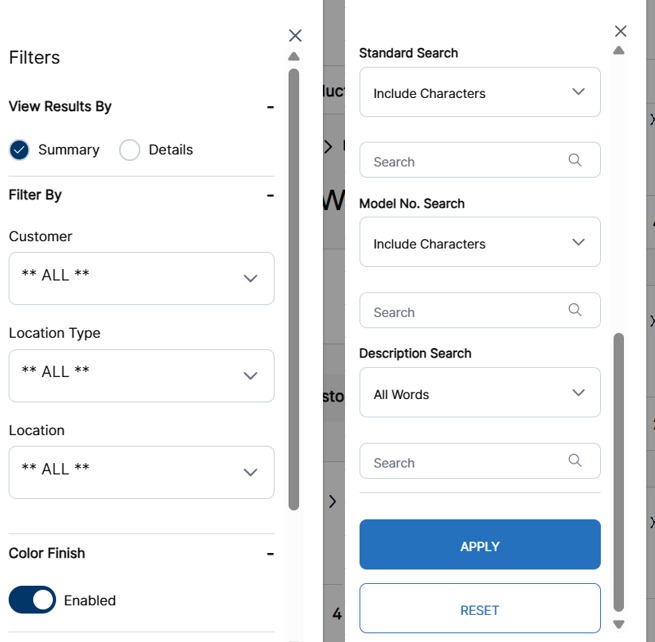
Observe the following filters and search options:
- View Results By – Select to view results by Summary or Details.
- Customers – Select one, multiple or all Customers. This field filters the product results within the selected Building. Note: Changing your Customer selection to one customer updates your Filters side panel options after clicking Apply.
- Location Type – Select one, multiple, or all Location Types. This field filters the Location dropdown selections.
- Locations – Select one, multiple, or all Locations. This field filters the product results within the selected Building.
Note: These filters are pre-populated from your Main Search and Advanced Search selections.
- Color Finish – Select the toggle to enable/disable the Color Finish field in the Standard details. Note: The default is determined by your User Settings.
- Standard Search – Select to search by Include Characters, Exact Match, Starts With Characters, then enter the desired search input.
- Model No. Search – Select to search by Include Characters, Exact Match, Starts With Characters, then enter the desired search input.
- Description Search – Select to search by All Words, Any Words, Exact Words or Phrase, then enter the desired search input.
If a single Customer is selected, the following Filters side panel displays.
Note: The image below is split in three in order to show all options.
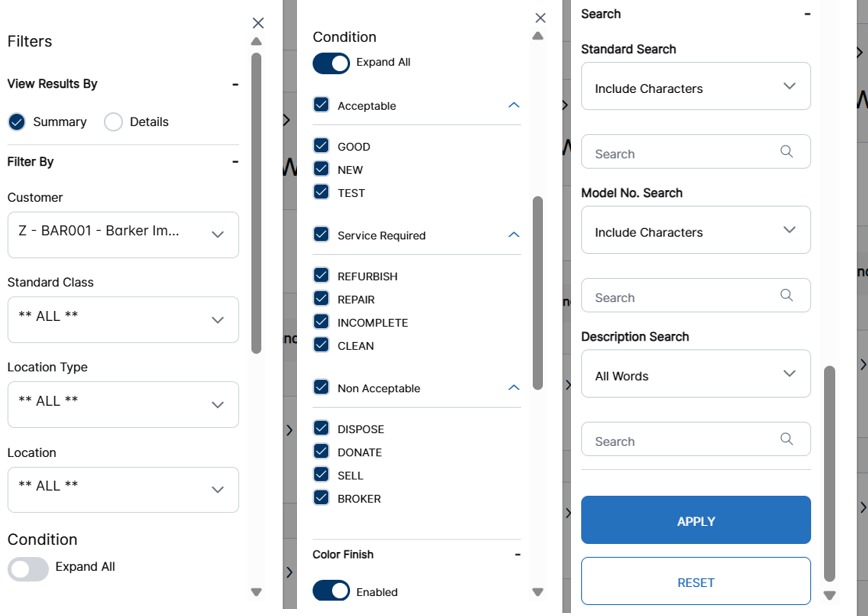
Observe the following filters and search options:
-
View Results By – Select to view results by Summary or Details.
-
Customers – Select one, multiple or all Customers. This field filters the product results within the selected Building. Note: Changing your Customer selection to multiple customers updates your Filters side panel options after clicking Apply.
-
Standard Class – Select one, multiple, all Standard Classes. This field filters the product results within the selected building.
-
Location Type – Select one, multiple, or all Location Types. This field filters the Location dropdown selections.
-
Locations – Select one, multiple, or all Locations. This field filters the product results within the selected Building.
-
Condition – Select the toggle to collapse/expand all Acceptability Flag categories. Select one, multiple, or all Acceptability Flags and/or Conditions.
Note: These filters are pre-populated from your Main Search and Advanced Search selections.
- Color Finish – Select the toggle to enable/disable the Color Finish field in the standard details. Note: The default is determined by your User Settings.
- Standard Search – Select to search by Include Characters, Exact Match, Starts With Characters, then enter the desired search input.
- Model No. Search – Select to search by Include Characters, Exact Match, Starts With Characters, then enter the desired search input.
- Description Search – Select to search by All Words, Any Words, Exact Words or Phrase, then enter the desired search input.
6. Populate the desired filter fields and click Apply.
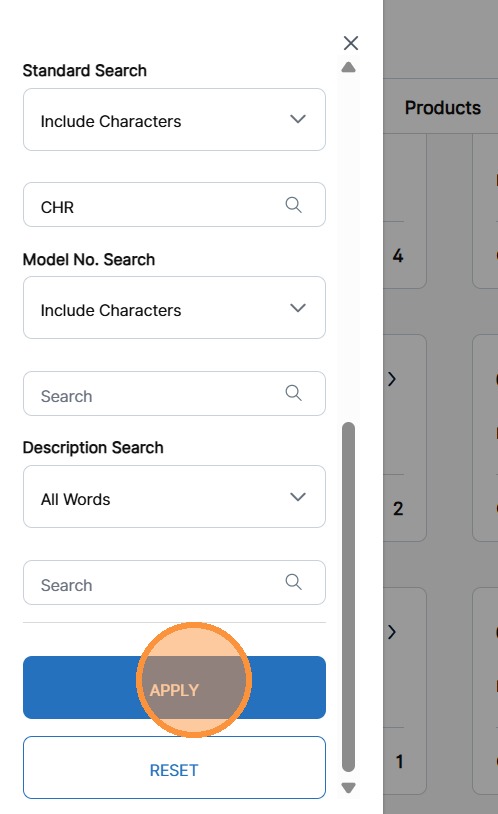
The filtered results display.
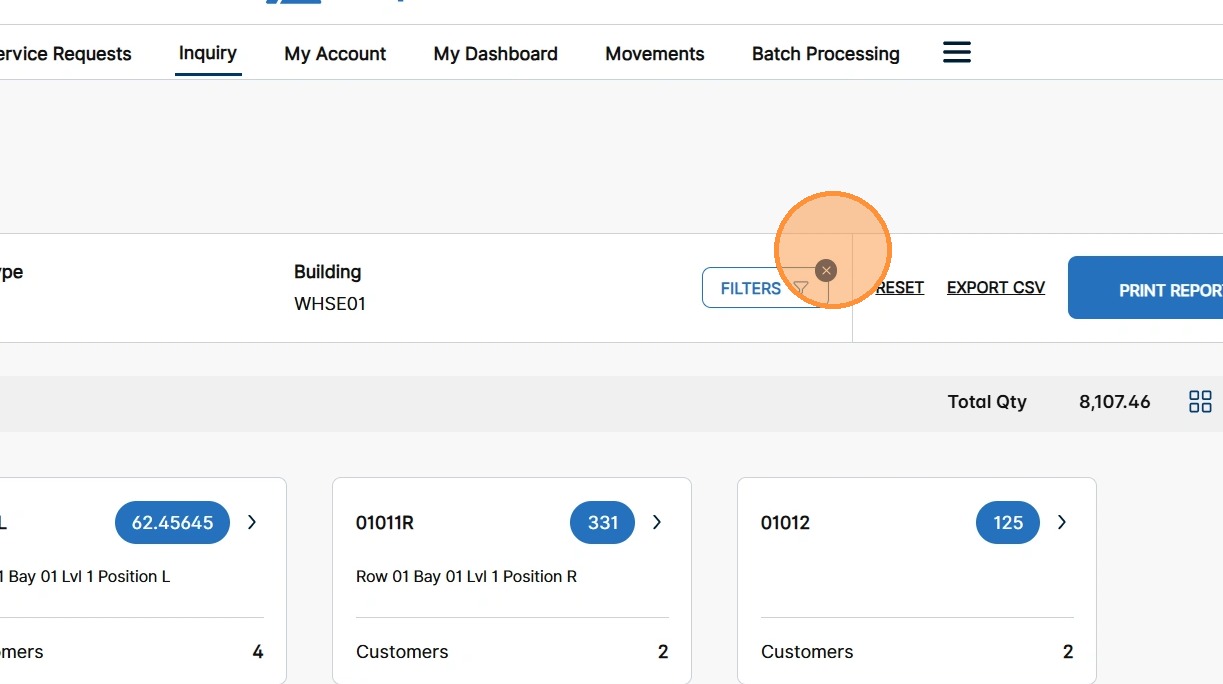
To clear applied filters, click the ‘X’ on Filters, or click Filters to open and re-apply filters.
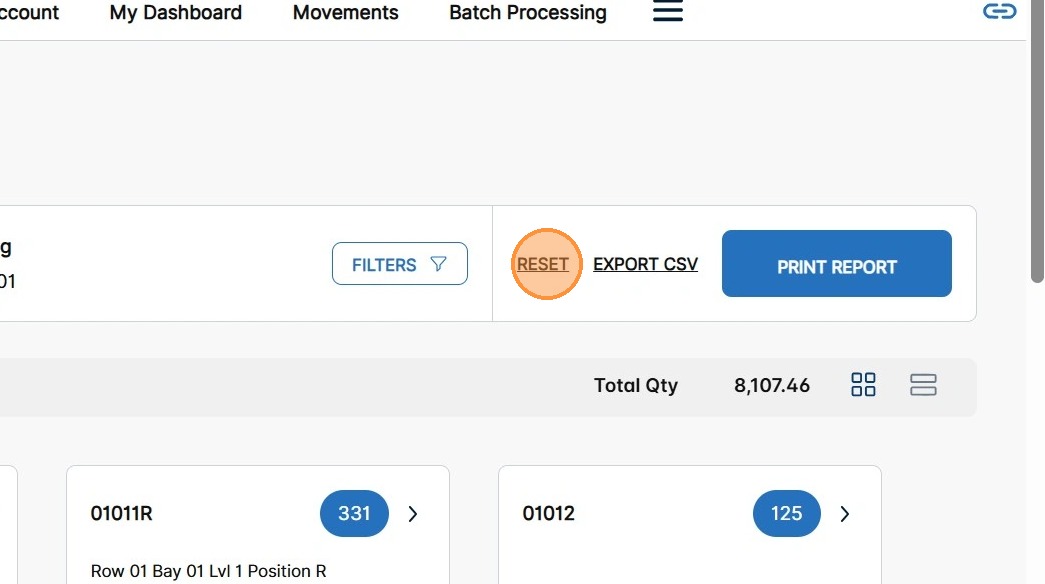
7. To reset the search results and return to the Main Search screen, click Reset.
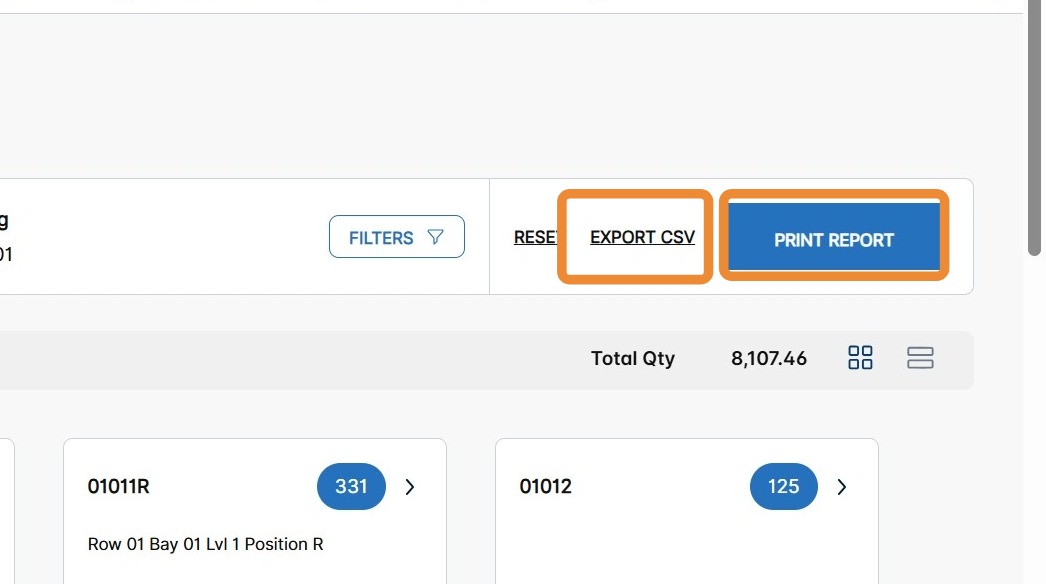
8. To download the Building Overview results, click Export CSV or Print Report.
- Export CSV – Click Export CSV to export the Building Overview results in .csv format.
- Print Report – Click Print Report to print the Building Overview results in .pdf format.
Note: Results are downloaded in View Report format.
To learn more about Location Content, refer to the following:
“How to Use Inquiry – Location Contents – Basic Search.”
“How to Use Inquiry – Location Contents- Advanced Search.”