
How to Search for a Manufacturer
A key field in identifying product in SnapTracker is the manufacturer. Every product created in SnapTracker requires a Manufacturer to be assigned when it is created. The Manufacturer screen enables you to manage the manufacturers used to organize manufacturer catalogs (Catalog IDs) and Standards across your SnapTracker site. Manufacturers are set up once and accessible to all Customers on the site.
The screen is pre-populated with a list of manufacturers when you begin using SnapTracker. Corresponding manufacturer catalogs (Catalog IDs) also exist in the SnapTracker database.
The Manufacturer screen enables you to conduct a search through all existing manufacturers to view details and last update dates. You may create new manufacturers, or make edits to the existing manufacturers. You can also delete a manufacturer in the screen if desired. Note: A manufacturer can only be deleted if there are no Catalog IDs assigned to it.
Before starting, make sure:
- You are logged into SnapTracker.
- You have access to Manufacturer Setup.
This post outlines how to conduct a search for manufacturers on your SnapTracker site.
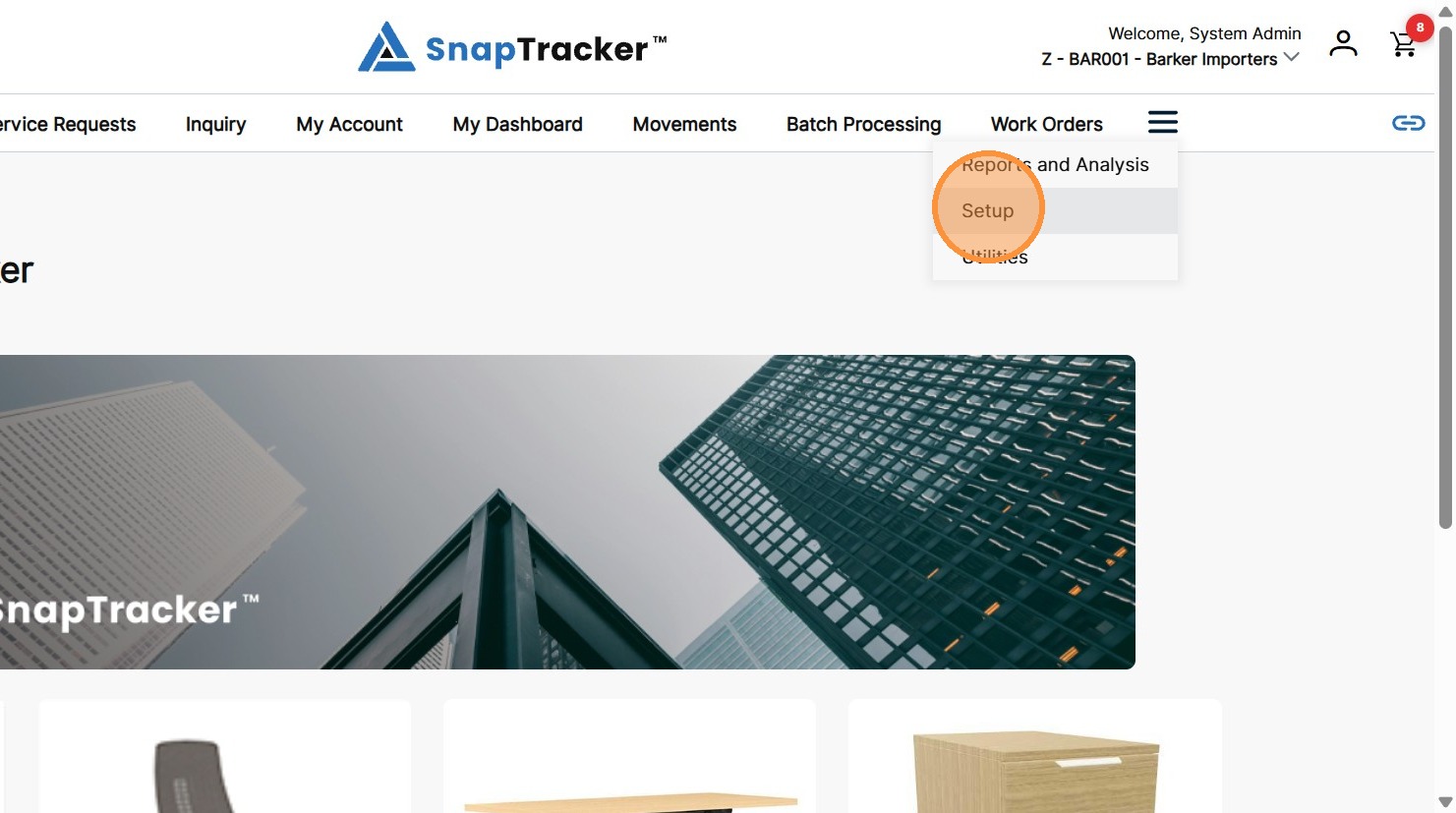
1. In the header section, click Setup.
Note: Depending on your browser, you may need to click the View menu items icon to see Setup.
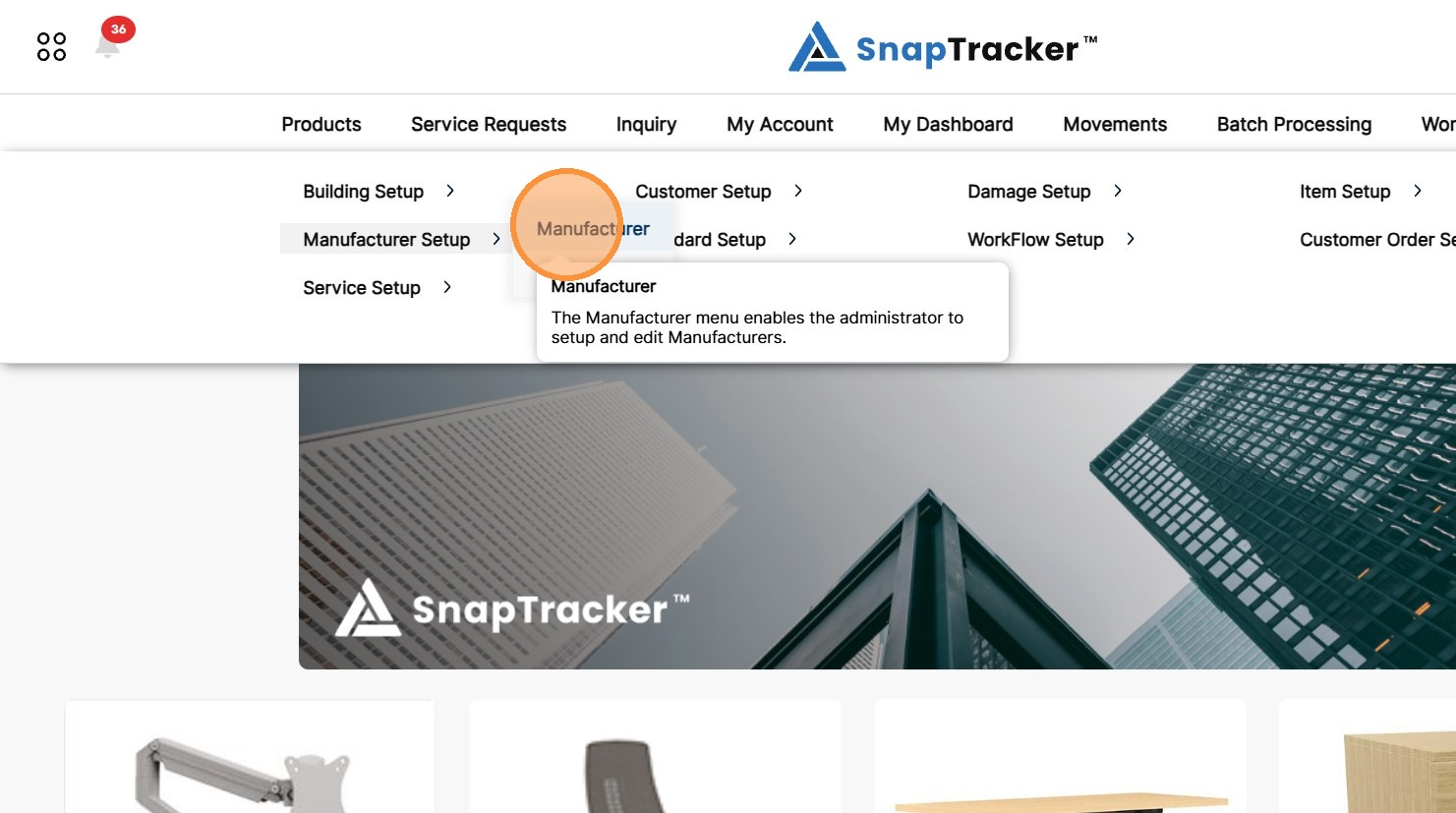
2. Click the arrow beside Manufacturer Setup, then click Manufacturer.
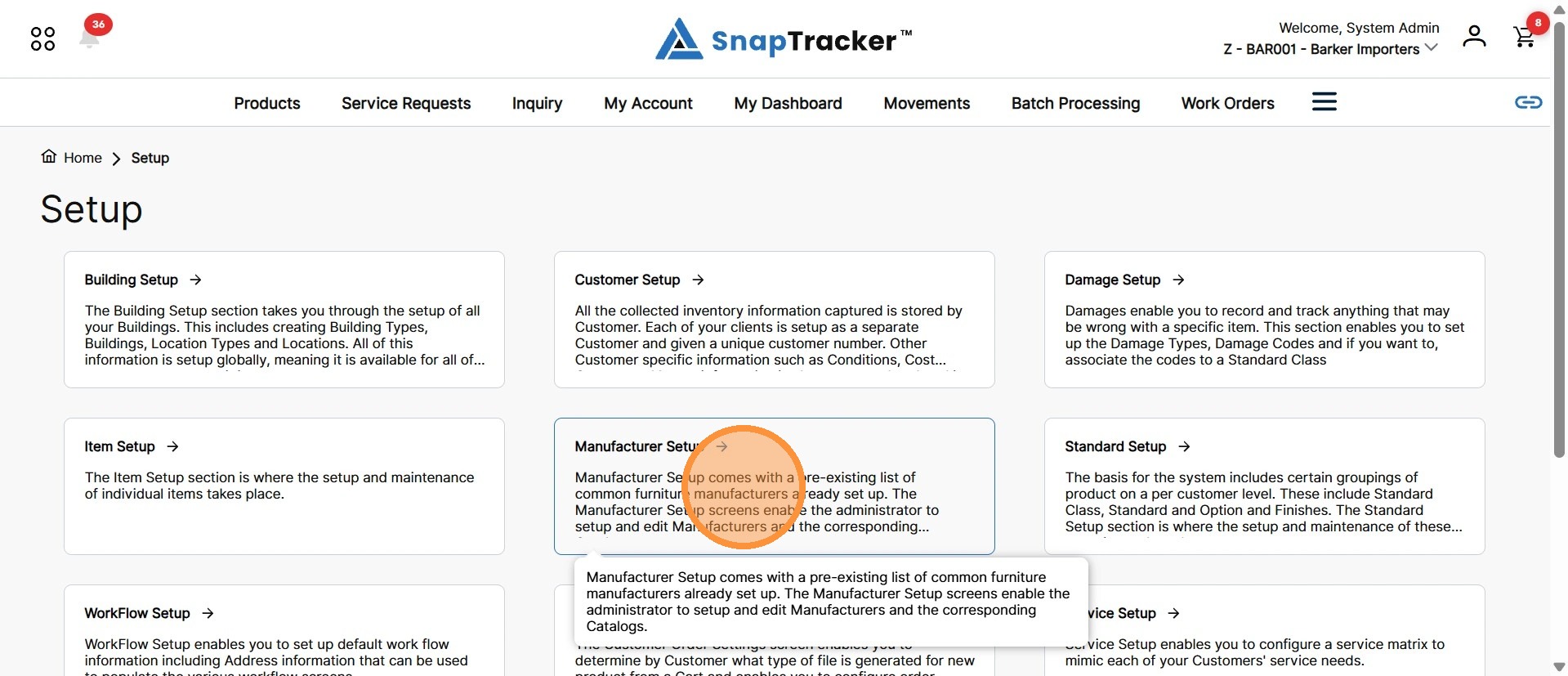
Another way to access the Manufacturer screen is to navigate to the Setup main screen.
From here, select Manufacturer Setup.
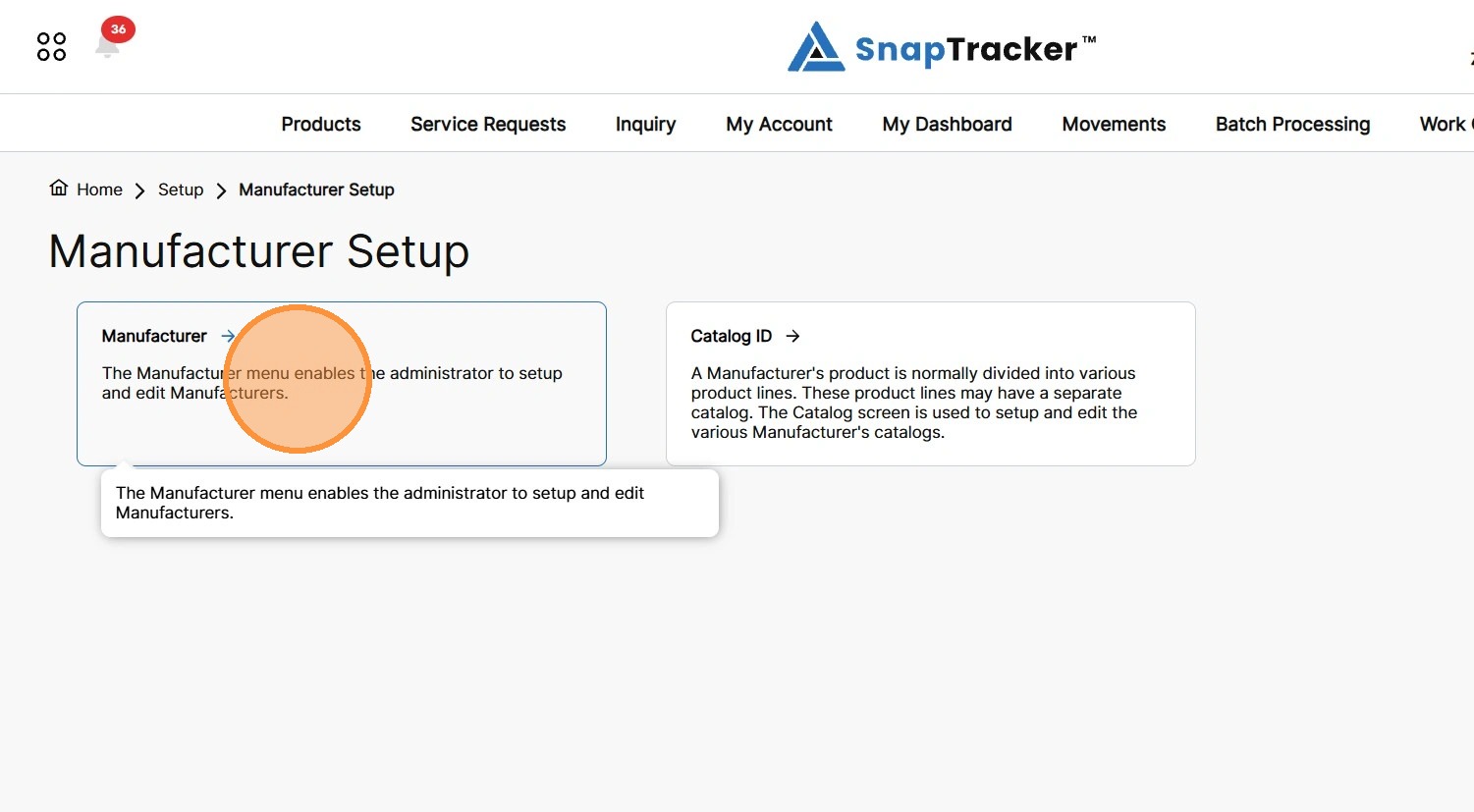
The Manufacturer Setup screen displays.
From here, select Manufacturer.
The Manufacturer screen displays, with all results.
Note: By default, the results display according to the default filters.
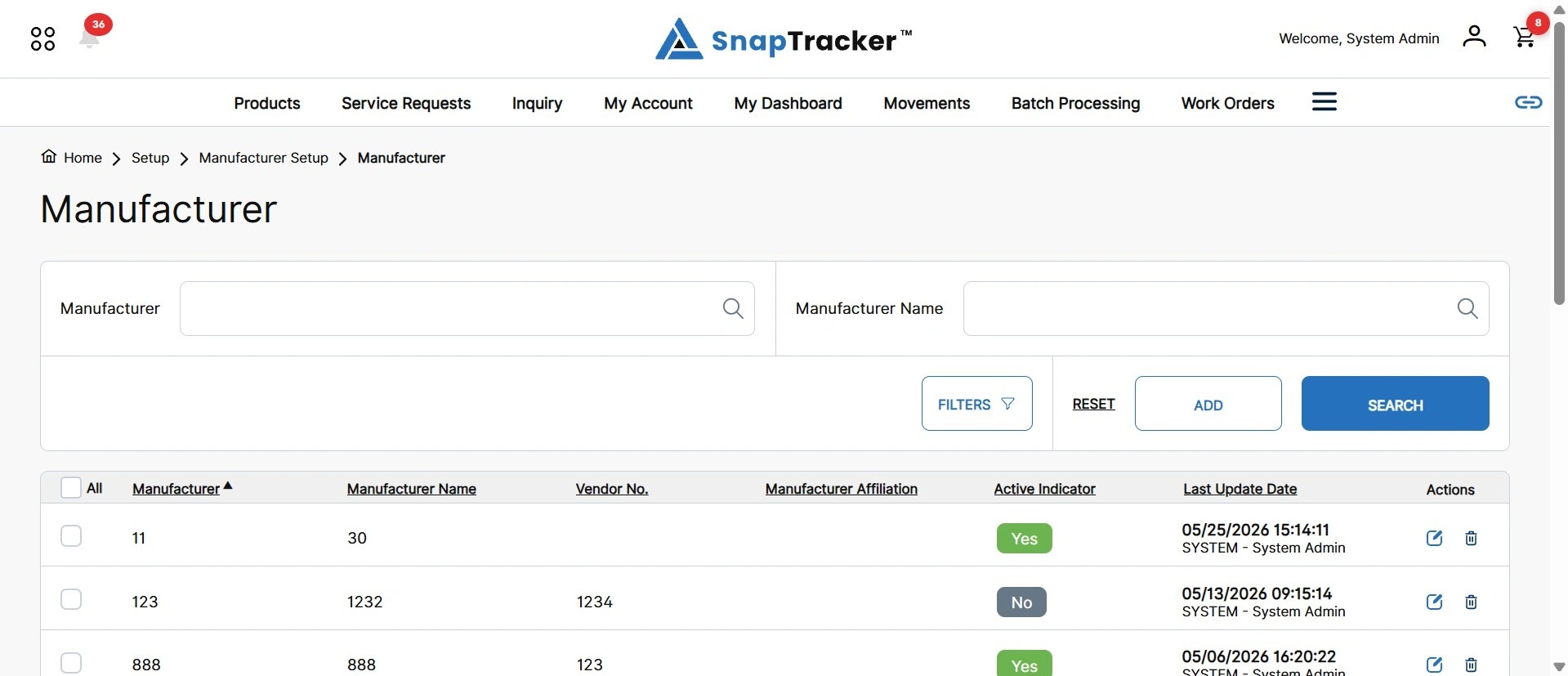
Observe the fields in the results:
- All – Select the checkbox of the desired manufacturer(s), or select All, to complete a bulk action.
- Manufacturer – The manufacturer code.
- Manufacturer Name – The manufacturer’s name.
- Vendor No. – The vendor number associated to the manufacturer, if applicable.
- Manufacturer Affiliation – The group the manufacturer is affiliated with, if applicable.
- Active Indicator – Indicates whether or not the manufacturer is active for use.
- Last Update Date – The last date any changes were made to the manufacturer and the User that completed the update.
- Actions – Available actions for an existing manufacturer. The options are Edit or Delete.
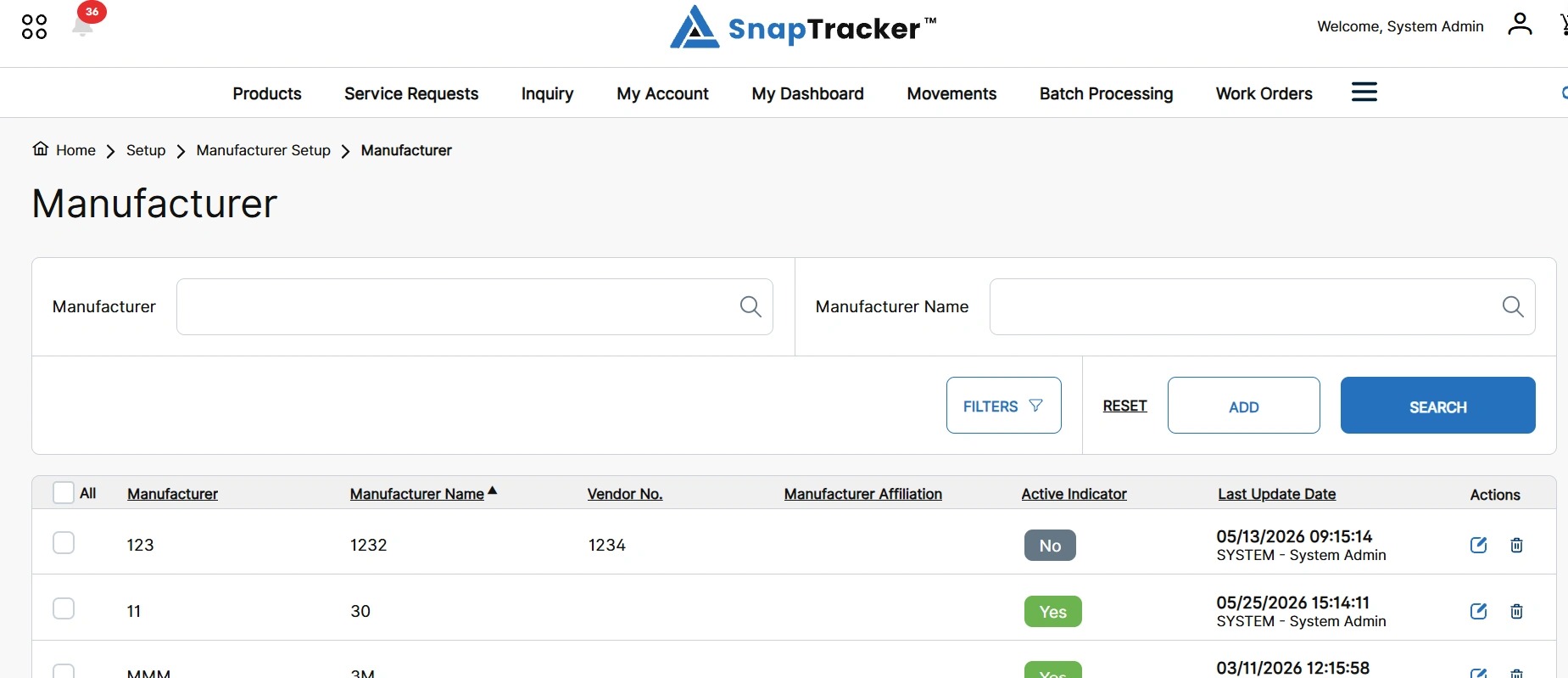
3. To sort the results by a particular field, click the hyperlinked column header.
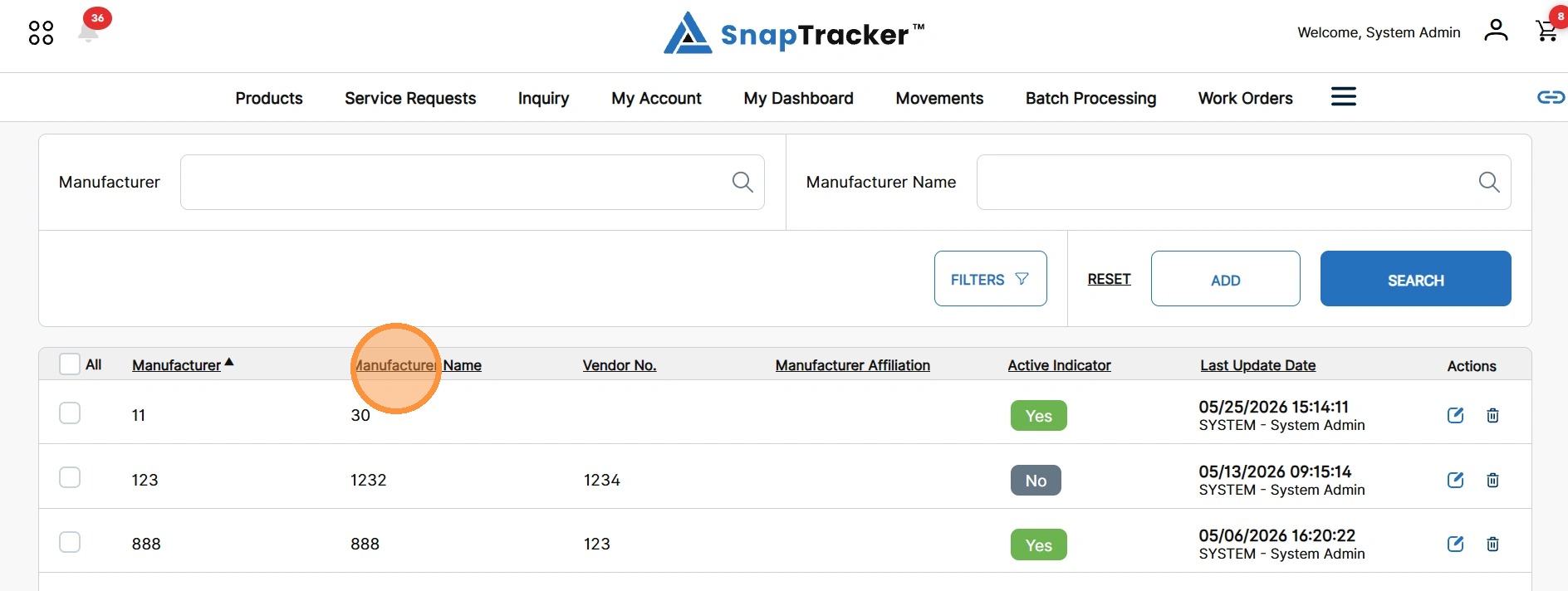
The results update and sort by the selected column.
There are two ways to conducts a search for manufacturers:
- Manufacturer – The manufacturer code.
- Manufacturer Name – The manufacturer name.
4. In the Manufacturer or Manufacturer Name field, enter a desired manufacturer.
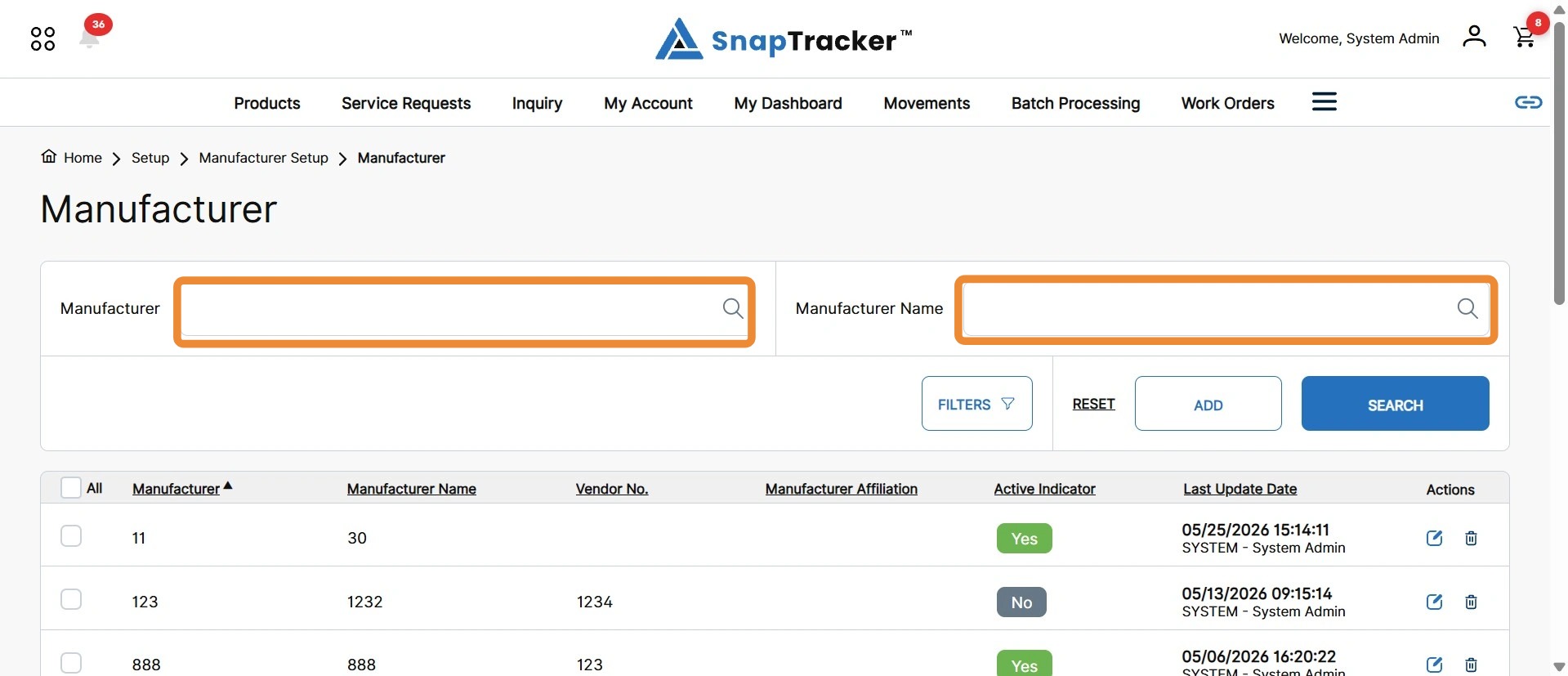
An auto-populated suggestions list displays.
Note: Click X to quickly clear the input field.
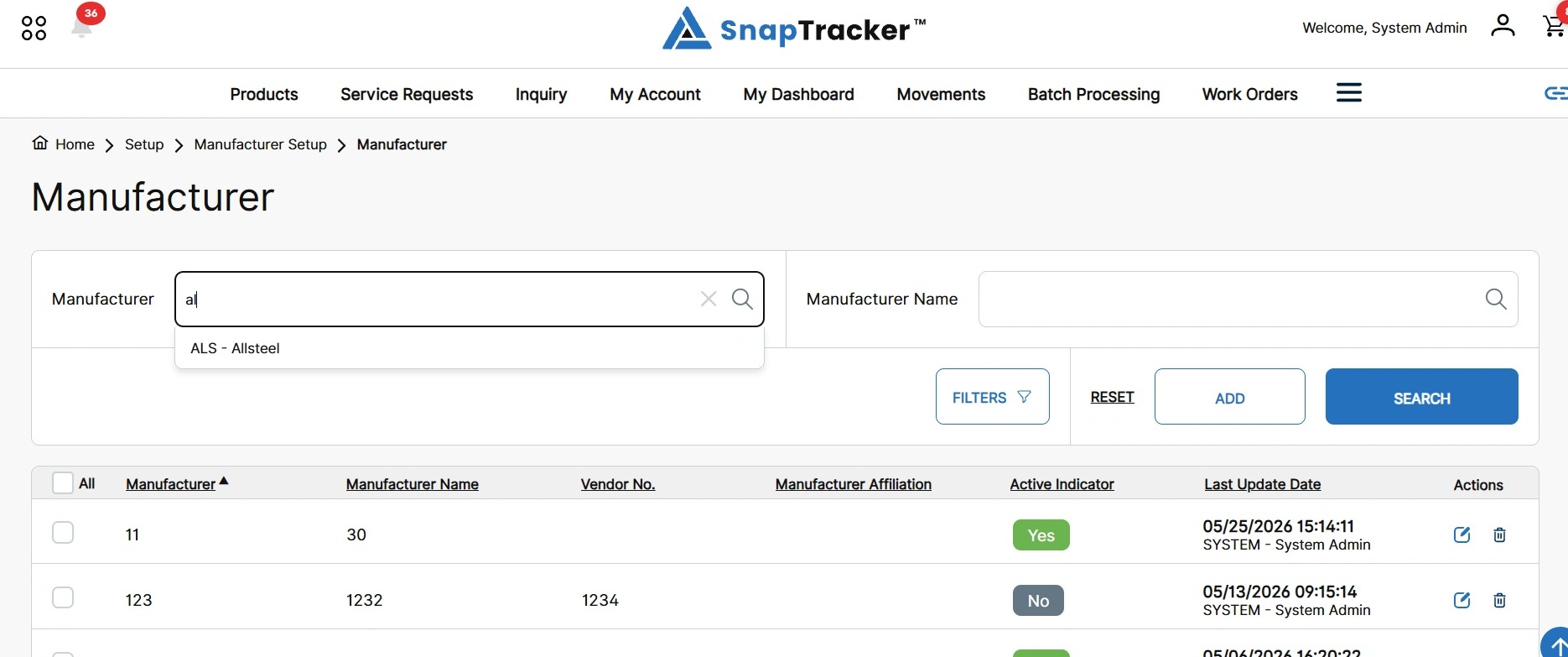
5. Click a specific suggested manufacturer, or click Search.
Note: You may also click the magnifying icon in the search field to conduct the search.
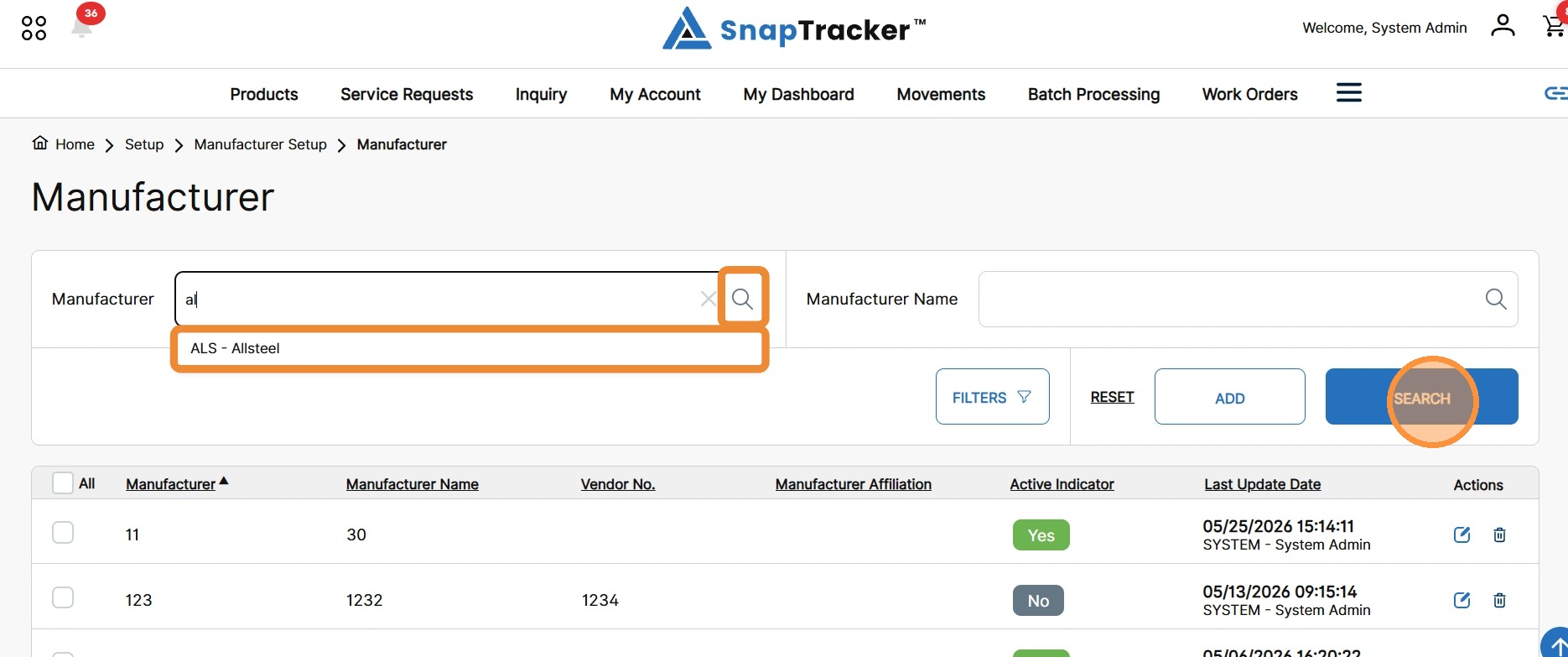
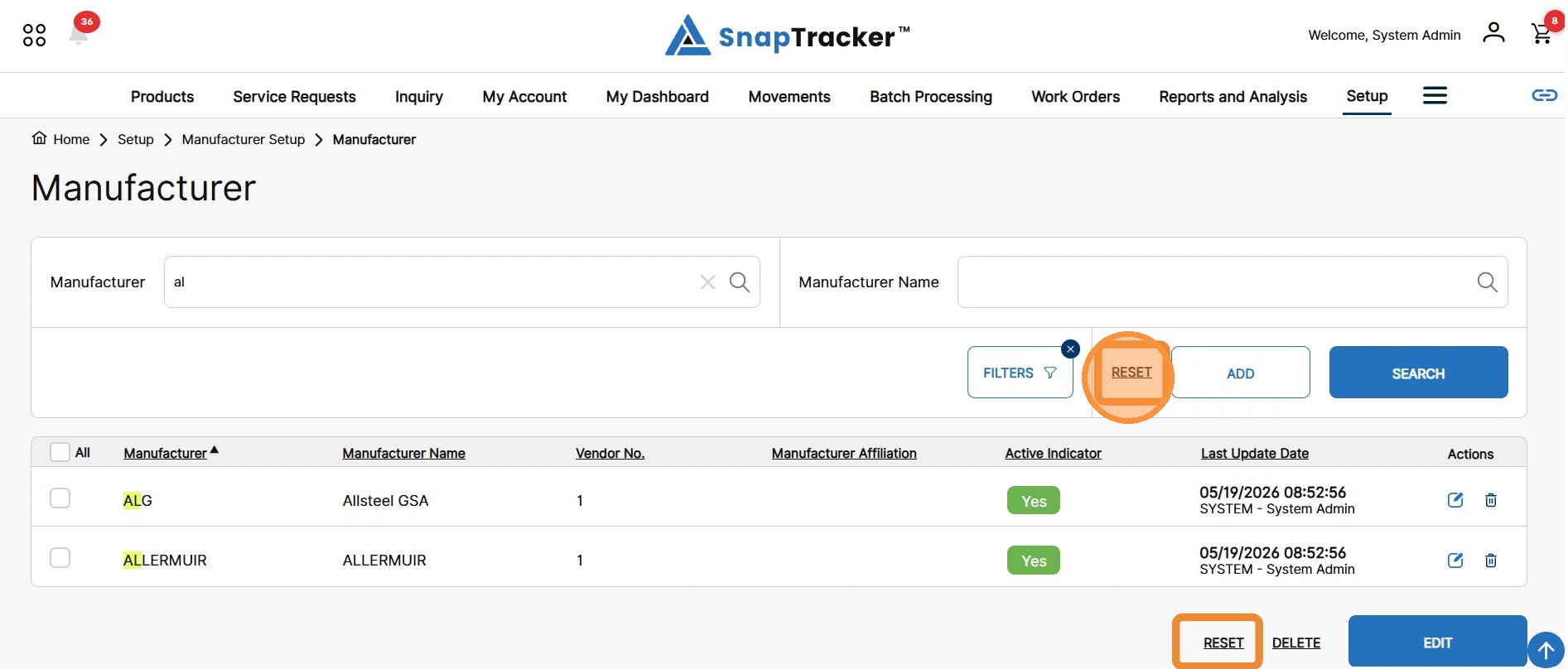
The updated results display, with your search term highlighted in the matching results.
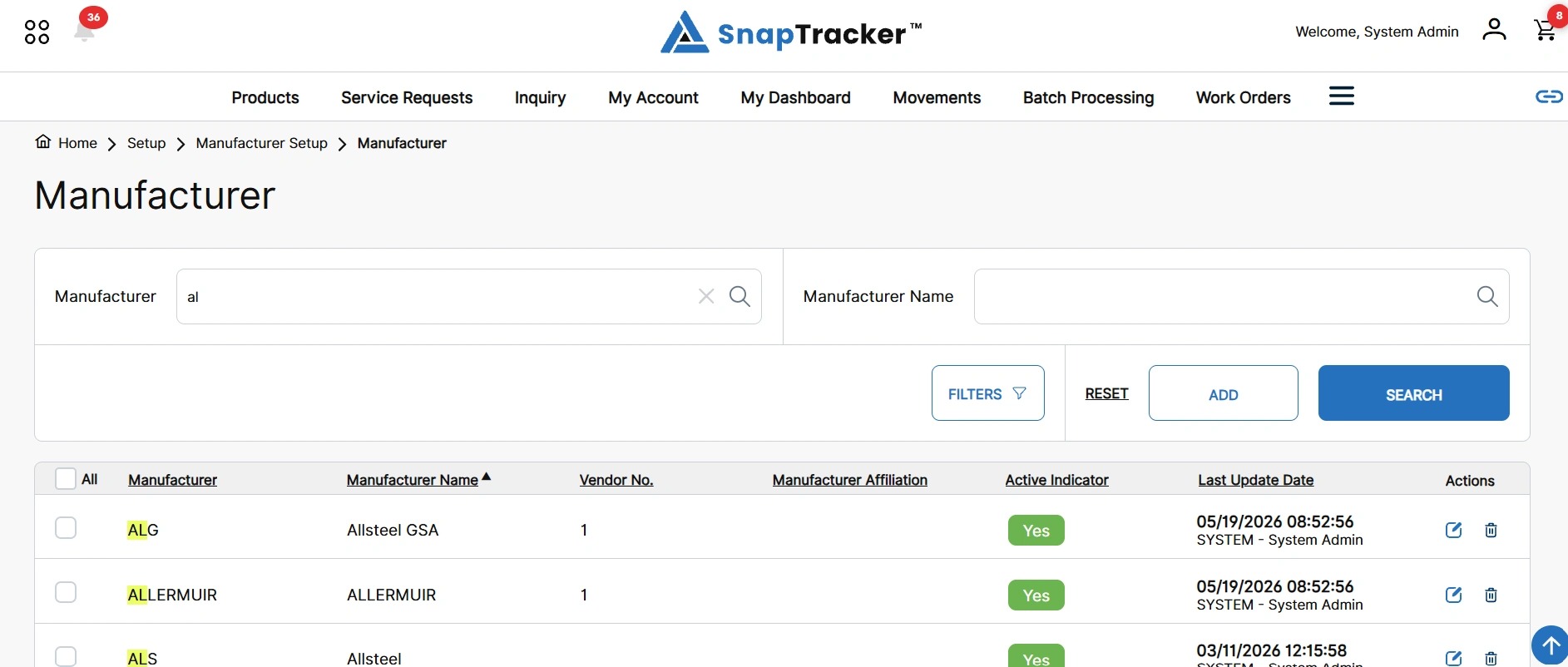
6. To apply additional filters, click the Filters button.
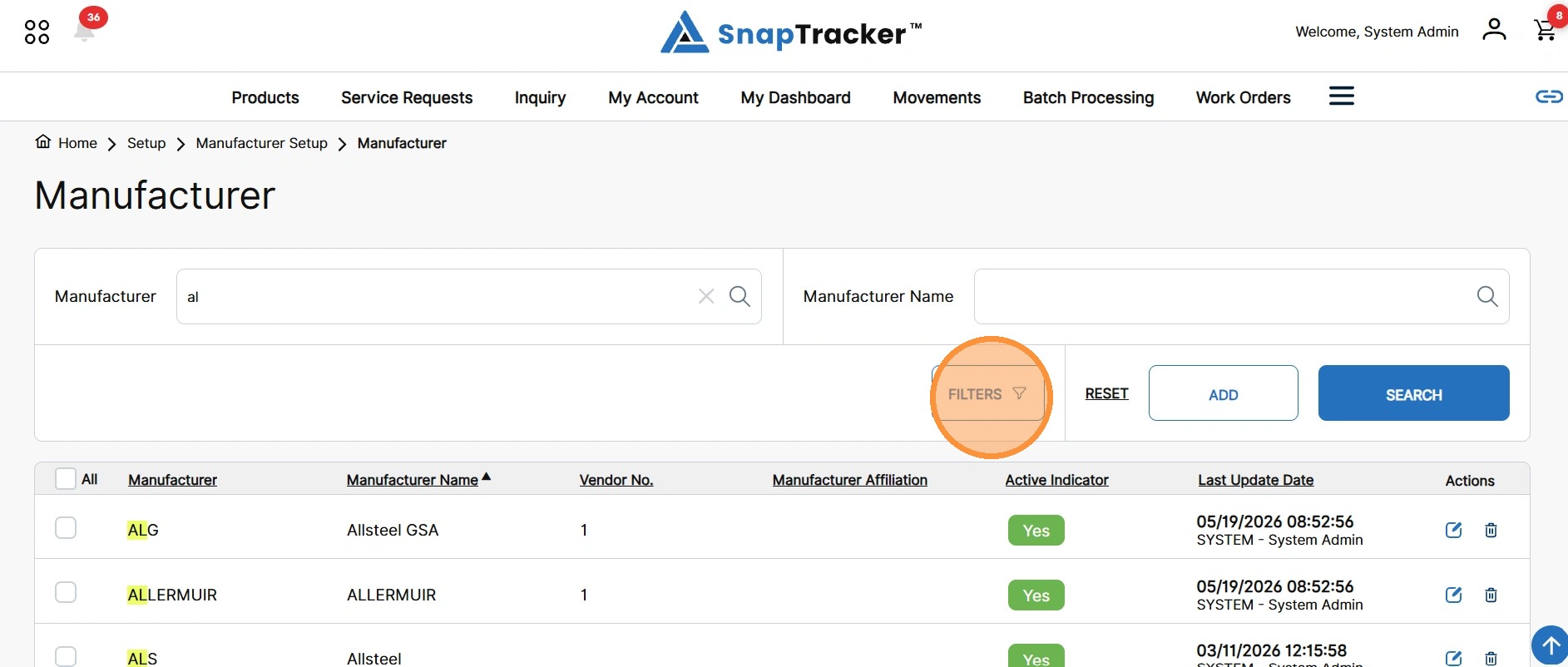
The Filters side panel displays.
Note: The image below is split in 2 in order to show all options.
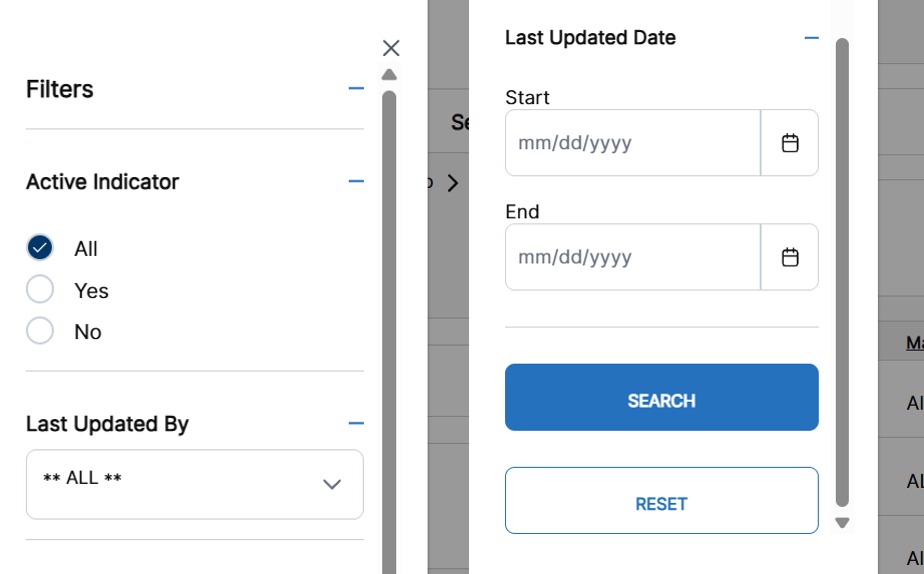
Observe the filter options:
- Active Indicator – Select the status of Yes or No, or all status options of the Active Indicator.
- Last Update By – Select one, multiple, or all Users who have made the last update on a manufacturer.
- Last Update Date – Select the date range for manufacturer’s Last Update Dates.
7. Populate the desired filters and click Search.
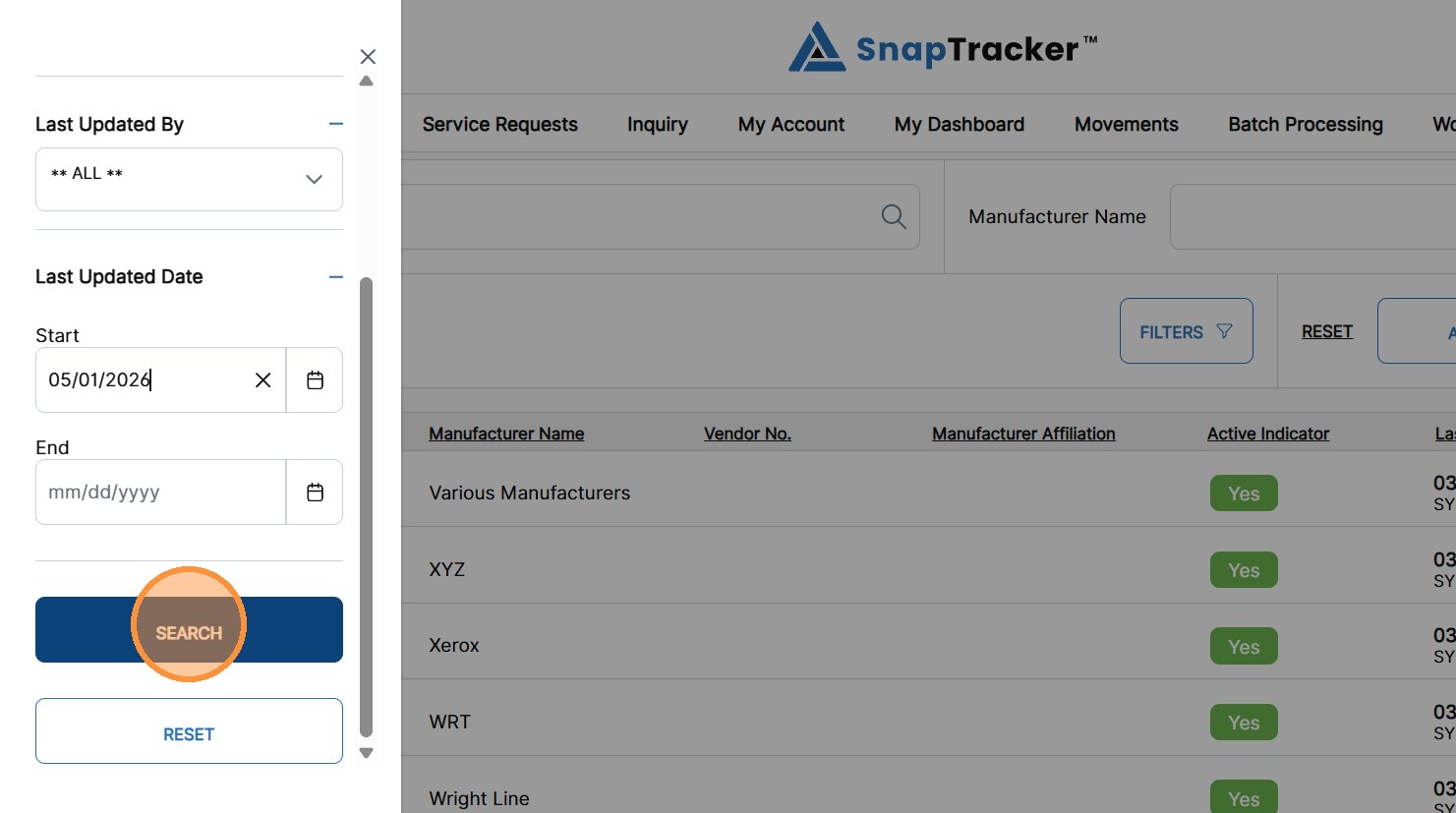
The filtered results display.
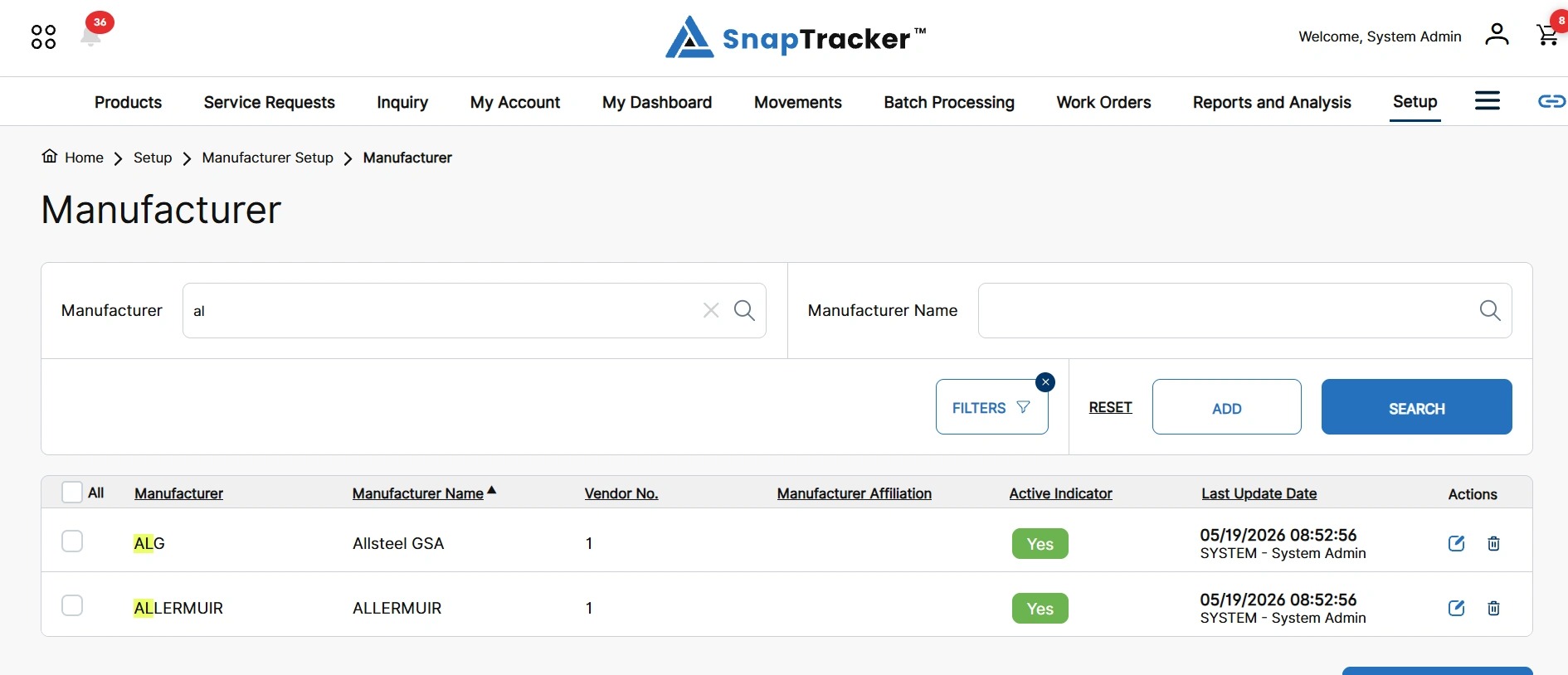
8. To reset the Filters only, click the X icon on the Filters button.
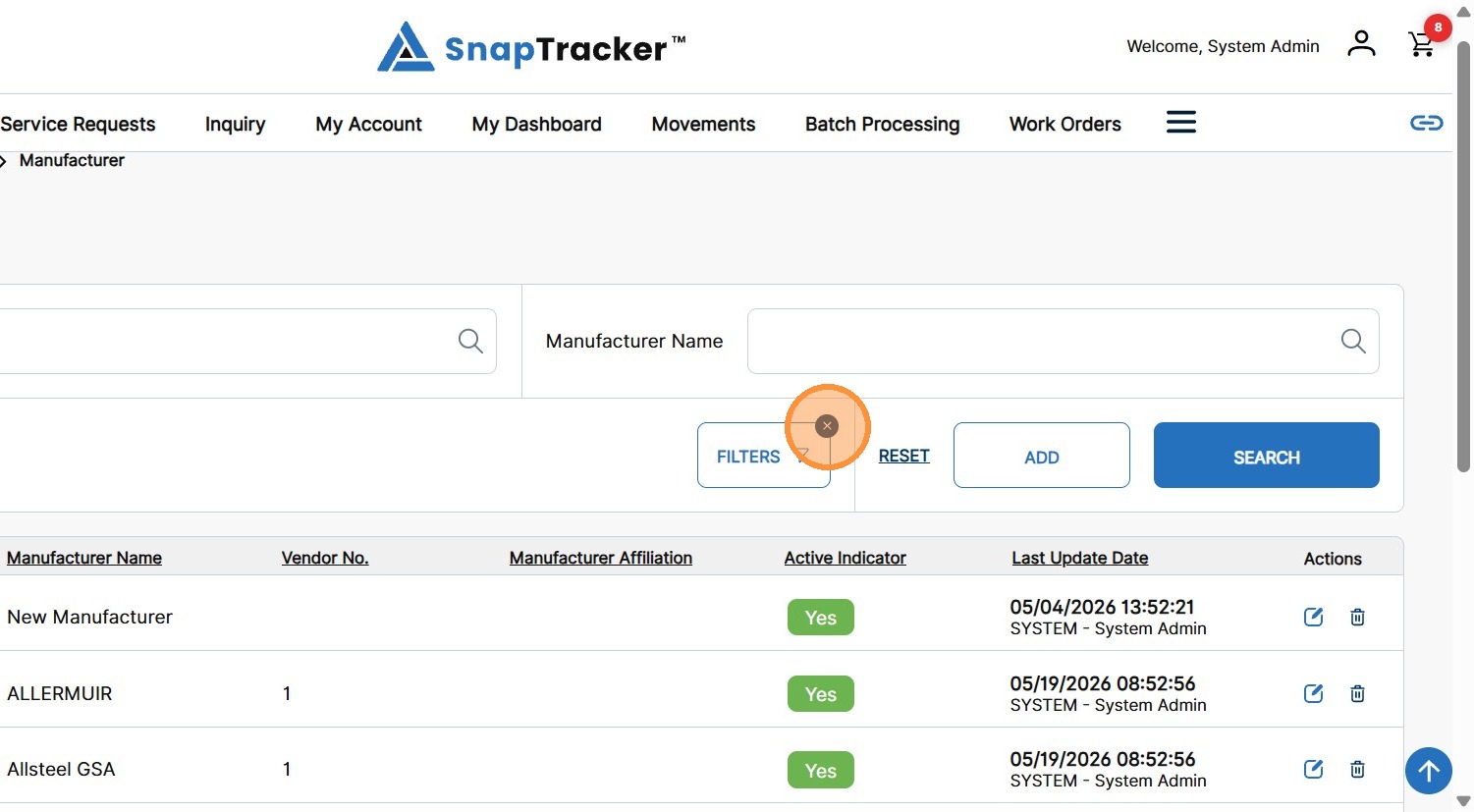
9. To reset all filters and any search inputs, click Reset.
For more information on how to add, edit, and delete a manufacturer, see “How to Create, Edit, and Delete Manufacturers.”