How To Change Your Password When Logged In To SnapTracker
Password updates can be completed within the SnapTracker site as long as you have your login username and password.
Before starting, ensure you are logged in to the SnapTracker site.
This post outlines steps to change your password with your current login credentials.
1. In the header section, click the Profile icon.
The User Profile dropdown menu displays.
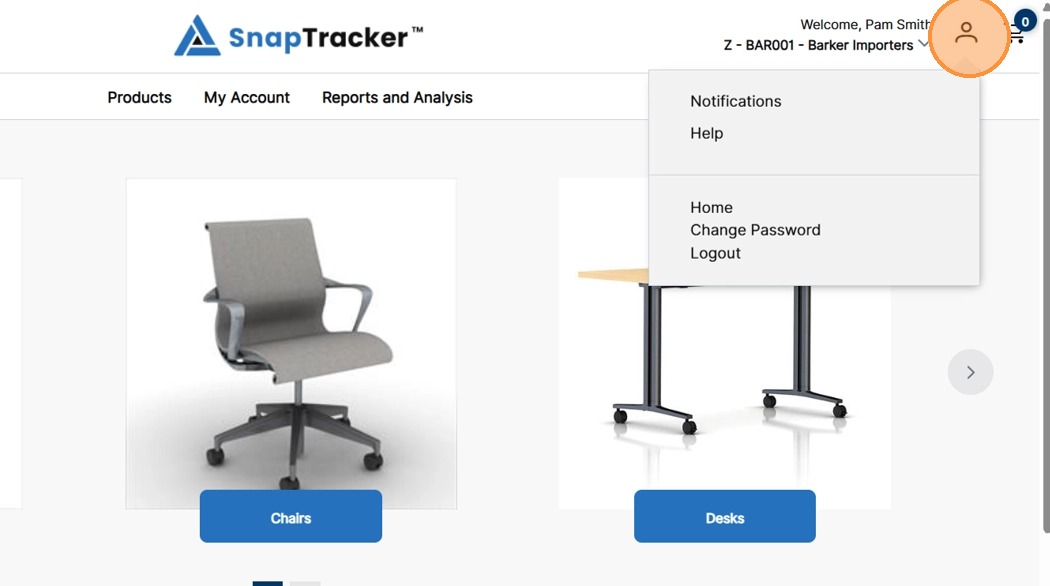
2. Click Change Password.
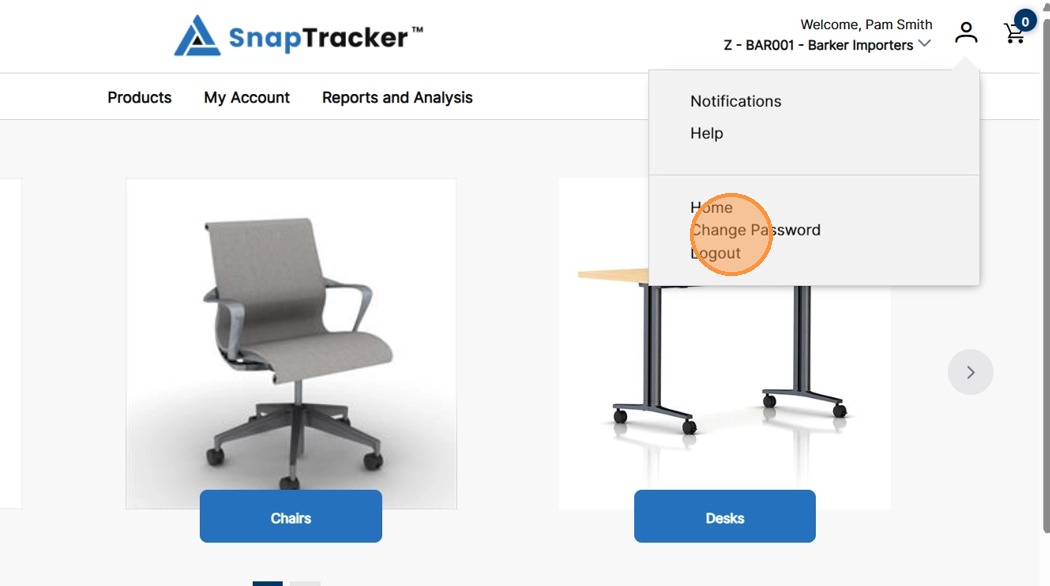
The Change Password screen displays.
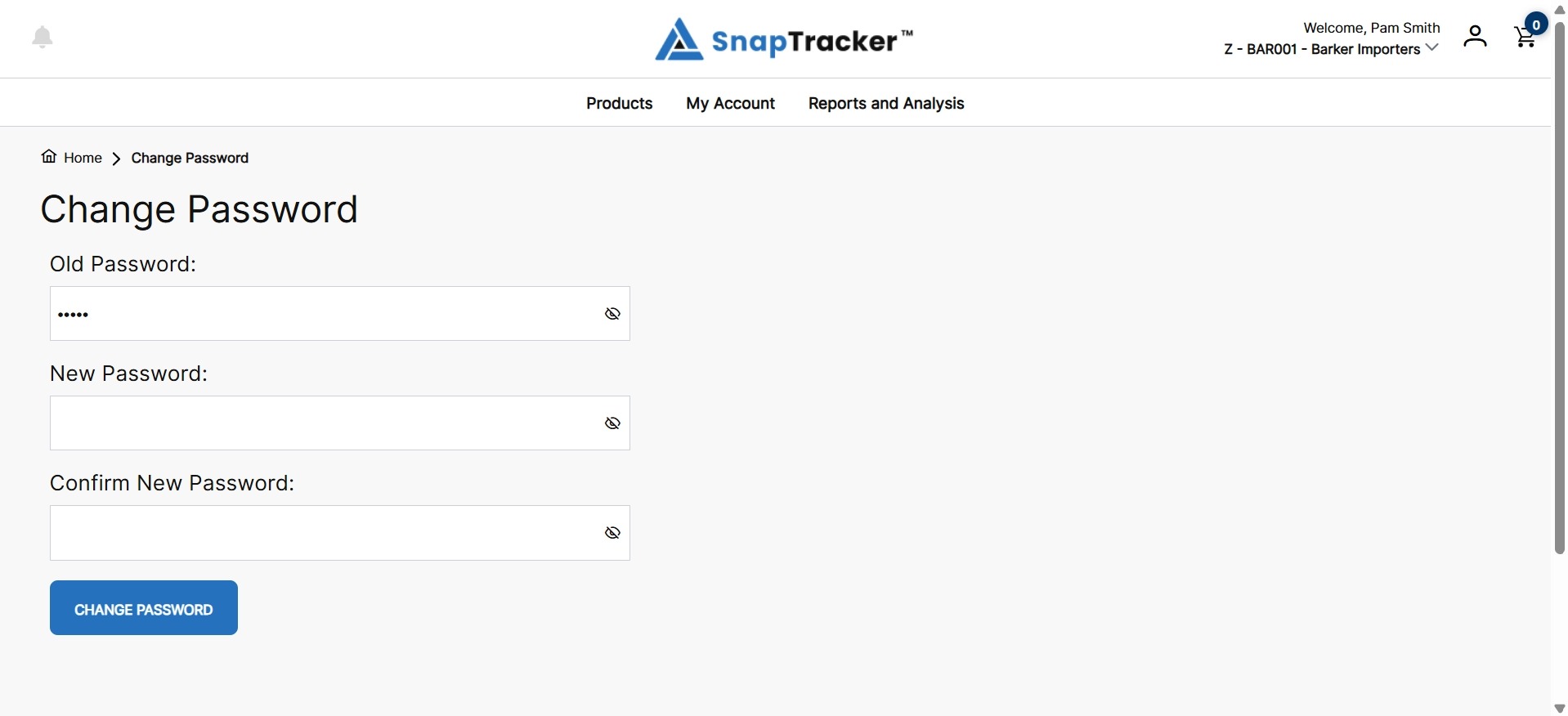
3. In the Old Password field, type your existing password.
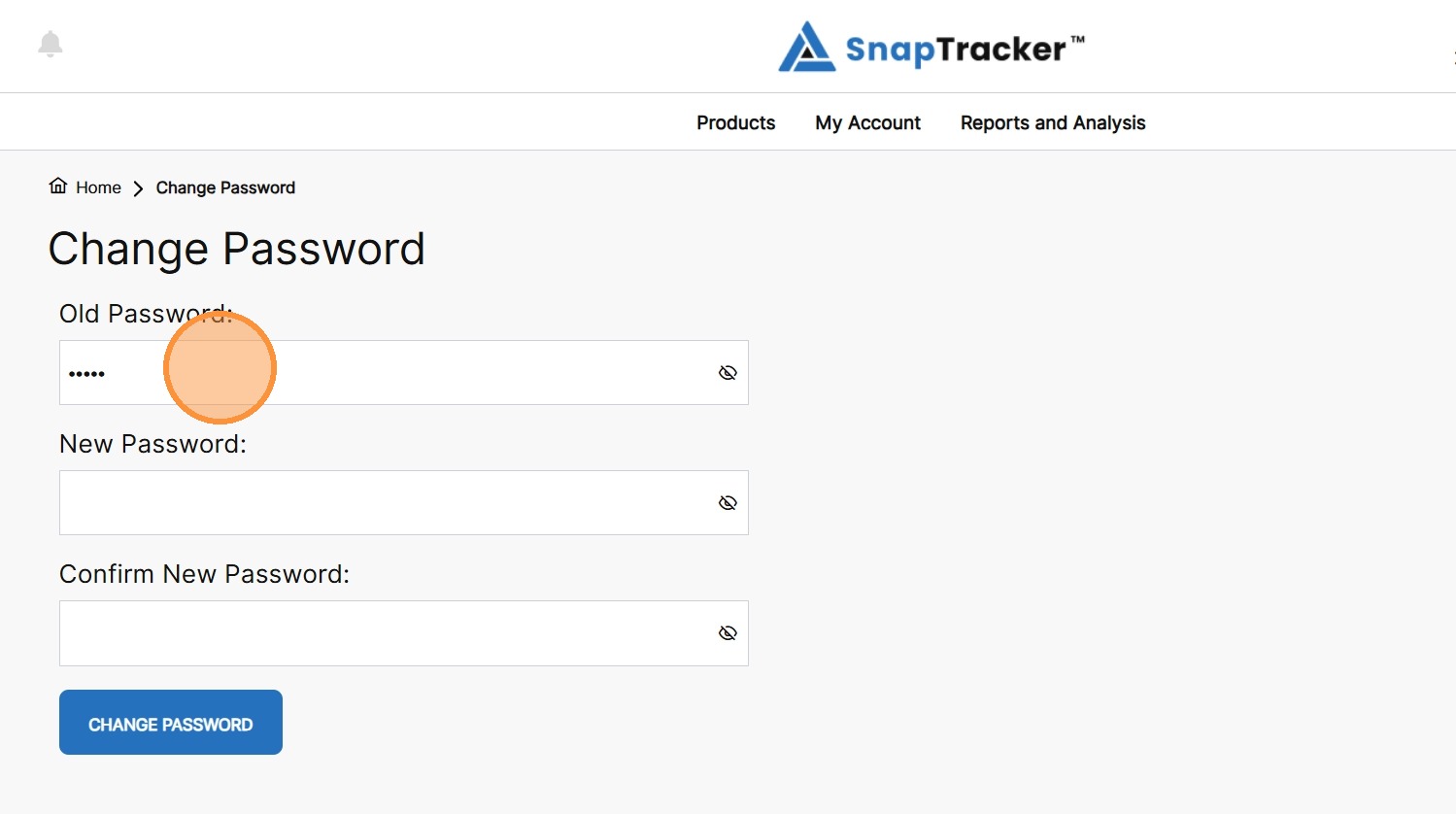
4. In the New Password field, type a new password.
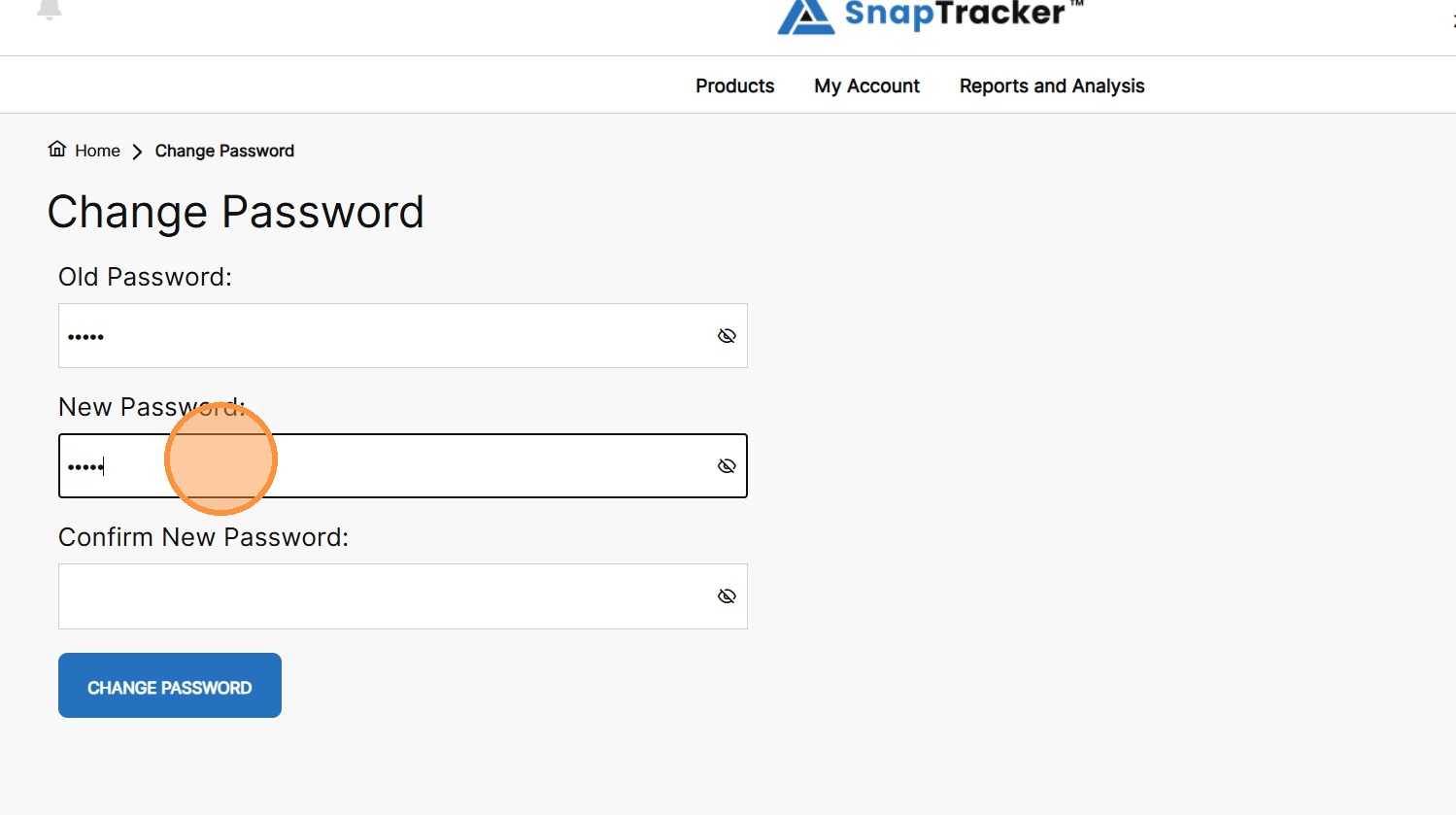
5. In the Confirm New Password field, re-type the new password.
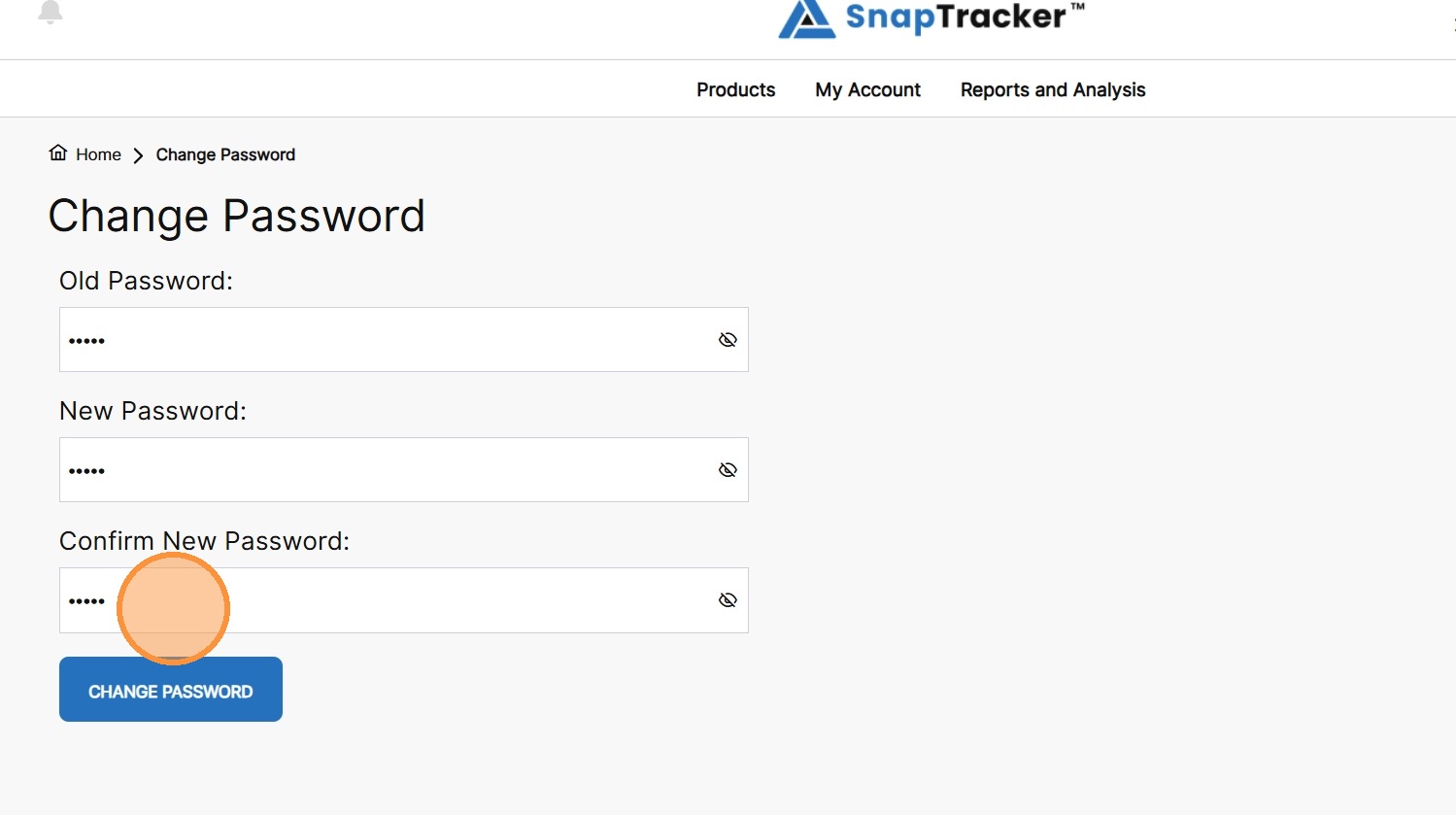
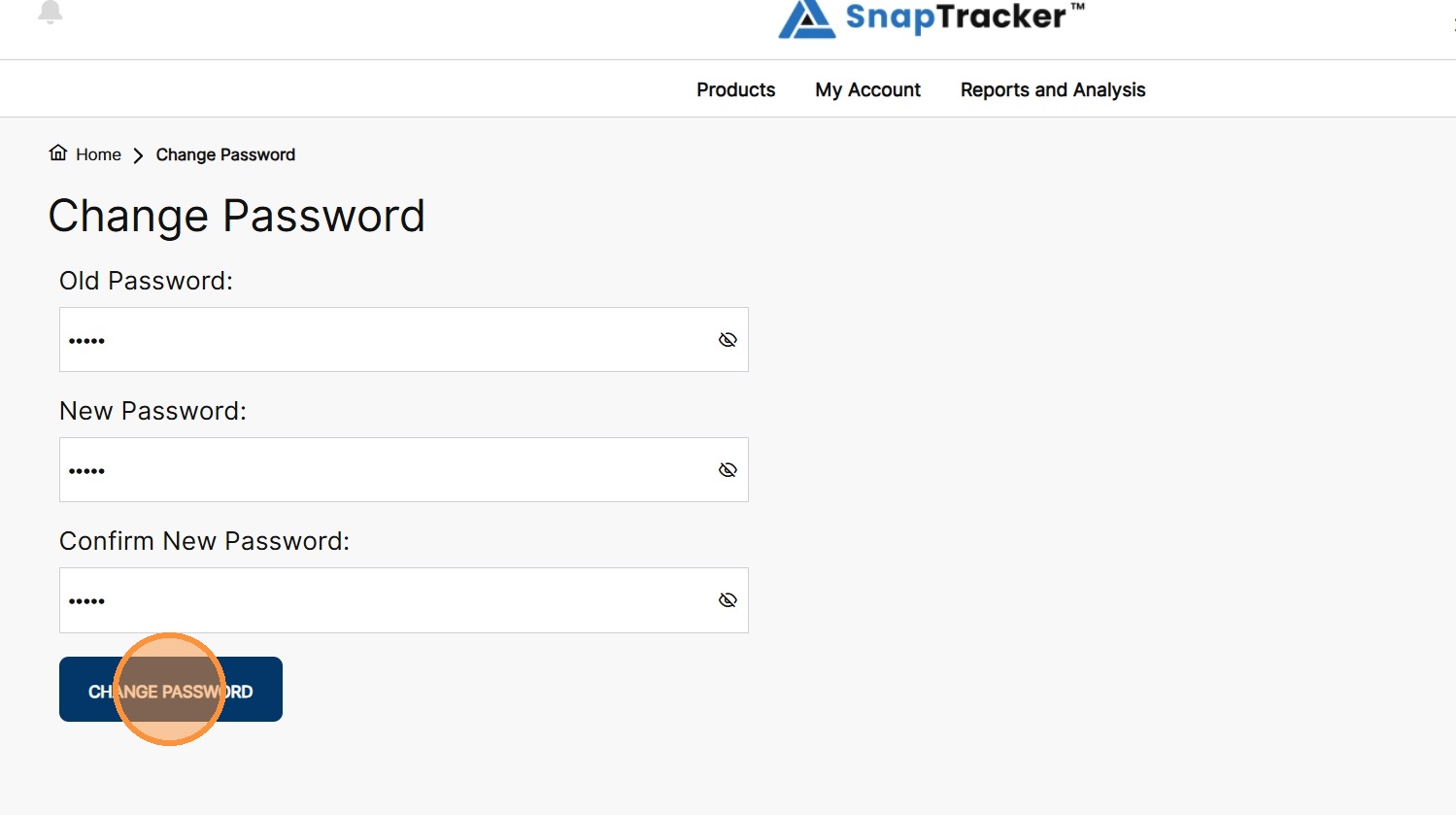
6. Click CHANGE PASSWORD.
Your password is updated.