How to Create a Quick Link
Quick links can be added below your Main Menus bar to give you quick, front and center access to high use screens on your SnapTracker site. Quick Links can be created from any Custom Menu, whether that’s an existing screen within your site or additional content such as a link to the service provider’s corporate website.
A Quick Link is a User specific setup to customize a user’s experience. Access to the specific Custom Menu first needs to be assigned at the User level.
Before starting, make sure:
- You are logged in to SnapTracker.
- You have Menu Access to Custom Menu.
- You have at minimum one Custom Menu created.
This post outlines how to Create a Quick Link from a Custom Menu for a User.
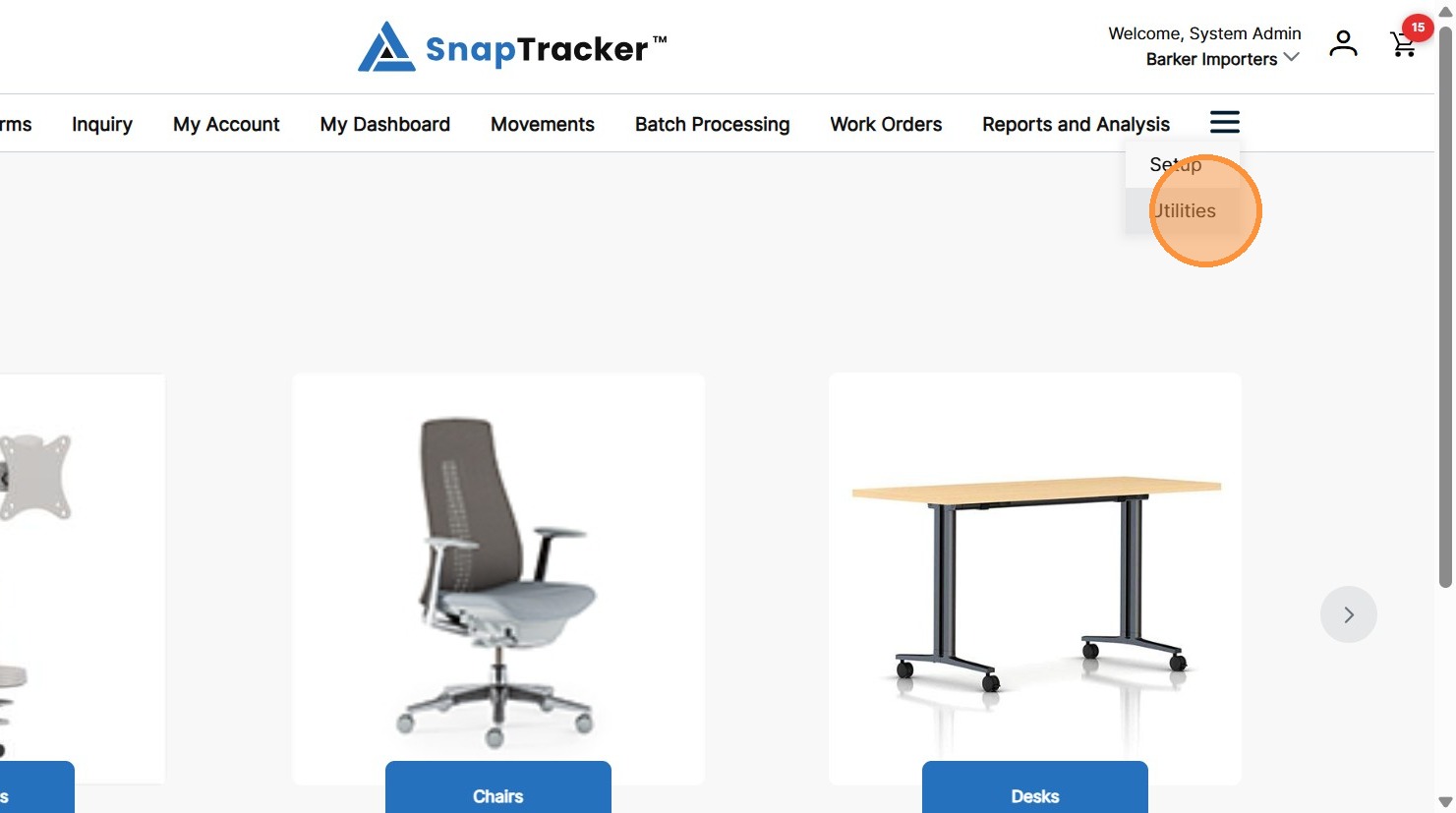
1. In the header, click Utilities.
2. Click the arrow beside User Setup, then click Custom Menu.
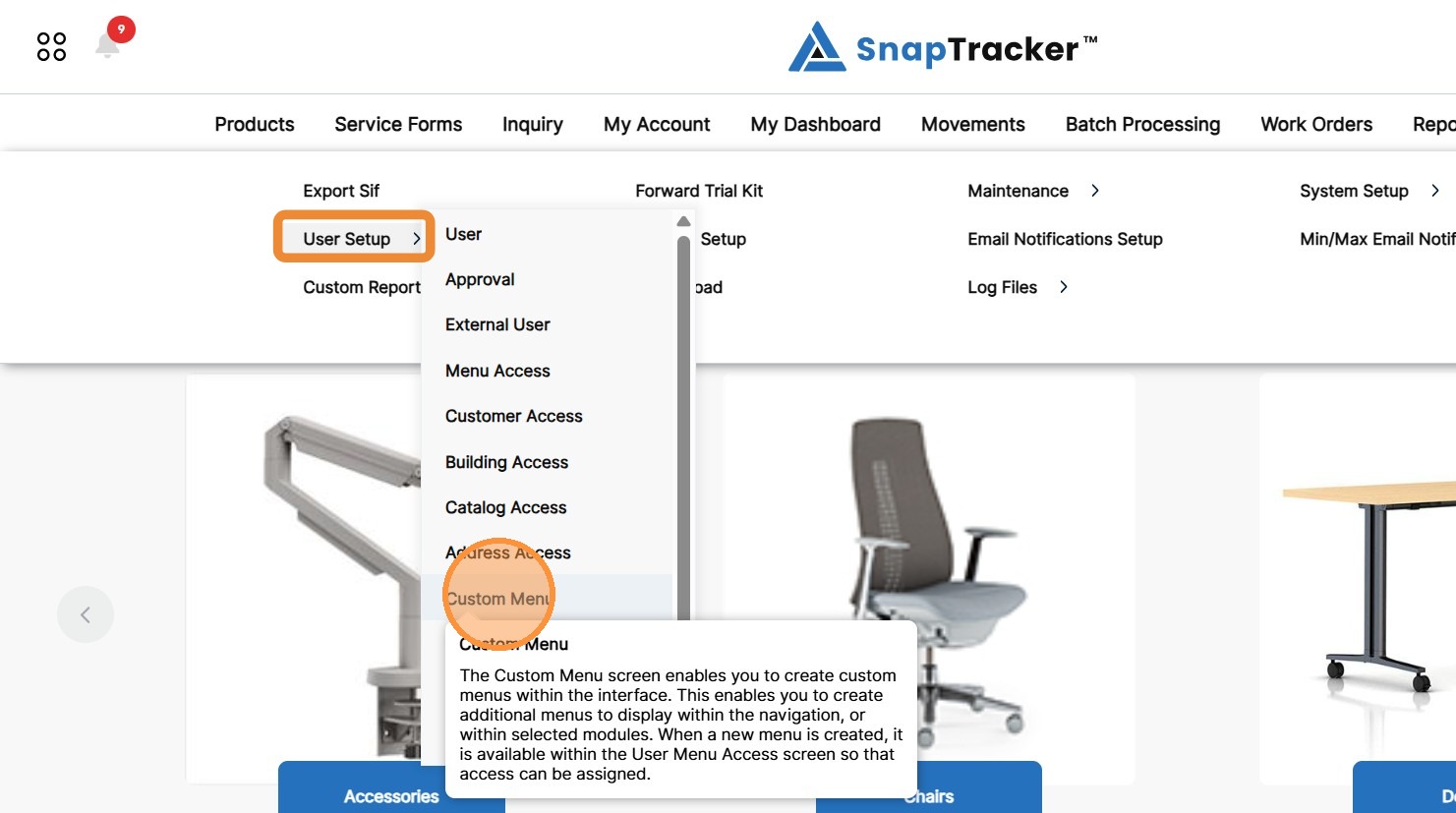
Another way to access the Custom Menu screen is to click Utilities>User Setup.
The different User Setup screens display. From here select Custom Menu.
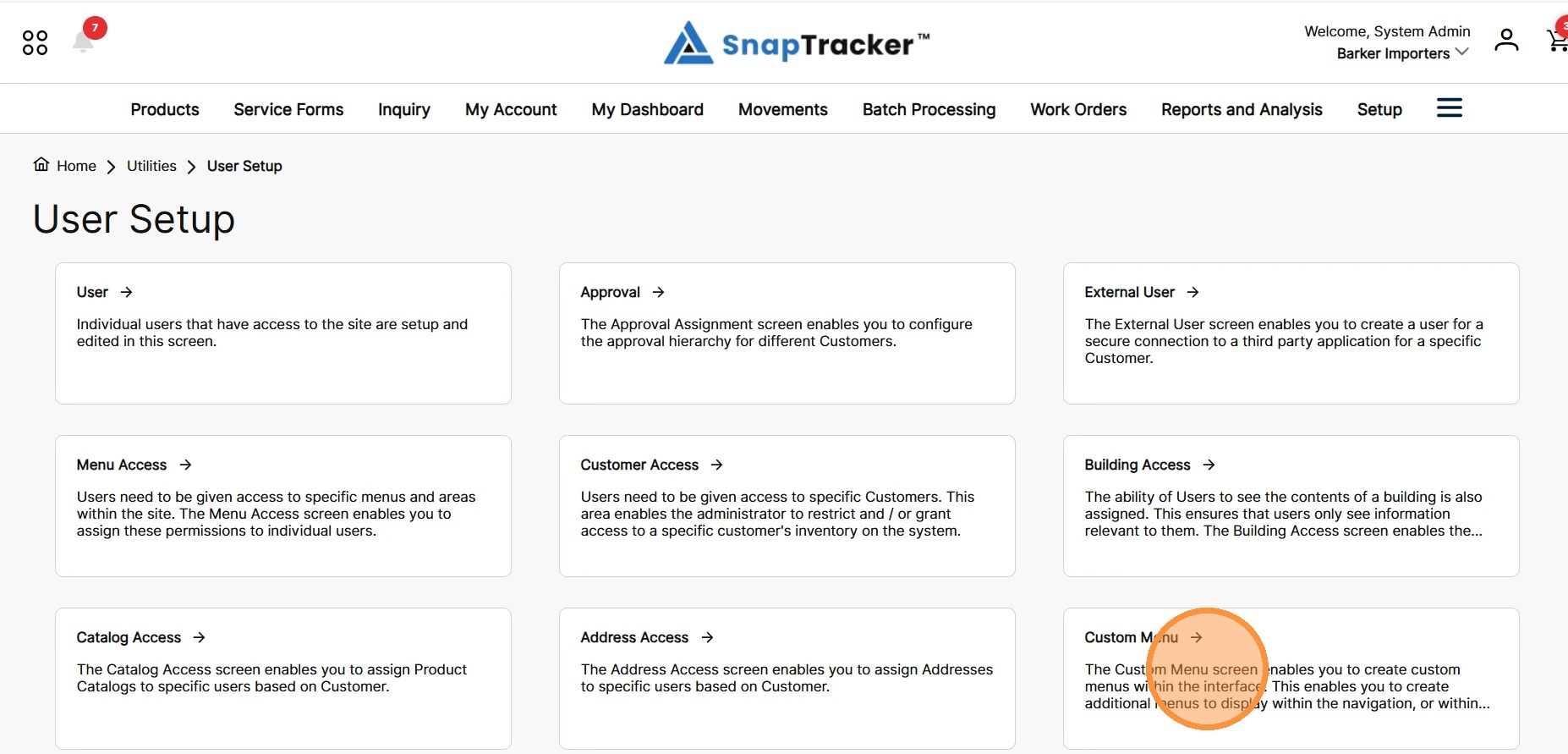
The Custom Menu screen displays.
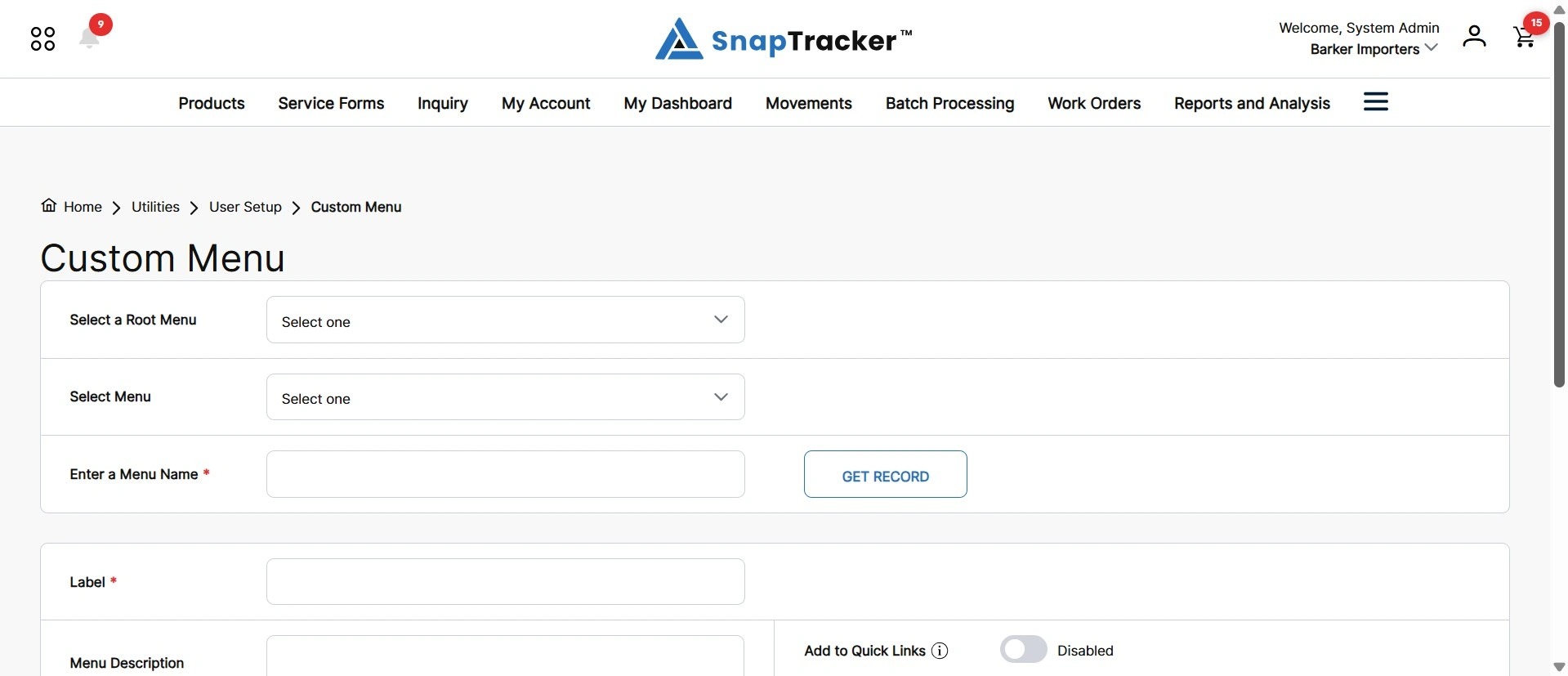
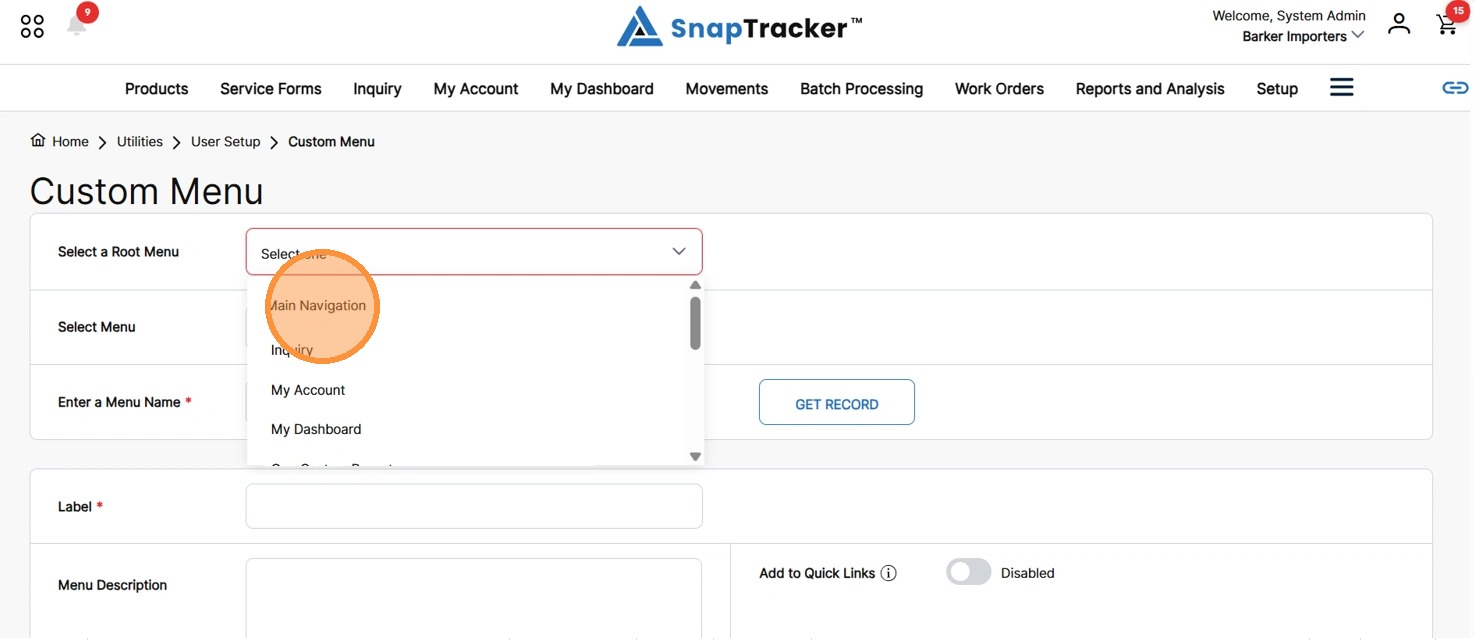
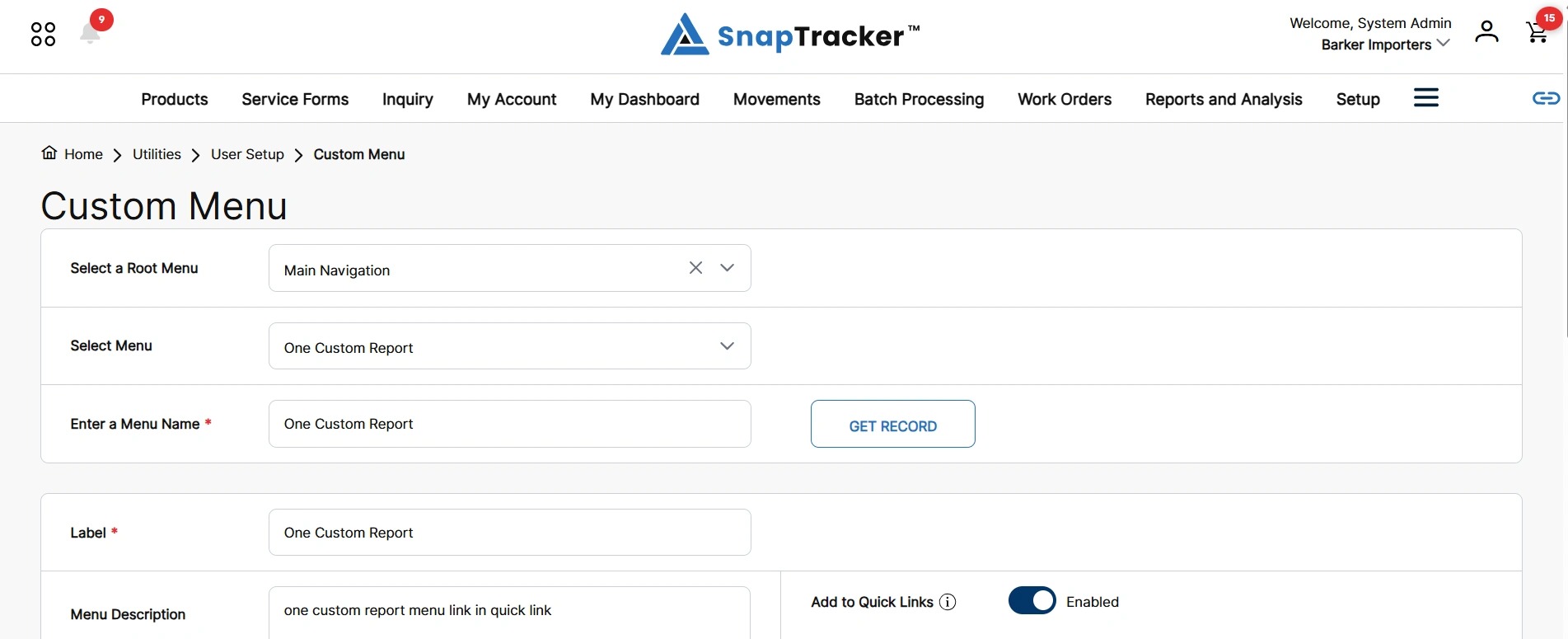
3. To create a Quick Link from an existing Custom Menu, in the Select a Root Menu dropdown, select the desired Menu related to an existing custom menu.
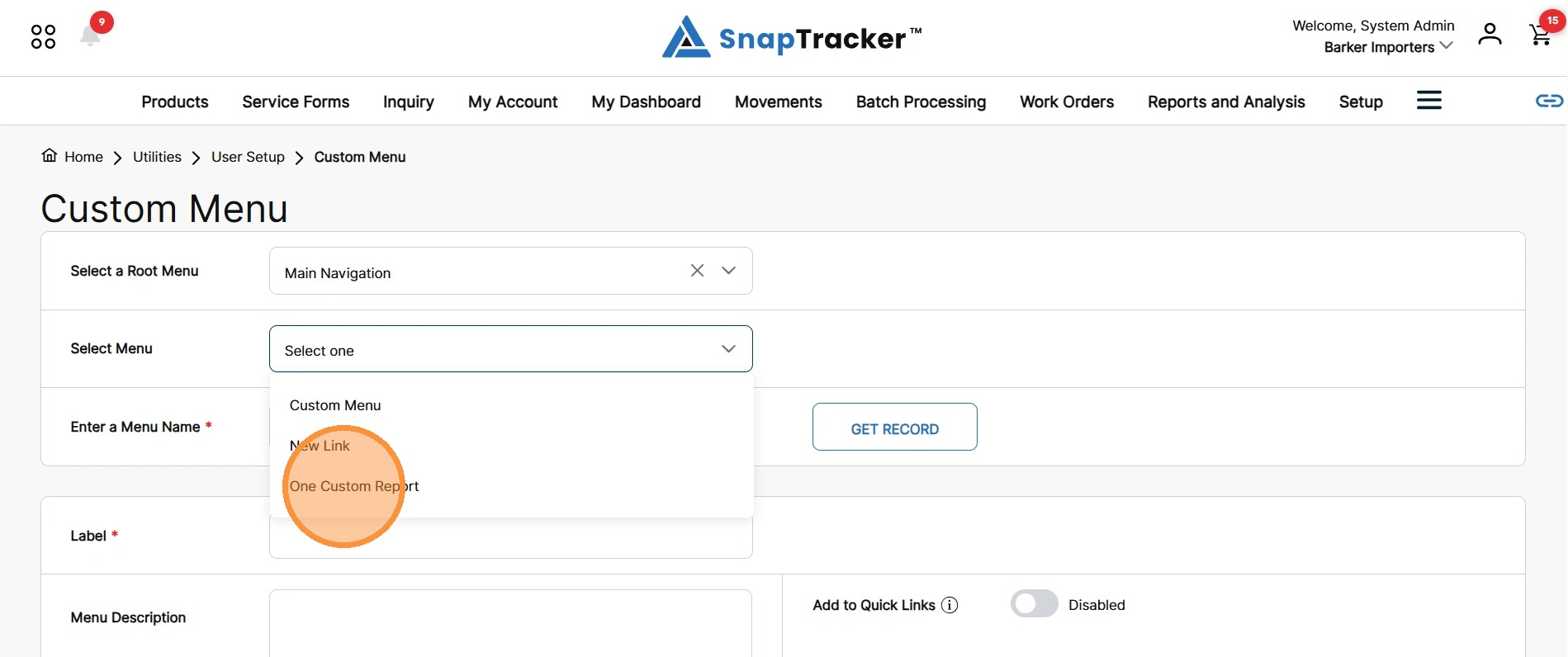
4. In the Select Menu field, click the desired Custom Menu.
The selected Custom Menu details display.
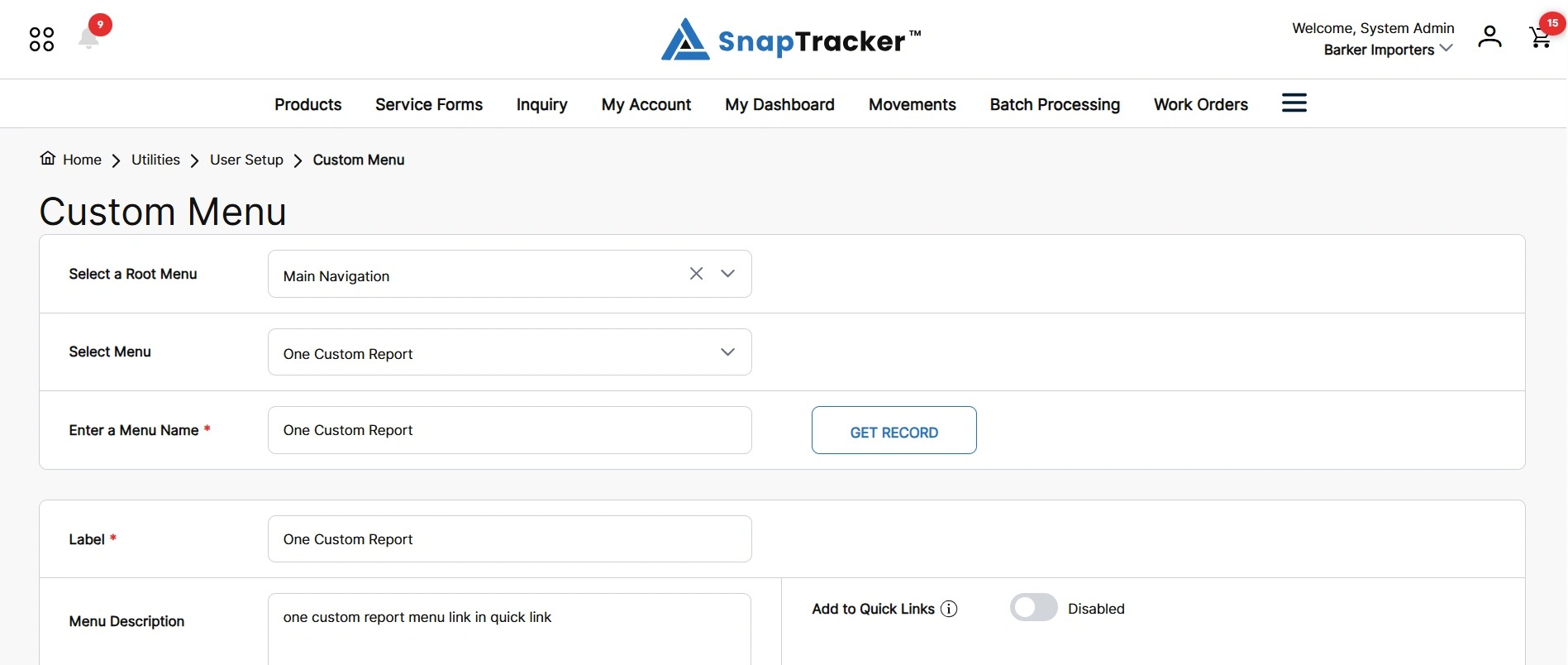
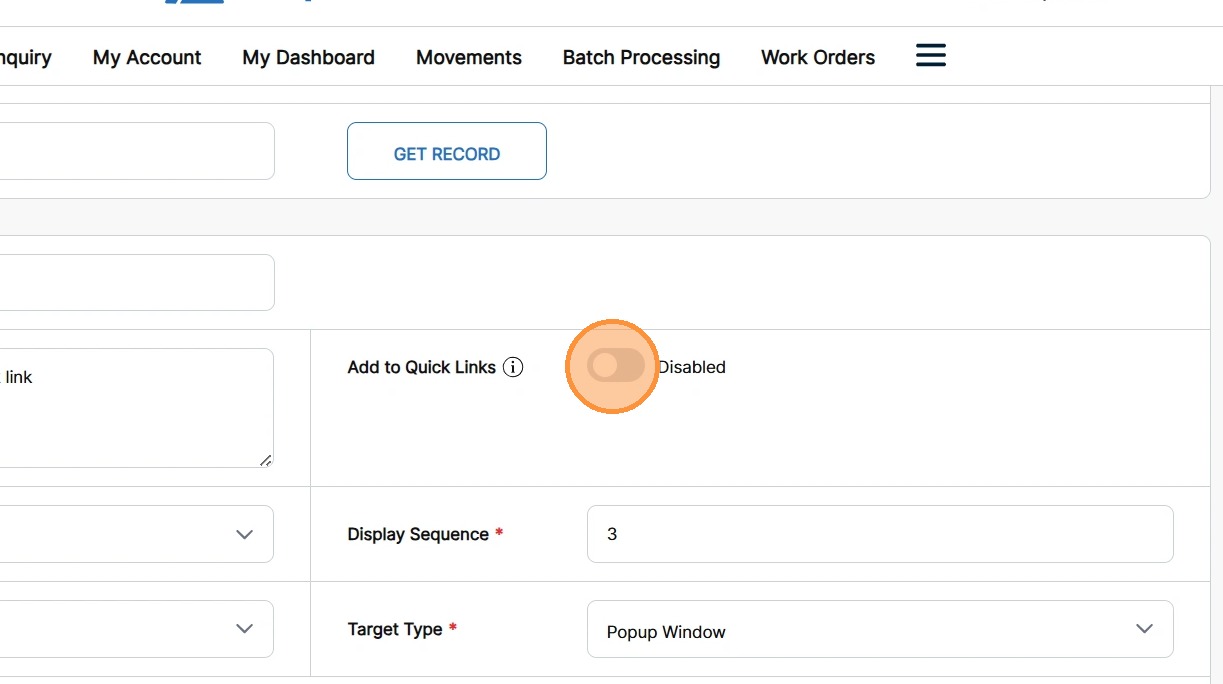
5. In the Add to Quick Links field, click to toggle On and enable the Quick Link.
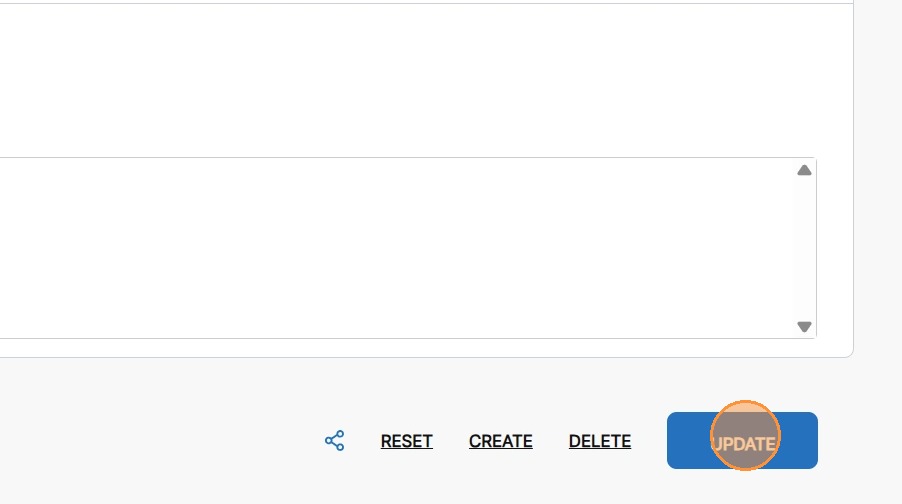
6. Click Update.
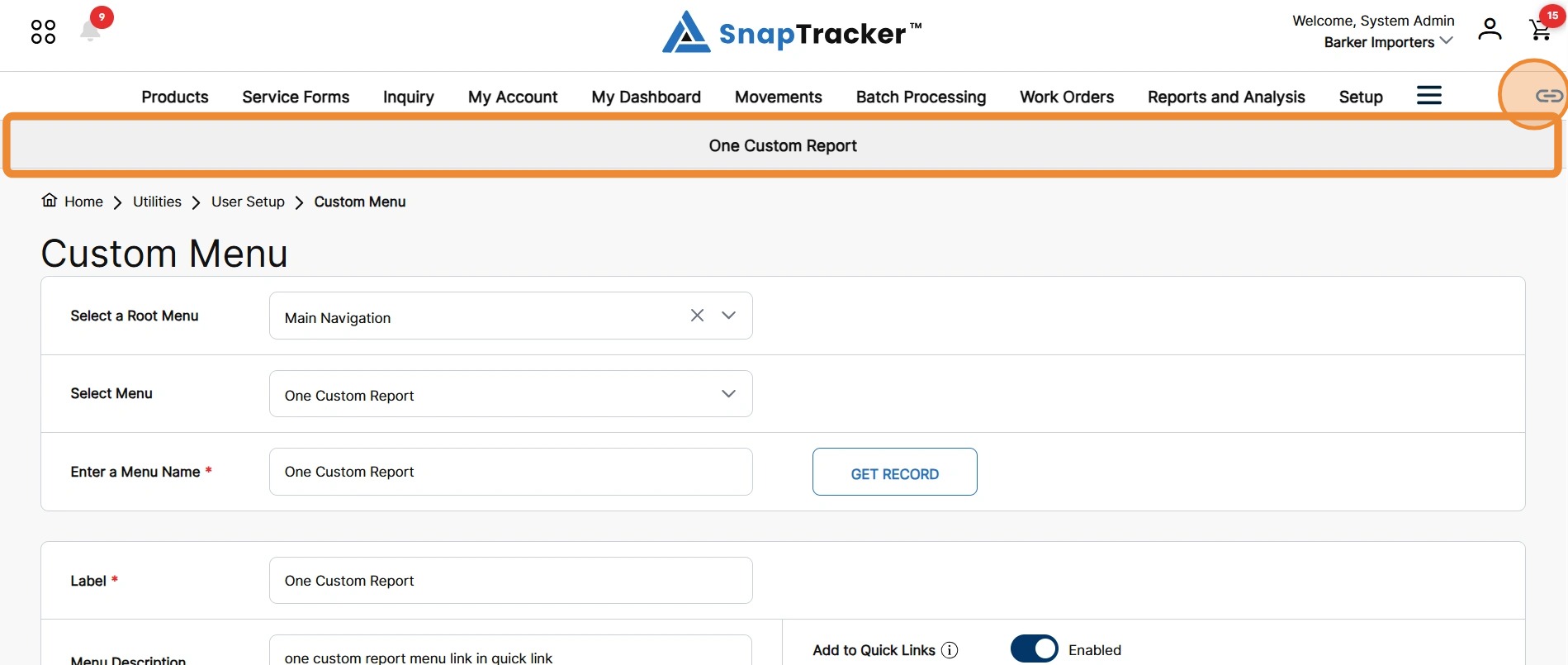
The newly added Quick Link displays in a separate Quick Links ribbon, below the Main Menus for any User that has access to the selected Custom Menu.
A new icon displays beside the Main Menu to indicate there are Quick Links available.
To open the Quick Links ribbon, click the icon.
7. To hide the Quick Links ribbon, click the icon again.
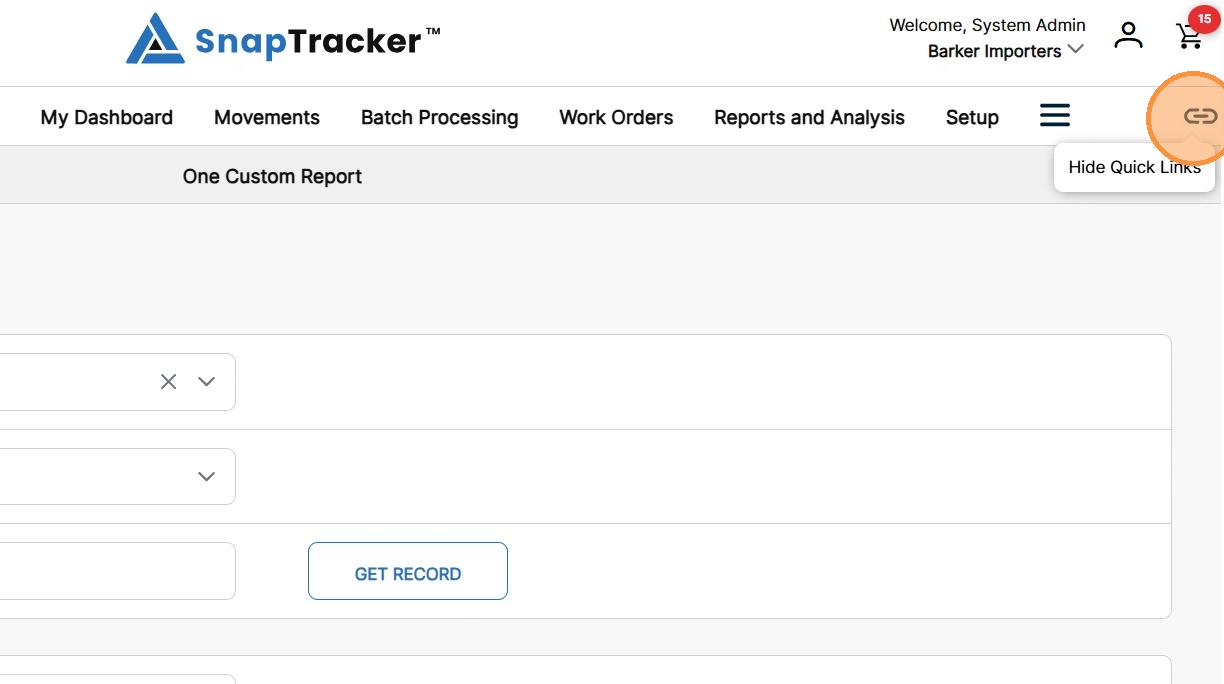
The Quick Links ribbon collapses and is hidden from view.
8. Click the Quick Link menu.
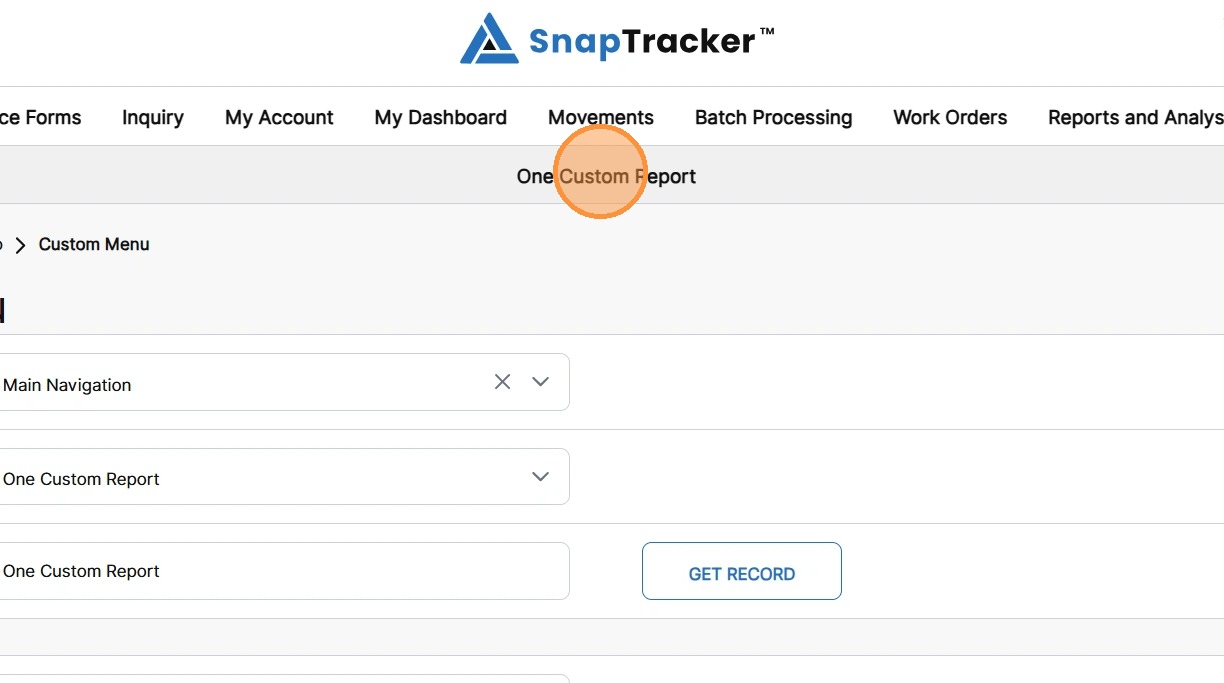
The created custom menu screen displays.