
How to Manage Shareable Links – Custom Menu
After the initial creation of shareable links for a custom created menu, the shareable link can be retrieved and copied to share with others, be deactivated and permanently deleted.
Before starting, make sure:
- You are logged in to SnapTracker.
- You have Menu Access to Utilities and Custom Menus.
This post outlines how to manage a shareable link for a Custom Menu after creation.
1. In the header, click Utilities.
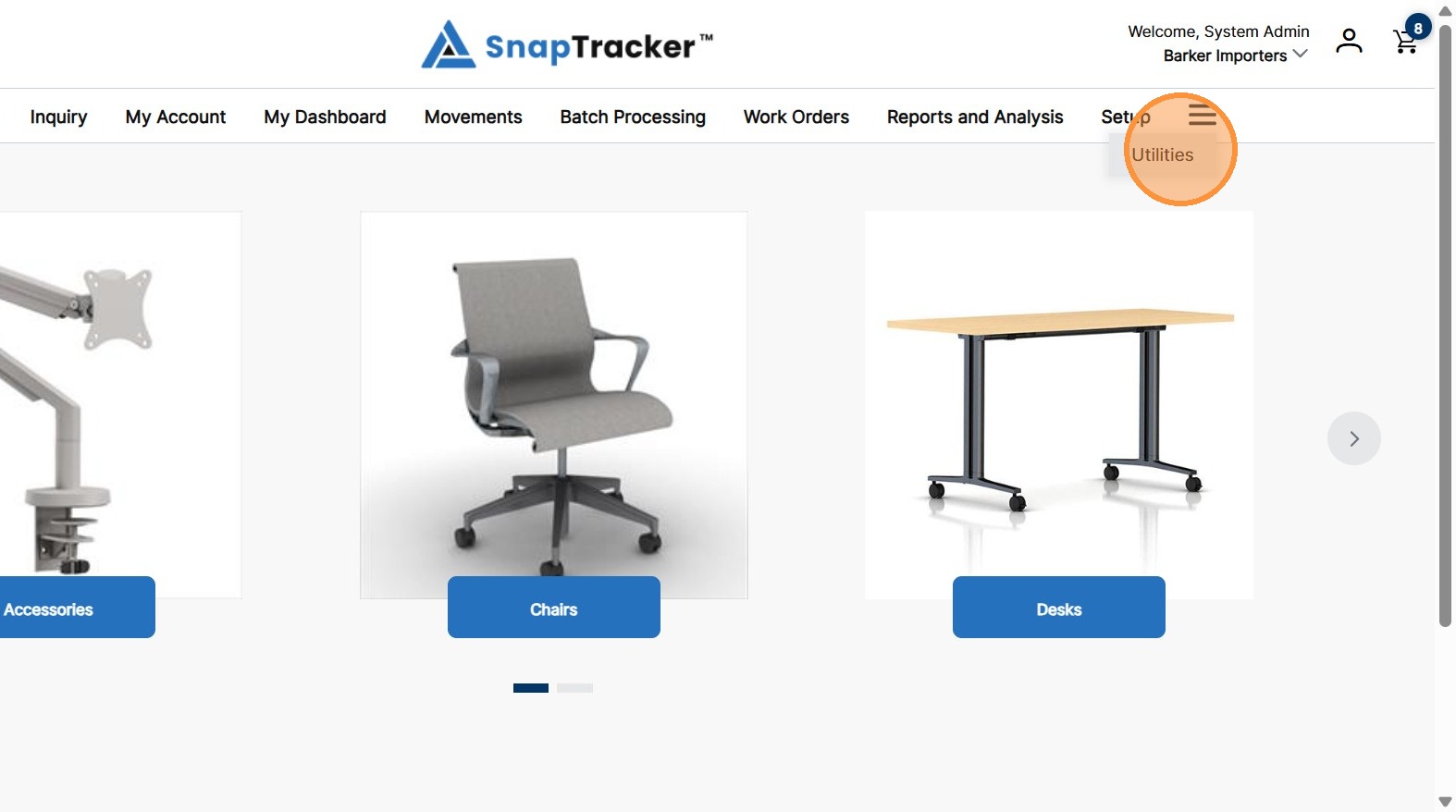
2. Click the arrow beside User Setup, then click Custom Menu.
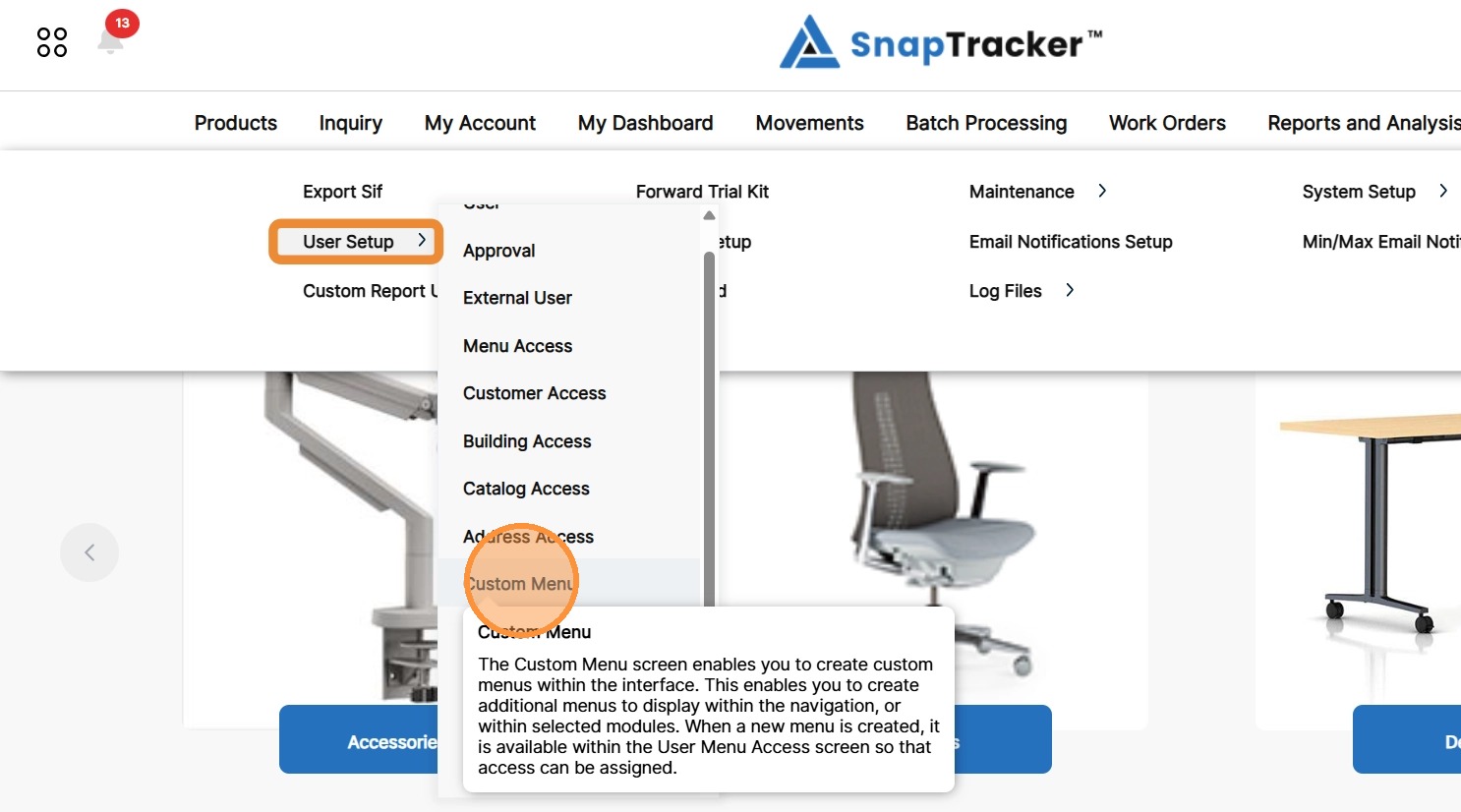
Another way to access the Custom Menu screen is to click Utilities>User Setup.
The different User Setup screens display. From here select Custom Menu.
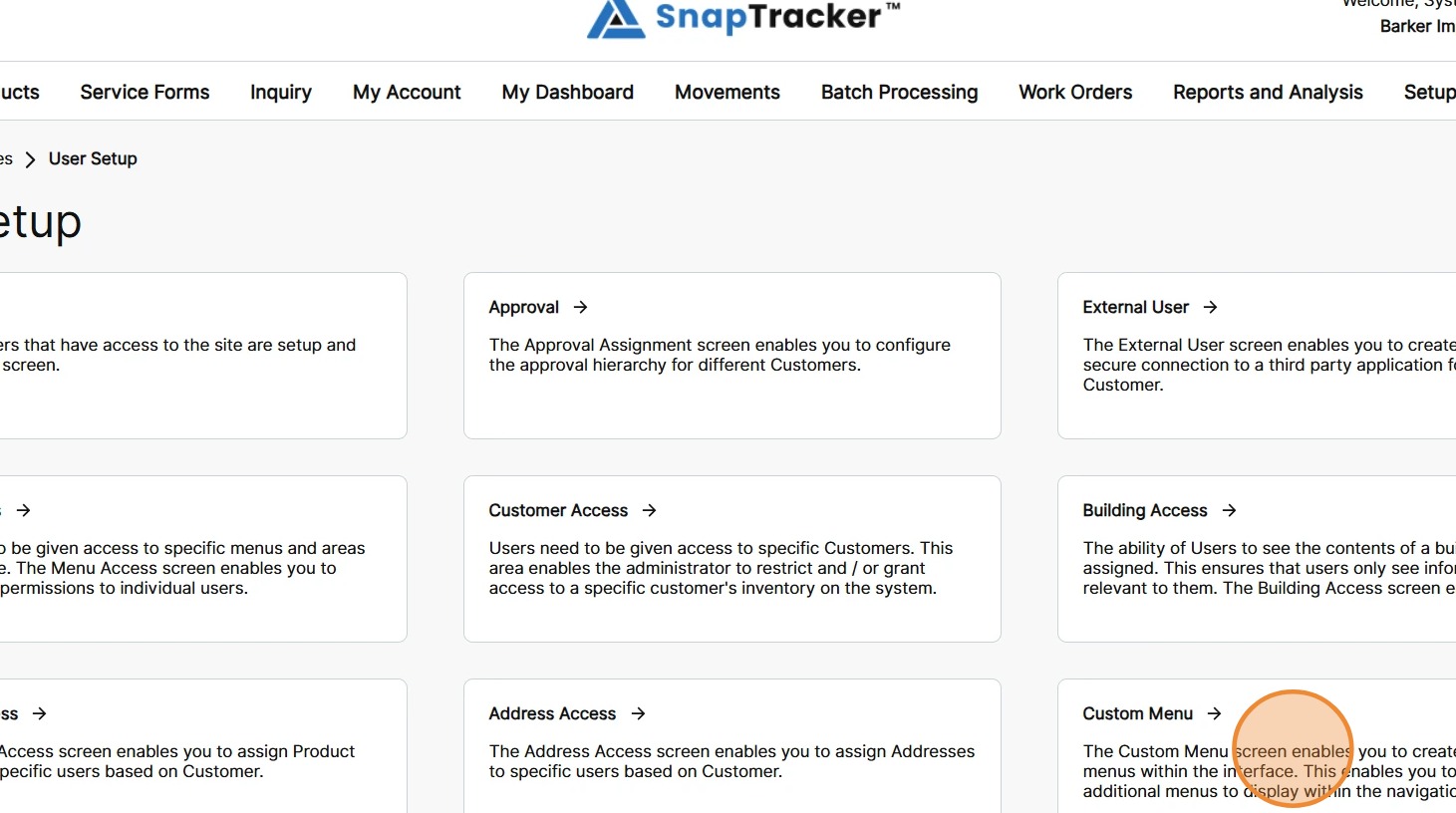
The Custom Menu screen displays.
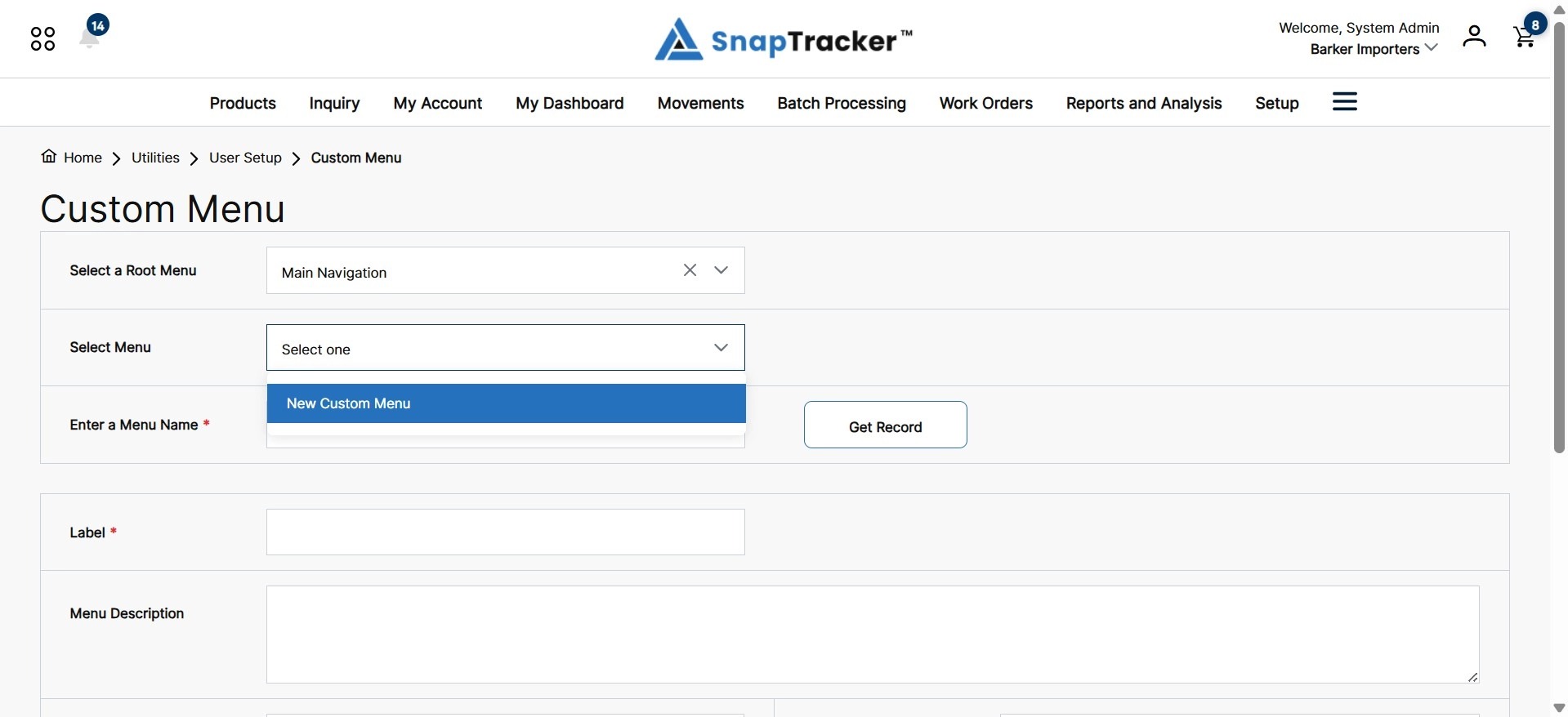
3. To select a root menu to that a Custom Menu was created in, click the Select a Root Menu dropdown .
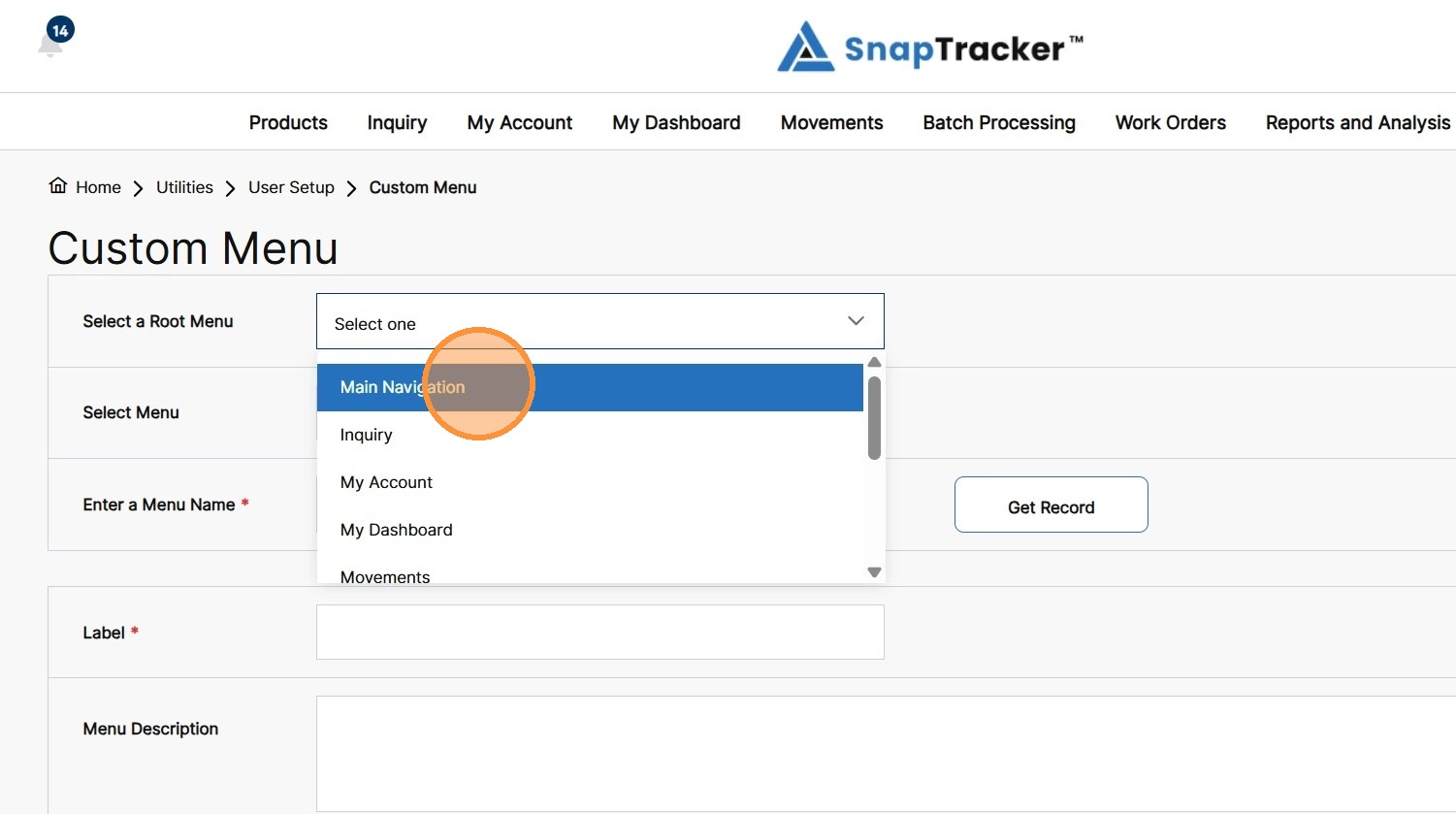
4. To find a custom menu to create a shareable link for, click the Select Menu dropdown .
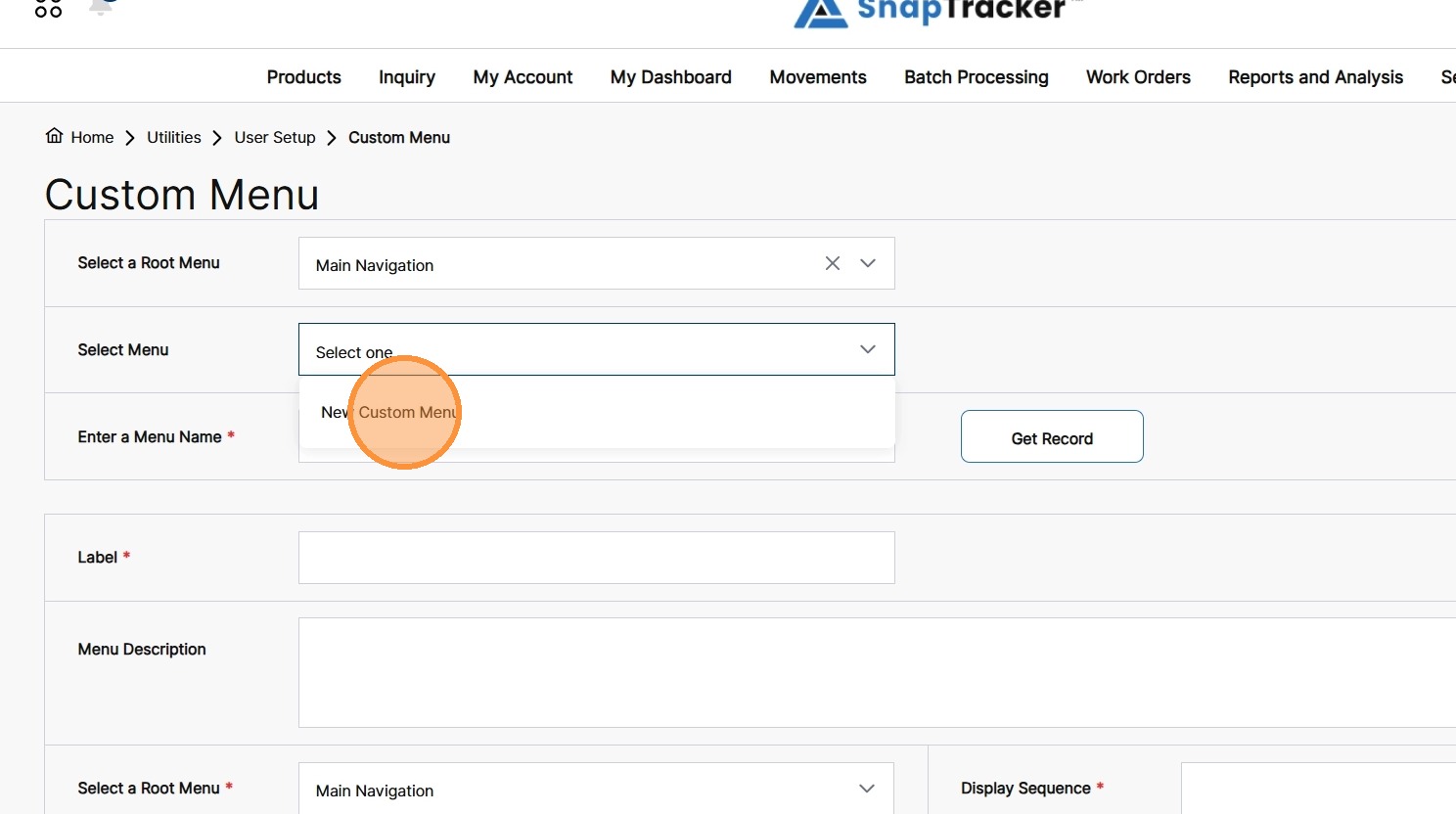
The selected Custom Menu information displays.
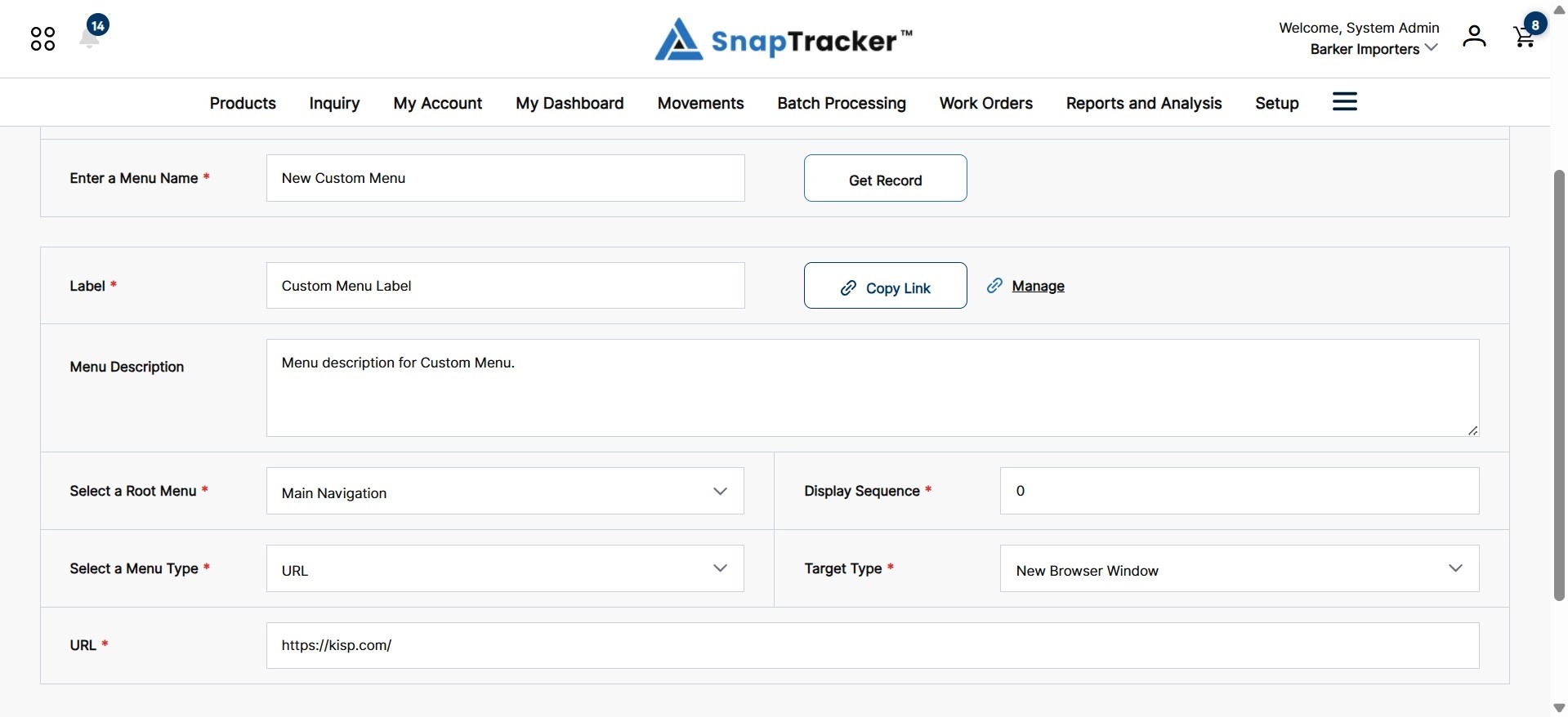
5. To copy the existing Shareable Link, click Copy Link.
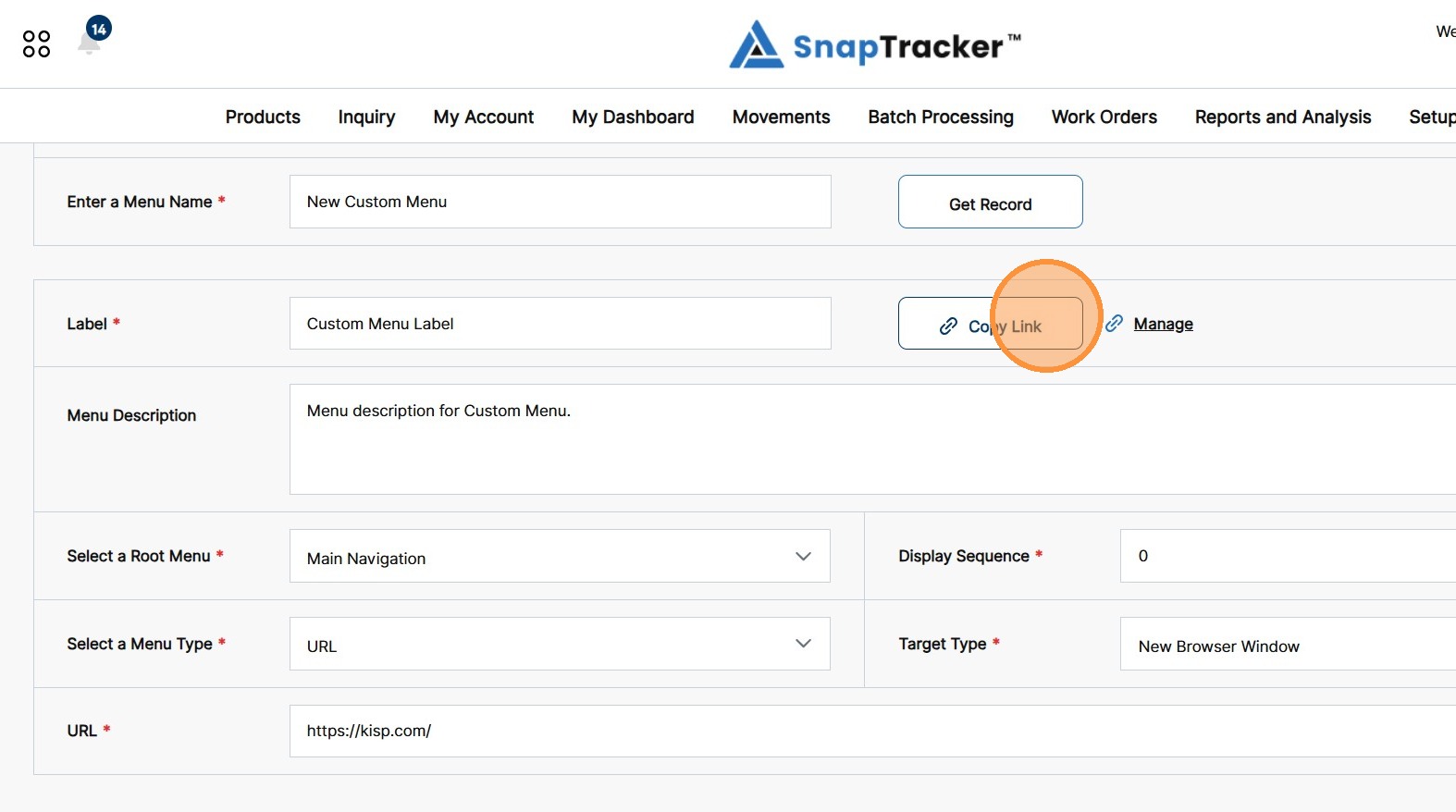
6. To view other actions, click Manage.
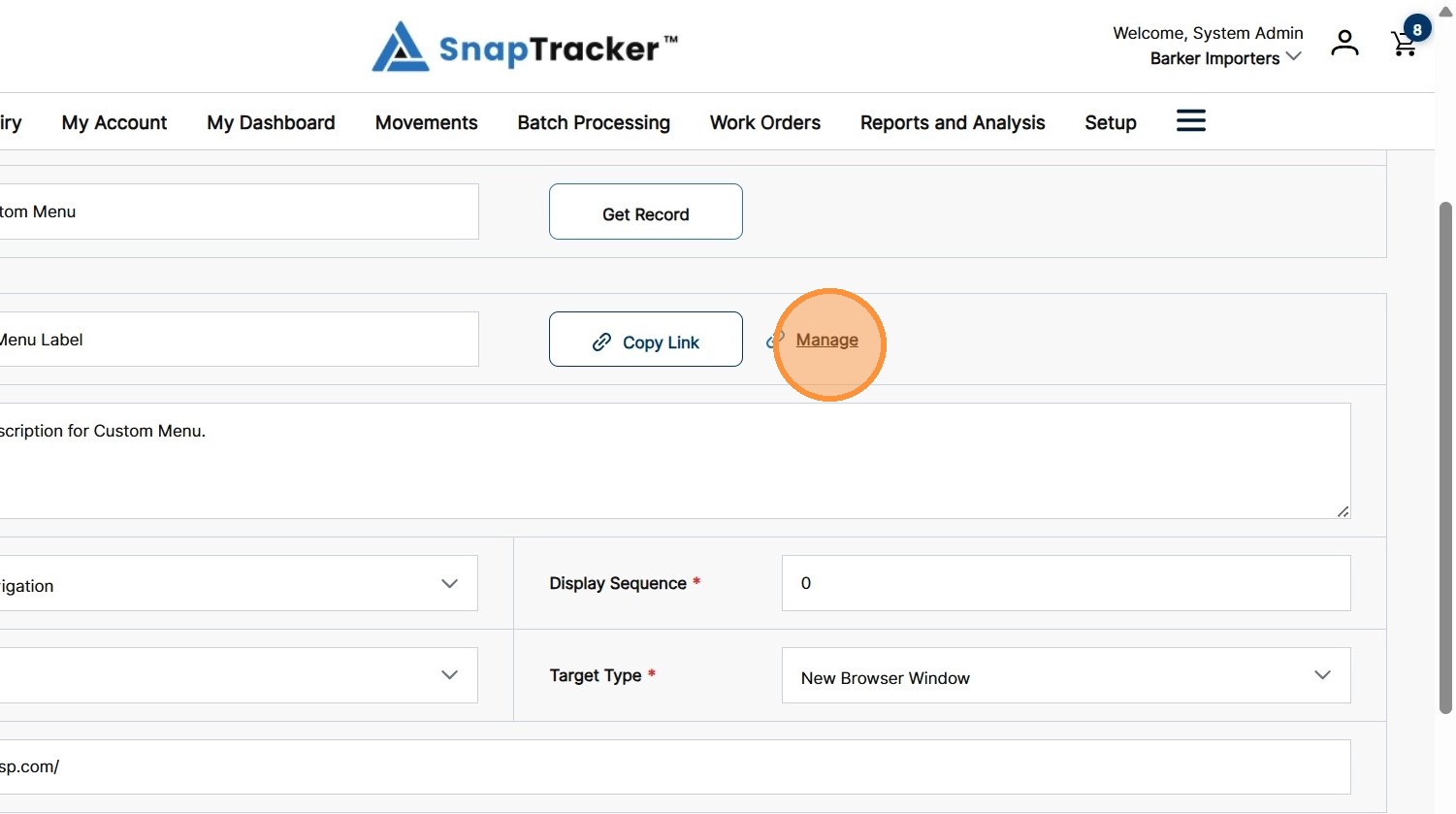
The Manage Shareable Links pop-up displays.
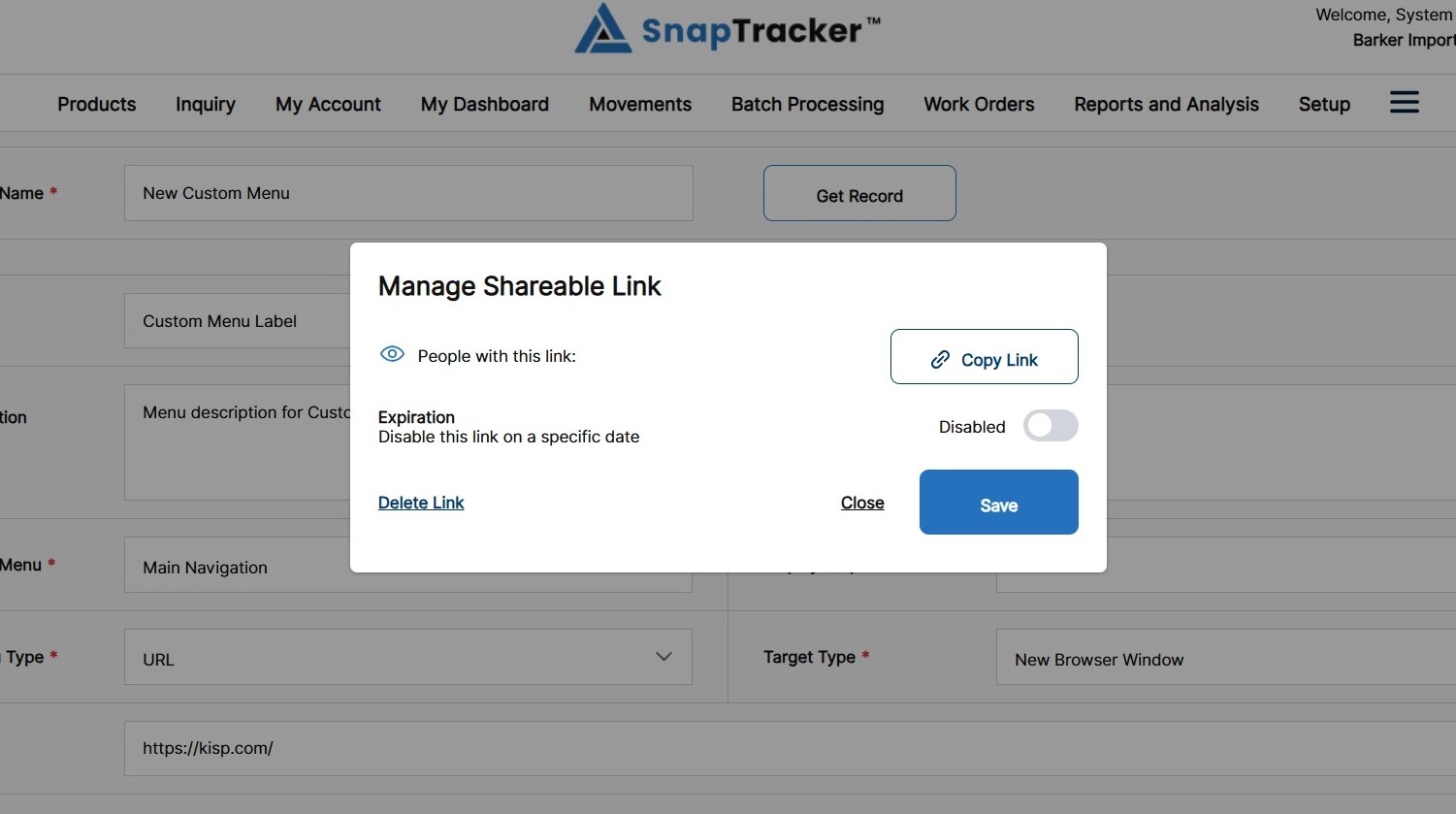
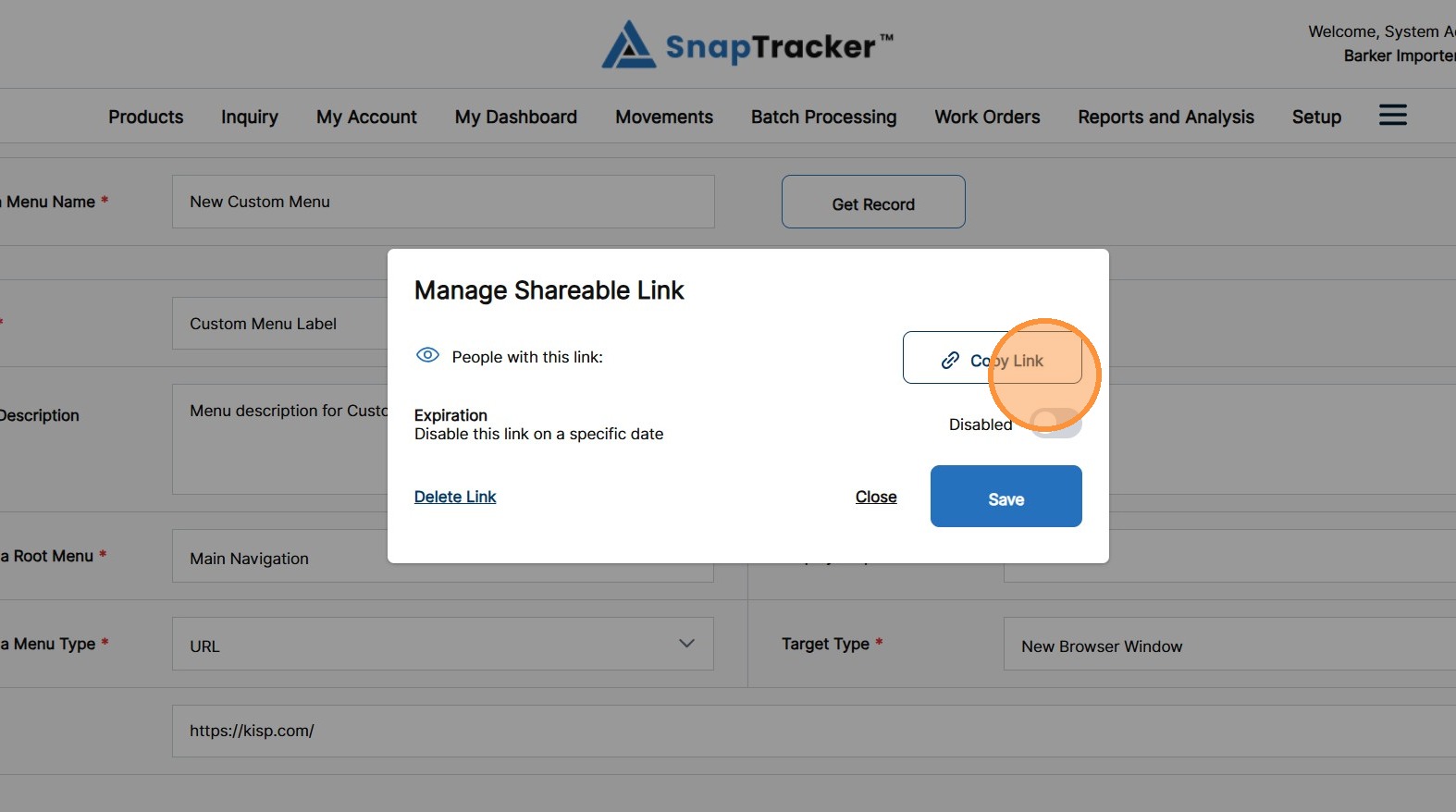
7. To copy the Shareable Link, click Copy Link.
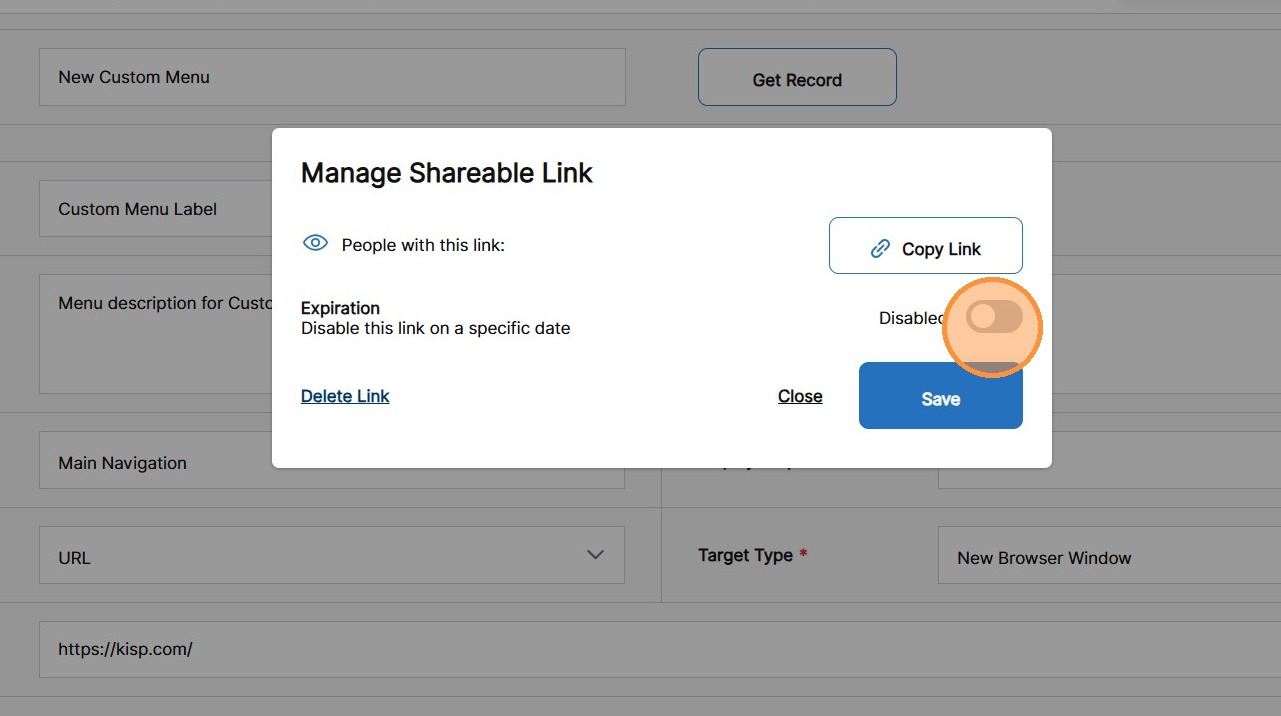
8. To add an expiry date to disable the link, click the Expiration toggle to Enabled.
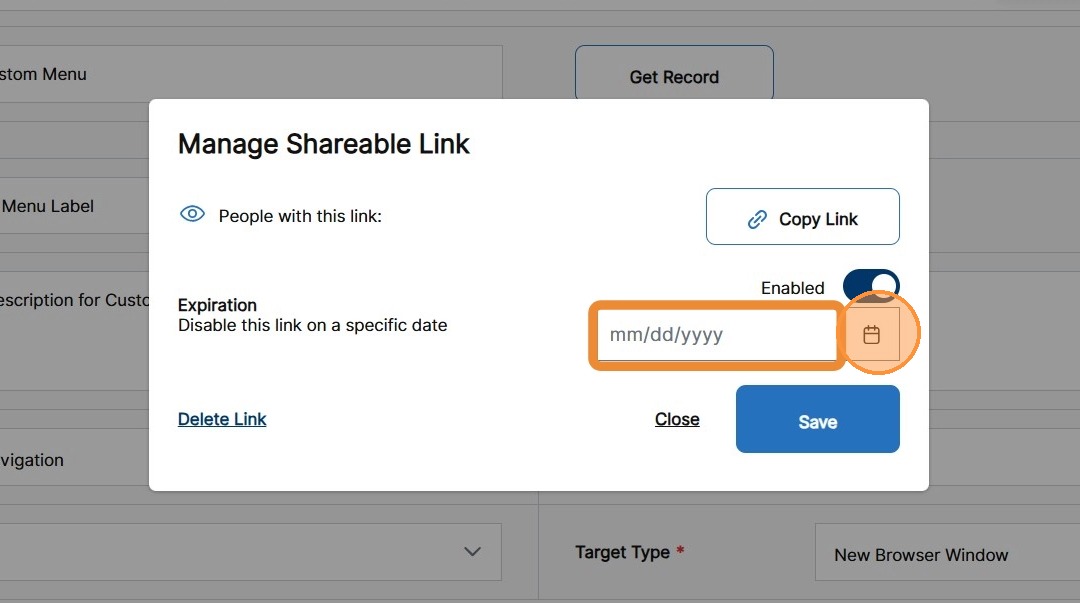
9. Enter an expiration date, or click the Calendar Picker to select a date.
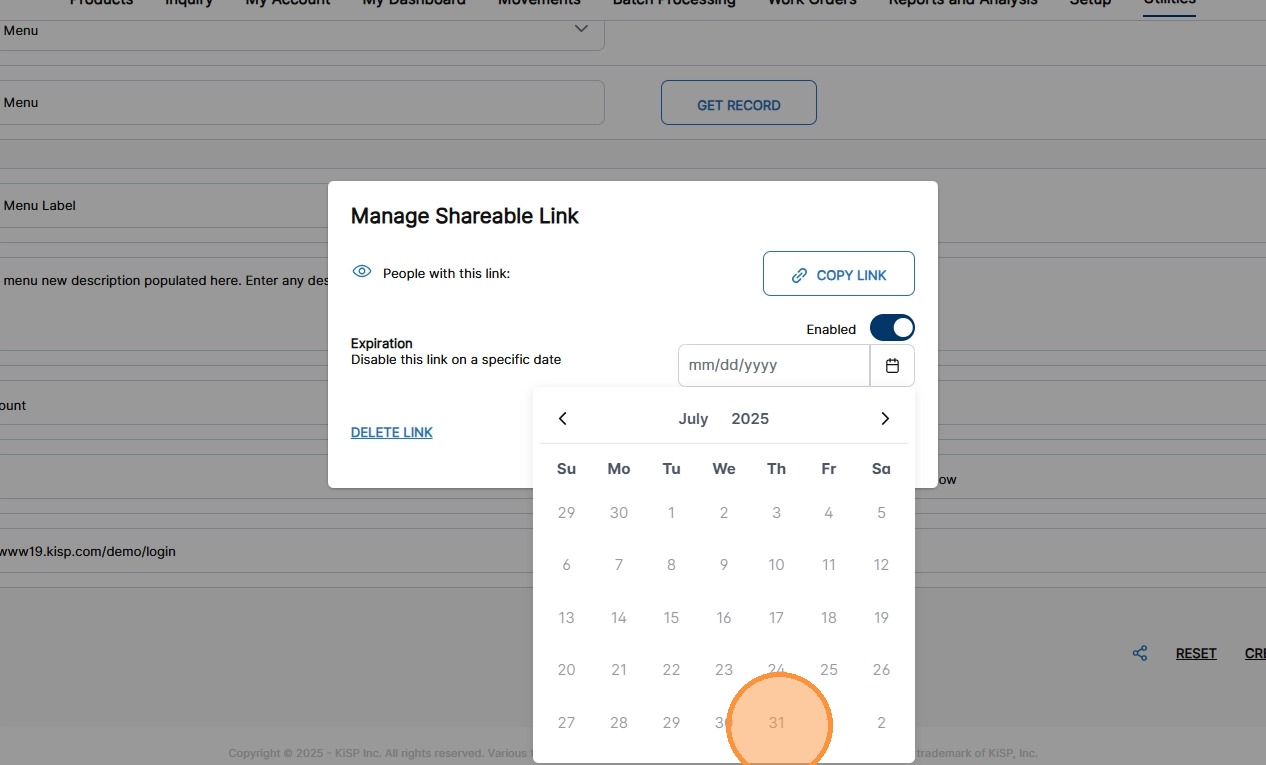
10. Select an expiration date.
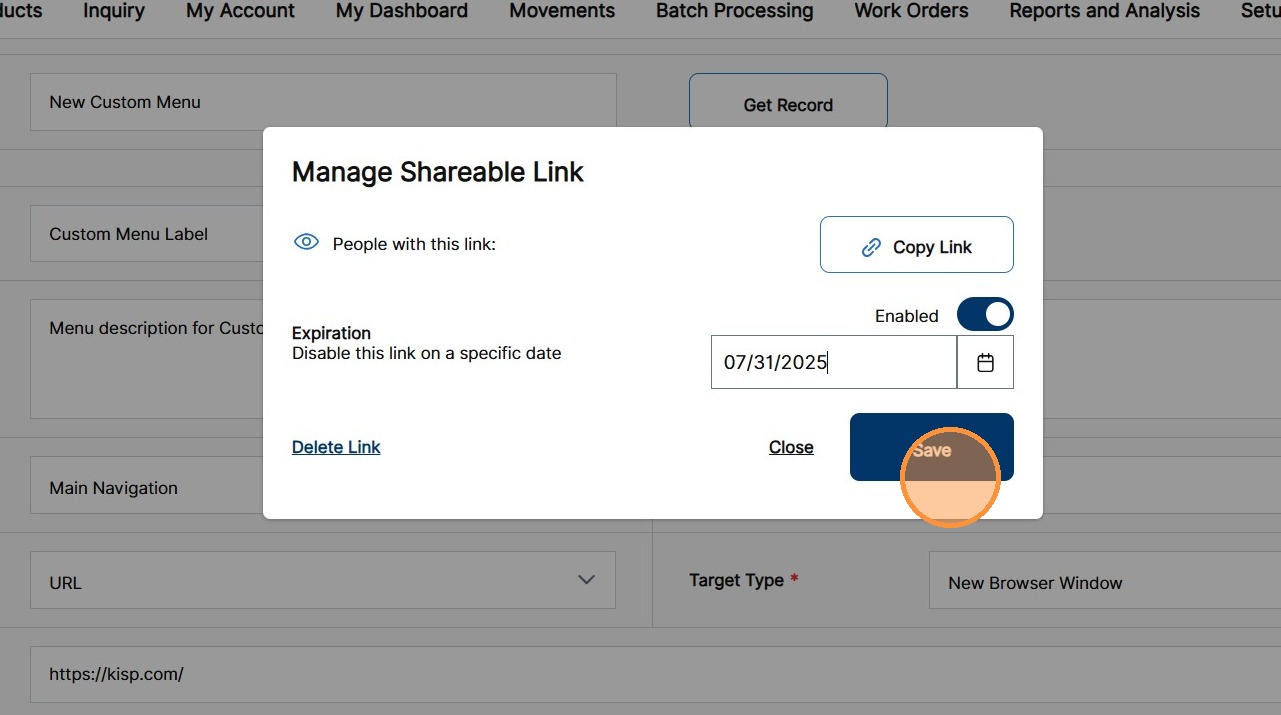
11. To save the updated Expiration setting, click Save.
12. To delete the Shareable Link, click Delete Link.
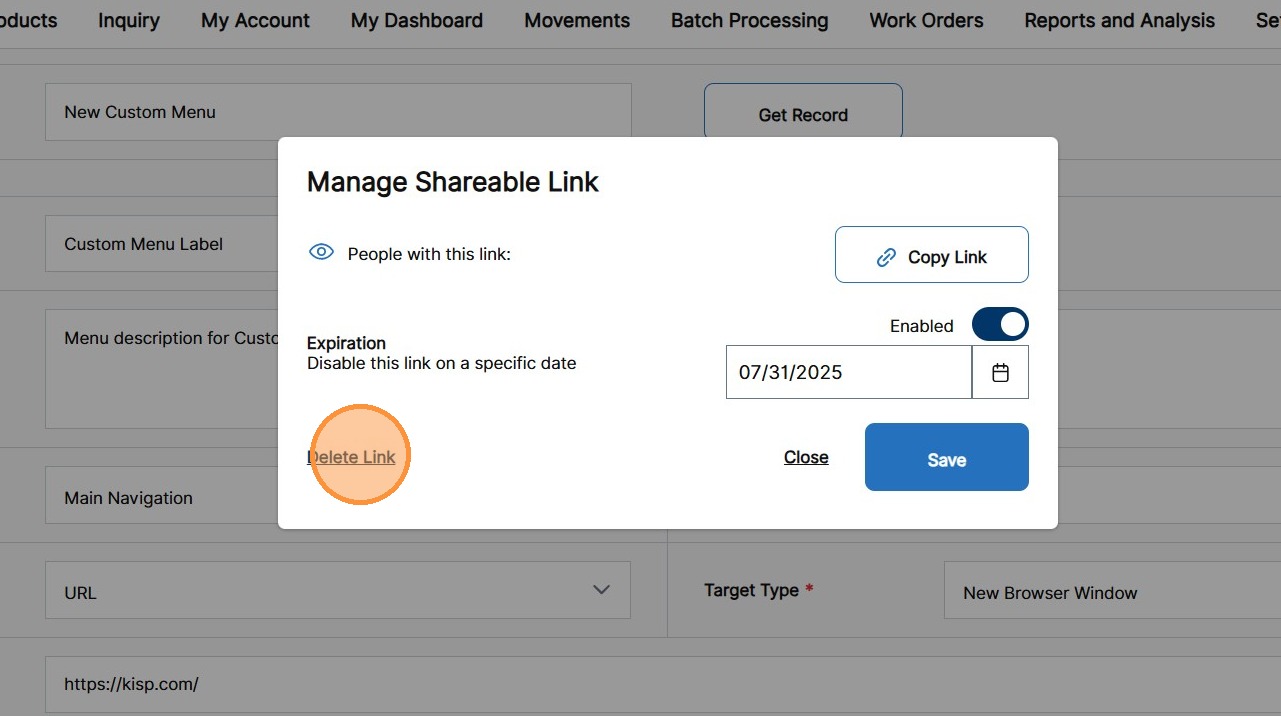
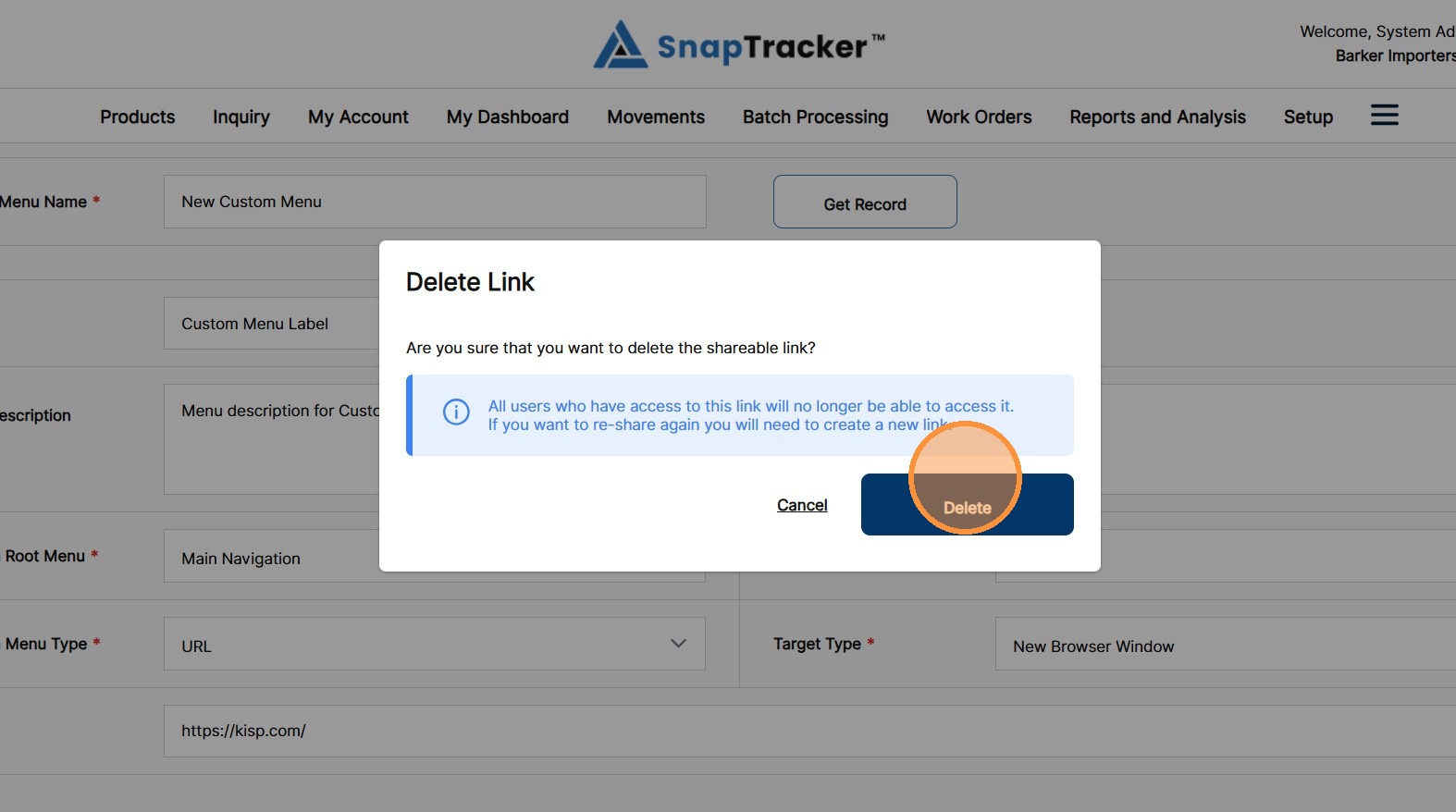
13. In the Delete Link Confirmation pop-up, click Delete, or click Cancel to cancel the action.
14. To exit the Manage Shareable Links pop-up screen, click Close.