
How to Request a Service Quote
In addition to making requests for product, users can also request some typical services, if the Customer is configured for the service request workflow.
When requesting a service, the request can be added to an existing cart, or a new cart can be created. Services and products can be requested in the same cart.
If a cart is already created, the service form is added to the existing cart by default.
If you add a service form and do not have a cart created, a cart is automatically created for you.
There are different services that can be requested such as:
- Key Requests.
- General Service Requests.
- Repair Services.
- Move Requests.
- Reconfiguration Requests.
- Space Planning Requests.
- Delivery and Installation Requests.
When a service form is added to a cart, there is no cost associated to the service. To have pricing added to a service request, the cart needs to be submitted to the designated service reviewer to be quoted.
When shopping for a service, the user may have two options while checking out a cart that contains a service, depending on how the Customer is configured.
If Service Quoting is turned on, the user has two options when checking out a cart:
- Check out the cart without any pricing.
- Request a price.
Before starting, make sure:
- You are logged into SnapTracker.
- The correct Customer is selected from the Customer selection list.
- The customer has Services, Enable Service Quoting and Shopping enabled.
- You have a cart created with a service in it.
This section outlines the process for a user to add a service form to a cart and request pricing for the service.
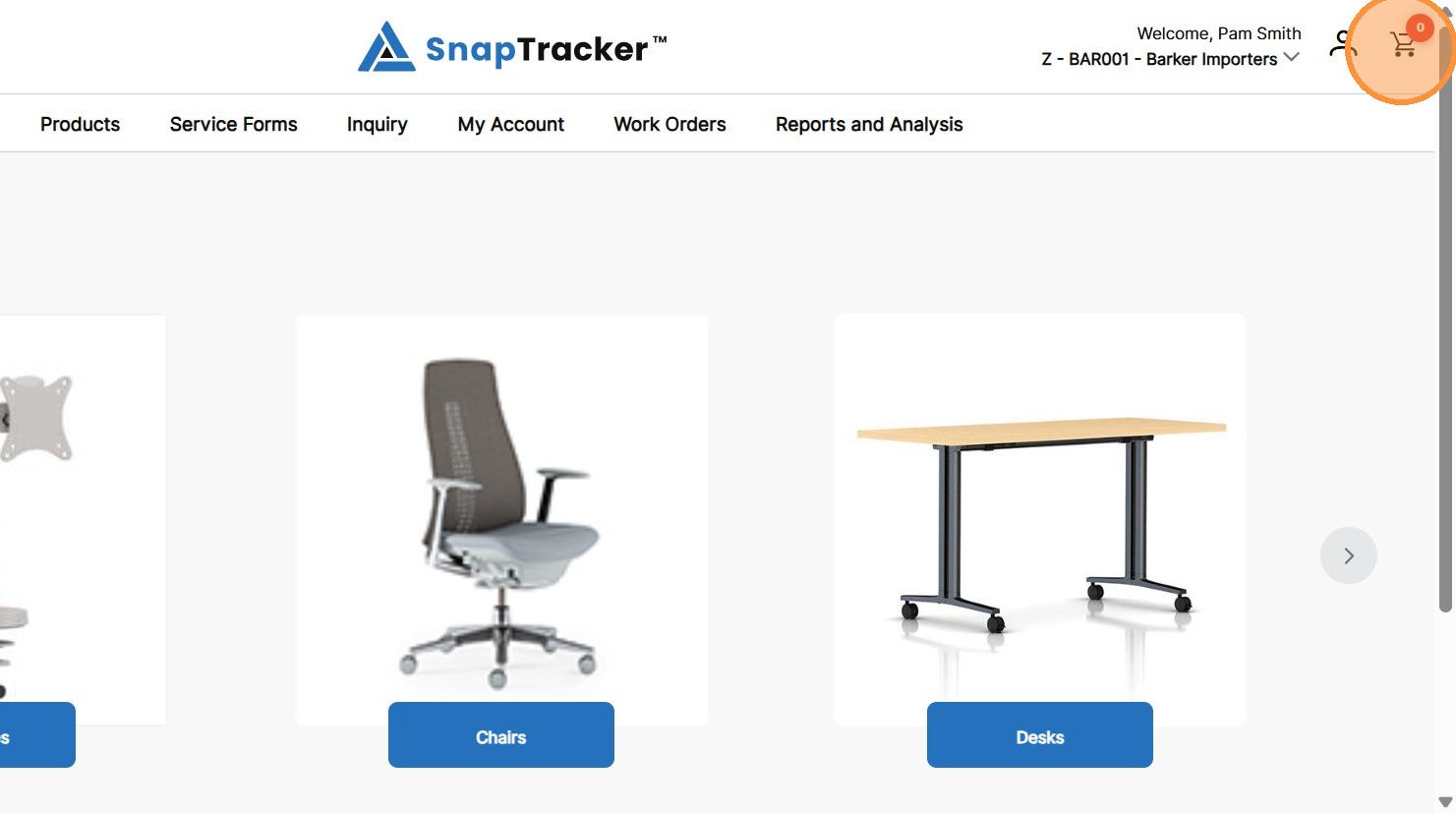
1. In the header, click the cart icon.
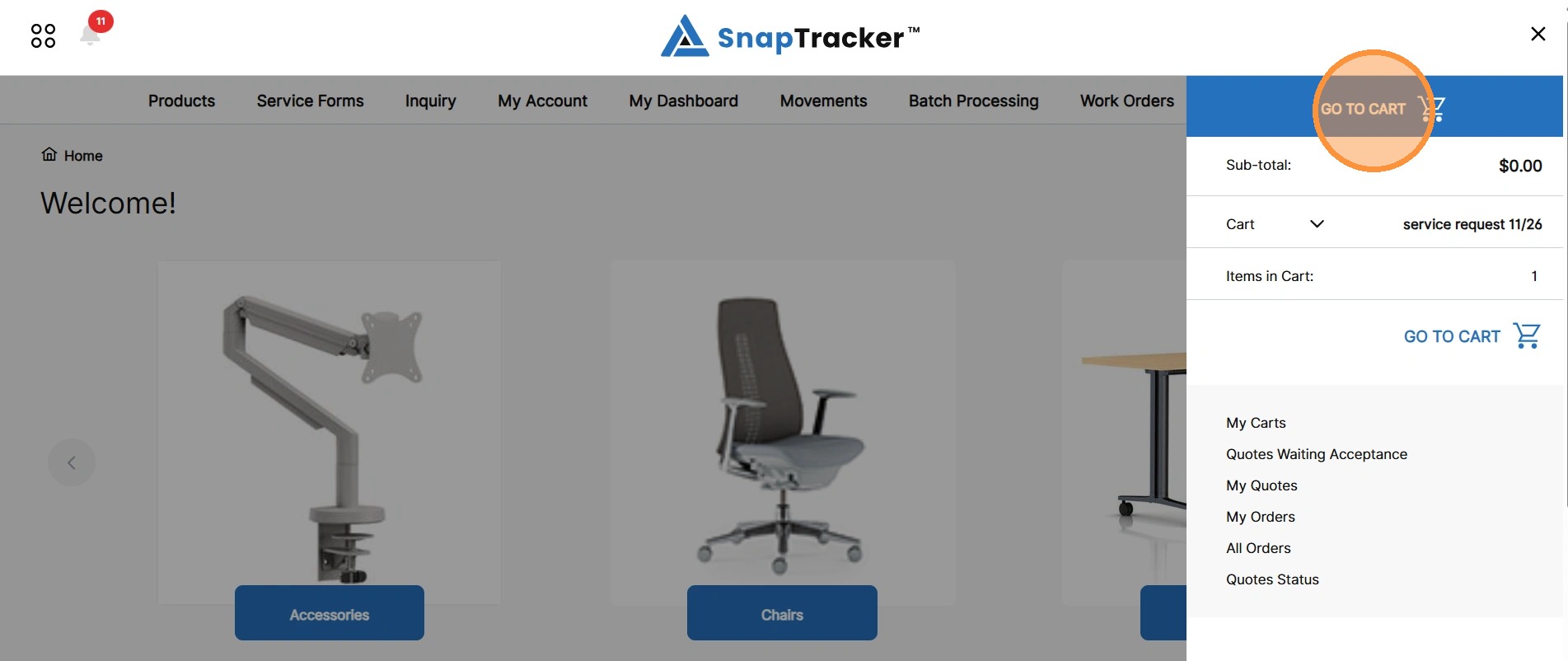
2. In the Cart side panel, click Go To Cart.
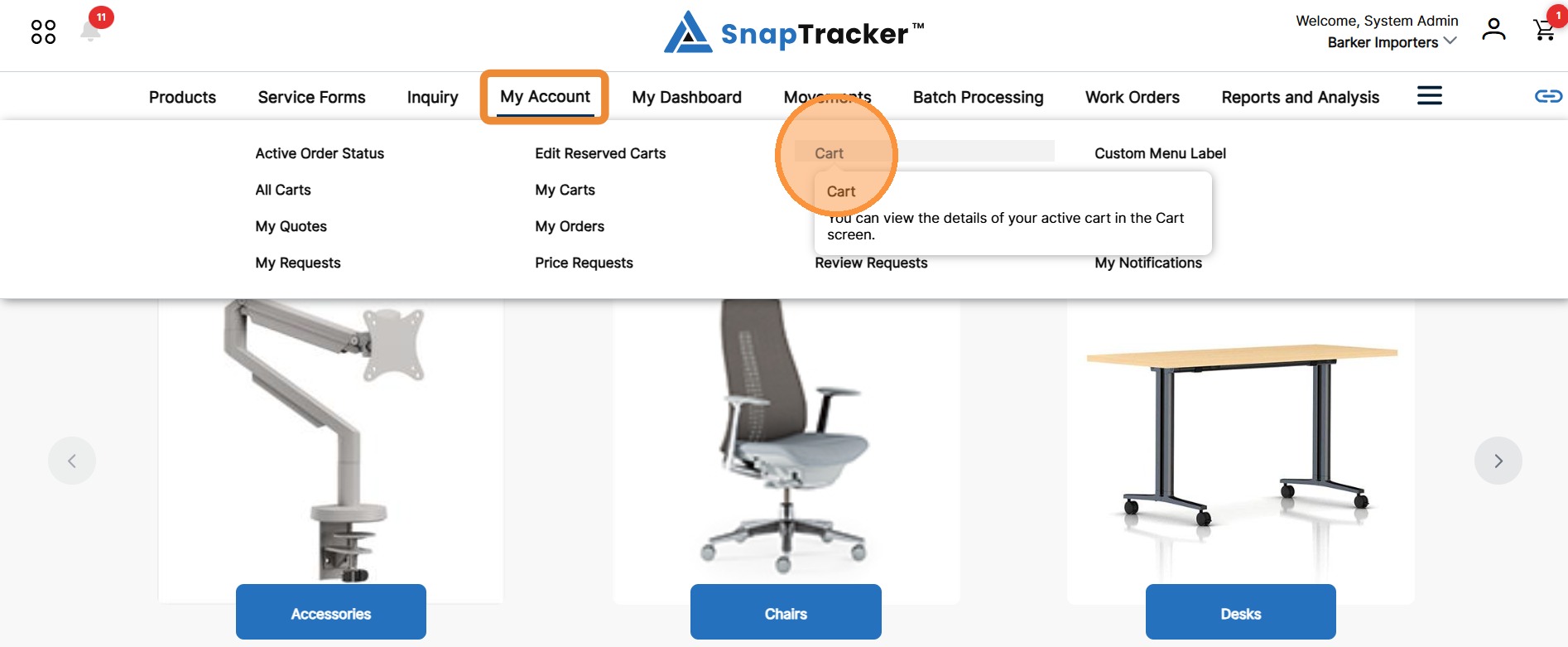
Alternatively, in the header, click My Account>Cart.
The Cart Details screen displays with your service request.
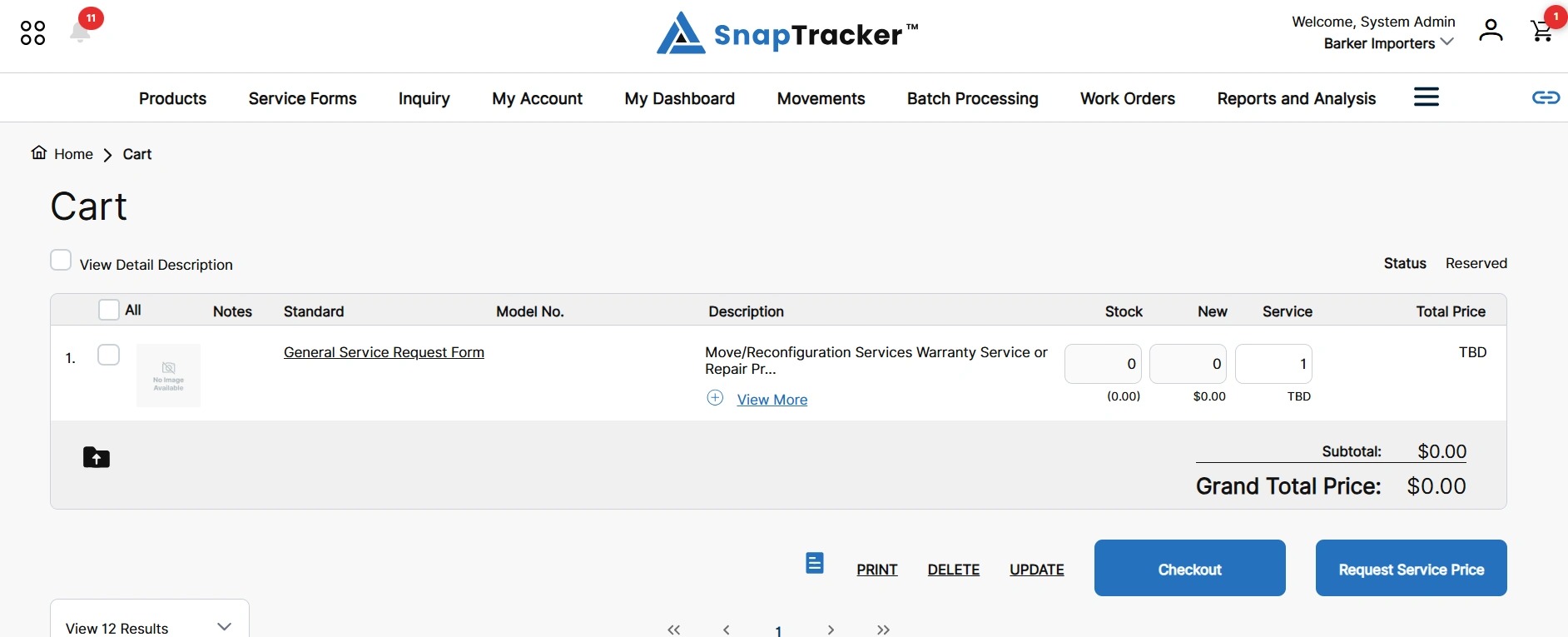
3. Click Request Service Price.
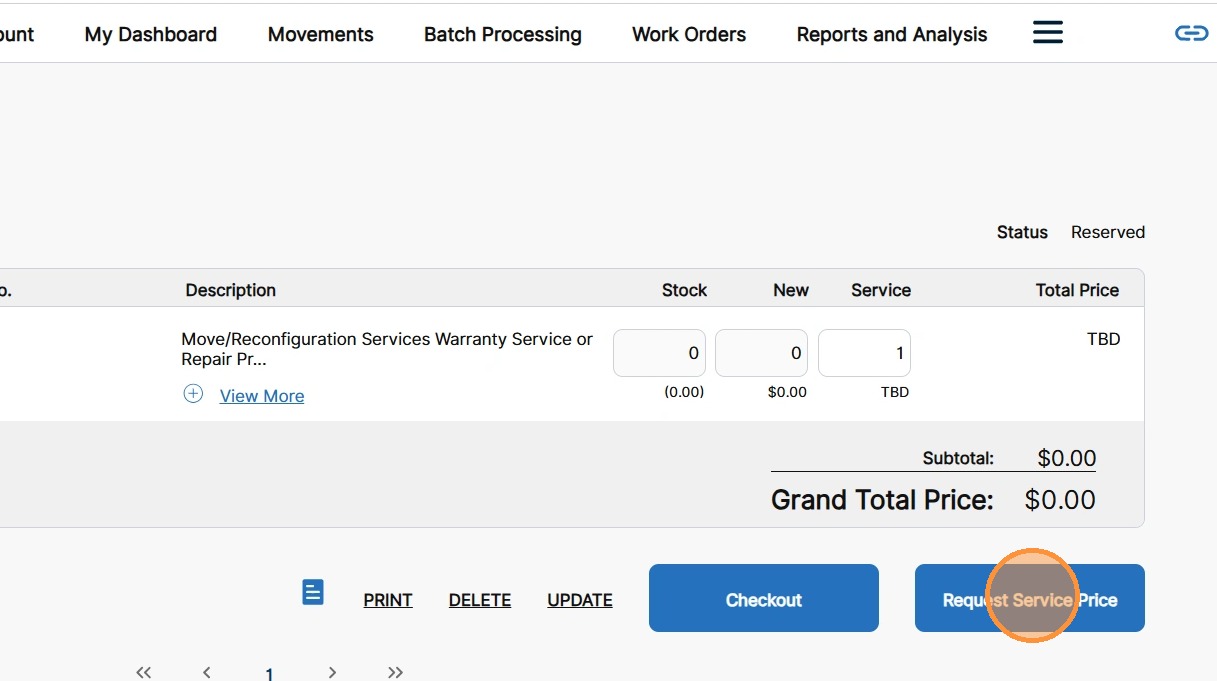
The Billing and Shipping screen displays.
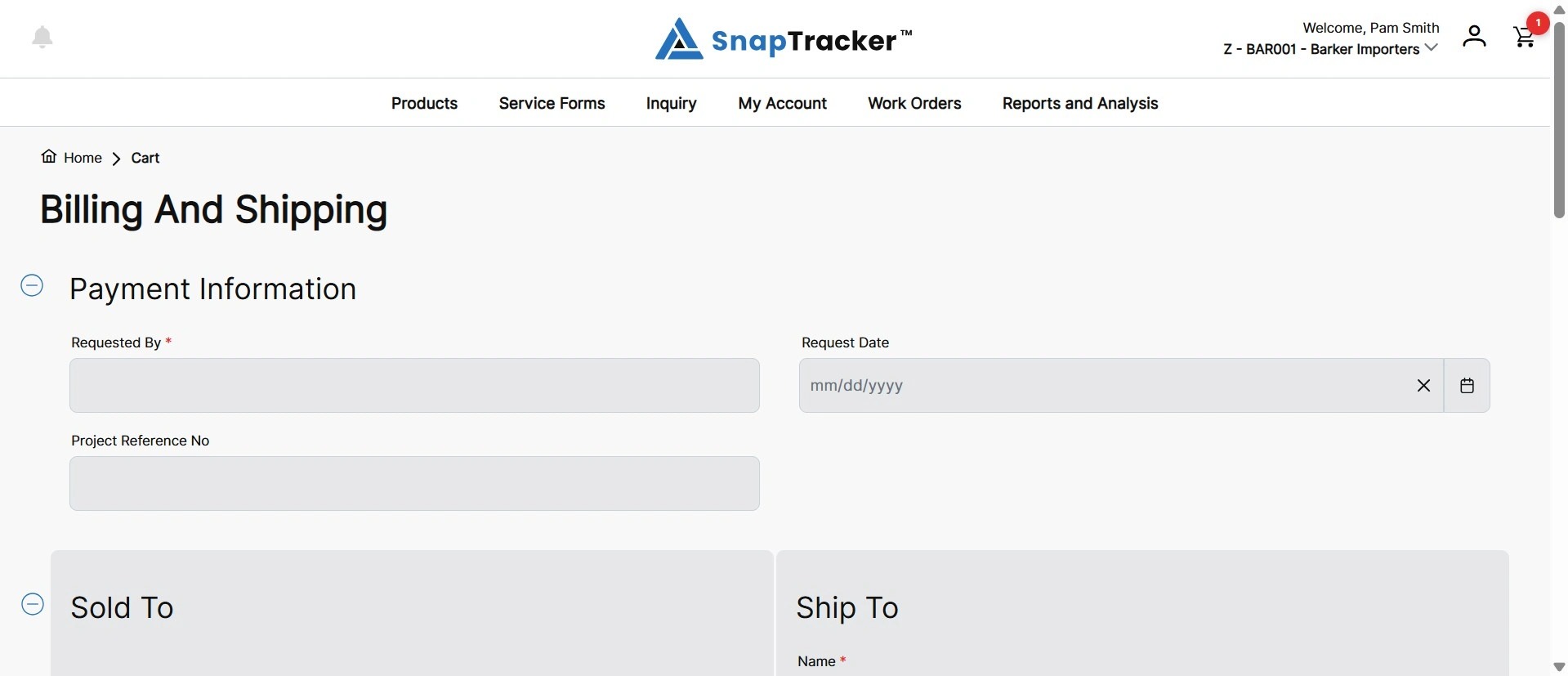
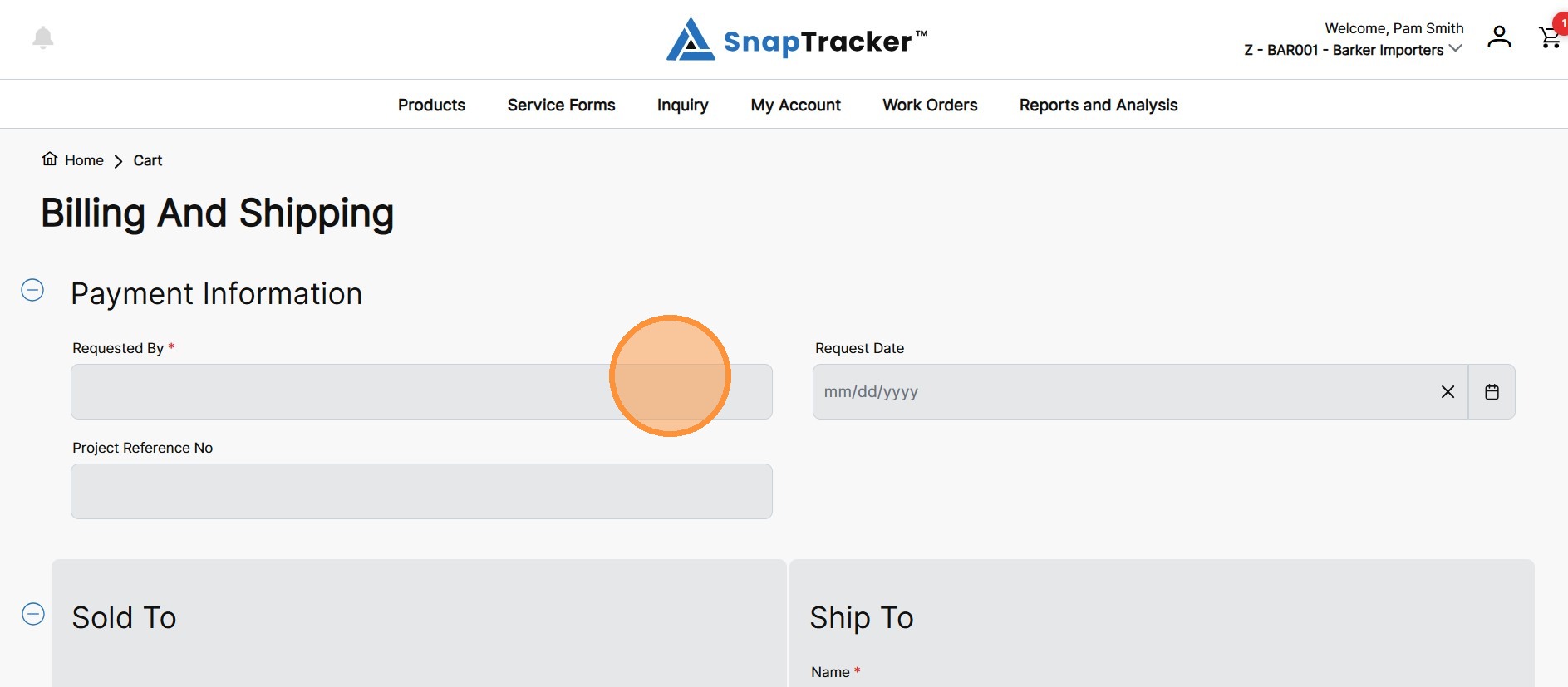
4. Populate the required fields. Additionally, populate the optional fields as desired.
5. Once all fields are populated as desired, click Request Service Price.
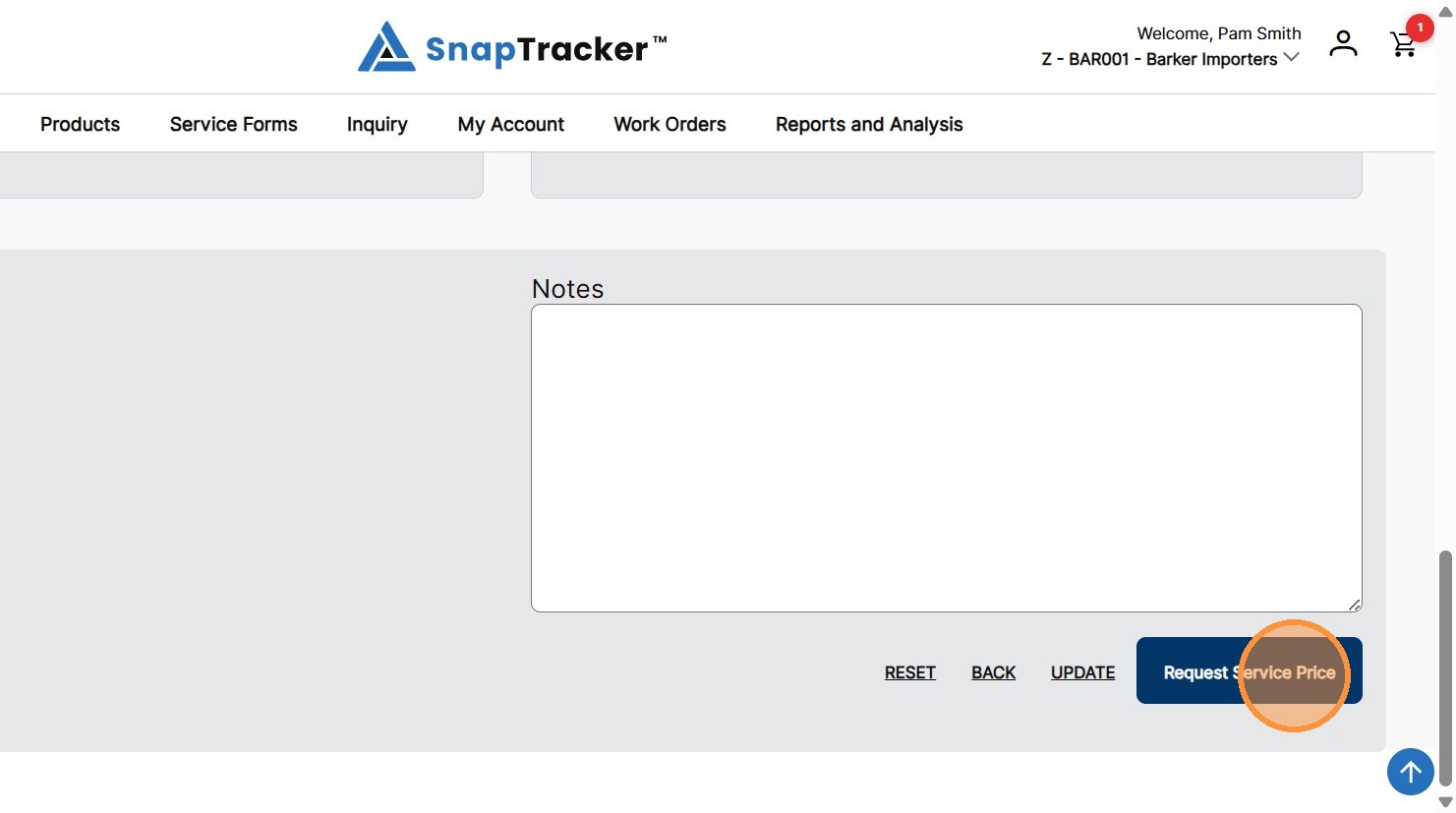
The confirmation screen displays, noting that your service has been submitted for pricing. An email is sent to the default service reviewer alerting them there is a service request for pricing.
Note: You can access a cart that has been submitted for pricing from the Cart list, but it cannot be edited.
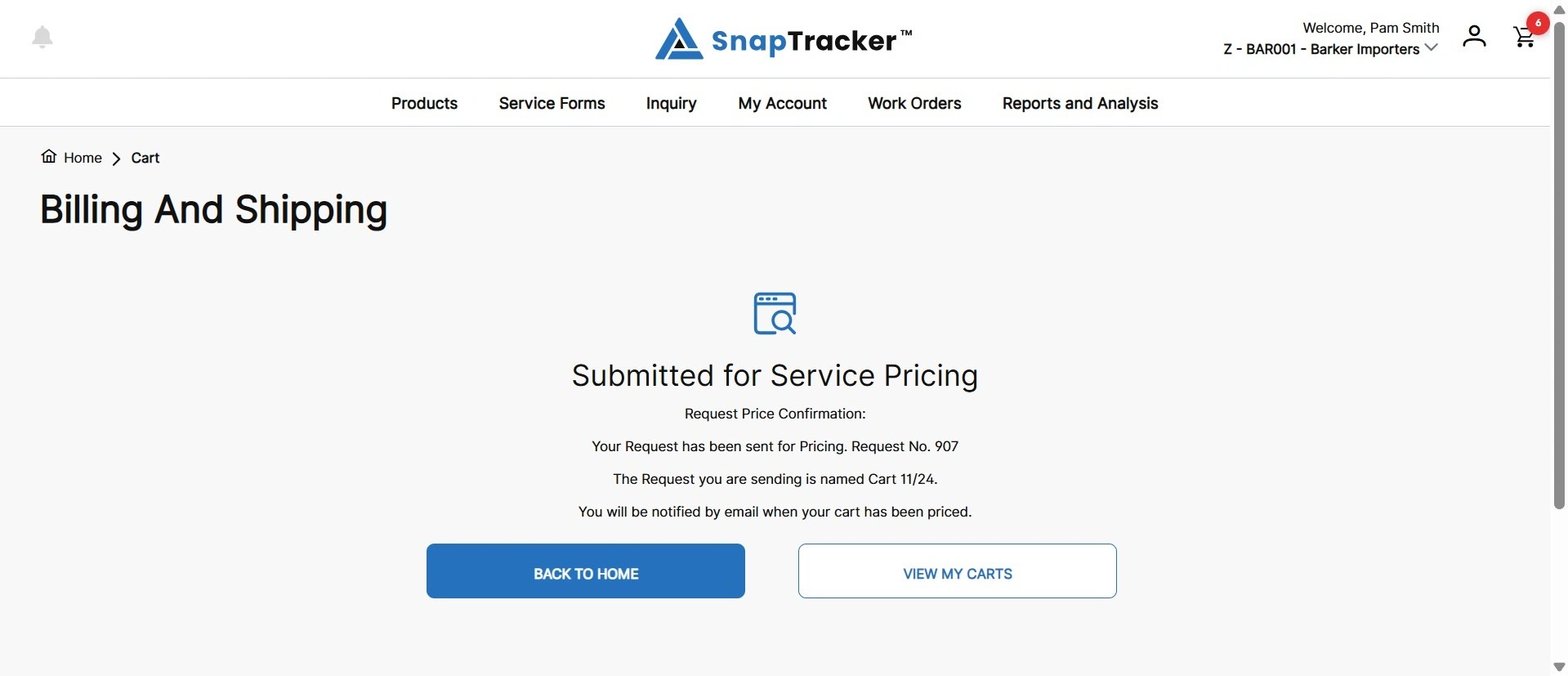
When the request is priced, it is released back to you for checkout. You receive an email letting you know.
Note: If there is any stock product in the cart, it is reserved when the cart is submitted for pricing.