
How to Use Inquiry – Item Search – Search by Serial Number Across All Customers
The Inquiry section is used to search for different information related to product in SnapTracker. Item Search is designed to help you find specific serial numbers and view all related item level information. This screen enables you to inquire about a specific item within the selected Customer or across all Customers.
You can search for items by looking up a Standard or a specific serial number. When searching by serial number, you can enter a specific serial number to search for within the selected Customer, or across all Customers. When searching by all Customers, more details are included in the results to help you identify the specific Customer the item belongs to.
Once results are returned, you can apply additional filters to narrow down your results, such as deciding whether or not to include archived items and what date range to set for the item’s last movement date. You can also print the results as is or export in CSV format.
Before starting, make sure:
- You are logged into SnapTracker.
- You have at minimum one Standard created.
- You have at minimum created one item record.
- You have access to Inquiry – Item Search.
This post outlines the process of searching for items by Serial Number in the Item Search screen across all Customers.
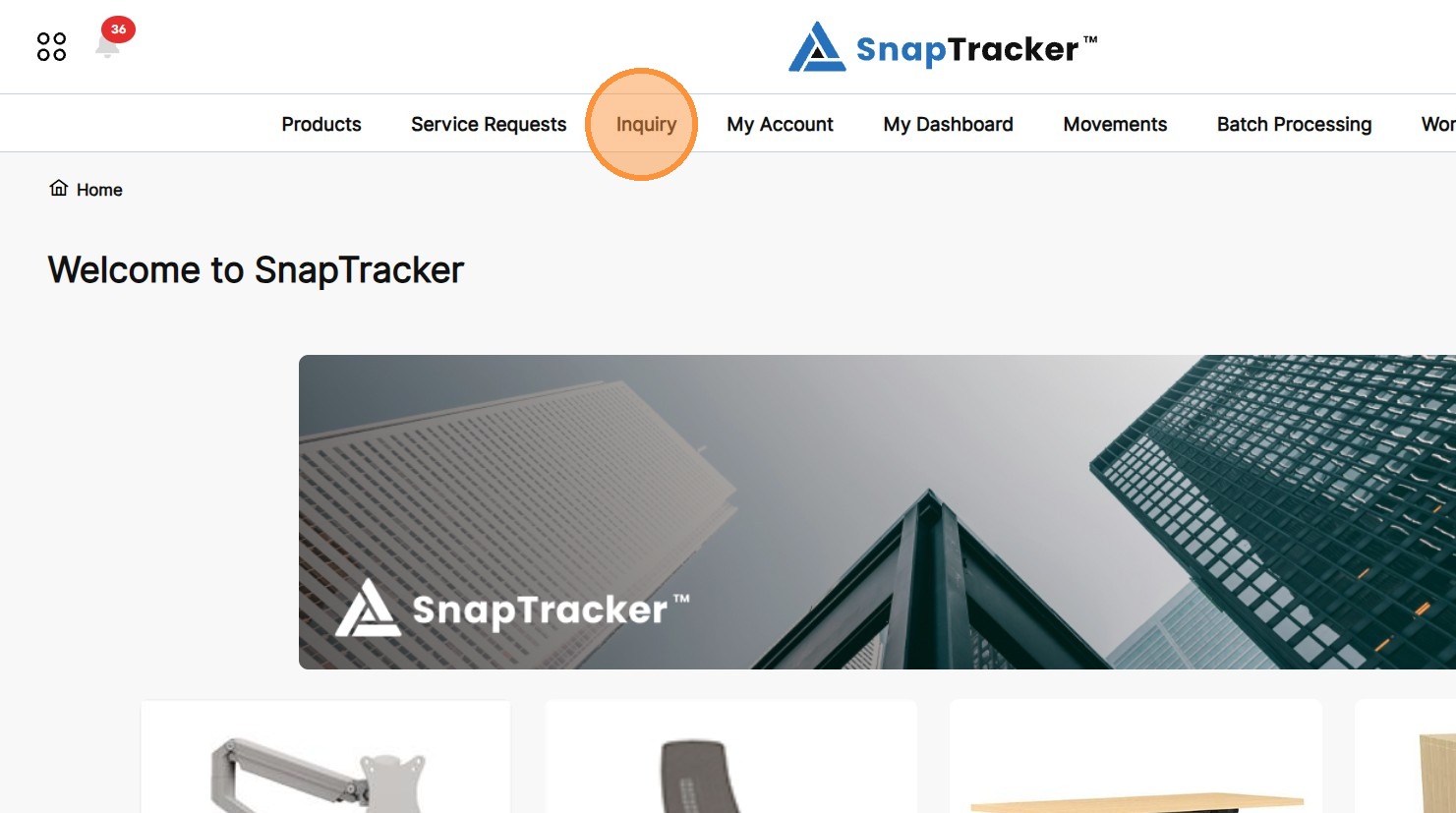
1. In the header section, click Inquiry.
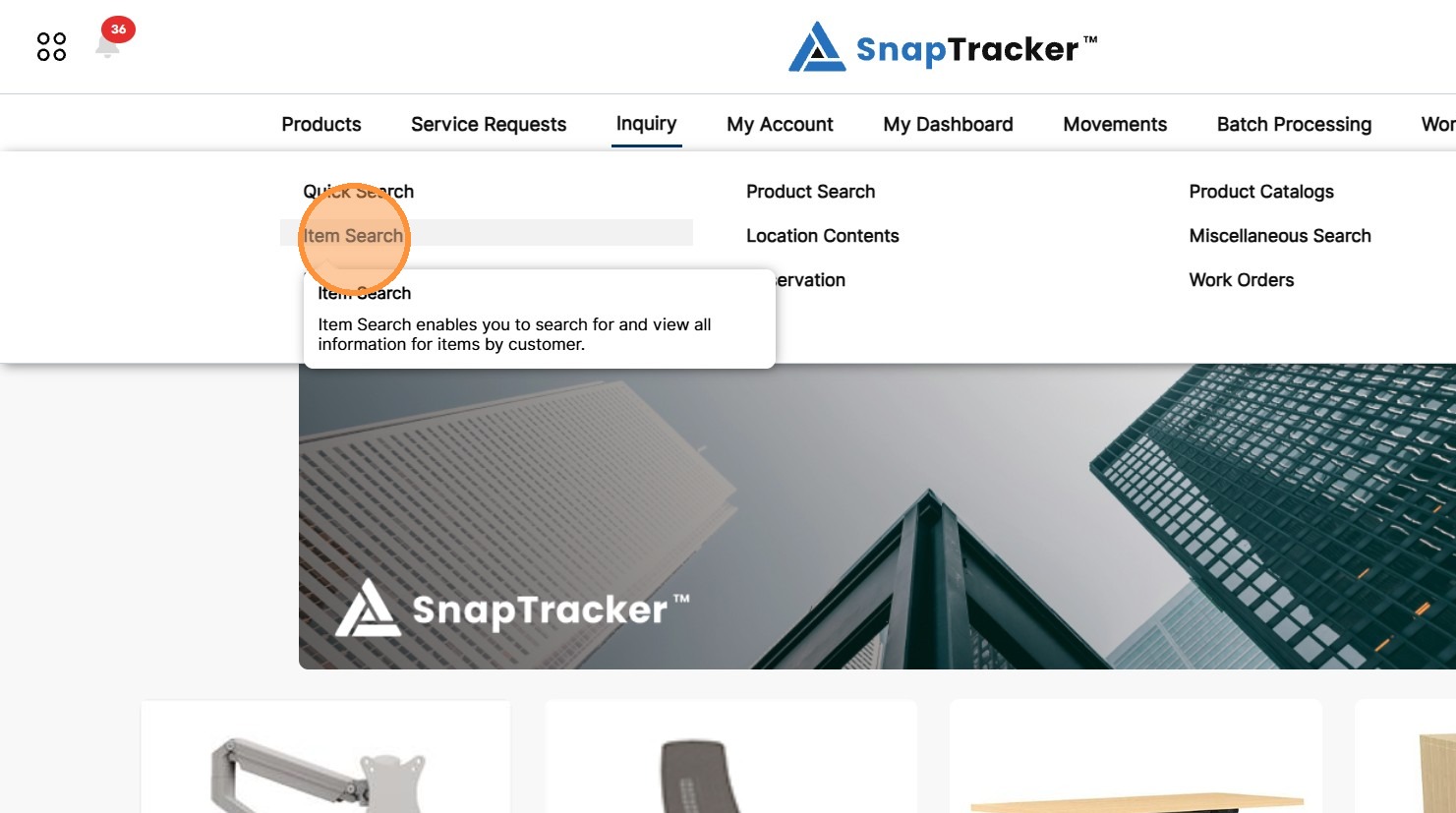
2. Click Item Search.
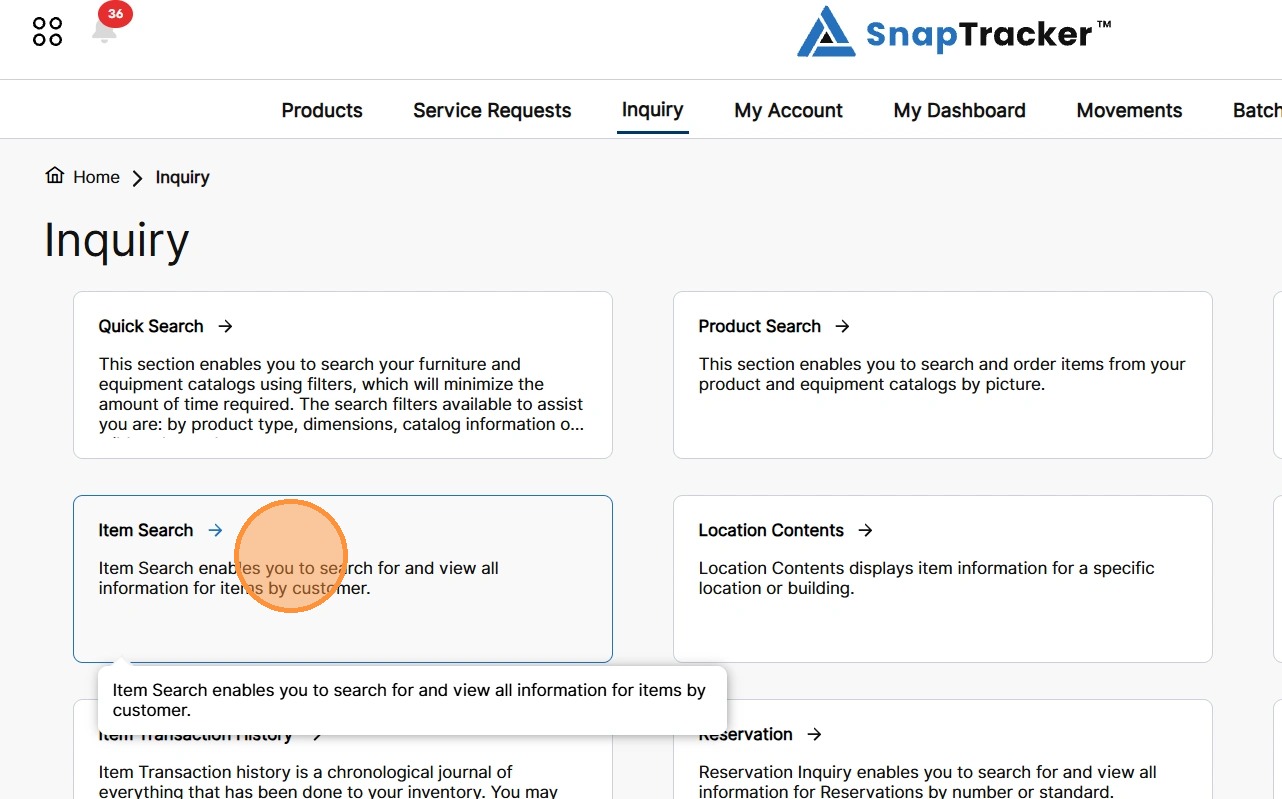
Another way to access the Inquiry Item Search screen is to navigate to the Inquiry main screen.
From here, select Item Search.
The Item Search screen displays.
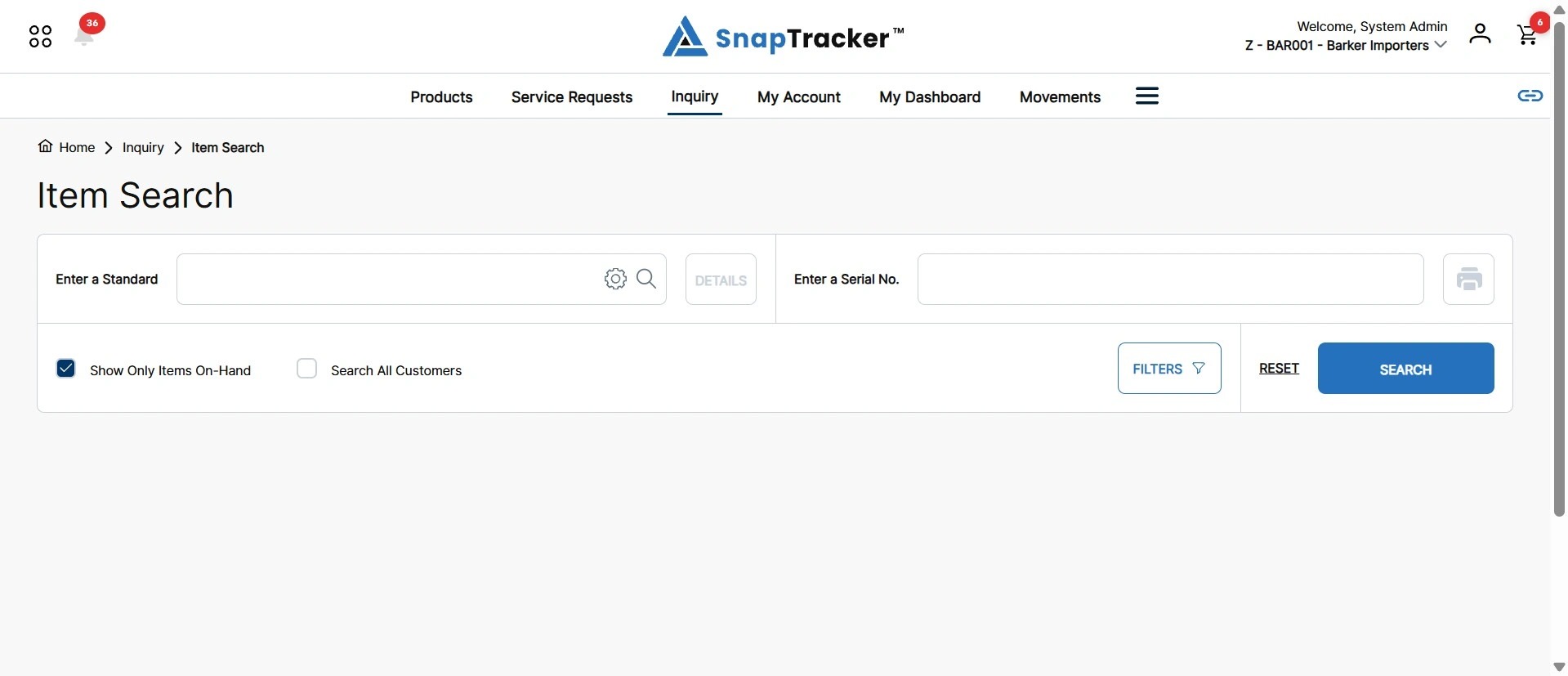
3. To search for a specific Serial No., in the Enter a Serial No. field, enter a serial number.
Note: Click X to quickly clear the field.
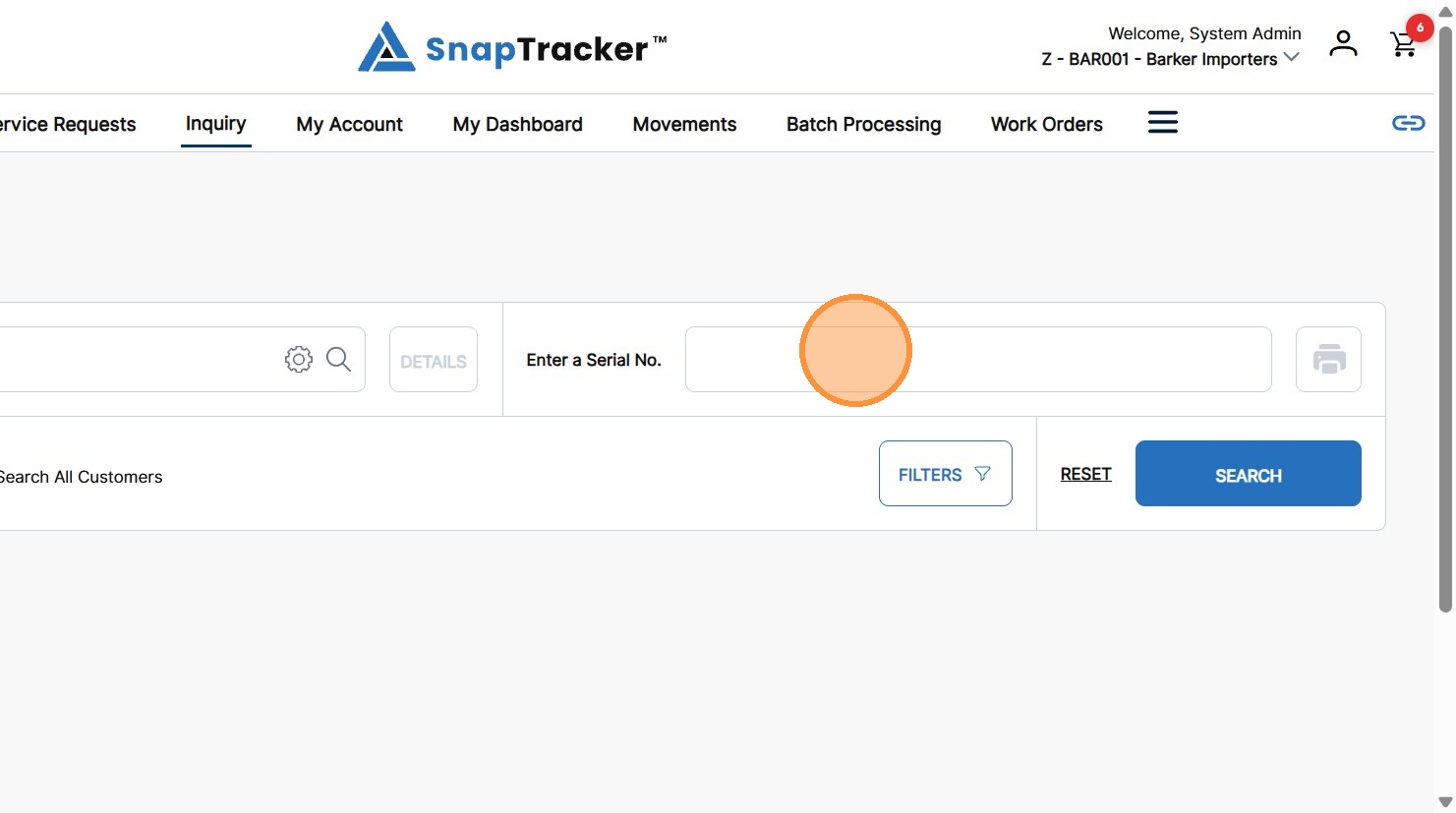
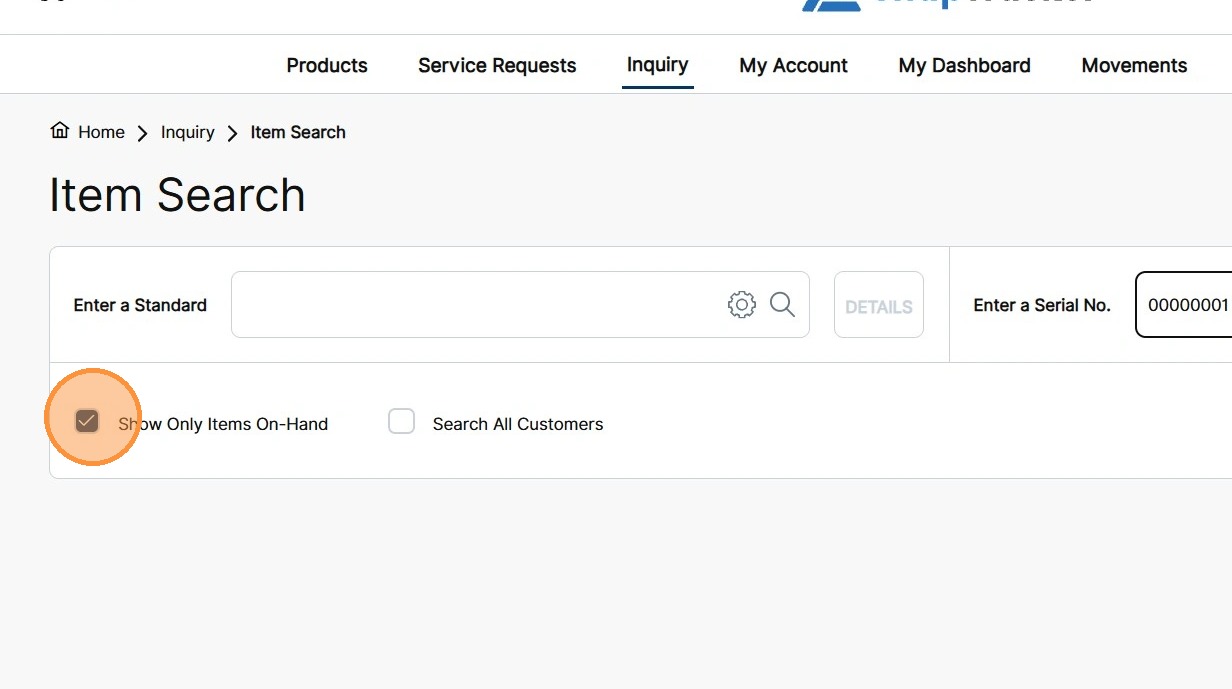
4. To return results with only items currently on hand, select the Show Only Item On-Hand checkbox.
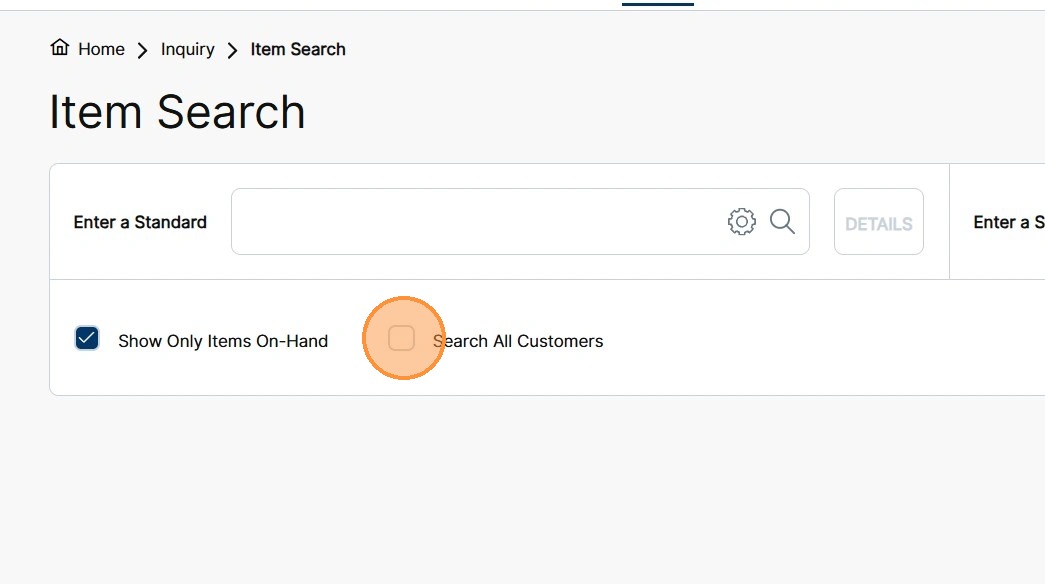
5. To search by all Customers, select the Search All Customers checkbox.
Note: By default, the search is conducted within only the selected Customer.
6. Click Search.
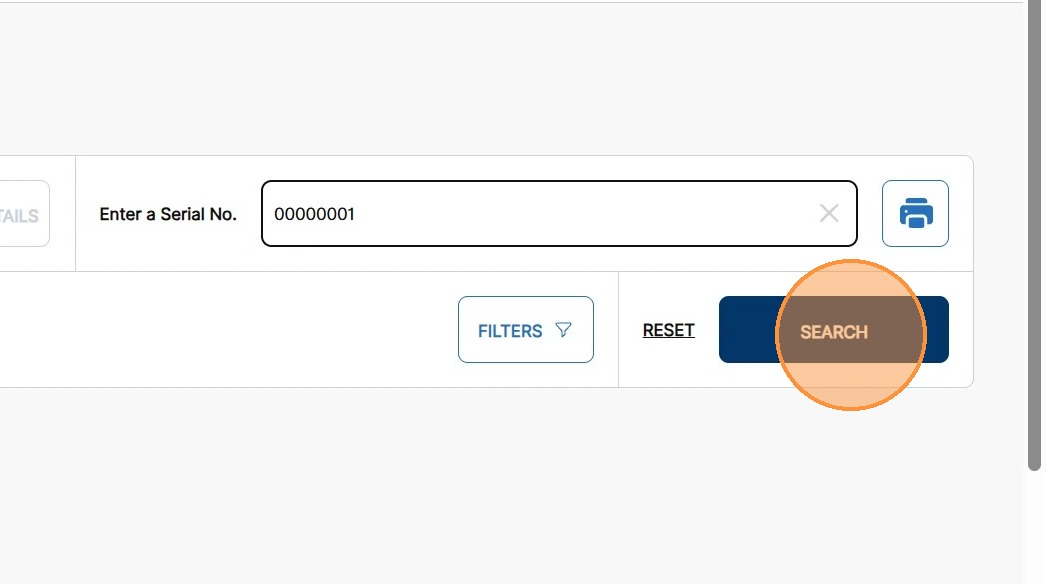
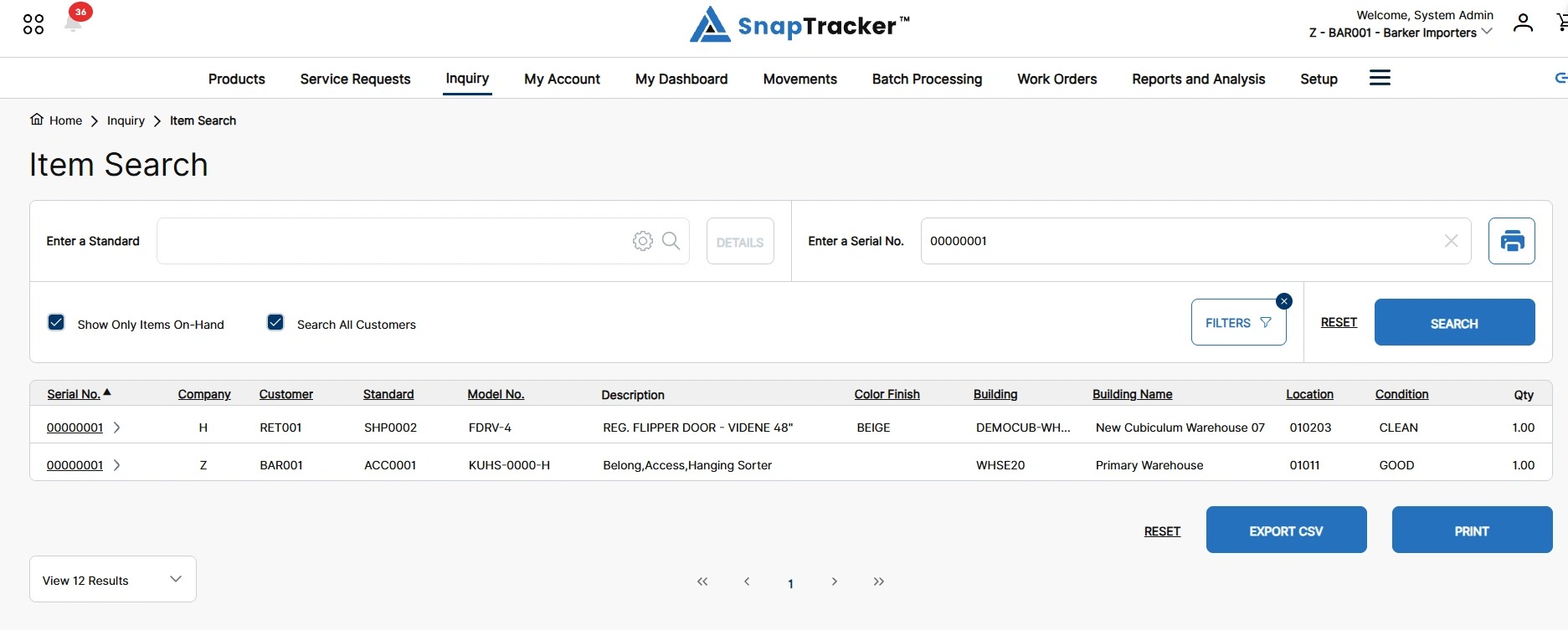
When searching by all Customers, the Item Search Results display with matching items across all Customers.
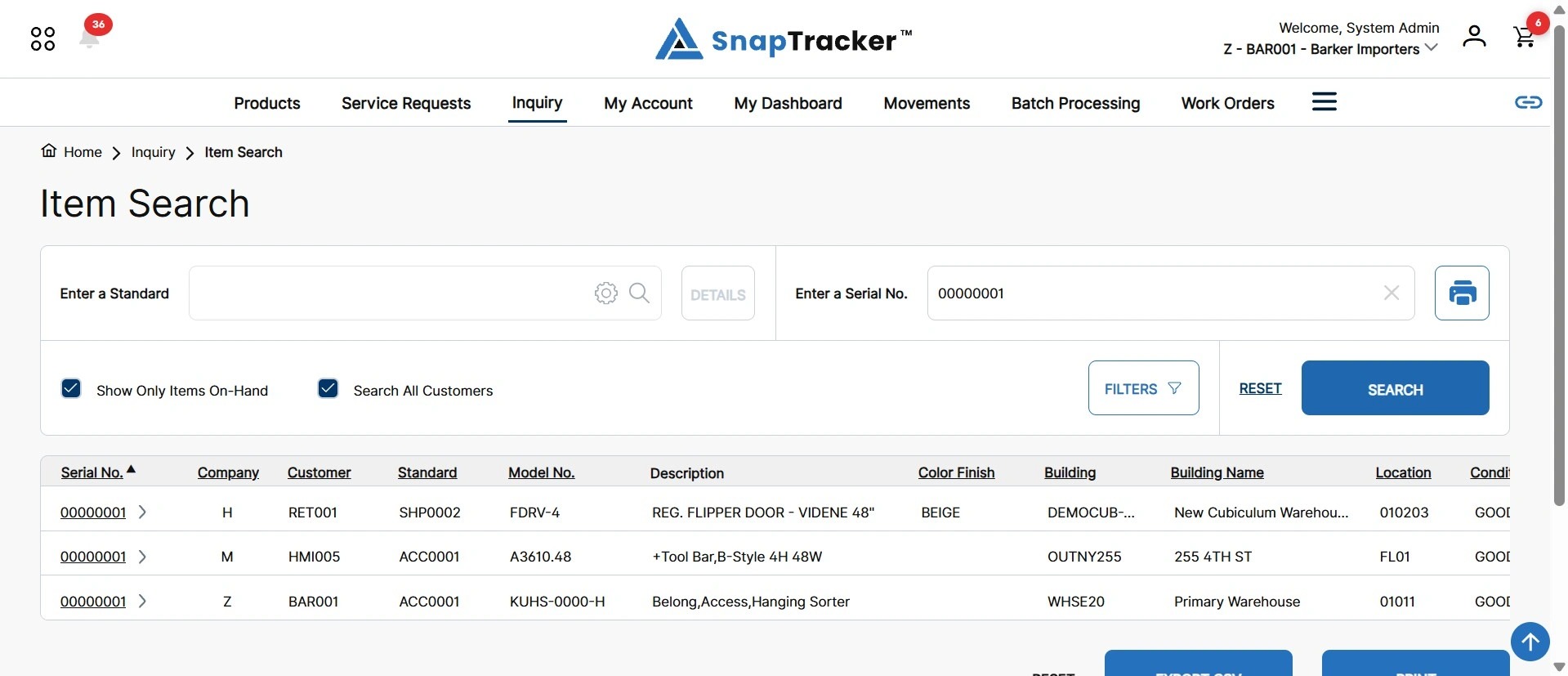
Observe the fields in the results for all customers:
- Company – The Company or division the Customer is created under.
- Customer – The Customer the item was created in.
- Standard – The Standard the item is identified as.
- Model No. – The Model Number of the associated Standard.
- Description – The product description of the associated Standard.
- Color Finish – The color finish of the associated Standard.
The remaining fields are the same when searching by one or all customers.
- Serial No. – The serial number of the item.
- Building – The Building the item is in (if applicable).
- Building Name – The name of the Building the item is in (if applicable).
- Location – The specific Location the item is located in the Building (if applicable).
- Condition – The current Condition of the item (if applicable).
- Qty – The total quantity related to the serial number. Note: The quantity may be more than one when it is a Like item. Asset items should always have a quantity of 1.
7. To apply filters to your search, click Filters.
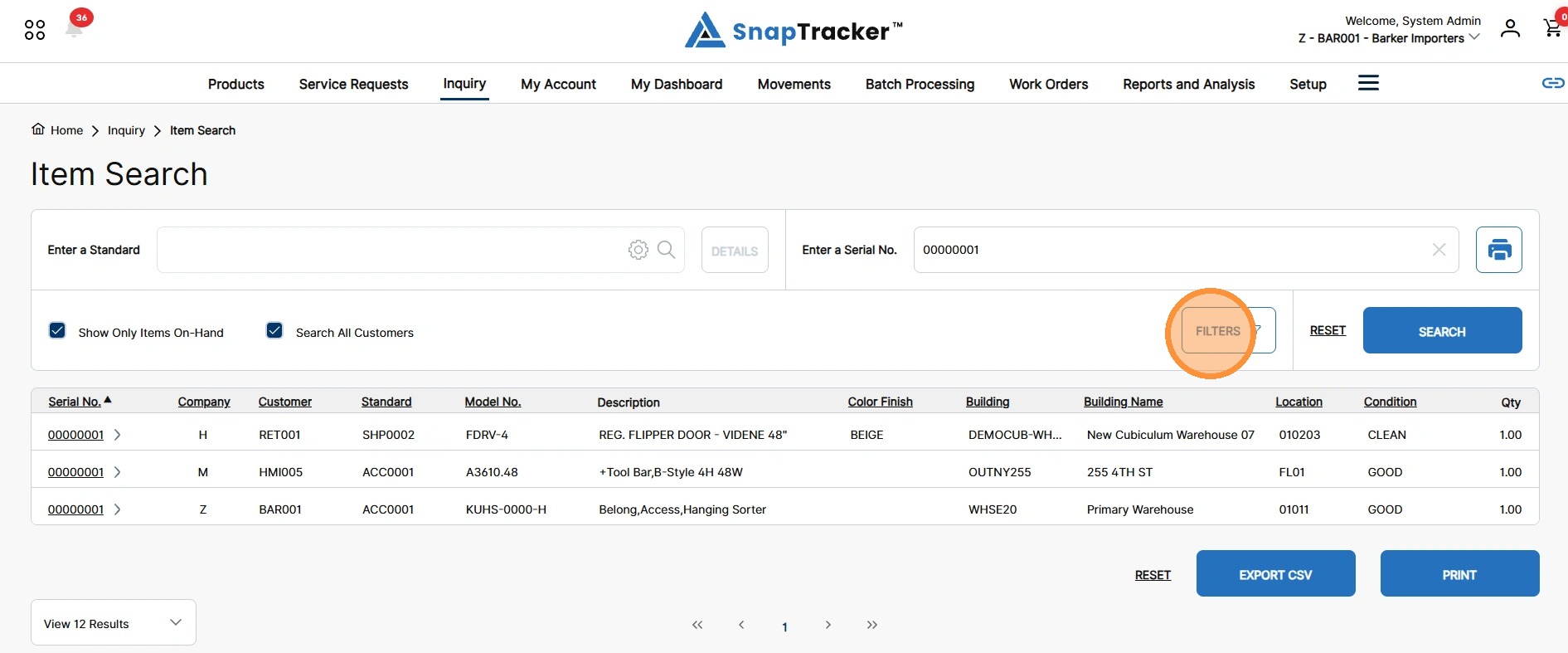
The Filters side panel displays.
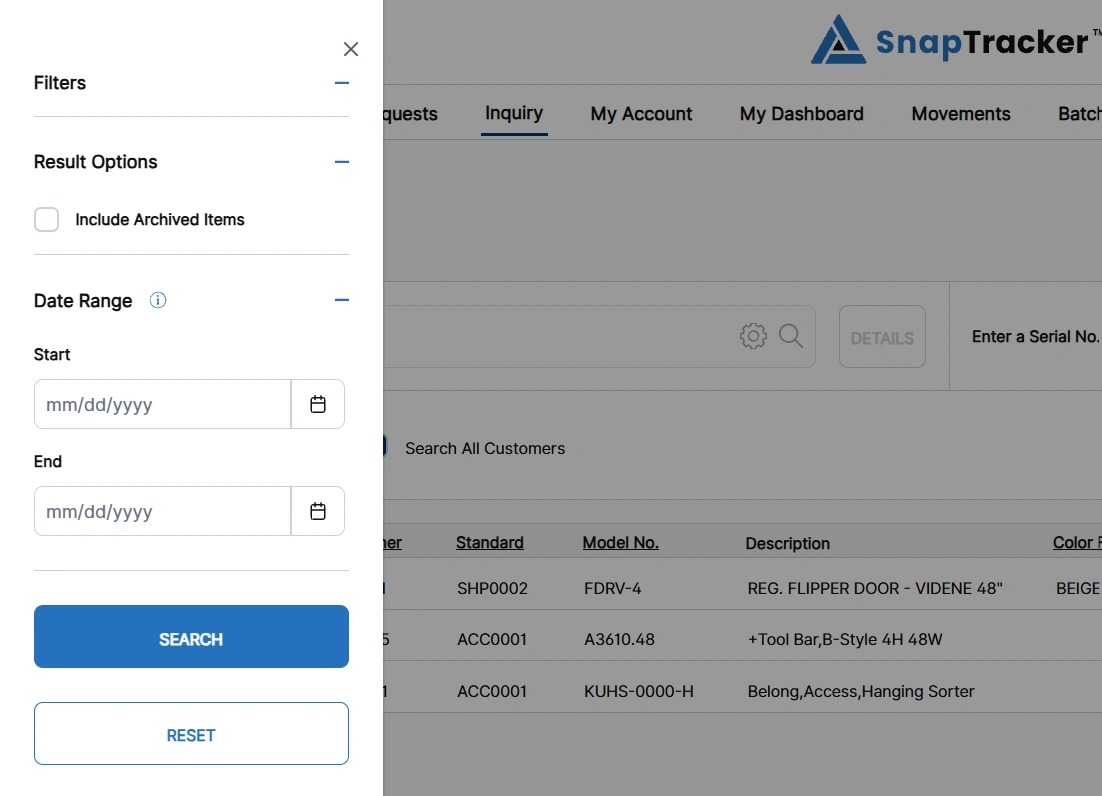
Observe the filter options:
- Include Archived Items – Select whether or not to include items that have been archived.
- Date Range – Set a Start and/or End Date to filter results by their Last Inventory Movement Date. Note: Like items will inherit the most recent movement date.
8. Populate the desired filters and click Search.
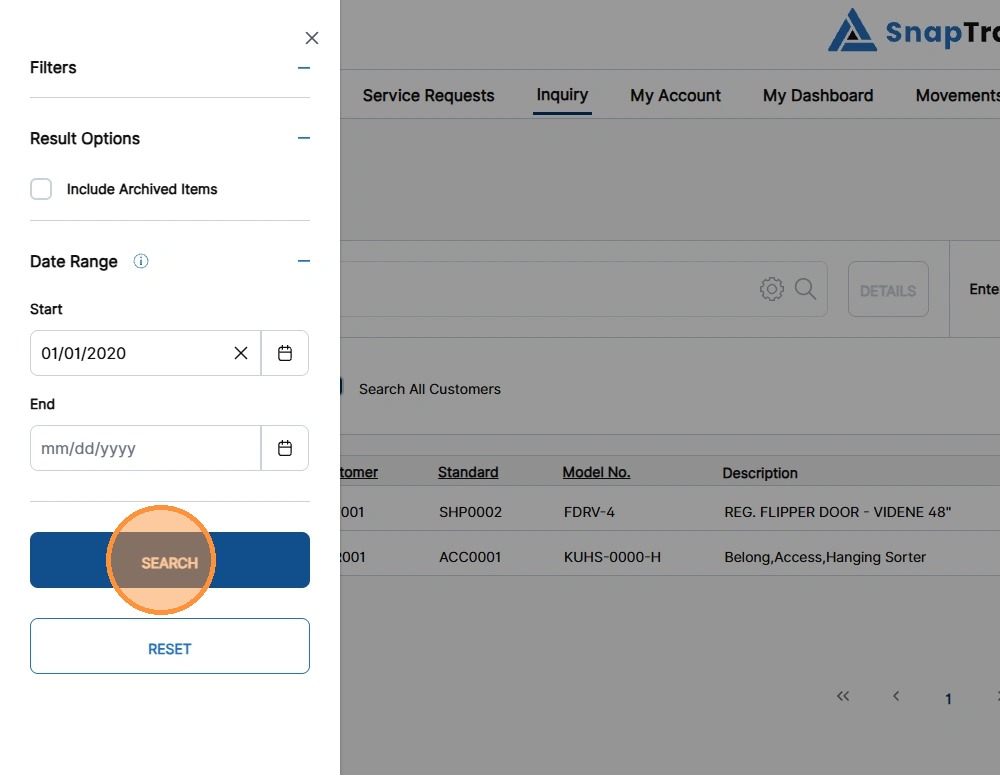
The filtered results display.
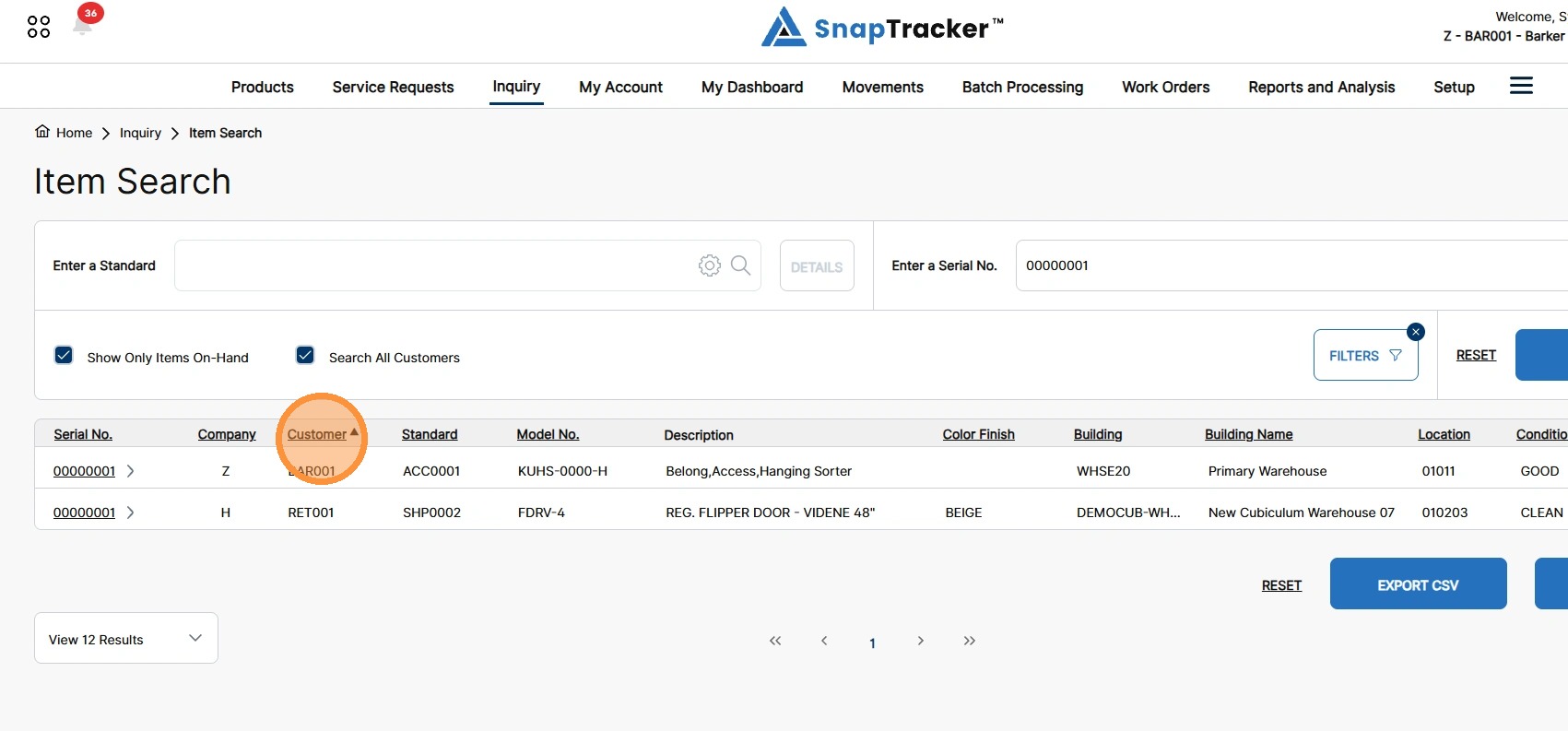
9. To sort the results by a particular field, click the hyperlinked column header.
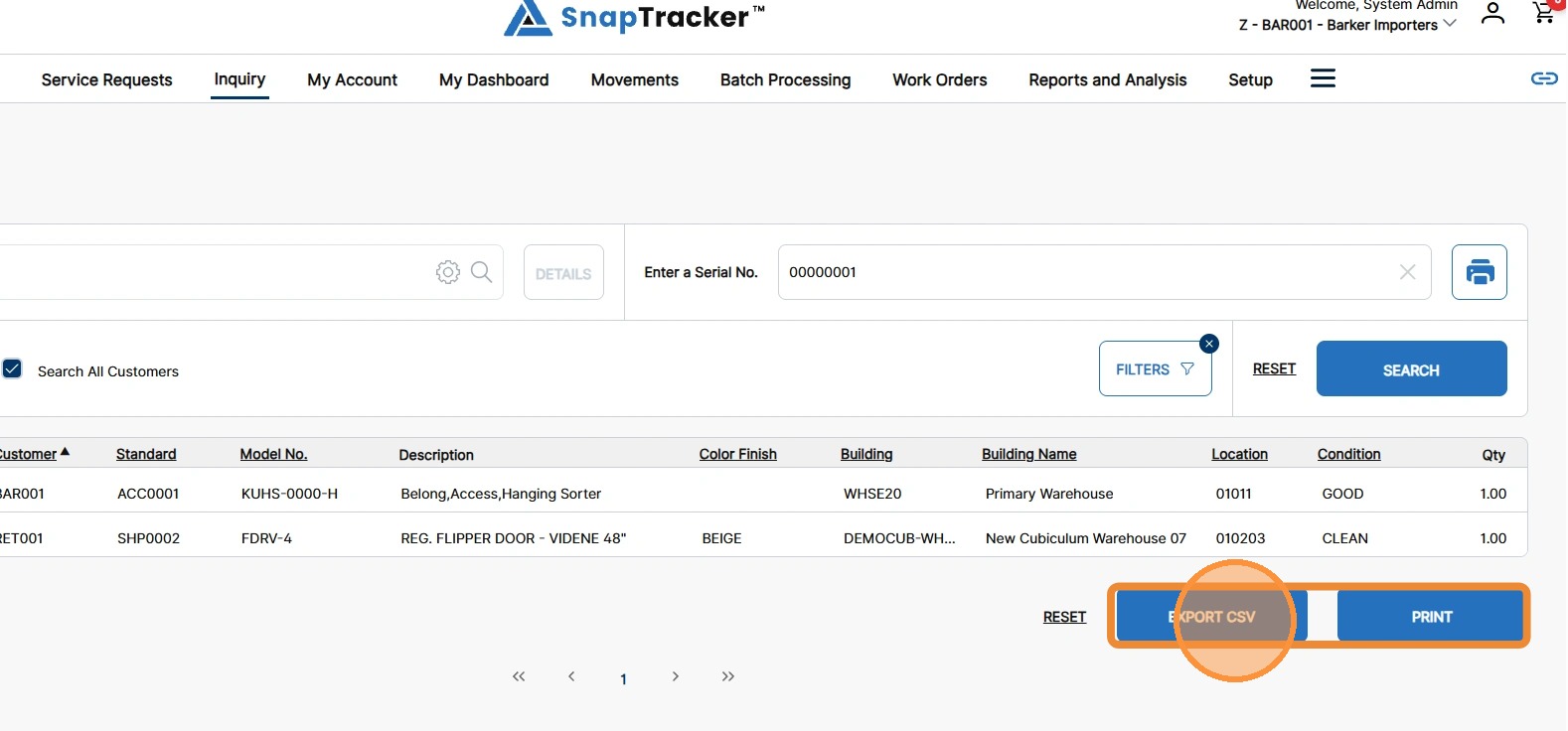
10. To download the item search results, click Export CSV or Print.
11. To view full item details, click a hyperlinked serial number.
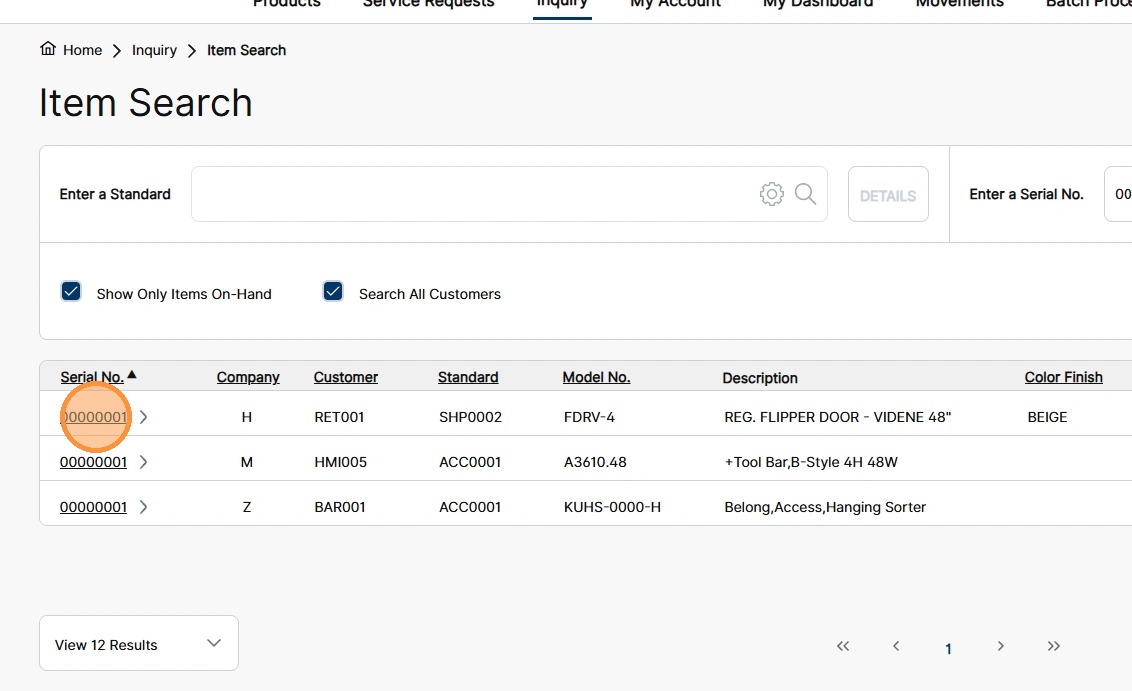
The Item Details side panel displays. The Item information is divided into six separate tabs: Details, Financial, User Fields, Statistics, Damage and View All.
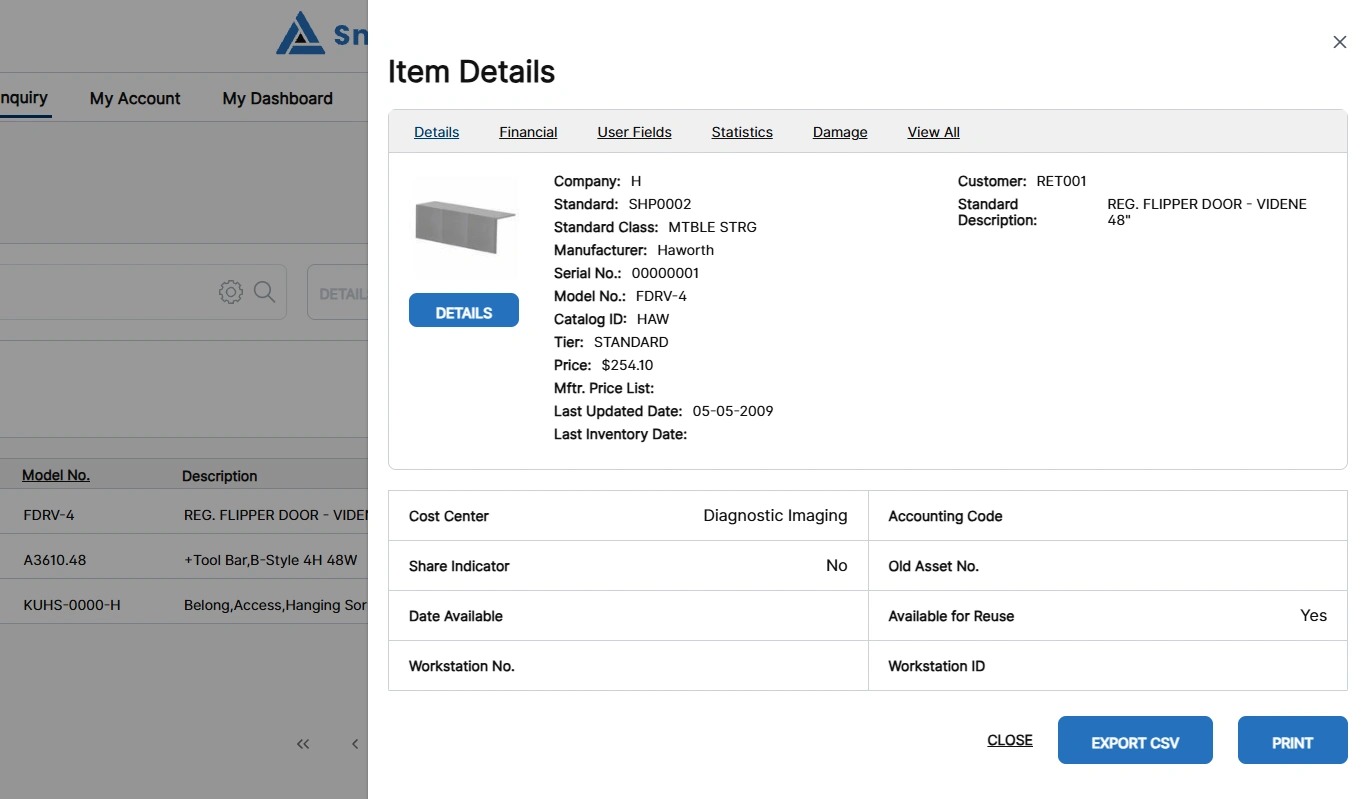
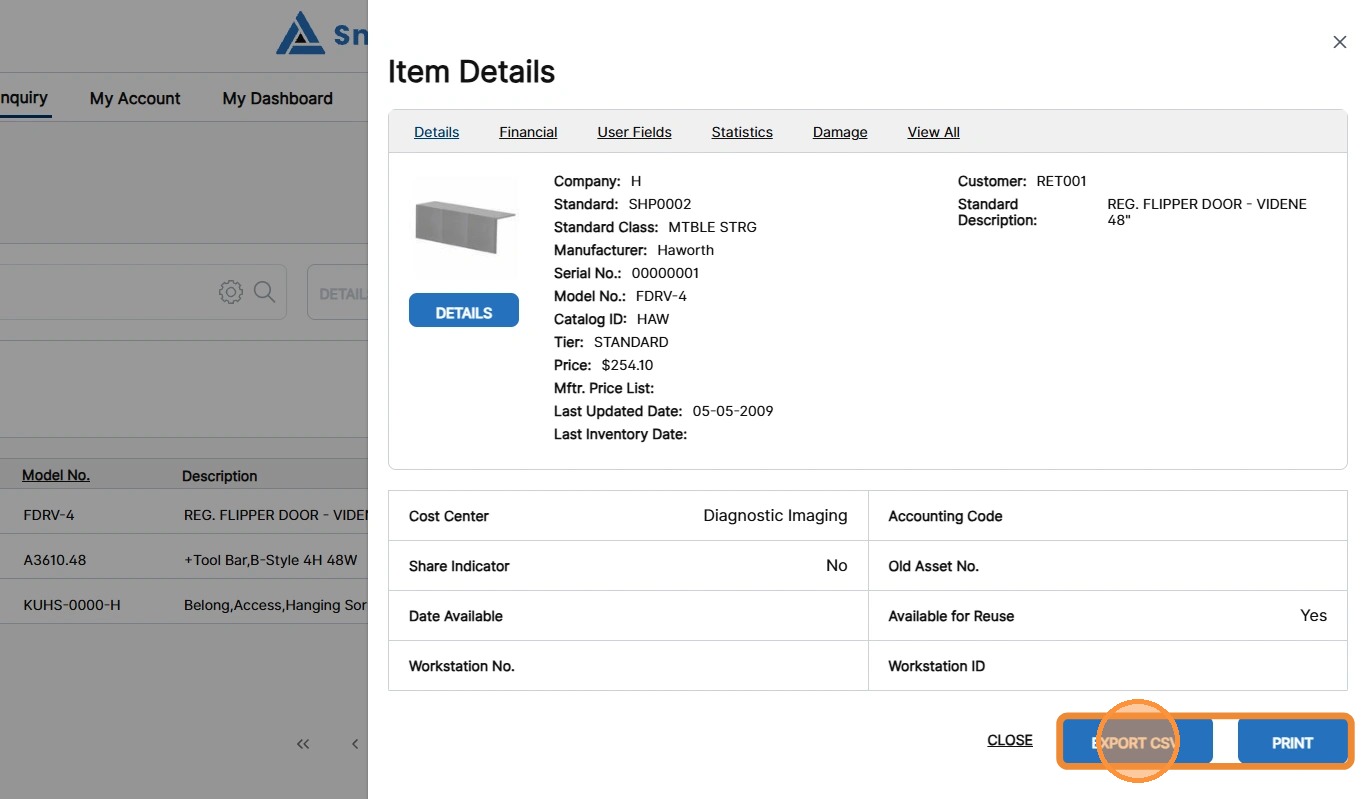
12. To download the Item Detail information for a specific tab, select the tab and click Export CSV or Print.
Note: To export details from all tabs at once, click View All and then export the information.
For more information on how to conduct an Item Search by Standard or for a Serial Number for the selected Customer, see “How to Use Inquiry – Item Search – Search by Standard” or “How to Use Inquiry – Item Search – Search by Serial Number for a Single Customer.”