
How to Use Inquiry – Location Contents – View Results
Location Contents is designed to provide you with inventory information of all products you have in stock in a specific building. After applying your search criteria, you can choose to view the information in two different ways: View Report or View Results.
Both options present the same product results in different formats. View Report provides results in a report format. View Results provides easy to read, summarized views of the Location Contents results, summarizing inventory totals categorized by Location, Location Type, Customer, Standard Class, or Condition.
Before starting, make sure:
- You are logged into SnapTracker.
- There is at minimum one Building created with inventory.
- You have access to Location Contents.
There are several ways to use Location Contents to view inventory details. This post outlines the process of conducting a search in Location Contents returning products in the View Results format.
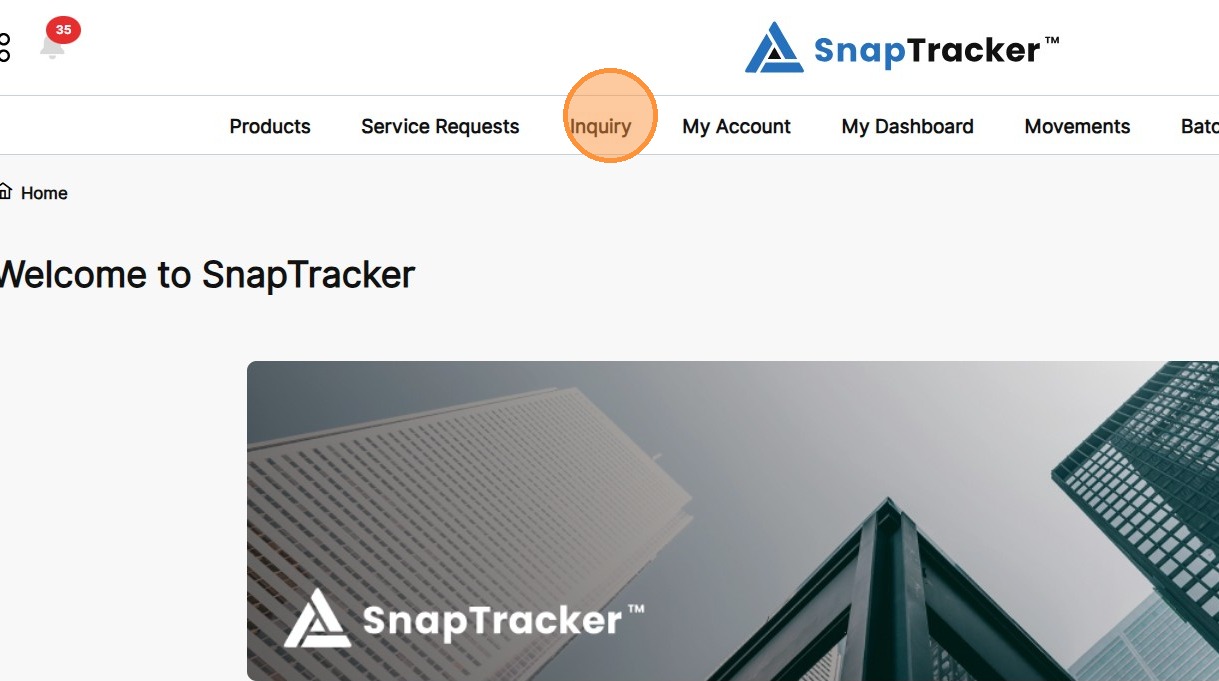
1. In the header section, click Inquiry.
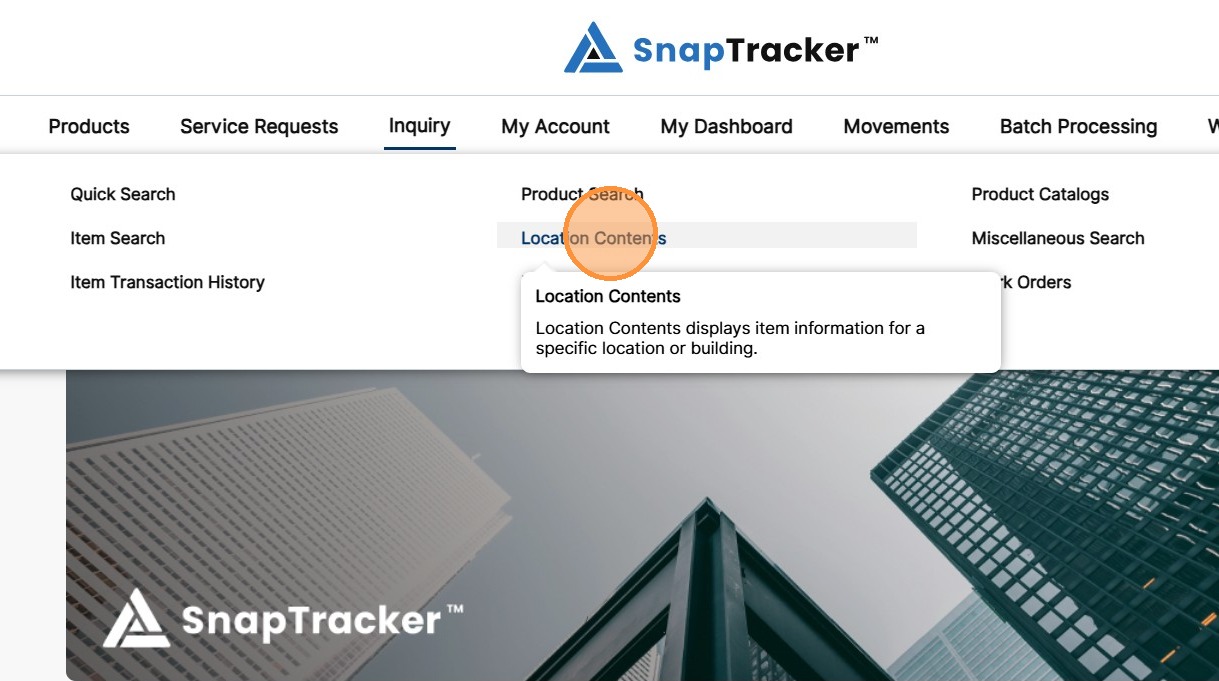
2. Click Location Contents.
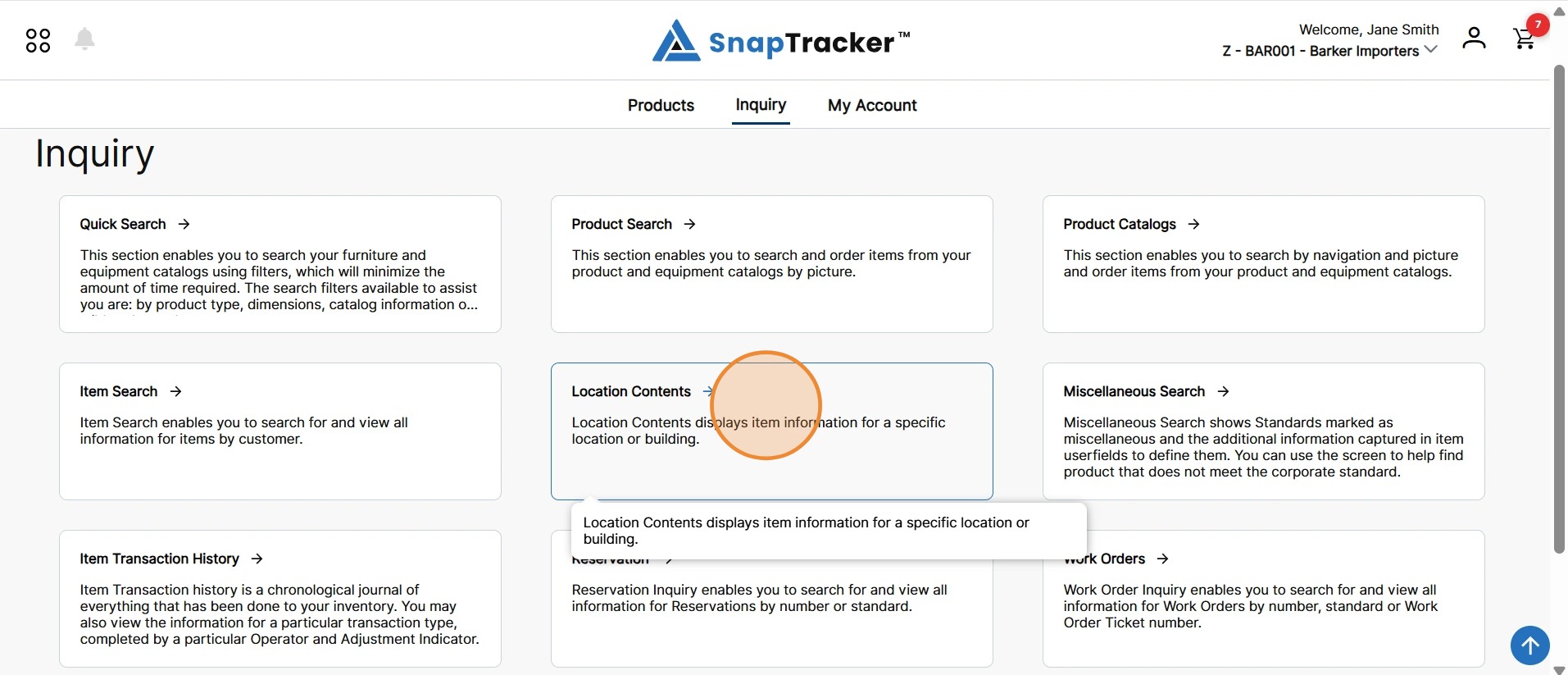
Another way to access the Location Contents screen is to navigate to the Inquiry main screen.
From here, select Location Contents.
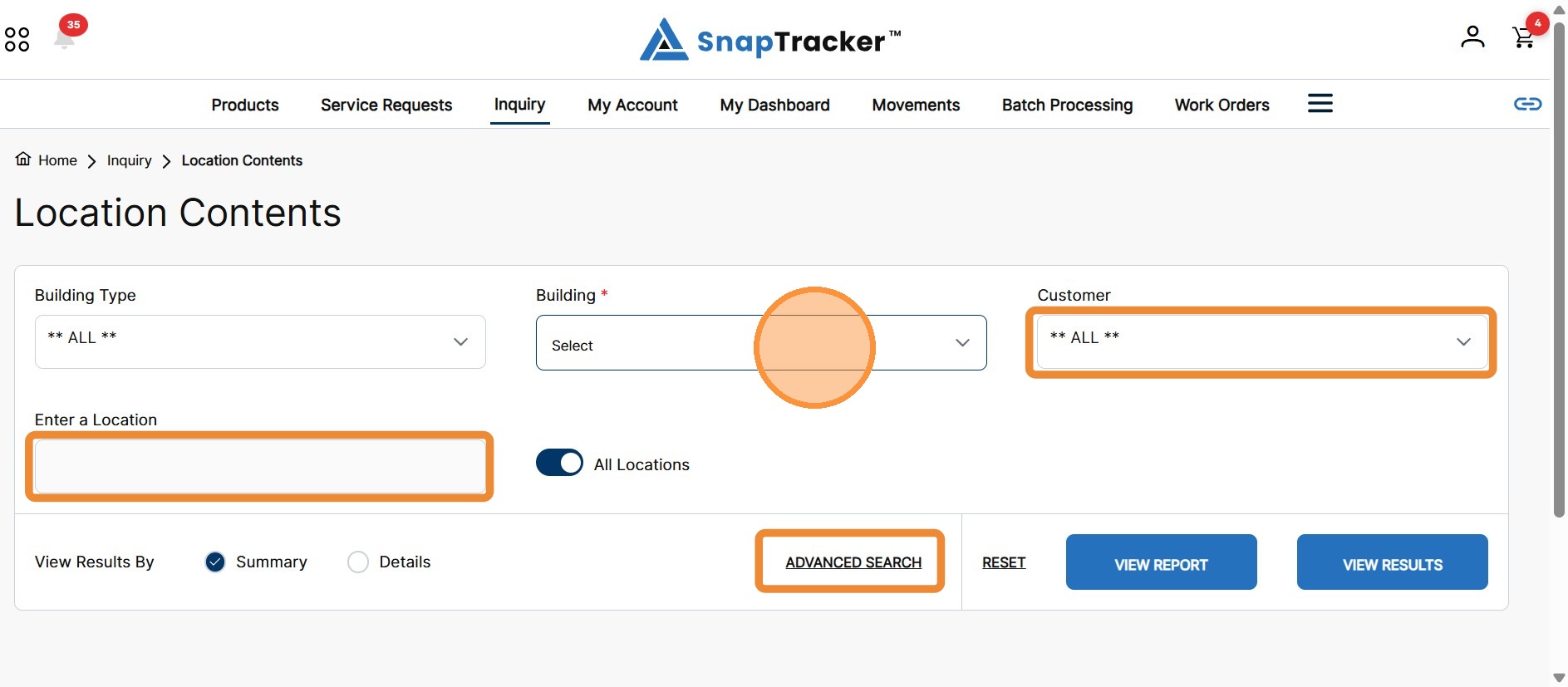
The Location Contents screen displays, showing available search and filter options.
Note: The Customer selection in the header does not display in the Location Contents screen. By default results show product in the selected Building for all Customers you have access to (depending on the selections made).
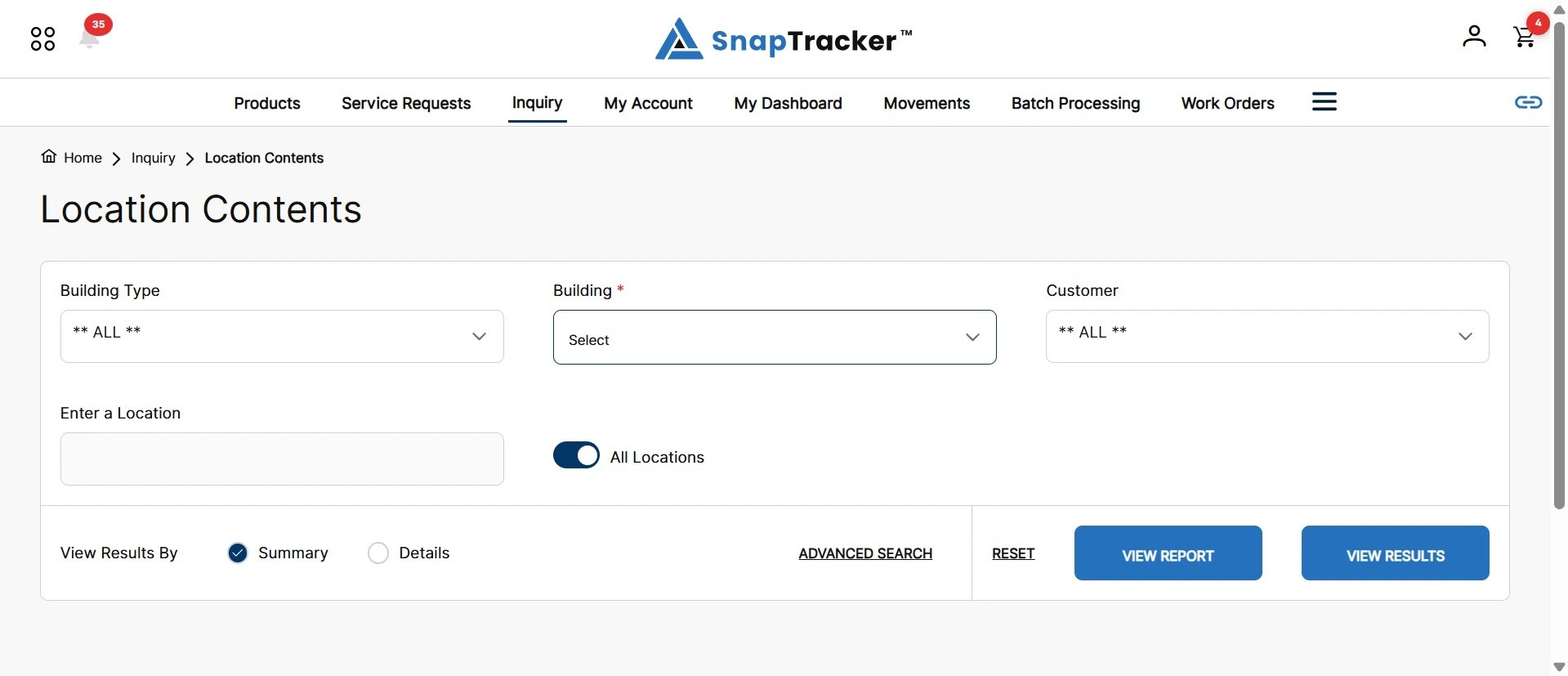
3. From the Building drop down, select the desired Building and apply any other optional field(s).
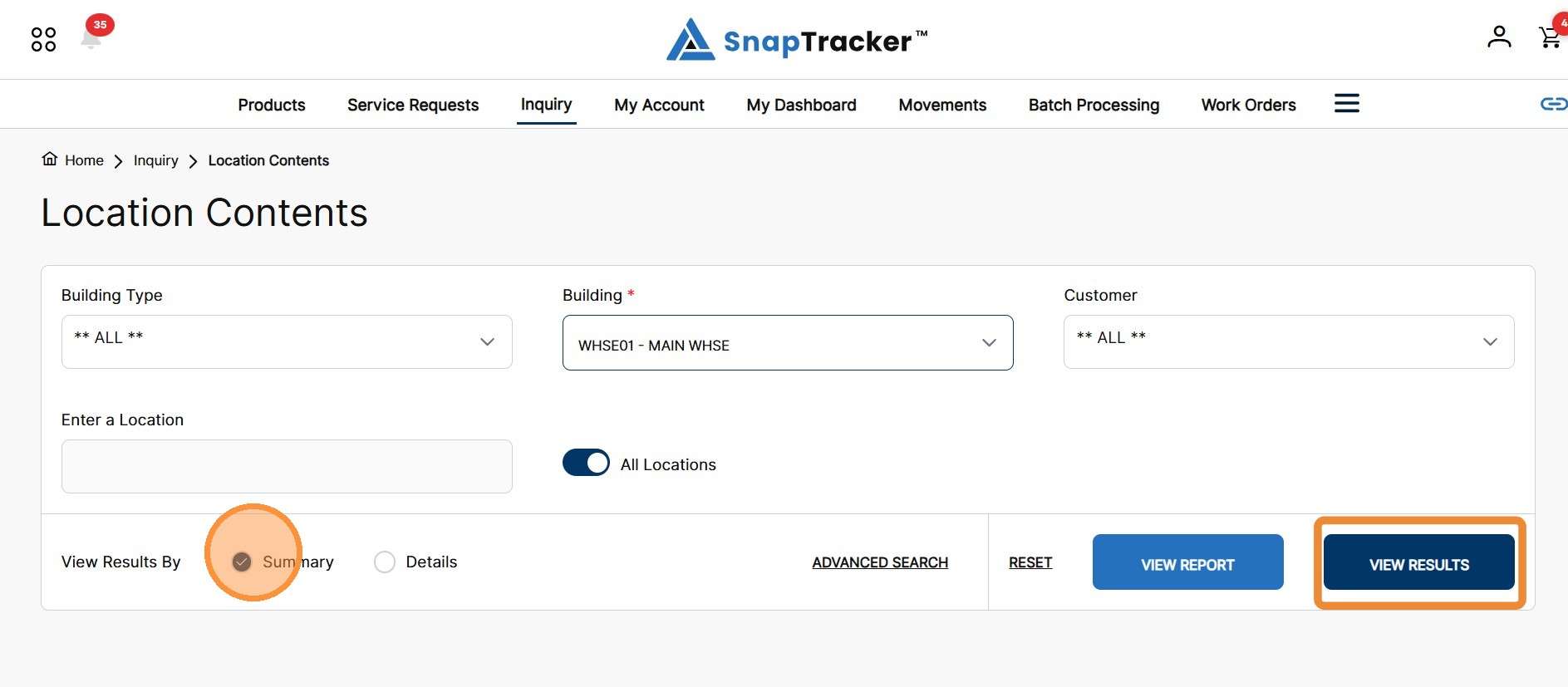
4. In View Results By, select Summary and click View Results.
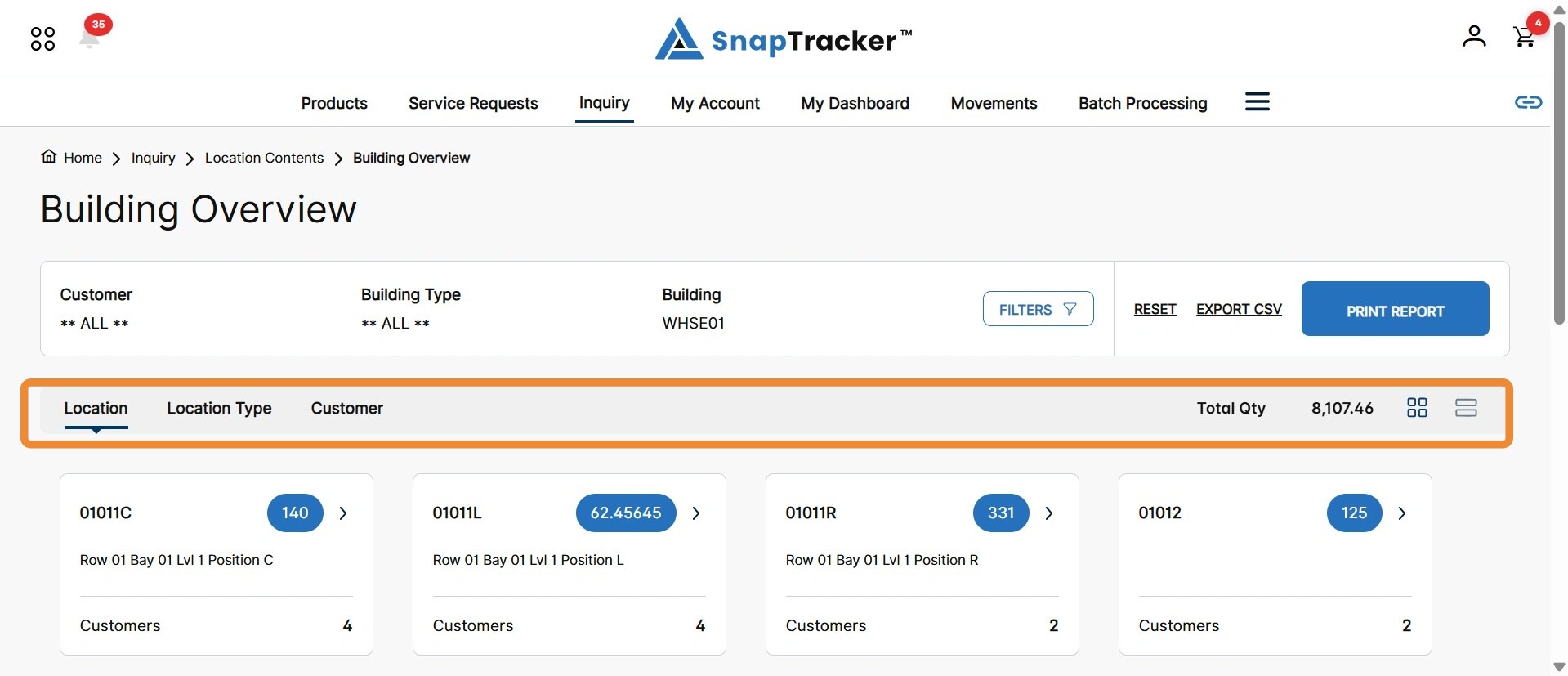
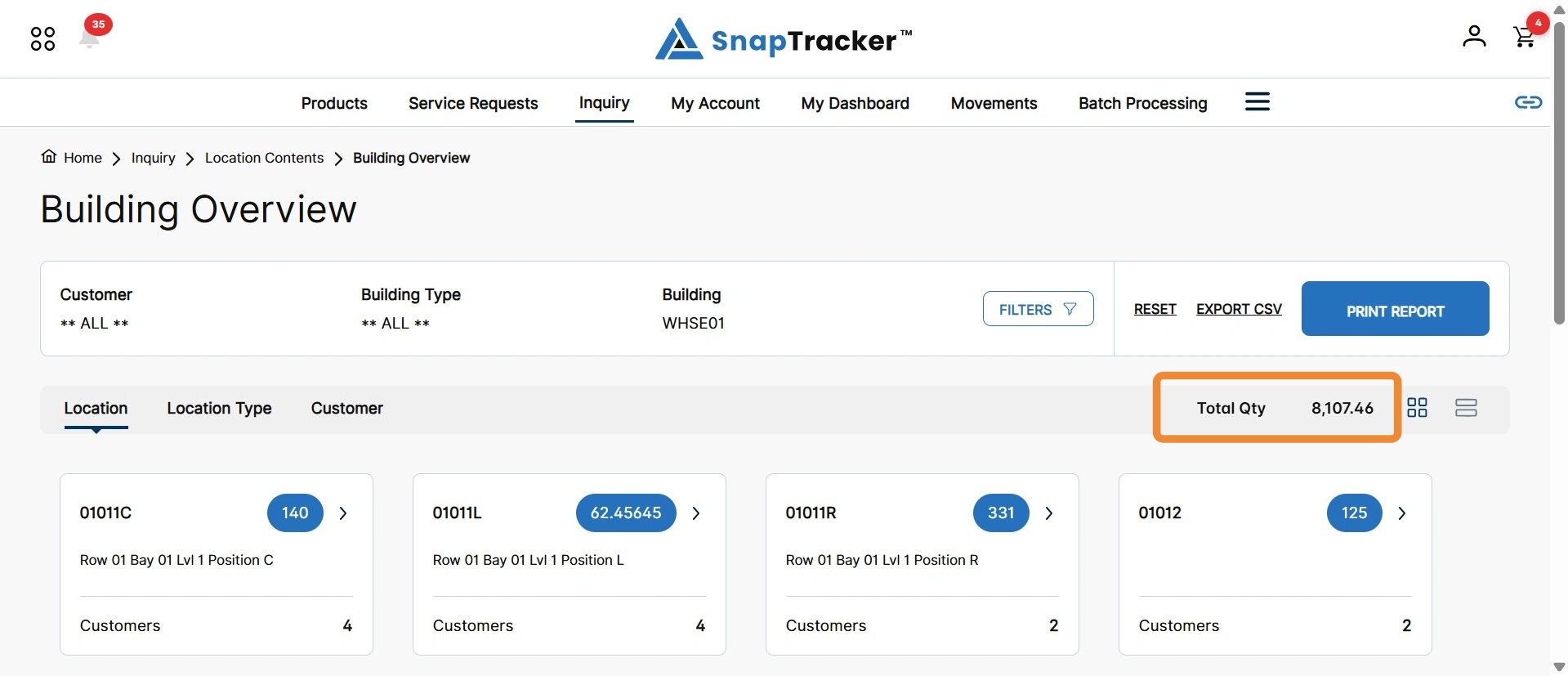
The Building Overview screen displays in the View Results format by Summary.
Below the results header, the inventory results section displays. By default, the Location tab is highlighted, showing inventory categorized by Locations within the selected Building.
When searching through multiple Customers, available tabs to view results are Location, Location Type, and Customer.
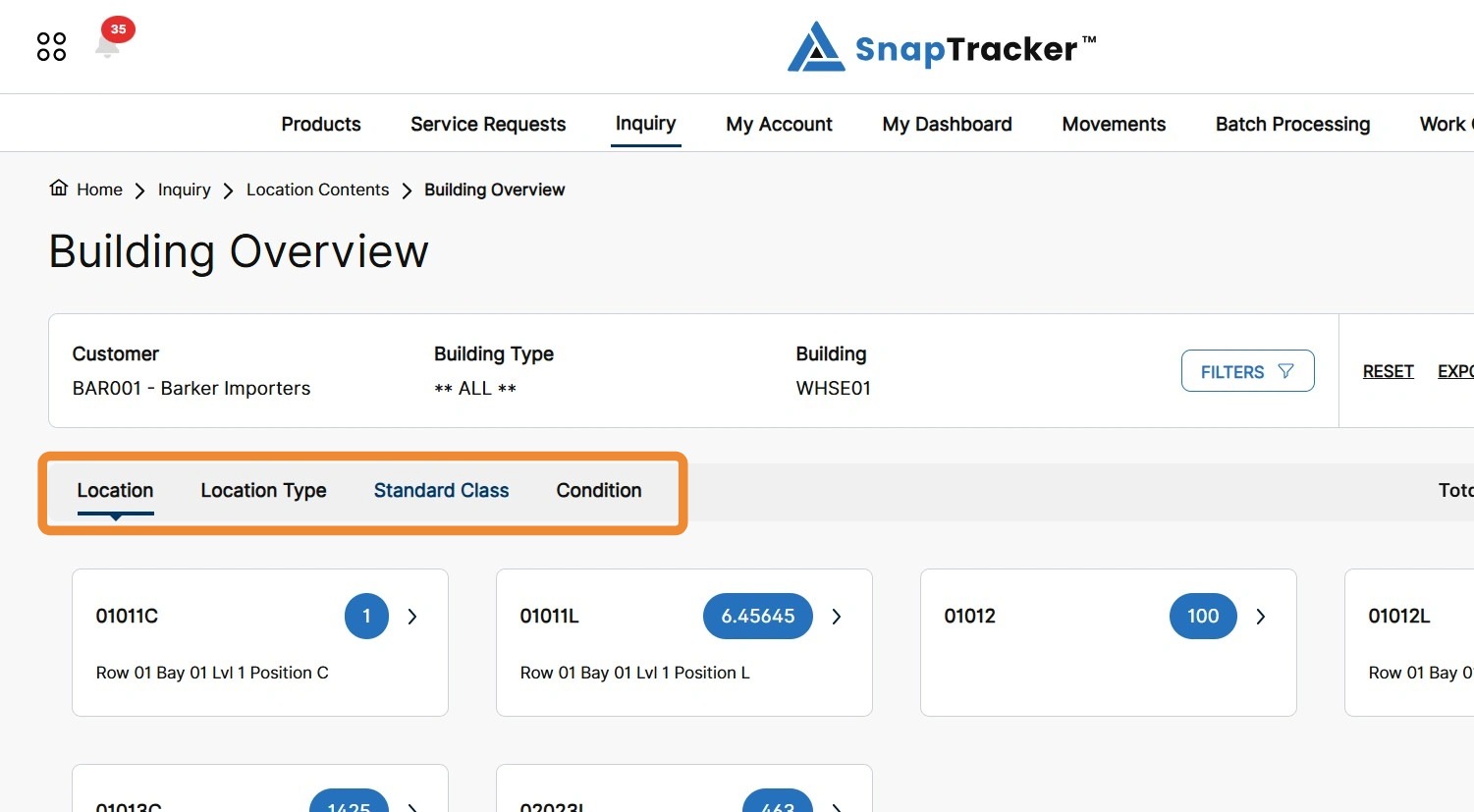
When results for a single Customer display, available tabs to view results are Location, Location Type, Standard Class, and Condition.
The Total Qty value indicates the total quantity of product within the selected Building, based on any additional filters applied.
This value stays the same on each of the different Location, Location Type, and Customer tabs if no further filters are applied.
5. To reorganize the results in different categories, click the other tabs, such as Location Type.
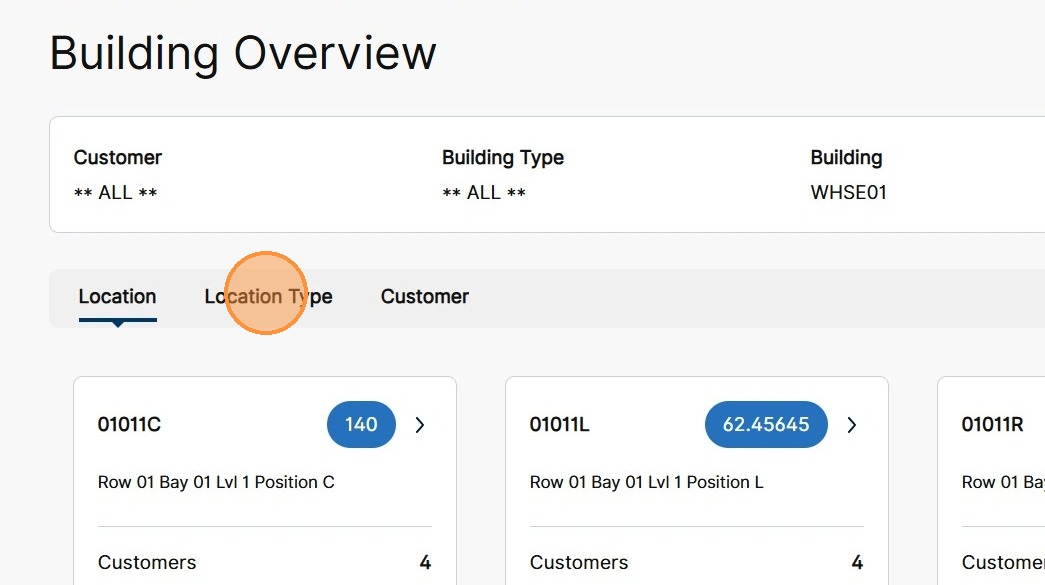
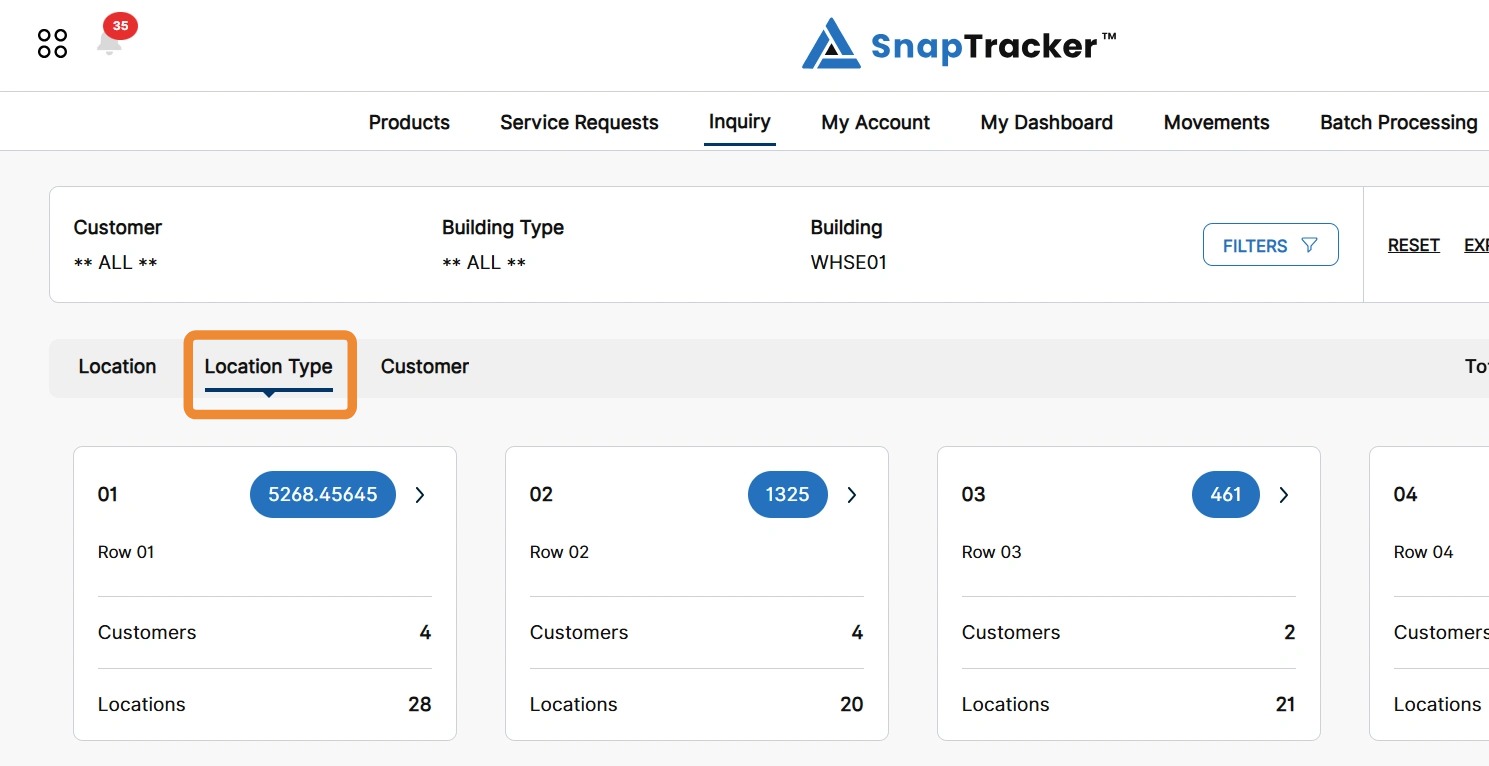
The Building Overview results update, displaying information based on the selected tab.
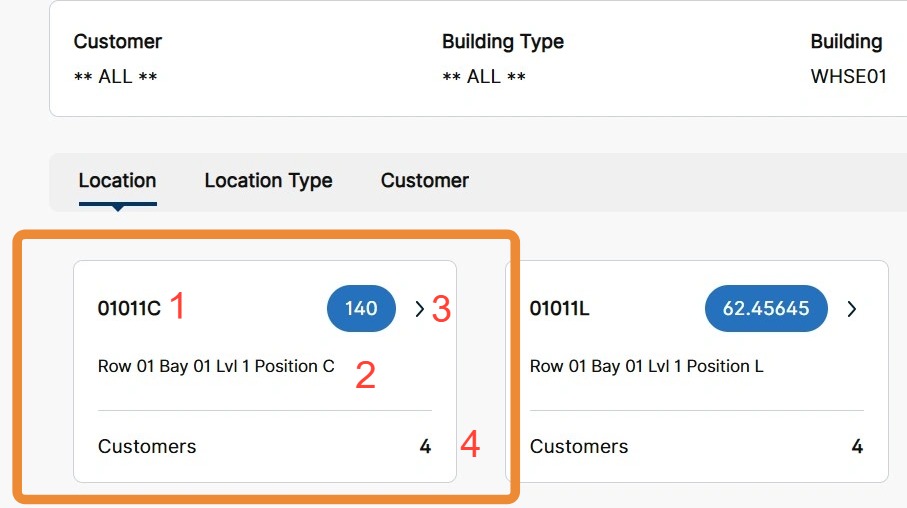
When viewing results by Summary and View Results, the results display in categorized result cards.
Each result card displays the following:
- Selected Category – In the Location Tab, this is the Location.
- Description – In the Location Tab, this is the Location Description.
- Quantity – In the Location Tab, this is the total quantity of products in the Location.
- Additional Totals – Depending on the selected tab, additional details are available such as the total number of Customers and/or Locations. In the Location Tab, the total number of Customers displays.
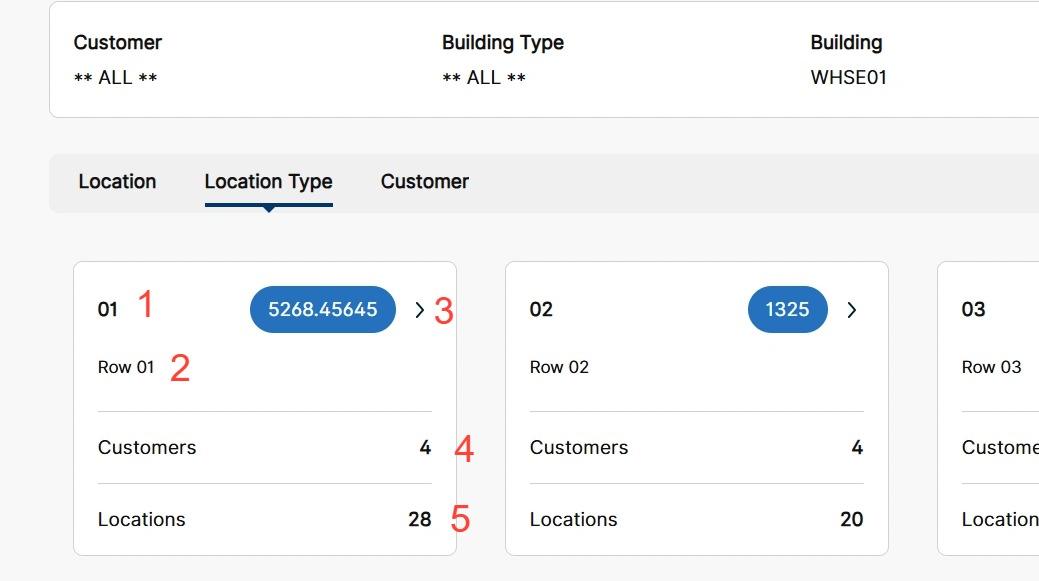
In the Location Type tab, the result cards display similar details.
- Location Type.
- Location Type Description.
- Location Type Quantity.
- Total number of Customers.
- Total number of Locations.
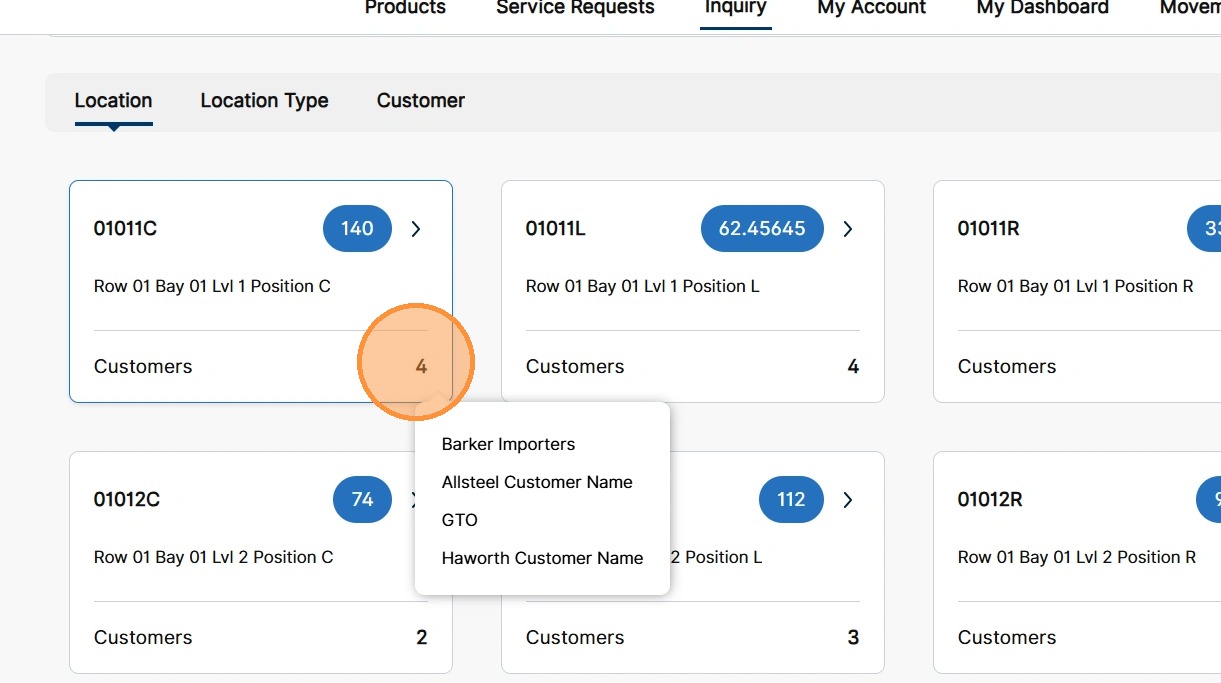
6. To see further details on the additional totals per result card, hover your mouse on the associated number value.
Hover on the Customers value to view a tooltip list of all Customer names.
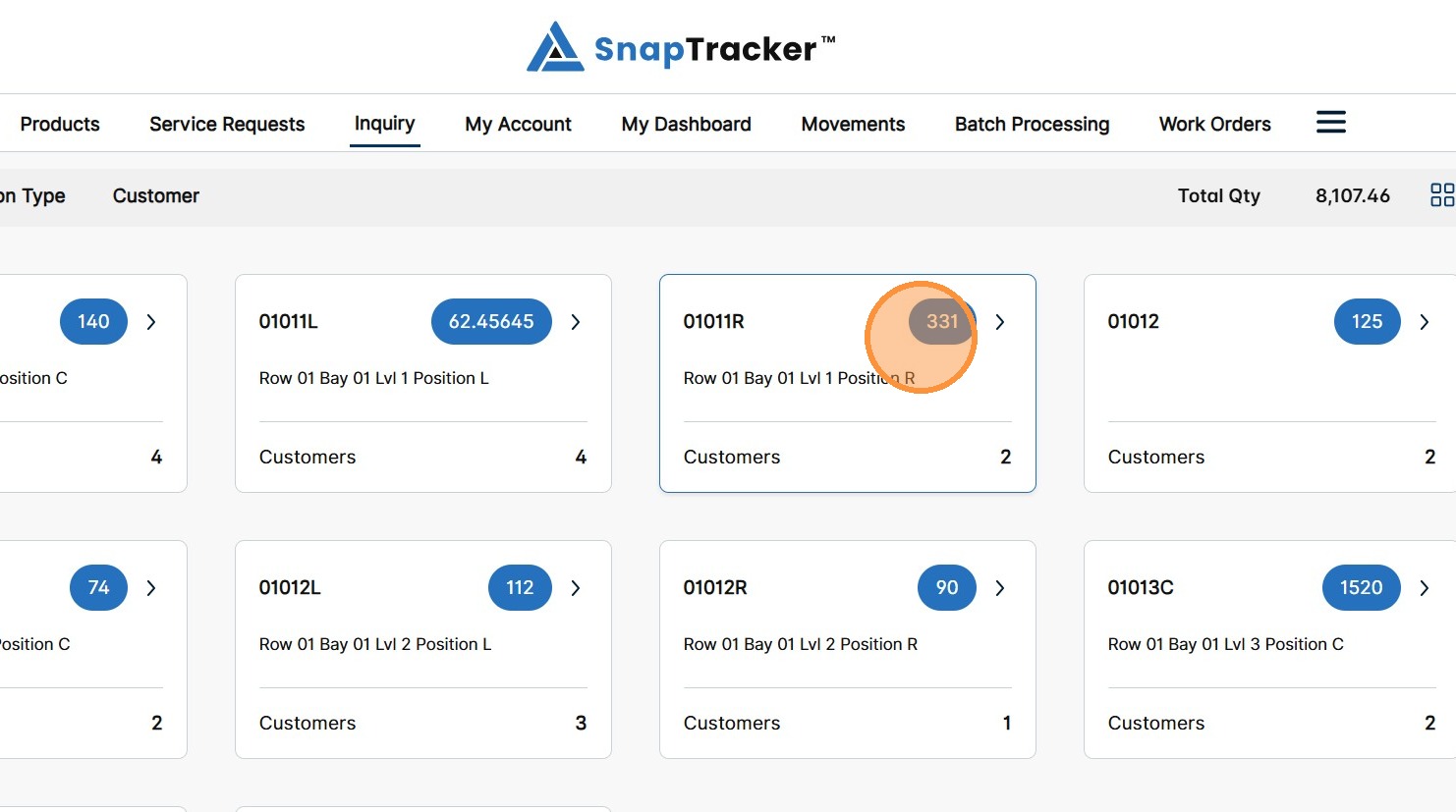
7. To see product details in a result card, click the card.
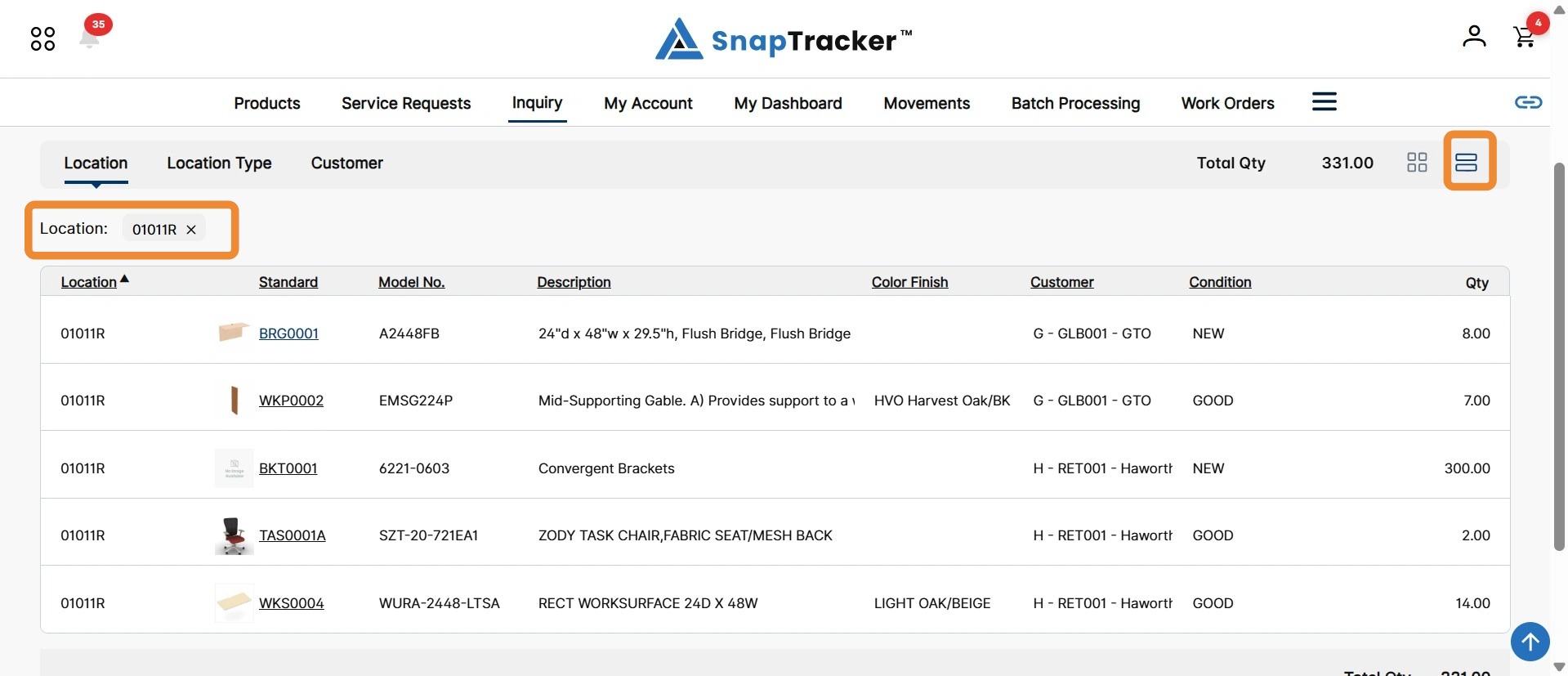
The Report view displays with Standard level details. The Report View icon is selected.
Note: The selected result card displays as a filter pill, indicating the results are only displaying for the selected option.
Click the associated ‘X‘ or navigate to another tab to clear the filter pill.
8. To access the report view from the Result View without selecting a result card, select the Report View icon.
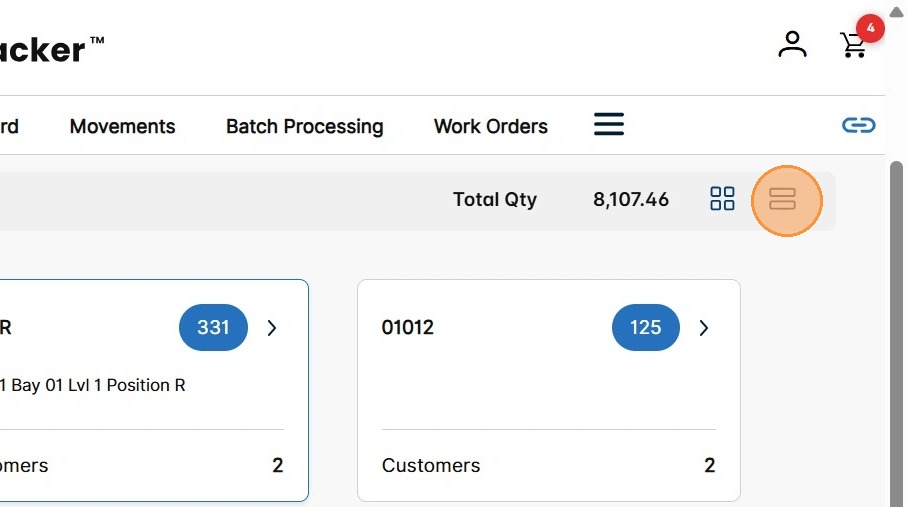
The Report View displays.
For more information on navigating the Report View, see “How to Use Inquiry – Location Content – View Report.”
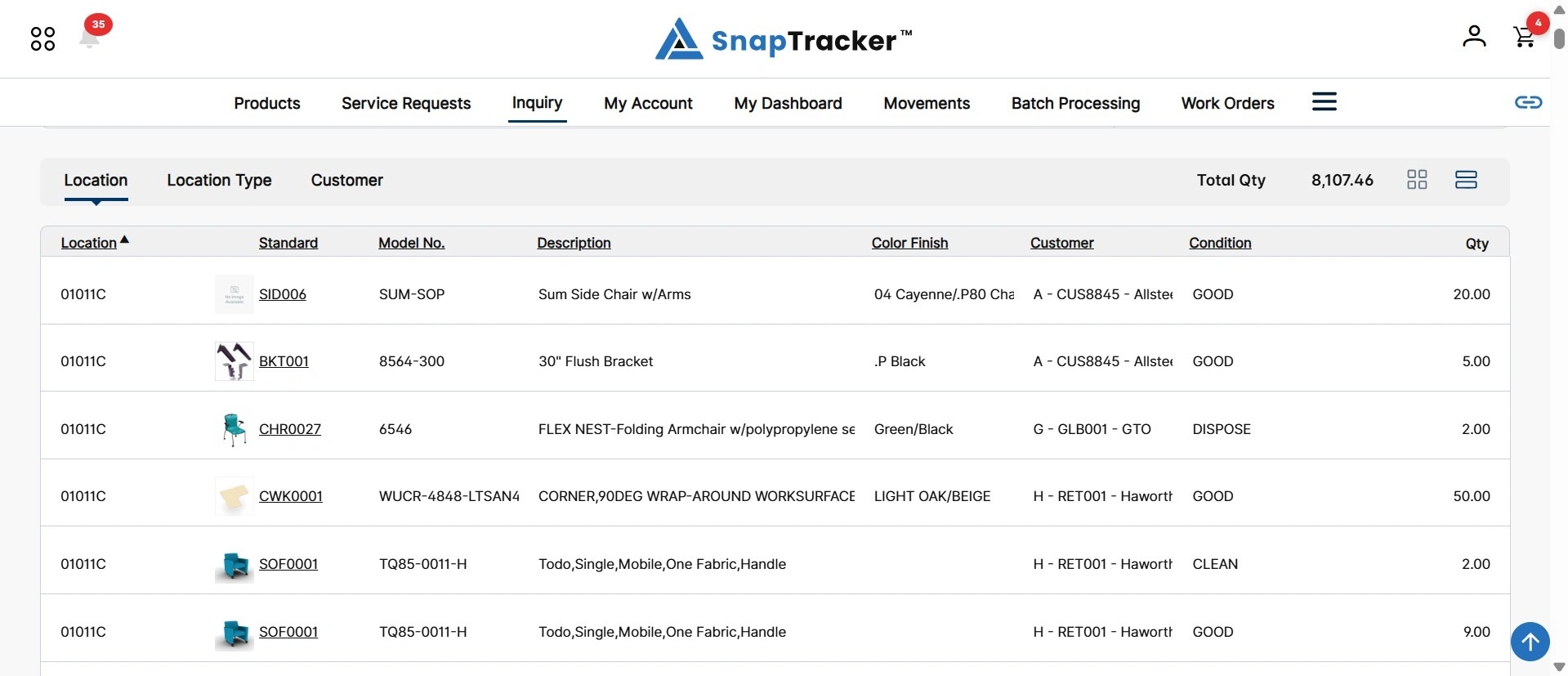
An additional option is available in View Results to see summary information and product details at the same time.
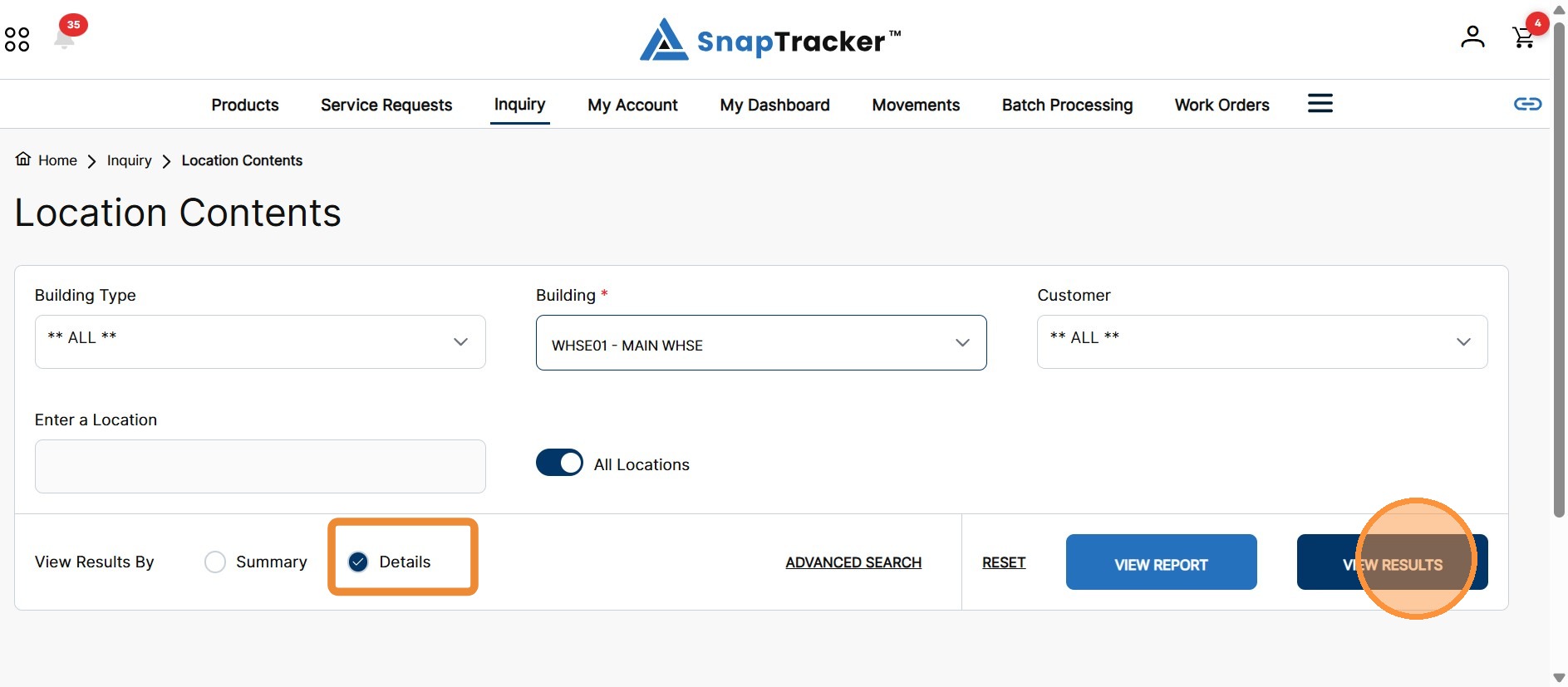
9. On the Main Search screen, from View Results By, select Details and click View Results.
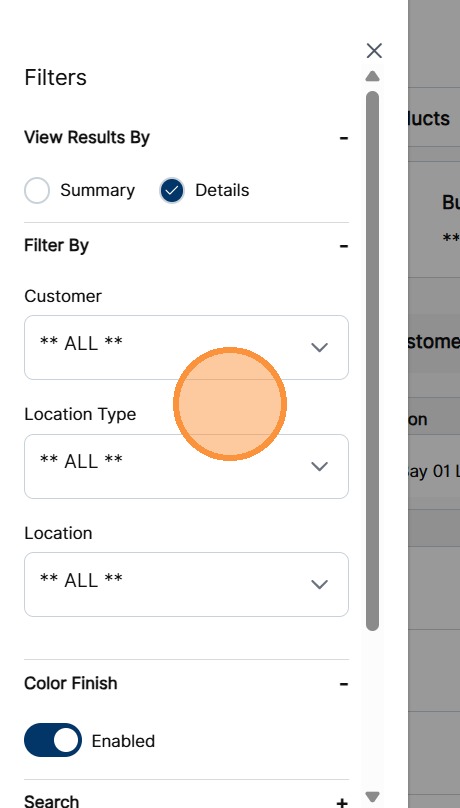
The view can also be modified in the Filters side panel within the results.
Click Filters to open the Filters side panel.
In the View Results By section, select Details and click Apply.
For more information on using the Filters side panel, see “How to Use Inquiry – Location Content – Results Header.”
The Building Overview screen displays by Details in the View Results format.
The default Location tab is highlighted and the results are displayed in expandable rows.
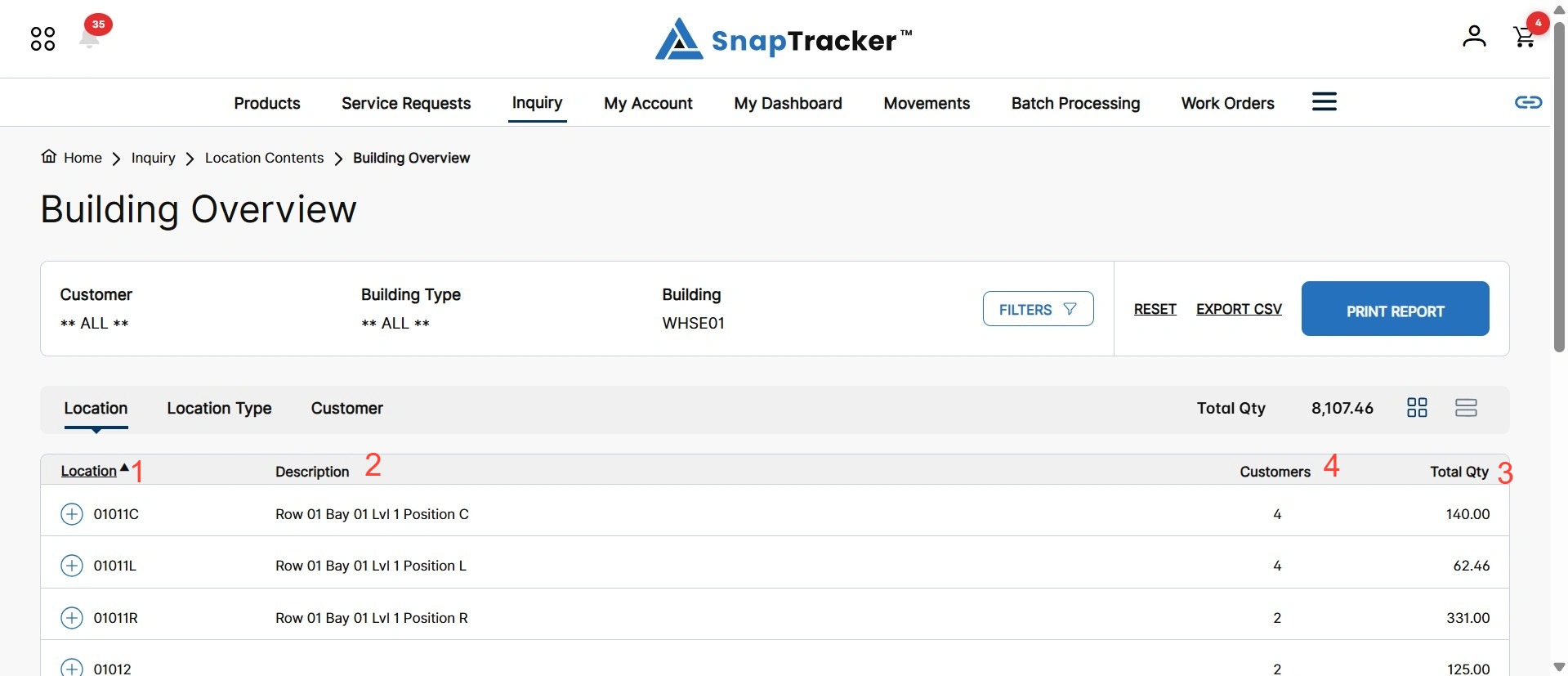
Each result row displays the following details (matching the results card view):
- Selected Category – In the Location Tab, this is the Location.
- Description – In the Location Tab, this is the Location Description.
- Quantity – In the Location Tab, this is the total quantity of products in the Location.
- Additional Totals – Depending on the selected tab, additional details are available such as the total number of Customers and/or Locations. In the Location Tab, the total number of Customers displays.
10. To see product details in a result row, click the + icon.
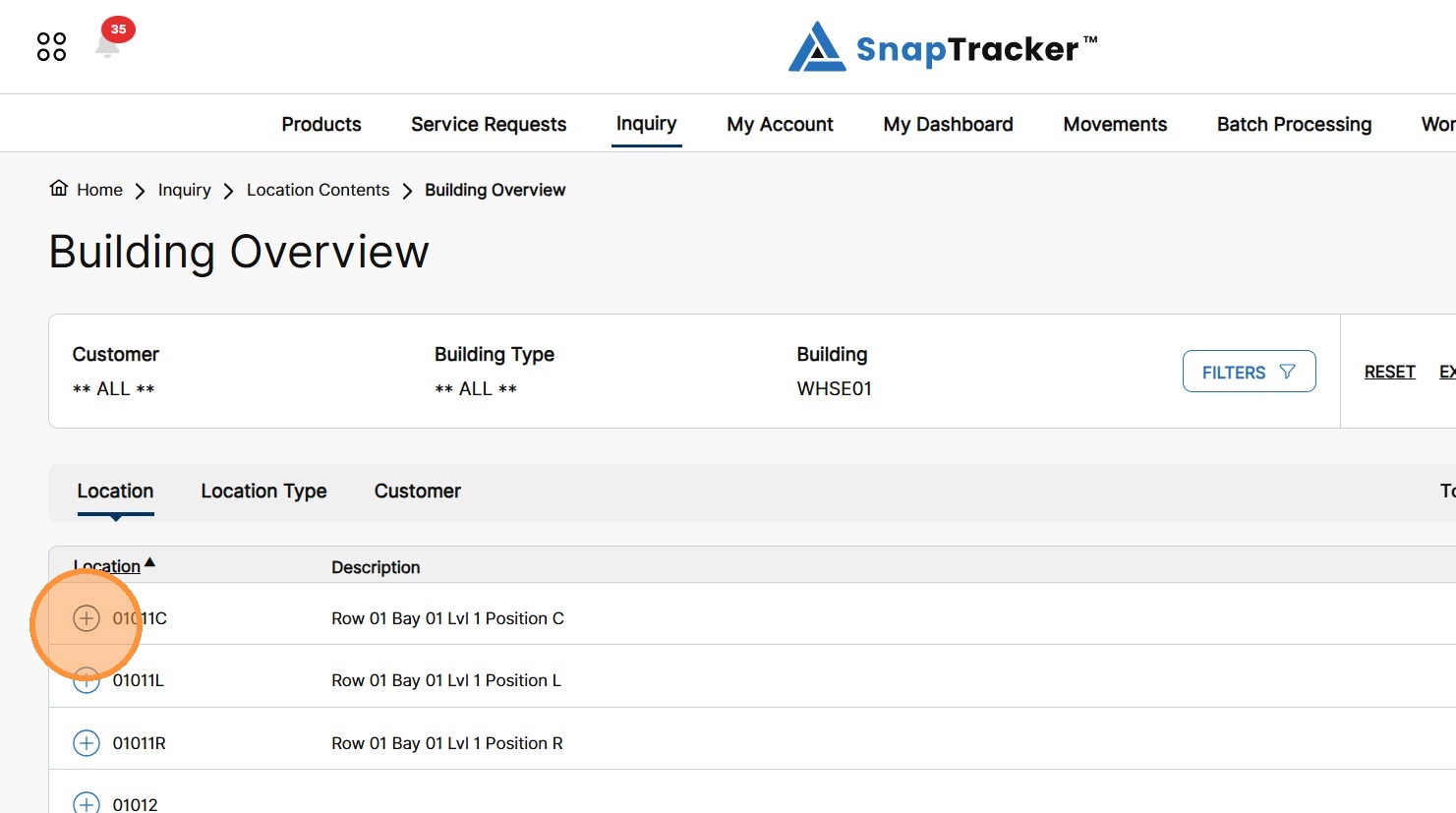
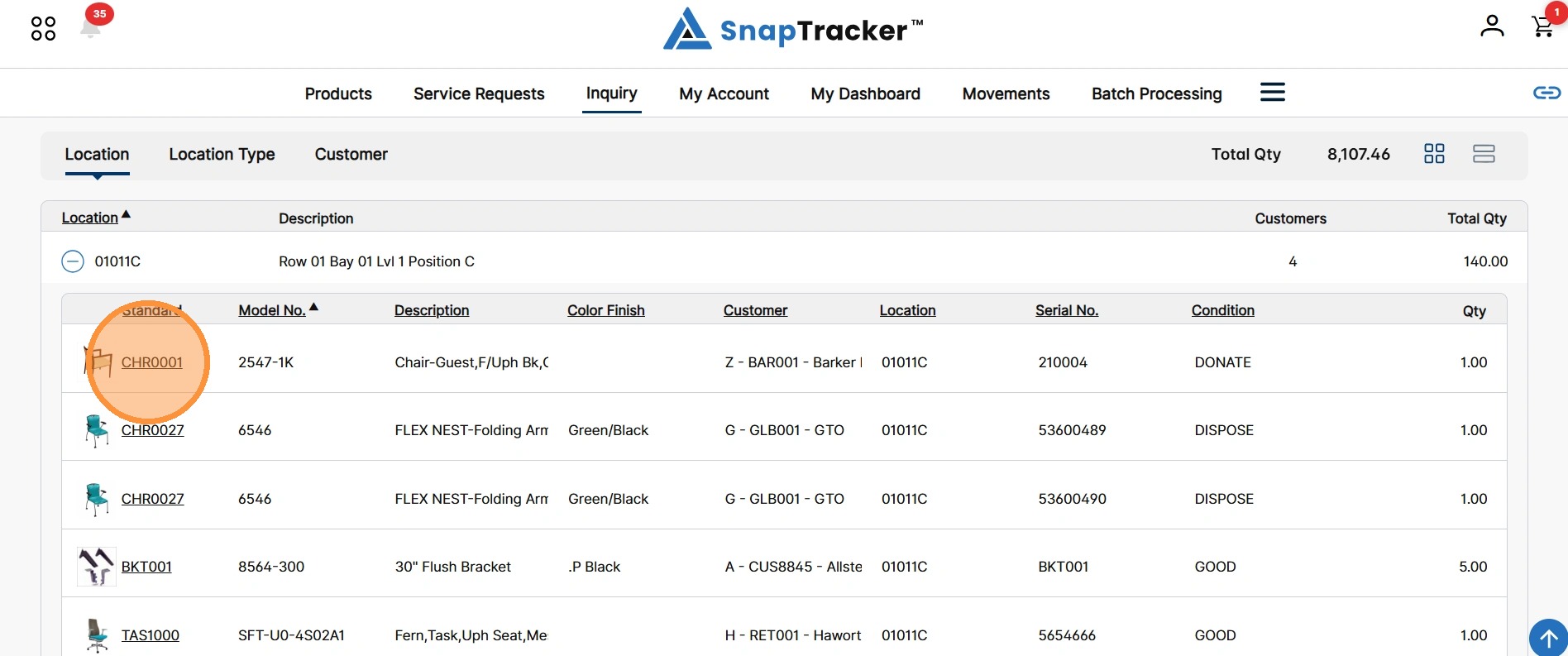
The Standard details display.
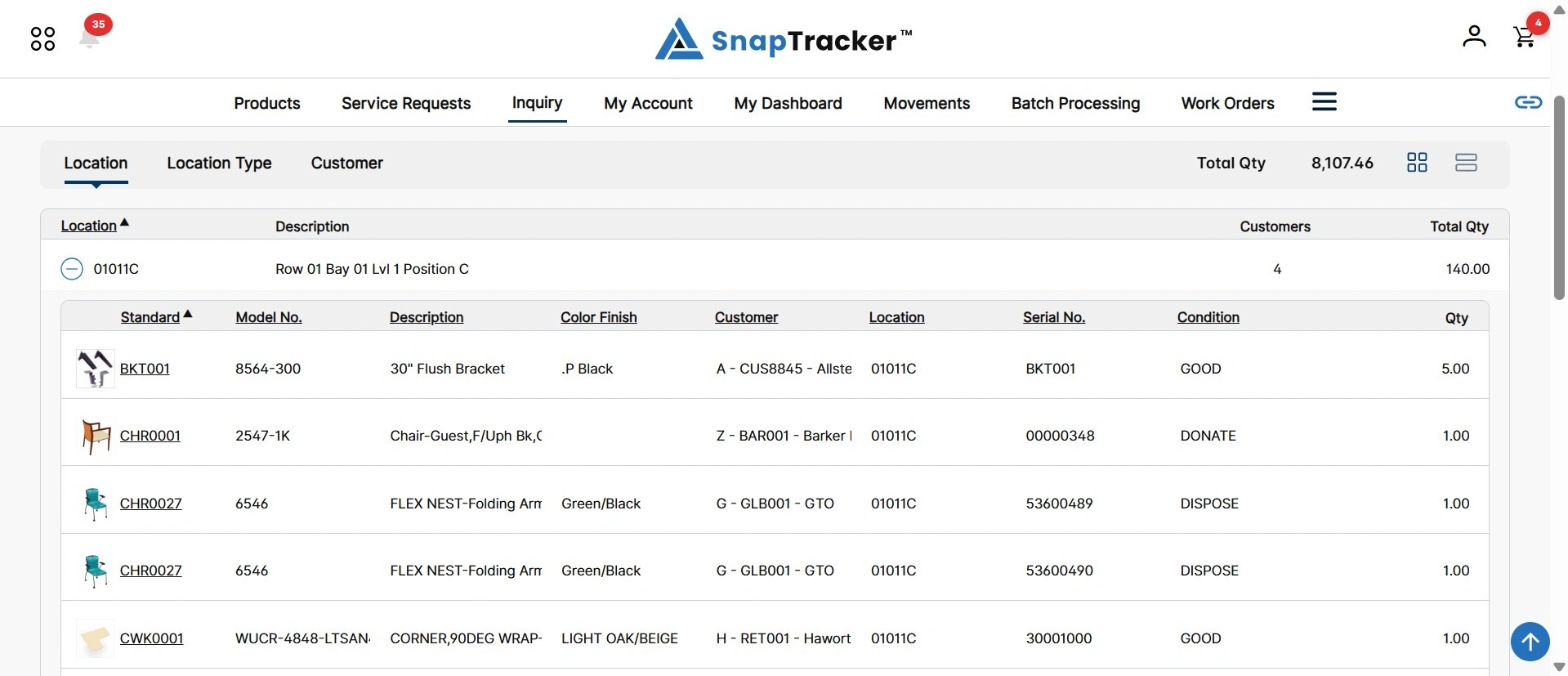
Observe the fields in the Standard Details table when Location tab is selected:
- Standard – The unique Standard identifier.
- Model No – The Model Number.
- Description – The Standard Description.
- Color Finish – The color finish of the Standard (if applicable). Note: Color Finish displays depending on whether the field is enabled.
- Customer – The Customer the Standard is associated to. Note: The format that the Customer field displays is based on Customer settings.
- Location – The Location the product is in.
- Serial No. – The unique serial number of the item. Note: Serial No. only displays if the search is View Result By: Details.
- Condition – The Condition associated with the total quantity.
- Total Qty – The total quantity of product on hand.
Note: These Standard Details may change based on your selections.
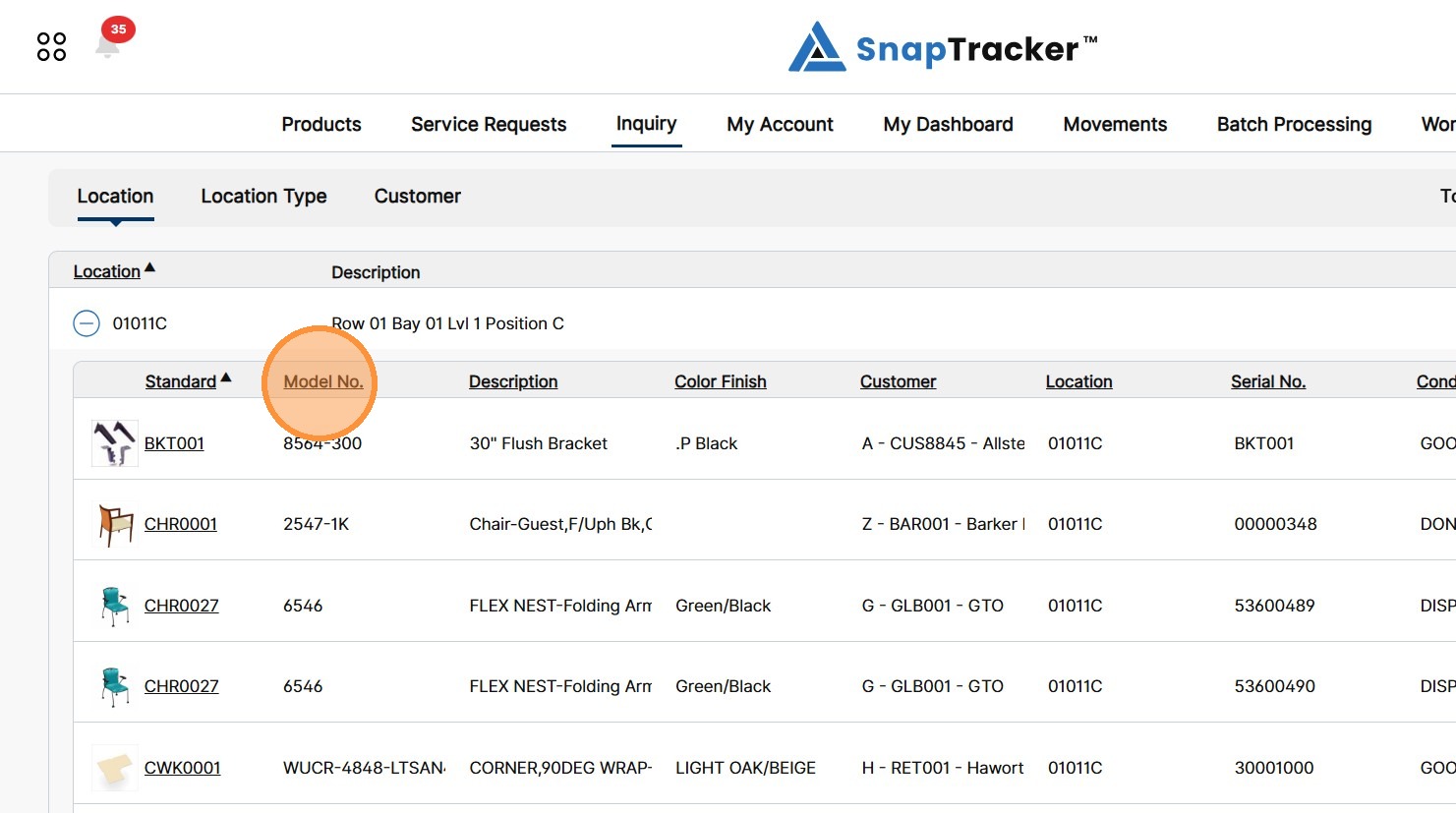
11. To reorganize the results, click a hyperlinked column header.
12. To view additional details related to a Standard, including a larger image, click a Standard hyperlink.
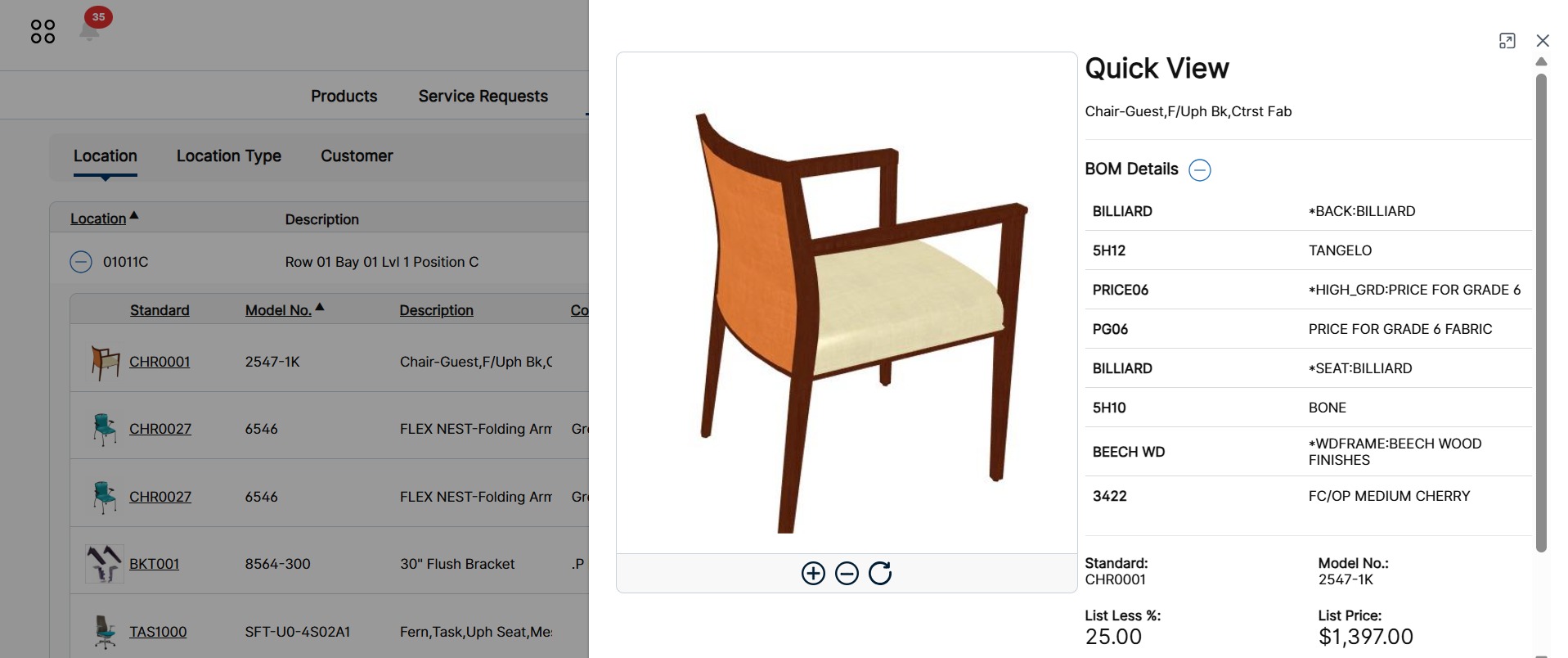
The Quick View side panel displays.
In the Quick View side panel, the large Standard image displays. If applicable, the Standard global gallery images are available to view. Additional Standard details such as BOM also display.
To close the Quick View side panel, click X.
To learn more about Location Contents, refer to the following:
“How to Use Inquiry – Location Contents – Basic Search.”
“How to Use Inquiry – Location Contents- Advanced Search.”