
How to Use Inquiry – Product Search
The Inquiry section is used to search for products. There are multiple ways of searching for products, such as using the Product Search function. Product Search is designed to show you a visual representation of your product offerings with images of the Standard Class (product category) and individual products.
Before starting, make sure:
- You are logged into SnapTracker.
- You have at minimum one Standard created.
- You have at minimum one Standard Class created.
- The correct Customer is selected from the Customer selection list.
This post outlines the process of inquiring for products using Product Search.
1. In the header section, click Inquiry.

2. Click Product Search.

The Product Search screen displays showing all available Standard Classes for the selected Customer.

3. To view filters, click the Filter icon to display filters.
Note: Depending on your user settings, filters may display by default.

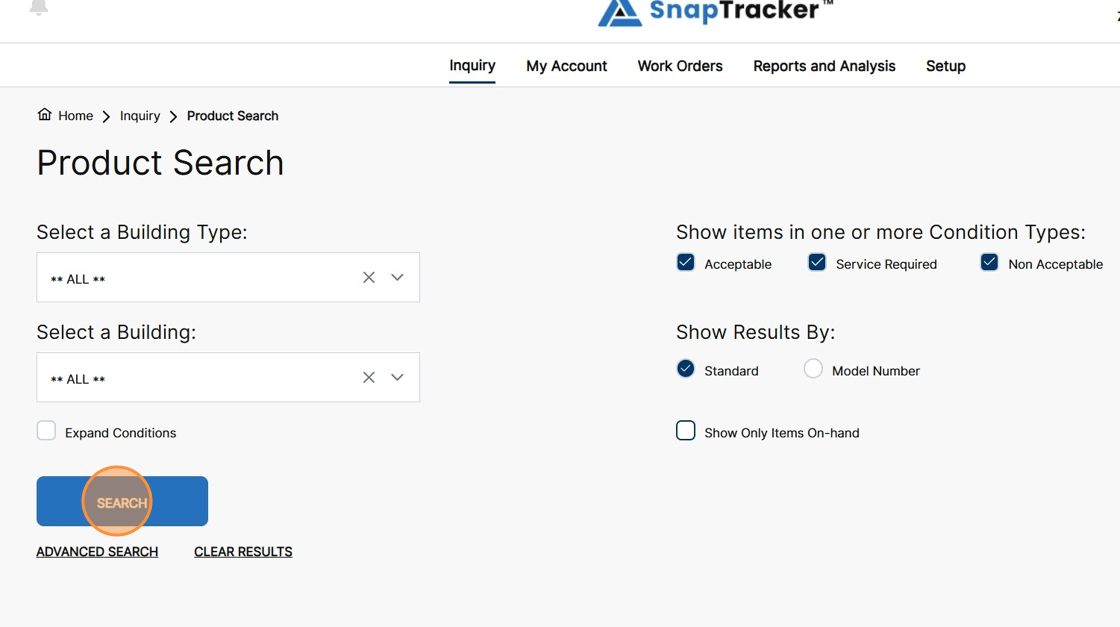
The Product Search filters display.

Observe the filters to narrow down your product:
- Select a Building Type – Select one, multiple, or all building types to filter by.
- Select a Building – Select one, multiple, or all buildings to filter by
- Show items in one or more Condition Types – Select the acceptability flag or specific conditions to filter by.
- Show Results By – Sort results by Standard or Model Number.
- Show Only Items On-Hand – Display only products with quantities on hand in the warehouse.
Note: Depending on your user settings, you may not see all filters listed above.
4. To open the Advanced Search Criteria pop-up, click Advanced Search.

The Advanced Search Criteria pop-up displays.

Observe the fields in the Advanced Search Criteria pop-up:
- Manufacturer – Select from available manufacturers on the site.
- Model No – Select from available model numbers on the site.
- Catalog ID – Select from available catalog IDs on the site.
- Height – Enter a desired product height in square ft or cubic ft (based on settings).
- Width – Enter a desired product width in square ft or cubic ft (based on settings).
- Depth – Enter a desired product depth in square ft or cubic ft (based on settings).
For the Search fields, select to search by Exact Match, Start With Characters, or Include Characters. Enter a related keyword.
- Standard Search – Search within the Standard field.
- Model No. Search – Search within the Model No. field.
- Description Search – Select within the Standard Description field.
- Color Finish – Search within the Color Finish field.
- Option Finish – Search within the Option Finish field.
5. Populate the desired filter fields in the Advanced Search Criteria pop-up and click Search.

6. Make your selections using the corresponding filter sections. Click Search.
The results display, categorized by Standard Classes.

7. Click a Standard Class.

The Standard results display, with Product Cards outlining standard details.
The results are displayed either by Standard or Model No. in ascending order. The default display is based on your user settings.

Observe the Product Card Details:
- Image – The standard image.
- Product Description – The manufacturer or custom product description. Hover on the description to display a tooltip.
- Model – The model number. This is the Manufacturer model number for a product.
- Standard – The Standard. This is the unique identifier in SnapTracker for a specific model number combined with specific options and finishes.
- Price – The standard purchase price.
- Total Qty – The total quantity of product in the warehouse.
- Avail. Qty – The total quantity of product available for use.
Note: Depending on your user settings, you may not see all fields listed above.
8. To change the way the results are sorted, click the Sort By Standard or Sort By Model No. dropdown.

The results change order based on your selection.
9. To add product to your cart, click the checkbox for the desired product, then click Add to Cart.

The selected product is added to your cart and a message displays informing you.
10. To view more details about a product, click the magnifying glass icon.

The Quick View side panel displays.

11. To add product to your cart from the side panel, modify the Quantity field (if required) and click Add to Cart.
The selected product is added to your cart and a message displays informing you.

12. Click X to close the side panel.

13. Click the Standard image, Model Number or Standard to go to the Product Summary screen for the selected product.
For more information, refer to “How to Use the Product Summary and Location Summary Screens“.
