
How to View My Quotes
All pending quotes you create can be viewed and accessed on the My Quotes screen.
Before starting, make sure:
- You are logged into SnapTracker.
- Your user account has shopping enabled.
- You have access to at minimum one customer with shopping enabled.
- You have access to My Quotes.
- A Quote is already created with product in it.
This post outlines how to view and access the My Quotes screen and Quote Details screen.
1. In the header section, click My Account.

2. Click My Quotes.

3. Alternatively, in the header section, click the Cart icon.

4. In the Cart side panel, click My Quotes.

The My Quotes screen displays.

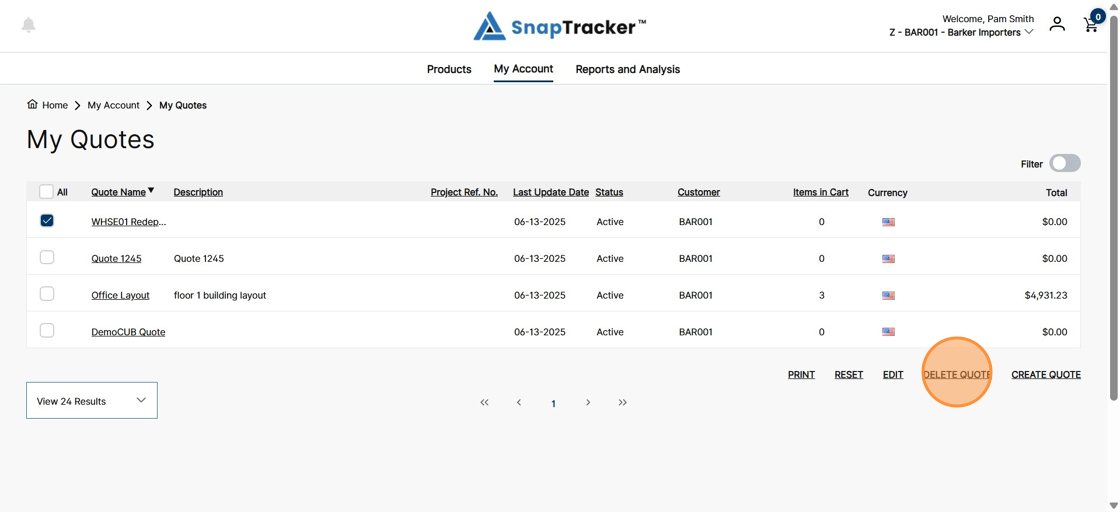
Observe the field on My Quotes screen:
- Quote Name – The name of the quote.
- Description – A description added to the quote.
- Project Ref. No. – The project reference number associated to the cart in the Checkout screen (optional).
- Last Update Date – The date the quote was last updated.
- Status – The status of the quote.
- Customer – The customer the quote is created for.
- Items in Cart – The number of items in the quote.
- Currency – The currency the quote is created in (if applicable).
- Total – The total value of the products in the quote.
5. By default, the results display by Quote Name in ascending order. You can change the way the quotes are sorted by clicking any hyperlinked column to sort accordingly, in ascending or descending order.

Observe the primary actions:
- Print – Print the summary detail of the selected quote(s).
- Reset – Reset any applied filters.
- Edit – Edit the quote name and description of the selected quote(s).
- Delete Quote – Delete the selected quote(s).
- Create Quote – Create a new quote.

6. To delete or edit a quote, select checkbox(es) beside the quote and click either EDIT or DELETE QUOTE.
7. To filter your search, click the Filter icon.
Note: The Filters section may display by default, depending on your user settings.

The filters in the My Quotes screen display.

One filter or a combination of filters can be applied to get the desired results.
- Search By – Select a field to search for a keyword in.
- Enter Search Text – Combined with Search By. Type in a keyword to search for in the selected field.
- Date Range – Select a date range to filter.
8. Make your selections using the corresponding sections. Click Search.
The filtered results display.

9. To view the full details of a quote, click the hyperlinked quote name.

The Cart screen displays.

10. Review the full quote details and history in the Cart screen.

11. To view the Checkout Details of the quote, click Create Quote.

The Checkout screen displays.
Note: The Checkout screen in the My Quotes screen is identical to the Checkout screen for a regular cart.

12. To exit the quote and return to the My Quotes screen, from the breadcrumb trail, click My Quotes.

You return to the My Quotes screen.