KITS Assist AI Tools –
Now in The KITS Collaborator™ v4.0.08
KITS Assist AI Tools are now available in The KITS collaborator™ v4.0.08 for Windows XRPro users with an active KITS Assist license. With Smart AI Render, you can turn a standard project layout into a more realistic, presentation-ready visual using AI-generated environments and enhancements.
To update the KITS App to access the new features of V.4.0.08, click here to update and follow the prompts.
PLEASE NOTE: This version is exclusively available for users on the Windows XRPro Edition with an active KITS Assist license. To purchase an upgrade click here.
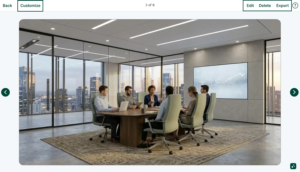
With the integration of Smart Render AI, The KITS Collaborator now allows you to transform a standard project layout into a photorealistic experience.
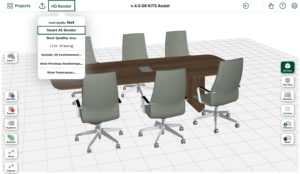
To get started, have a project started in your scene builder and click on HD Render > Smart AI Render.
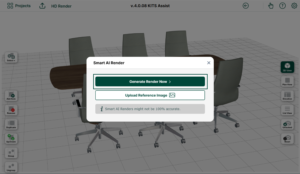
With the Smart AI Render, you have the option to Generate a Render Now or Upload Reference Image for the AI to work from.
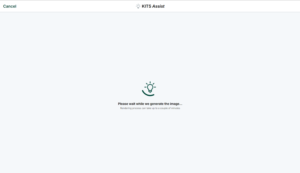
PLEASE NOTE: The Smart AI Render may take longer depending on your internet connection and the size of the project.
When the initial render is created, click Customize at the top to further enhance the AI Render.
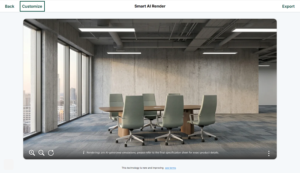
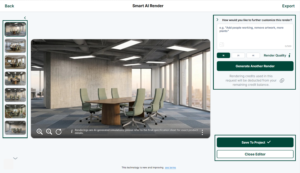
To enhance your rendering with AI, type in the necessary prompts into the text-box.
TIPS!
- It is important to be descriptive while staying concise, shorter sentences are more effective than long paragraphs
- If you would like to remove the generic environment, in the prompt box type “remove environment and keep existing items as is”
- The Smart AI Render can hallucinate and add additional items, furniture, etc. so it is important to consider the perspective in which you set your project in and remember to include what to do and not to do before you generate a new render.
Select your resolution and click Generate Another Render. All of your generated renderings will be found on the left side of the screen.

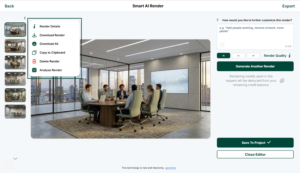
To view the Render details, copy, download or delete an AI Render, hover your mouse over a render on the left side and click on the 3 buttons for a pop-up.
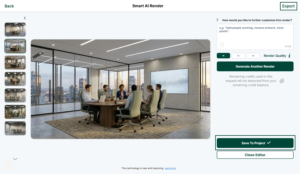
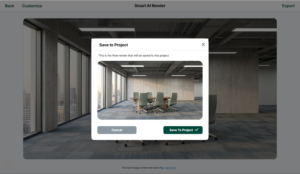
To save a rendering to your project, click Save to Project. To export the rendering to your computer, click Export at the top right corner.
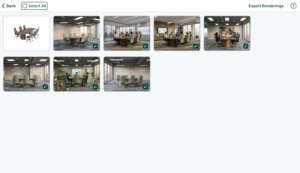
To view your saved AI Renders, click on HD Render > View Previous Renderings. The renders created with AI will have an icon at the bottom right corner of each render.
When you view a saved rendering, you have the option to Customize using the Smart AI Render, Edit and annotate the rendering, Export to your computer or Delete it.